
How to install Webmin on Ubuntu 22.04?
Introduction
Webmin is a web-based server control panel that allows you to manage and configure Linux systems and other Unix-like operating systems from a graphical user interface in a web browser. Webmin provides a wide range of system administration tools, including network configuration, user and group management. And not only that, it also includes file and directory management, service configuration, database management, and much more.
Before starting the tutorial, do you not have a Cloud Linux Ubuntu 22.04 server where you can install your Webmin? Don't worry! With just one click, you can easily deploy it with SW Hosting.
Now that it has been clarified a bit what Webmin is. Let's start with the tutorial, in which you will be explained how to install Webmin on Ubuntu 22.04.
Step 1: Update the system
Before installing any new software on Ubuntu, remember that you should always update the system to have the latest versions of software packages. For this, open a terminal and execute the following commands:
sudo apt-get update
sudo apt-get upgrade
Step 2: Add the Webmin repository
The Webmin repository is not included in the default Ubuntu repositories, so you must add the Webmin repository yourself to install it. To add the repository, follow these steps:
- Open a terminal and run the following command to download and install the Webmin GPG key:
wget -q http://www.webmin.com/jcameron-key.asc -O- | sudo apt-key add -
- Next, run the following command to add the Webmin repository to the
/etc/apt/sources.listfile:
sudo sh -c 'echo "deb https://download.webmin.com/download/repository sarge contrib" >> /etc/apt/sources.list'
- Finally, update the package repositories by running the following command:
sudo apt-get update
Step 3: Install Webmin
Once the Webmin repository has been added, you can install it using the following command:
sudo apt-get install webmin
This command will download and install all necessary dependencies for Webmin and configure the web server and the services needed to run Webmin.
Step 4: Access Webmin
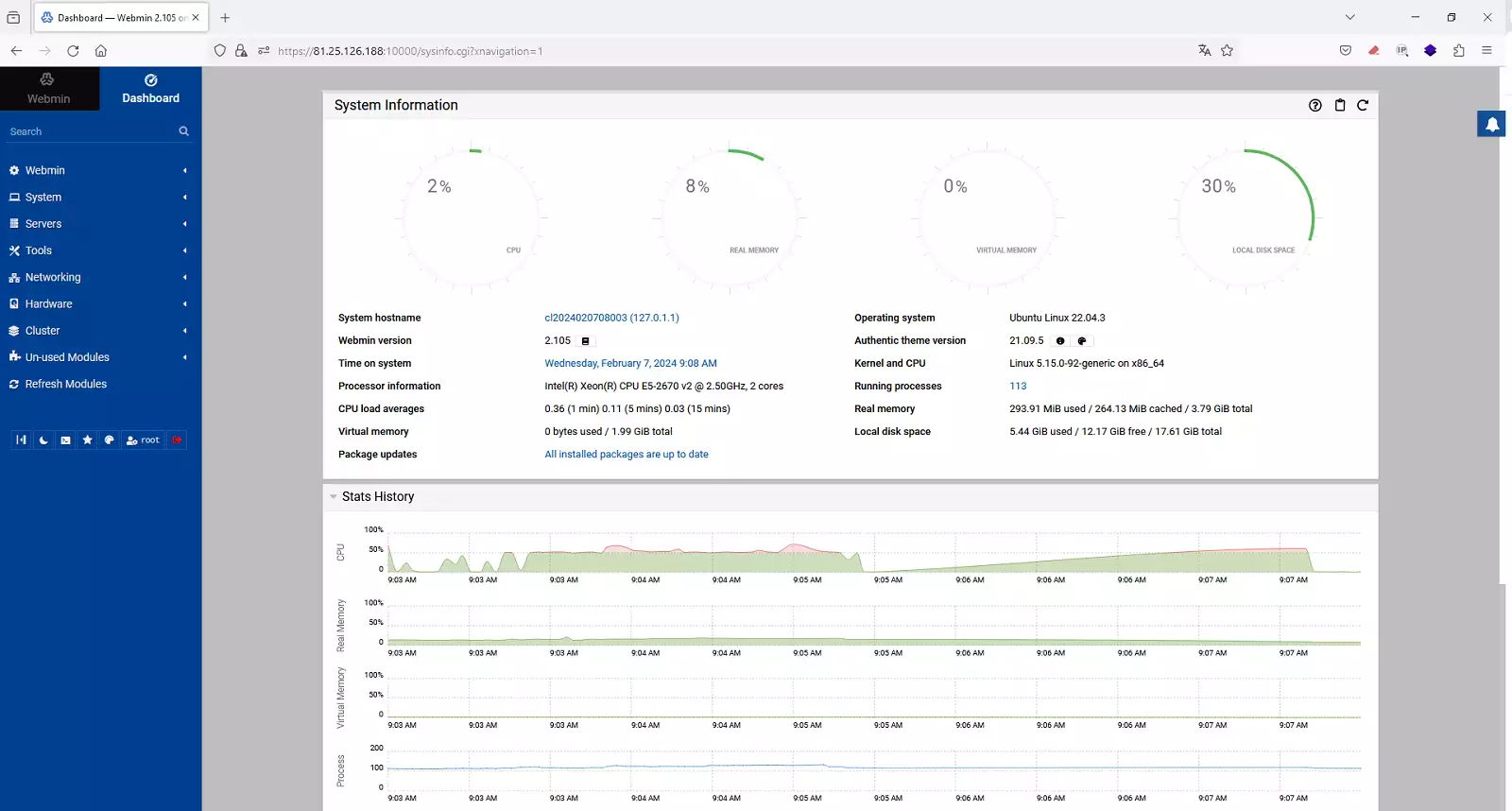
After completing the installation, you can access Webmin from a web browser at the address https://localhost:10000 or https://ip_address:10000. If you are accessing Webmin from the same machine where you installed it, you can use localhost as the address in your browser.

Step 5: Log in to Webmin
To log in to Webmin, use the same credentials that you use to log in to your Ubuntu system. If your account does not have superuser permissions, make sure to add the account to the list of users with access to Webmin. You can do this using this command:
sudo /usr/share/webmin/changepass.pl /etc/webmin/htusers <username>
Change <username> to the username you want to add.
success That's it, that's all! Now you have Webmin installed and running on your Ubuntu 22.04 server.
Remember that if you do not yet have a Cloud server with a Linux operating system, you can easily deploy it with SW Hosting.