
How to remove the default page of a Hosting Plan
Initial page for your new services
At SWHosting, in order to add a personal touch and so that you can have an initial page instead of an empty URL, we have implemented a default page for newly created services.
The specific page that you will see when entering your service's URL in the browser is the following:
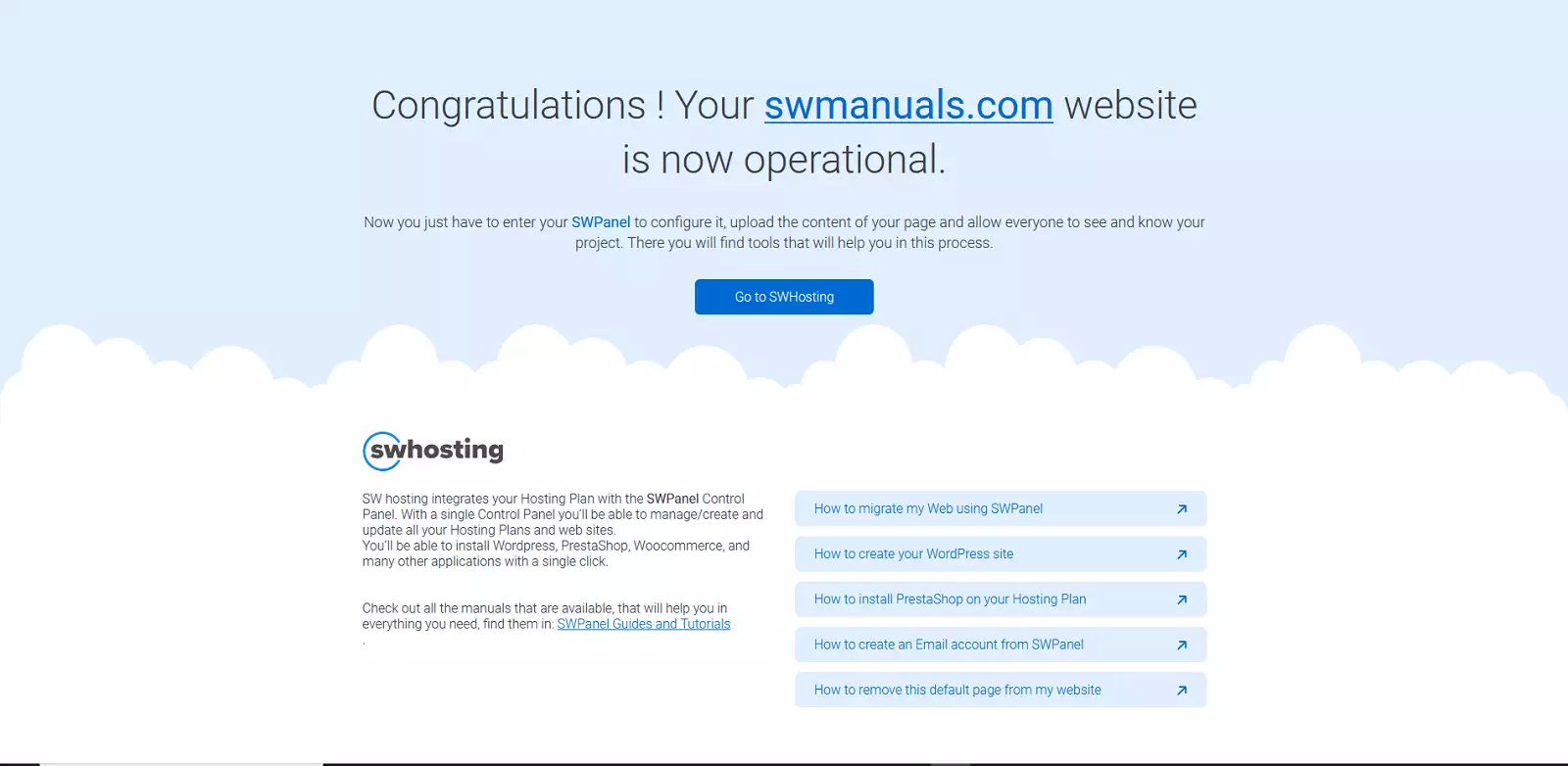
This page is a simple index.html file that is automatically generated when deploying a new service on our platform.
However, when the time comes to start creating your website, you will wonder: How can I remove the default page?
How to remove the default page from your Hosting Plan
To be able to delete the page automatically generated when creating your service, you simply need to delete the aforementioned index.html file.
To do this, you must follow the steps listed below:
1. First, enter the name of your service in the top search bar of your SWPanel.

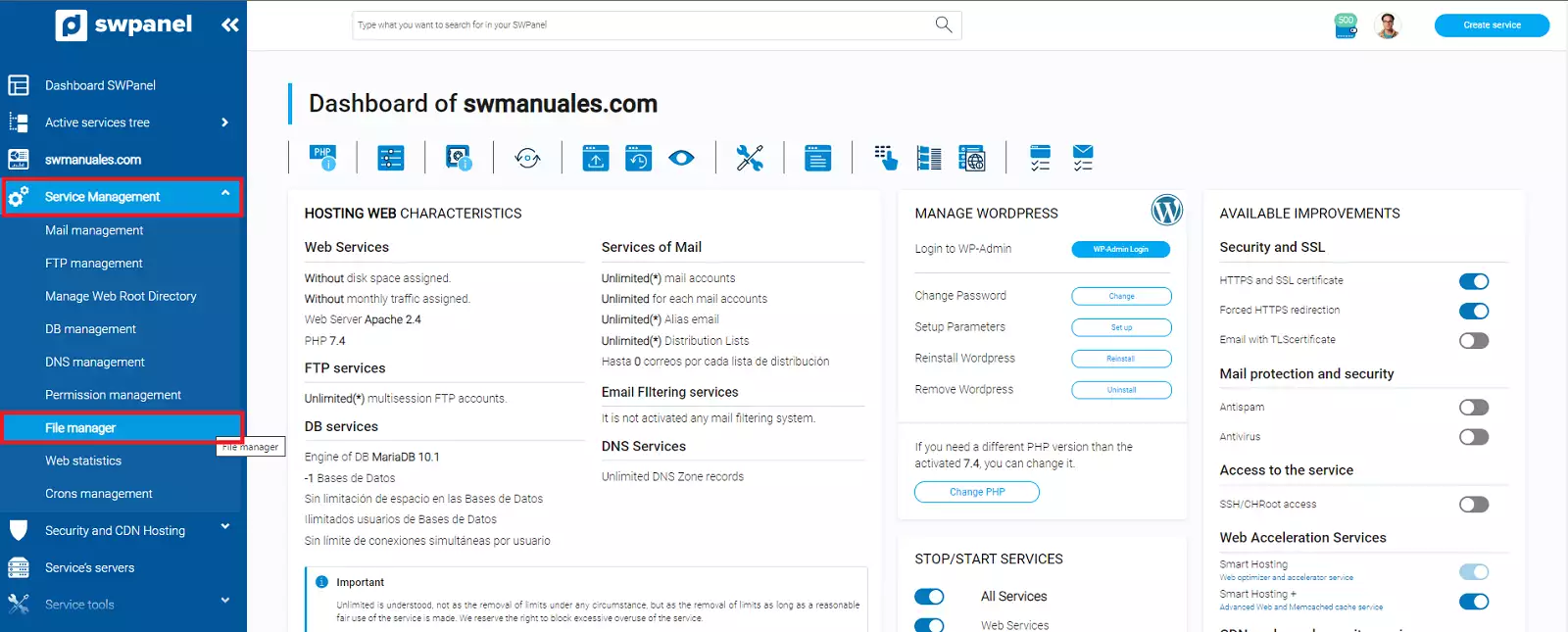
2. Subsequently, go to the side menu and select 'Service Management' -> 'File Manager'.
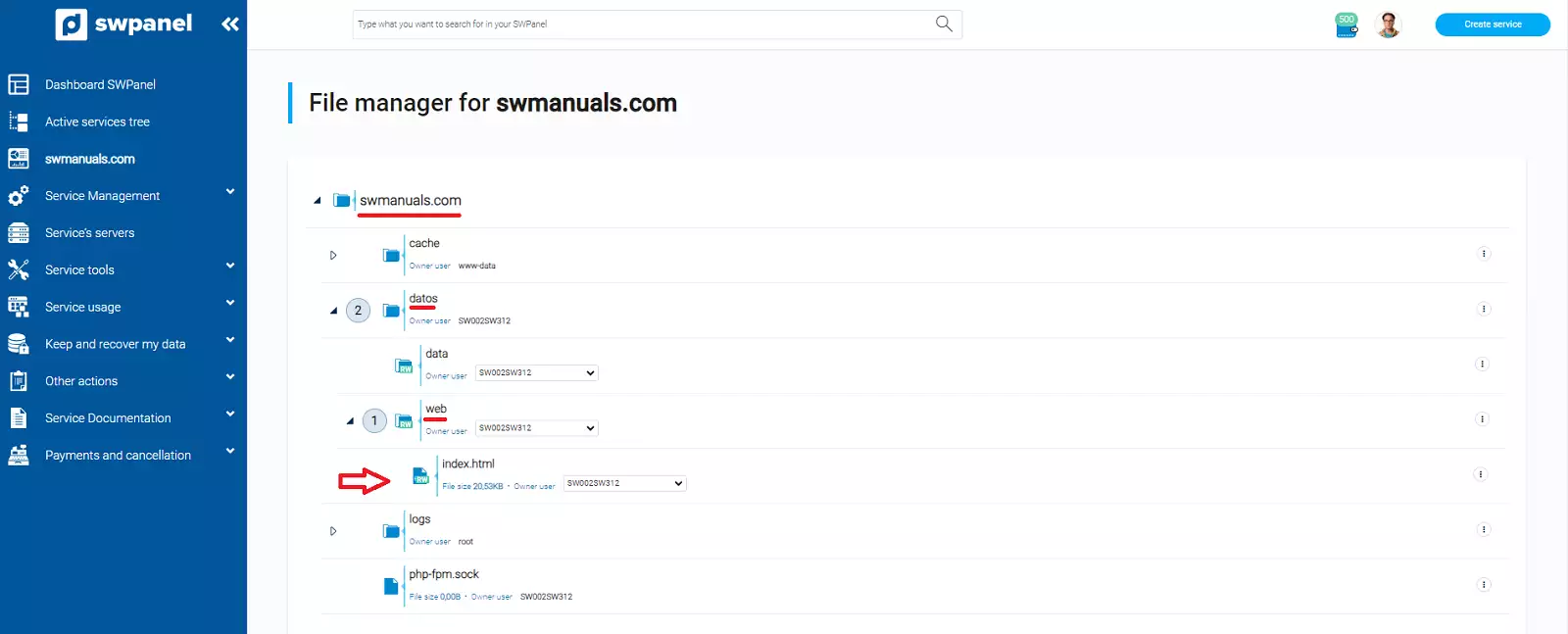
3. Once in the file manager of your SWPanel, you must expand the directory with the name of your service (in our example 'swmanuales.com'), the 'datos' directory and the 'web' directory to finally view the 'index.html' file.
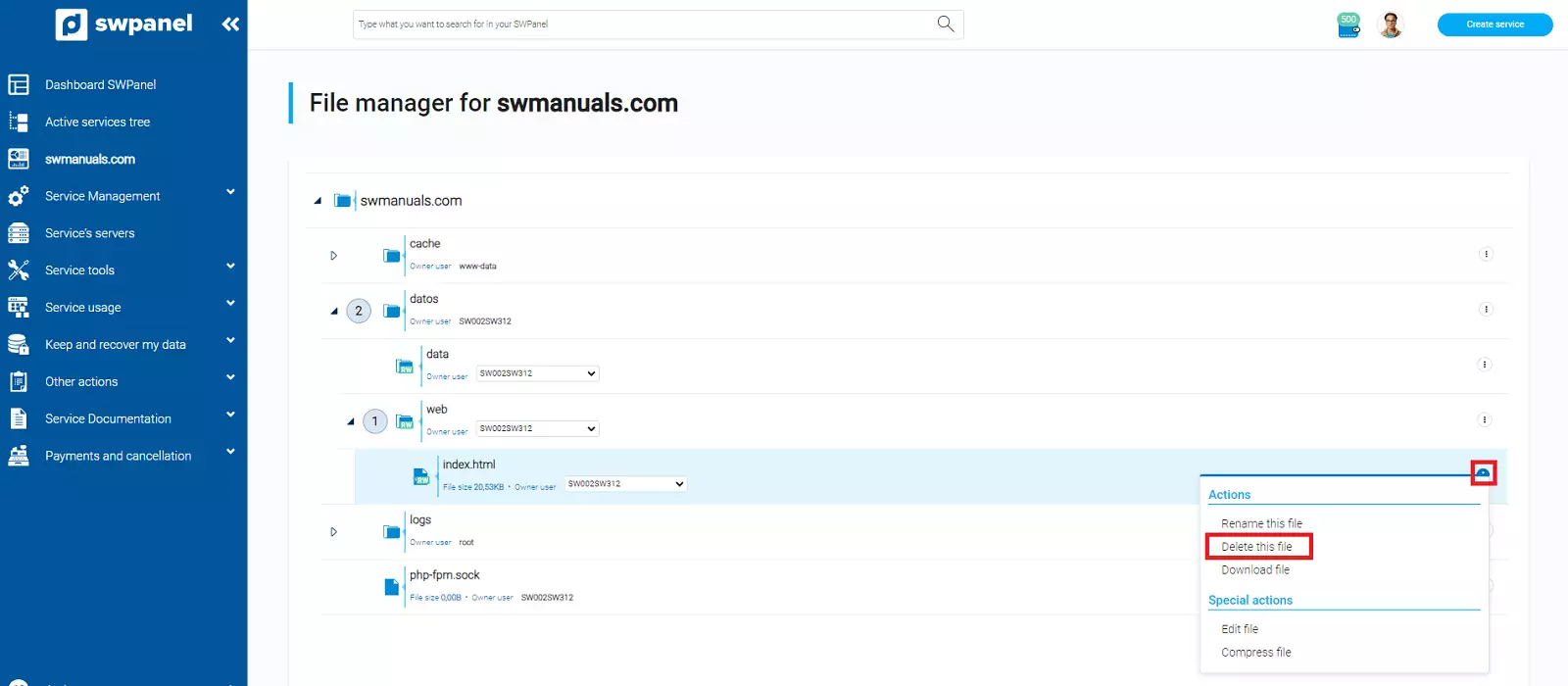
4. Finally, hover over the '...' dropdown to the right of the 'index.html' file and select the option 'Delete this file'.
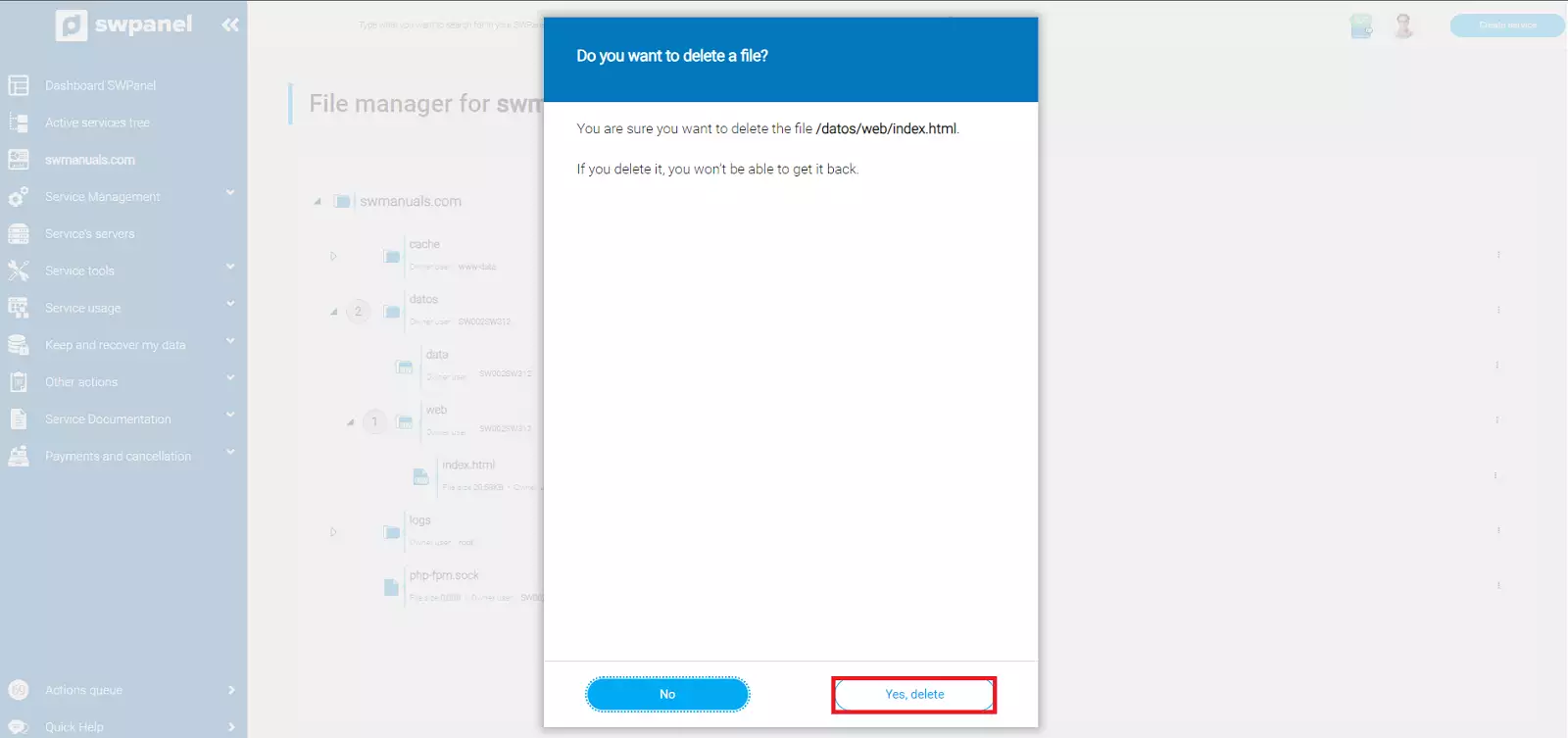
Subsequently, we must confirm that we really want to delete it.
Once the initial page has been deleted, keep in mind that when entering your website's URL in the browser, it will appear blank, so you may prefer to keep it until you have content to display.
Additionally, in case you install a CMS on your service (such as WordPress, PrestaShop, etc.) from the SWPanel dashboard, the 'index.html' file will be automatically deleted during the CMS deployment.