
How to redefine a service in a Cloud
The service redefinition option in a Cloud allows you to change a Hosting from your Cloud, whether it is Redirected Web Hosting or Email, to any other Cloud you have in the SWPanel Active Services Tree.
If you only have one Cloud, you can contract another by following the instructions in the following manual
Manuale: How to create a Cloud from SWPanel
This function also allows you to divide your service in a modular way; for example, if you have a Cloud with all the services and you contract two new Clouds (one for the database and another for email), you will be able to modify the current hosting to use the database and/or the email in a specific Cloud.
Important! When performing the service redefinition, it does not migrate CHROOT users, statistics/awstats, or PHP customizations.
-
To begin, you must go to the main Dashboard of SWPanel and locate the Hosting service you wish to redefine in the search bar located at the top of the SWPanel and select it.
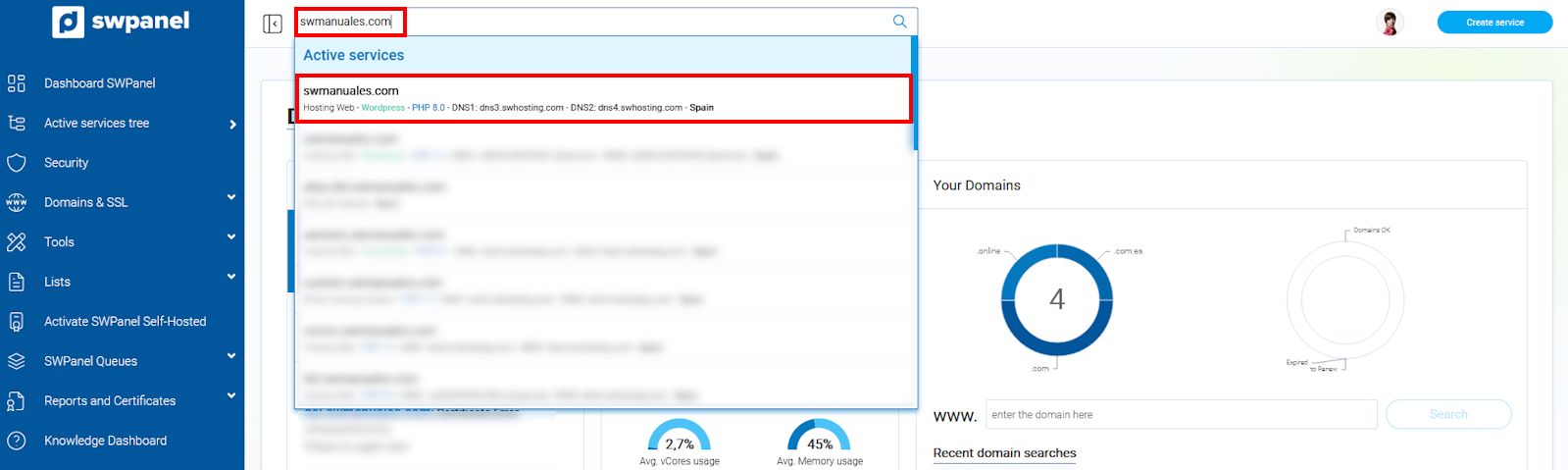
info_capture The screenshot is for guidance purposes. It was taken using version 2025.00.0017 dated 03/01/2025. It may differ from what the current version of SWPanel shows.
-
Once in the Dashboard of our Hosting service, you must click on the icon at the top where the text "Click to change the Cloud servers assigned to this service or the type of Hosting plan" is displayed.
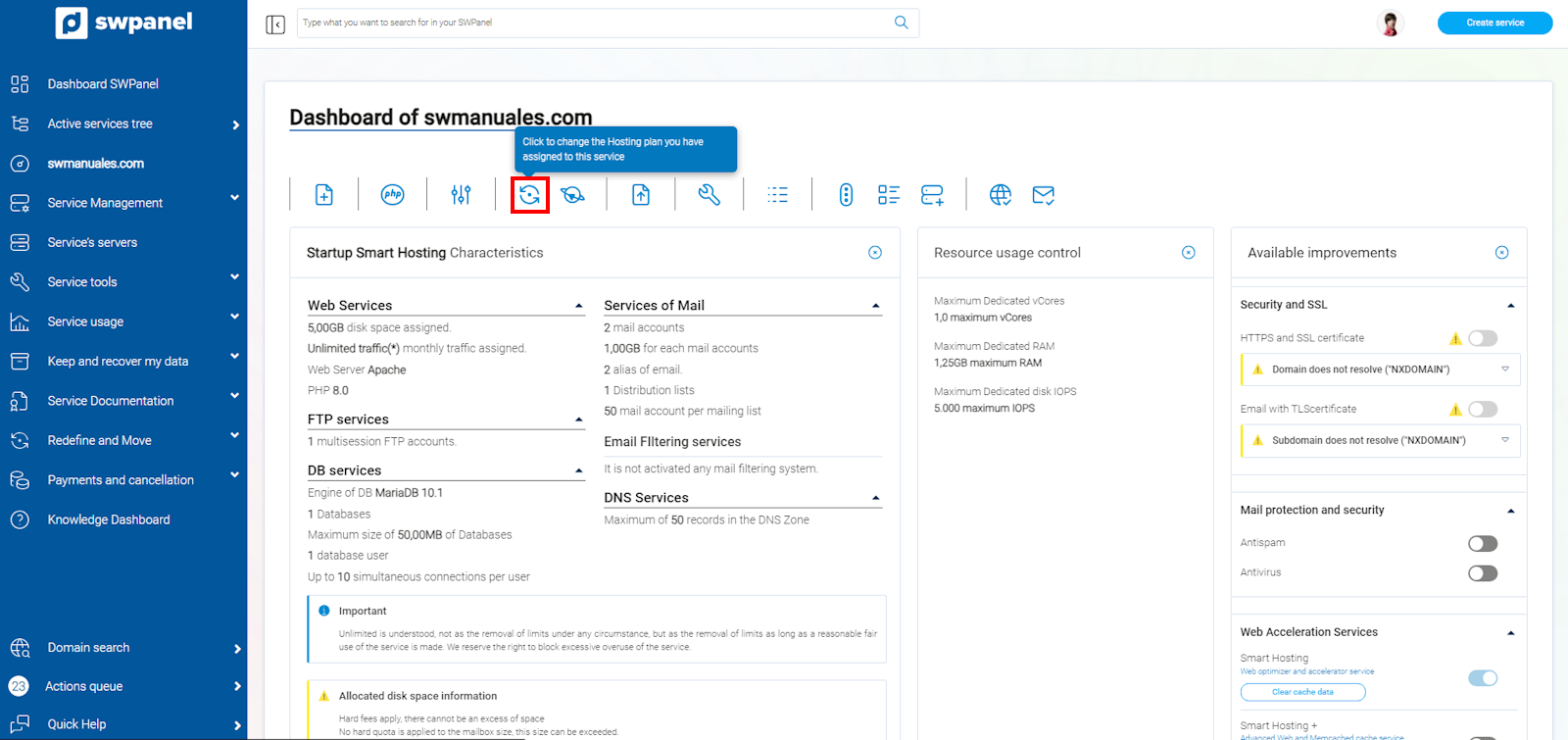
info_capture The screenshot is for guidance purposes. It was taken using version 2025.00.0017 dated 03/01/2025. It may differ from what the current version of SWPanel shows.
-
Once you are in the section to change the Hosting plan, on the left side, you must choose the Cloud where you want the selected service to be (Web Hosting, Redirected, or Email).
In the case of Web Hosting, in the "Distribution of services between servers" section, you will have the option to assign the email and/or the database to the Cloud you wish.
Once the configuration is complete, click on Next.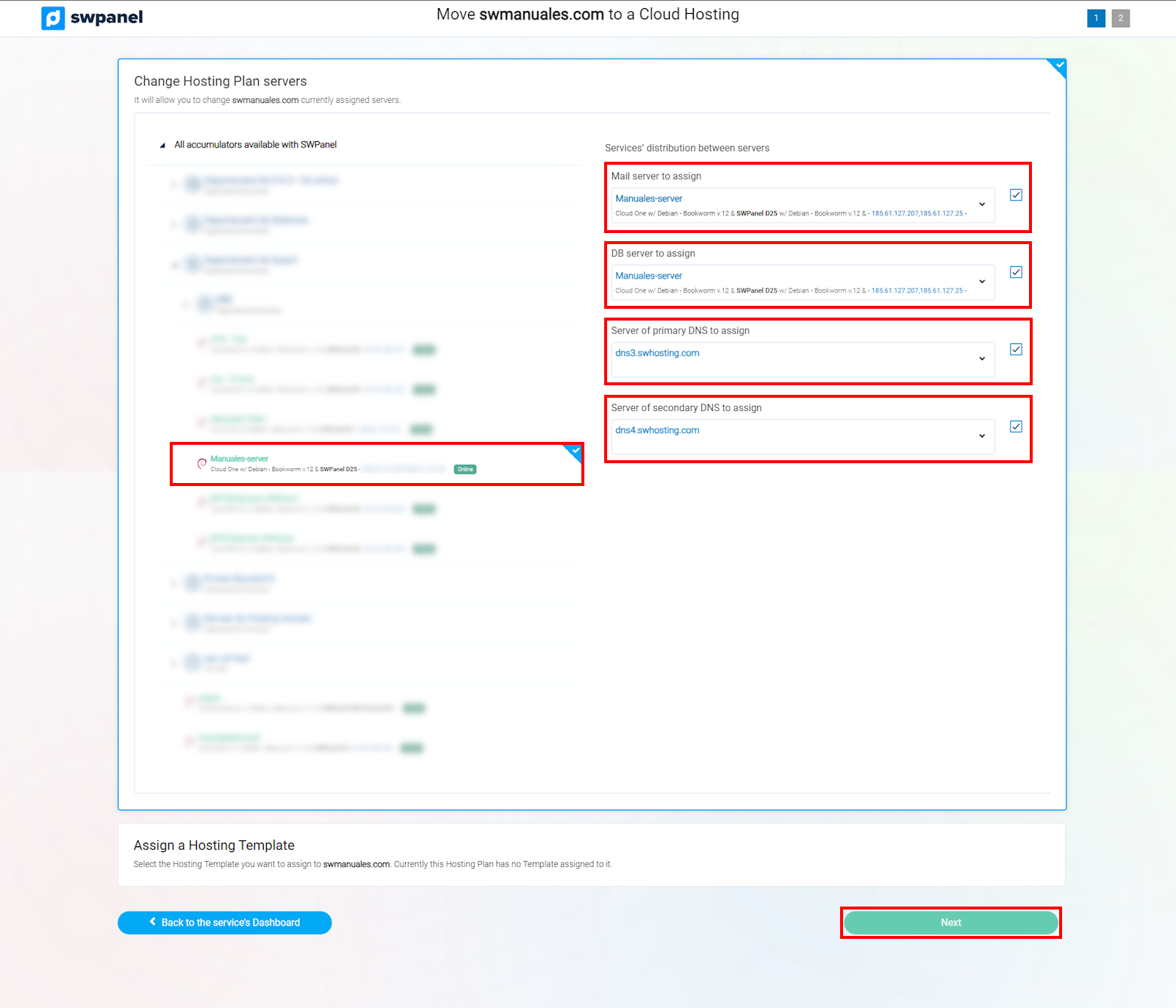
info_capture The screenshot is for guidance purposes. It was taken using version 2025.00.0017 dated 03/01/2025. It may differ from what the current version of SWPanel shows.
-
In this section, you must formalize the new configuration. Once reviewed, you must click on Accept and formalize.
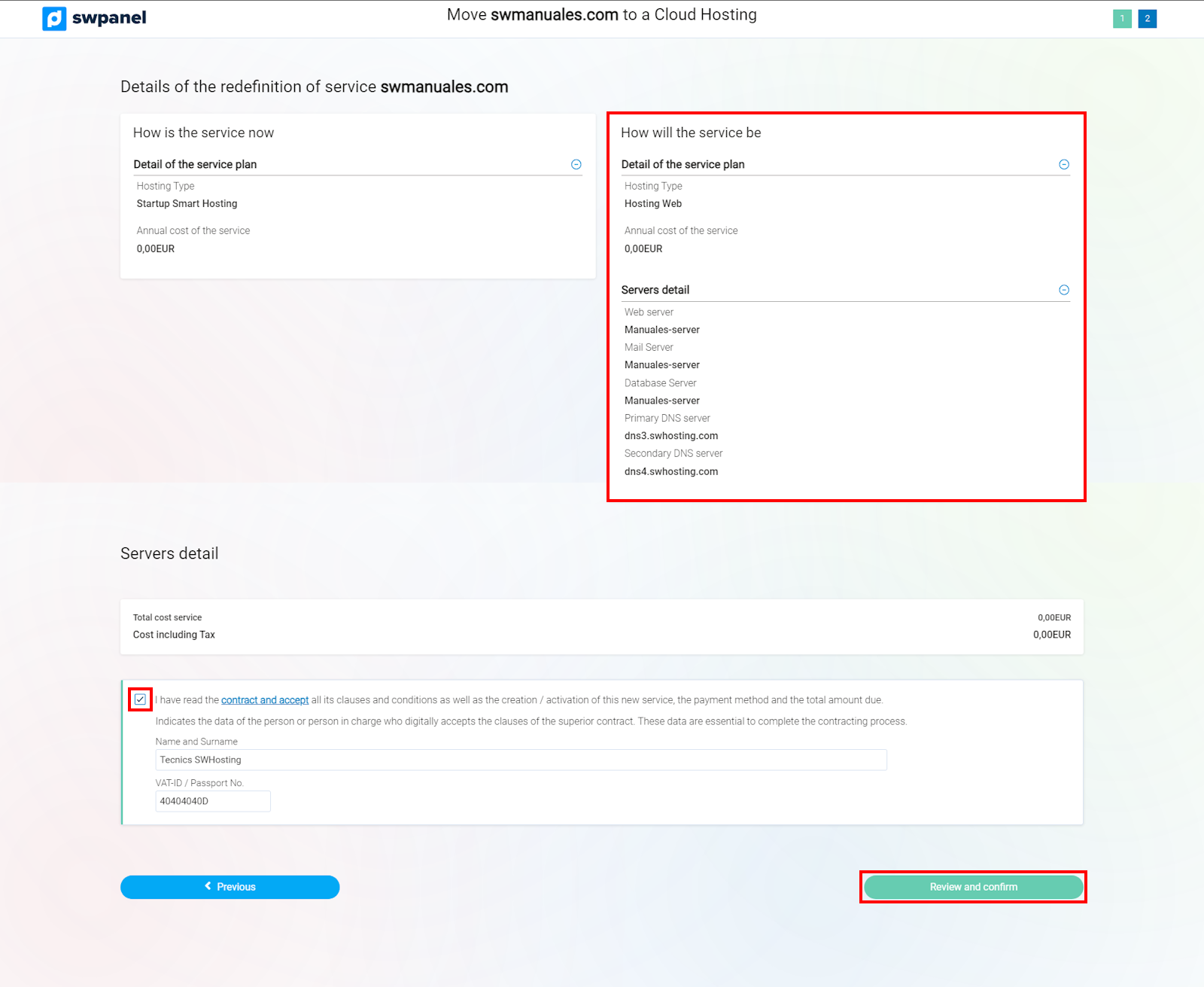
info_capture The screenshot is for guidance purposes. It was taken using version 2025.00.0017 dated 03/01/2025. It may differ from what the current version of SWPanel shows.
Important! We recommend that before starting the Hosting service redefinition process, you set your website to maintenance mode, so that there are no modifications at the file or database level during the time required for the service redefinition between your servers.
Important! When redefining services, if you have backups activated, these will be lost, so we recommend performing a local backup. Once the redefinition is finished, you must reactivate the backup in the service.
Important! When redefining services, the service will automatically change the DNS to point to the redefined service so that no modifications can be made to the source site.
Important! The source data is deleted after 5 days, so we recommend reviewing the redefinition once it has been carried out.
-
Once formalized, SWPanel will begin the redefinition and the following message will appear in the Active Services Tree: "This service is being prepared, please wait a few minutes..." in your service.
-
Once the service redefinition process is finished, the message "Your Hosting Plan is being changed" will disappear and you will be able to manage it normally via the [···] icon.
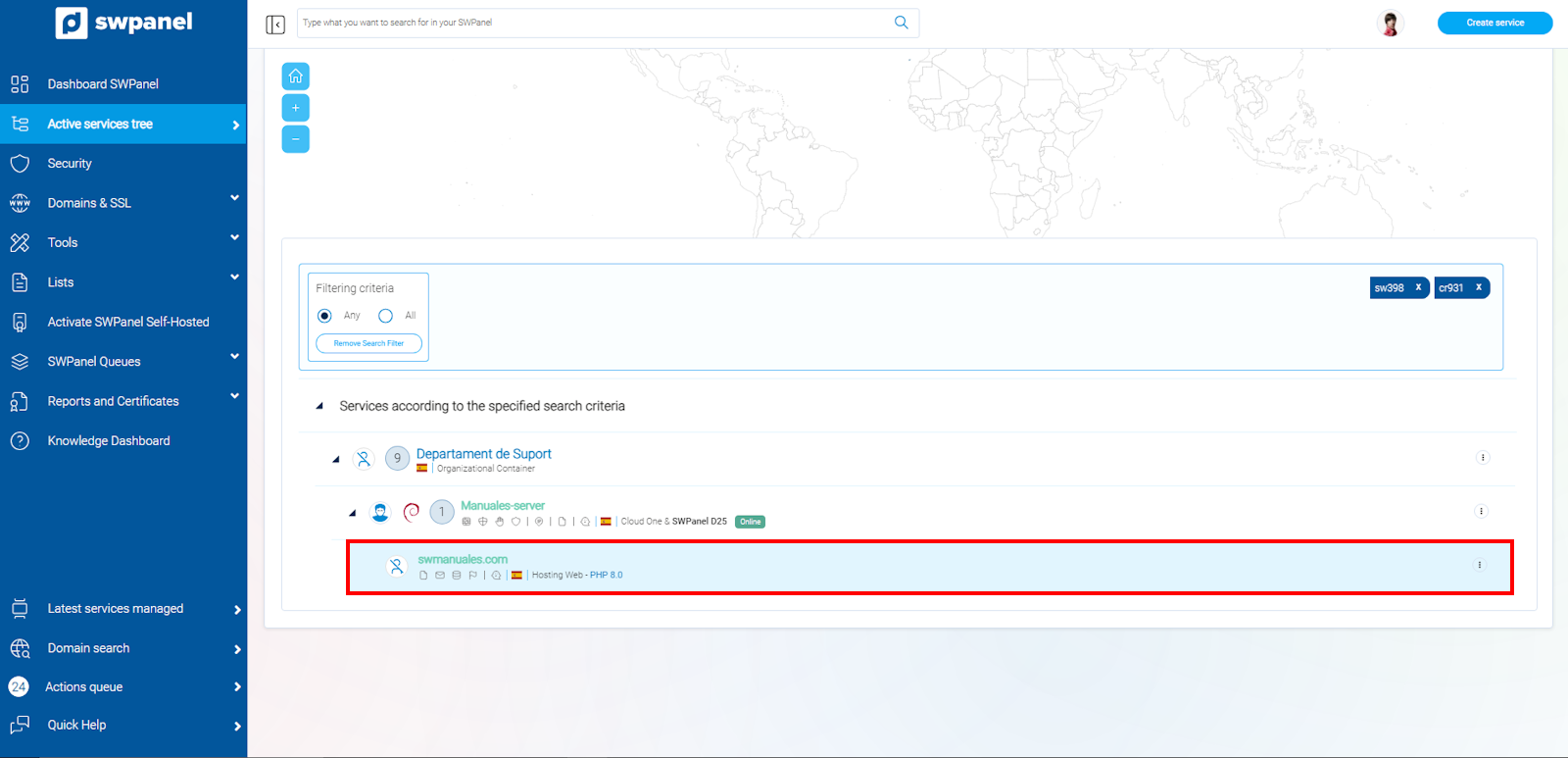
info_capture The screenshot is for guidance purposes. It was taken using version 2025.00.0017 dated 03/01/2025. It may differ from what the current version of SWPanel shows.