
Space available on our server
Aggiornato il
2026-10-23 05:01:28
109
visite
In this manual, you will learn how to check the available space and storage usage on your GNU/Linux server from the command line.
Prerequisites
Before starting:
- You must connect to your server via SSH.
- Have sufficient permissions to execute commands on the system.
1. View available disk space
Once inside the server, run the following command:
# df -h
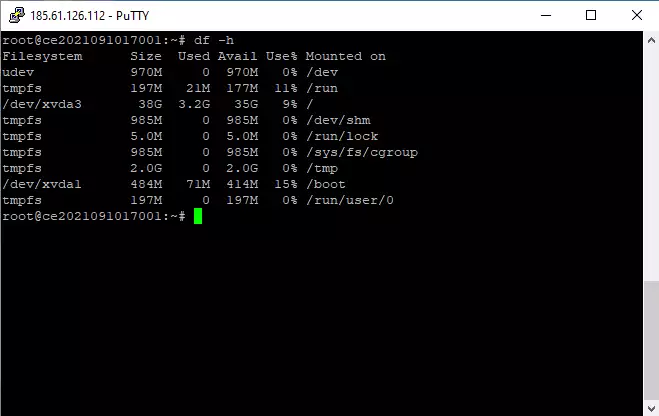
What does this command show?
Size→ Total size of the file systemUsed→ Used spaceAvail→ Available spaceUse%→ Usage percentage
🔎 Normally, the main system usually appears as something similar to /dev/xvda3, which represents the partition where the system is installed.
2. View space occupied by directories
If you want to analyze how much space each folder inside /home takes, use:
# du -h /home
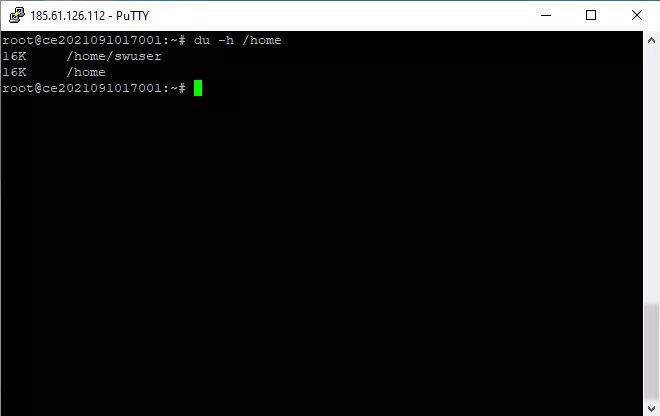
Useful information
dushows the space used by files and directories.-hpresents the data in human-readable format (KB, MB, GB).
💡 Tip: For a clearer summary, you can use:
# du -sh /home/*
3. Search for large files in the system
To locate files larger than 50 MB across the entire system:
# find / -type f -size +50M -exec ls -lh {} \;
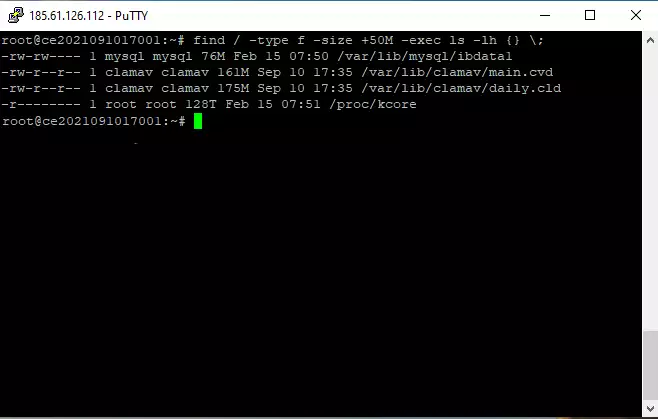
What does this command do?
find /→ searches the entire system-type f→ files only-size +50M→ larger than 50 MB-exec ls -lh→ shows details in human-readable format