
Manageable Layer 4 Perimeter Firewall
What is a Firewall?
A firewall, also called a "cortafuegos", is a system that allows you to protect a server or a network of servers from intrusions coming from another network. The most common use is to protect your internet network.
How does a Firewall work?
A firewall works like security personnel at the door of a nightclub. Any traffic that is not on the allowed list cannot enter or exit. A firewall's list contains a set of predefined rules that allow:
- Authorize a connection (Allow)
- Block a connection notifying the sender (Deny)
- Block a connection without notifying the sender (Drop)
There are two types of security policies:
- Explicitly accept and deny everything else: "everything on the list can pass, the rest is forbidden".
- Explicitly deny and accept everything else: "everything on the list is forbidden, the rest can pass".
The first method is the most secure, but it requires a precise definition of the communication needs of the entire network. In this way, we ensure that we block in case of doubt and only let through what we know.
What does Layer 4 Firewall mean?
The main difference between firewalls known as layer 3 or layer 4 lies in their ability to remember analyzed packets and analyze sessions.
- L3 Firewalls or layer 3 firewalls (i.e., packet filtering firewalls): Traffic filtering based solely on the source / destination IP, the port, and the protocol (also known as stateless packet inspection).
- L4 Firewalls or layer 4 firewalls (i.e., session filtering firewalls): Ability to do this, in addition to adding the capacity to actively track network connections and allow / deny traffic based on the state of these sessions (i.e., stateful packet inspection).
You should also know that there are newer and more modern firewalls capable of analyzing other types of traffic or, rather, delving deeper into what a user is requesting from your server and making better decisions to block or not. Always based on offering maximum security. These firewalls are called next-generation firewalls ("Next Generation Firewalls") or layer 7 firewalls.
- L7 Firewalls or layer 7 firewalls (i.e., application filtering firewalls): In addition to adding the ability to analyze whether traffic belongs to one application or another, it can make decisions based on whether it may be harmful or not for this application.
What does Manageable Firewall mean?
Being Manageable means that you yourself can define, create, modify, or delete both the filtering rules and the actions the Firewall performs at any time and by any of the IPs of your server or Cloud. To this end, SWPanel provides a series of options and tools that will allow you to customize your Firewall very easily and, consequently, protect your environment and your data.
What is a Firewall rule?
A Firewall rule is a set of conditions that allow the Firewall to determine if traffic should be managed and what type of management should be performed on it.
Parts and conditions of a rule
A rule is formed through different parts and conditions that we detail below:
- 1. Traffic Traffic is the flow of data that passes through the network to or from your Cloud or server.
Traffic can be:
- allowed (Allow)
- denied (Deny)
Traffic can be:
Incoming: Internet to your cloud or server.
Outgoing: from your cloud or server to the Internet.
- 2. IPs
IPs indicate the origin or destination of the traffic we wish to filter.
Source IP
Indicates the IP from which we will receive the traffic. Selecting "any IP" means that this rule affects all IPs on the Internet.
Destination IP
Indicates to which IP of our Cloud or server we wish to apply this rule.
If our Cloud or Server has several IPs, we can create independent rules for each of our IPs.
- 3. Protocols
We will indicate the communication protocols used to which we will apply the rule. TCP or UDP protocols are accepted.
TCP (Transmission Control Protocol)
TCP is used in a large part of data communications.
TCP Functions
In TCP / IP protocols, TCP is the intermediate layer between the network protocol (IP) and the application. Often, applications need network communication to be reliable. For this, the TCP protocol is implemented since it ensures that the data sent by the client is received by the server without errors and in the same order it was sent, despite working with IP layer services, which are not reliable. It is a connection-oriented protocol, as the client and server must announce themselves and accept the connection before starting to transmit data to this user who is to receive them.
TCP Characteristics:
-
Allows segments to be put back in order when they come from the IP protocol.
-
Allows monitoring of the data flow and thus avoids network saturation.
-
Allows data to be formed into segments of varied length to "deliver" them to the IP protocol.
-
Allows multiplexing data, i.e., information coming from different sources (for example, applications) on the same line so that it can circulate simultaneously.
-
Finally, it allows starting and ending communication politely, without collisions.
TCP Segment Format
At the transport level, the bit packets that constitute the TCP protocol data units are called "segments".
UDP (User Datagram Protocol)
It is a minimal transport-level protocol oriented towards messages documented in IETF RFC 768.
In the Internet protocol family, UDP provides a simple interface between the network layer and the application layer. UDP provides no guarantees for the delivery of its messages (which is why it really should not be in layer 4) and the UDP source does not retain states of the UDP messages that have been sent to the network. UDP only adds application multiplexing and checksum of the header and the payload. Any type of guarantees for the transmission of information must be implemented in higher layers.
Use in applications
Most key Internet applications use the UDP protocol, including the Domain Name System where queries must be fast, and will only consist of a single request after a single response packet, the Network Management Protocol, the Routing Information Protocol (RIP), and the Dynamic Host Configuration Protocol.
- 4. Ports
TCP and UDP use ports to allow communication between applications. The port field has a length of 16 bits, so the range of valid values goes from 0 to 65535. Port 0 is reserved, but it is a permitted value as a source port if the sending process does not expect to receive messages as a response.
- Ports 1 to 1023 are called "well-known" ports and in Unix-type operating systems, binding to one of these ports requires superuser access.
- Ports 1024 to 49151 are registered ports.
- Ports 49,152 to 65,535 are dynamic ports and are used as temporary ports, especially by clients when communicating with servers.
In the case of our perimeter firewall, it indicates the port that the rule will manage. There is the possibility of not specifying any port, in which case traffic from any port will be managed, as well as the possibility of specifying a set or range of ports.
Activation of Layer 4 Firewall Management
Activation using the Service Dashboard
The first step will be to choose the Cloud or server on which you want to activate Firewall management
Go to the service tree of your SWPanel.
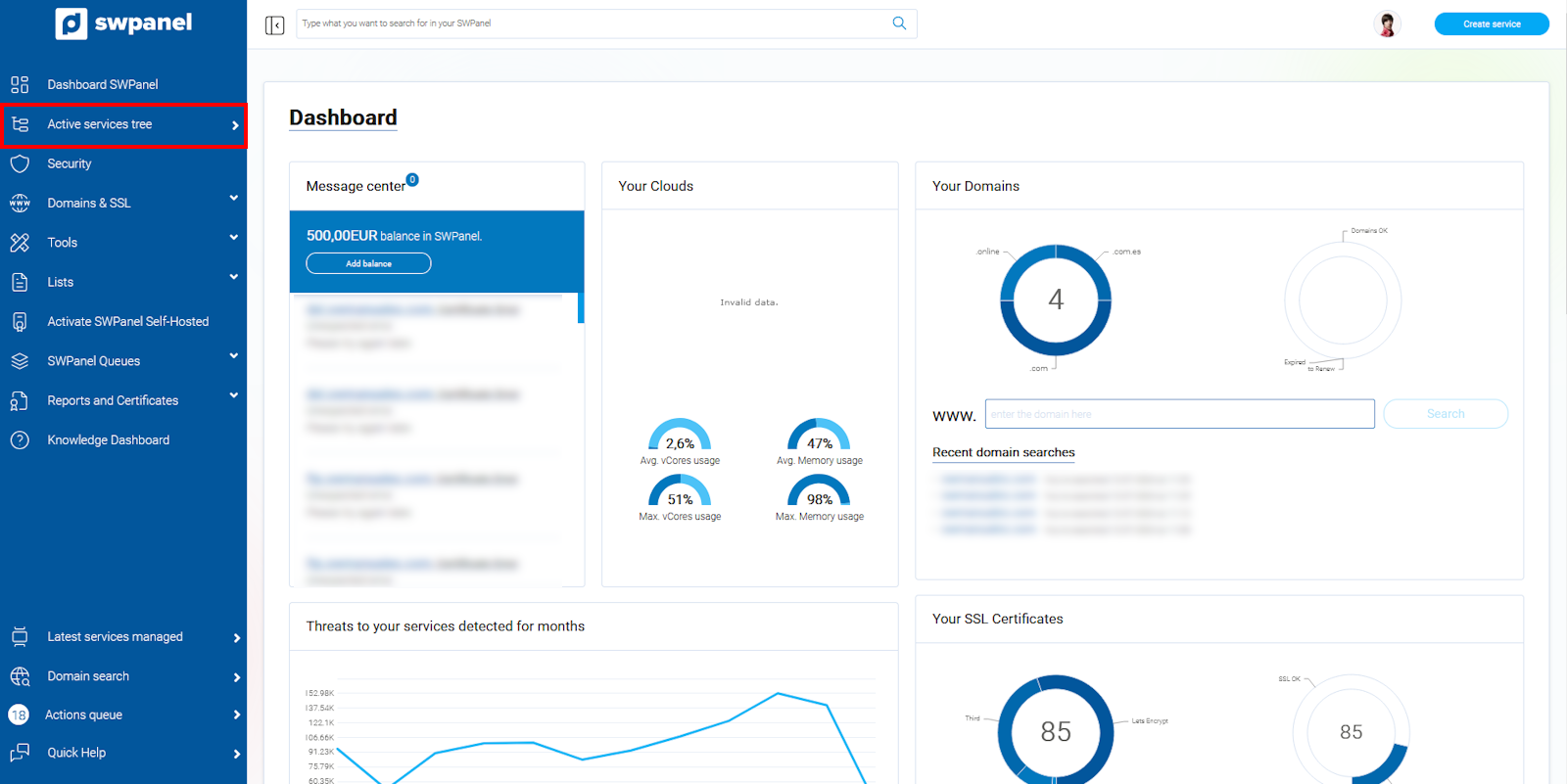
info_capture The screenshot is for guidance. It was taken on version 2026.001.0057 dated 05/15/2026. It may differ from what the current version of SWPanel shows.
Select the server or Cloud on which you want to activate Firewall management.
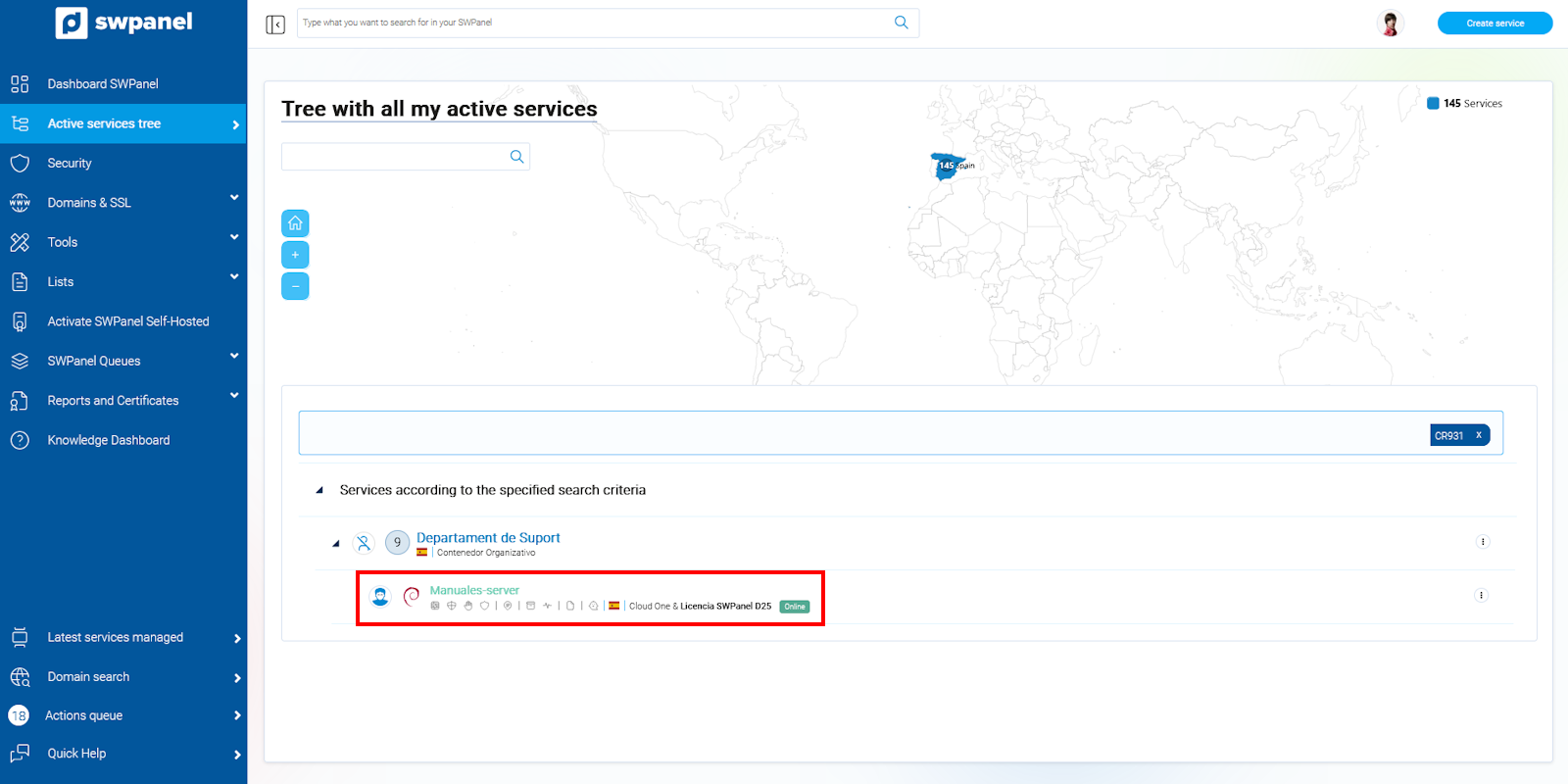
info_capture The screenshot is for guidance. It was taken on version 2026.001.0057 dated 05/15/2026. It may differ from what the current version of SWPanel shows.
Once selected, SWPanel will show you the Dashboard for this service.
In the Dashboard, you will find the Available Improvements box, and in it, you will find the Layer 4 Firewall Management option and a switch to activate or deactivate it to the right.
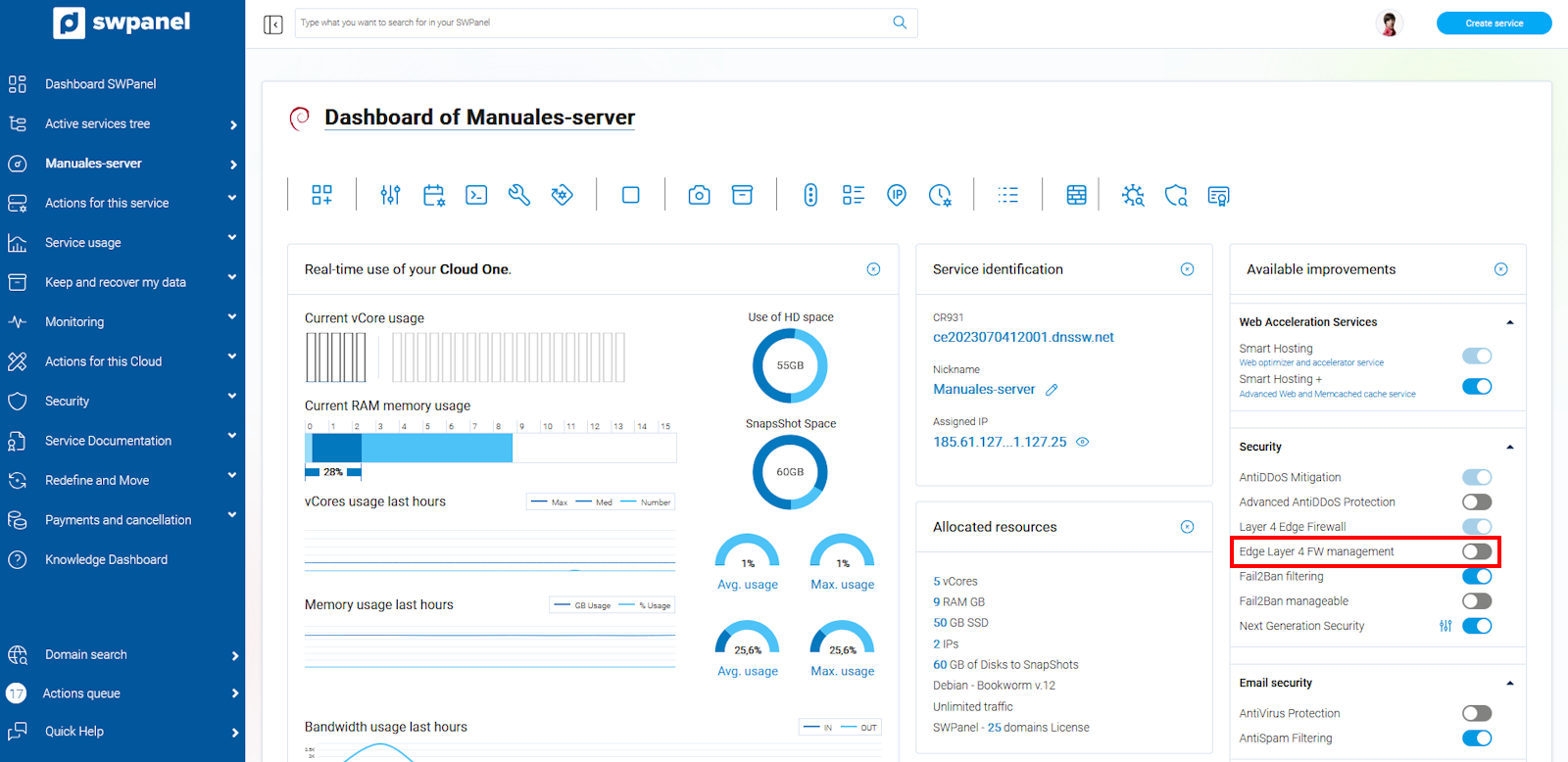
info_capture The screenshot is for guidance. It was taken on version 2026.001.0057 dated 05/15/2026. It may differ from what the current version of SWPanel shows.
Click on the switch to activate it.
Once you have clicked it, you will access the activation confirmation screen. Simply mark the "checkbox" of the blue box and confirm the activation by clicking the "Activate Now" button at the bottom.
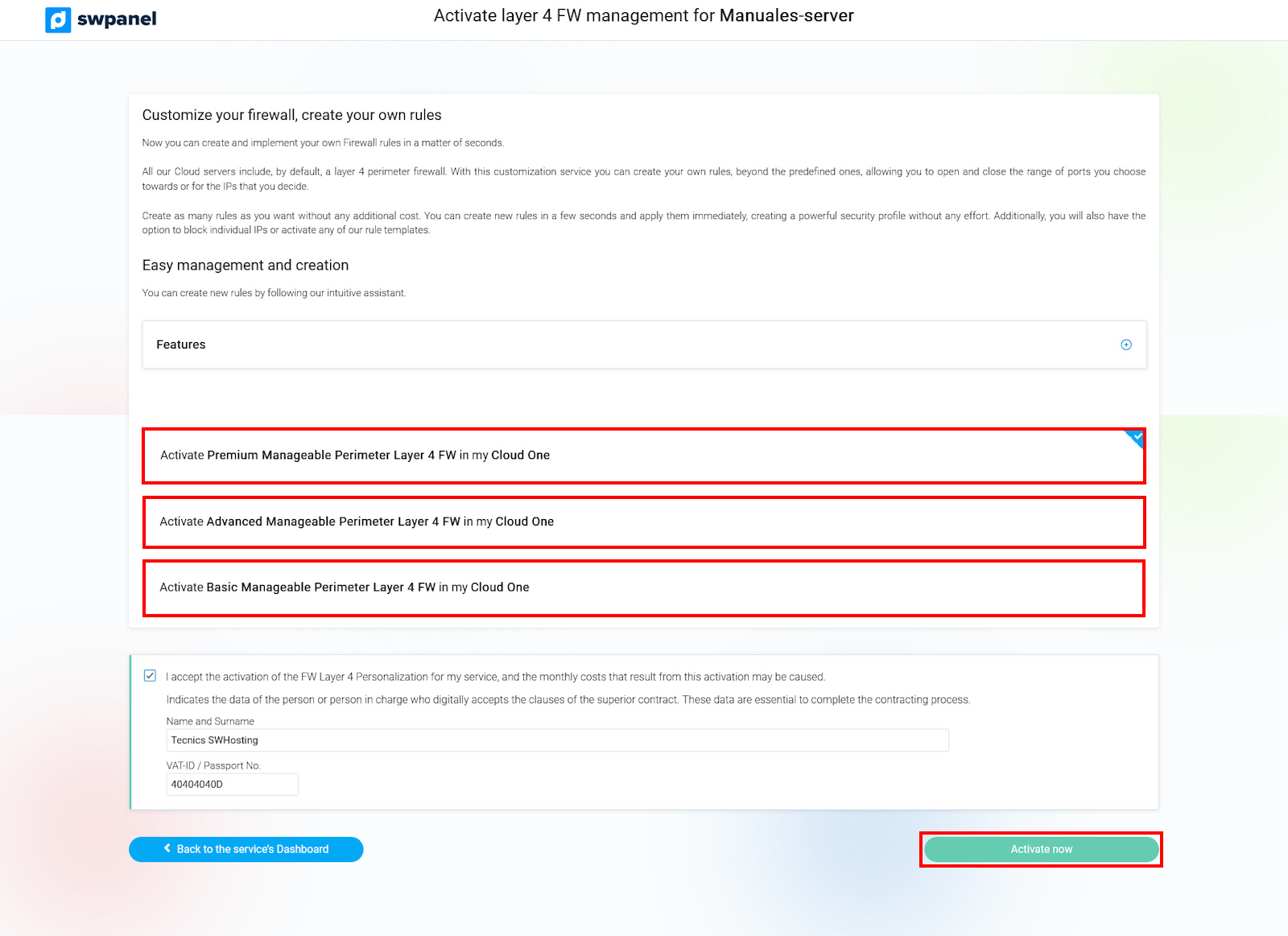
info_capture The screenshot is for guidance. It was taken on version 2026.001.0057 dated 05/15/2026. It may differ from what the current version of SWPanel shows.
It's that simple; in a few seconds it will be activated, and the service Dashboard will show the switch in green since you already have it activated.
Activation via the service management menu
The first step will be to access the service tree of your SWPanel.
Look for the Cloud or server on which you want to activate Layer 4 Firewall Management and click to open the ··· menu found on the left side
Within the menu, you will find the Security Services section; click on the Layer 4 FW Dashboard option
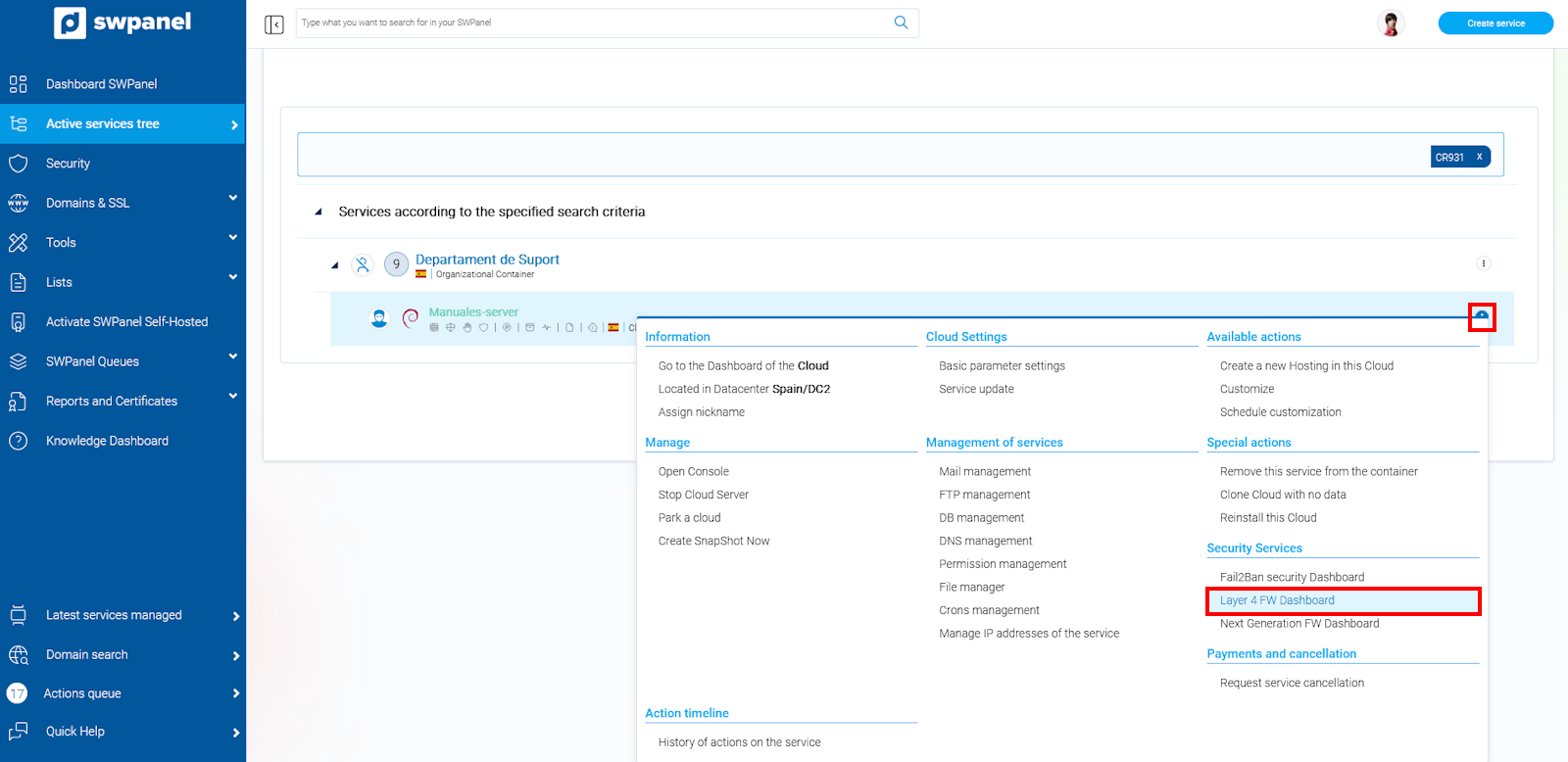
info_capture The screenshot is for guidance. It was taken on version 2026.001.0057 dated 05/15/2026. It may differ from what the current version of SWPanel shows.
SWPanel will take you to the Security Profiles tab of your service
In this tab, you will find a black button that will allow you to activate your Firewall management.
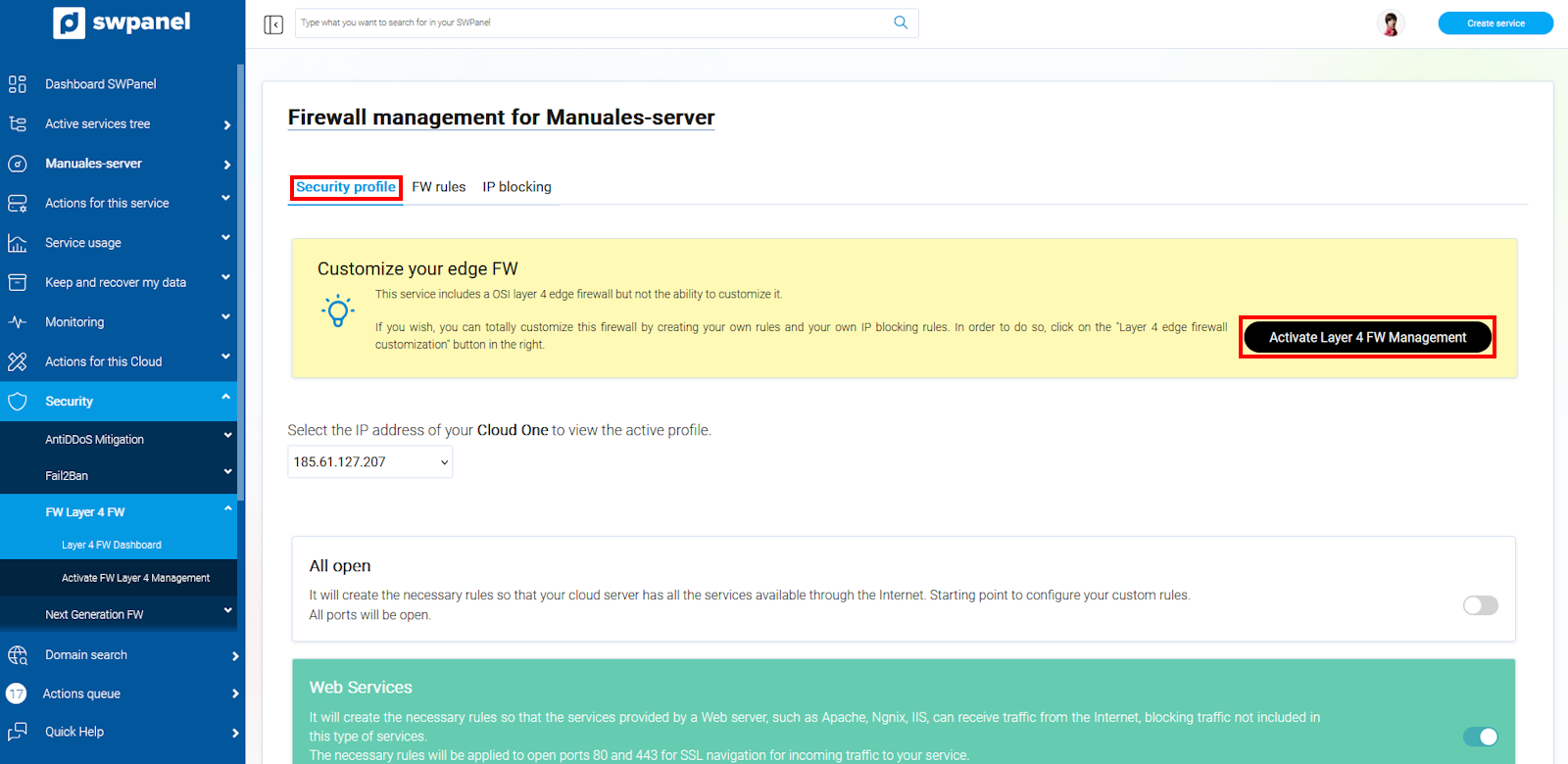
info_capture The screenshot is for guidance. It was taken on version 2026.001.0057 dated 05/15/2026. It may differ from what the current version of SWPanel shows.
Once clicked, you will access the activation confirmation screen. Simply mark the "checkbox" of the blue box and confirm the activation by clicking the "Activate Now" button at the bottom.
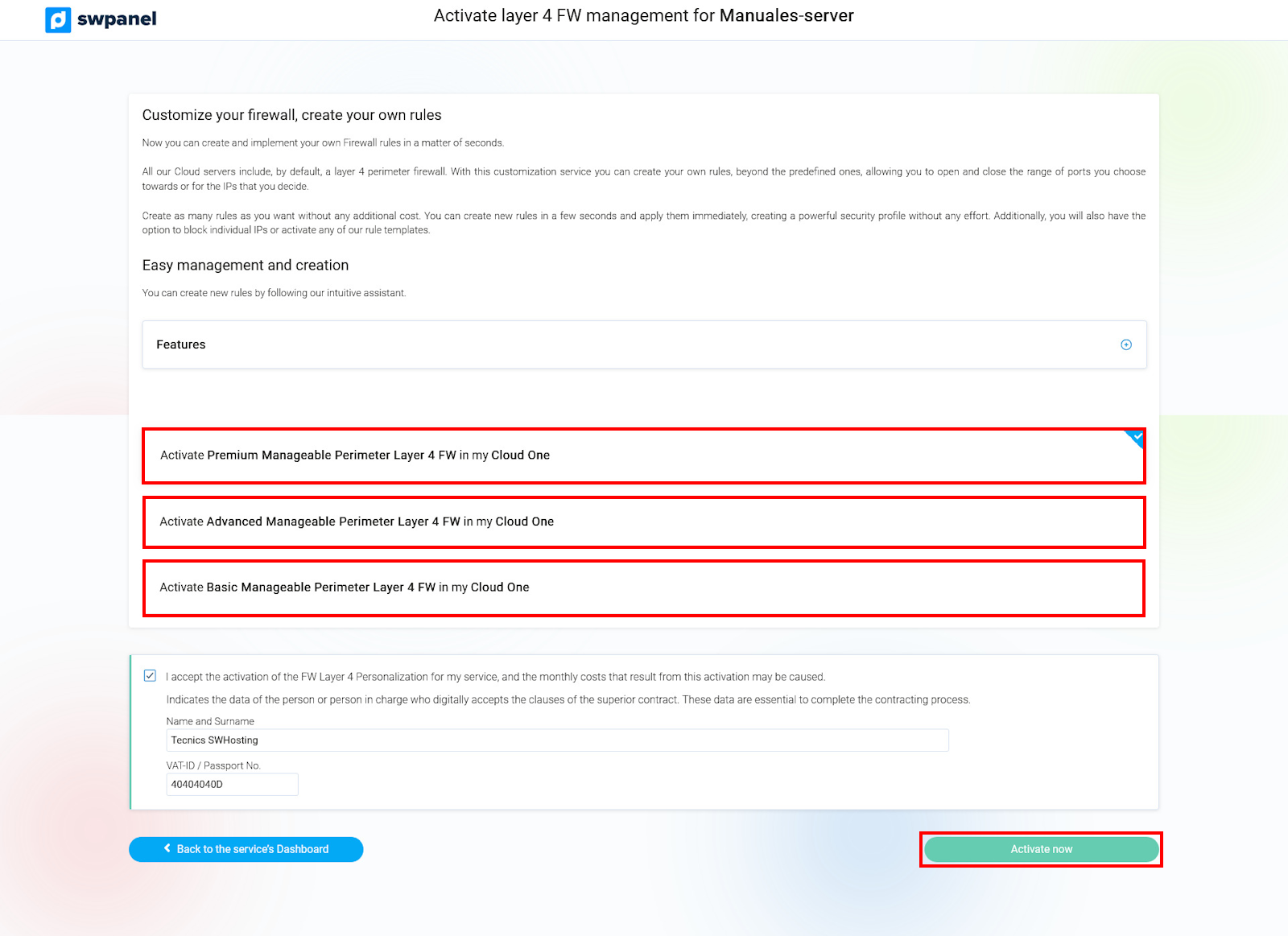
info_capture The screenshot is for guidance. It was taken on version 2026.001.0057 dated 05/15/2026. It may differ from what the current version of SWPanel shows.
It's that simple; in a few seconds it will be activated, and the service Dashboard will show the switch in green since you already have it activated.
Deactivation of Layer 4 Firewall Management
The first step will be to choose the Cloud or server on which you want to deactivate Firewall management
Go to the service tree of your SWPanel.
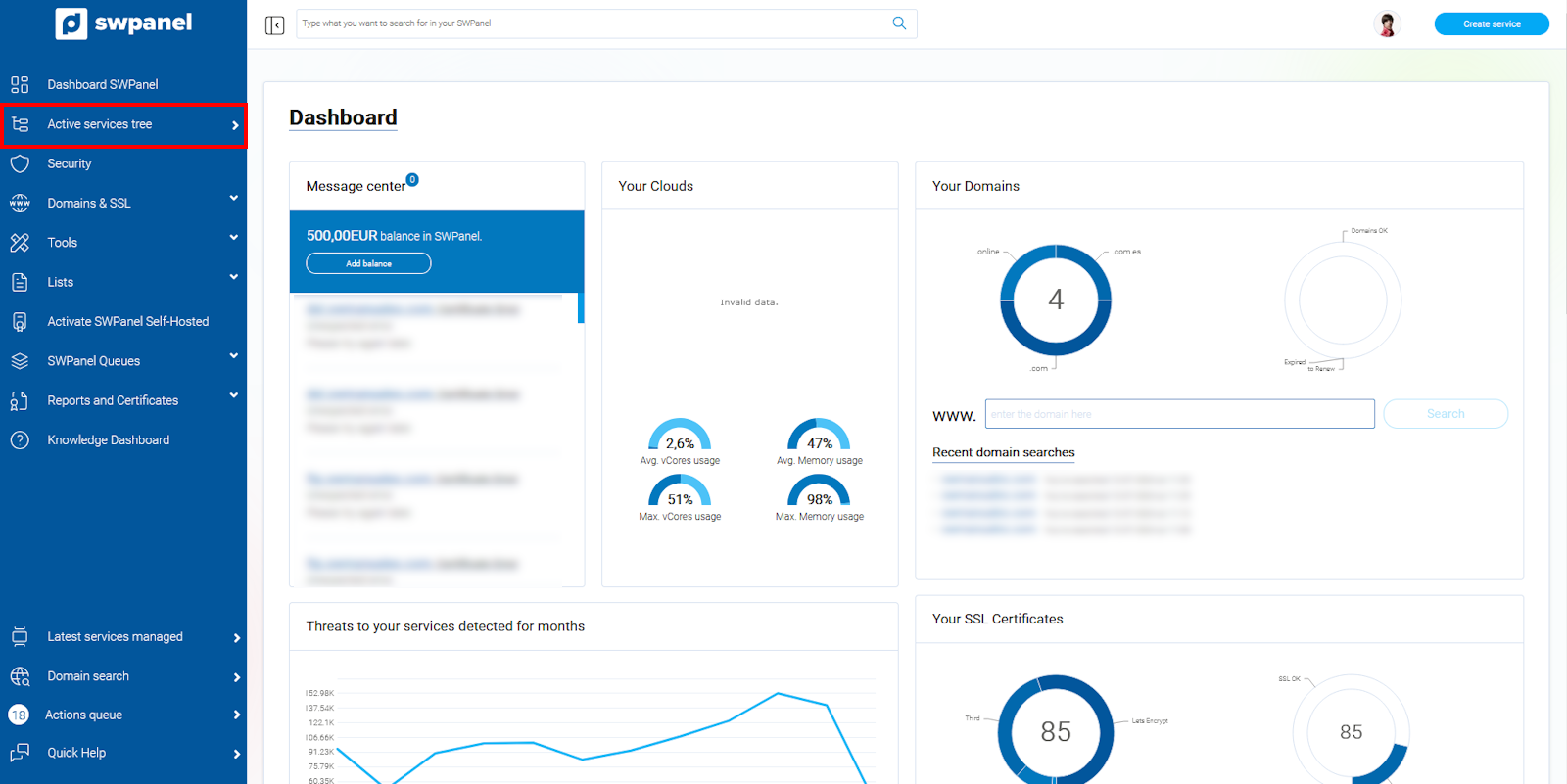
info_capture The screenshot is for guidance. It was taken on version 2026.001.0057 dated 05/15/2026. It may differ from what the current version of SWPanel shows.
Select the server or Cloud on which you want to deactivate Firewall management.
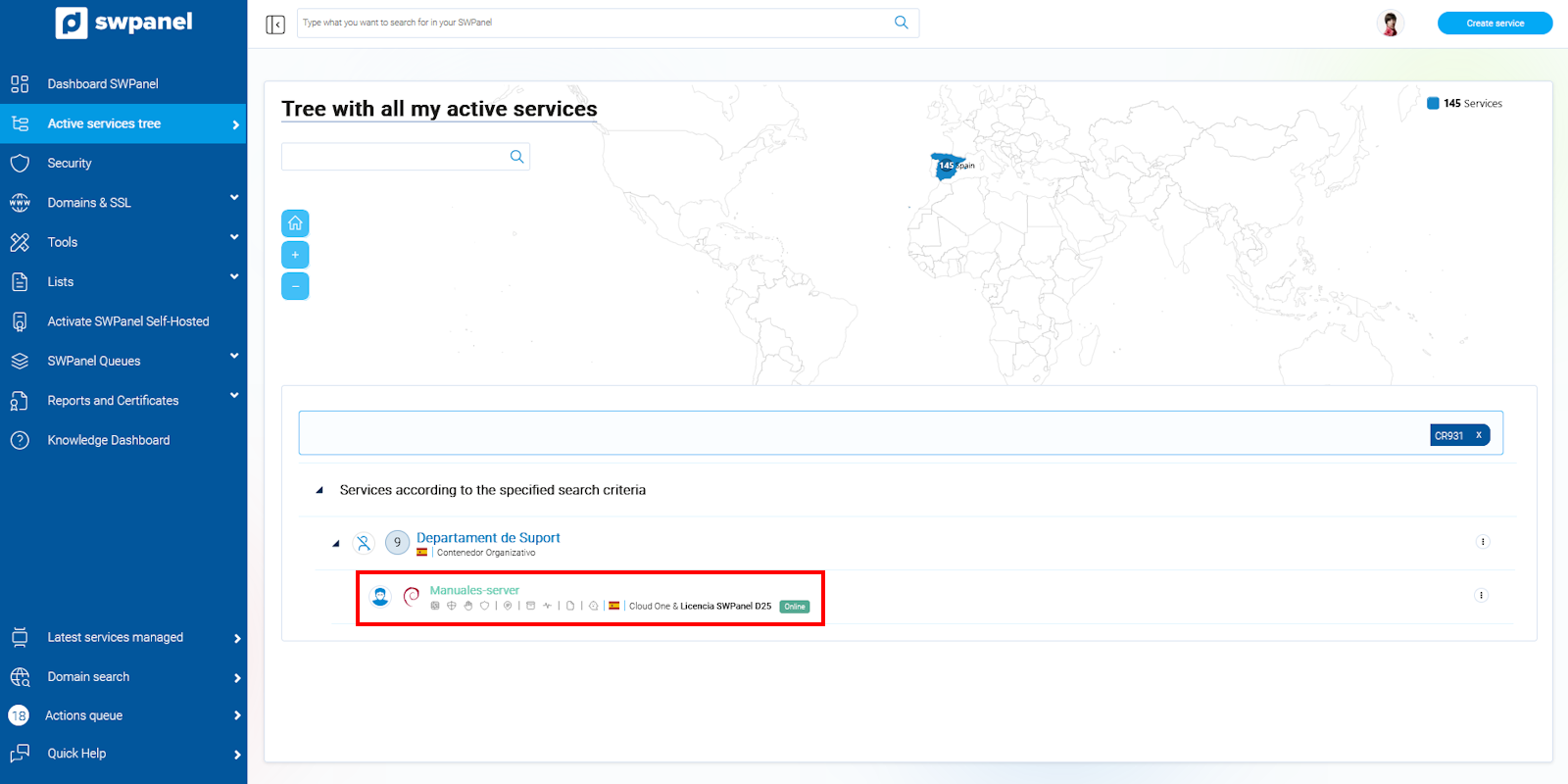
info_capture The screenshot is for guidance. It was taken on version 2026.001.0057 dated 05/15/2026. It may differ from what the current version of SWPanel shows.
Once selected, SWPanel will show you the Dashboard for this service.
In the Dashboard, you will find the Available Improvements box where the Layer 4 Firewall Management option will appear and a switch that will be active (green).
Click on the switch to deactivate it.
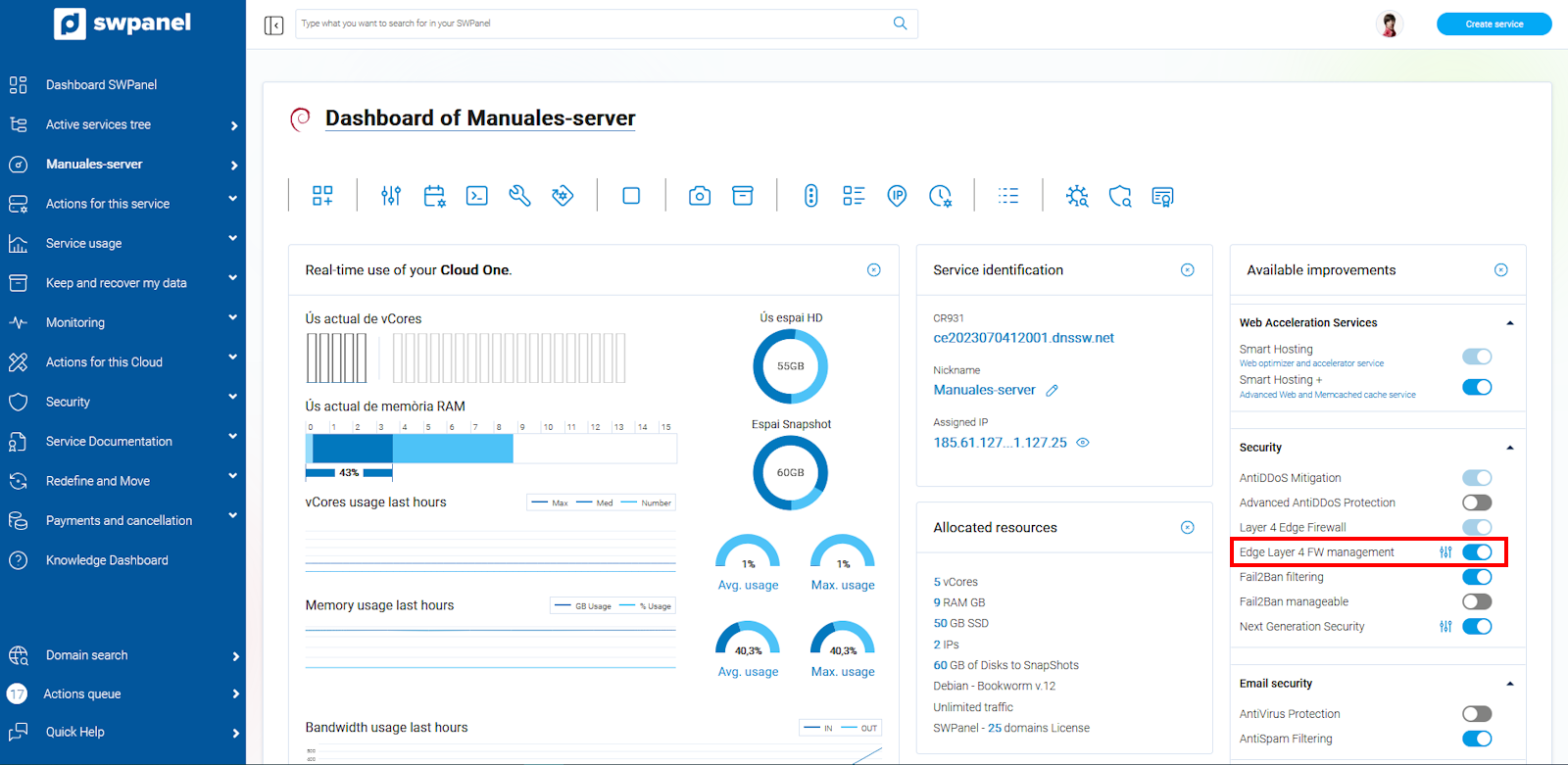
info_capture The screenshot is for guidance. It was taken on version 2026.001.0057 dated 05/15/2026. It may differ from what the current version of SWPanel shows.
Once clicked, you will access the deactivation confirmation screen. Simply mark the "checkbox" of the blue box and confirm that you want to deactivate Layer 4 Firewall Management by clicking the "Deactivate now" button.
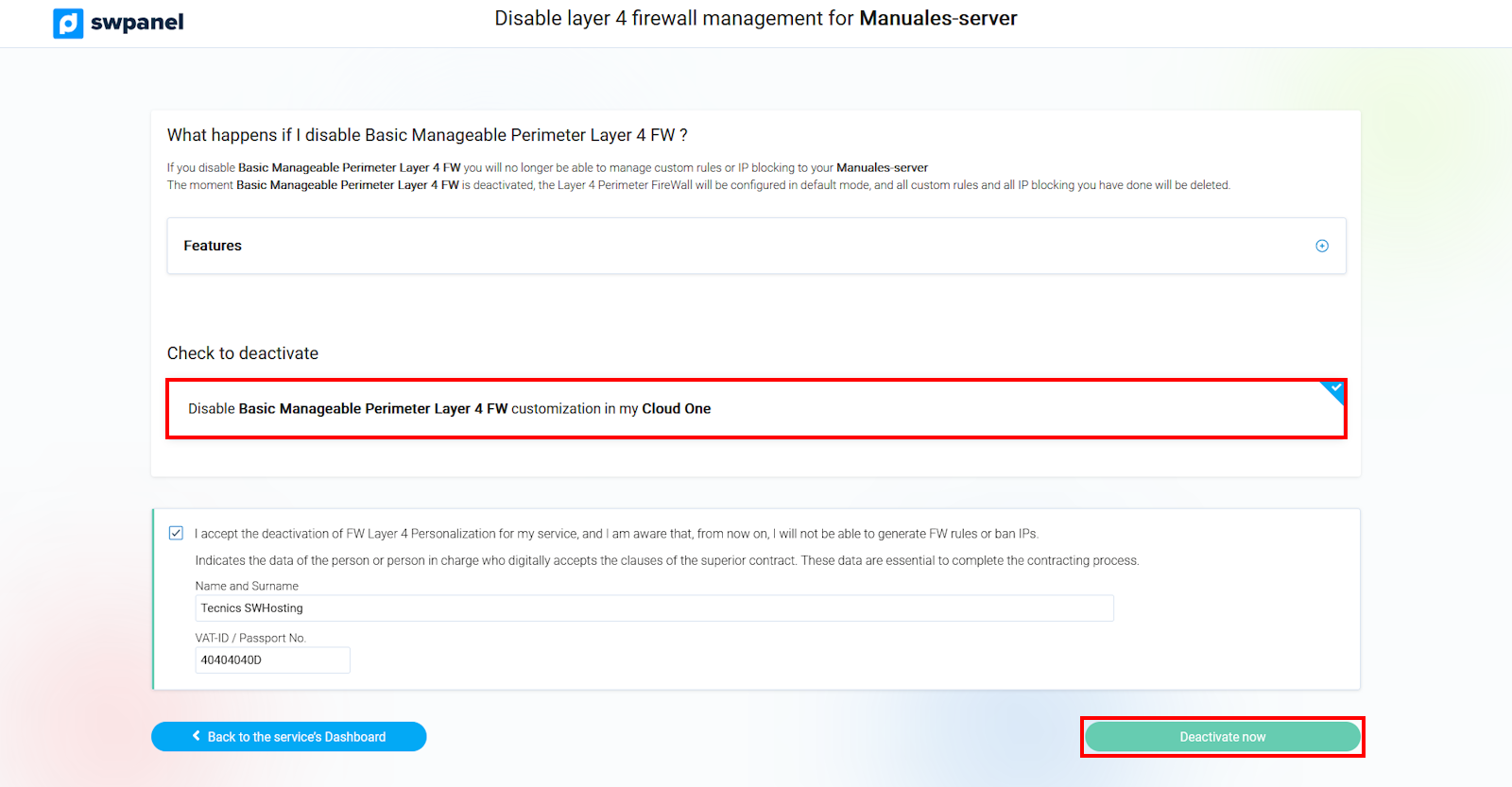
info_capture The screenshot is for guidance. It was taken on version 2026.001.0057 dated 05/15/2026. It may differ from what the current version of SWPanel shows.
It's that simple; in a few seconds it will be deactivated, and the service Dashboard will show the switch in white (off).
Info IMPORTANT: When you deactivate Layer 4 Firewall Management, all the rules you have created and all the IPs you have banned will be deleted, and the Firewall will return to operating in transparent or standard mode.
Manage my Layer 4 perimeter Firewall
Once management is activated, it will appear in the SWPanel side menu on your service Dashboard, under Security, in the Layer 4 FW section, where the Layer 4 Firewall Management option exists
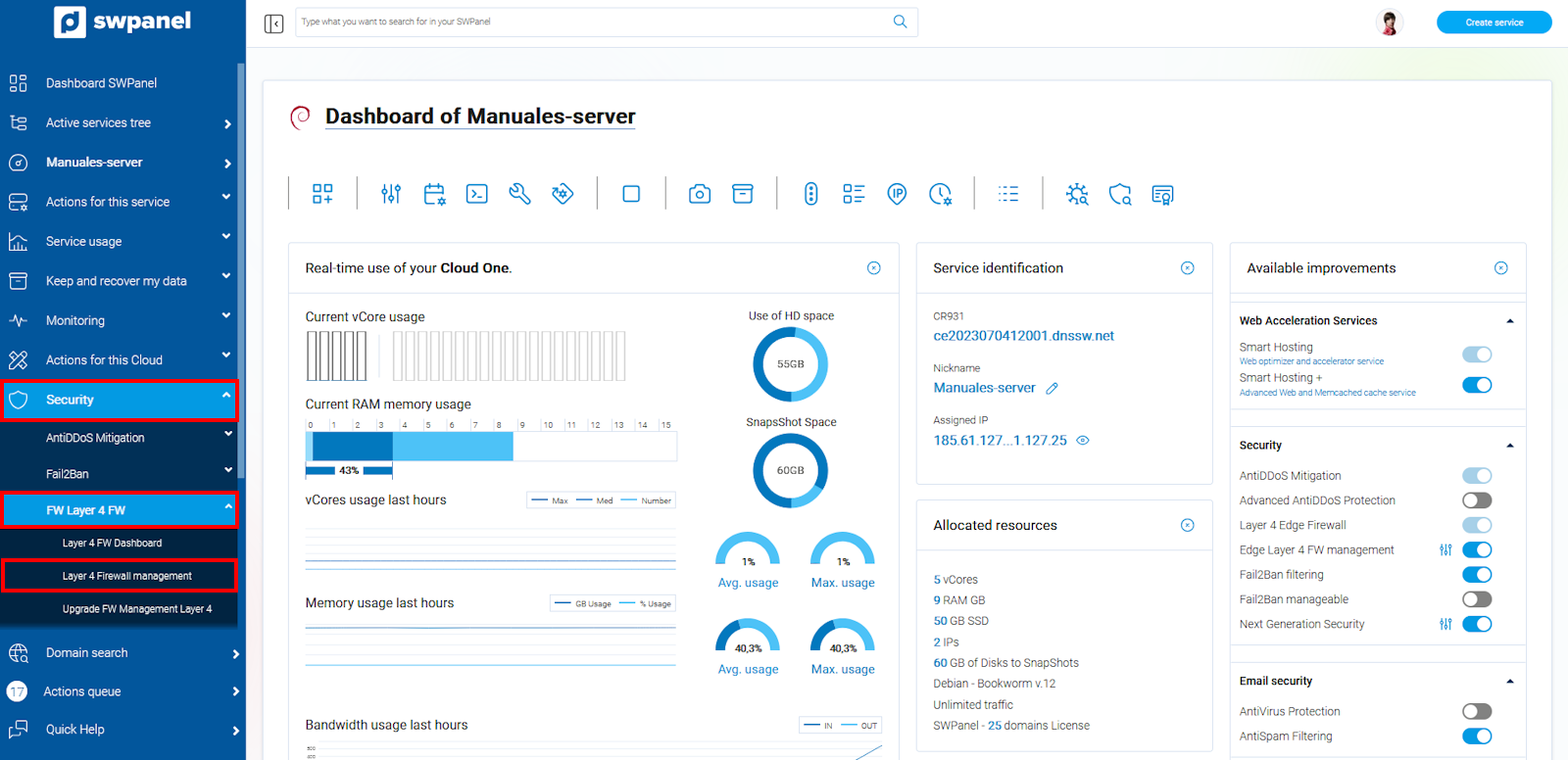
info_capture The screenshot is for guidance. It was taken on version 2026.001.0057 dated 05/15/2026. It may differ from what the current version of SWPanel shows.
Click on this option and you will access your Layer 4 Firewall for the selected service. Your layer 4 Firewall will allow complete management through 3 large security blocks:
- Security Profiles
- Firewall Rules
- IP Blocking
Security Profiles Tab
A default security profile is a set of rules that SWPanel already provides automatically, which will be applied to your Layer 4 Firewall to allow the services associated with each profile to function correctly and securely.
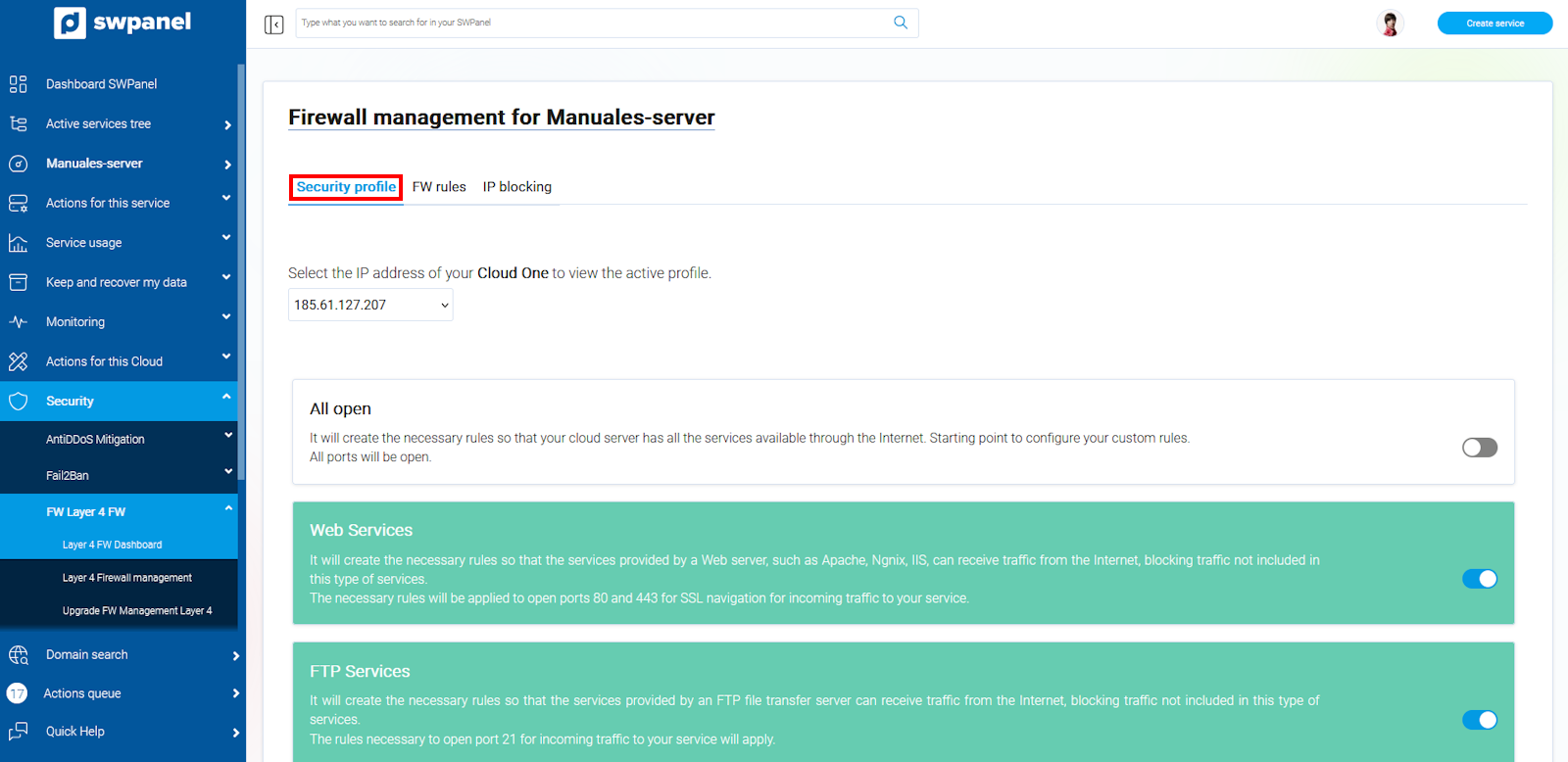
info_capture The screenshot is for guidance. It was taken on version 2026.001.0057 dated 05/15/2026. It may differ from what the current version of SWPanel shows.
The first thing you should select is the IP of your Cloud or server to which you want to apply the profiles. If you have several IPs, you must select them in the top dropdown menu.
SWPanel already offers multiple preset security profiles depending on the services in use on your cloud or server.
To activate or deactivate any of these profiles, simply click the switch that appears on the right side of each profile block.
Once changes are made, a blue notice will appear at the top of the screen to apply the changes you have made.
Info IMPORTANT: Until you press the apply change button, these will not be applied to your Layer 4 Firewall, so the changes will not be active.
The profiles you have active will appear in green and those that are not active will appear in white.
Firewall Rules Tab
The information in this tab is much more technical; it informs you of the rules currently applied to your Layer 4 Firewall and the IPs they apply to.
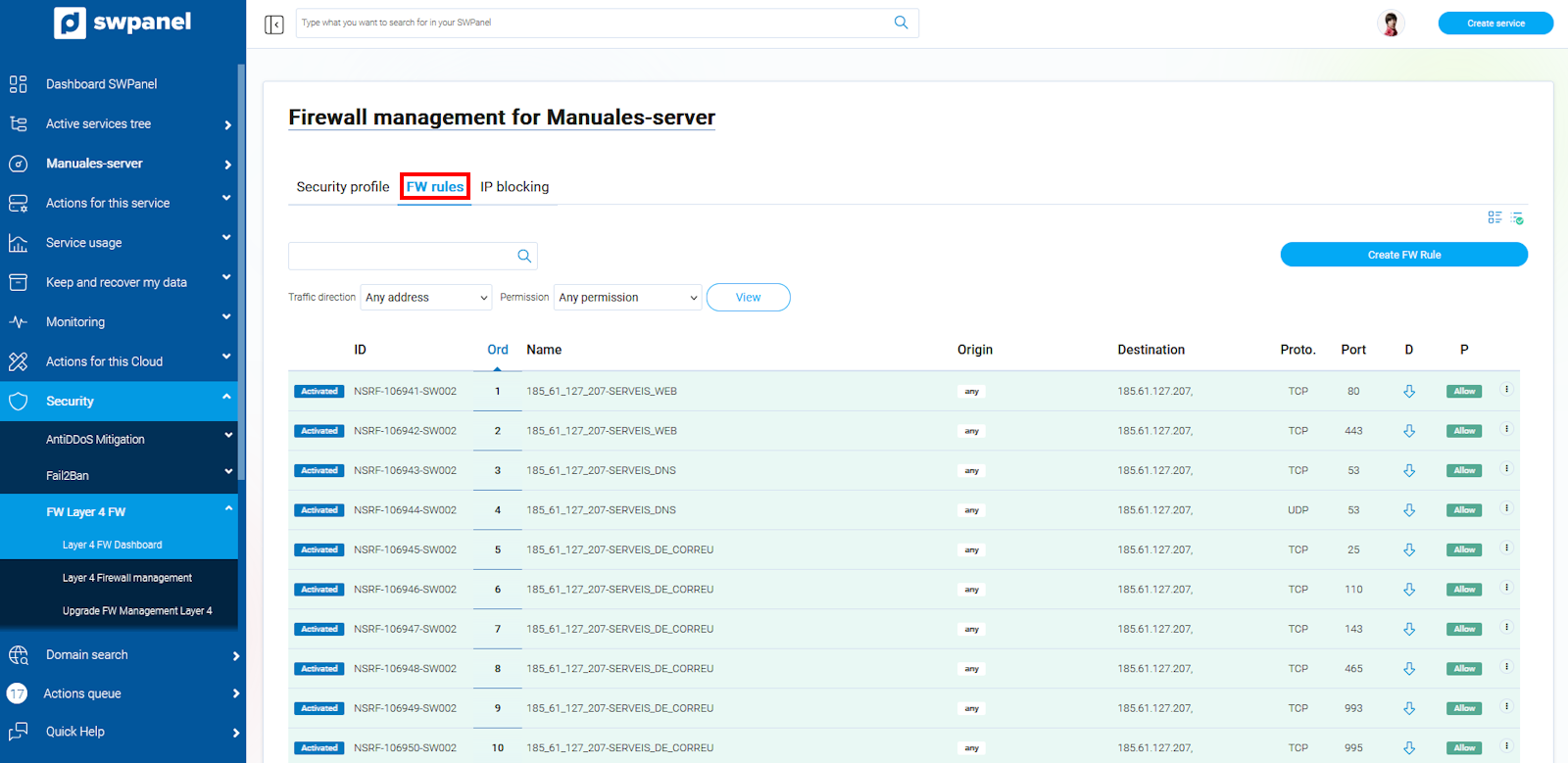
info_capture The screenshot is for guidance. It was taken on version 2026.001.0057 dated 05/15/2026. It may differ from what the current version of SWPanel shows.
The rules that appear in green are rules associated with security profiles and cannot be modified or deleted from this tab. These rules must be managed directly from the security profiles tab.
The rules in yellow are those associated with a blocked IP. These rules must be managed from the IP Blocking tab.
Listing Fields
First field
- Indicates if the rule is activated or deactivated in the Firewall.
Id
- Indicates the identifier of the rule (internal control numbering), it is simply an informative value
Order
- Indicates the order in which this rule is applied in the filtering being performed by your Layer 4 Firewall.
- Order is very important, since rules will be executed in the indicated order. You should keep in mind that rules that contradict each other can be valid if they are executed in the correct order.
- The execution order is always from lowest to highest.
Name
- Name of the rule (merely informative)
Source
- Will indicate the source of the traffic that this rule will manage.
- If the box "any" appears, it means it applies to any source IP
Destination
- Will indicate to which destination IP this rule will be applied. Normally, these IPs are those of our cloud or service.
Protocol
- Will indicate the type of protocol to which the rule applies, TCP or UDP.
Port
- Will indicate the port or the range of ports to which this rule will be applied.
- If the box "any" appears, it means it applies to any port.
- To define a port range, the hyphen must be used as a separator. For example: 4500-5000 (without spaces). This will open the ports from 4500 to 5000 (both included).
Direction
- The rule must be applied to stop incoming traffic or outgoing traffic
Allow
- The green "Allow" box means that this traffic is permitted.
- The orange "Deny" box indicates that this traffic is not permitted.
Manage
- Shows the menu of available options for this rule
Create a Firewall rule
By clicking this button, you can create a new rule in your Layer 4 Firewall. To create the rule, you must fill in all the required fields.
The meaning of each field has been detailed in the previous section
info You will find a blue information box with a link to consult the ports on which you can create your rules and the use of each port.
IP Blocking Tab
This tab will show you all the IPs that have blocked access to your Cloud or Server regardless of the port or protocol they wish to use to access.
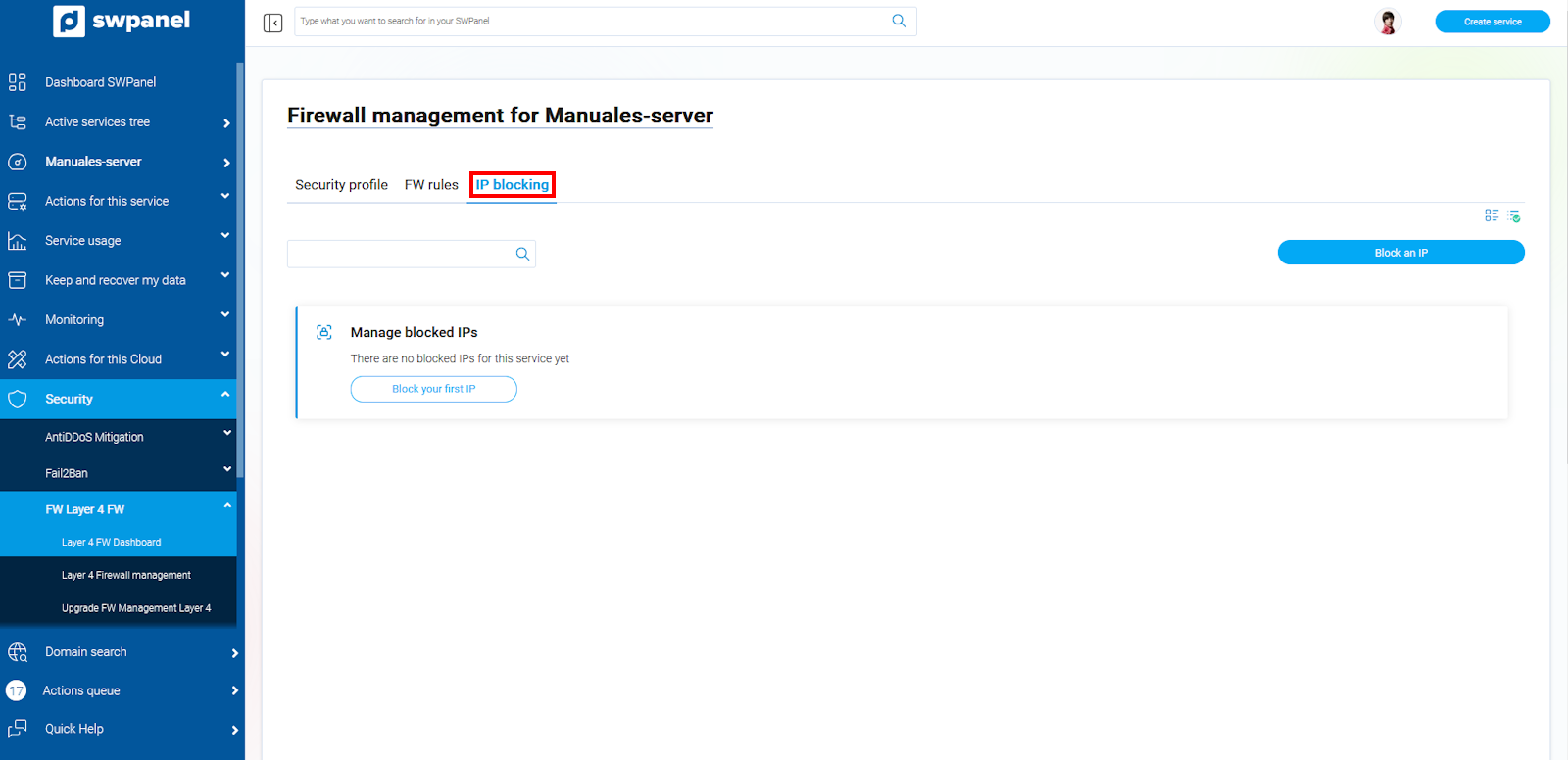
info_capture The screenshot is for guidance. It was taken on version 2026.001.0057 dated 05/15/2026. It may differ from what the current version of SWPanel shows.
Listing Fields
- Status
Indicates whether it is being applied or not. If the block is active, a blue box will appear indicating "activated".
- Identifier
Indicates the identifier of the block (internal control numbering), it is simply an informative value
- Source
Source IP that we wish to block
- Destination
To which IPs of our cloud or server the Source IP should have blocked access
- [ ··· ]
Shows the menu of options available for this IP block.
Block an IP
The process of blocking an IP is very simple:
Click on the block an IP button
The IP blocking screen will open
Indicate the IP you want to block in the Source field
In Destination, you must mark the IPs of your cloud or server to which you want to block access for the IP indicated in "Source".
If you want to activate the block right now, remember that you must have the "checkbox" of the yellow box marked.
Once everything is correctly filled in, the "Block IP" button will appear; you just have to click it to block it.
Unblock an IP
If you want to unblock an IP that you have blocked, the easiest way is to delete the block.
To delete the block, use the [ ··· ] menu on the blocked IP line of the list and select the option Delete this blocked IP.
Once it is confirmed that you want to delete it, the IP will no longer be blocked in a short while, and this line will disappear from the blocked IPs list.