Housing Management from SWPanel
In this manual, you will learn how to manage users and access to your housing.
Users with Housing access
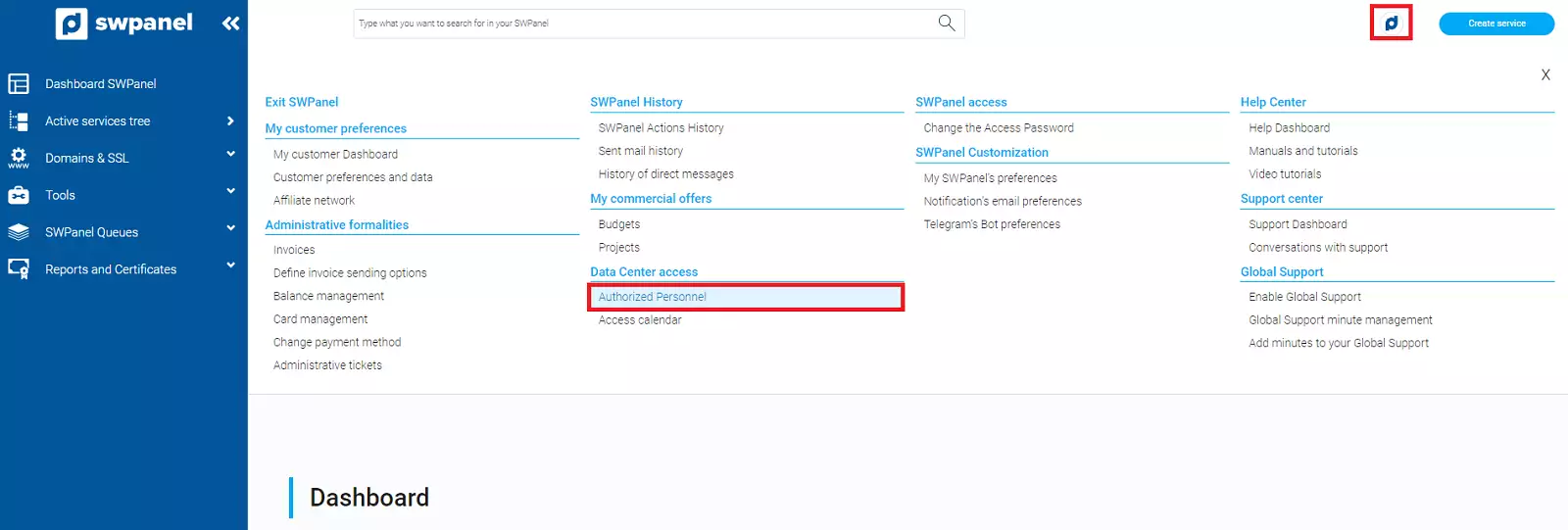
First, we are going to create a Housing user. To do this, click on your logo and access Authorized Personnel:
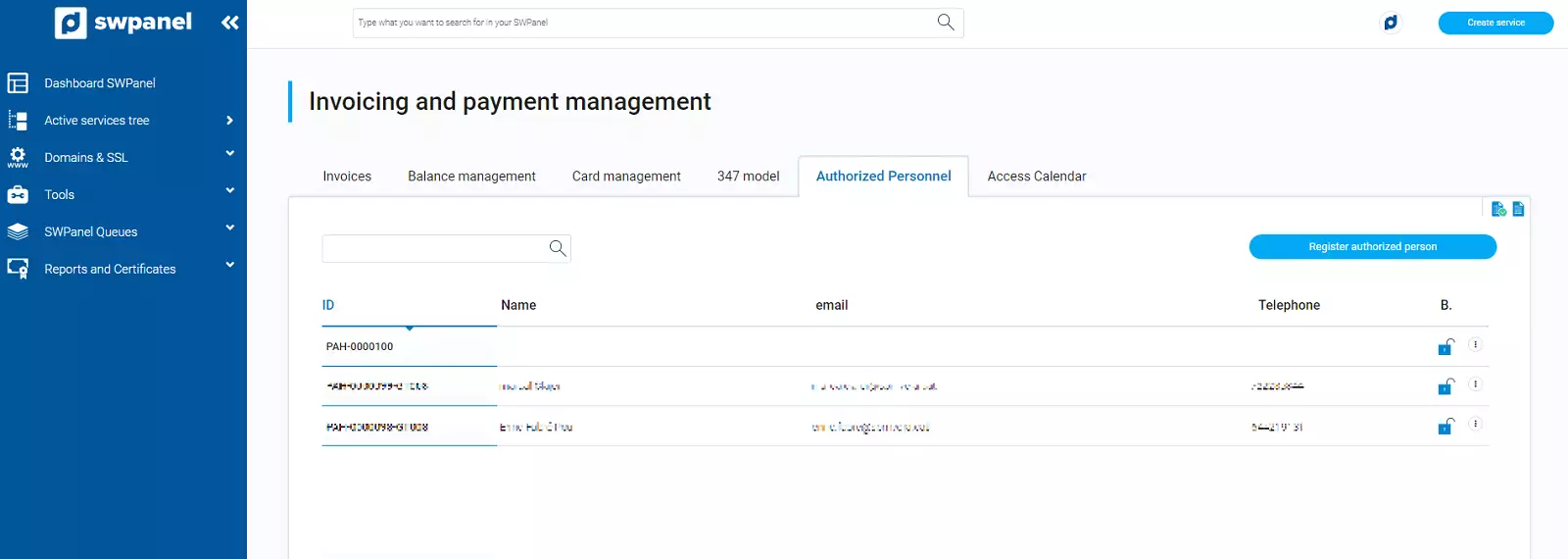
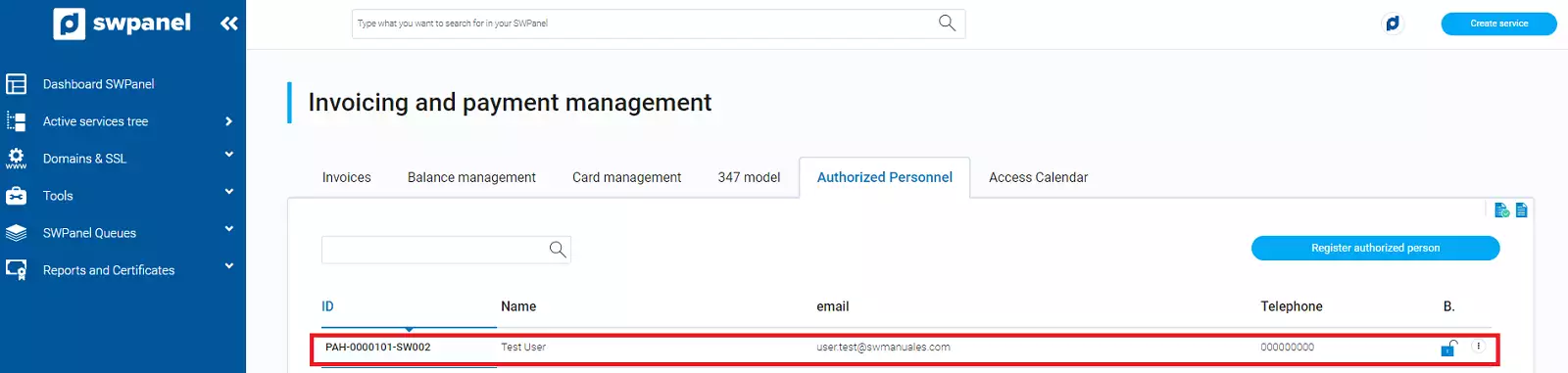
This section shows all current users with access to the Housing:
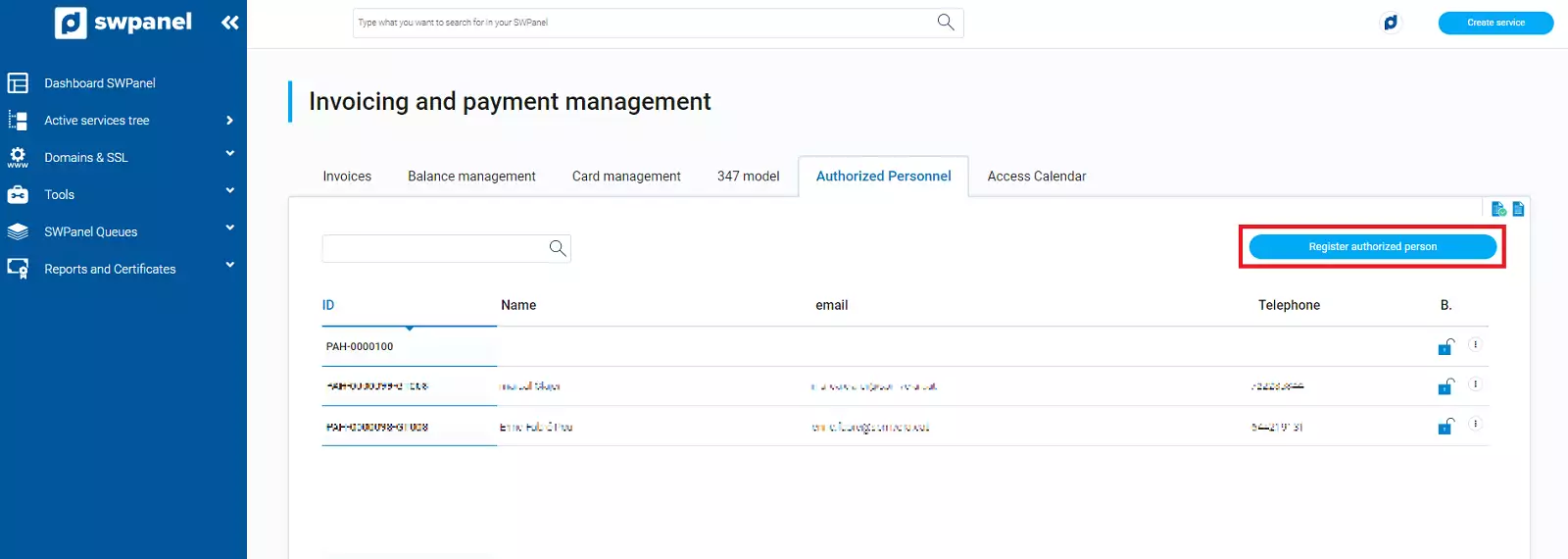
To create a new user, click on 'Add Authorized Person':
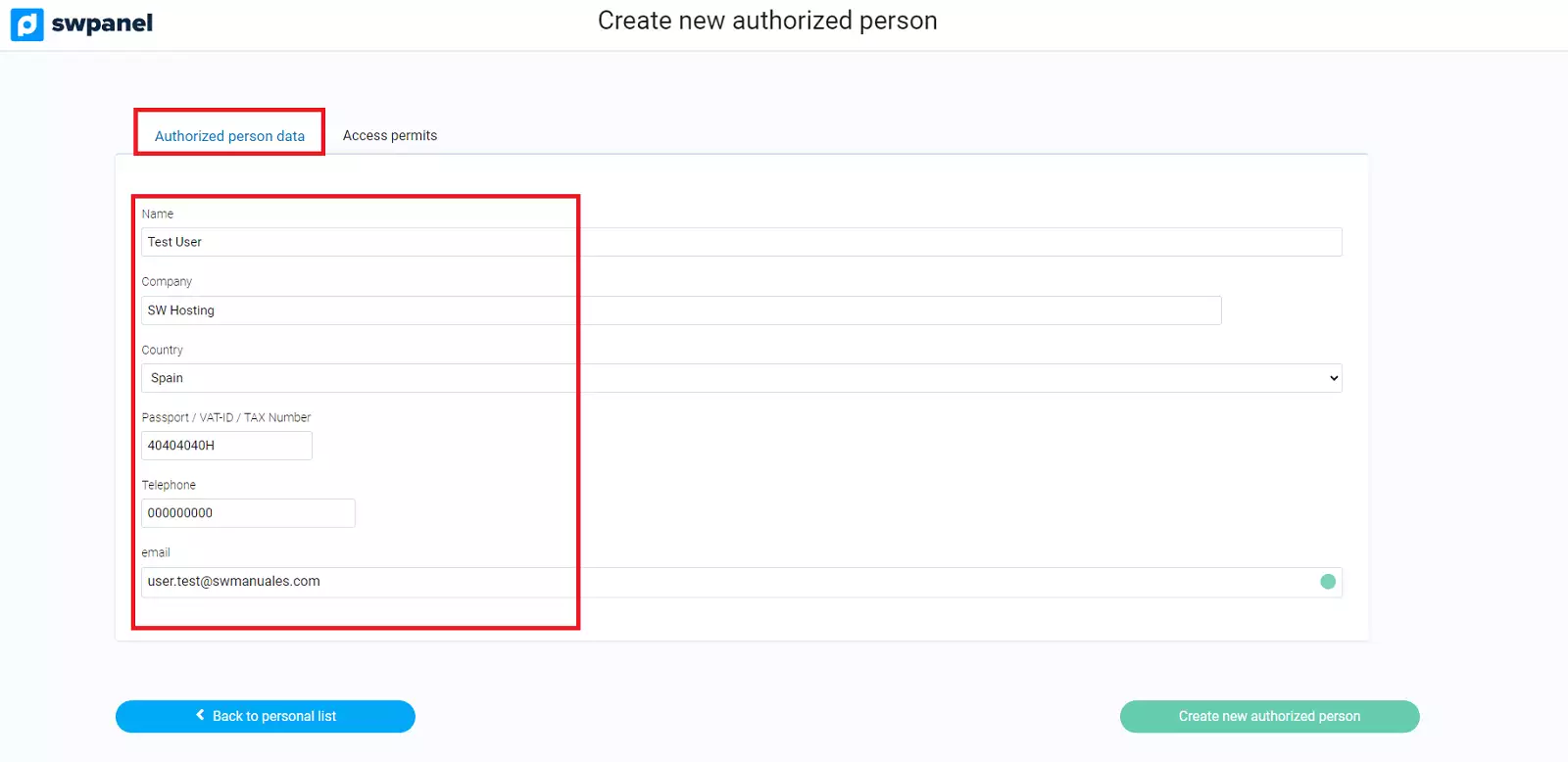
The user creation wizard will open. The first section corresponds to the 'Authorized Person Data', where you must fill in all user details as mandatory fields:
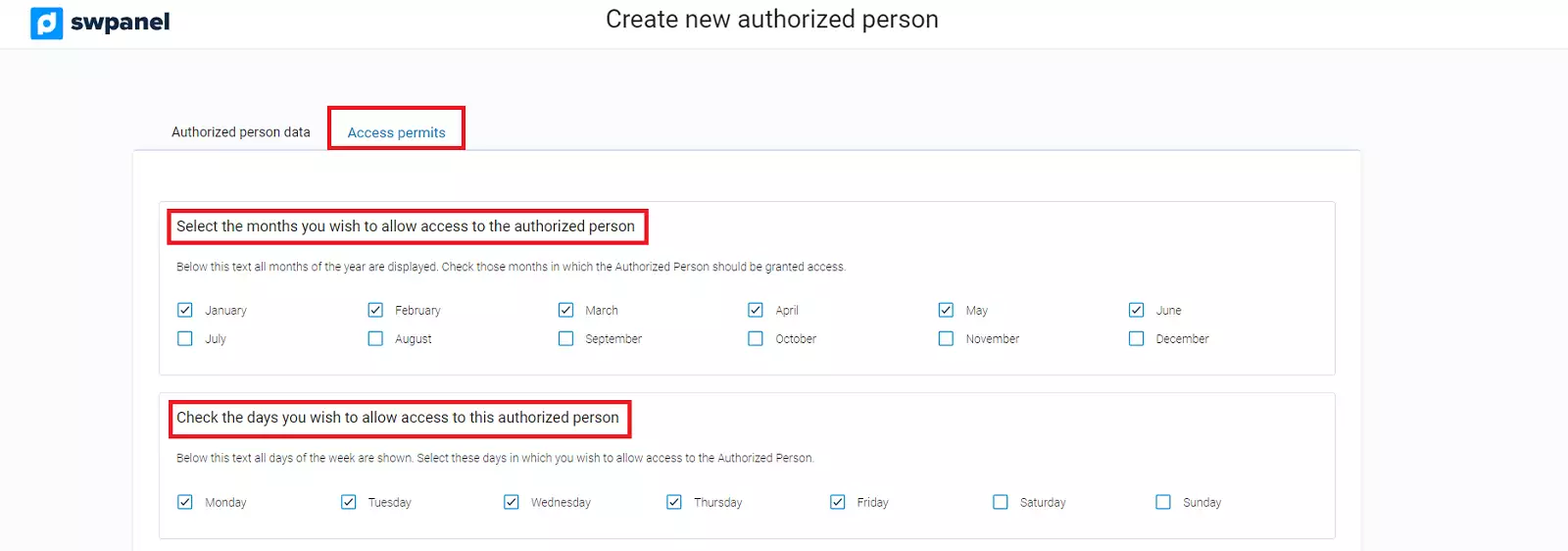
In the second tab 'Access Permissions', you can customize the months, days of the week and access schedule, as well as choose whether you can enter or remove equipment:
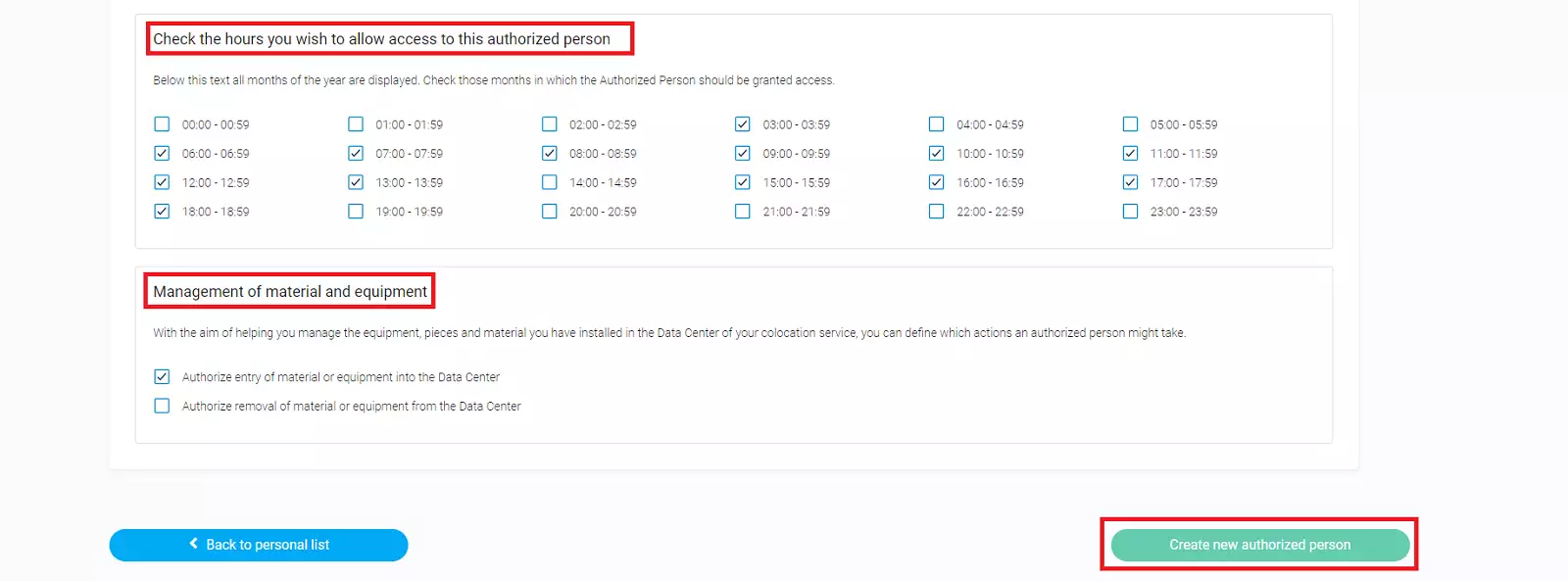
Finally, click on 'Create new Authorized Person'. When the process is finished, the new user will appear in 'Authorized Personnel':
Create a new authorized access
To create a new access, you must first access the Dashboard of your Housing and from there access the creation of a new access. To do this:
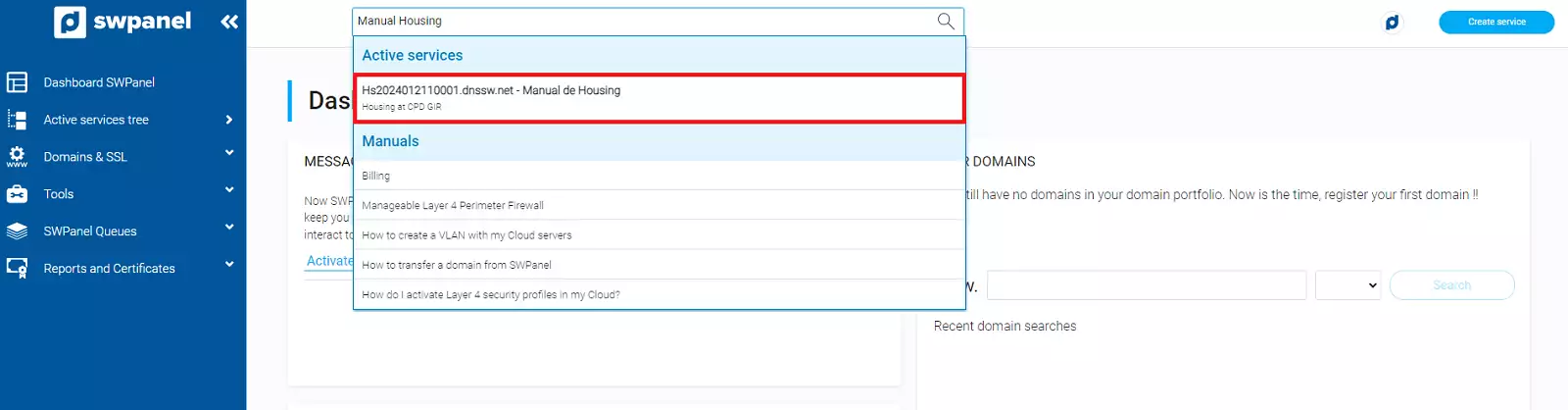
Search for your Housing in the search bar at the top of your SWPanel and click on it to access the Service Dashboard.
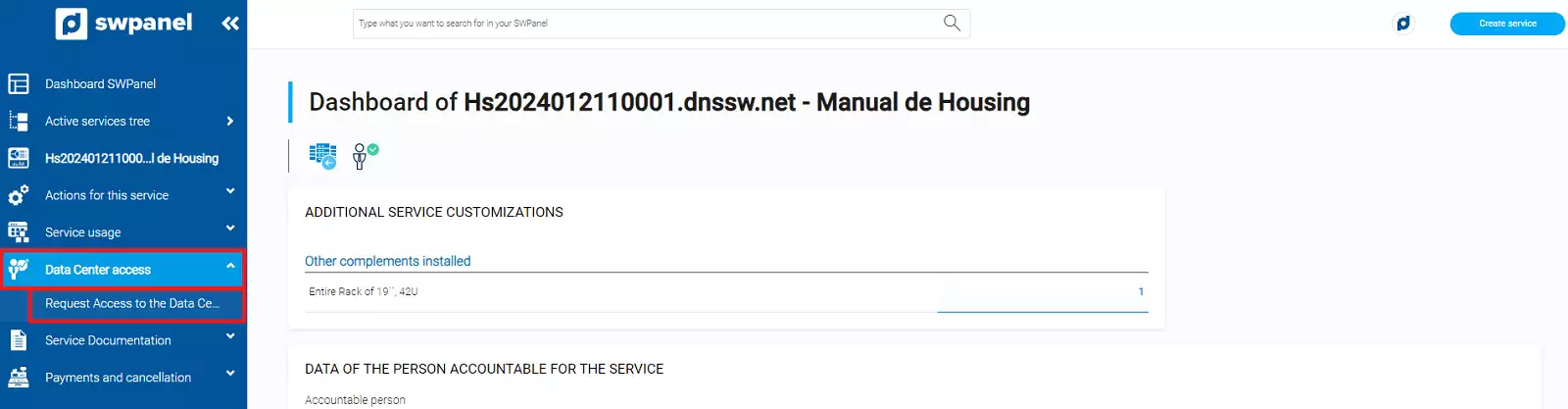
Once inside the Dashboard, in the side menu, click on 'Data Center Access' > 'Request Data Center Access':
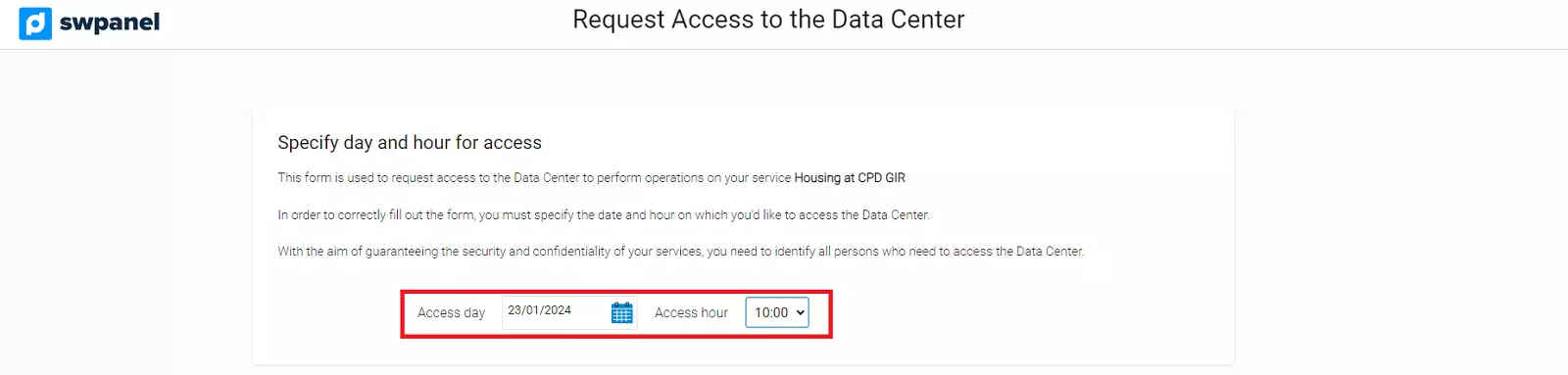
Select an access day and time:
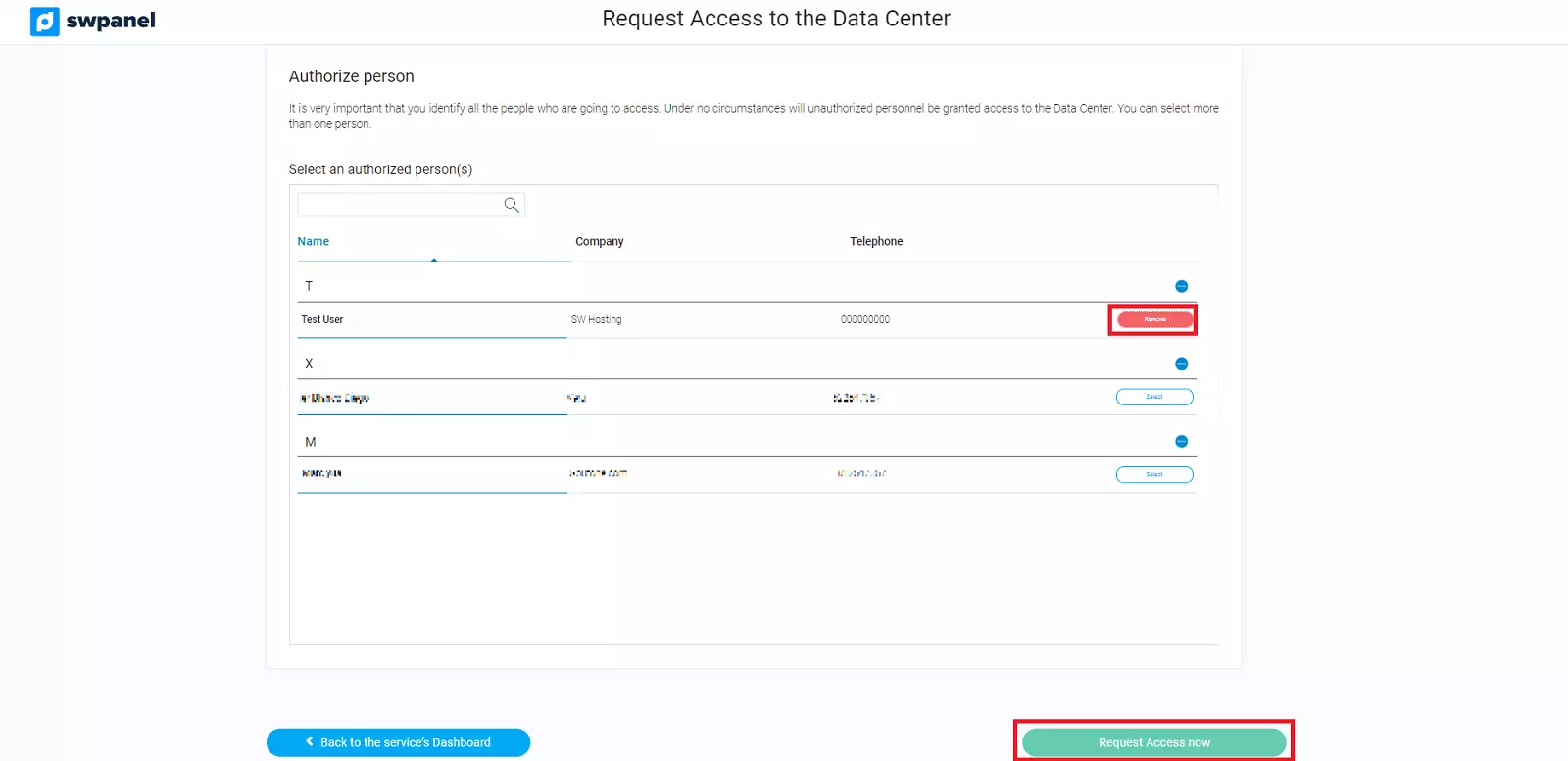
A new section 'Authorize Person' will open. From here we can select the user we have just created, or any other that we already have created. You can select one or several users. Keep in mind that all people coming to the Data Center must be authorized, otherwise they will not be able to enter. Once you have selected the user or users, click on 'Request Access now':
Access Calendar
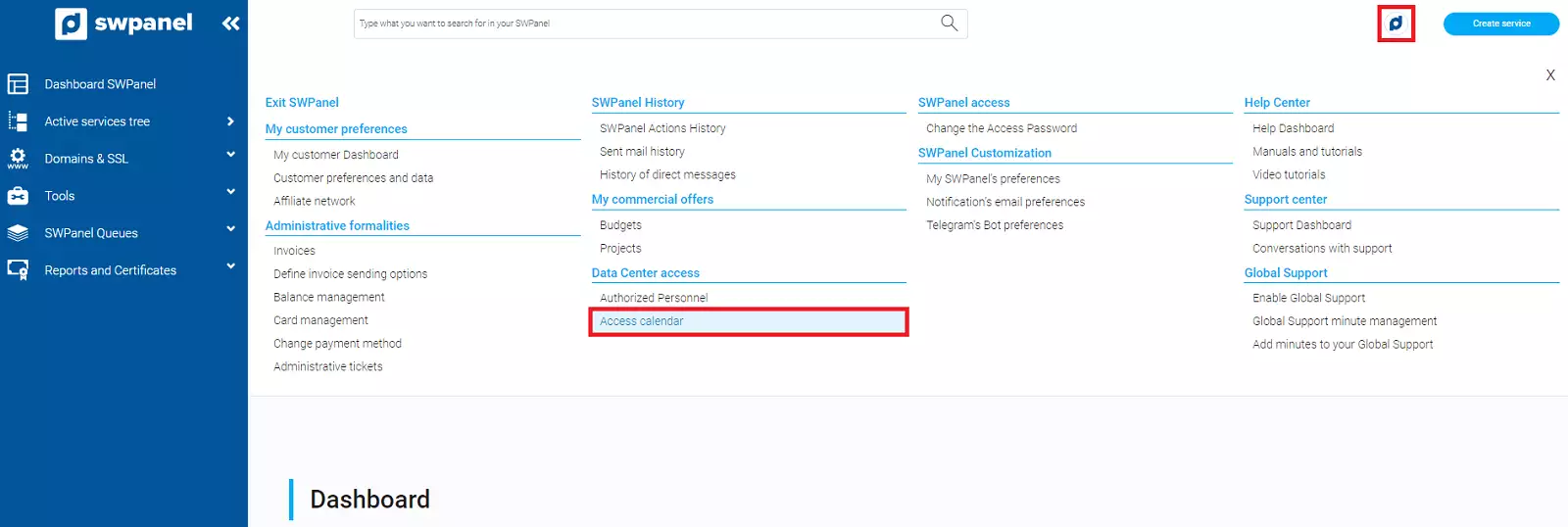
To manage and control the scheduled accesses to the Data Center, click on your logo and access the Access Calendar:
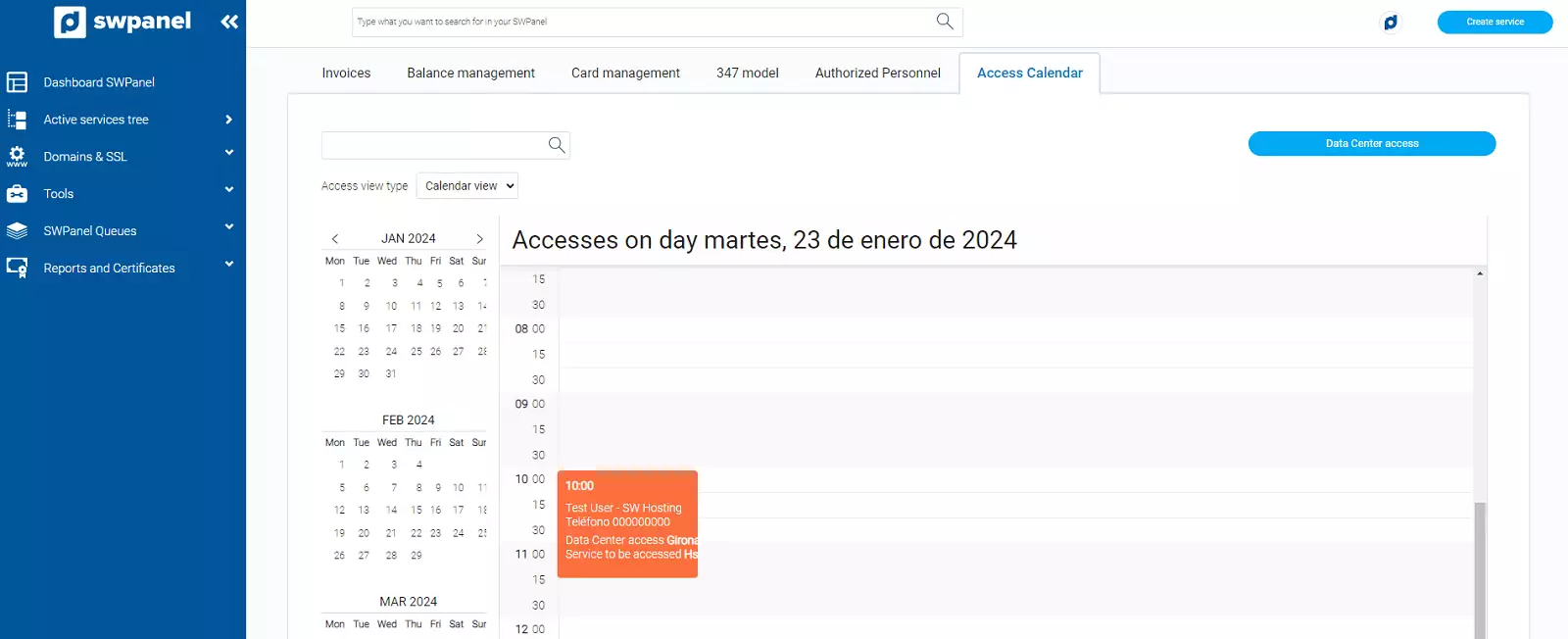
The first view you will see is that of the current day. By clicking on the days of the calendar, you can view the rest of the days in calendar mode:
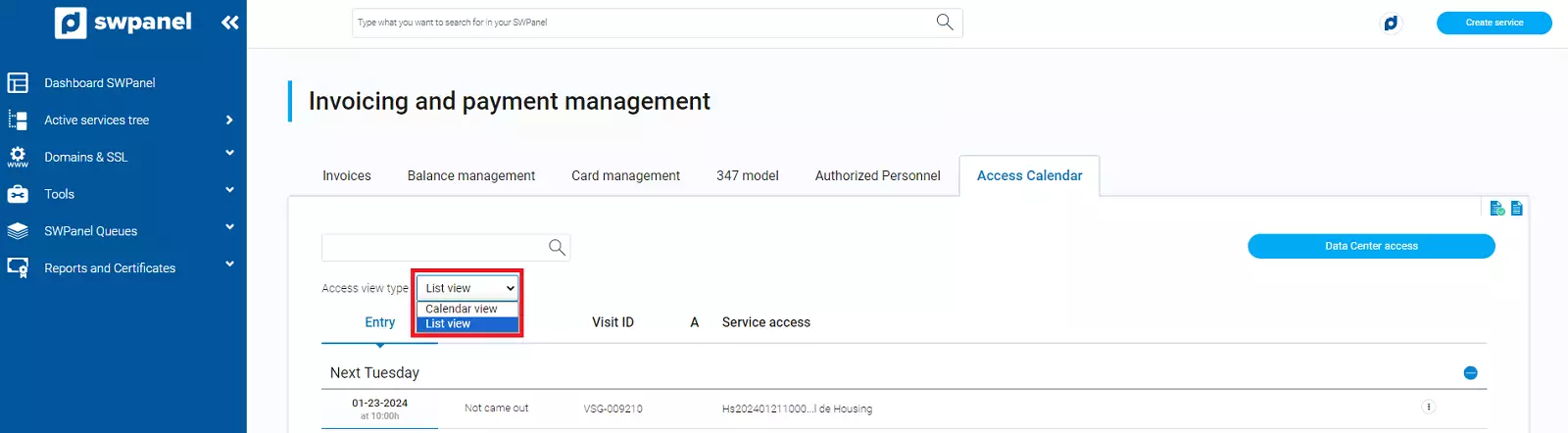
You can also switch to 'List Mode' to see all accesses at once: