
Modify log retention
Service 'logs' Management
By default, all our services save log data in your web space. These are important, not only for keeping a record of what or who connects to the service or carries out the different possible actions, but also to be able to see possible errors and thus correct them. Likewise, for reasons of compliance with the ISO 27001, LOPD, and GDPR regulations, it may be necessary to resort to these logs at some point.
These records, however, take up storage space, so we must be very cautious when saving them. Keeping very old logs can be very useful if you need to track any element in your service later on, but it can also occupy a lot of space and end up being a hindrance to the performance of your website.
If you have your own Cloud, you can activate Manuale: Log custody, a service we offer for external log storage so that your server does not fill up with logs and you can store them without worrying about space. However, in Shared Hosting, this option is not available.
What we do have available for all services, regardless of whether they are hosted on a Cloud or Shared Hosting, is log management. Log management consists of the definition of log saving; that is, you can choose for how many days the log records are kept. Once a log becomes older than defined, it is automatically deleted to make room for the following ones and without occupying unnecessary space. This automated process avoids the need for manual log deletion, which could cause the space to fill up and the website to stop working.
By default, log management is defined as 365 days; that is, a full year.
Managing my service logs
To manage the service logs, you must follow these steps:
-
Within your SWPanel, use the search bar to find your service. Once you find it, select it.
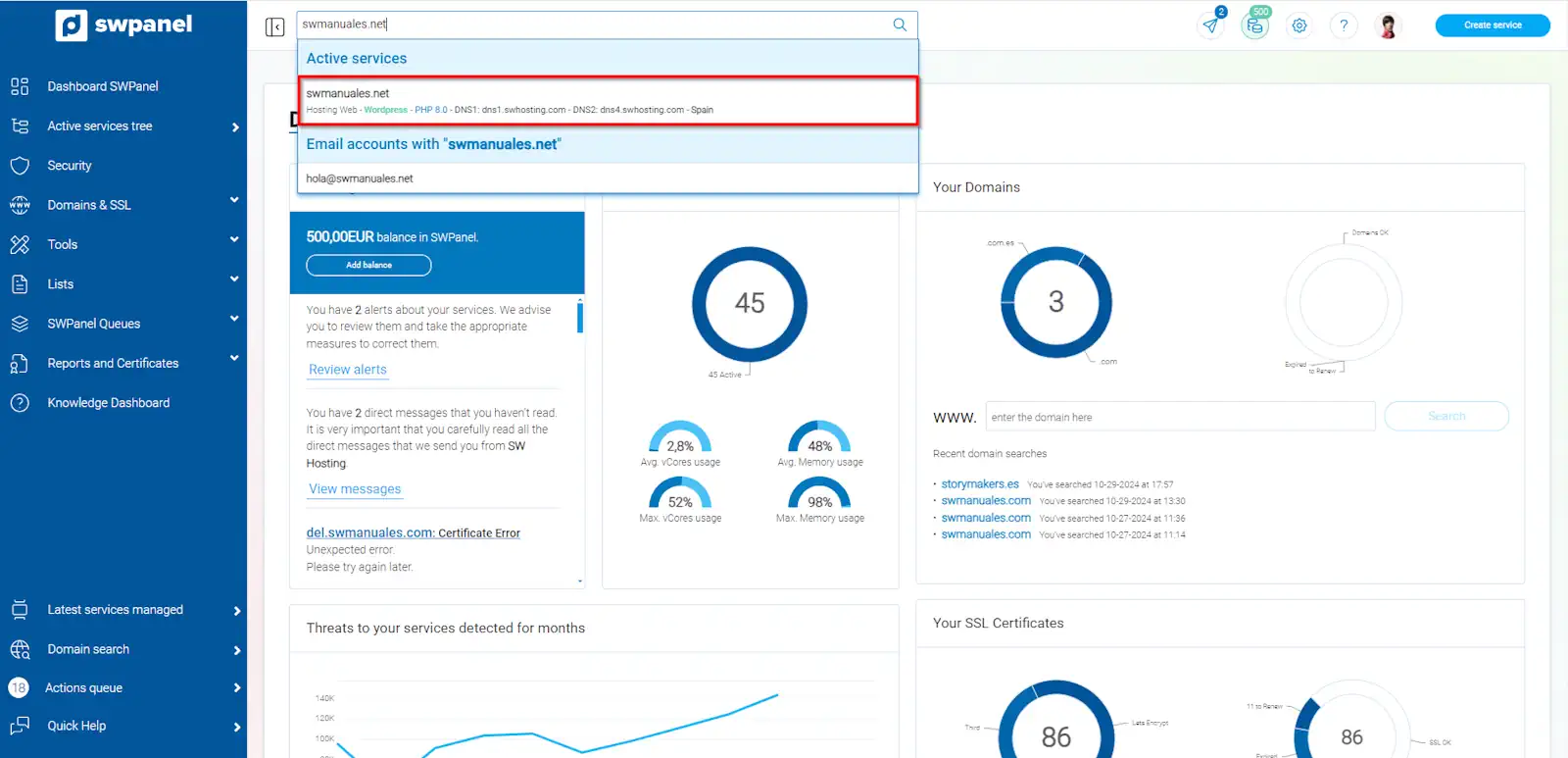
info_capture The screenshot is for guidance. It was taken on version 2024.07.0134 dated 10/30/2024. It may differ from what the current version of SWPanel shows.
-
At the end of the Dashboard, by scrolling down, we will find a box called Service 'logs' Management:
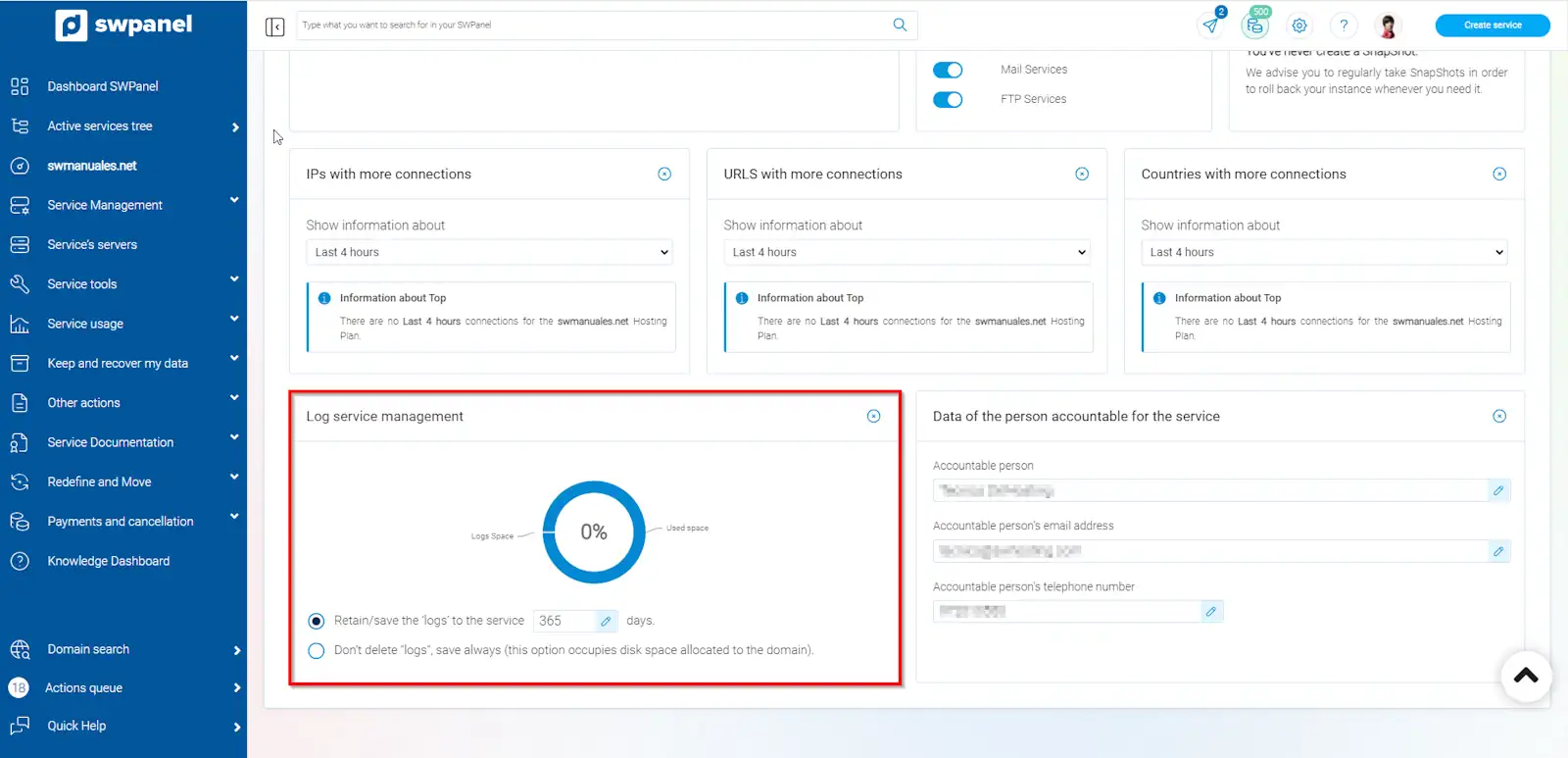
info_capture The screenshot is for guidance. It was taken on version 2024.07.0134 dated 10/30/2024. It may differ from what the current version of SWPanel shows.
-
Click on the small box corresponding to the number of days we want to retain/save the ’logs’ in the service, on the pencil-shaped icon.
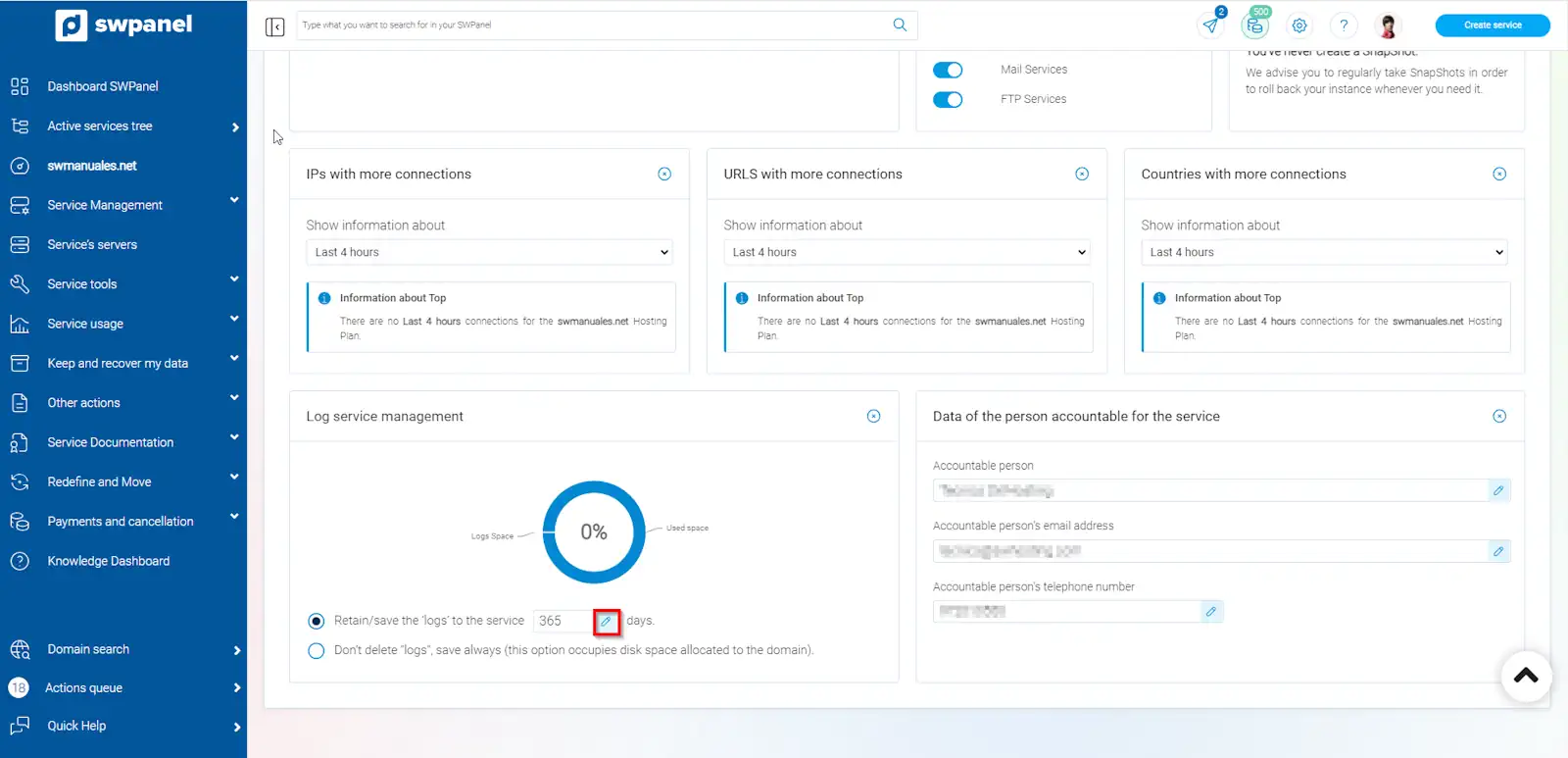
info_capture The screenshot is for guidance. It was taken on version 2024.07.0134 dated 10/30/2024. It may differ from what the current version of SWPanel shows.
- Enter the number of days you want to define. In this case, we have selected 7 days, finally, click on the icon to accept the changes and you will see that the changes have been applied correctly because you see the pencil icon again with the new number of days already applied:
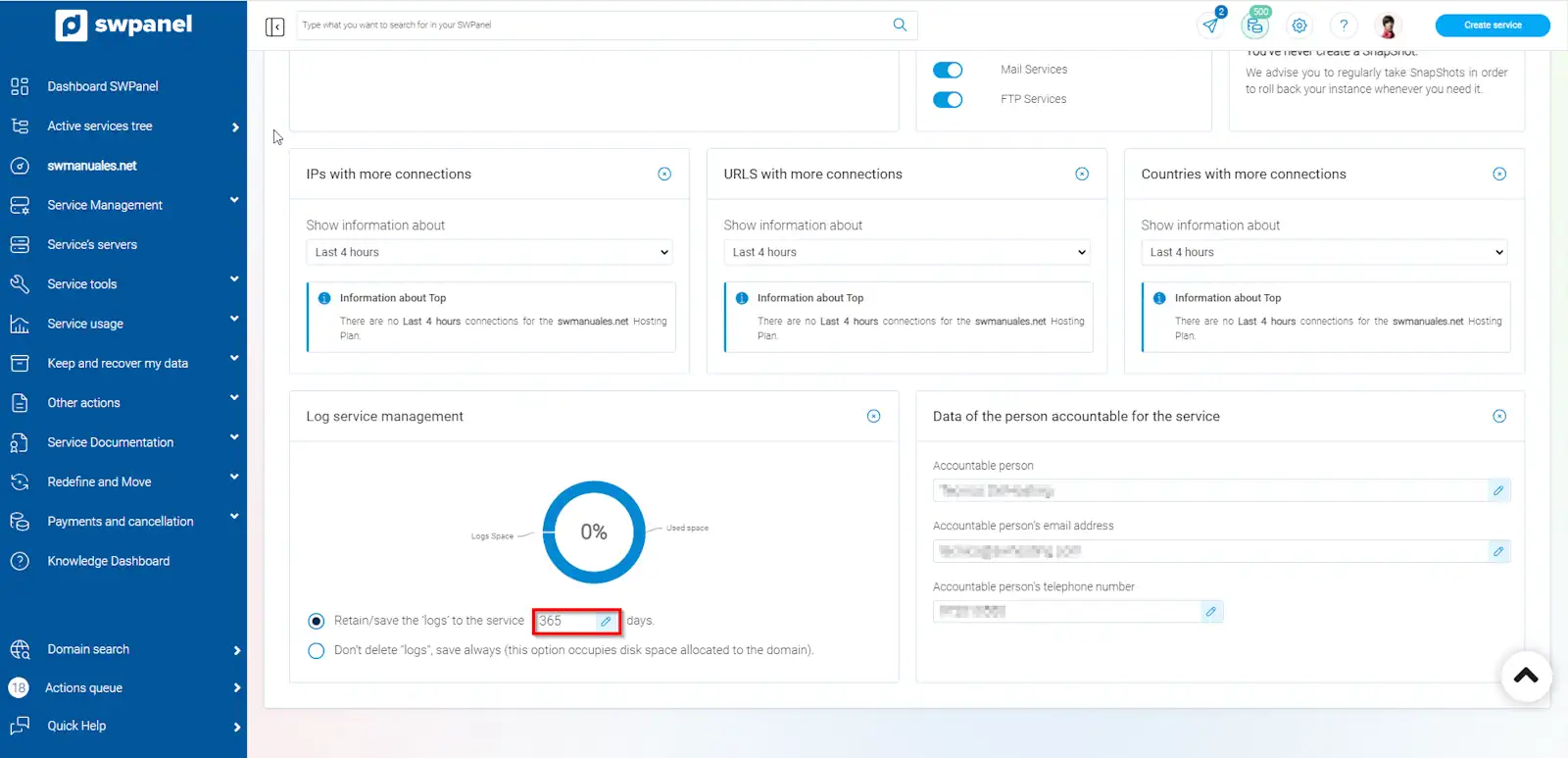
info_capture The screenshot is for guidance. It was taken on version 2024.07.0134 dated 10/30/2024. It may differ from what the current version of SWPanel shows.