
Security
What is IT Security?
IT security, also known as cybersecurity, according to ISACA (Information Systems Audit and Control Association), is the set of practices and measures aimed at protecting information assets. This involves managing and controlling threats that may compromise information while it is processed, stored, or transmitted through interconnected information systems.
How to access the Security menu?
The Security menu (or Security Dashboard) allows you to quickly view all options related to the protection of your services.
To access this section, simply click on the “Security” option, located in the side menu of your SWPanel.
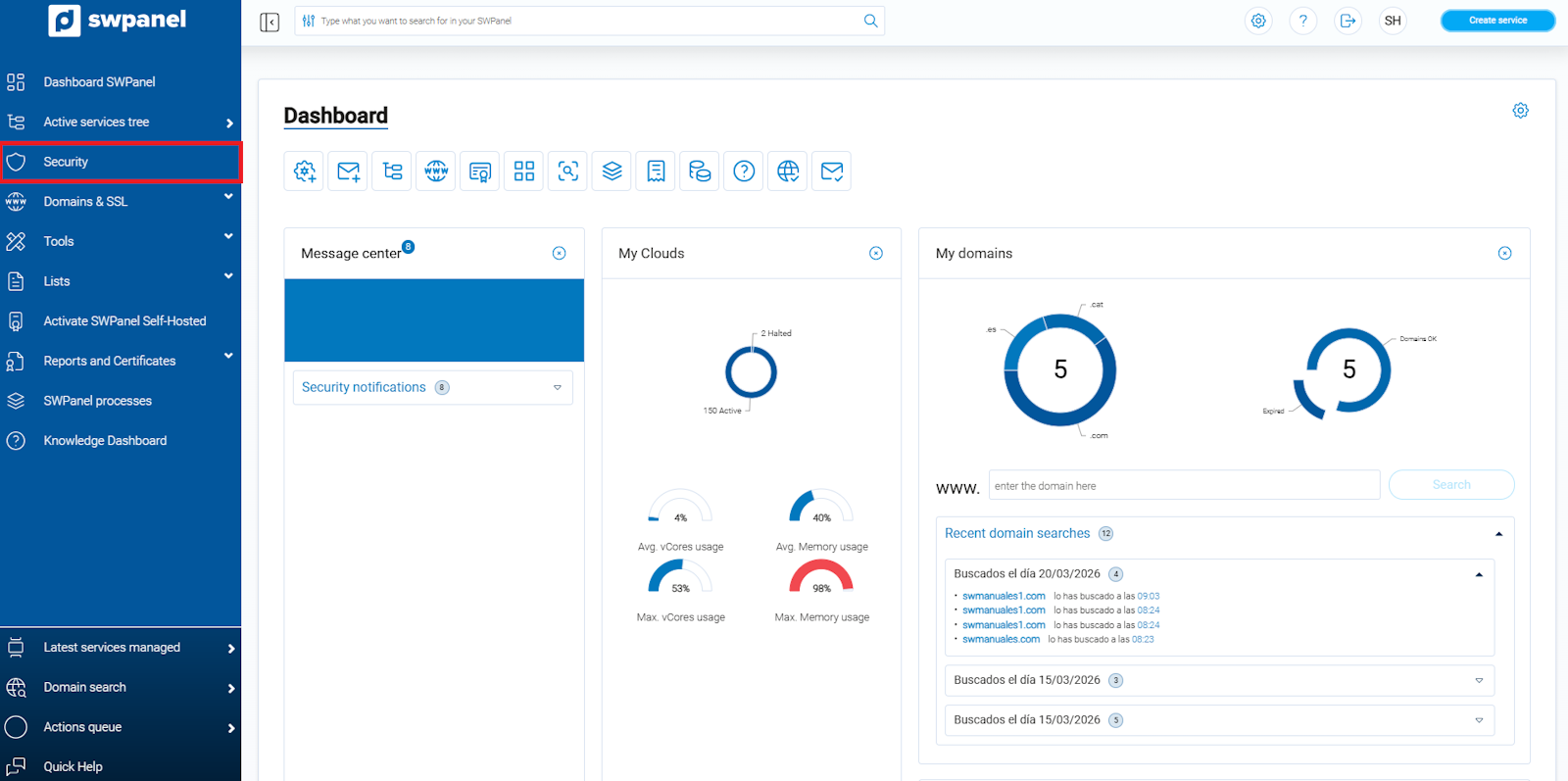
info_capture ℹ️ Note: The screenshot is for guidance purposes, taken from version 2026.000.0049 dated 21/03/2026. It may differ from the current version of SWPanel.
Security Dashboard
In this Security Dashboard, you can view key information about the protection of your services, including graphs and data on detected threats. This allows you to have a quick overview of the security status in your environment.
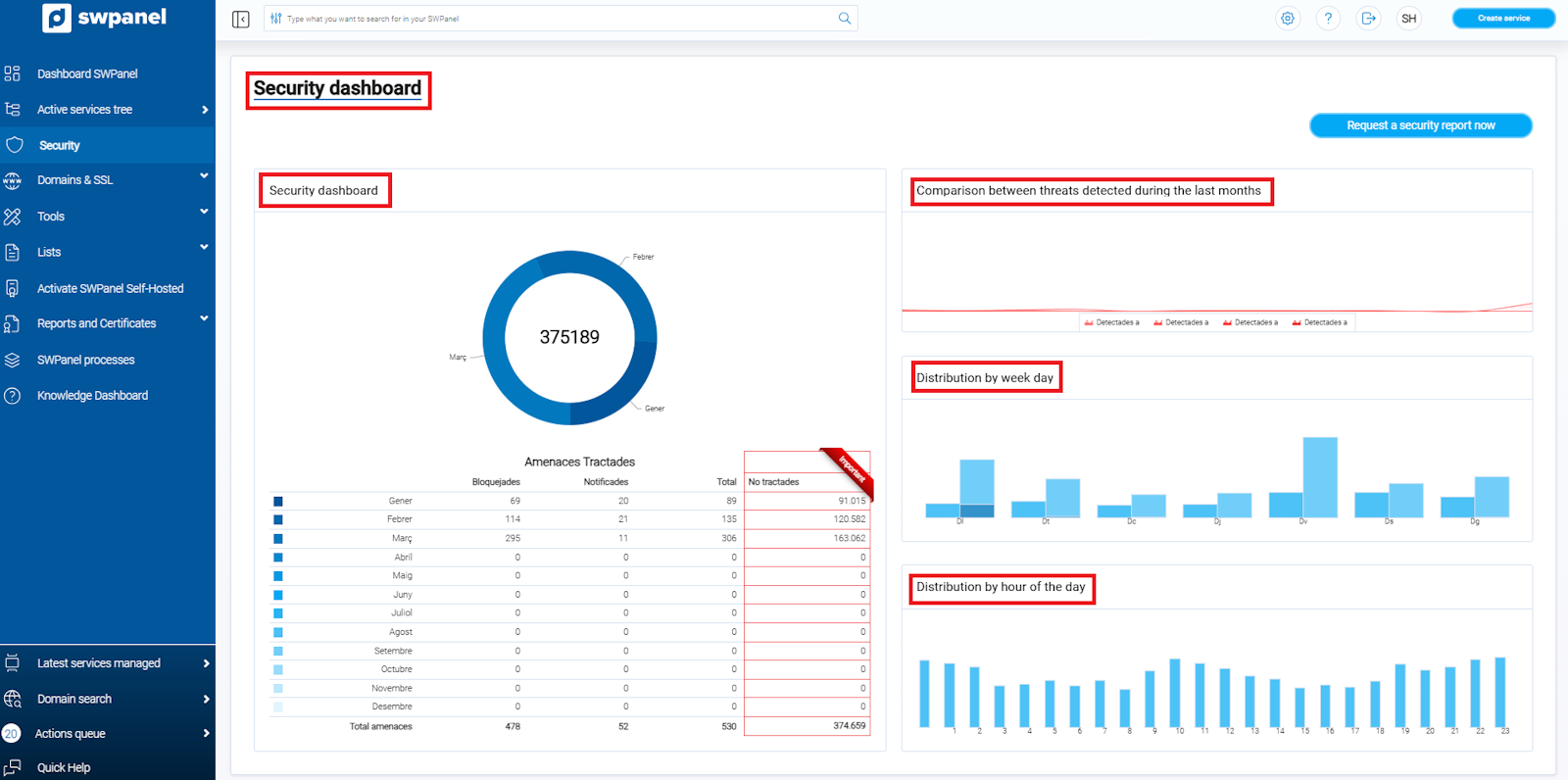
info_capture ℹ️ Note: The screenshot is for guidance purposes, taken from version 2026.000.0049 dated 21/03/2026. It may differ from the current version of SWPanel.
You can generate a report by clicking on “Request a report now”. Then, select:
- Report type you wish to receive.
- Email address to which the report will be sent.
Please note that the issuance of the report has a small cost associated with it.
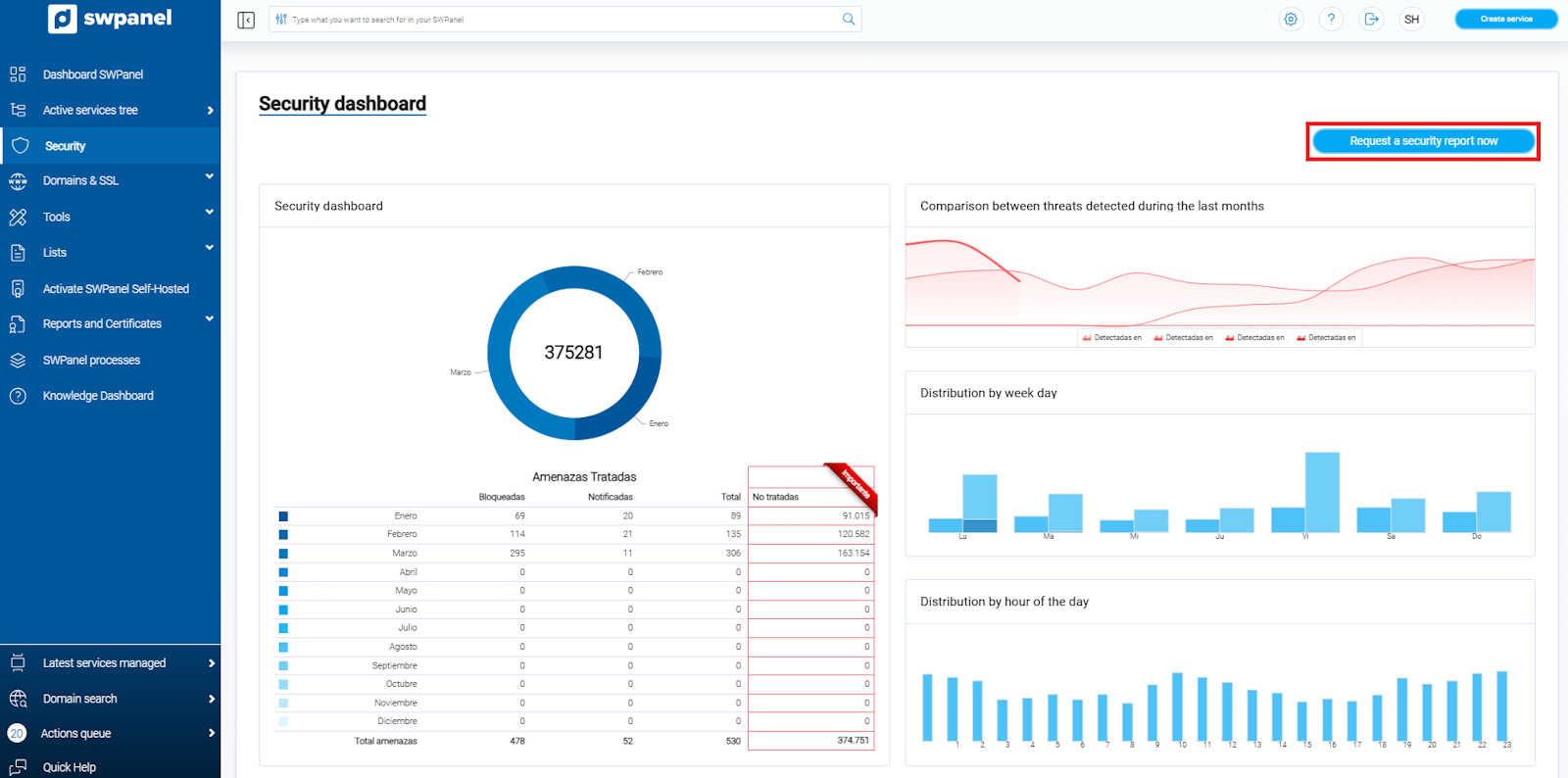
info_capture ℹ️ Note: The screenshot is for guidance purposes, taken from version 2026.000.0049 dated 21/03/2026. It may differ from the current version of SWPanel.
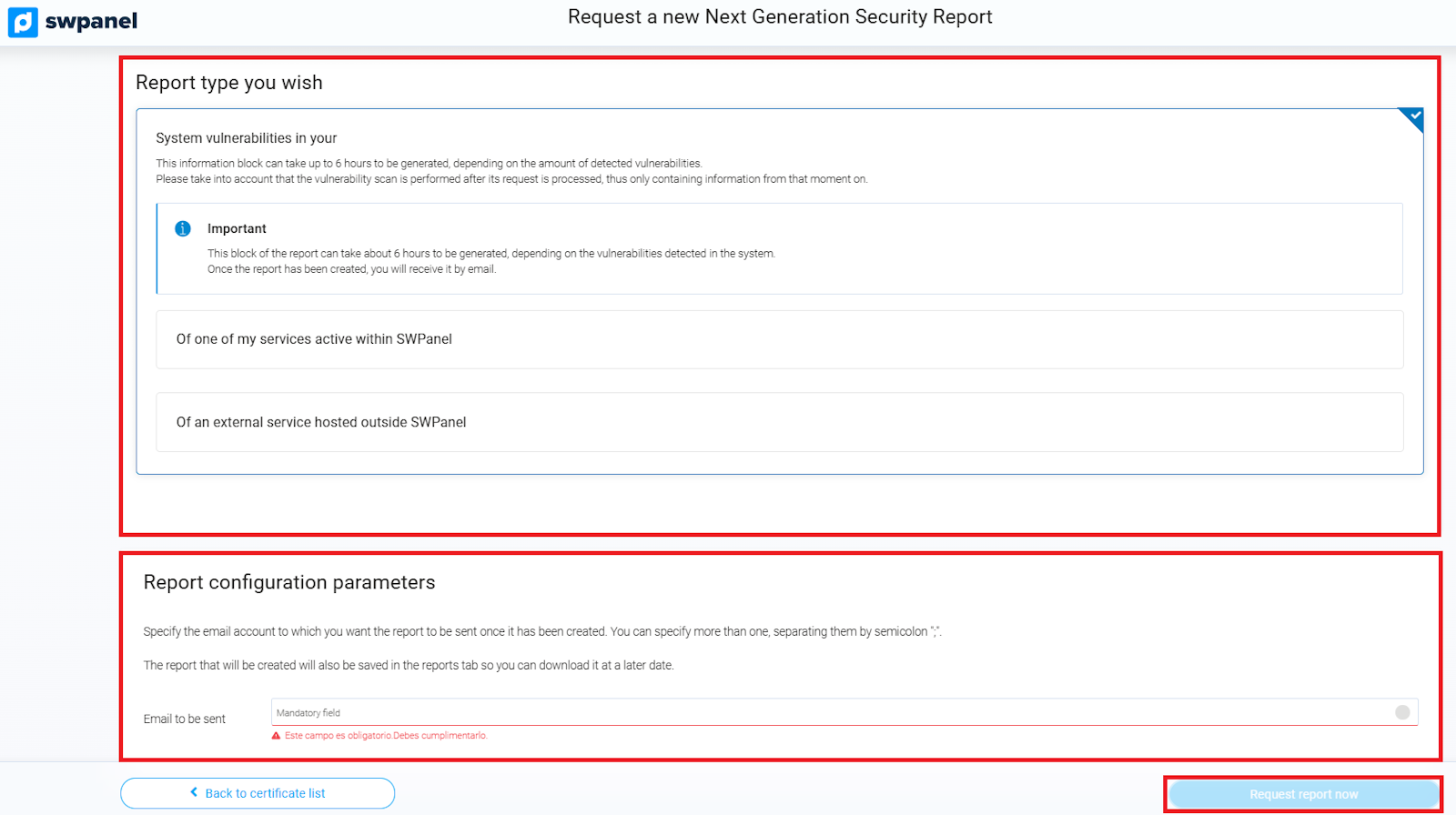
info_capture ℹ️ Note: The screenshot is for guidance purposes, taken from version 2026.000.0049 dated 21/03/2026. It may differ from the current version of SWPanel.
Security Dashboard: Threats managed by Next-Generation Security
This option is available only to customers who have Next-Generation Security activated. It allows you to view a Top 10 threats list, classified by type, country of origin, severity, and total quantity.
How to activate Next-Generation Security
-
In your SWPanel, use the search tool to locate your Cloud.
Example: in this guide our Cloud is called manuales-server, but yours will have a different name.
-
Once found, select it to proceed with the activation.
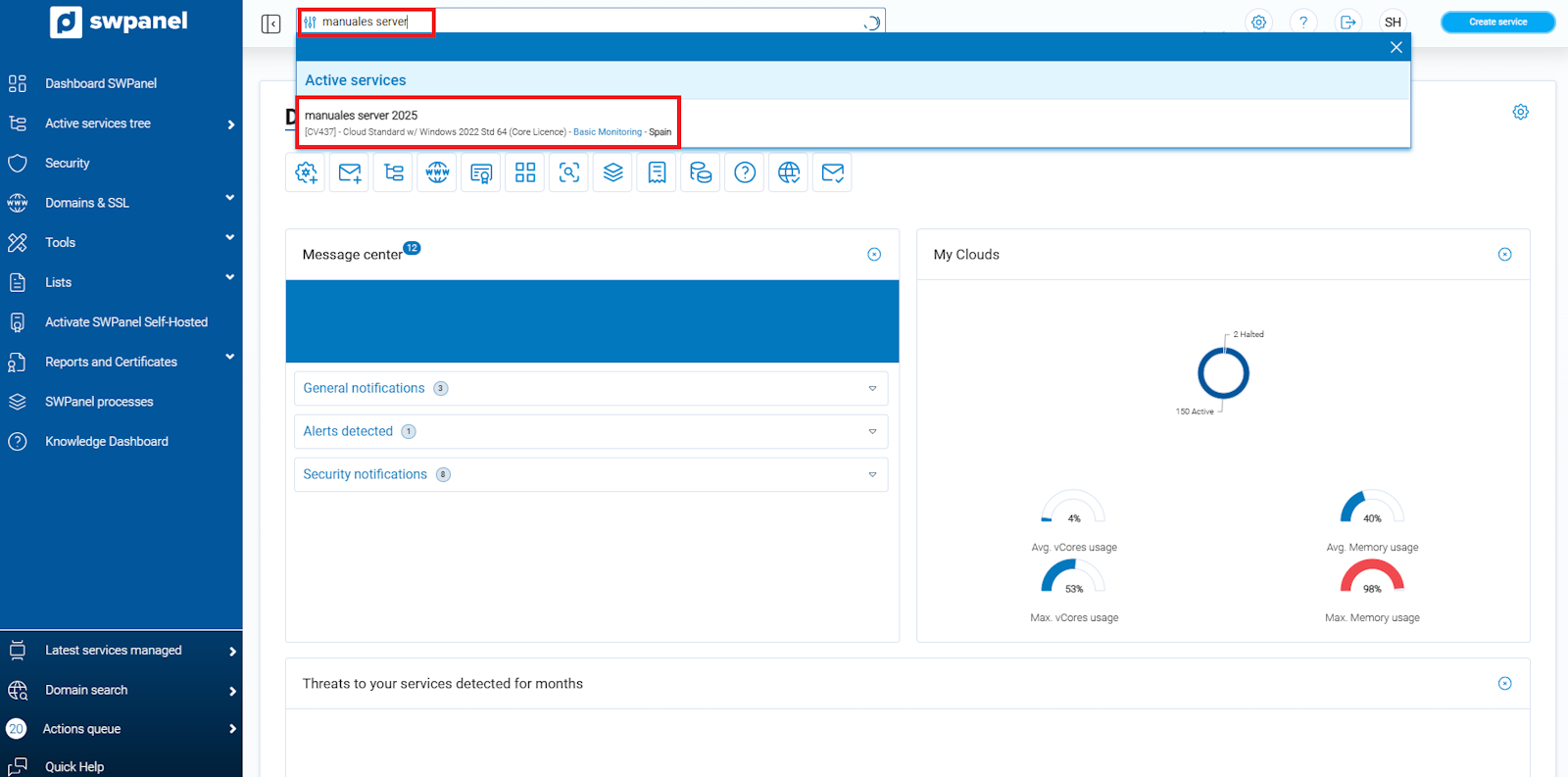
info_capture ℹ️ Note: The screenshot is for guidance purposes, taken from version 2026.000.0049 dated 21/03/2026. It may differ from the current version of SWPanel.
- Next, go to the “Available Improvements” section and select “Next-Generation Security”.
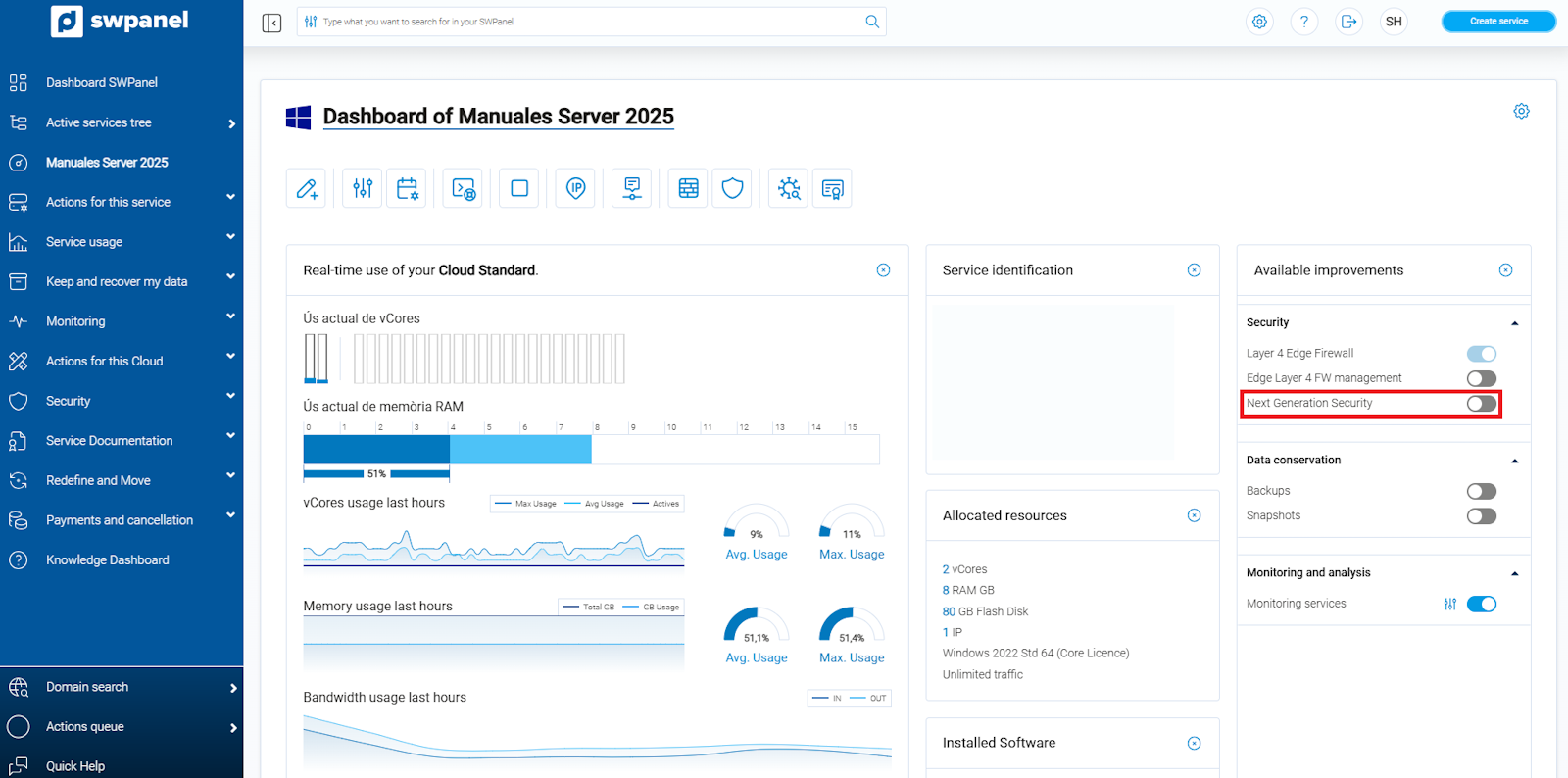
info_capture ℹ️ Note: The screenshot is for guidance purposes, taken from version 2026.000.0049 dated 21/03/2026. It may differ from the current version of SWPanel.
- Next, select the security type you wish to activate for your service.
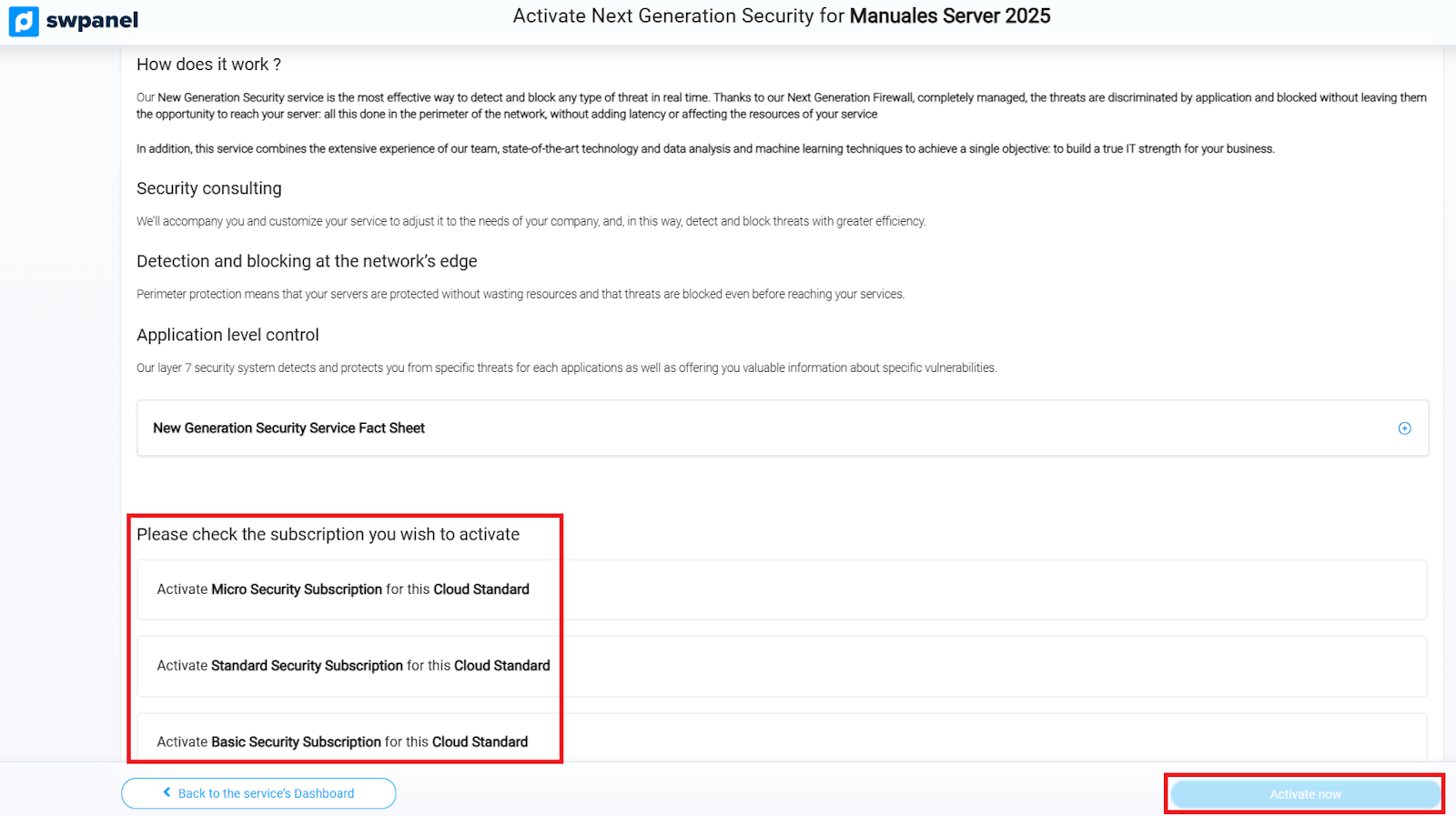
info_capture ℹ️ Note: The screenshot is for guidance purposes, taken from version 2026.000.0049 dated 21/03/2026. It may differ from the current version of SWPanel.
- Once the security type is selected, you must complete the corresponding payment to activate the protection.
Once Next-Generation Security is activated, in your services tree you will see your Cloud server with a shield to its right and the description:
“This service has a subscription to a Next-Generation Security Level”
By clicking on the shield, you will access the Next-Generation Security menu for Name of your Cloud Server, the operation of which we will explain below.
Next-Generation Security Menu
In this menu you can view:
- Graphs on the types of threats received and the protocol used.
- Threat alerts generated from your own server, if any.
This allows you to have a complete overview of the security status of your server and take measures if necessary.
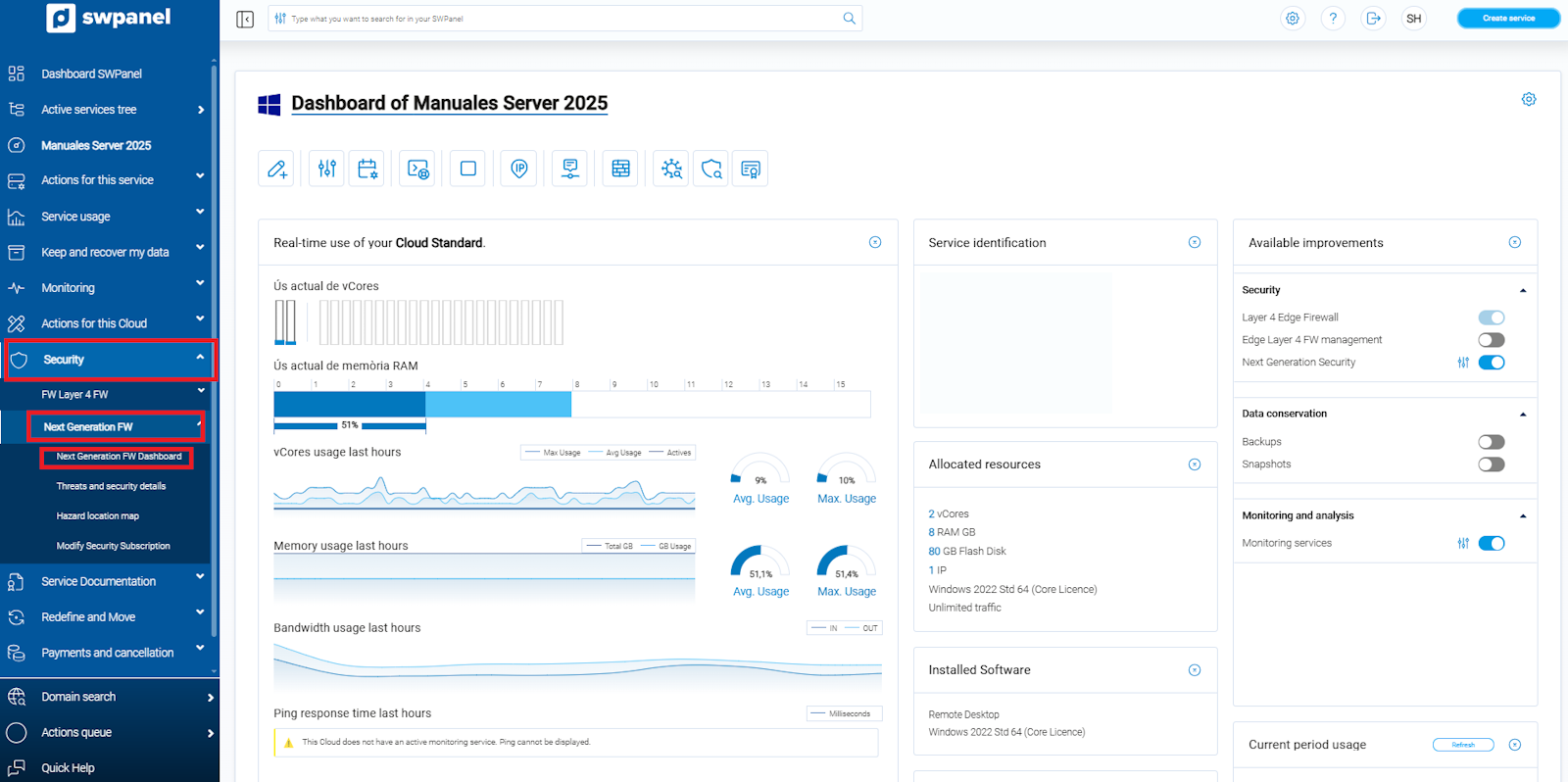
info_capture ℹ️ Note: The screenshot is for guidance purposes, taken from version 2026.000.0049 dated 21/03/2026. It may differ from the current version of SWPanel.
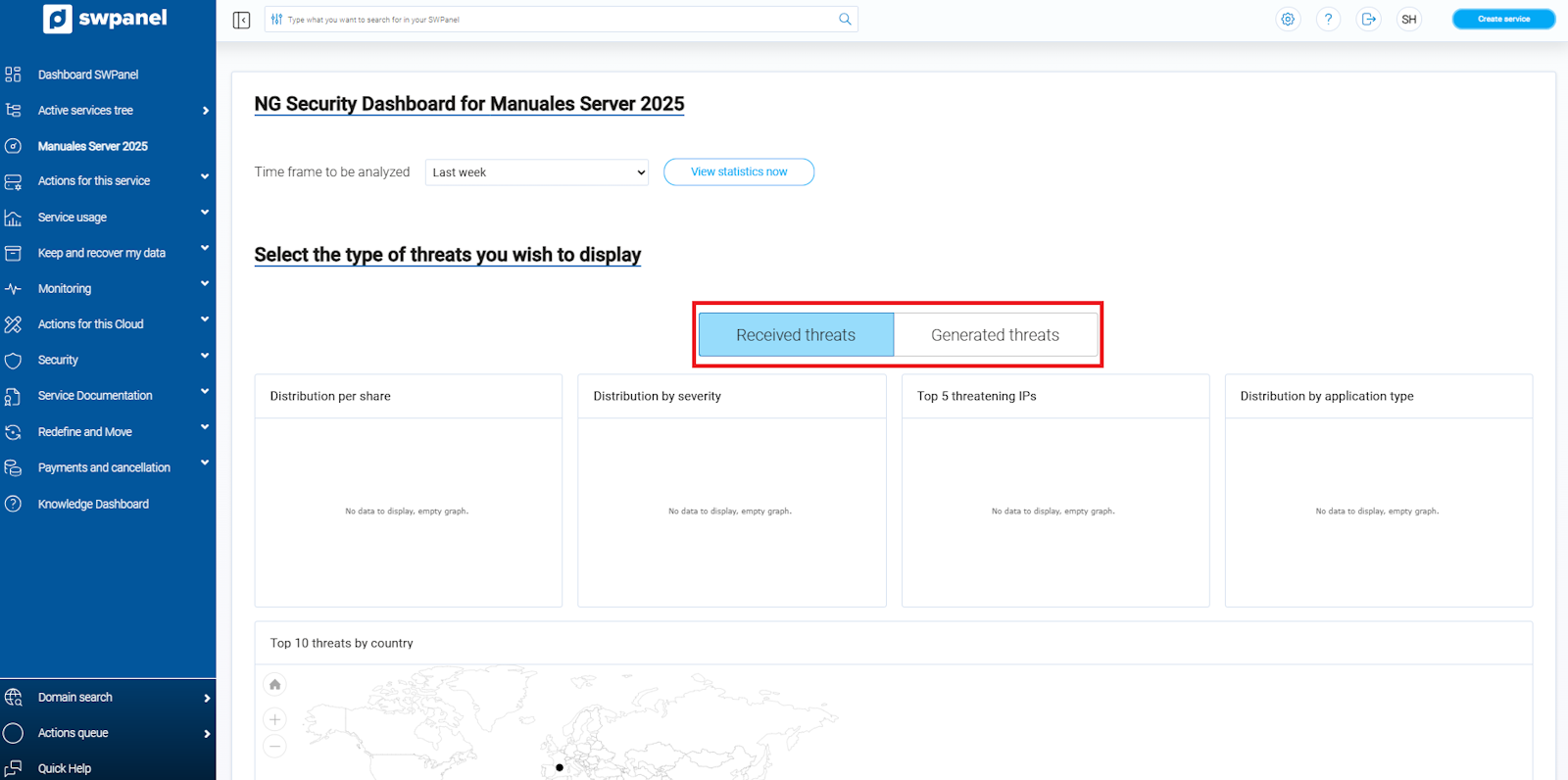
info_capture ℹ️ Note: The screenshot is for guidance purposes, taken from version 2026.000.0049 dated 21/03/2026. It may differ from the current version of SWPanel.
In the Threats tab, you can view all threats on your server, both those received and those generated from your own server.
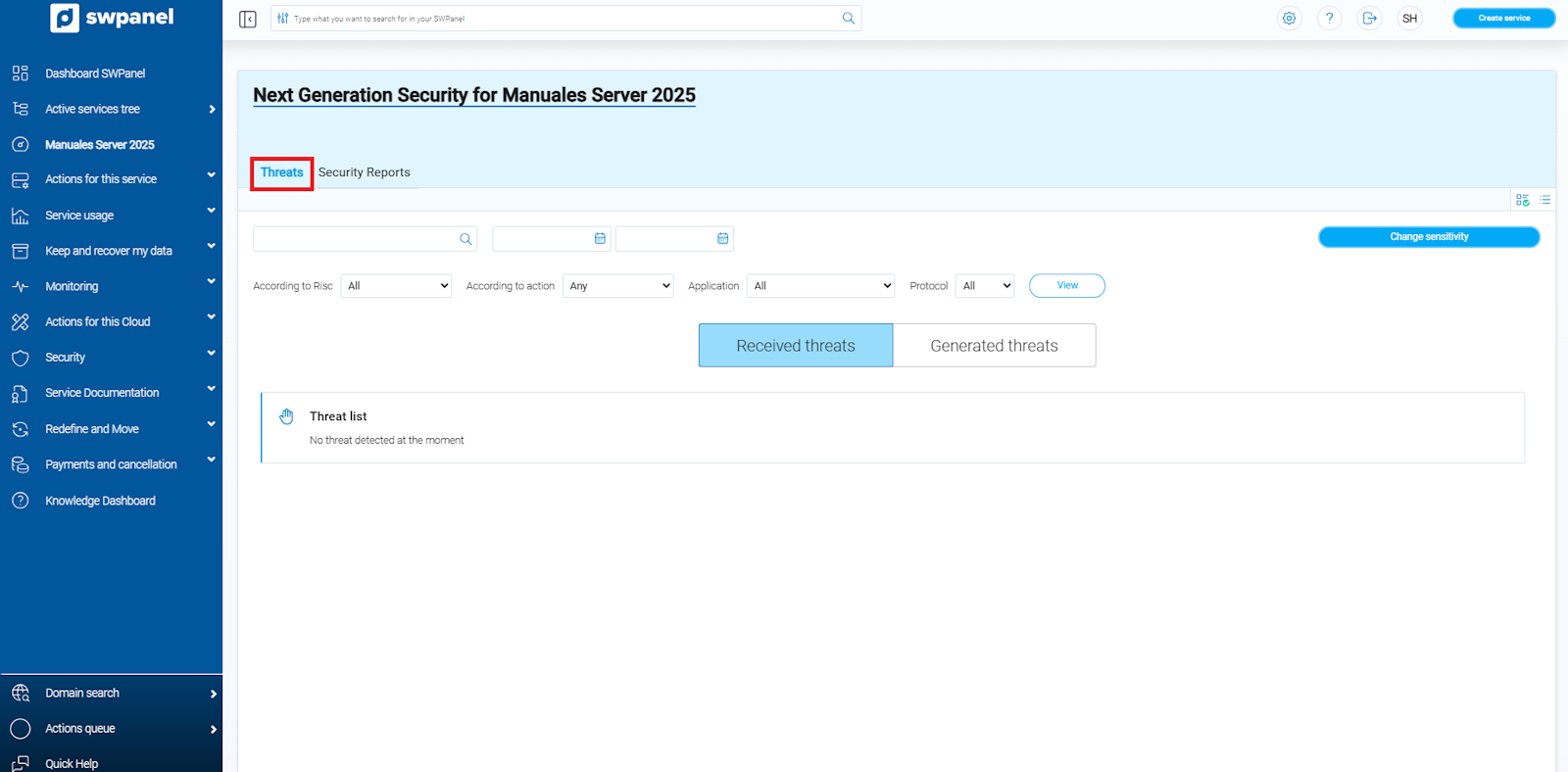
info_capture ℹ️ Note: The screenshot is for guidance purposes, taken from version 2026.000.0049 dated 21/03/2026. It may differ from the current version of SWPanel.
In the Security Reports section, you can request a report on:
- Network or Perimeter Security
- System vulnerabilities of your Cloud server
Reports are generated within a maximum time of 6 hours, providing you with a quick and detailed overview of your server's security status.
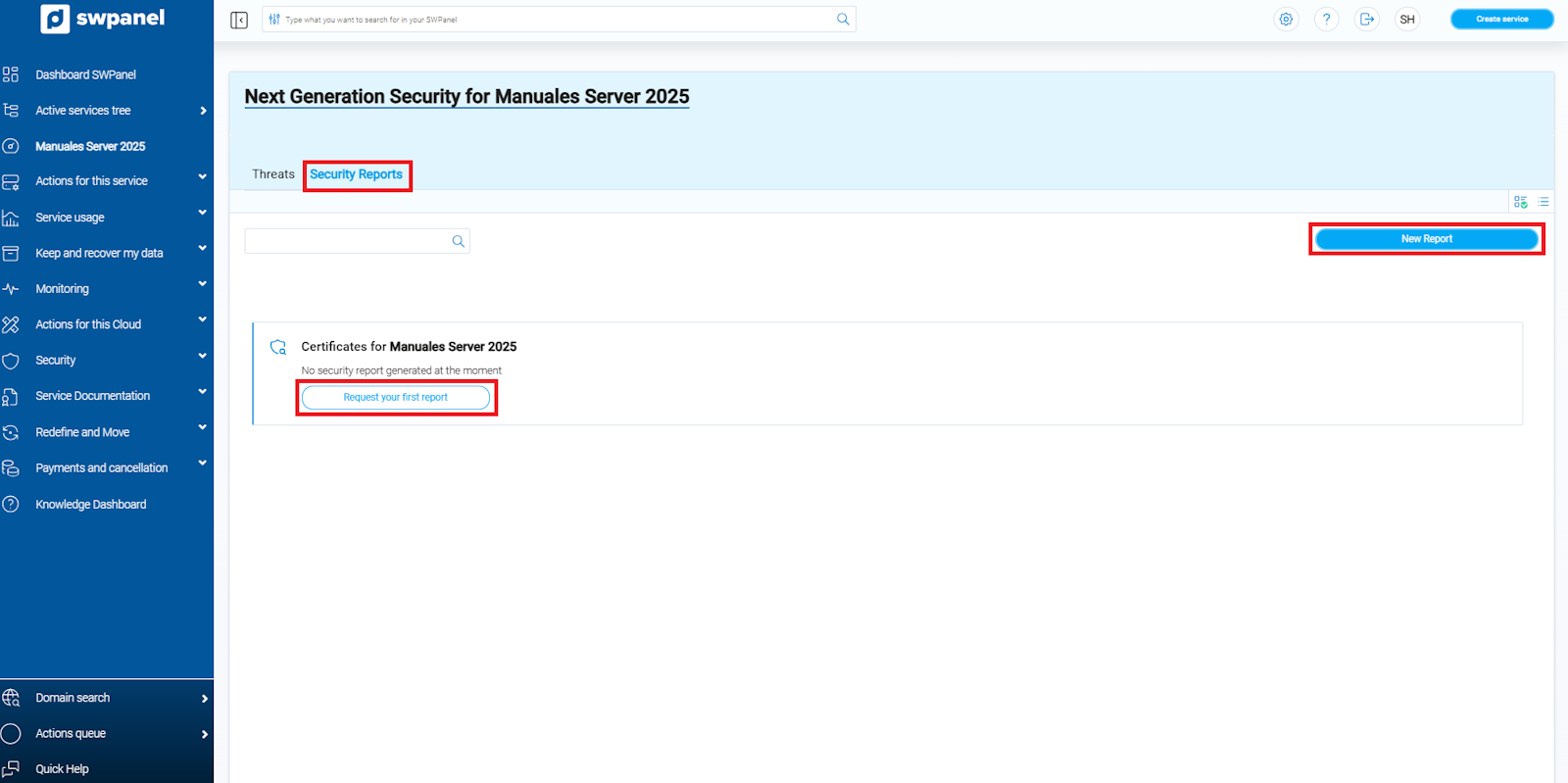
info_capture ℹ️ Note: The screenshot is for guidance purposes, taken from version 2026.000.0049 dated 21/03/2026. It may differ from the current version of SWPanel.
When requesting a report, you can:
-
Select the report type you wish to generate.
-
Define the period of the report by indicating the start and end date.
The report can cover a maximum of 31 days.
-
Specify the email address where the report will be sent.
-
Formalize the request to complete the process.
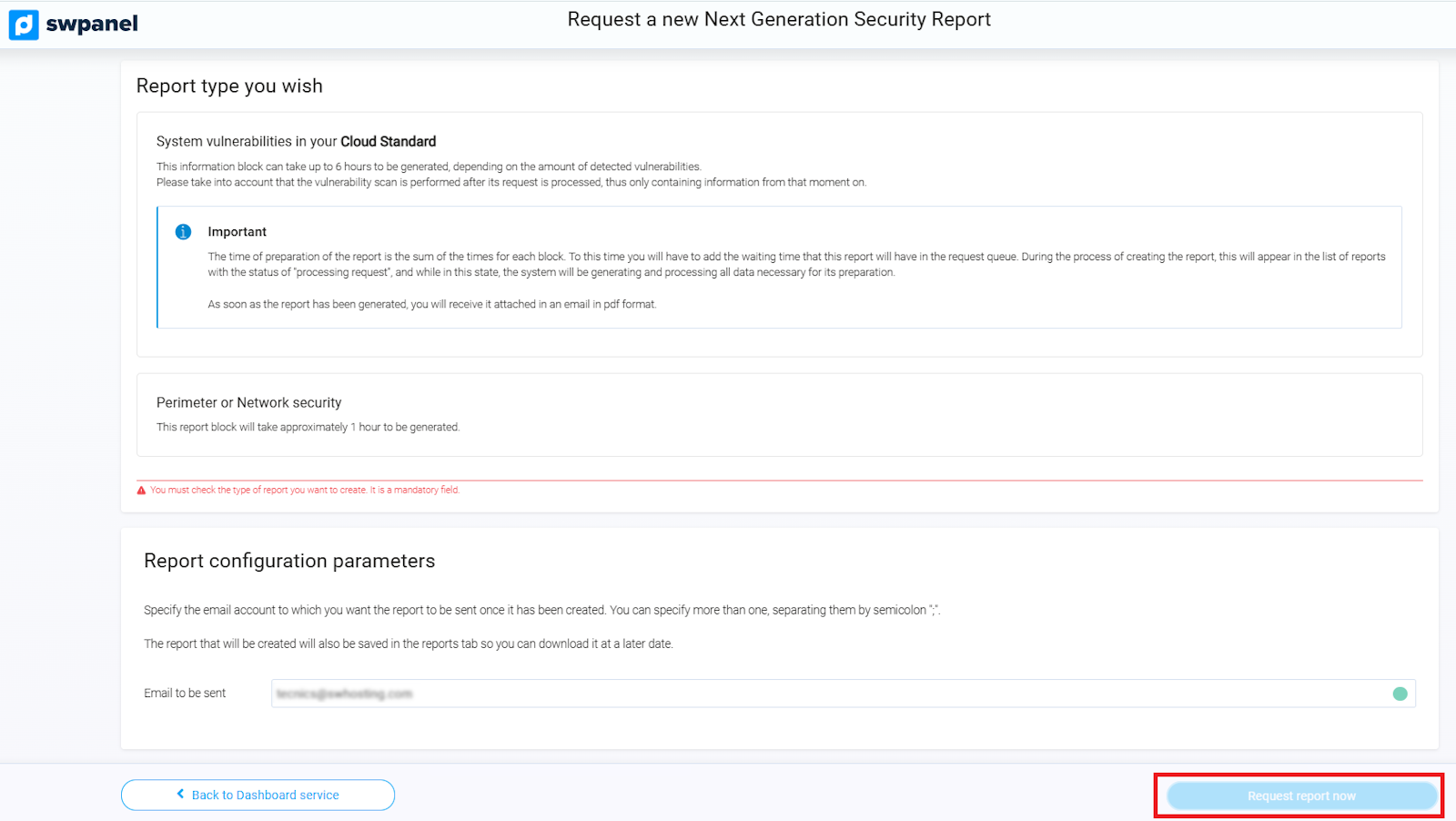
info_capture ℹ️ Note: The screenshot is for guidance purposes, taken from version 2026.000.0049 dated 21/03/2026. It may differ from the current version of SWPanel.
Below, we provide an example report so you can see how the information is presented.