
Update Ubuntu 22.04 to 24.04
This manual will guide you in updating “Ubuntu 22.04 LTS (Jammy Jellyfish)” to the latest long-term support (LTS) version of the Ubuntu operating system, Ubuntu 24.04 (Noble Numbat). This was released on April 25, 2024.
Before starting the tutorial, if you do not have a Cloud server with Ubuntu 22.04 or if you prefer a Cloud server already updated to Ubuntu 24.04, don't worry! With just one click, you can easily deploy it with SWPanel.
In order to always provide knowledge and be able to help our customers in the different situations and scenarios they may encounter, we have decided to document the update process to this version. In this way, you can enjoy the latest functionalities and security updates of the software for the operating system.
At the following link you can find more information regarding the changes offered by this new version: Noble Numbat Release Notes
danger Warning! As with almost any update between "major" versions of an operating system, this process carries an inherent risk of failure, data loss, or corrupted software configuration. Full backups and exhaustive tests are strongly recommended before starting.
The update process takes time depending on Internet speed and other factors. Do not cancel the operation once started, as it will leave your Ubuntu machine in an inconsistent state.
PREVIOUS RECOMMENDATIONS
Backups
We strongly recommend that you have a backup of all your data before updating from Ubuntu 22.04 to Ubuntu 24.04. Make sure all your backups are up to date to guarantee the integrity of all your data before continuing.
Snapshots
Additionally, you also have the possibility to activate the snapshot / Snapshots service of your cloud service through your SWPanel; we recommend taking a snapshot / Snapshot of your cloud prior to the update process, so you can revert the changes at any time if necessary:
Disk space
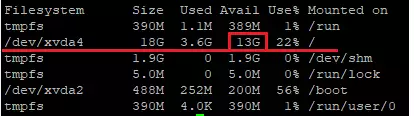
Make sure you have enough free disk space before starting this process.
We recommend having at least 10 GB of free disk space before updating. Use the df command to verify it:
df -h
Third-party repositories
All third-party repositories are disabled via comment (#) during the update process of your operating system. If you are using any extra repositories on your server, you will need to enable them after the update procedure is complete. You can find third-party repositories or "mirrors" in the directory:
/etc/apt/sources.list.d/
ubuntu-release-upgrader-core package
It will be necessary to have the ubuntu-release-upgrader-core package, which will allow us to carry out this update. For this, we can run the following command to install it:
sudo apt-get install ubuntu-release-upgrader-core -y
Ubuntu 22.04 LTS to 24.04 LTS update process
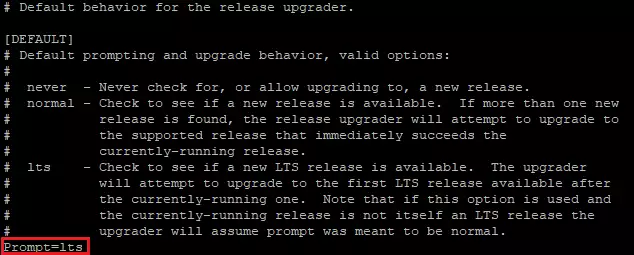
Verify the default behavior for the release upgrader using the cat / more or less command:
cat /etc/update-manager/release-upgrades
And make sure the following line is set to lts:
Prompt=lts
Step 1: Find the Ubuntu Linux kernel version
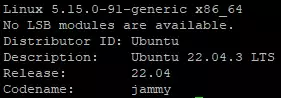
First, it is important to check which Kernel version you currently have, in case it is also updated during the process and it becomes necessary to restart the server.
Note the current name of the Linux distribution and the kernel version before starting. Use the uname command and the lsb_release command as follows:
uname -mrs && lsb_release -a
Step 2: Update your system
First, search for all packages that are in "hold" mode, by typing the apt-mark command:
sudo apt-mark showhold
If you see an empty output and there are no held packages, you can safely continue. Otherwise, you must remove the package hold with the apt-mark command. For example, release the packages as follows (replace package1 package2 with the names of the listed packages):
sudo apt-mark unhold package1 package2
Then, update the current system using the apt command:
sudo apt-get update && sudo apt-get upgrade
You will be shown a list of updates and asked to continue. Press Y to confirm and Enter.
This process may take some time. Once finished, use the dist-upgrade command with apt-get, which will perform any additional updates that involve changing dependencies, adding or removing new packages as necessary.
This command will install a set of updates that may have been held by the previous apt update step:
sudo apt-get dist-upgrade
Again, press Y when prompted to continue and wait for the updates to complete.
If a new Linux kernel is installed, check and compare it with the command provided in the previous step:
uname -mrs && lsb_release -a
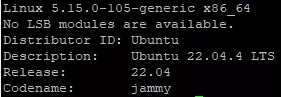
If your Kernel version has changed, restart your system before continuing:
sudo reboot
Now that you have an updated installation of Ubuntu 22.04, you can use do-release-upgrade to update to version 24.04.
Step 3: Opening ports
You may need to activate Layer 4 FW Management through your SWPanel and temporarily enable the following access profile to open the necessary ports used during the update process of your system:
 In case you have the Ubuntu UFW software installed, you should follow the same procedure and also open port 1022 TCP, which is used by the software for the update:
Step 4: Update to 24.04 LTS using the command line:
In the command line, type the do-release-upgrade command as follows to start the update procedure:
sudo do-release-upgrade -d
The ssh user will immediately see the message:
Checking for a new Ubuntu release

= Welcome to Ubuntu 24.04 LTS 'Noble Numbat' =

The Ubuntu team is proud to announce Ubuntu 24.04 LTS 'Noble Numbat'.

To see what's new in this release, visit:
  https://wiki.ubuntu.com/NobleNumbat/ReleaseNotes

Ubuntu is a Linux distribution for your desktop or server, with a fast
and easy install, regular releases, a tight selection of excellent
applications installed by default, and almost any other software you
can imagine available through the network.

We hope you enjoy Ubuntu.

== Feedback and Helping ==

If you would like to help shape Ubuntu, take a look at the list of
ways you can participate at

  http://www.ubuntu.com/community/participate/

Your comments, bug reports, patches and suggestions will help ensure
that our next release is the best release of Ubuntu ever.  If you feel
that you have found a bug please read:

  http://help.ubuntu.com/community/ReportingBugs

Then report bugs using apport in Ubuntu.  For example:

  ubuntu-bug linux

will open a bug report in Launchpad regarding the linux package.

If you have a question, or if you think you may have found a bug but
aren't sure, first try asking on the #ubuntu or #ubuntu-bugs IRC
channels on Libera.Chat, on the Ubuntu Users mailing list, or on the
Ubuntu forums:

  http://help.ubuntu.com/community/InternetRelayChat
  http://lists.ubuntu.com/mailman/listinfo/ubuntu-users
  http://www.ubuntuforums.org/


== More Information ==

You can find out more about Ubuntu on our website, IRC channel and wiki.
If you're new to Ubuntu, please visit:

  http://www.ubuntu.com/


To sign up for future Ubuntu announcements, please subscribe to Ubuntu's
very low volume announcement list at:

  http://lists.ubuntu.com/mailman/listinfo/ubuntu-announce


Continue [yN] y
Type Y, then you will receive another message:
Reading cache

Checking package manager

Continue running under SSH?

This session appears to be running under ssh. It is not recommended
to perform a upgrade over ssh currently because in case of failure it
is harder to recover.

If you continue, an additional ssh daemon will be started at port
'1022'.
Do you want to continue?

Continue [yN] y
Type Y again, you will receive another message:
Starting additional sshd

To make recovery in case of failure easier, an additional sshd will
be started on port '1022'. If anything goes wrong with the running
ssh you can still connect to the additional one.
If you run a firewall, you may need to temporarily open this port. As
this is potentially dangerous it's not done automatically. You can
open the port with e.g.:
'iptables -I INPUT -p tcp --dport 1022 -j ACCEPT'

To continue please press [ENTER]
Since we have already opened port 1022, press the Enter key to continue. Again, you will receive a final notice with the details as follows:
Do you want to start the upgrade?


48 packages are going to be removed. 156 new packages are going to be
installed. 520 packages are going to be upgraded.

You have to download a total of 944 M. This download will take about
3 minutes with a 40Mbit connection and about 25 minutes with a 5Mbit
connection.

Fetching and installing the upgrade can take several hours. Once the
download has finished, the process cannot be canceled.

 Continue [yN]  Details [d] y
Finally, press Y again to accept and continue.
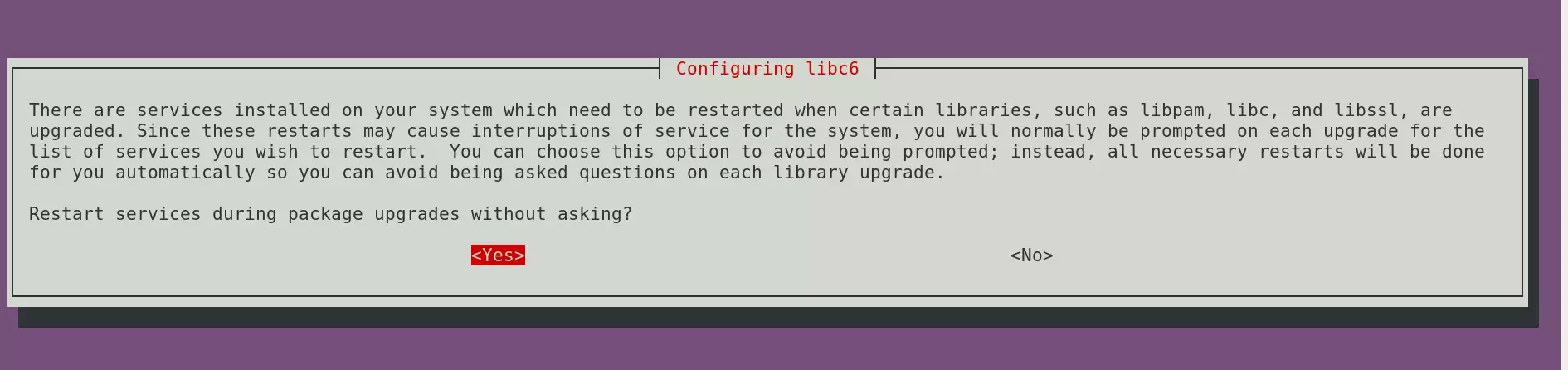
Also make sure to confirm the restart of services when prompted:
 Keep the configuration of your modified files in Ubuntu 22.04 LTS when updating to 24.04 LTS:
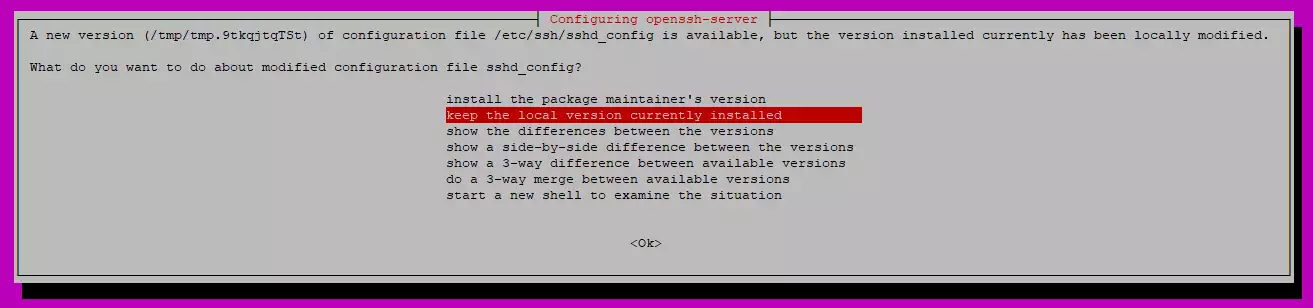 Other examples:
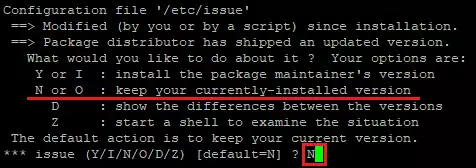
Press N and/or ENTER to select the default option (do not modify).
The installer will ask if you want to remove potentially obsolete packages as follows:
Remove obsolete packages?


106 packages are going to be removed.

Removing the packages can take several hours.

 Continue [yN]  Details [d]
Press D to see details about these packages. You can decide whether they will be kept by pressing N or if they will be removed by pressing Y.
Once the steps are followed, the update will be complete. We will receive the following message indicating if we want to restart.
 System upgrade is complete.

Restart required

To finish the upgrade, a restart is required.
If you select 'y' the system will be restarted.

Continue [yN] N
Although a restart is required to finish the update from 22.04 LTS to 24.04 LTS, we will press N to reject the restart.
Next, via the console, we will check the network interface name:
ip a
eth0: <BROADCAST,MULTICAST,UP,LOWER_UP> mtu 1500 qdisc mq state UP group default qlen 1000
    link/ether 52:3a:72:52:fd:4c brd ff:ff:ff:ff:ff:ff
    inet 81.33.138.18/24 brd 81.25.125.255 scope global enX0
       valid_lft forever preferred_lft forever
    inet6 fe80::503a:72ff:fe52:fd4c/64 scope link
       valid_lft forever preferred_lft forever
In our case, we see that our public IP is 81.33.138.18 and the defined interface is eth0.
Now, we must change the interface name from eth0 to enX0 (this step may vary depending on the Ubuntu 24.04 installation environment):
sudo nano /etc/netplan/01-netcfg.yaml
Once the interface name has been replaced, we can restart:
sudo reboot
danger Warning! If after the restart you cannot access via SSH, it is possibly because the interface name configuration is incorrect. Check via the SWPanel console what name is assigned using the "ip a" command and enter it again in the "/etc/netplan/01-netcfg.yaml" file. Use the "netplan apply" command to apply the changes.
Do not forget to remove the Layer 4 Firewall rules via SWPanel, and/or UFW that you used to open port tcp/1022.
Step 5 – Verification
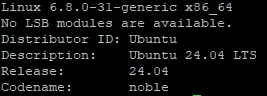
Once the system restarts, you can log in using the GUI or the ssh-based session. Then, you can see the Linux kernel version, execute:
uname -mrs && lsb_release -a
Step 6 (Optional) – Enable third-party repositories/mirrors:
Now that the update from Ubuntu 22.04 LTS to 24.04 LTS is complete, if you had additional third-party repositories, you should verify that they are enabled again, or enable them. Otherwise, you will not receive updates from those repositories.
You can verify the active additional repositories as follows:
cd /etc/apt/sources.list.d ls -l cat ubuntu.sources (change ubuntu.sources for the listed files)
To enable them again, you must edit the file with a text editor (nano) and remove the comment from the line by deleting the #:
Then execute the apt command to update those packages:
sudo apt-get update sudo apt-get upgrade
Finally, clean up any unwanted and unused leftover packages:
sudo apt autoremove --purge
Remember that if you do not yet have a Cloud server with Ubuntu 22.04 or Ubuntu 24.04, you can easily deploy it with SWPanel.