
How to create a Cloud with a One Click App
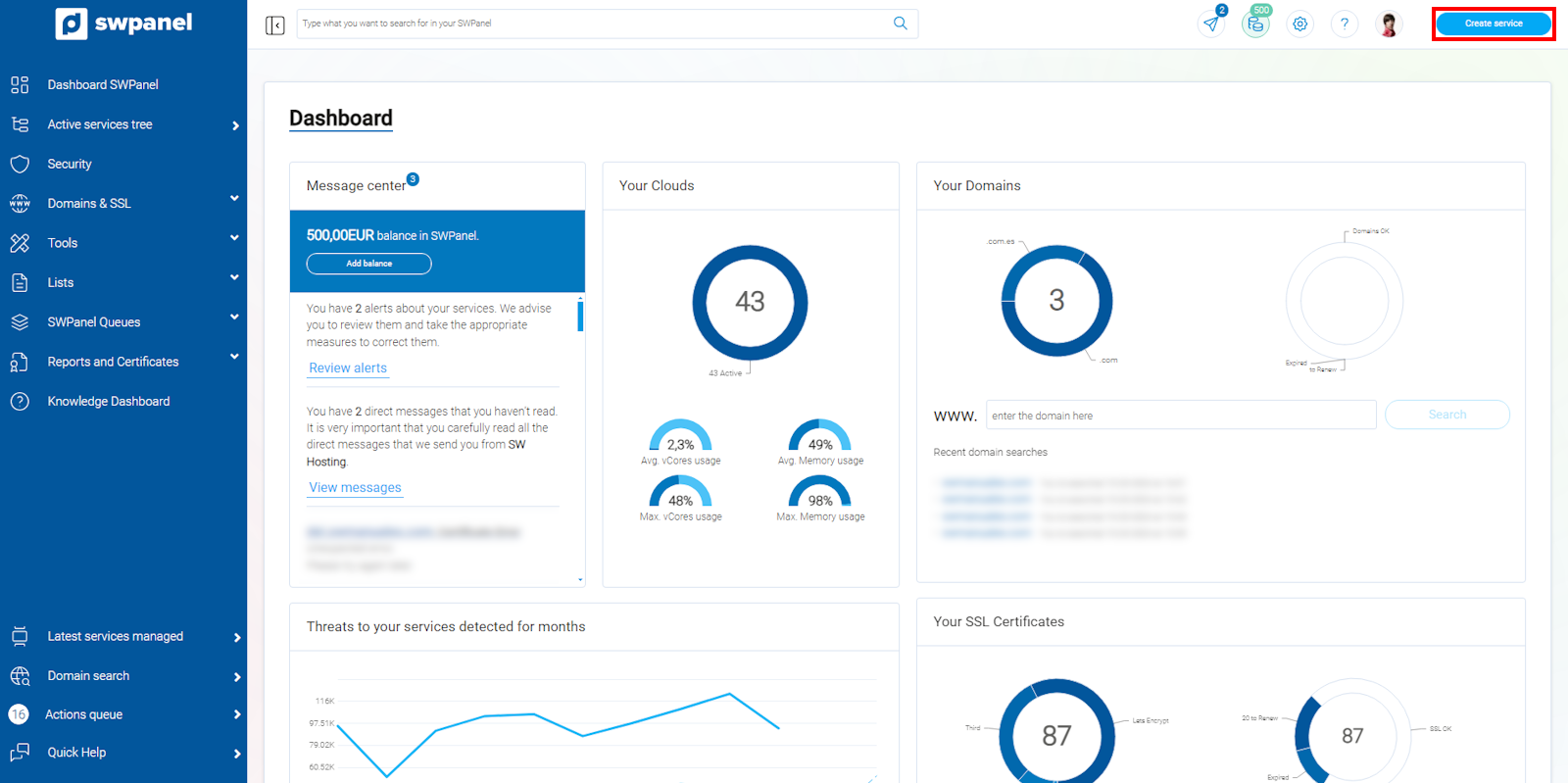
To create a Cloud service with a One Click App, first you must access your SWPanel, by entering your username and password. Once inside your SWPanel Dashboard, you must click on the Create Service button located in the upper right corner:
info_capture The screenshot is for guidance purposes. It was taken using version 2025.00.0017 dated 12/15/2024. It may differ from what the current version of SWPanel shows.
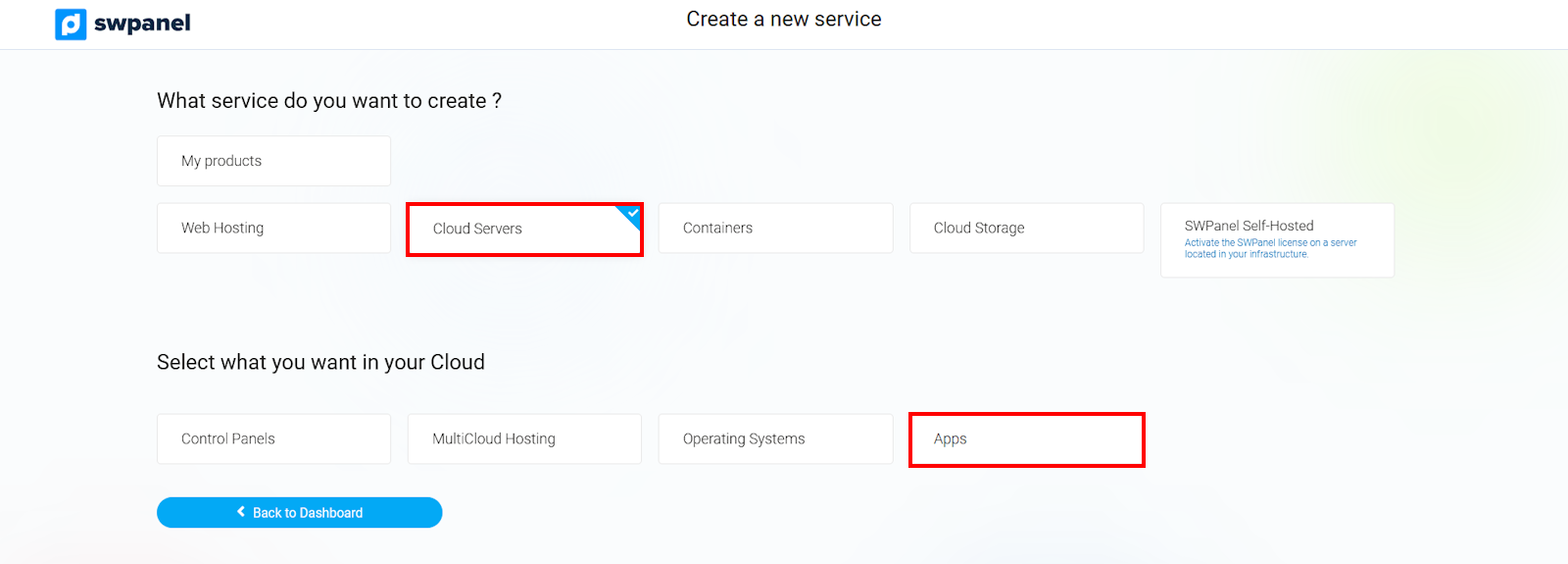
Next, you must click on Cloud Servers and then on Applications, which is the option to choose a server with different types of operating systems or, as is our interest in this case, with different pre-installed applications
info_capture The screenshot is for guidance purposes. It was taken using version 2025.00.0017 dated 12/15/2024. It may differ from what the current version of SWPanel shows.
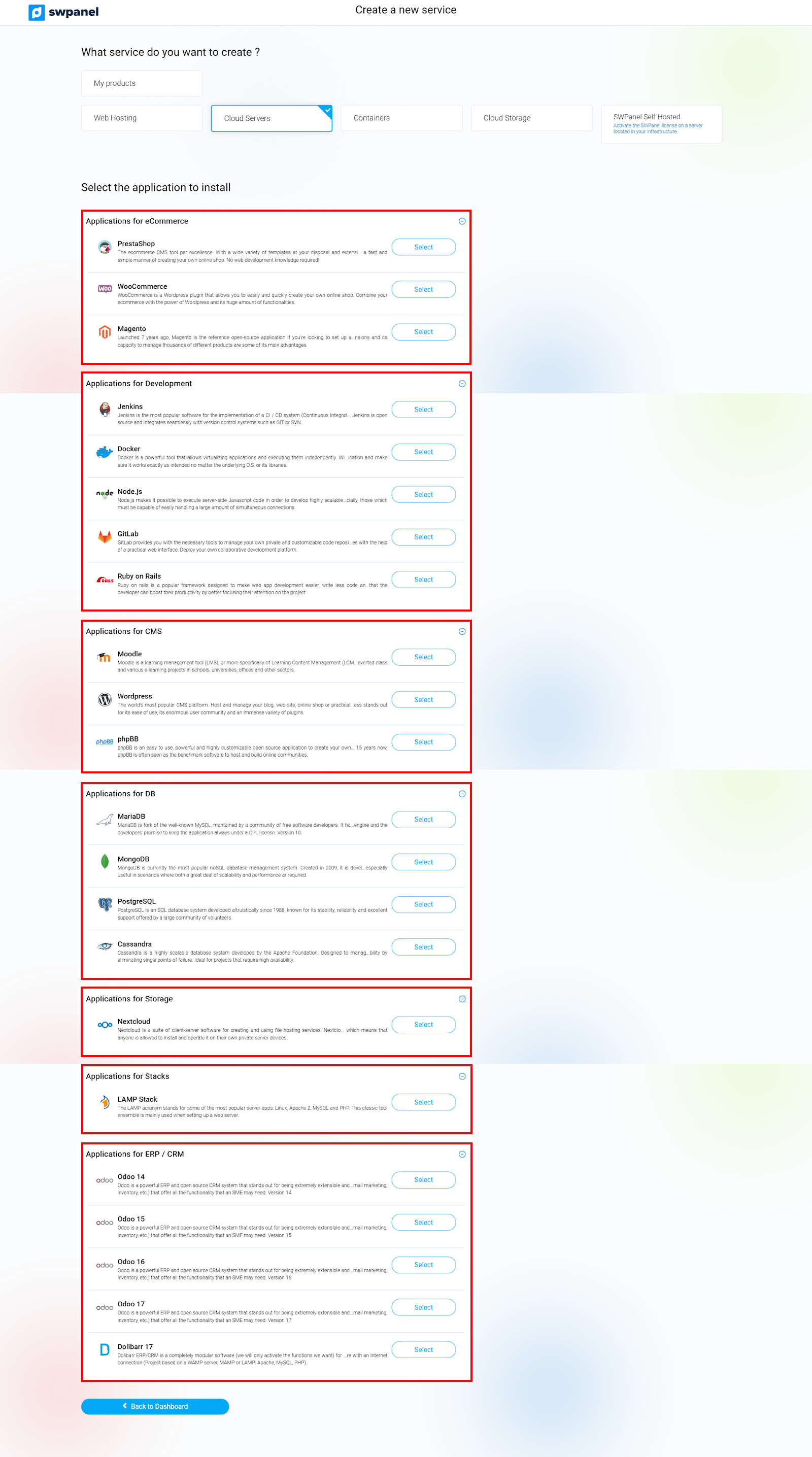
All available One Click Apps will be displayed, and you must select the one that best fits your needs.
info_capture The screenshot is for guidance purposes. It was taken using version 2025.00.0017 dated 12/15/2024. It may differ from what the current version of SWPanel shows.
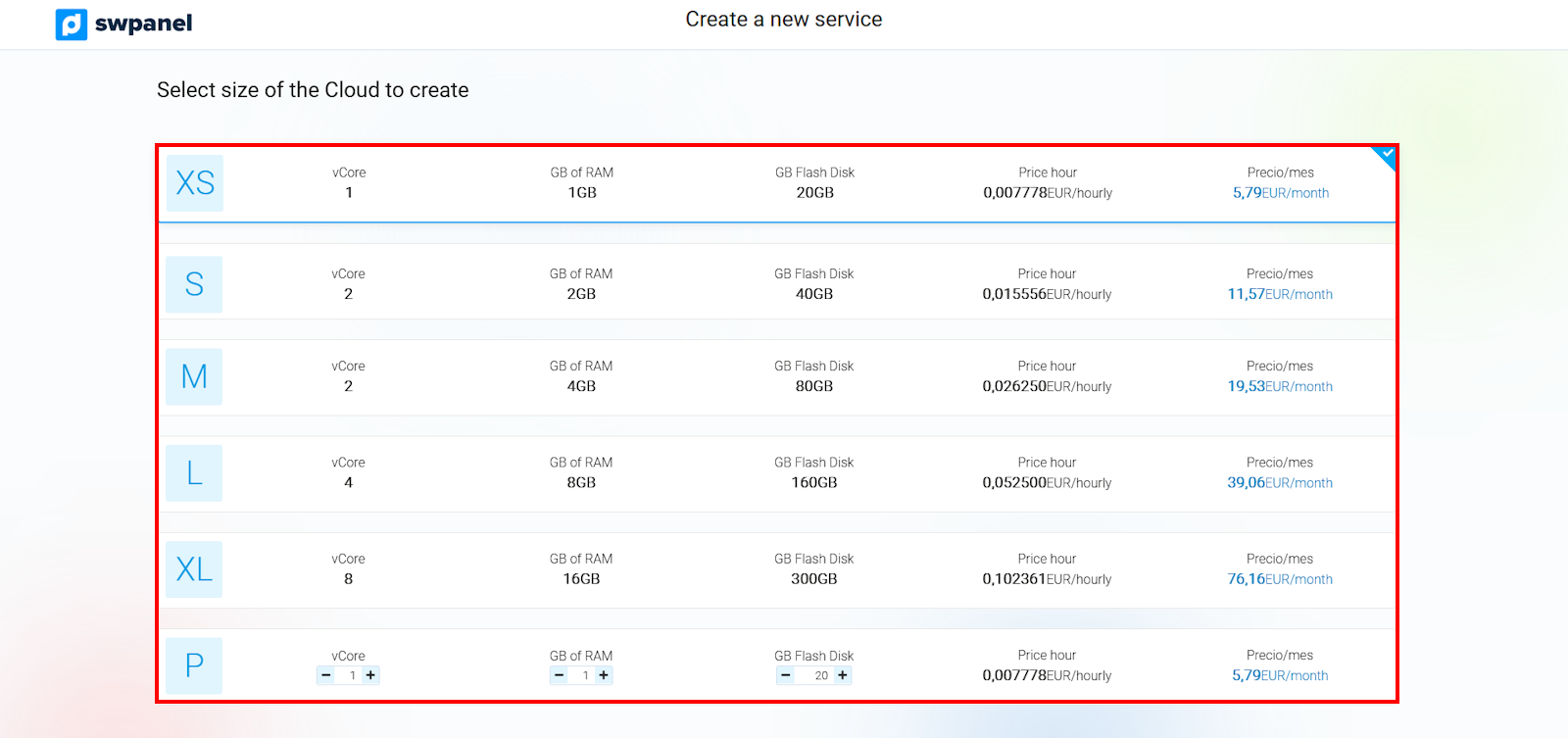
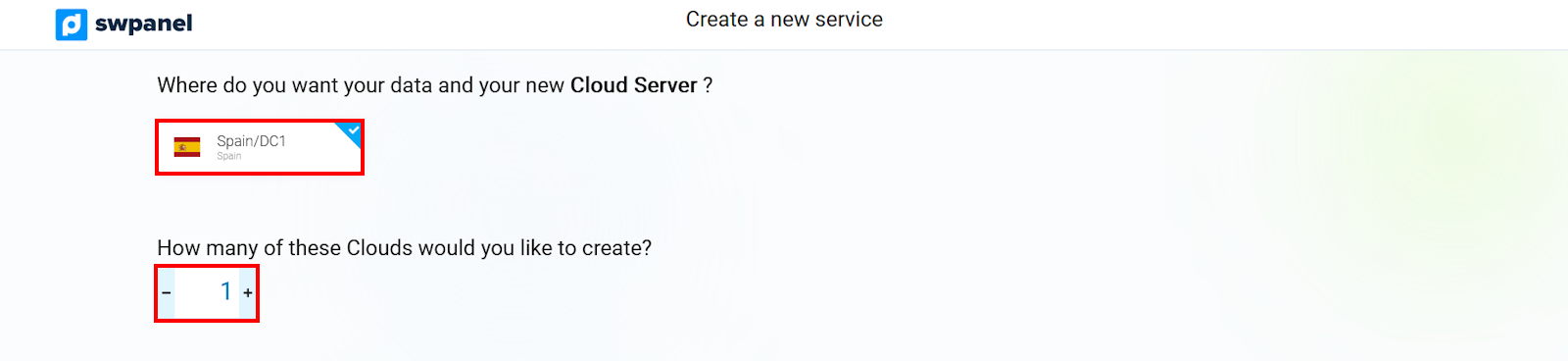
Next, select the size, the Data Center where you want to locate the service, and the number of clouds with the same characteristics that you wish to create.
info_capture The screenshot is for guidance purposes. It was taken using version 2025.00.0017 dated 12/15/2024. It may differ from what the current version of SWPanel shows.
info_capture The screenshot is for guidance purposes. It was taken using version 2025.00.0017 dated 12/15/2024. It may differ from what the current version of SWPanel shows.
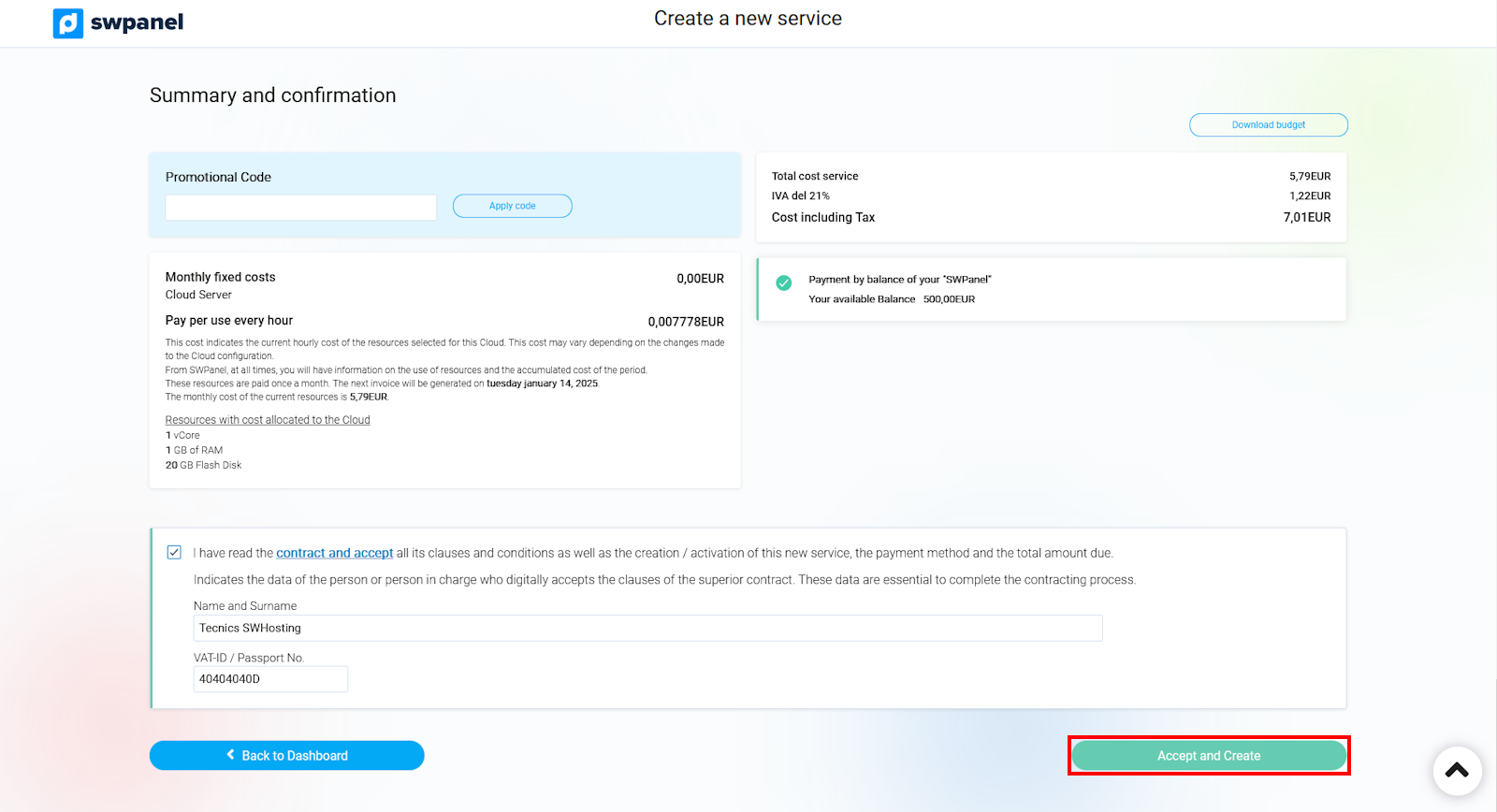
Finally, click the Accept and Create button:
info_capture The screenshot is for guidance purposes. It was taken using version 2025.00.0017 dated 12/15/2024. It may differ from what the current version of SWPanel shows.