
How to create a MySQL or MariaDB database
A database is a set of data belonging to the same context and stored systematically for subsequent use.
Any website containing data that can be queried through a search tool on the site itself or that allows entering data via a text form needs a database to store, organize, and index that information.
All content management systems or CMS (Content Management System), such as WordPress, Prestashop, Magento, Joomla,... use a database to store and organize all the data contained on the web, as well as access credentials, themes, plugins...
For this reason, all SW Hosting hosting services, whether on a shared server or a dedicated Cloud server, have the possibility to create databases for web pages.
Although there are different types of databases depending on their architecture, programming language, specific use, operating system on which they are installed, etc,... the most common for use in websites are MySQL and Maria DB. In this manual, we will explain how to create a database for hosting services based on Linux or Windows that have the capability to create MySQL/MariaDB databases.
To create a database for your website from the SWPanel, you must first create a PHP Hosting service or a Linux Domain in the Cloud. The creation of these types of hosting services for your website is explained in the specific manuals '📃 Manual: Create Hosting service for my Web'
1. Once you have created the hosting for your website, you must indicate the service on which you want to create your database. To do this, you can use the search window located at the top of the SWPanel. Once located, click on its name to access its Dashboard.
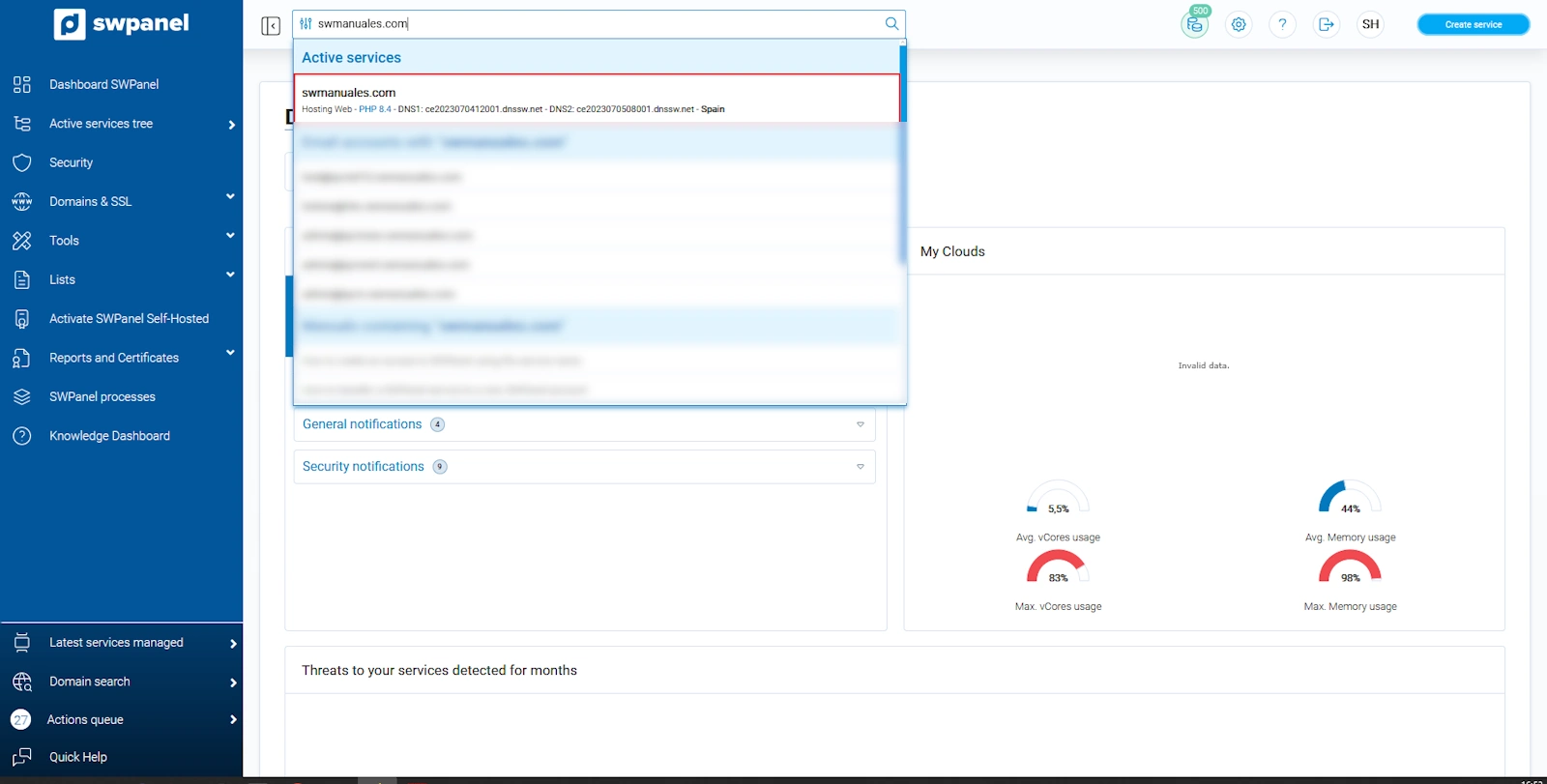
2. Once you are in the Dashboard of the service, click on the Database Management option in the left side menu:
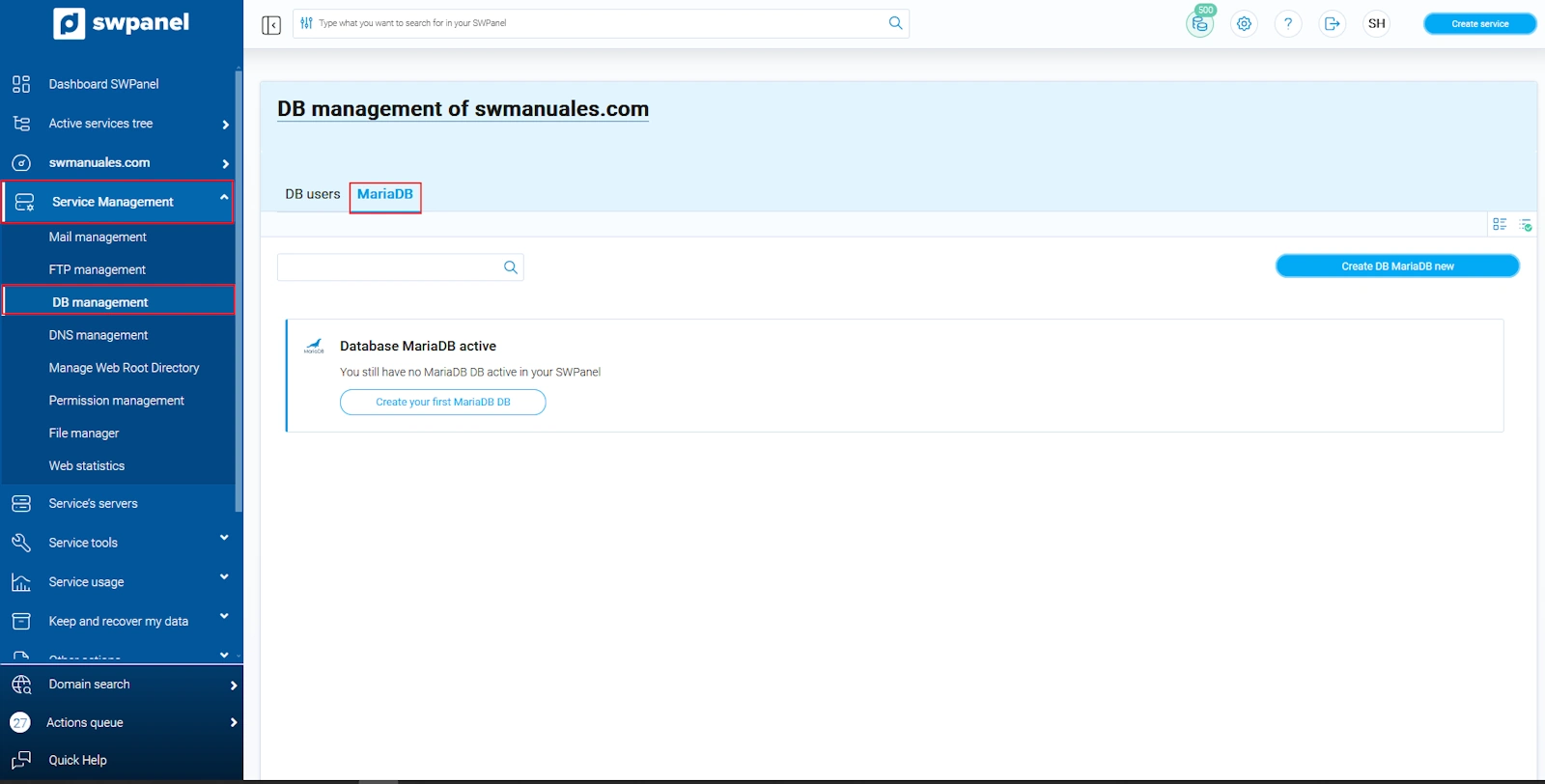
3. Then click the Create DB or Create your first MariaDB DB button:
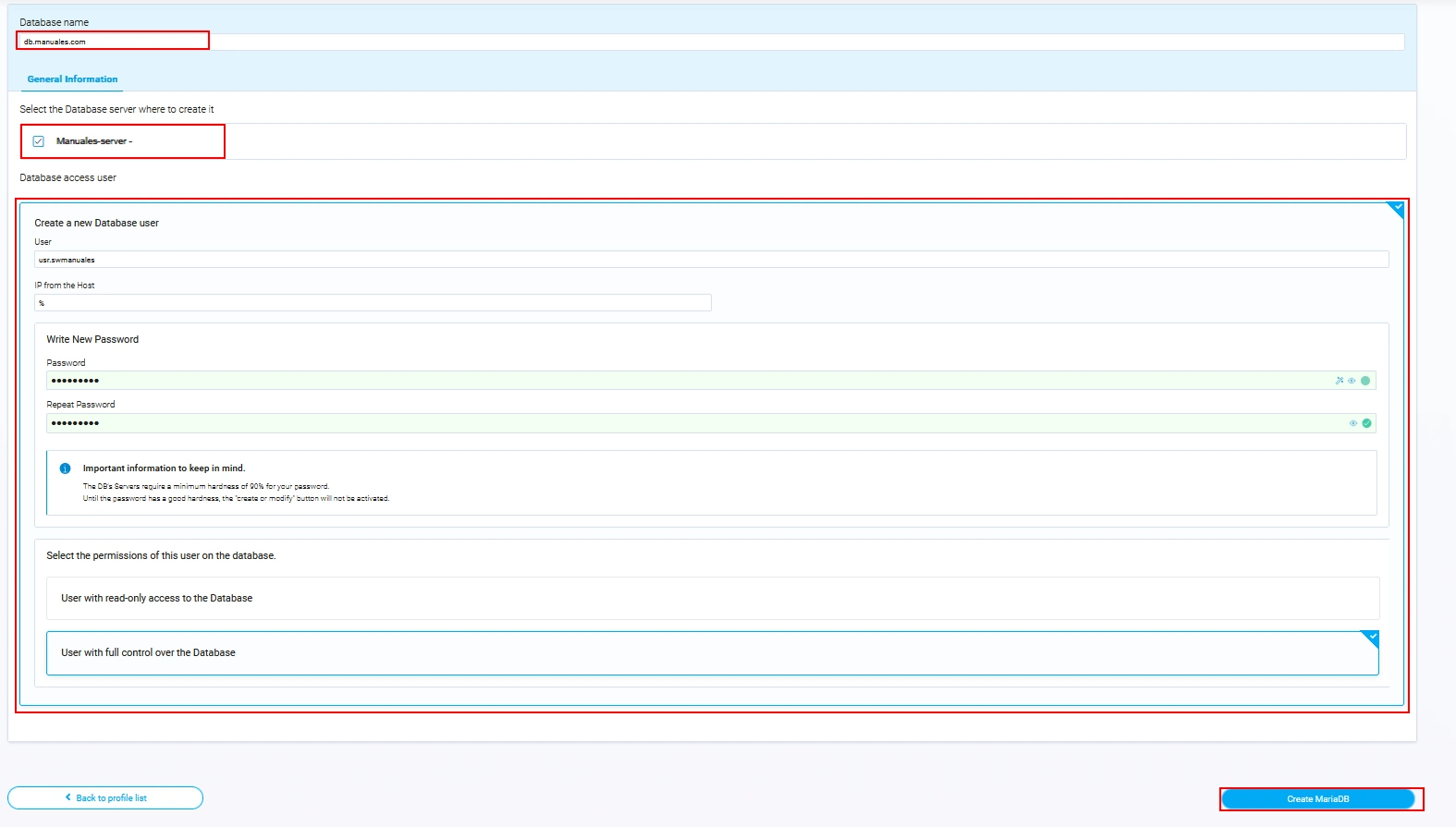
In compliance with the ISO 27001 standard on information security, the password will only be visible at the time of its creation. Subsequently, the password will not be visible and can only be modified.
4. In the following window, you must provide the following data:
- The name of the database.
- The database server.
- The name of the new database user to be created.
- The IP from the host (Here you can specify the IP that can establish a connection to the database; if left blank, it will assign '%' by default, giving access to any IP to connect to the database)
- The access password for the database.
The two configurable options regarding user permissions on the database are as follows:
-
User with read-only access to the Database -> The user will only be able to read the content, but not modify, delete, or create data or tables.
-
User with control over the Database -> The user will be able to read, modify, delete, or create data or tables.
To finalize the creation of the database and the assignment of the user with the corresponding permissions, click on the Create MariaDB button.
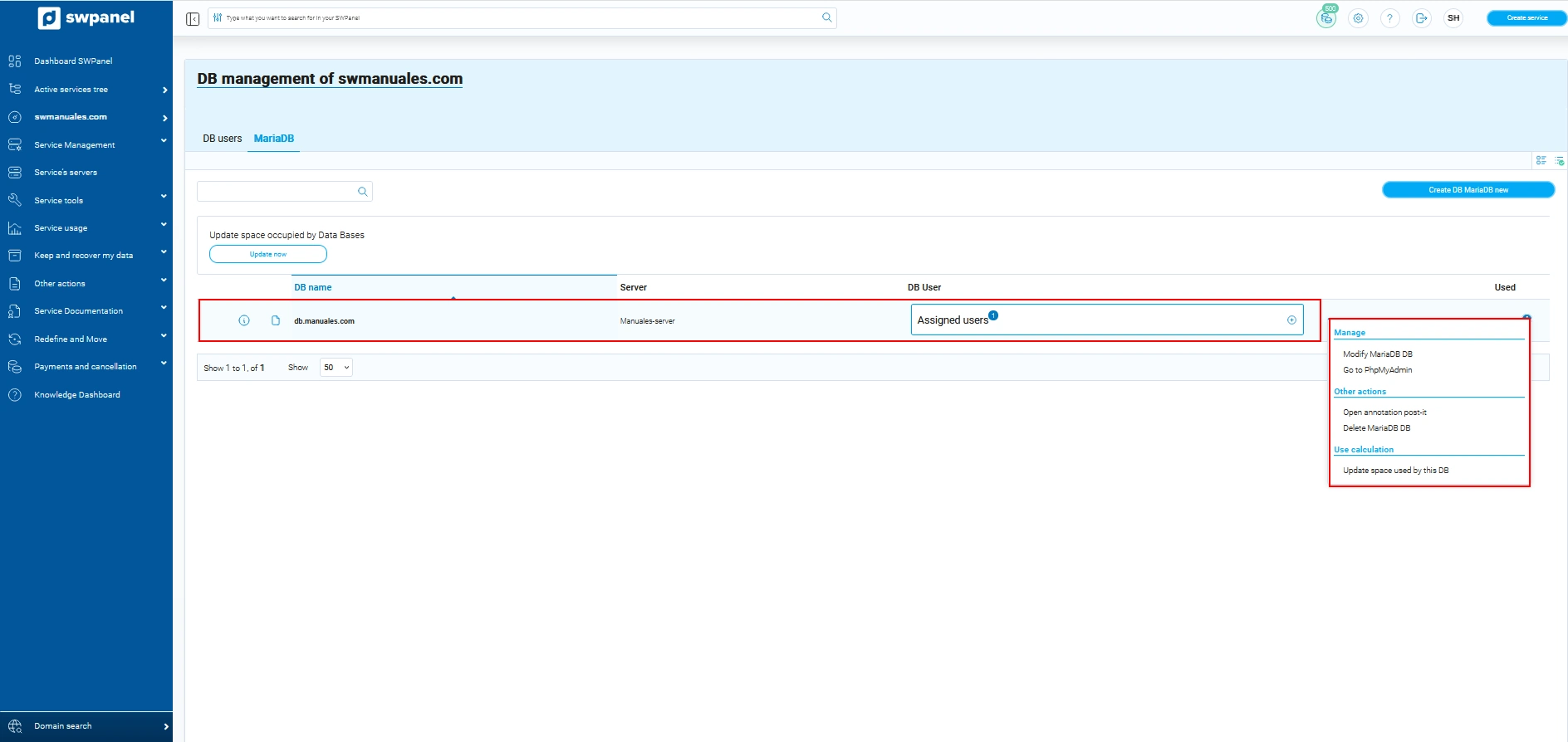
Once you have created the database, you will have different options available:
- Modify MariaDB DB
- Open PhpMyAdmin
- Open notes Post-it
- Delete MariaDB DB