
How to import or export a Database in SWPanel with MySQL Workbench
With SWPanel you can use the phpMyAdmin tool to access the management of your databases, such as exporting or importing them.
Also, you can use any type of application for the management of MySQL/MariaDB databases, such as MySQL Workbench, an application for Windows systems that allows for much more powerful DB management than phpMyAdmin.
Before starting with the tutorial, do you not have a Cloud server with a Windows operating system? Don't worry! With just one click, you can easily deploy it with SW Hosting.
In this manual we are going to learn how to export and import an SQL file using MySQL Workbench.
Environment Preparation
First of all, it is recommended to have the database already created in your SWPanel. From SW Hosting you have a manual about Manual: ##título##.
danger In case of importing the database from an external provider or from another SWPanel service or account, it is very important that the name, the user and the access key of the Database that you have created to import the SQL file are identical to those corresponding to the previous service provider.
You will also need to know the following information:
-
Host Name/IP: IP of the database server.
-
User: Username of the database that you have previously created.
-
Password: Access key to the database that you have previously created
-
Port: 3306 (usually).
To find out what the Host Name/IP of your database is you must:
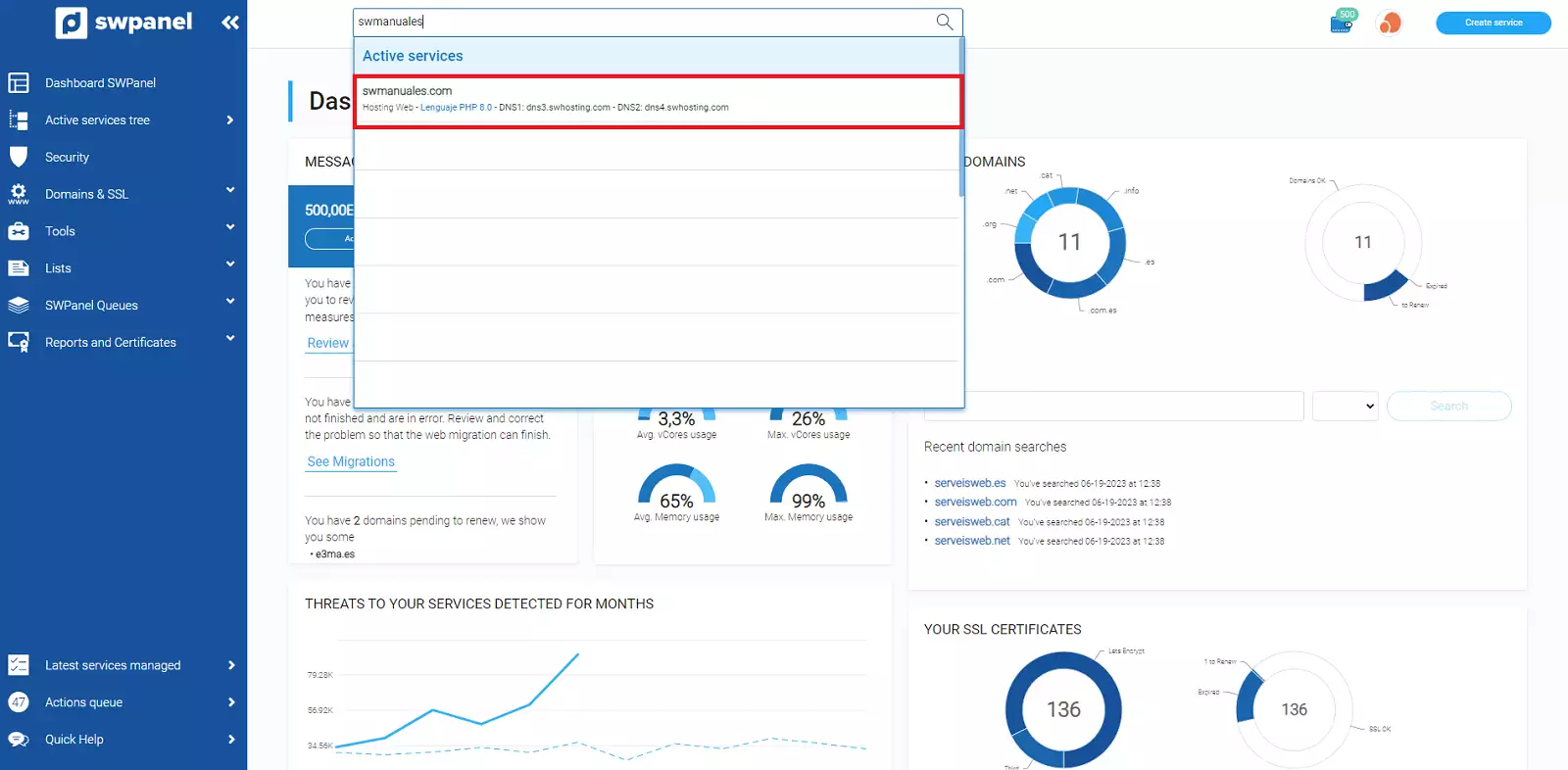
- Type in the SWPanel search bar the name of the service in which you wish to modify the basic parameters and click on it.
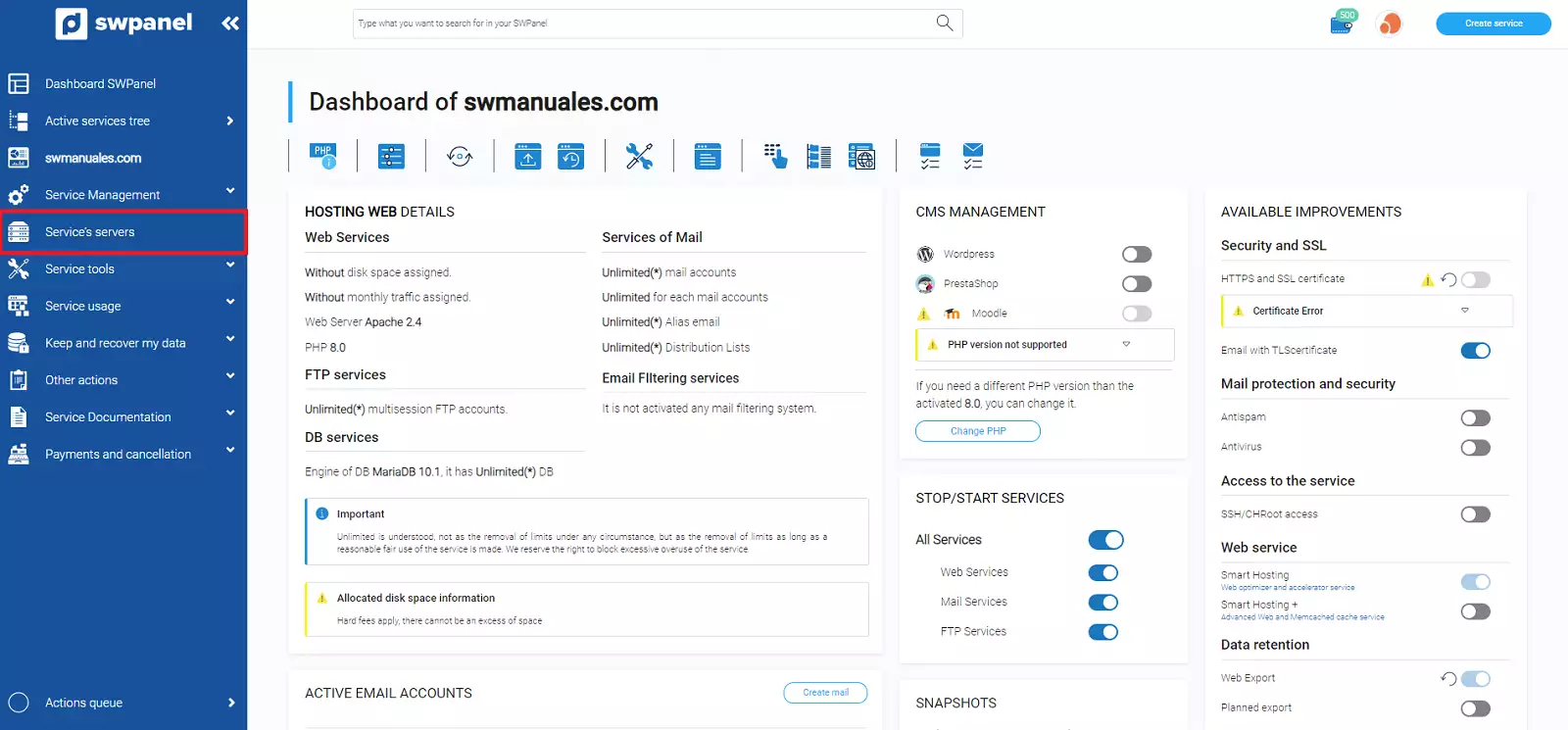
- Click on "Service Servers", located in the blue side menu.
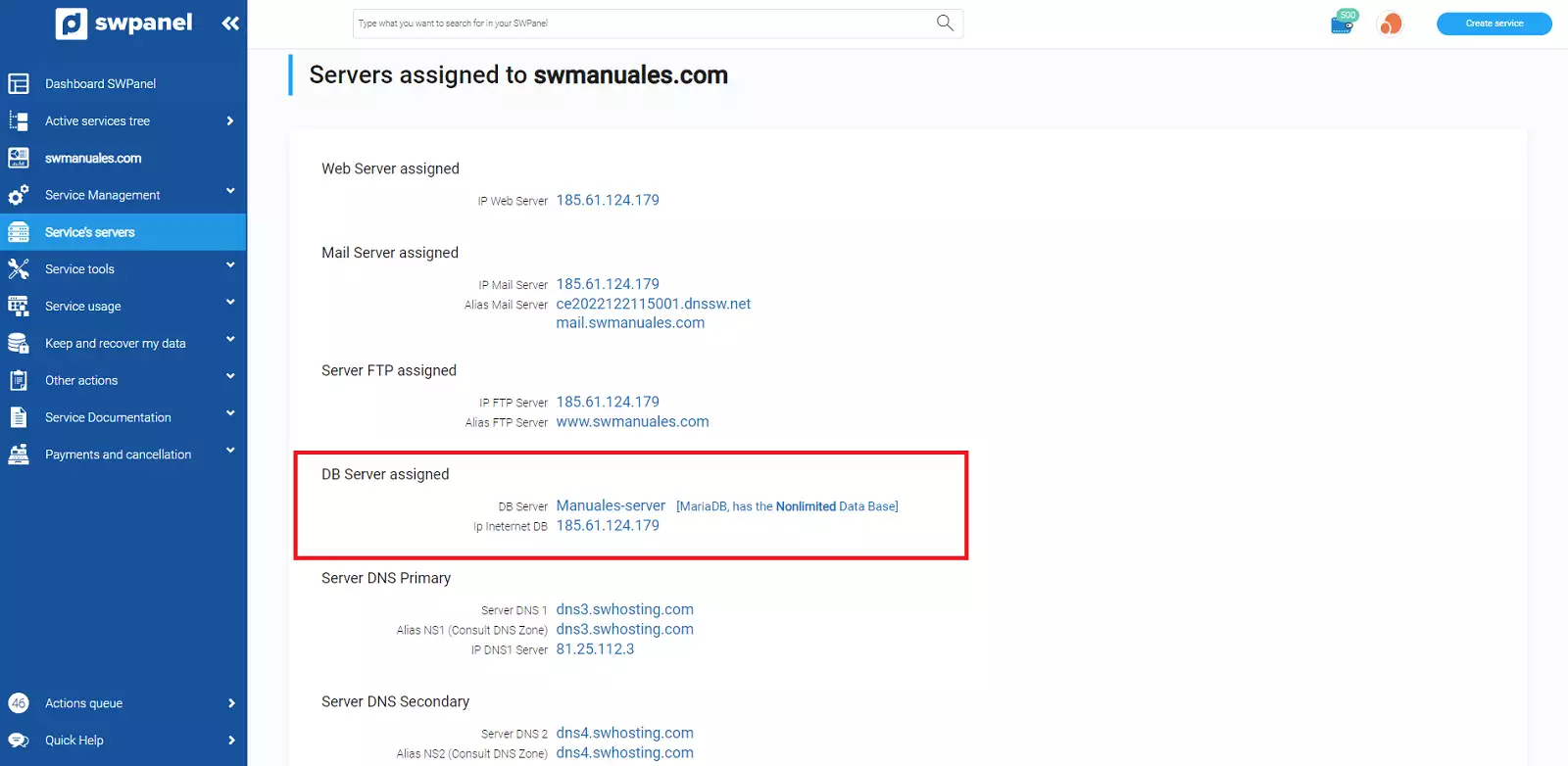
- The IP found in "Assigned DB Server" is the one you should use as "Host Name/IP".
Once you have all the data, we can move to the next step.
Connection
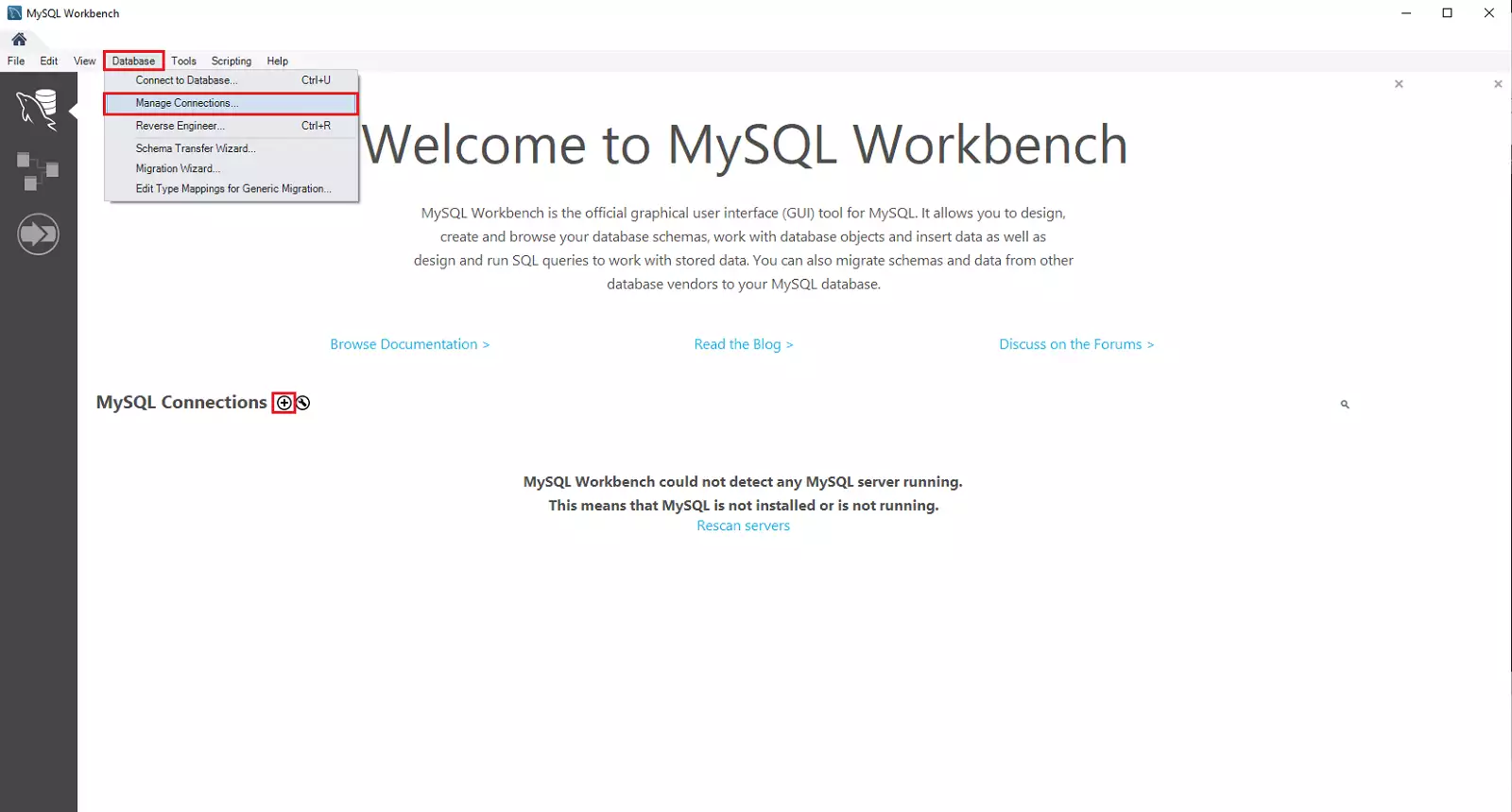
- To establish the connection, you must open the MySQL Workbench program and create a new connection. You can do this by accessing "Database" --> "Manage Connections..." Or by clicking on the "+" icon:
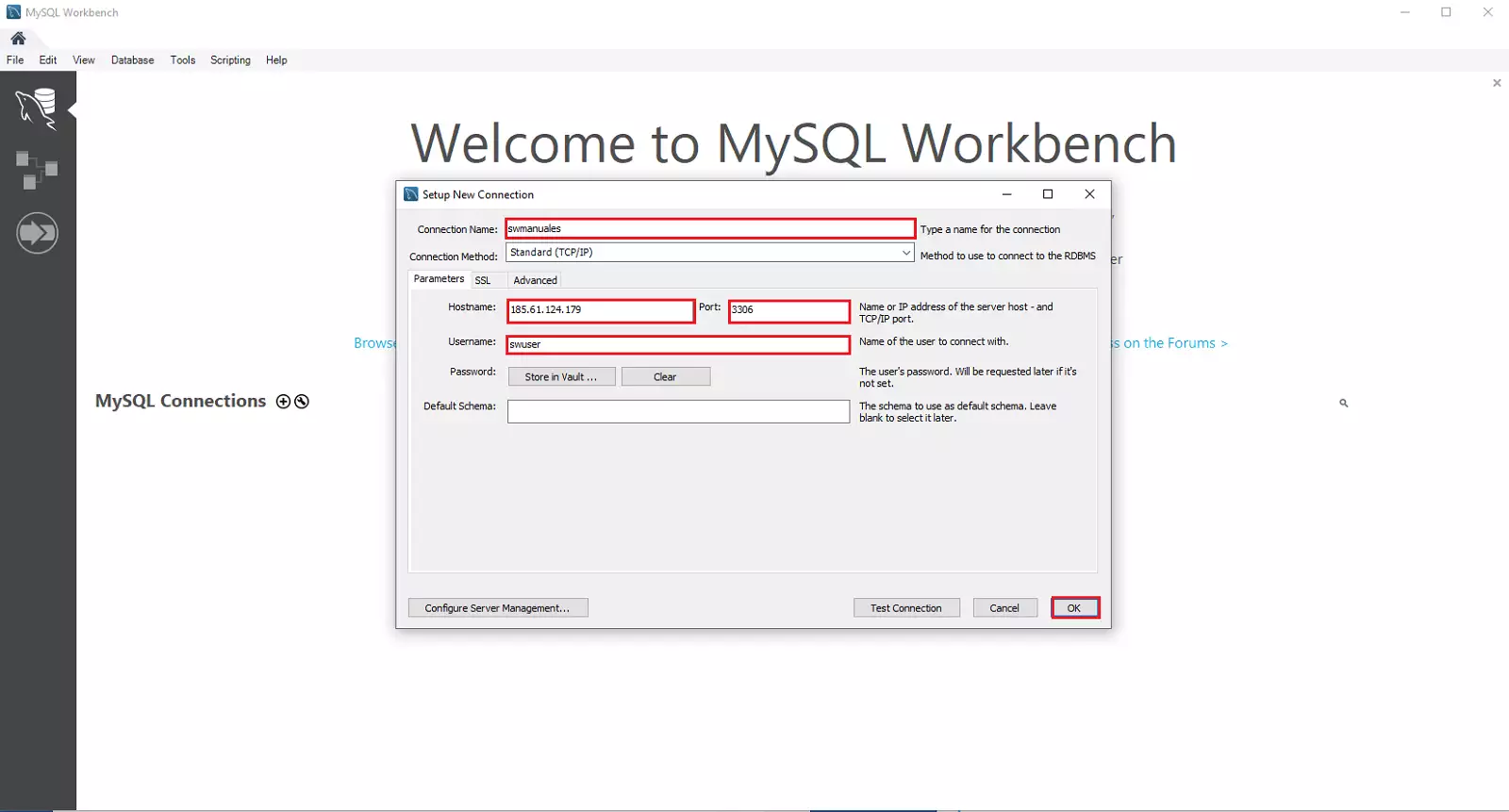
- Next, you must enter the previously collected data and then click "ok":
-
Connection name: Name you wish to give to the connection
-
Hostname: IP of the database server
-
Port: 3306
-
Username: Username of the database that you have previously created
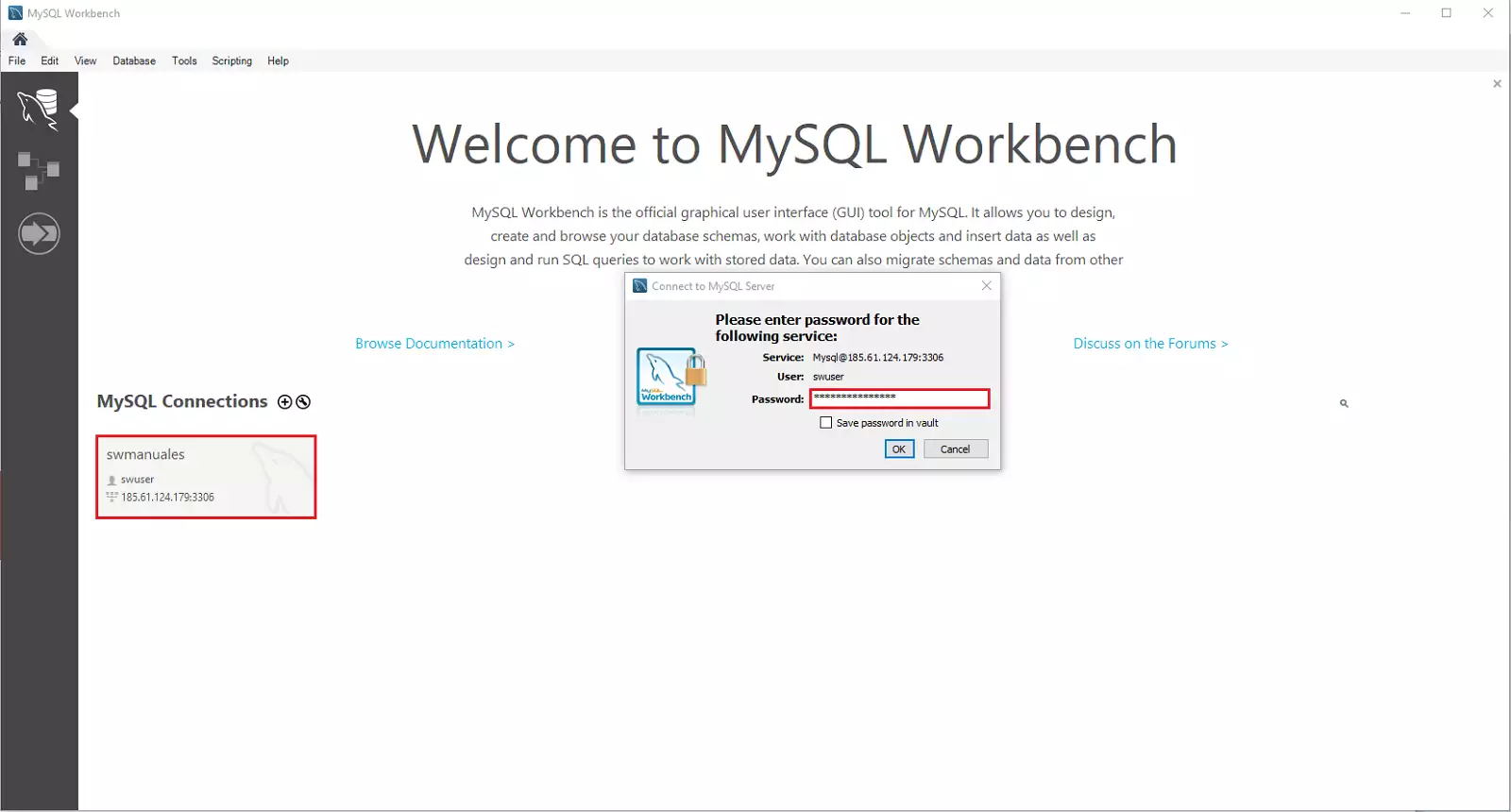
- Finally, you must click on the new box that will appear with the connection name. It will ask for a "password", this corresponds to the access key to the database that you have previously created.
Export Data
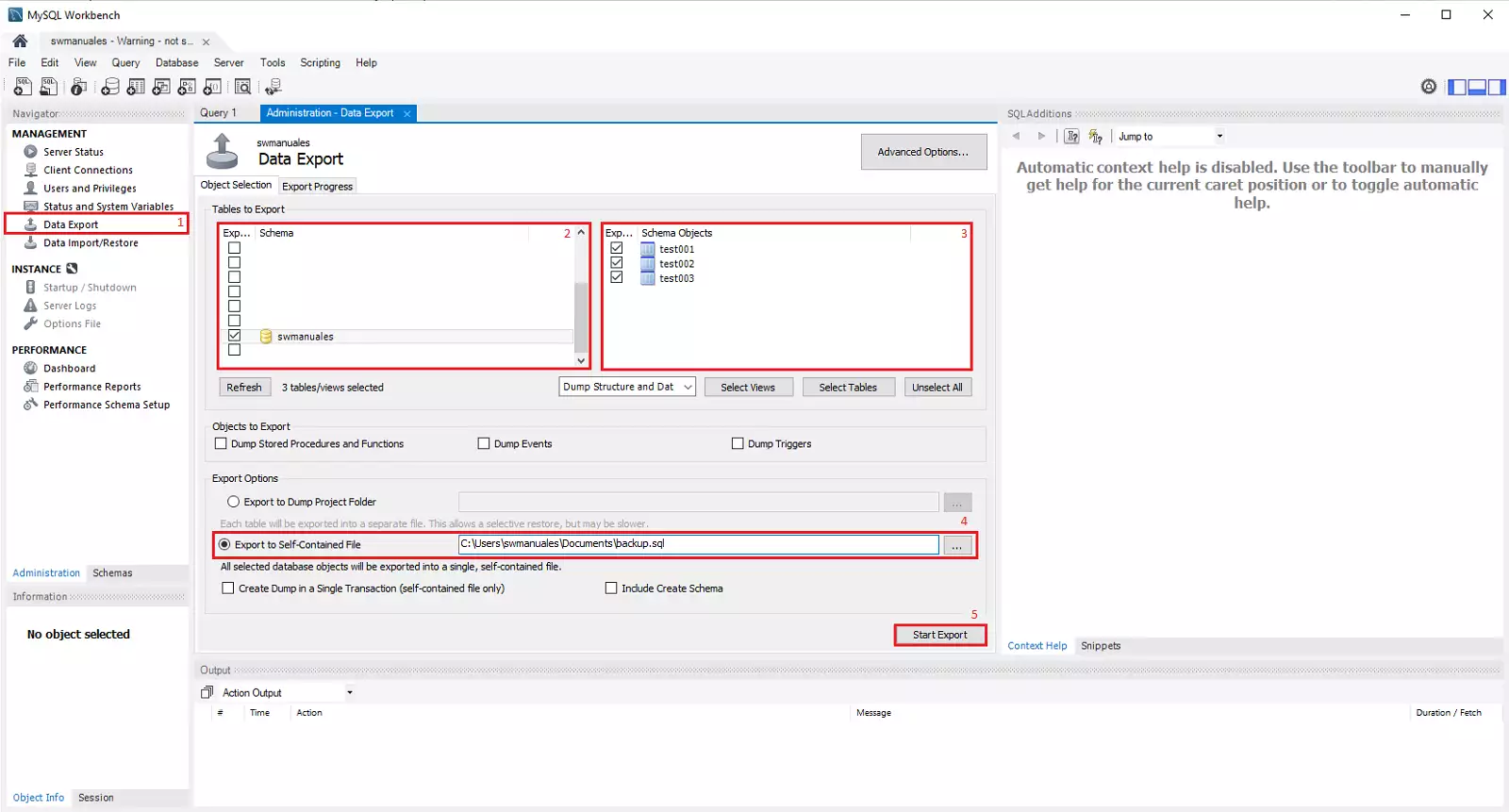
You can use the "Data export" panel to export MySQL data.
-
In MySQL Workbench, in the "Navigator" panel, select "Data export".
-
In the "Data export" panel, select each database you wish to export.
-
For each database, you can select specific tables to export.
-
Select the destination folder for the export of a .sql file.
-
Select "Start Export" to begin the export process.
Import Data
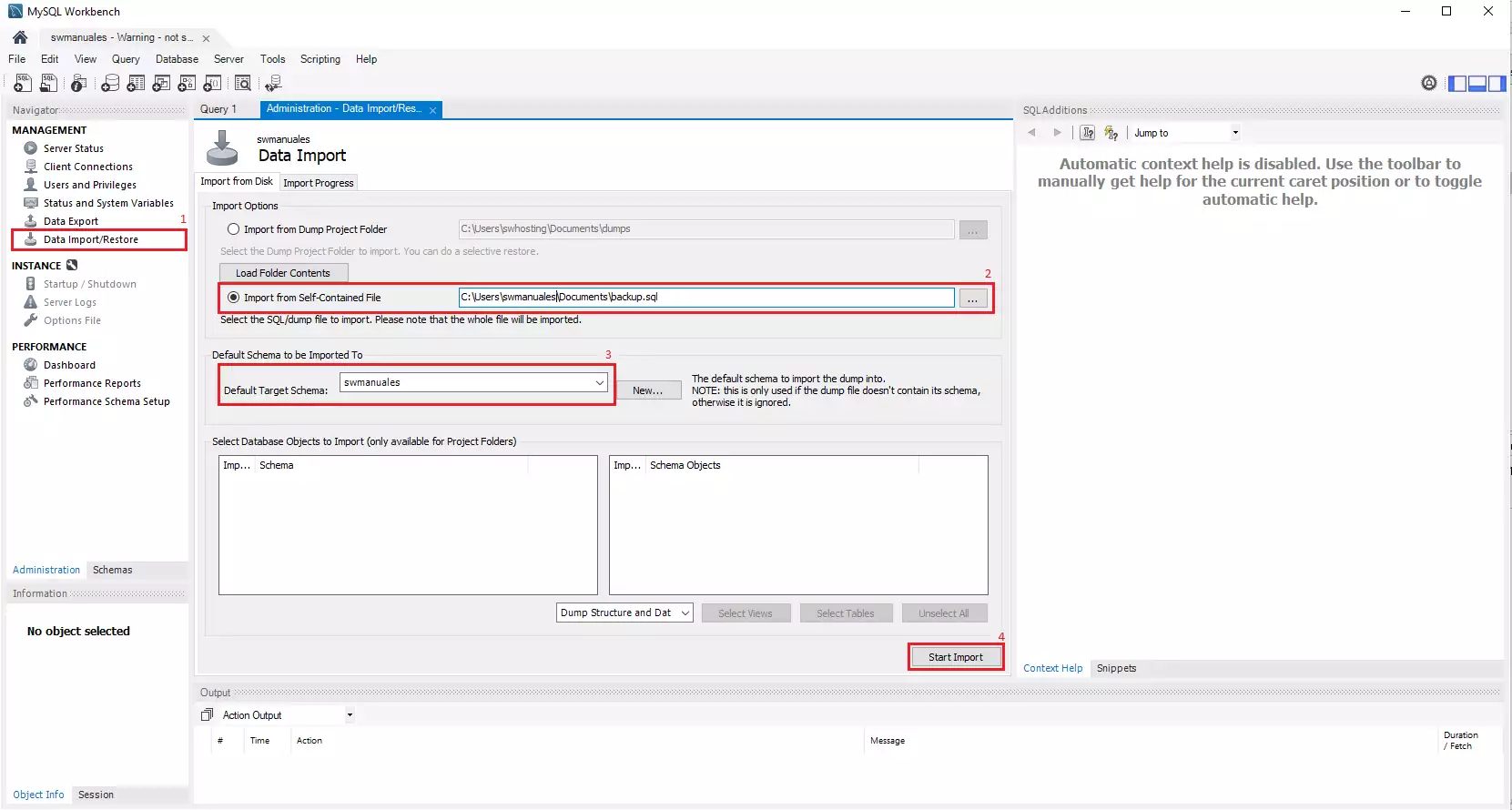
You can use the "Data Import/Restore" panel to import or restore the data exported with the data export operation.
-
In MySQL Workbench, in the "Navigator" panel, select "Data Import/Restore".
-
In the "Data Import/Restore" panel, select the .sql file you wish to import.
-
Select the specific database in which the data will be imported.
-
Select "Start import" to begin the import process.
Disconnection
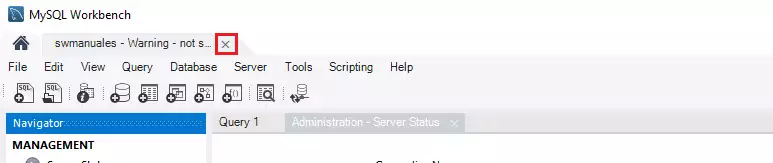
To exit the connection, click on the small "x" on the right side of the connection name located in the upper left corner of the MySQL Workbench window:
Remember that if you do not yet have a Cloud server with a Windows operating system you can easily deploy it with SW Hosting.