
How to transfer/migrate services between SWPanel accounts
Service Migration Manual in SWPanel
1. Introduction
This manual provides a detailed guide on how to move a hosting service from one SWPanel account to another. Through this process, it is possible to securely and efficiently transfer the website content, email, and domain management.
1.1. What will you learn in this manual?
In this document, you will find:
- How to generate a migration code in SWPanel to authorize the transfer of services.
- Configuration options for migration, including code expiration and specific permissions.
- How to use a migration code in another SWPanel account to complete the transfer.
- Visual details and step-by-step explanations to facilitate the migration process.
2. Generate a Migration Code in SWPanel
To move a service to another SWPanel account, you must first generate a migration code.
2.1. Access the migration option
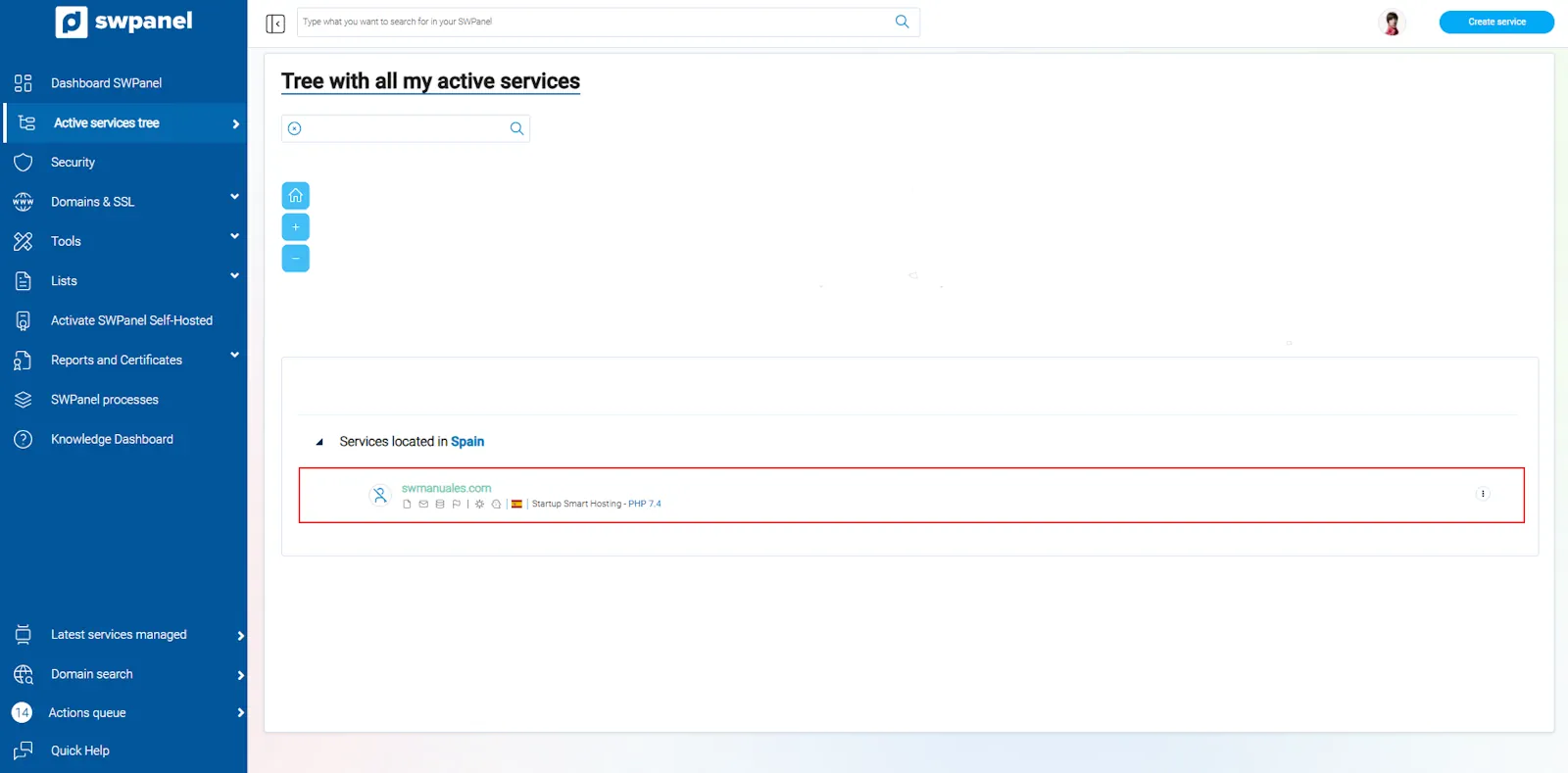
- Access your active services tree in SWPanel.
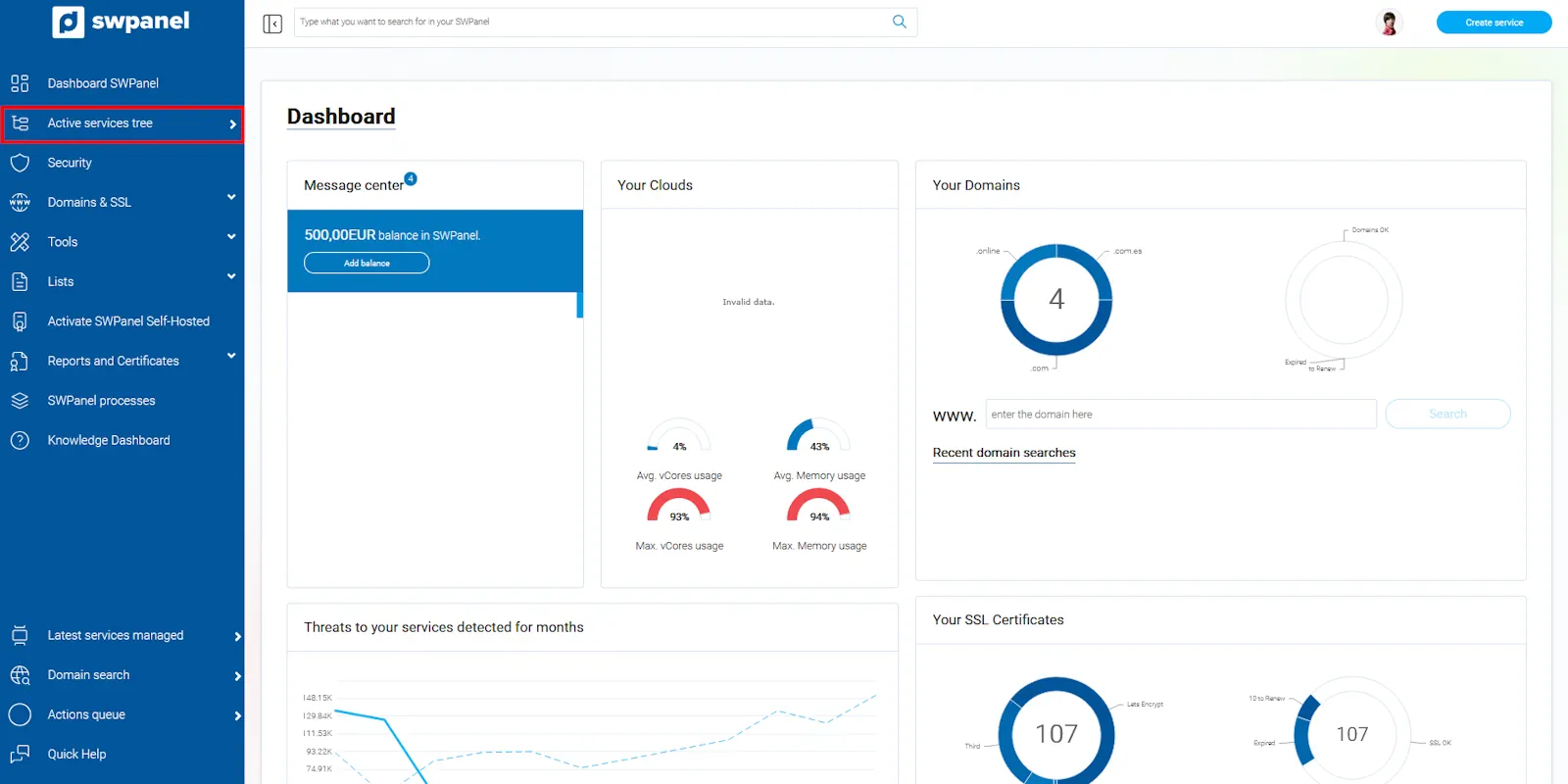
info_capture The screenshot is for guidance purposes. It was taken from version 2025.02.0002 dated 11/03/2025. It may differ from what the current version of SWPanel displays.
- Locate the service you wish to migrate and access the [...] menu.
- Click on Move Hosting Plan to another SWPanel.
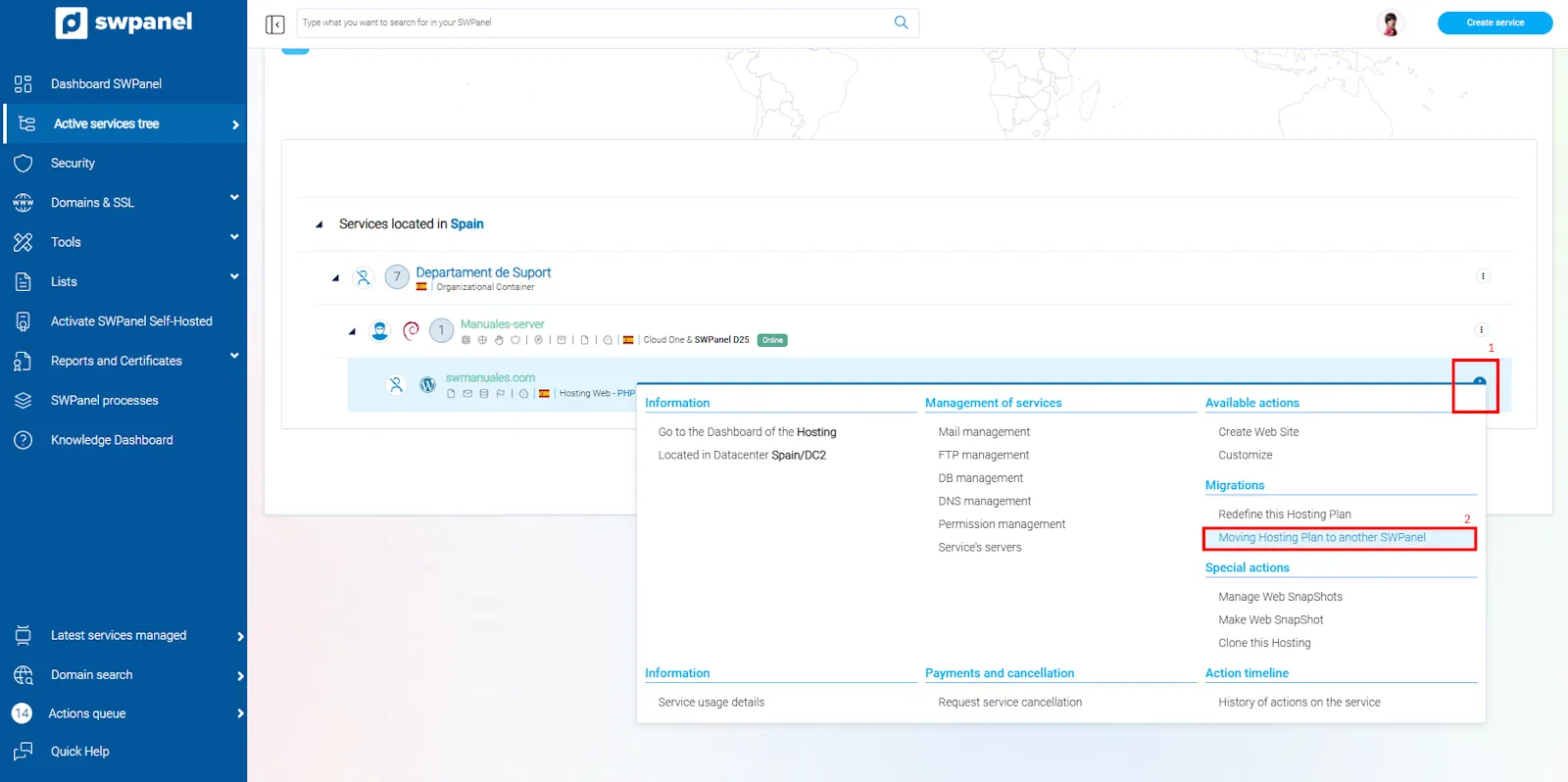
info_capture The screenshot is for guidance purposes. It was taken from version 2025.02.0002 dated 11/03/2025. It may differ from what the current version of SWPanel displays.
2.2. Configure migration parameters
- Select the elements to transfer:
- Website (includes files and database).
- Email.
- Domain transfer (if applicable).
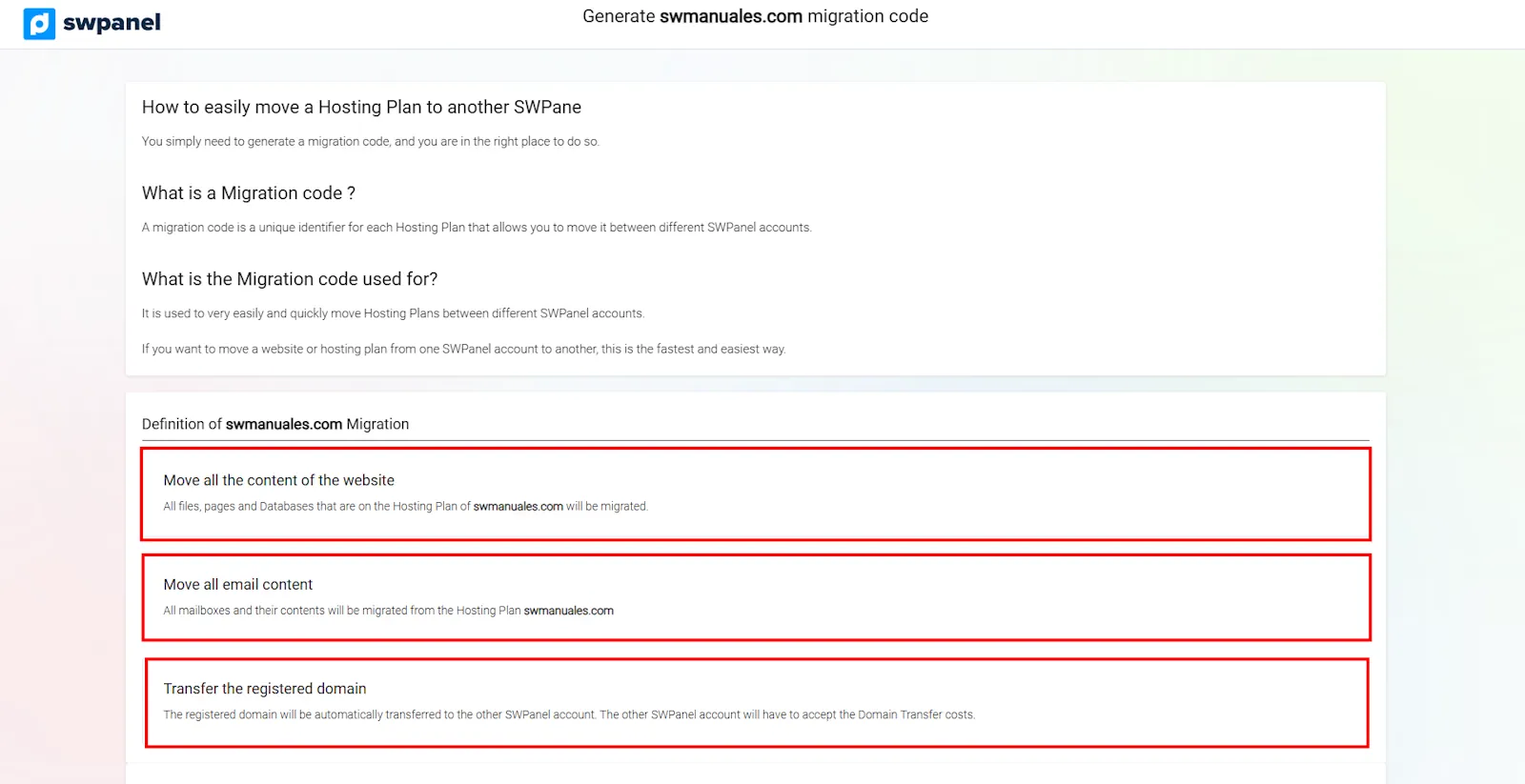
info_capture The screenshot is for guidance purposes. It was taken from version 2025.02.0002 dated 11/03/2025. It may differ from what the current version of SWPanel displays.
- Configure the migration code options:
- Code expiration.
- Number of allowed uses.
- Restrict migration to a specific SWPanel account.
- Option to cancel the service once migration is complete.
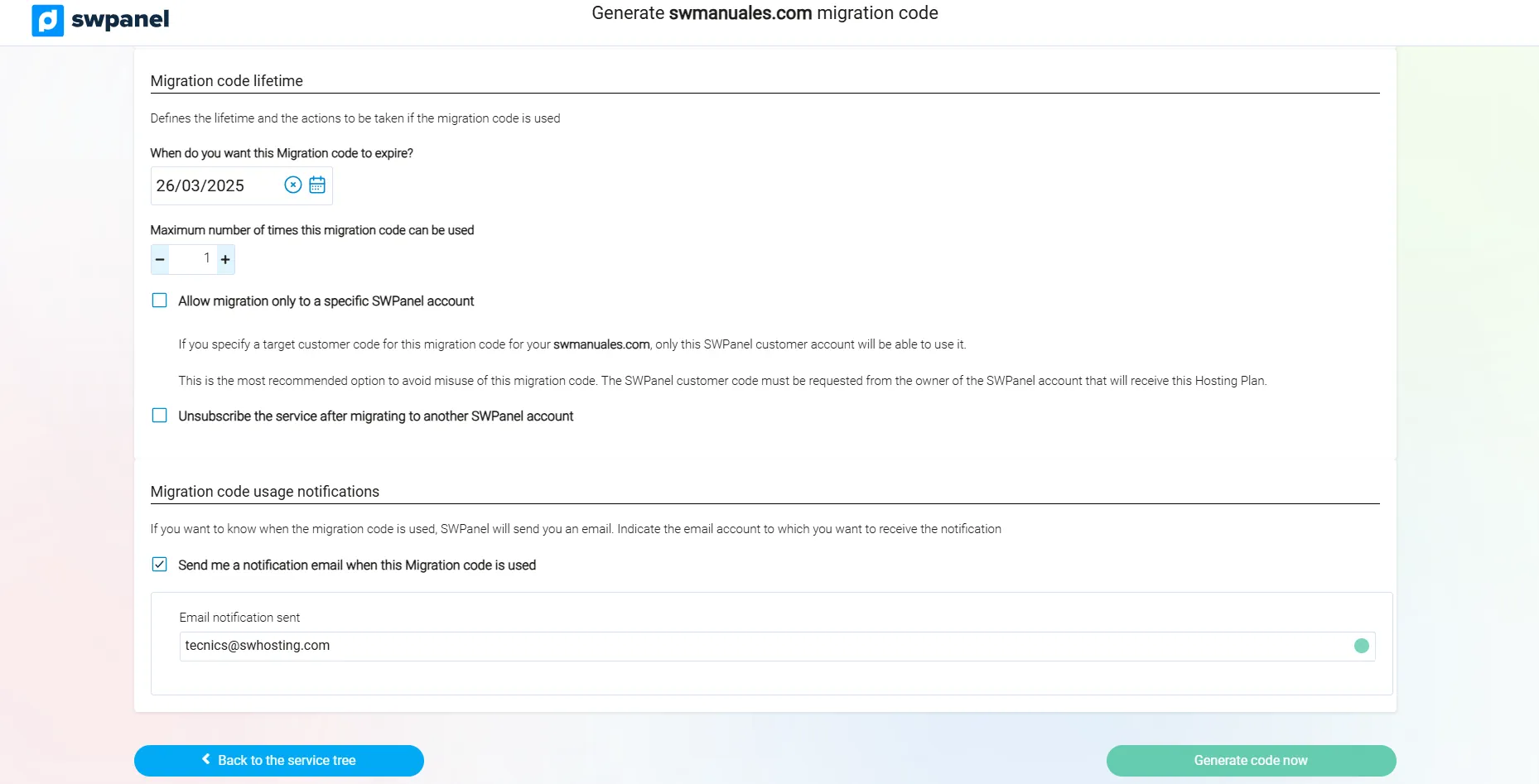
info_capture The screenshot is for guidance purposes. It was taken from version 2025.02.0002 dated 11/03/2025. It may differ from what the current version of SWPanel displays.
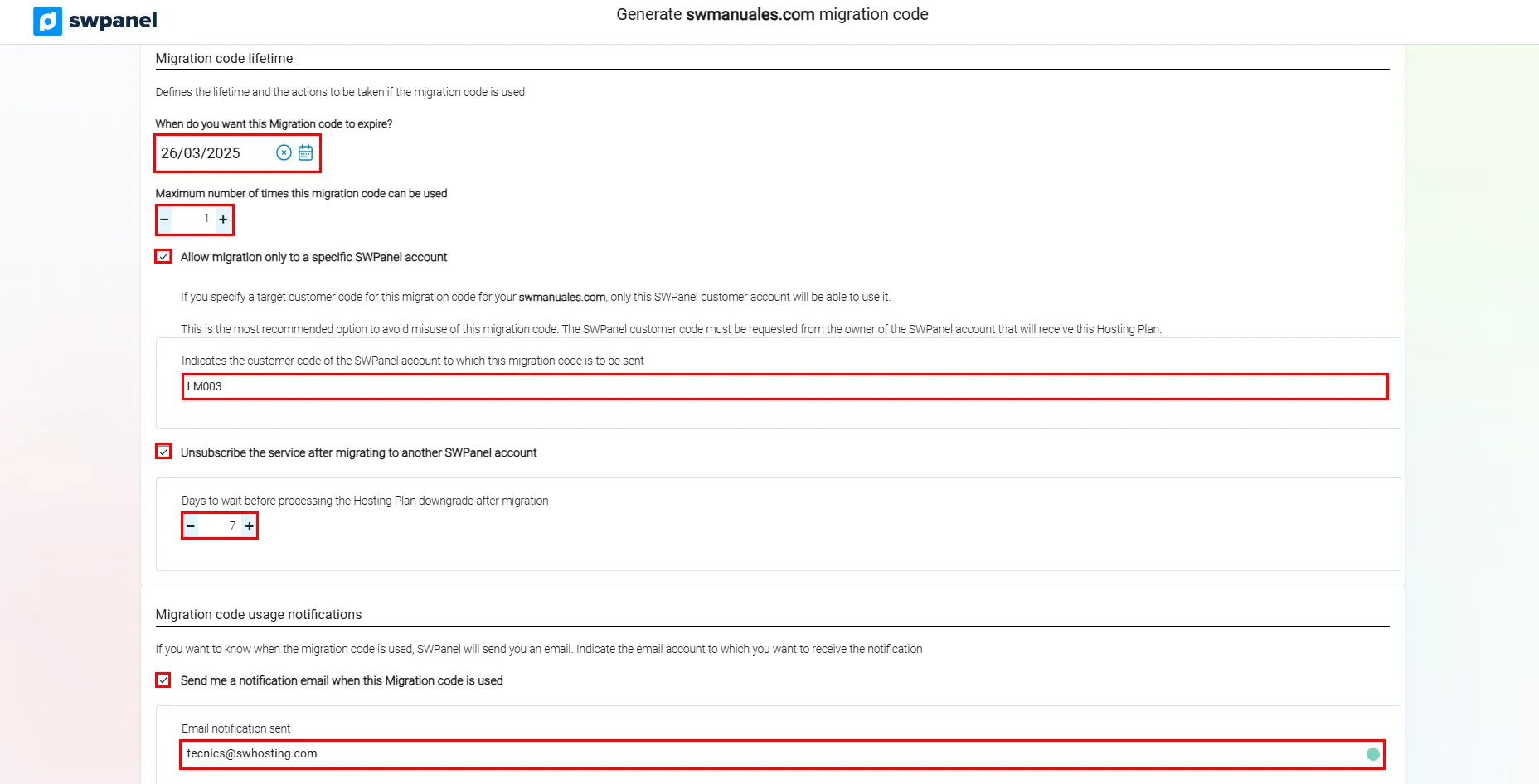
info_capture The screenshot is for guidance purposes. It was taken from version 2025.02.0002 dated 11/03/2025. It may differ from what the current version of SWPanel displays.
- Once configured, click on Generate code now.
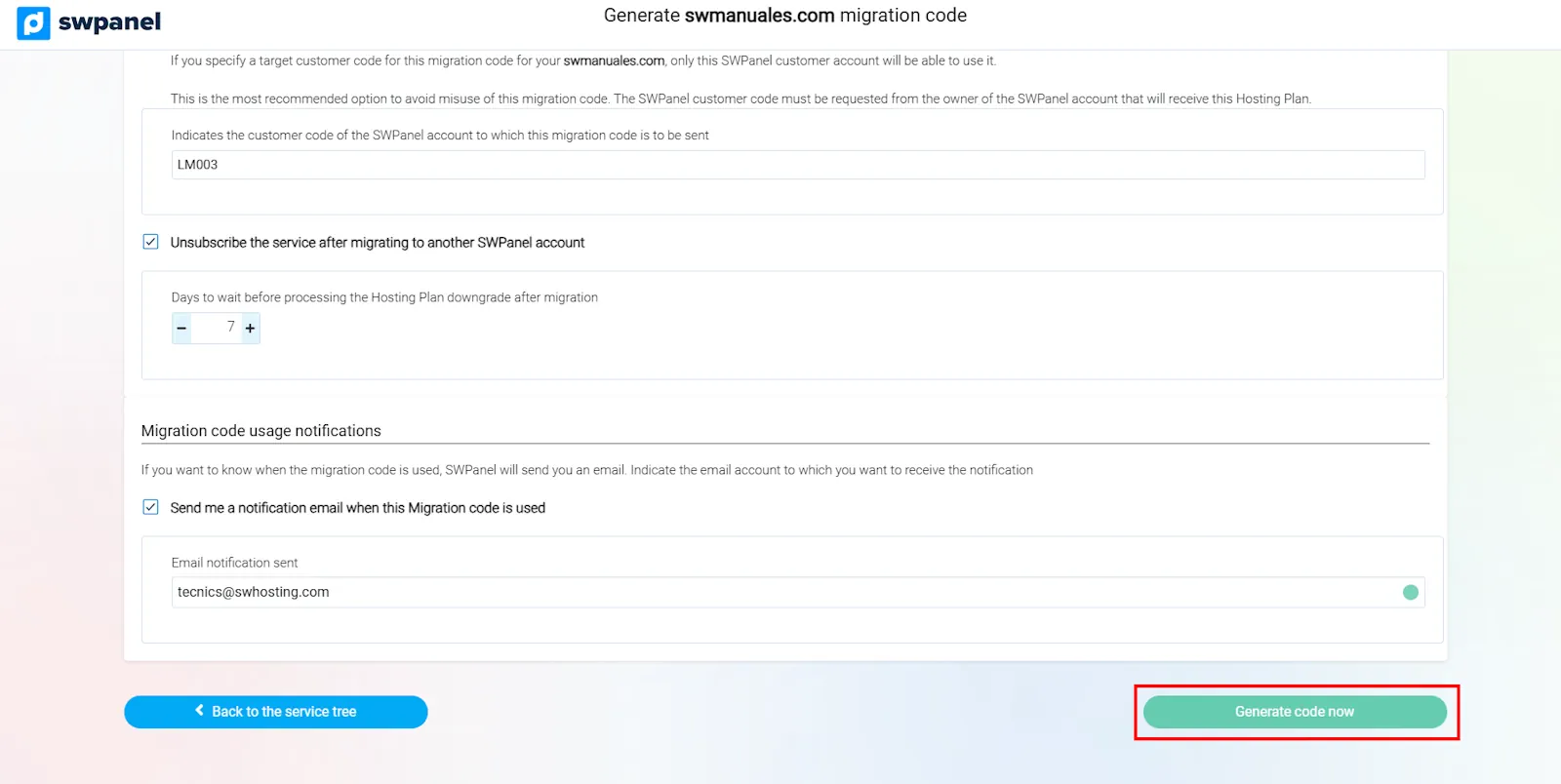
info_capture The screenshot is for guidance purposes. It was taken from version 2025.02.0002 dated 11/03/2025. It may differ from what the current version of SWPanel displays.
2.3. Obtain and manage the migration code
- To view the code, access Move Hosting Plan to another SWPanel again.
- Copy the code to your clipboard.
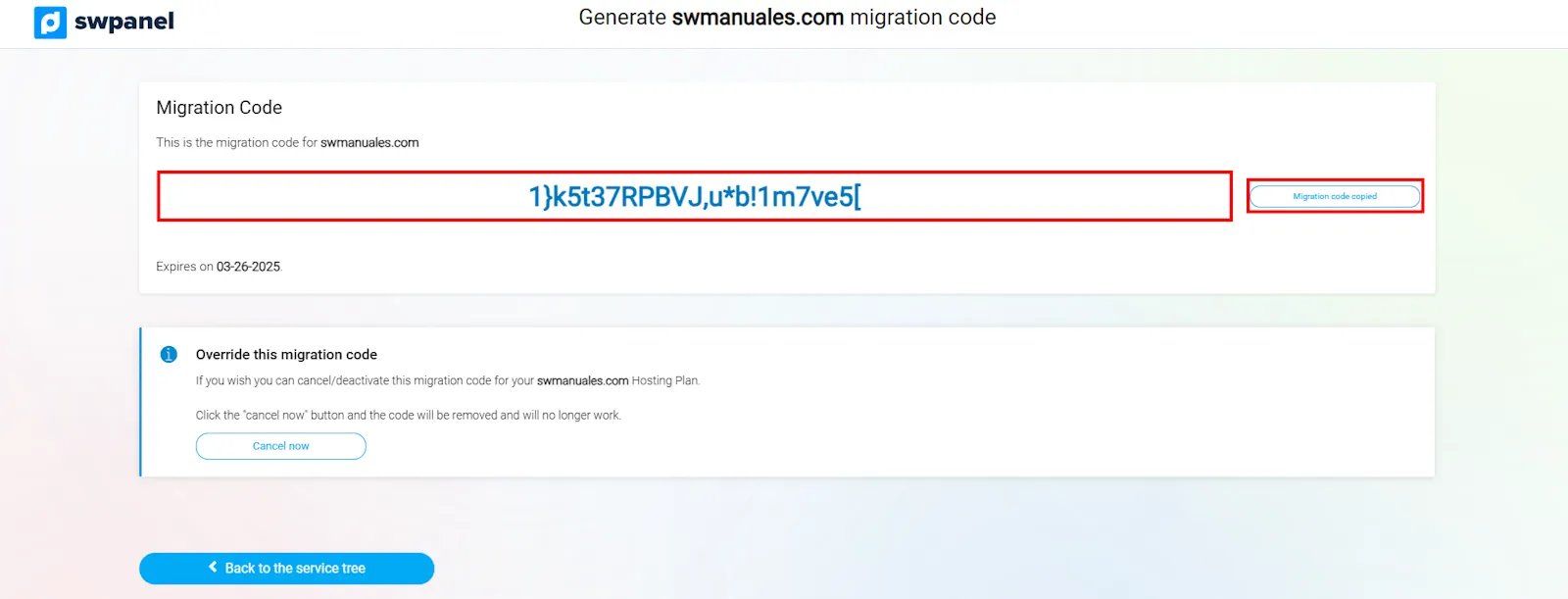
info_capture The screenshot is for guidance purposes. It was taken from version 2025.02.0002 dated 11/03/2025. It may differ from what the current version of SWPanel displays.
- If you need to cancel the migration, you can void the code by clicking Void now.
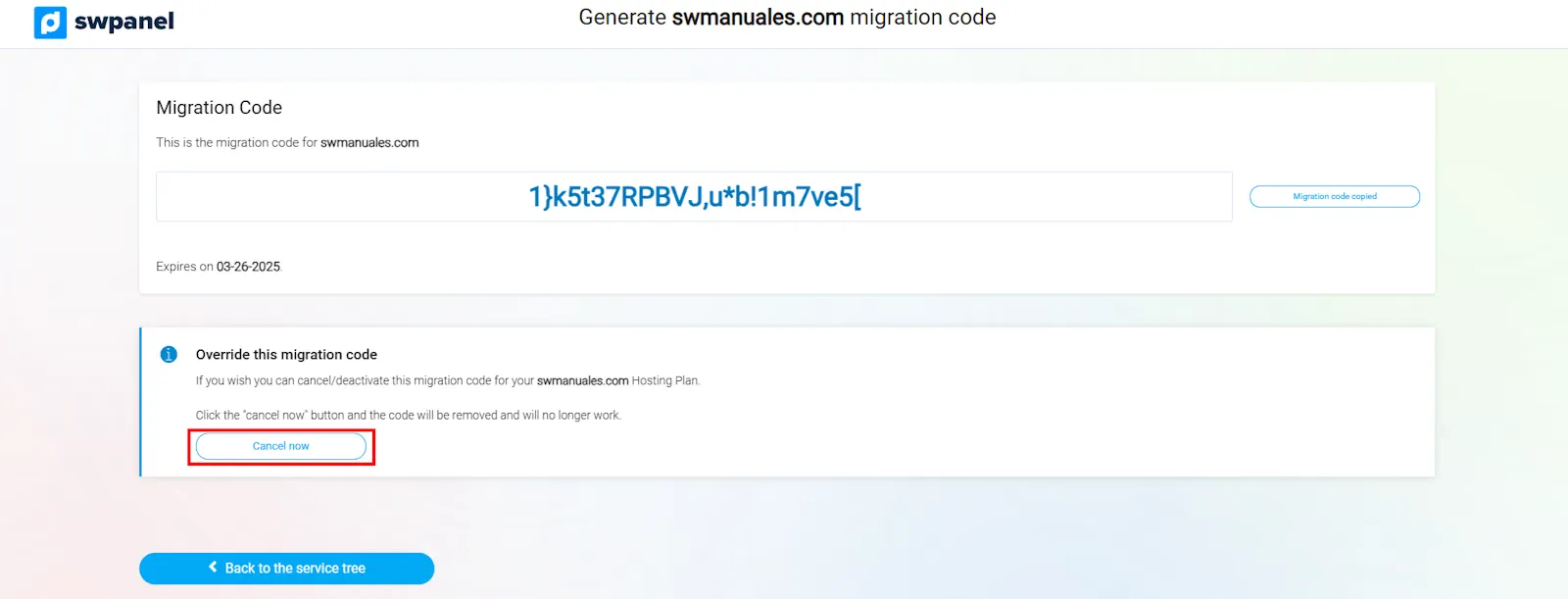
info_capture The screenshot is for guidance purposes. It was taken from version 2025.02.0002 dated 11/03/2025. It may differ from what the current version of SWPanel displays.
3. Use a Migration Code in another SWPanel Account
Once a migration code has been generated, it can be used in another SWPanel account to transfer hosting services.
3.1. Start the migration process in the destination account
- Log in to the destination SWPanel account.
- Access Main Dashboard > Tools > Migrate a Web now.
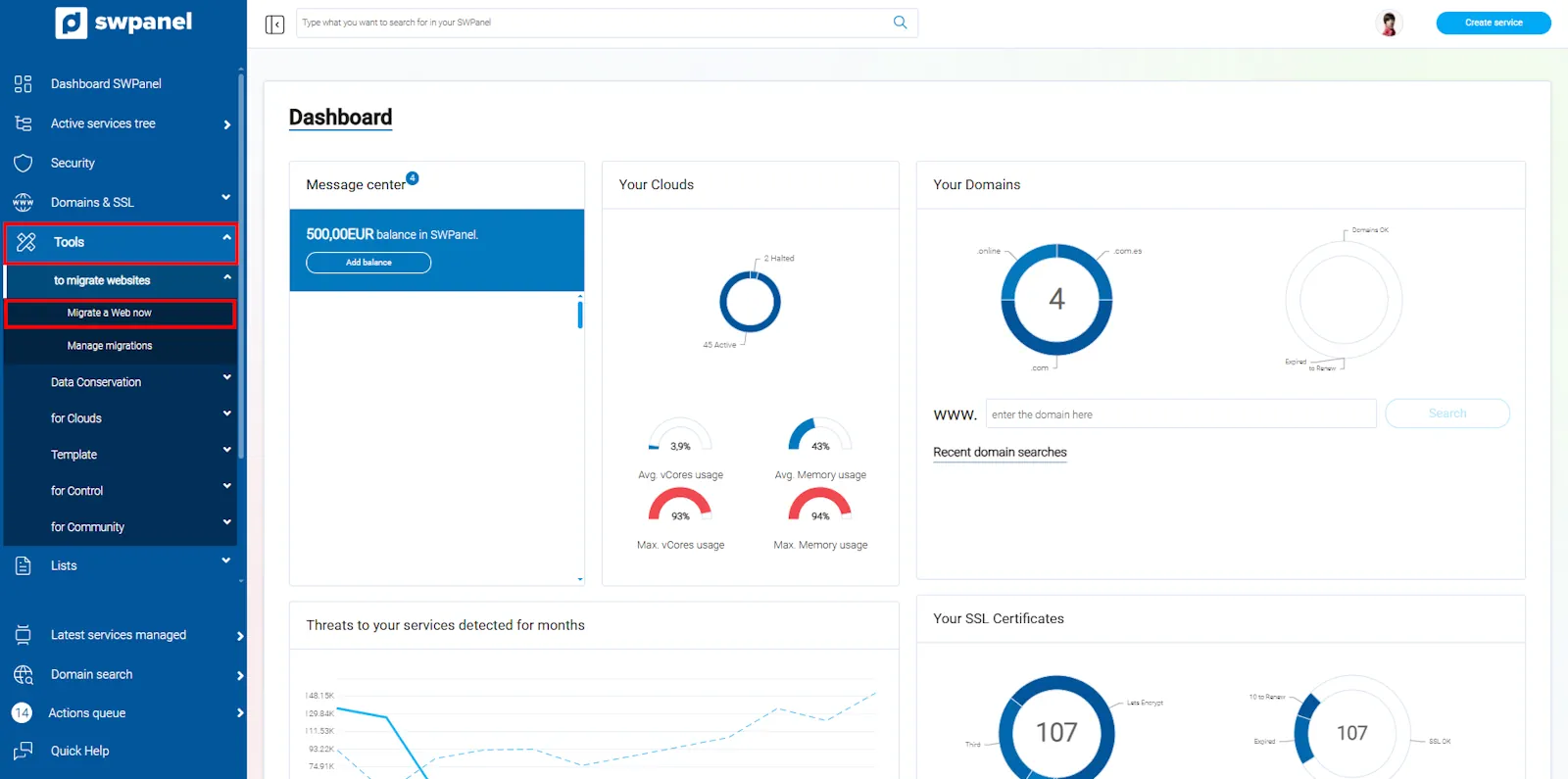
info_capture The screenshot is for guidance purposes. It was taken from version 2025.02.0002 dated 11/03/2025. It may differ from what the current version of SWPanel displays.
3.2. Enter the Migration Code
- Select the option Migrate from another SWPanel using migration code.
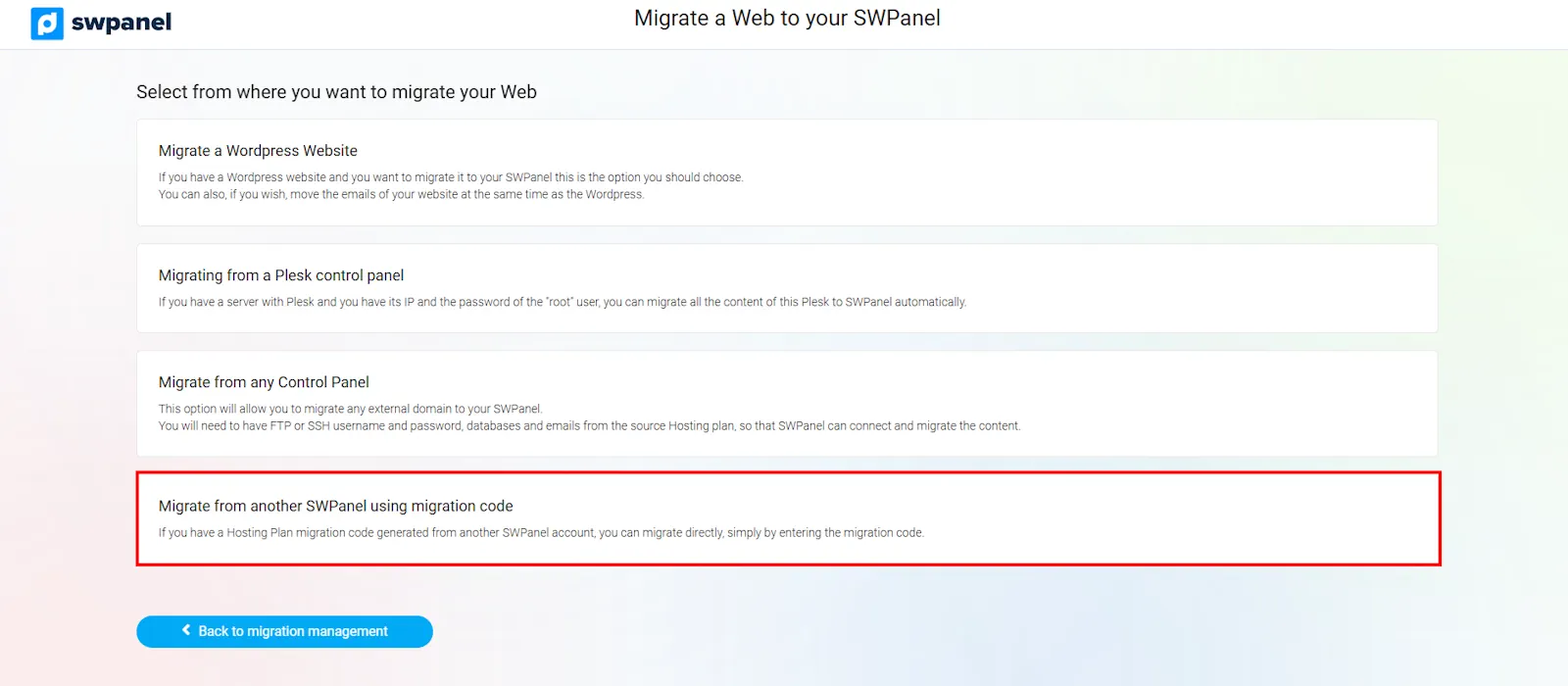
info_capture The screenshot is for guidance purposes. It was taken from version 2025.02.0002 dated 11/03/2025. It may differ from what the current version of SWPanel displays.
- Enter the generated code and click Verify migration code.
- If the code is valid, the service and the data to be transferred will be displayed.
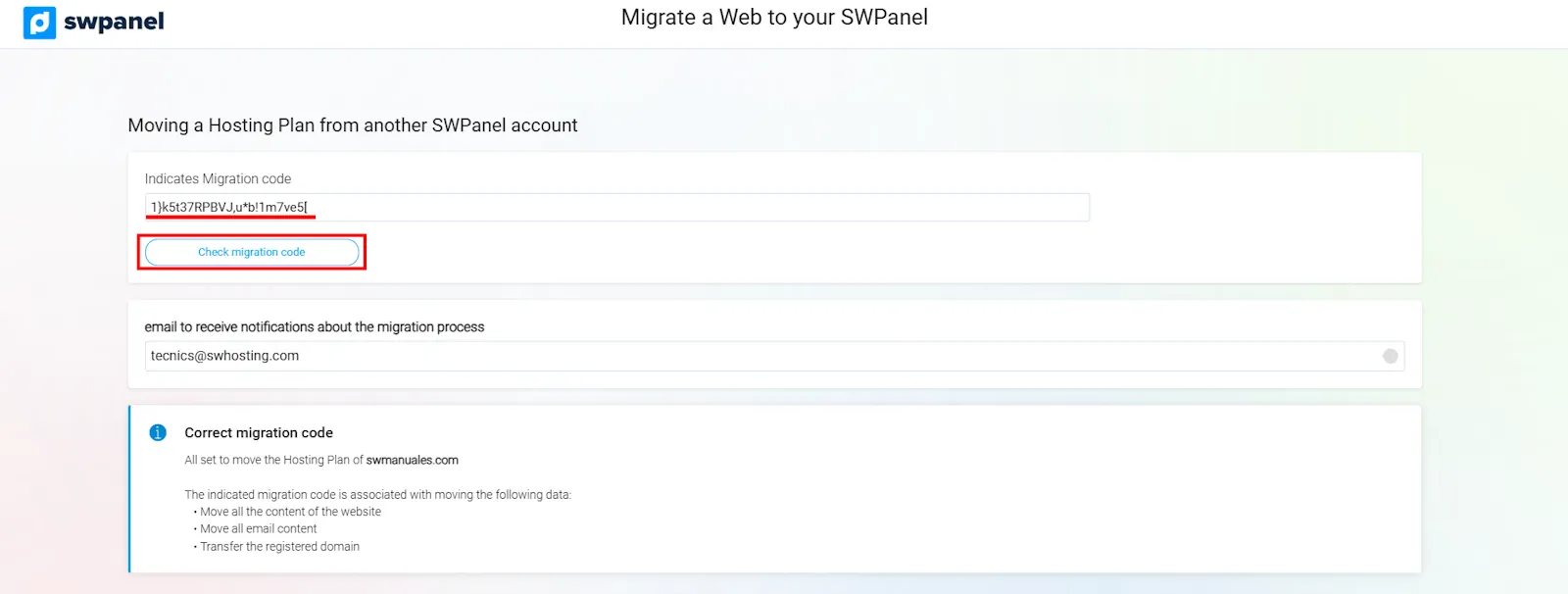
info_capture The screenshot is for guidance purposes. It was taken from version 2025.02.0002 dated 11/03/2025. It may differ from what the current version of SWPanel displays.
3.3. Confirm and finalize the migration
- The type of service to be created and the associated cost will be indicated.
- Click Move now to complete the transfer.
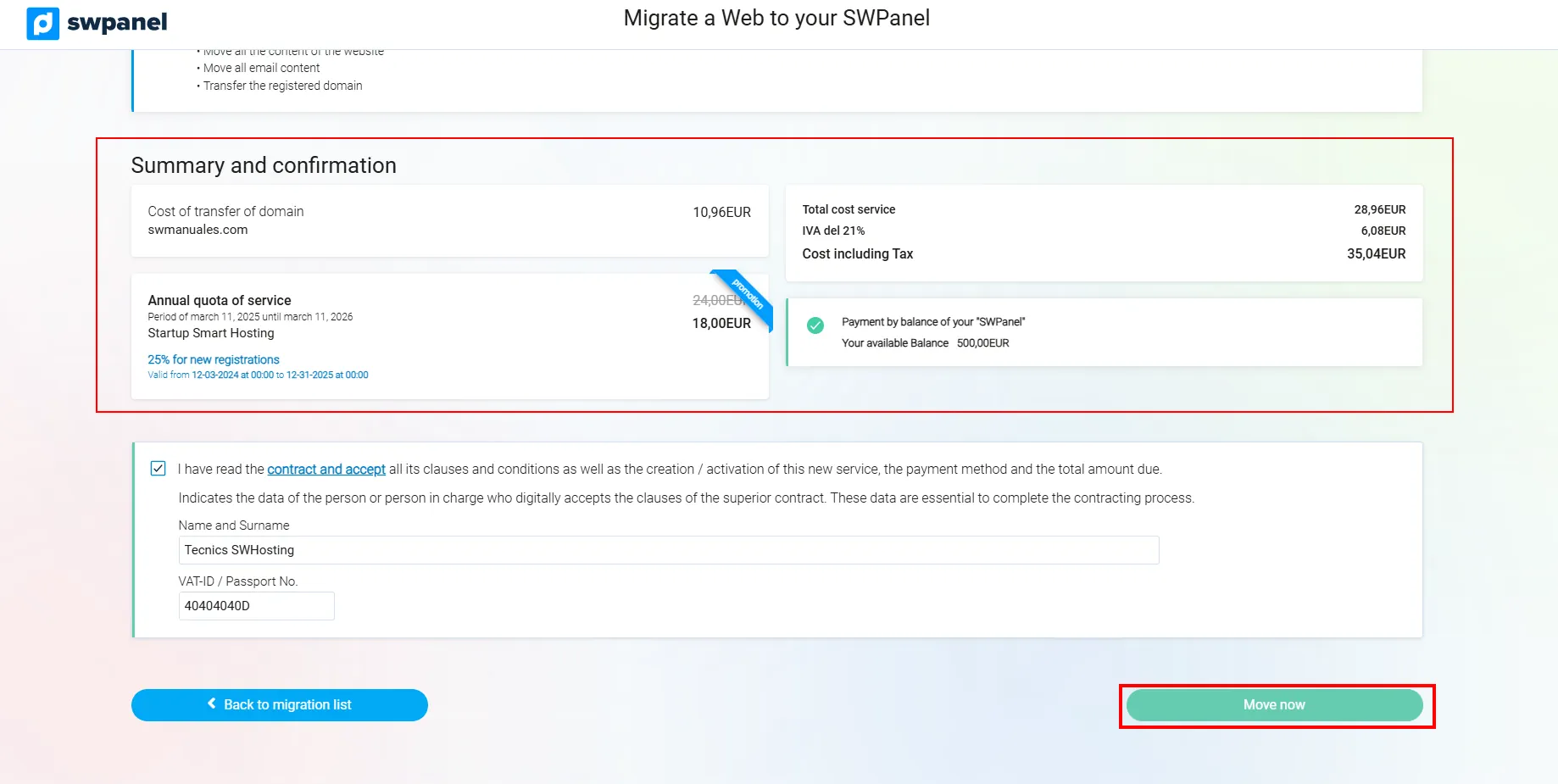
info_capture The screenshot is for guidance purposes. It was taken from version 2025.02.0002 dated 11/03/2025. It may differ from what the current version of SWPanel displays.
- Once the process is finished, the new service with the migrated content will be created in the destination account.
info_capture The screenshot is for guidance purposes. It was taken from version 2025.02.0002 dated 11/03/2025. It may differ from what the current version of SWPanel displays.
success Done! Now you know how to generate and use a migration code to transfer your services between SWPanel accounts.
4. Glossary of Terms
| Term | Definition |
|---|---|
| Migration code | Key generated in SWPanel that allows the transfer of hosting services between accounts. |
| Hosting migration | Process of moving a website, emails, and domains between SWPanel accounts. |
| SWPanel account | User profile in SWPanel where hosting services and domains are managed. |
| Domain transfer | Process of moving a domain from one registrar or account to another. |
This manual guides you through every step to facilitate the migration of services in SWPanel. If you have any questions, review the official documentation or contact support.