How to block access by country to your website with Cloudflare
How to add a website in Cloudflare
To restrict access to your website by country from Cloudflare for free, you must first access your Cloudflare account or register if you are not a user:
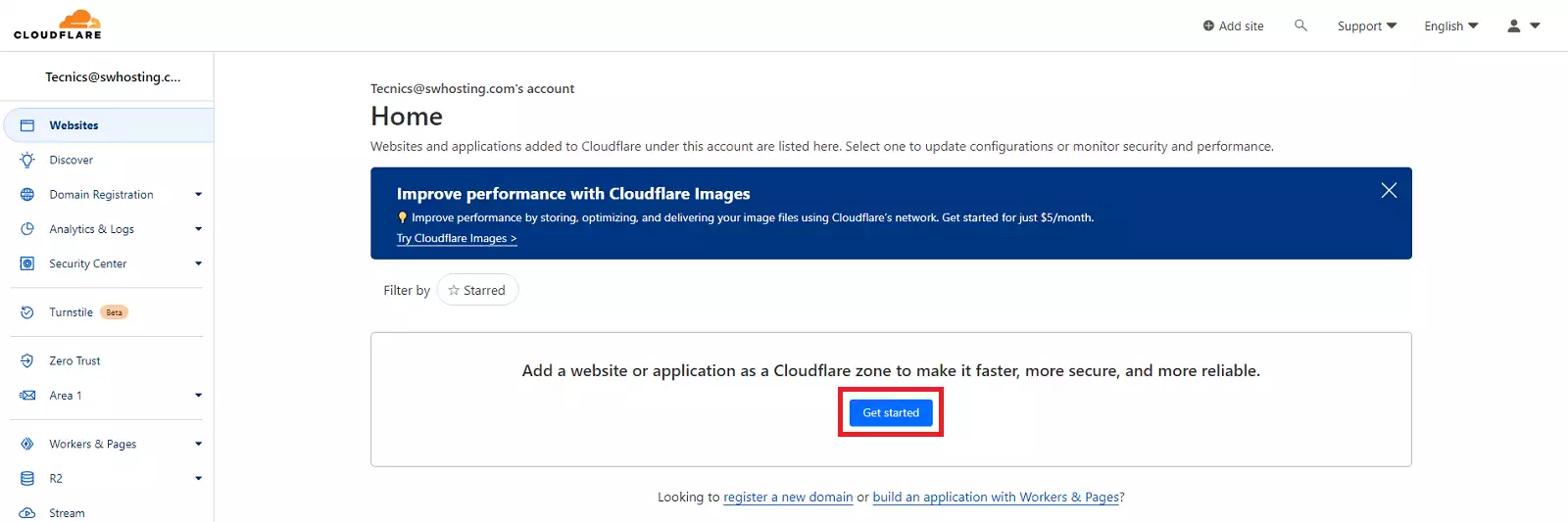
Next, we will add our website using the 'Get started' button:
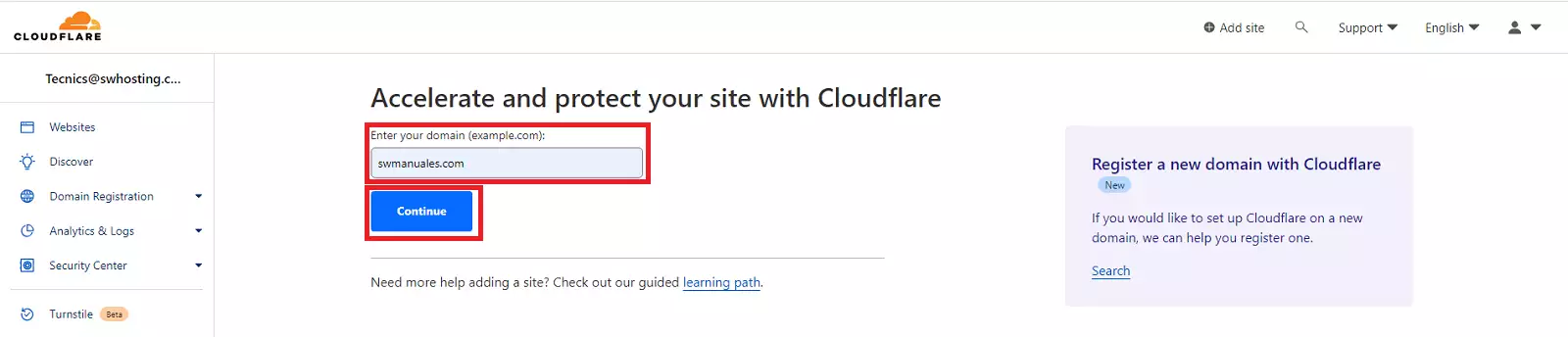
We will specify our website's domain and click continue
We will select the free plan; this plan includes the restriction rules necessary to block access by country:
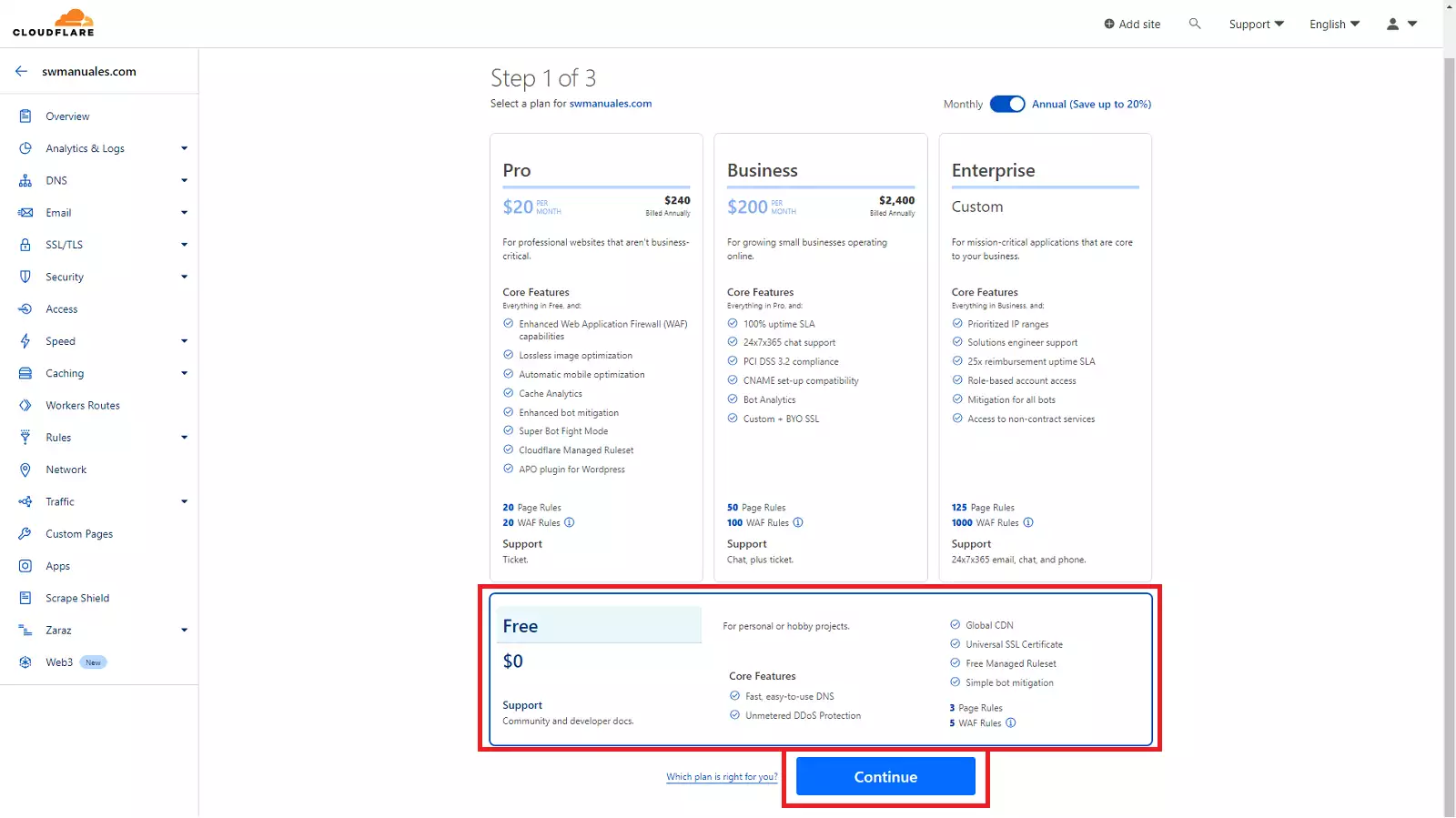
danger The free plan can only be used with domains. Subdomains cannot be assigned to these types of plans.
Automatically, Cloudflare will scan our domain's DNS zone to collect each DNS record and replicate the current zone on its servers.
If we see that any record is missing, we can add it in this step or edit the DNS zone later.
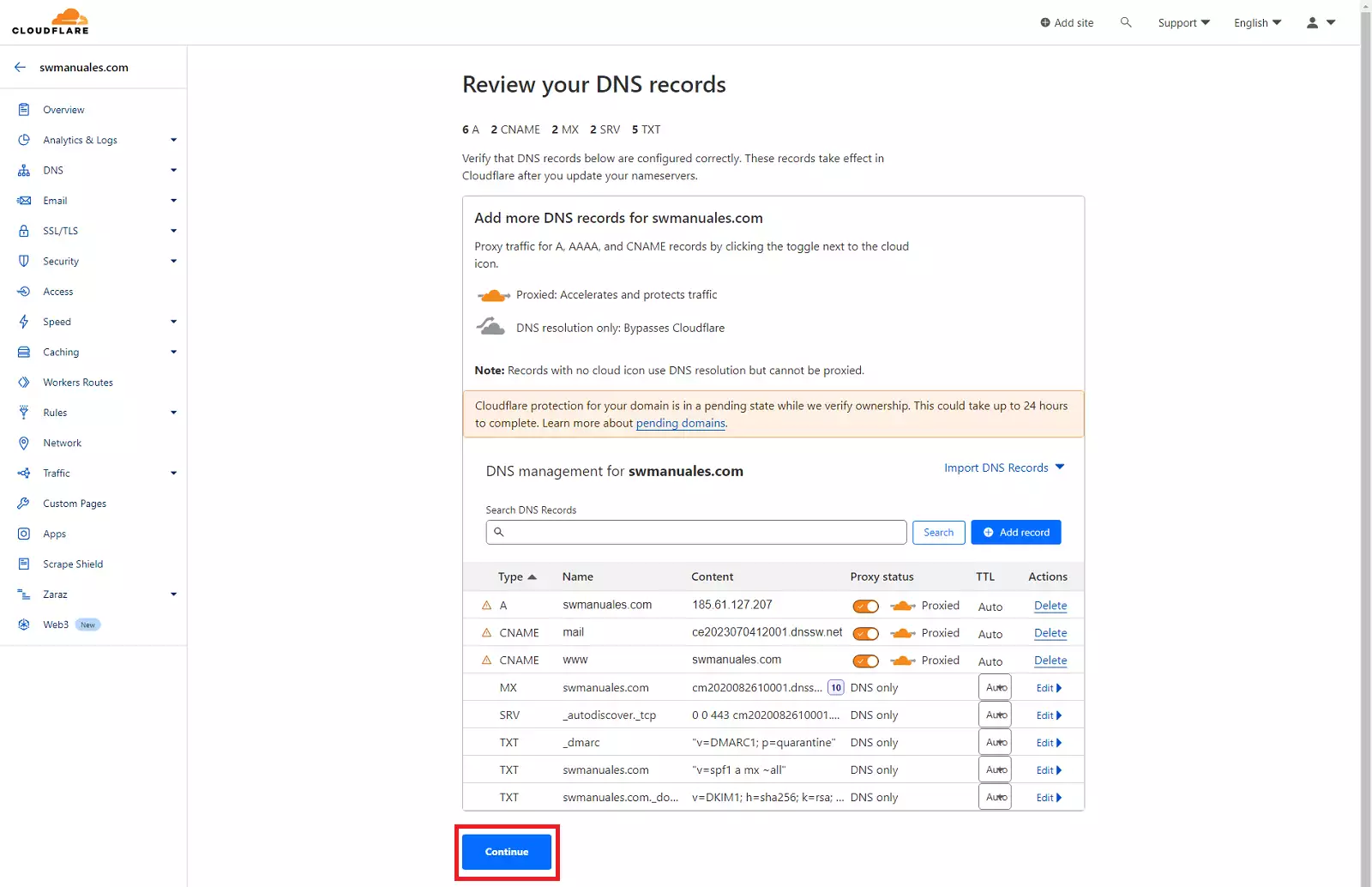
Finally, Cloudflare will ask us to change our domain's Nameservers to point them towards them.
To change your domain's Nameservers from SWPanel you can follow manual Manual: ##título##
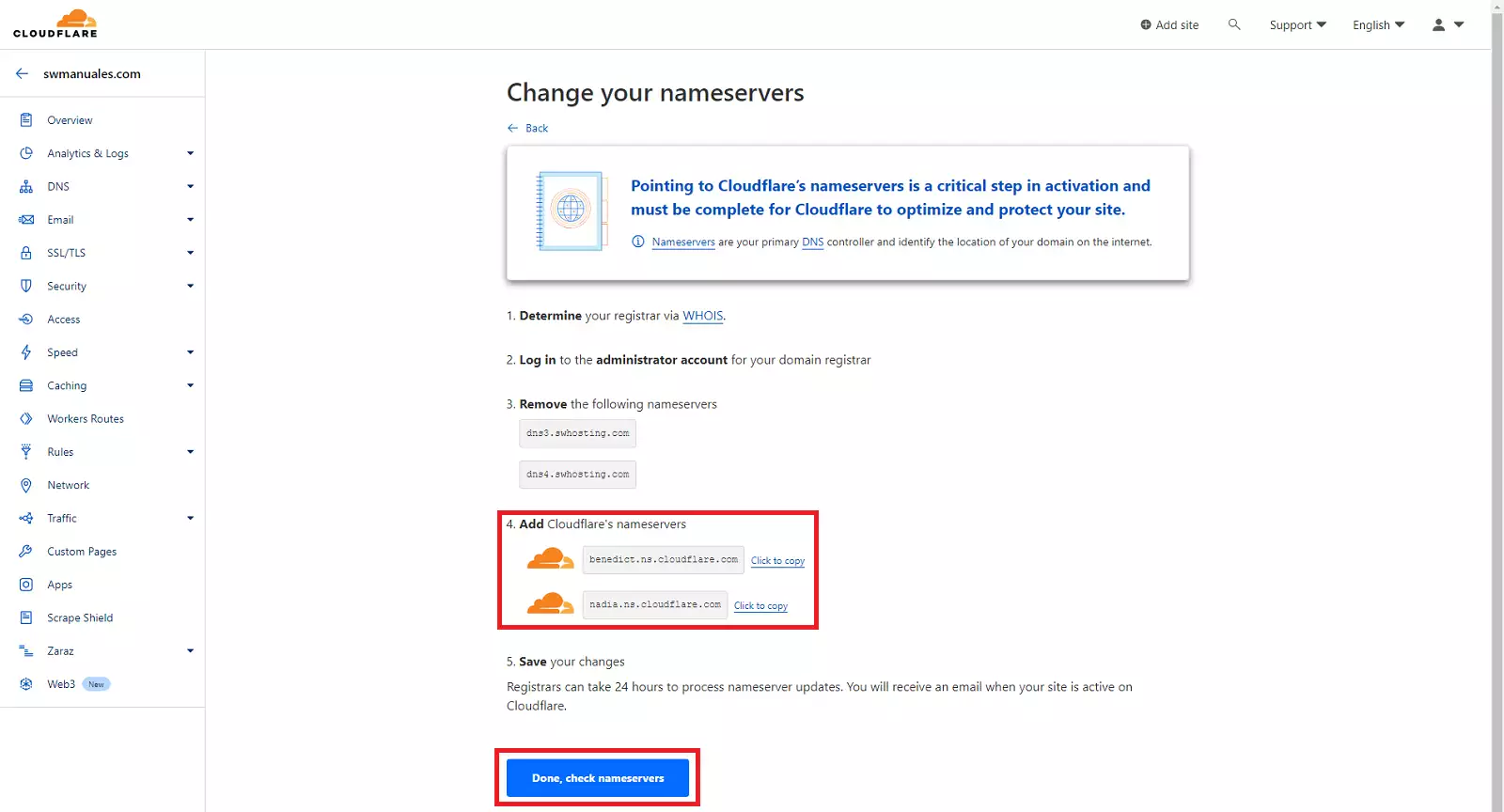
info Changing a domain's Nameservers involves a global propagation process that can take up to 24/48 h depending on the domain extension.
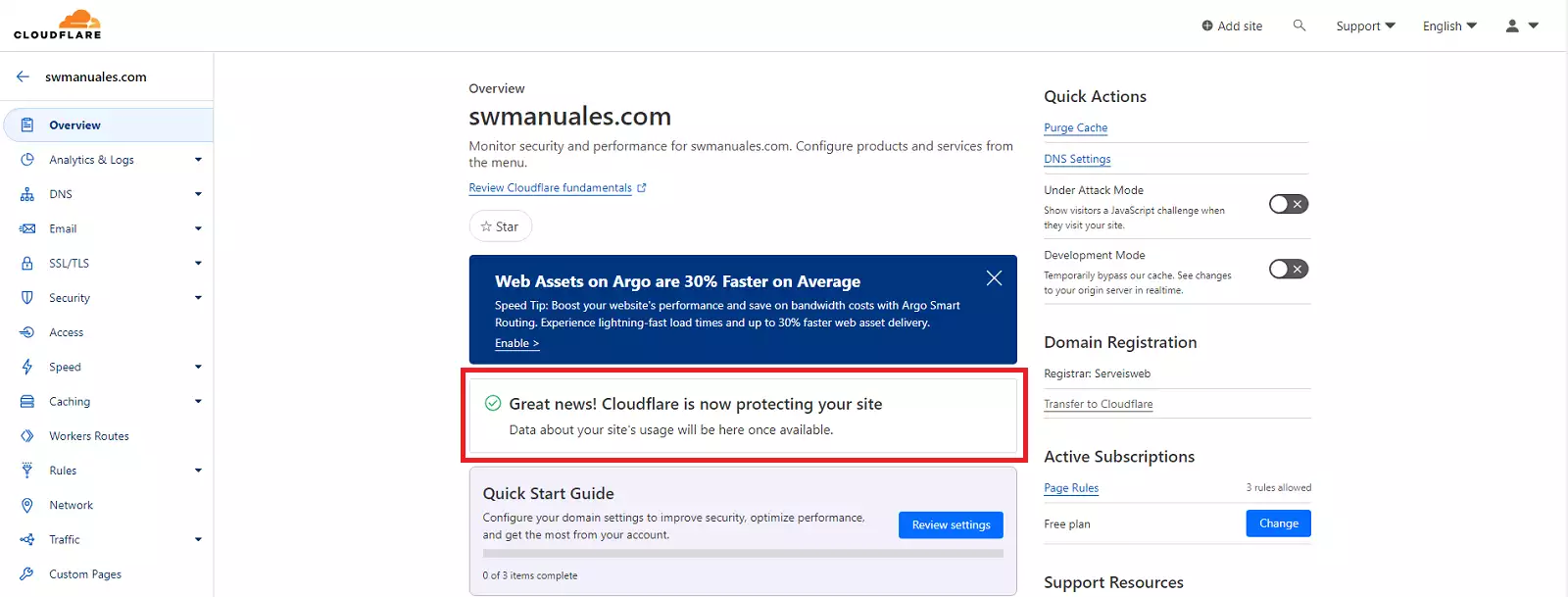
Once the Nameservers change has propagated globally, Cloudflare will send an email notifying you that the service is now active.
How to restrict access by country
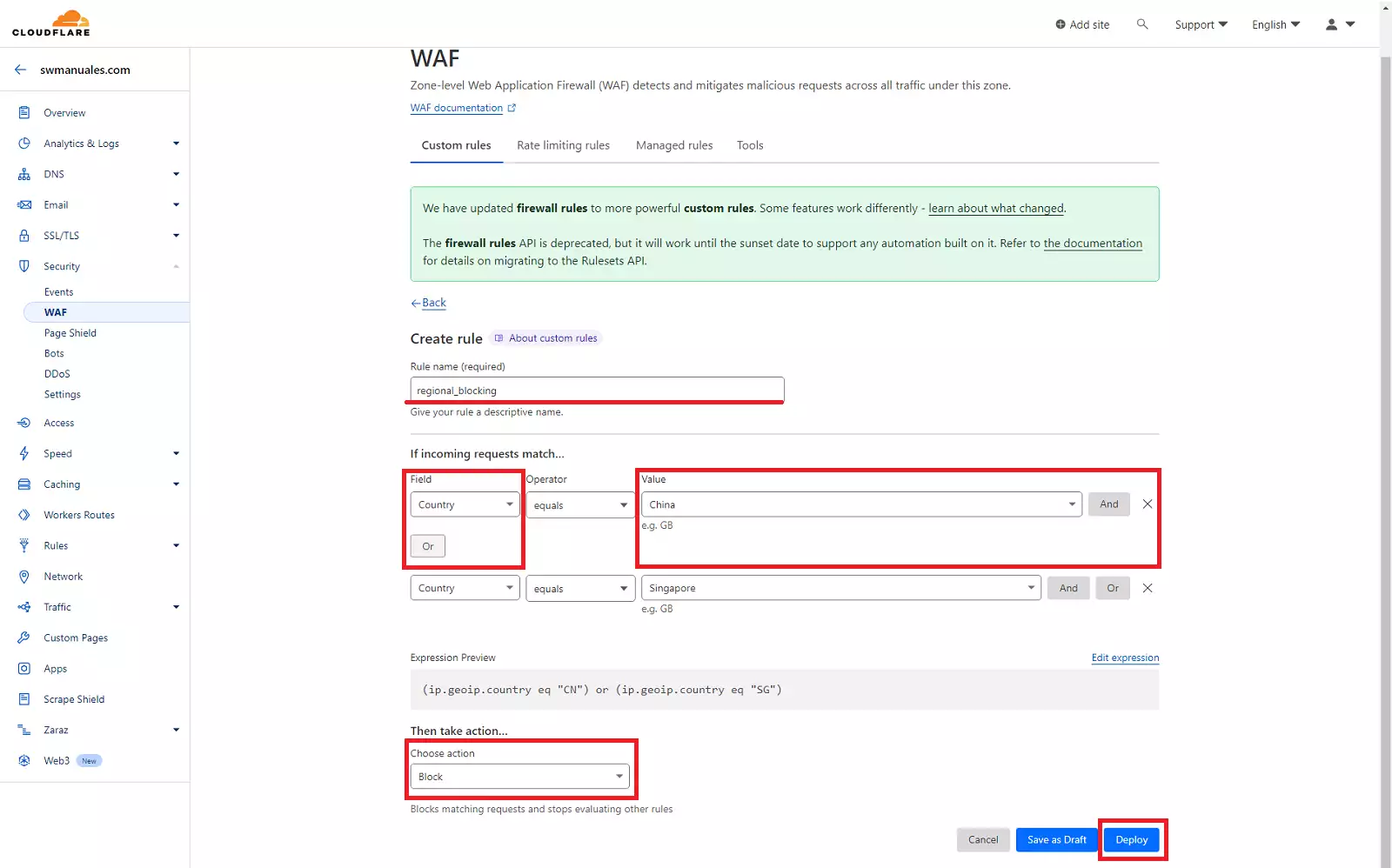
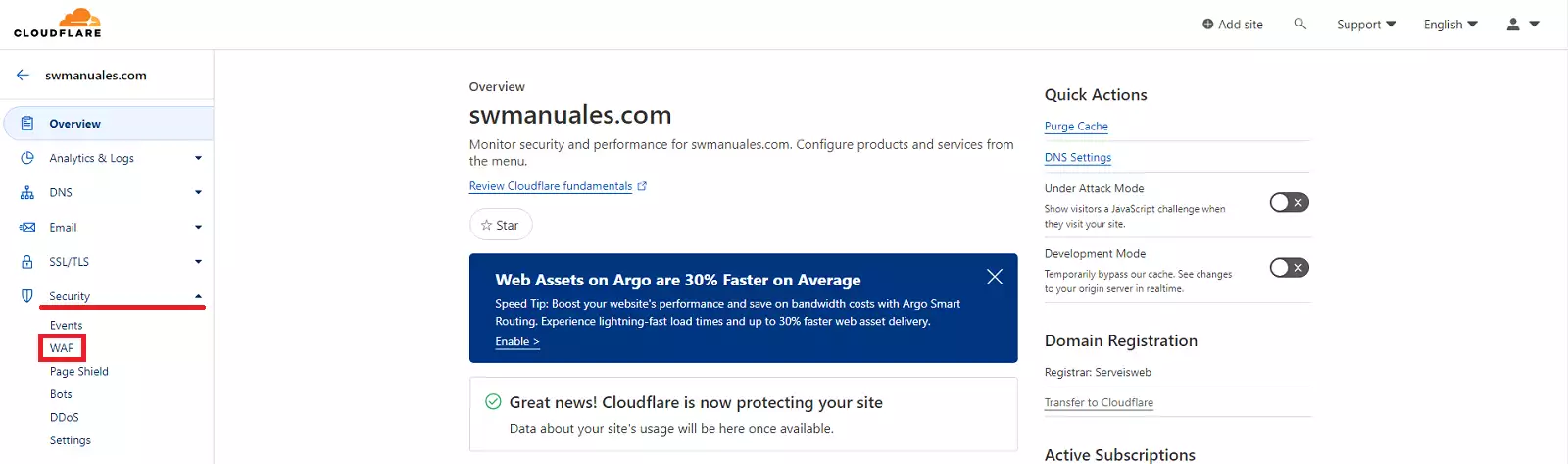
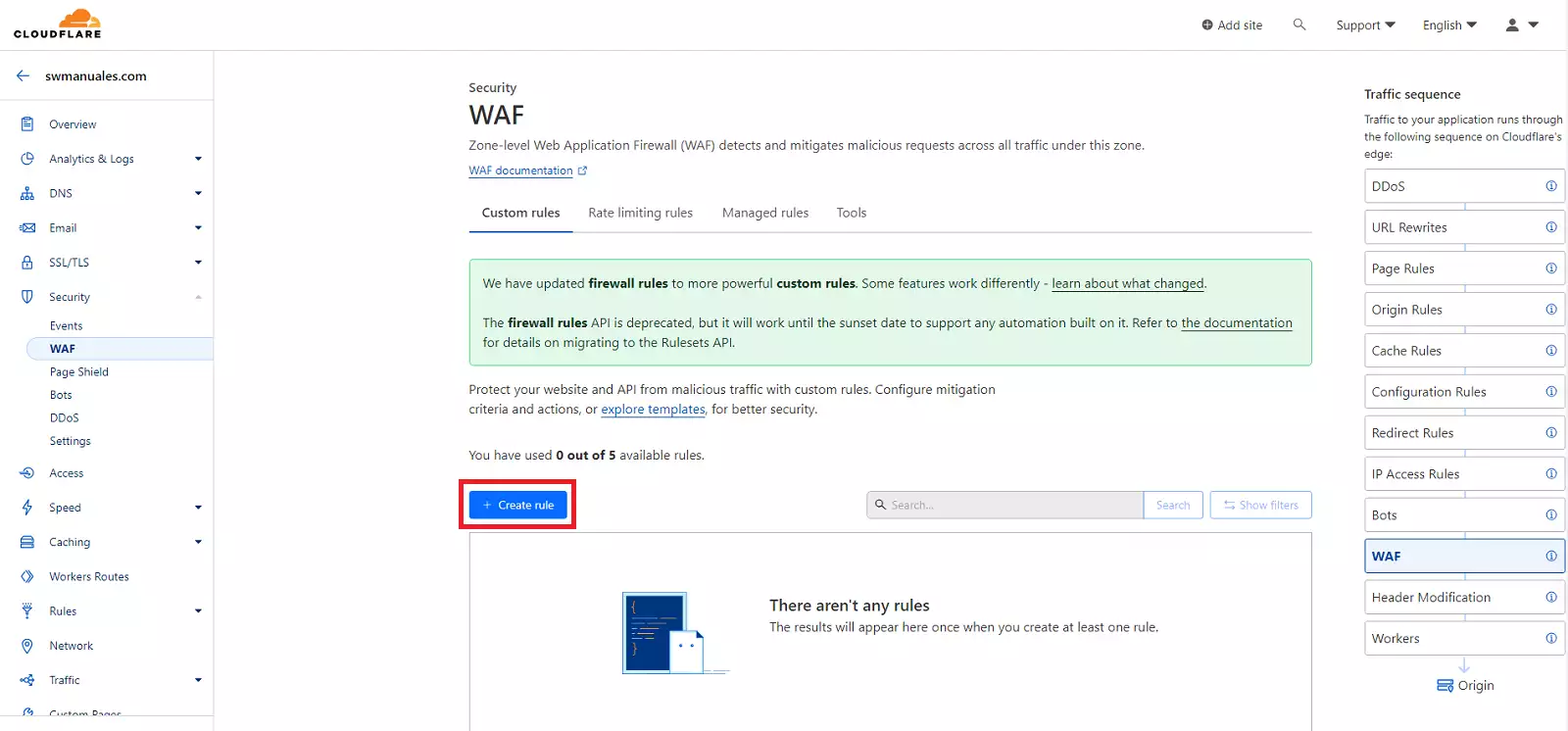
From our service dashboard, we will click on 'Security' -> 'WAF'.
We will create a new security rule:
We must perform three actions:
-
Assign a name to the rule.
-
In the 'Field' section, we will choose 'Country' and in 'Value', the name of the country that we want to prevent from accessing our site. In case we want to block more than one country, we will click on the 'or' button, to the right of the rule, to add another expression.
-
As the action to be performed if the rules are met, we will select 'Block'.
Finally, using the 'Deploy' button, we will save and activate the rule.