How to create and manage SnapShots of your Cloud Server
A Snapshot (or instantaneous image) is a copy of a Virtual Machine (VM) disk file at a specific moment. It preserves all the disk files, allowing us to restore the state of all files saved on the disk on the date the Snapshots were created.

Snapshots are like a photo of the machine's state, which we may want to return to in case something is installed that does not work. In this way, we do not have to perform the uninstallation and we return to a stable state of the machine.
It is important to clarify that Snapshots are not backup copies (backups). Considering that a Snapshot file is solely a record of the changes to an original virtual disk, it is not directly related to a backup process. The virtual machine is running on the most recent Snapshot and not on the original disk files.
Although it is possible to create and keep several Snapshots of a virtual machine's disk, it should be noted that an excessive number of snapshots can cause a decrease in the performance of the virtual machine.
How to activate the Snapshot service on your Server
First, you must access your server's dashboard to activate it:
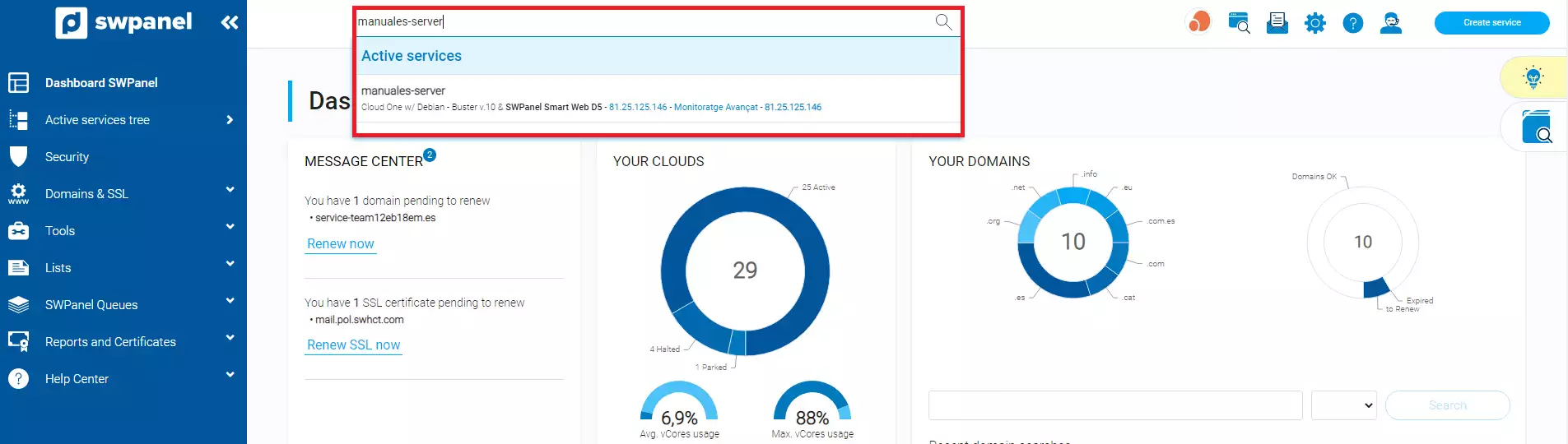
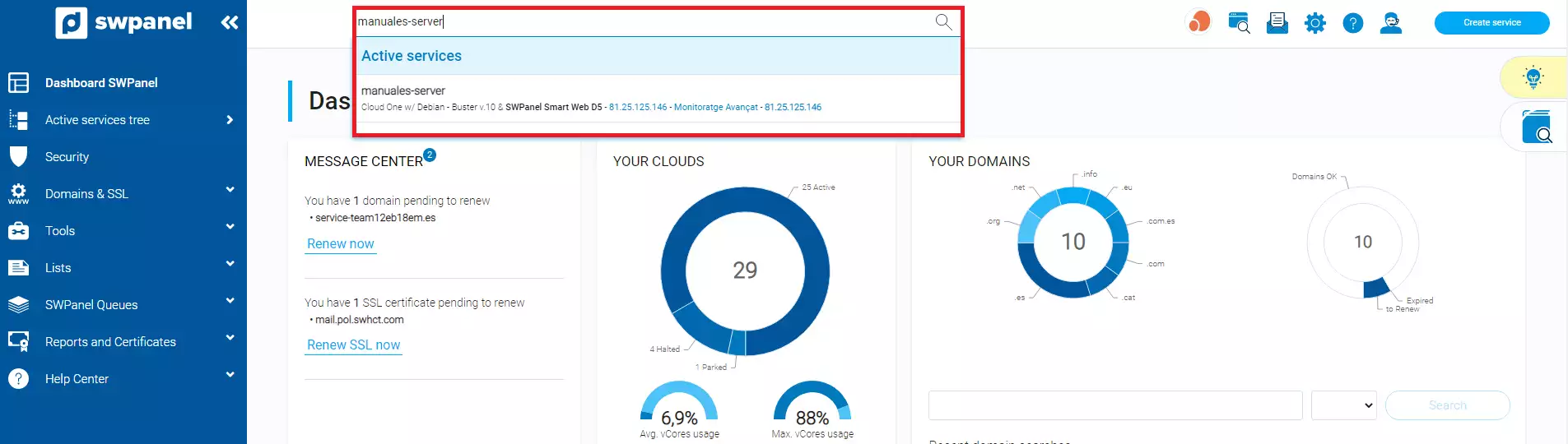
1. From the search box of your SWPanel, you must locate your Cloud server on which you want to activate the Snapshot service and click on it.
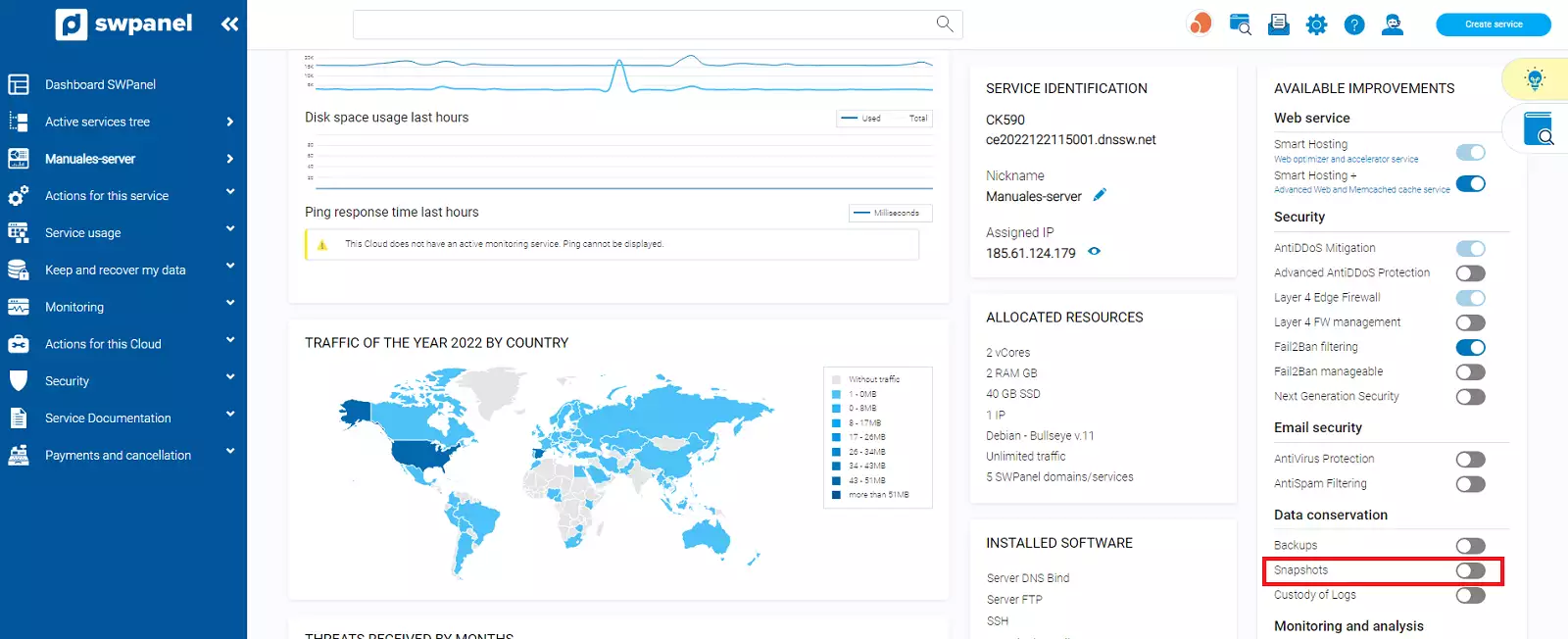
2. Locate the 'Available upgrades' section on the right side and in the 'Data retention' section you will see the button that will allow you to activate Snapshots on your server; click on said button.
3. In the next section, a brief definition of what a snapshot is and the difference between a snapshot and a backup will be displayed. You must check the box 'Activate SnapShots in my Cloud' and you can complete the activation.
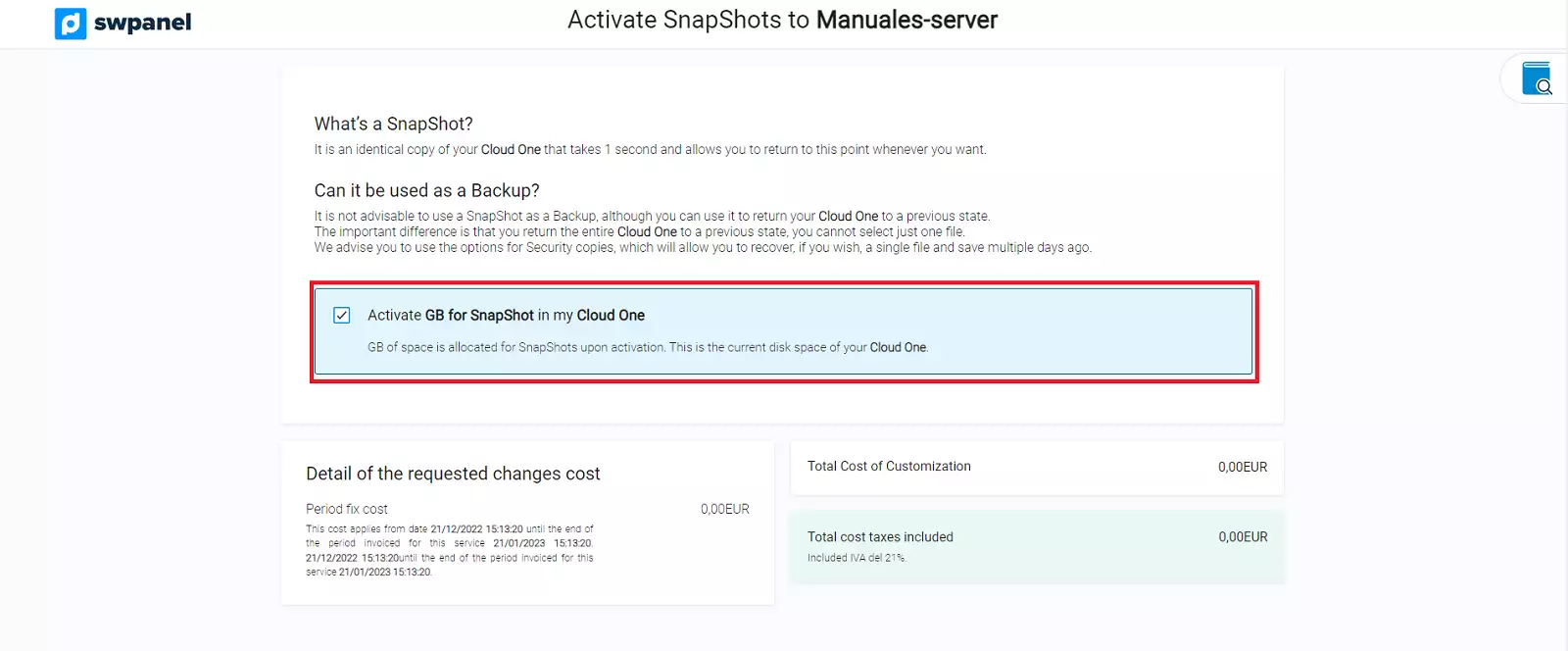
info Additionally, in the activation box, you can see the explanation regarding the Snapshot space. Said space will be, at minimum, the same size as your server's disk, since a Snapshot is a full copy of said disk.
How to create a Snapshot from SWPanel
In SWHosting you can create Snapshots of all your Cloud servers through your SWPanel service management tool. The steps to create a Cloud server Snapshot are as follows:
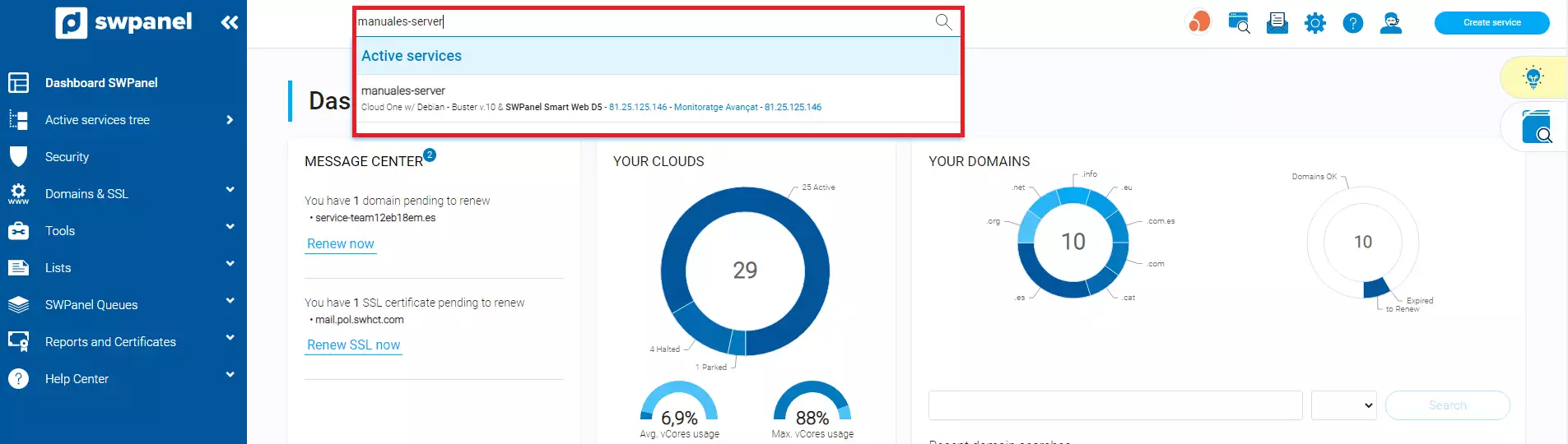
1. From the search box of your SWPanel, you must locate your Cloud server on which you want to create a Snapshot and click on it.
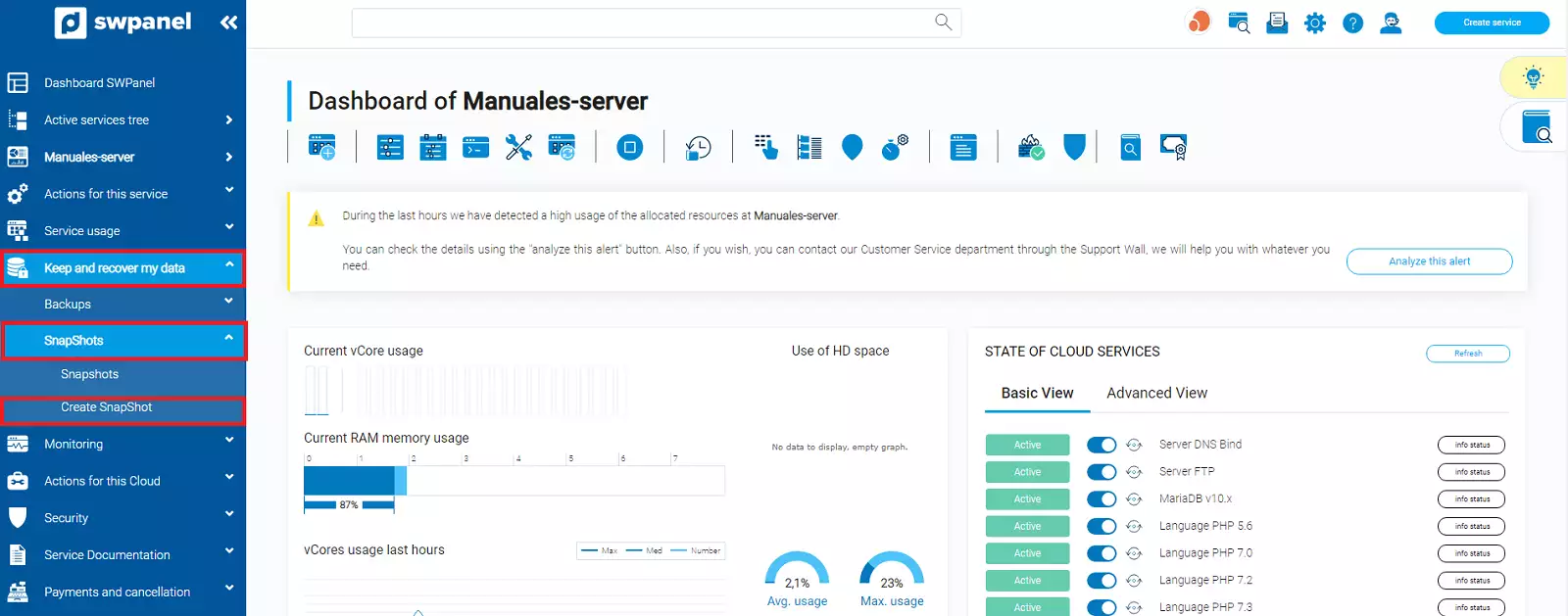
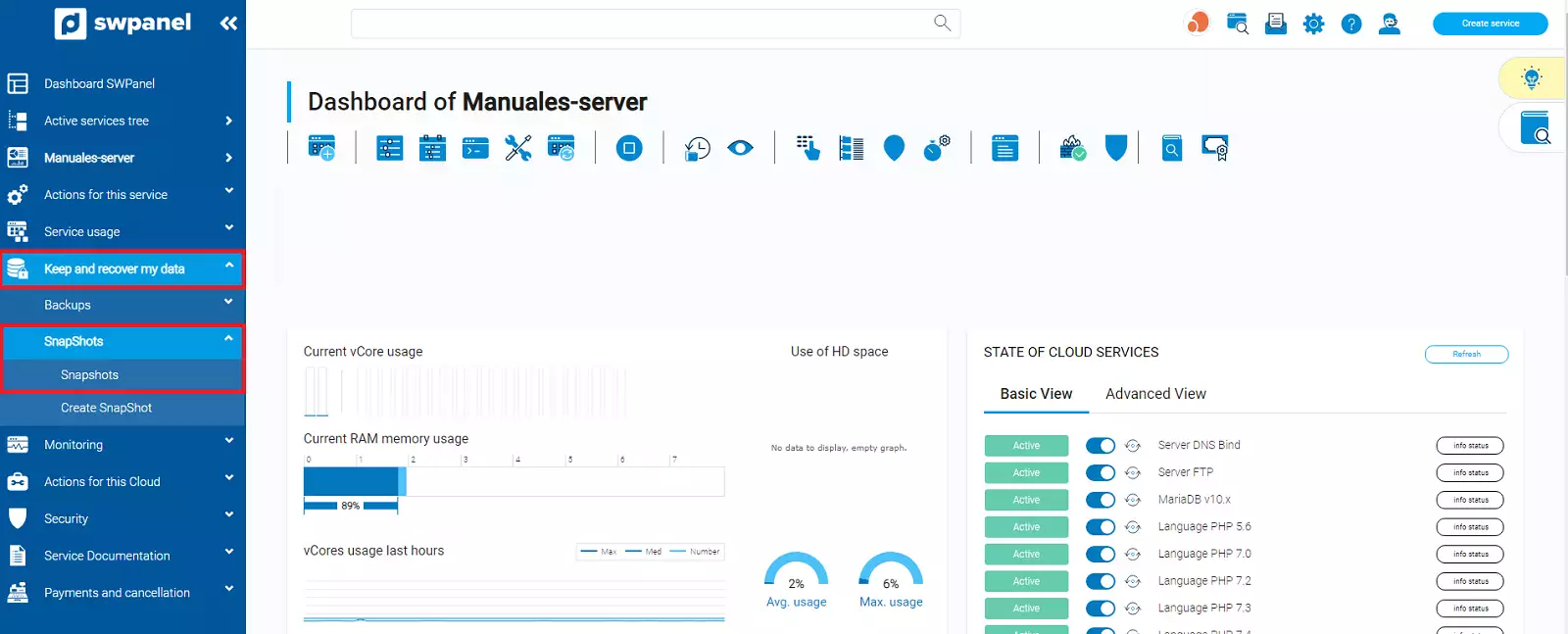
2. Once you are in the Cloud server Dashboard, you must go to the left side menu and in the 'Keep and recover my data' section click on the option 'Snapshots' -> 'Create Snapshot'.
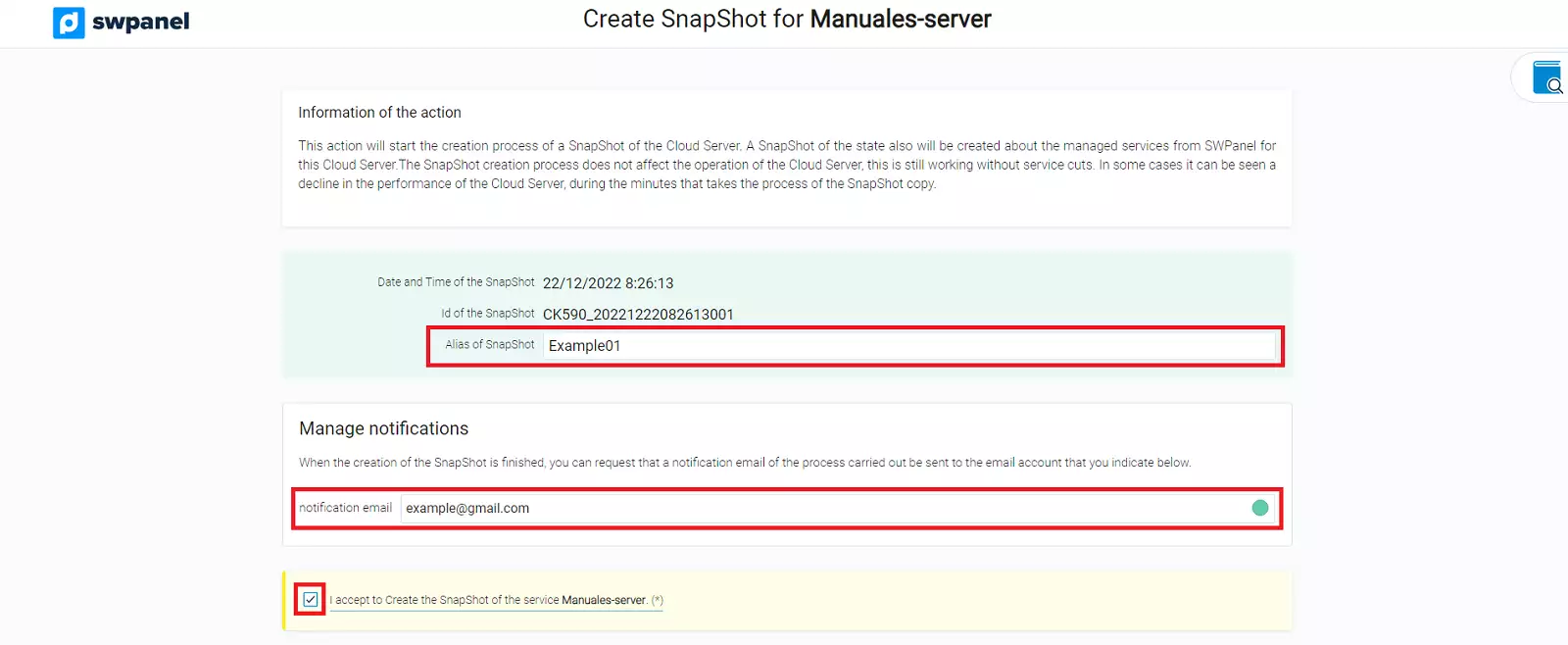
3. In the following window, we will write the name (Alias) that will identify the Snapshot, in addition to its creation date/time. You must check the acceptance of Snapshot creation to proceed.
info As an additional option, if you wish, you can indicate an email address where you would like a notification to be sent when the Snapshot creation has finished.
How to restore a Snapshot from SWPanel
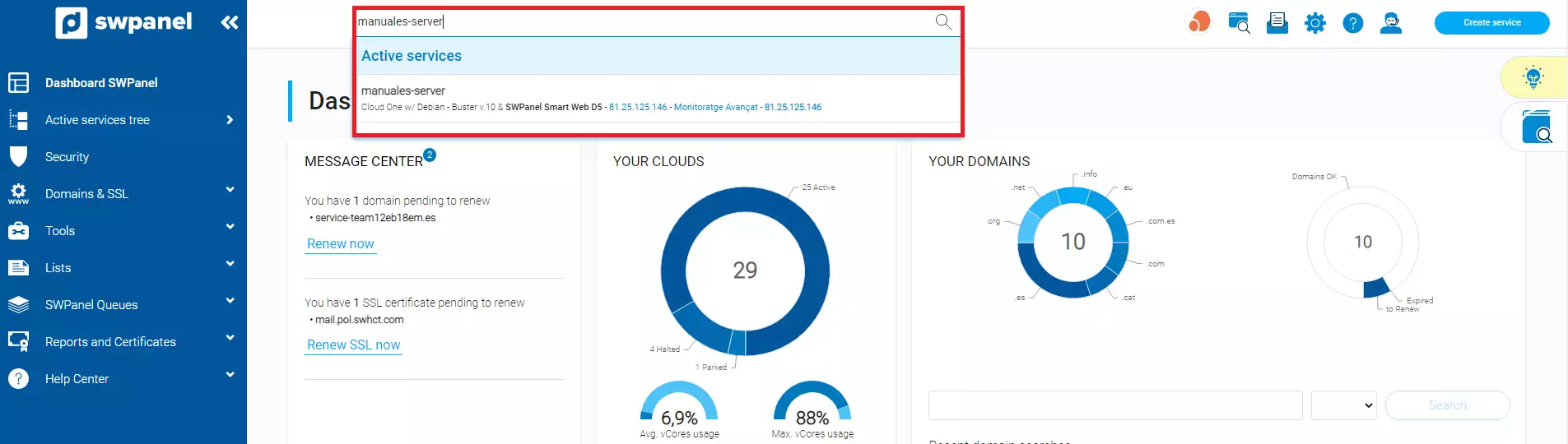
1. From the search box of your SWPanel, you must locate your Cloud server on which you want to create a Snapshot, and click on it.
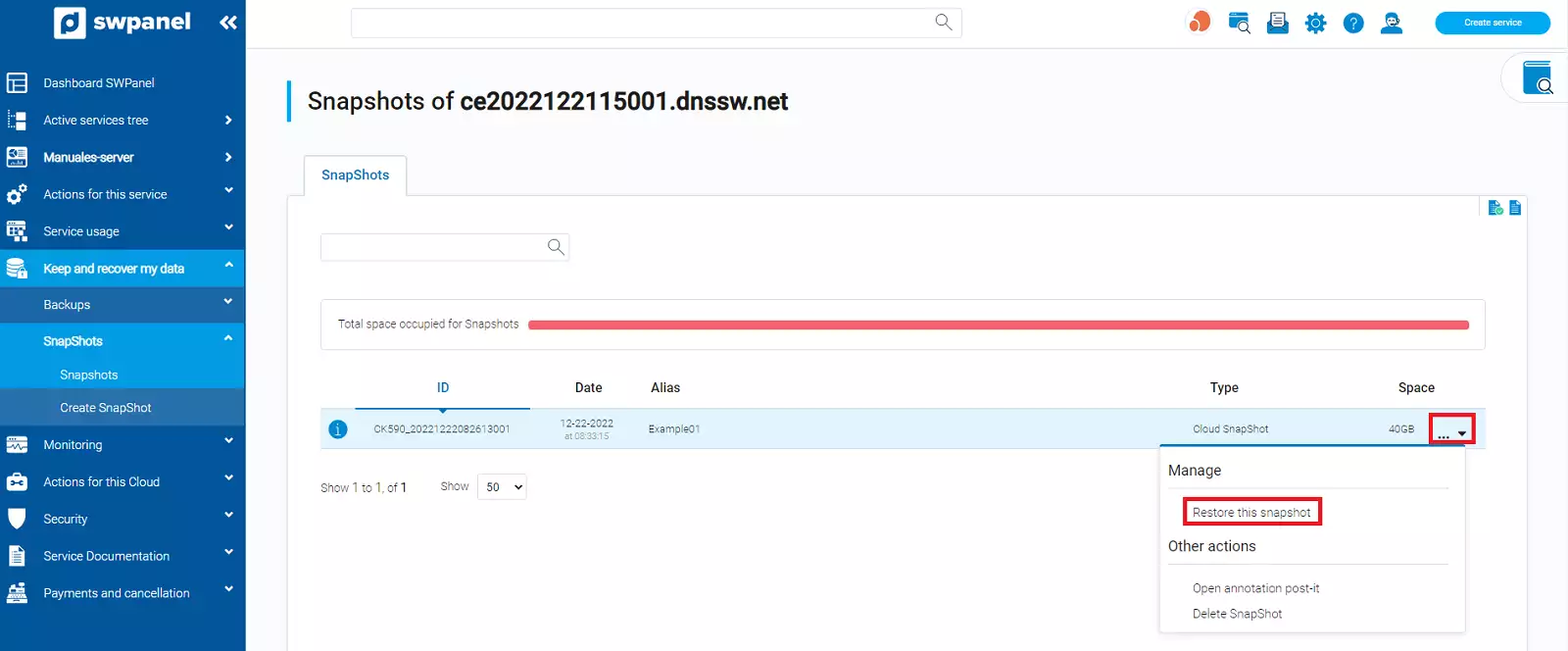
2. Once you are in the Cloud server Dashboard, you must go to the left side menu and in the 'Keep and recover my data' section click on the option 'Snapshots' -> 'Snapshot Management'.
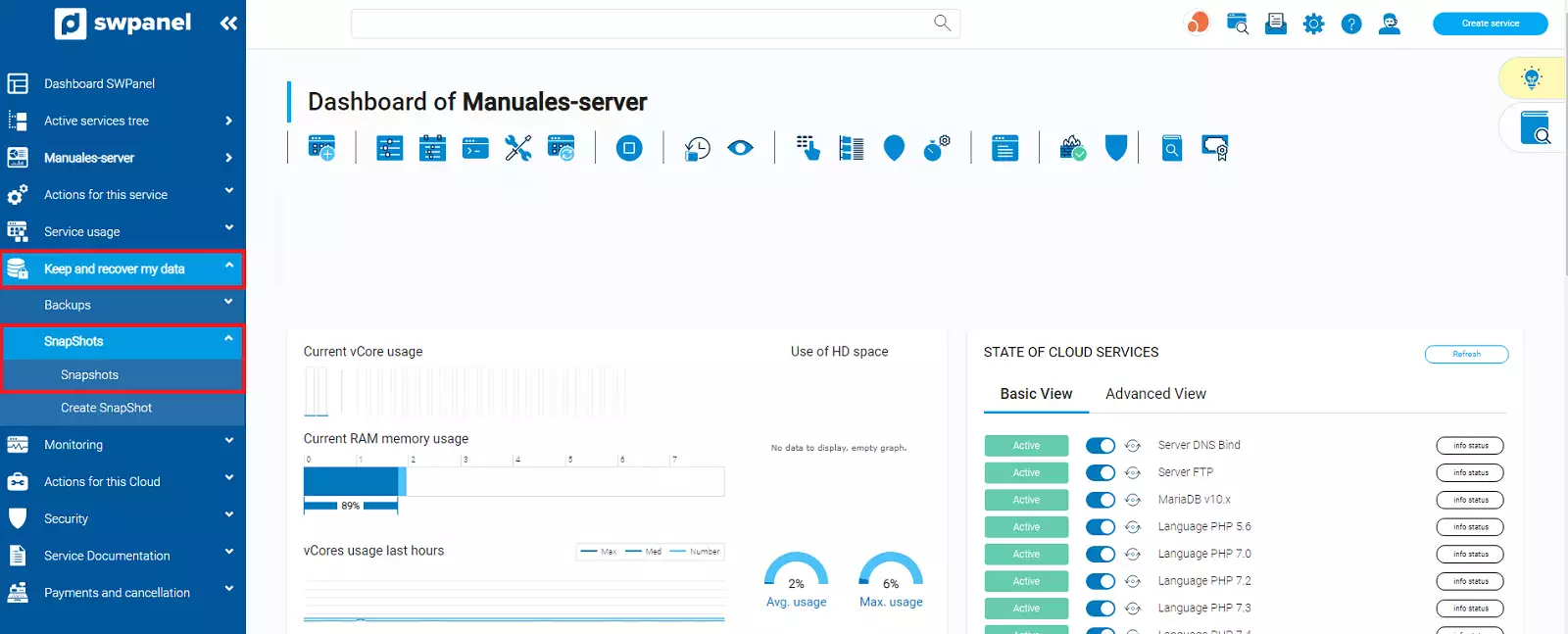
3. Once in said section, you can view the Snapshots you have already created. You must go to the '...' dropdown menu that you will see to the right of the selected Snapshot, and select the option 'Restore this SnapShot'.
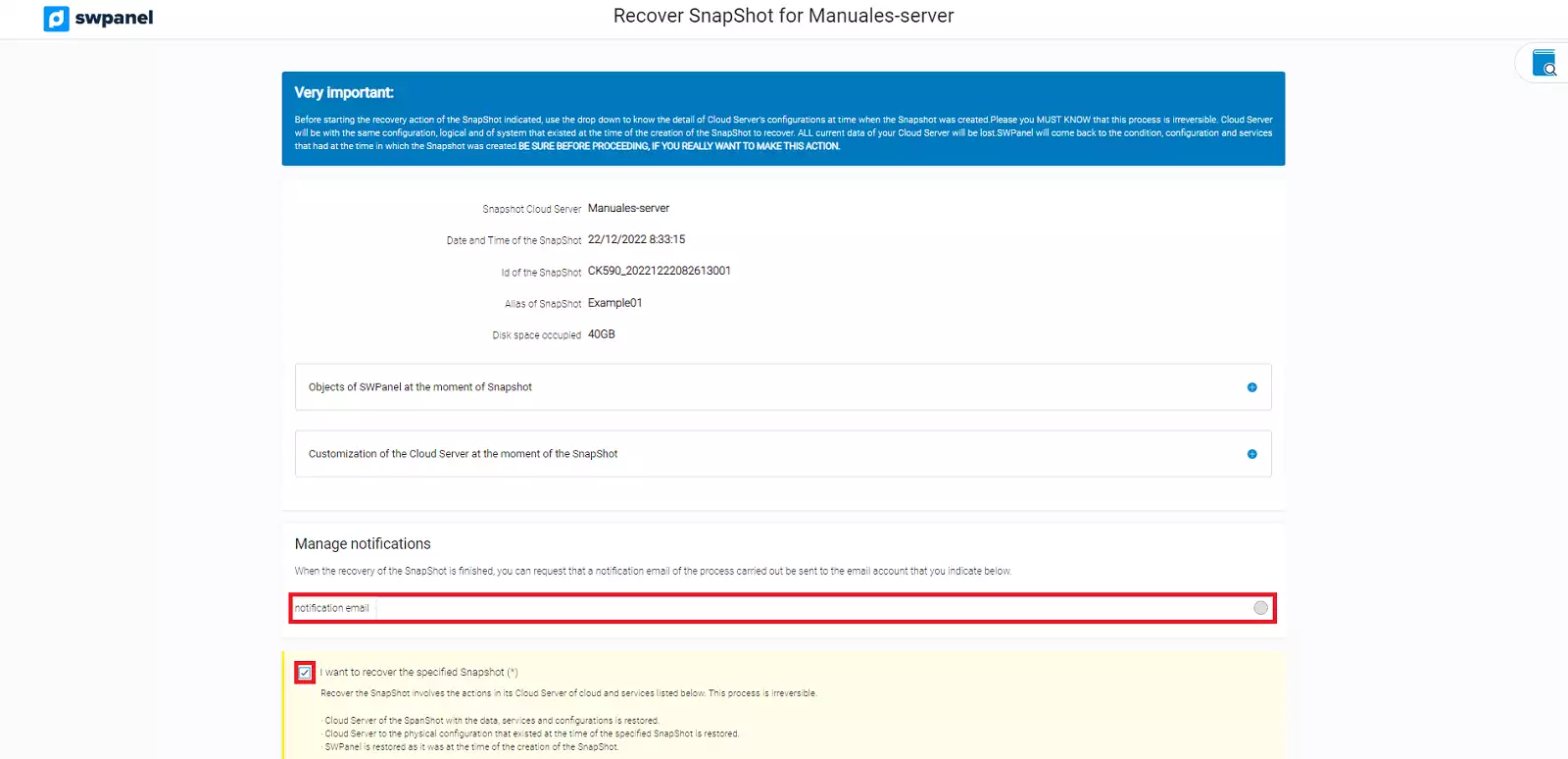
4. Next, you will be informed that the Snapshot will be restored, including the server disk data, as well as its customization at the time of Snapshot creation (vCores, RAM, Firewall, SSH, IP... ) and the objects created in SWPanel (Email accounts, FTP, DB, Users, ...). To restore the Snapshot, you must check the validation box and click on the button 'I wish to restore the indicated SnapShot'.
info As an additional option, if you wish, you can indicate an email address where you would like a notification to be sent when the Snapshot creation has finished.
How to delete a Snapshot from SWPanel
1. From the search box of your SWPanel, you must locate your Cloud server on which you want to delete a Snapshot and click on it.
2. Once you are in the cloud server Dashboard, you must go to the left side menu and in the 'Keep and recover my data' section click on the option 'Snapshots' -> 'Snapshot Management'.
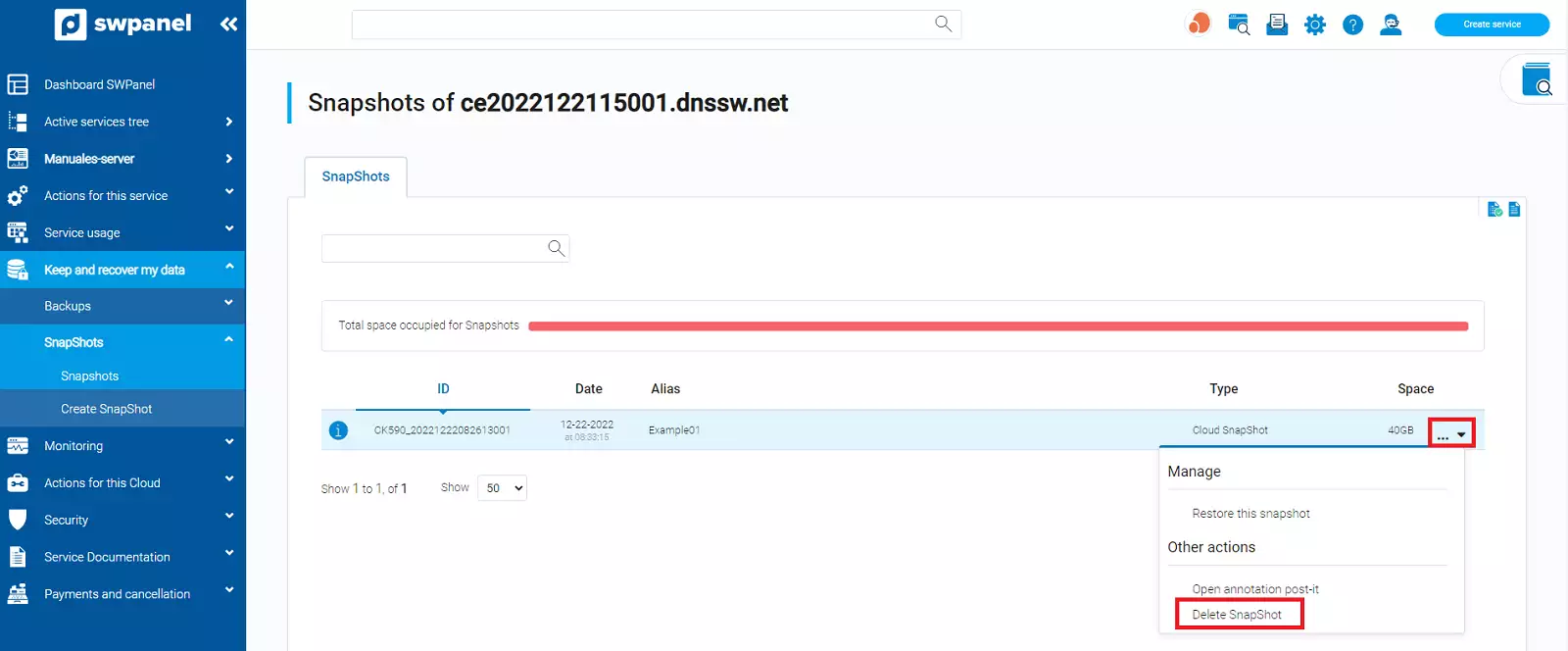
3. In the 'Snapshot Management' section, locate the Snapshot you want to delete, go to the '...' dropdown and click on the option 'Delete Snapshot'.
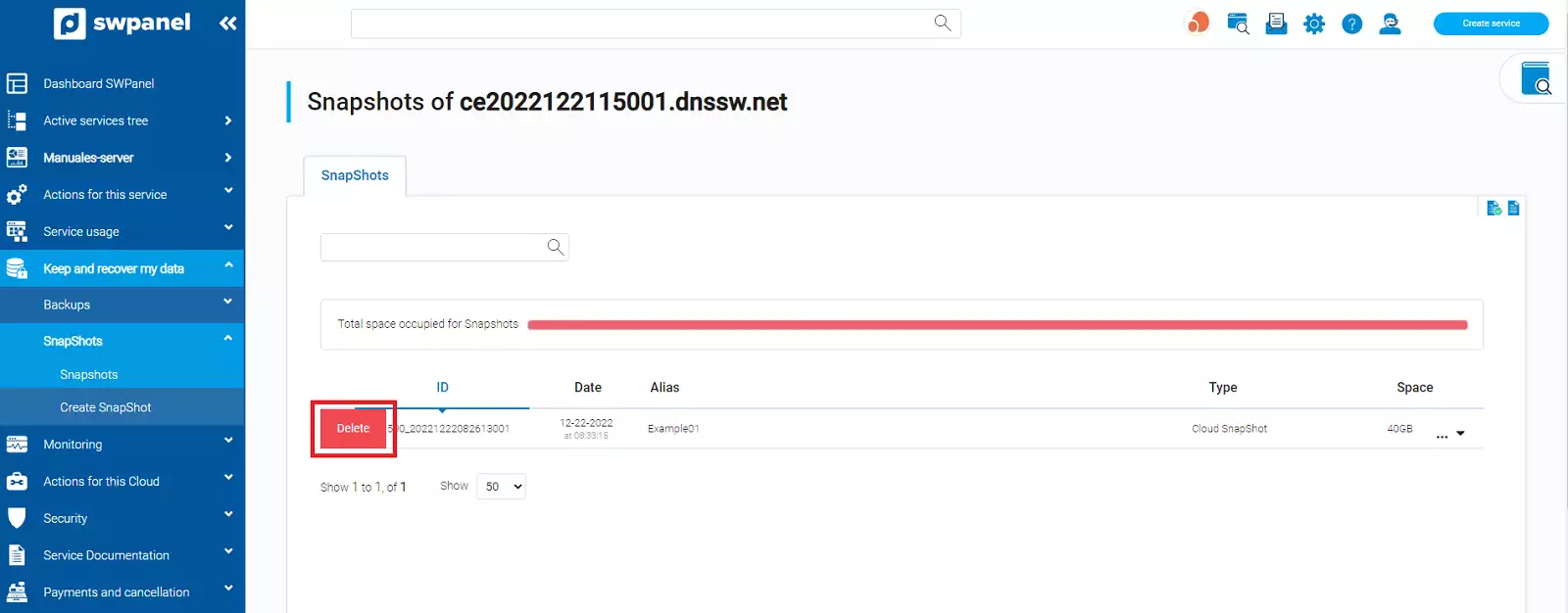
4. Next, you will see the 'Delete' button to the left of the corresponding Snapshot. Press said button.
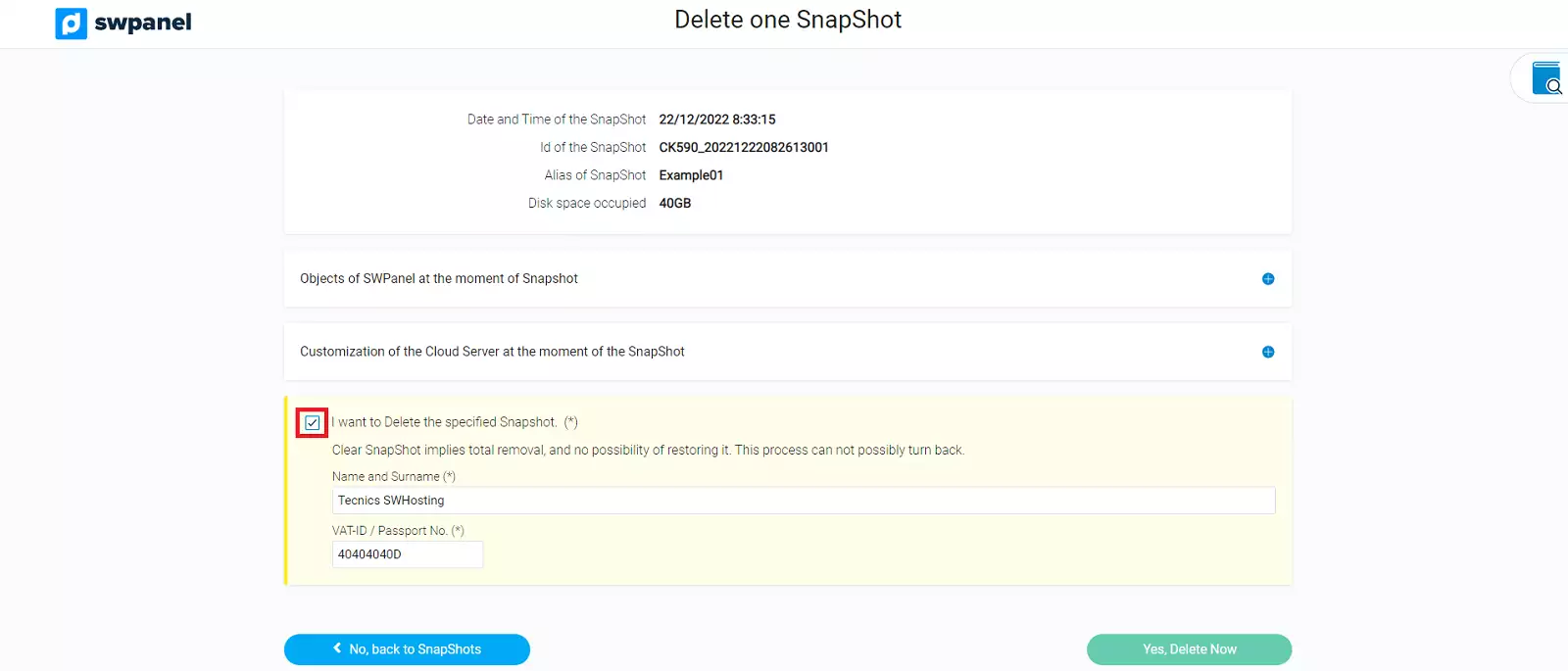
5. In the following window, you will be informed that the Snapshot will be deleted, including the server disk data, as well as its customization at the time of Snapshot creation (vCores, RAM, Firewall, SSH, IP... ) and the objects created in SWPanel (Email accounts, FTP, DB, Users...). To delete the backup, you must check the validation box and click on the button 'Yes, Delete now''