
How to manage your subdomain with SWPanel and Cloudflare
How do nameservers work at a subdomain level?
Any domain and all its subdomains always share the same nameservers unless a zone delegation is performed for the subdomains.
For example, in the event that our domain 'swmanuales.com' has the nameservers 'dns3.swhosting.com' and 'dns4.swhosting.com' assigned, all subdomains such as 'subdomain.swmanuales.com' will have the same nameservers assigned by default.
What does a zone delegation consist of?
A zone delegation consists of the creation of NS-type records in the DNS zone of the main domain, which allows delegating the DNS resolution of the subdomain records to specific Nameservers.
Why do I need to perform a zone delegation for my subdomain if my main domain goes through Cloudflare?
When you activate the Cloudflare CDN service for your main domain, the nameservers that were originally available in its DNS zone will be removed to avoid conflicts with those that will be applied at the domain level. When this action is carried out, the nameservers assigned to the subdomain will become inoperative, as Cloudflare does not have a specific DNS zone for subdomains.
For this reason, we must go to the DNS zone of the main domain and create the zone delegation nameservers for our subdomain.
How can I perform the zone delegation of my subdomain?
First, you must know the original nameservers that your subdomain points to.
1. Go to your SWPanel, enter the name of your subdomain and select it.

2. Once in the service dashboard, select 'Service Management' -> 'DNS Management' in the side menu.
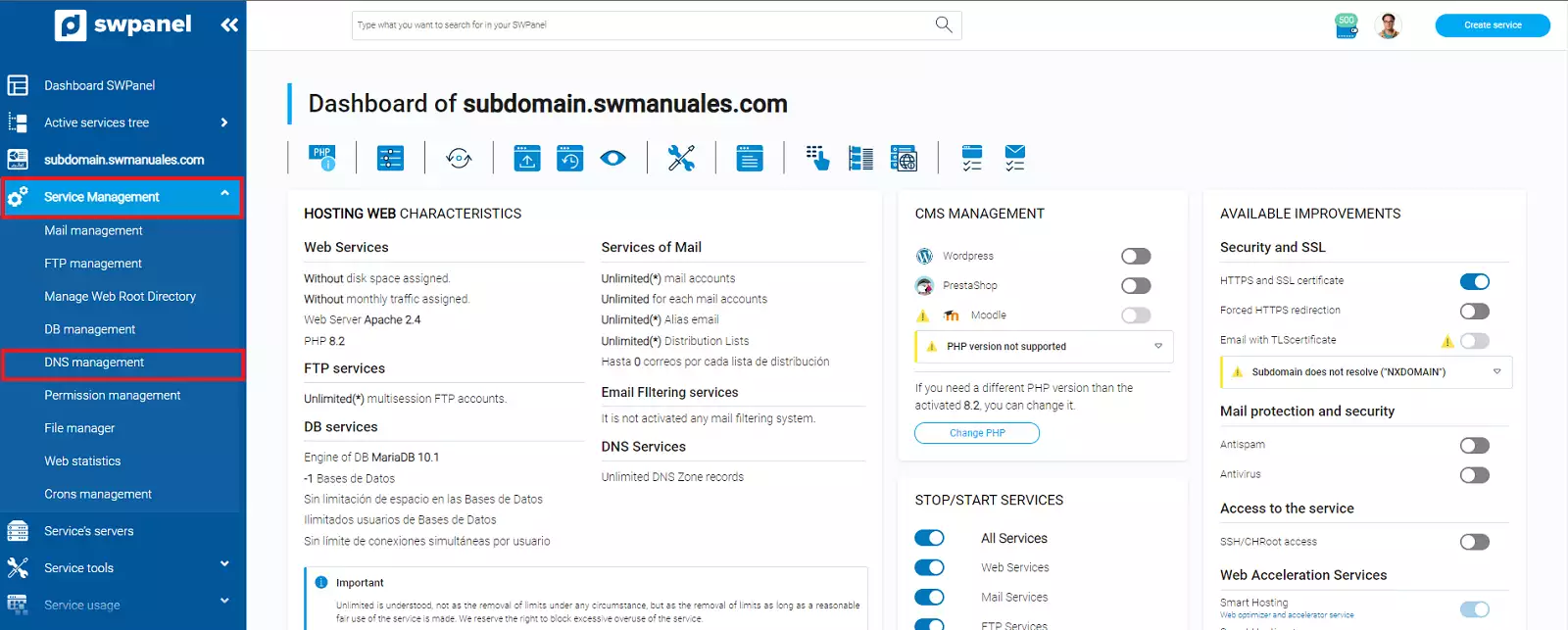
3. Once in the DNS zone of the subdomain, we can see which nameservers are assigned to your service. In the case of our example with the subdomain 'subdomain.swmanuales.com' the nameservers are: 'dns3.swhosting.com' and 'dns4.swhosting.com'.
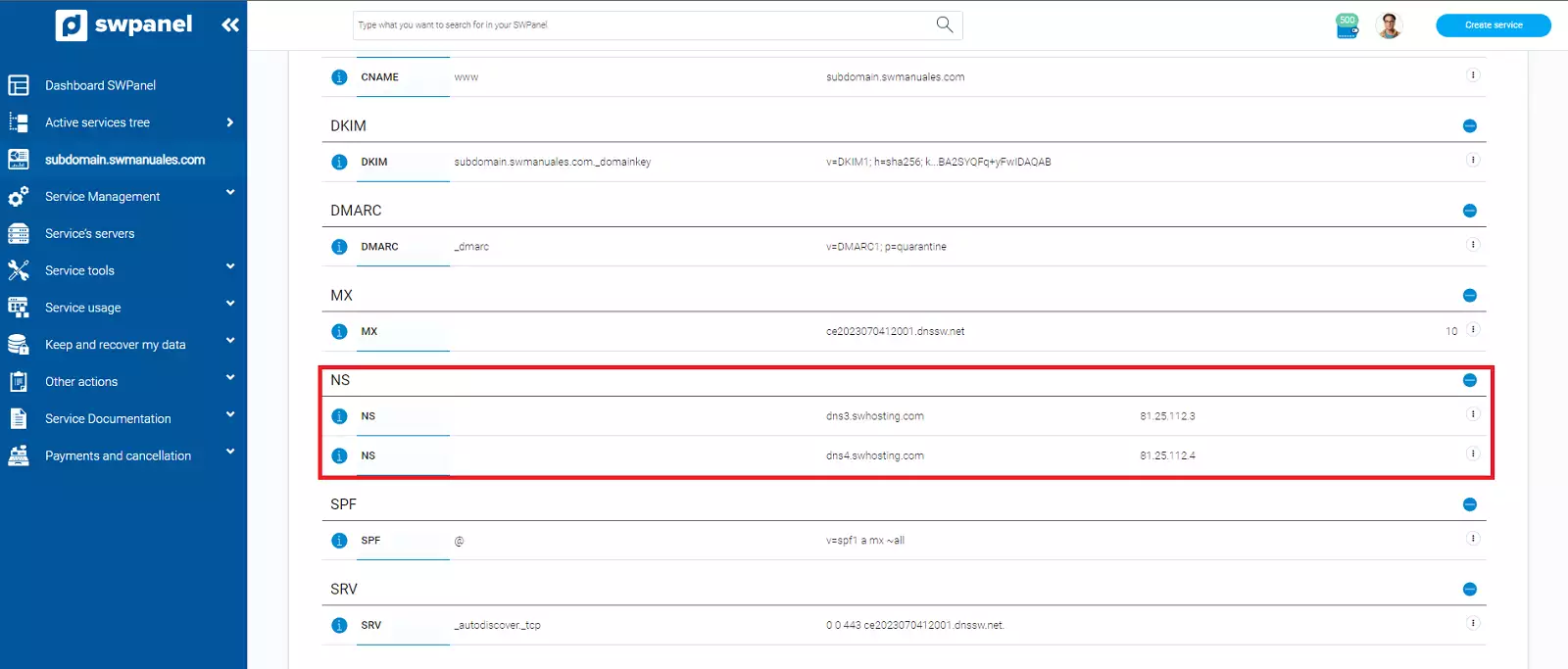
Now that we know the nameservers that should be used in the delegation, we must go to the DNS zone of the main domain, i.e. 'swmanuales.com' and create the corresponding DNS records.
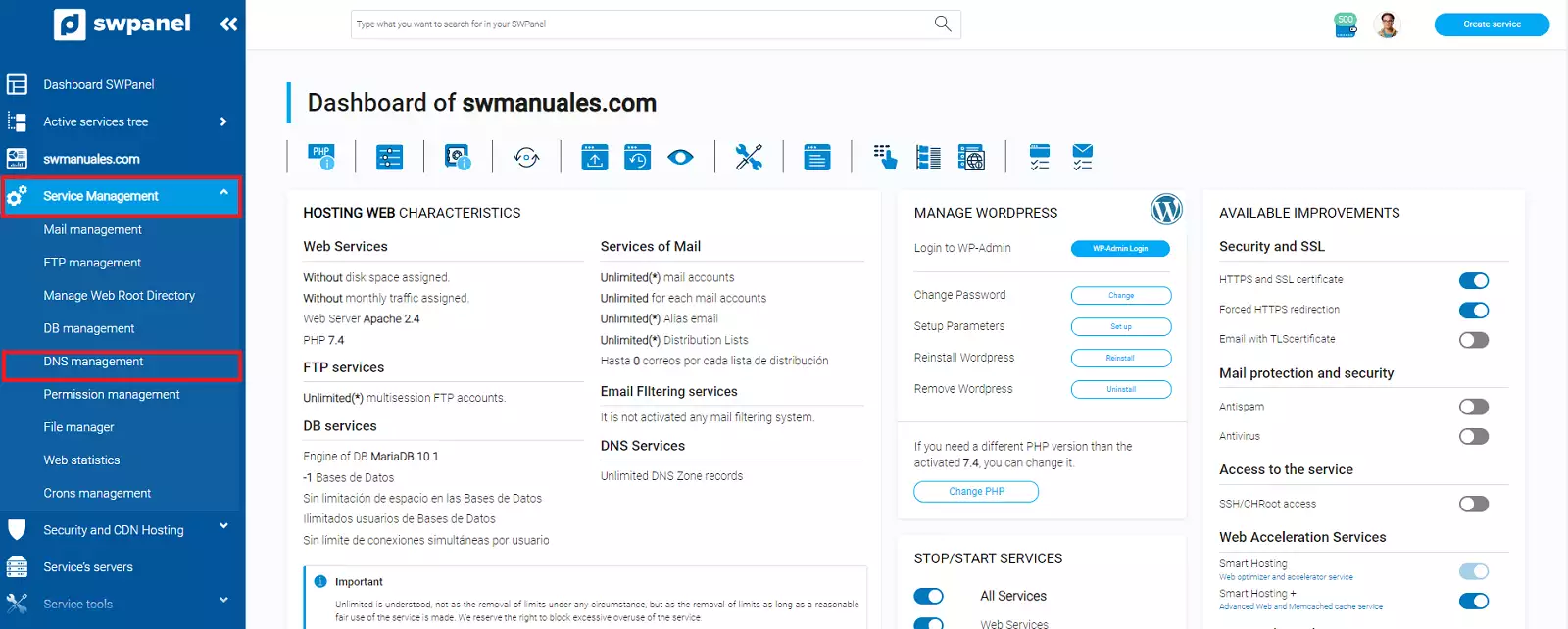
1. Go to your SWPanel, enter the name of your domain and select it.

2. Once in the service dashboard, select 'Service Management' -> 'DNS Management' in the side menu.
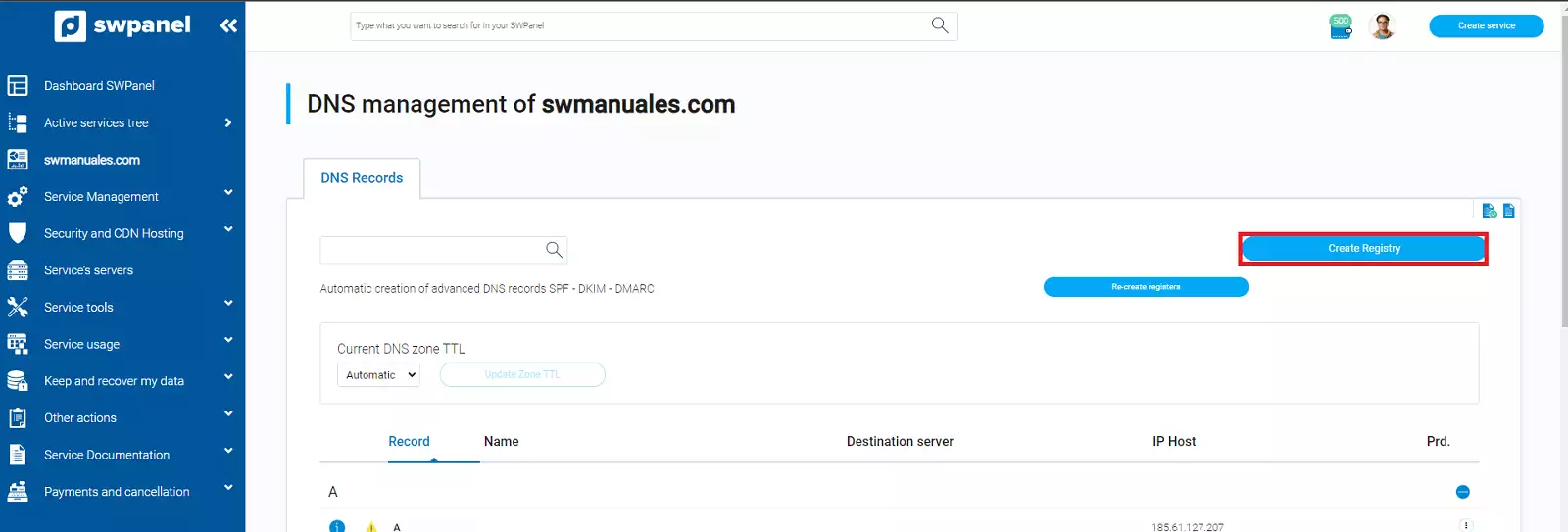
3. Click on the 'Create Record' button.
4. In the following section we select:
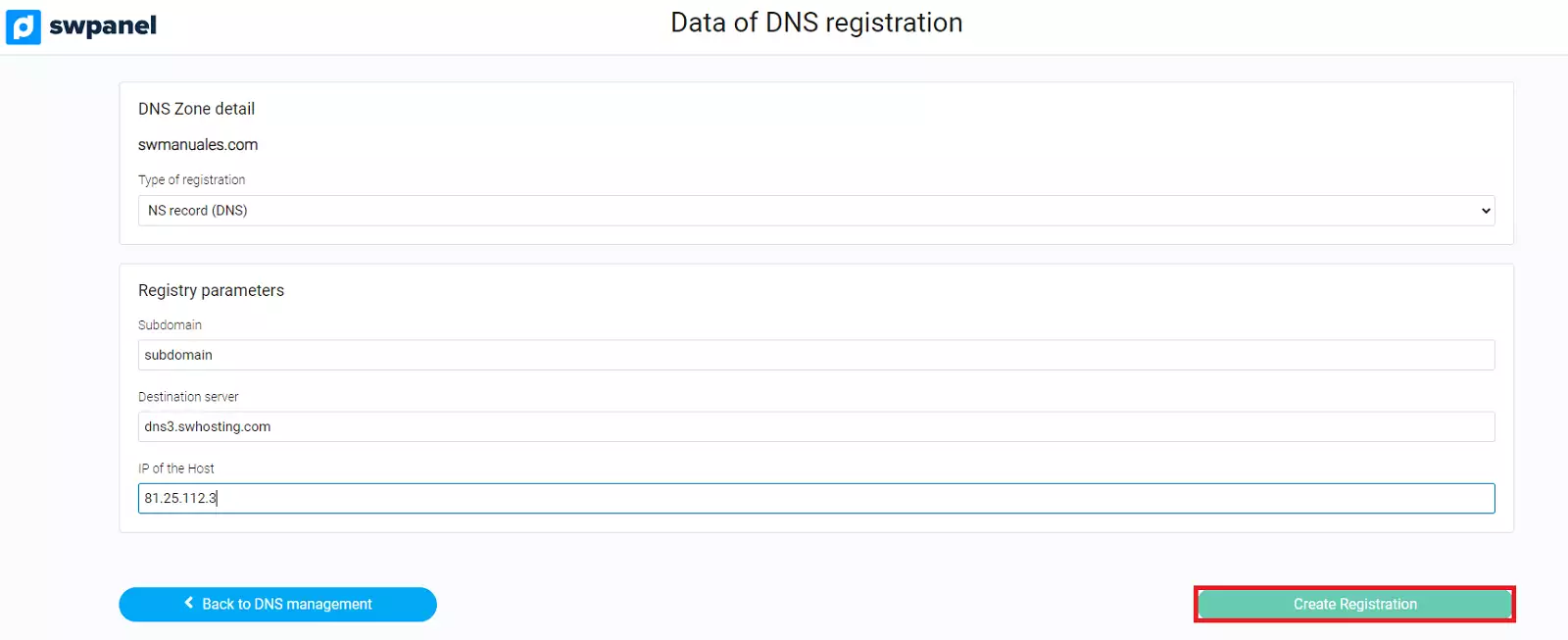
- In 'DNS Zone Detail' - Record type: we select the record type 'NS Record (DNS)'.
- In 'Record Parameters' - Subdomain: we enter the relevant subdomain, in this example 'subdomain'.
- In 'Record Parameters' - Destination server: we enter the corresponding nameserver, in this example 'dn3.swhosting.com'.
- In 'Record Parameters' - Host IP: we enter the IP of the corresponding nameserver, in this example '81.25.112.3'.
Subsequently, click on the 'Create Record' button.
5. We will repeat step 4, but this time adding the values of the secondary name server, in our example:
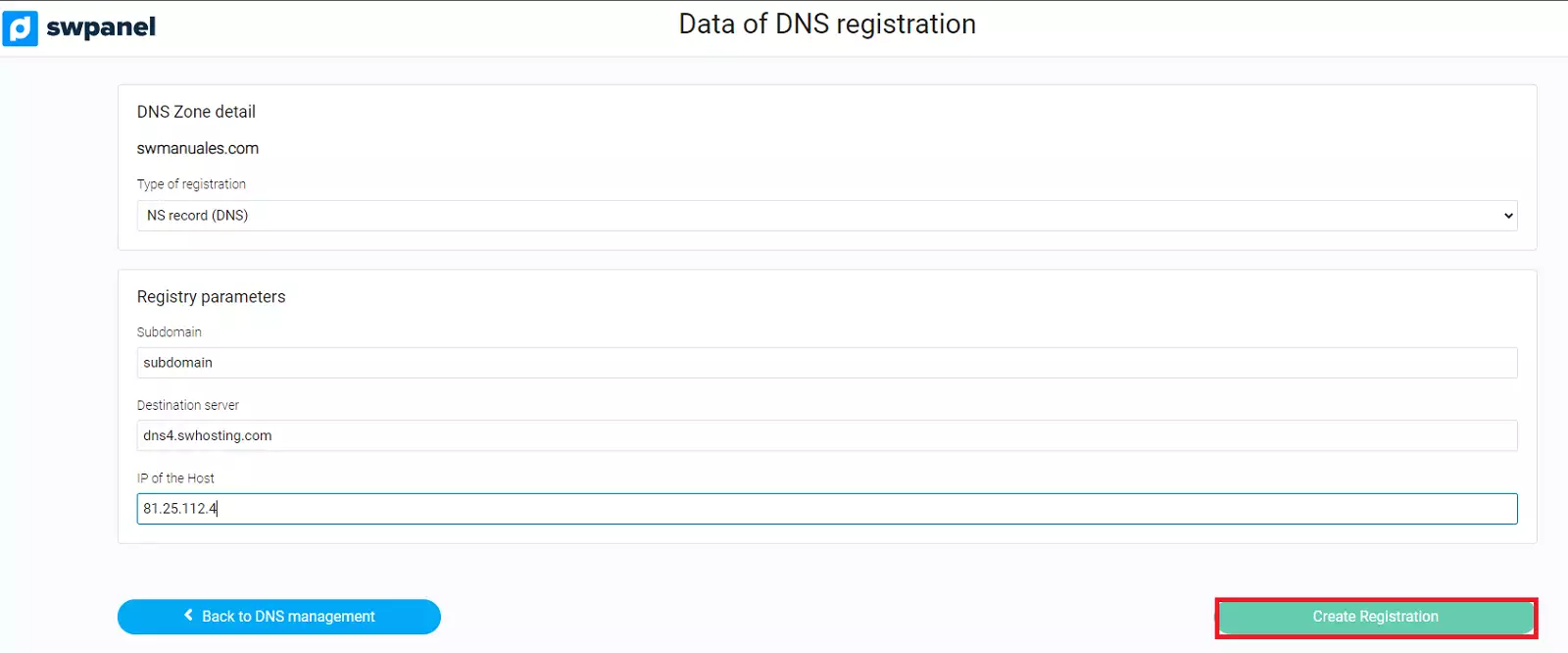
- In 'DNS Zone Detail' - Record type: we select the record type 'NS Record (DNS)'.
- In 'Record Parameters' - Subdomain: we enter the relevant subdomain, in this example 'subdomain'.
- In 'Record Parameters' - Destination server: we enter the corresponding nameserver, in this example 'dn4.swhosting.com'.
- In 'Record Parameters' - Host IP: we enter the IP of the corresponding nameserver, in this example '81.25.112.4'.
Finally, the records should be as follows in the DNS zone:
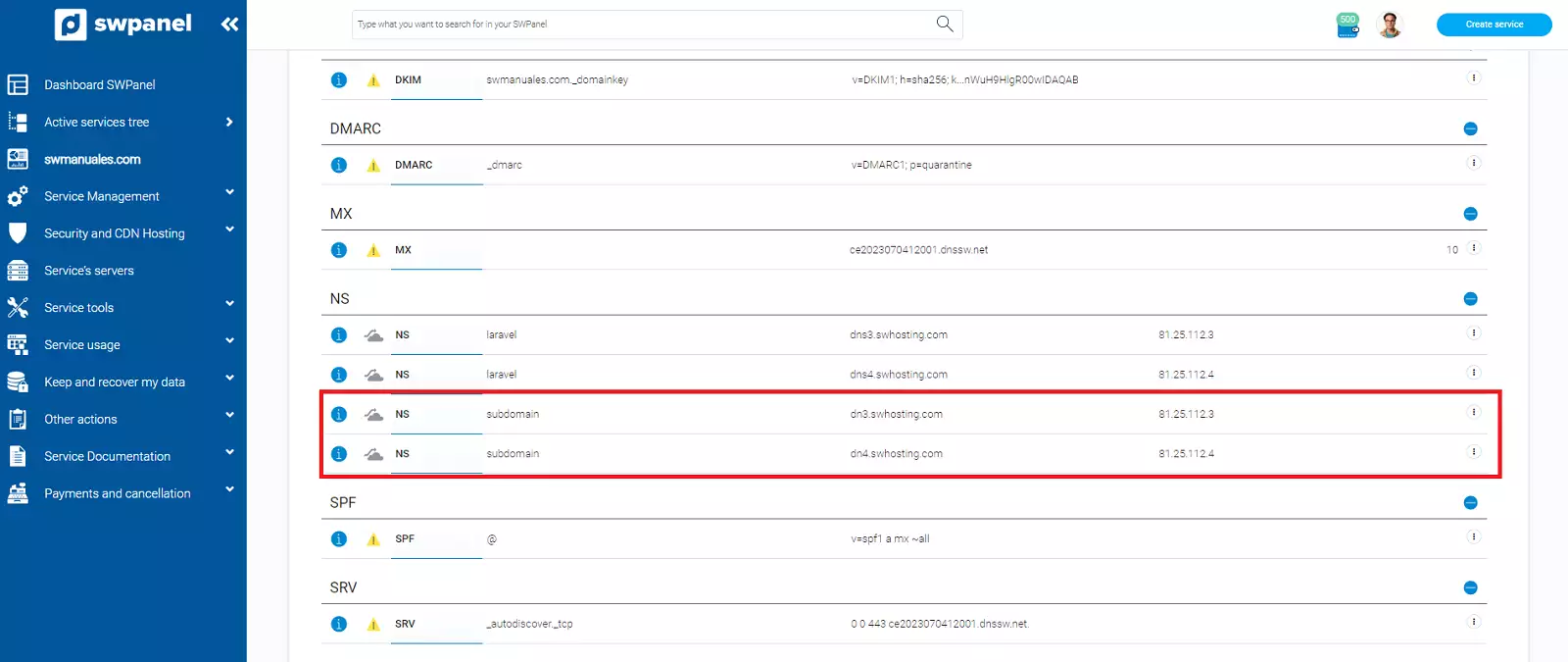
Once the zone delegation is performed, our subdomain will be ready and operational at the DNS level.