
How to migrate my Plesk server to SWPanel
In the following manual, we will learn how to perform a migration of all services from a Plesk server to our SWPanel server at SWHosting using our migration tool.
In the new version of SWPanel, we have added a new feature to make it easier for our customers to transfer their services located on a Plesk server to an SWPanel server, using our 'Migrate from a Plesk control panel' tool.
From the SWPanel main Dashboard, click on the left side menu, select the 'Tools'-> 'Migrate a Website now' --> 'Migrate from a Plesk control panel' dropdown.
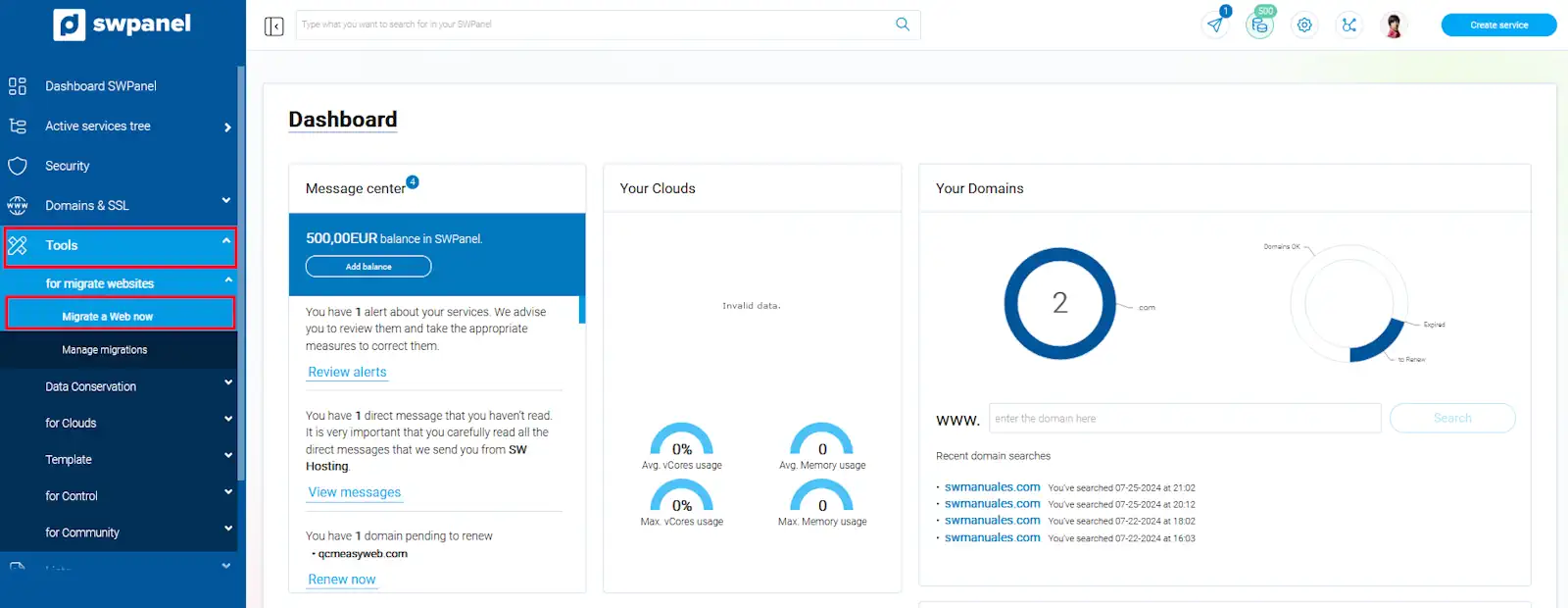
You will access the migration wizard, where you must provide the following access details for your Plesk server:
Access details for your Plesk
Plesk server IP.
The IP assigned to your Plesk server. You can check your server's IP from the administration panel.
Plesk access user:
The primary 'root' username used to access the Plesk server.
Plesk access user password:
The password associated with the primary 'root' user used to access the Plesk server.
Next, once the Plesk Server access details have been entered, you can review the services hosted on the server by clicking on 'Verify Plesk content'.
A list of services available for transfer will be displayed; you can select all services by clicking on 'Select all domains' or by selecting them individually.
info Please keep in mind that remote access to synchronize the database from an external connection must be enabled; therefore, make sure to open port 3306 on the Plesk server beforehand.
info To ensure that your port is enabled, you can check the following manual: Manual: ##título##.
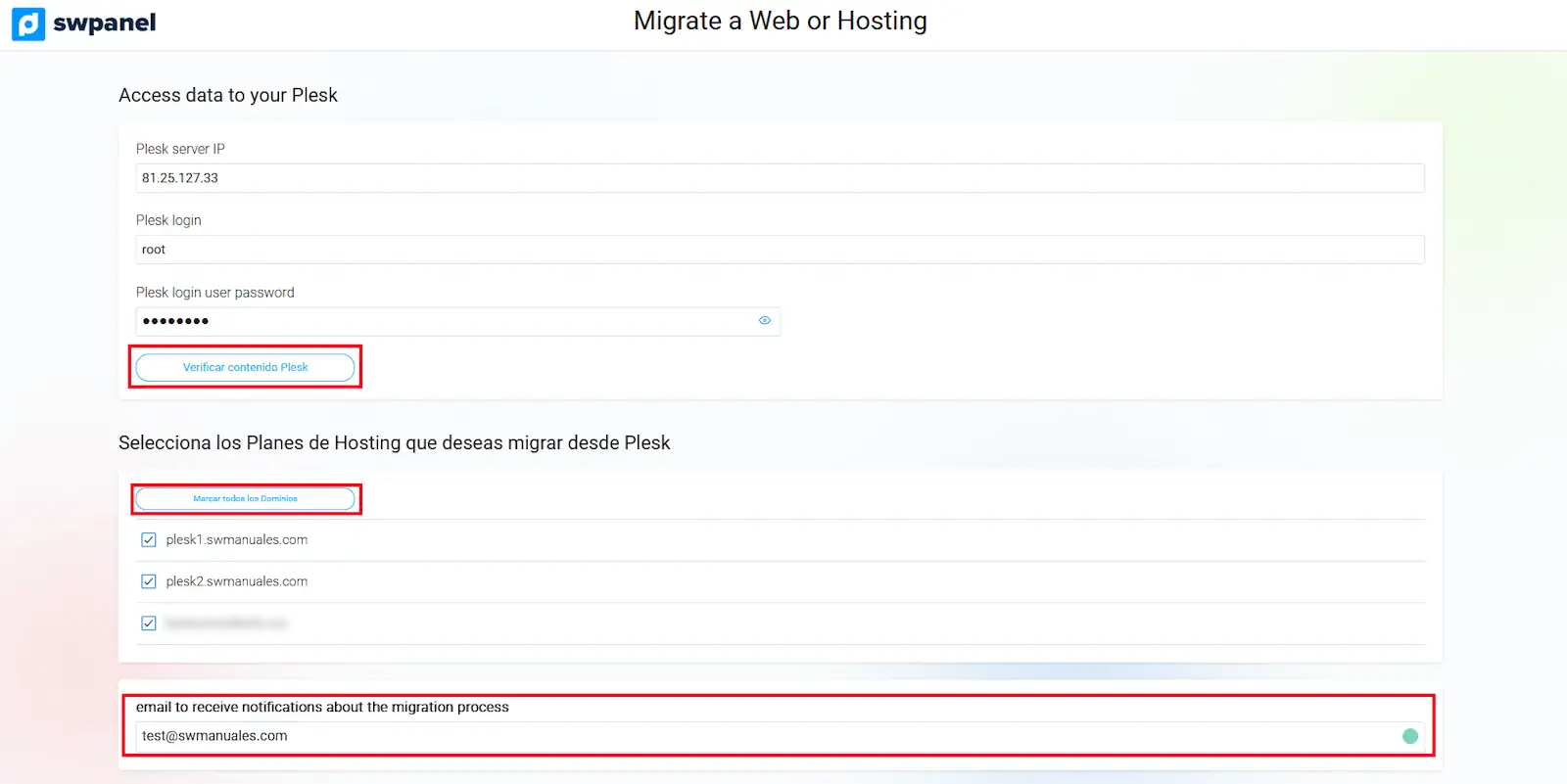
After selecting the services, you must provide an email account so that you can be notified when the migration is complete:
Next, you can select the SWPanel Cloud where the Plesk services will be migrated:
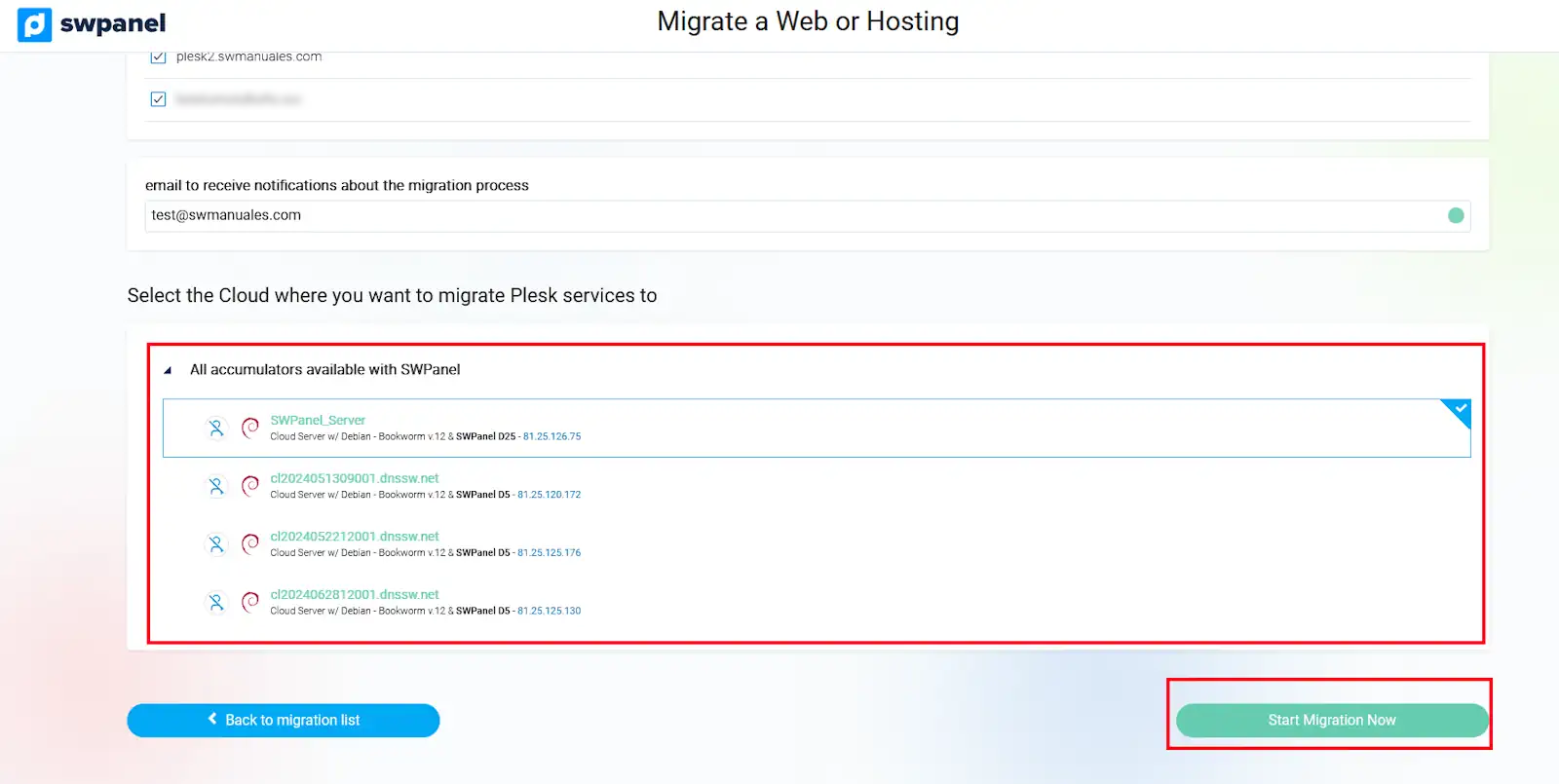
danger For the migration to be successful, it is important that on the SWPanel server, which is the destination, there is NO service with the same name as those from the source server.
Once the destination server has been selected and reviewed, you must click on 'Start Migration now' to begin the migration process of your services from a Plesk server to SWPanel.
Migration status
The migration process may take some time depending on the size of the services to be transferred; if you wish to check the migration status, you can do so by accessing the SWPanel main Dashboard, clicking on the left side menu, and selecting the 'Tools'-> 'Manage migrations' dropdown.
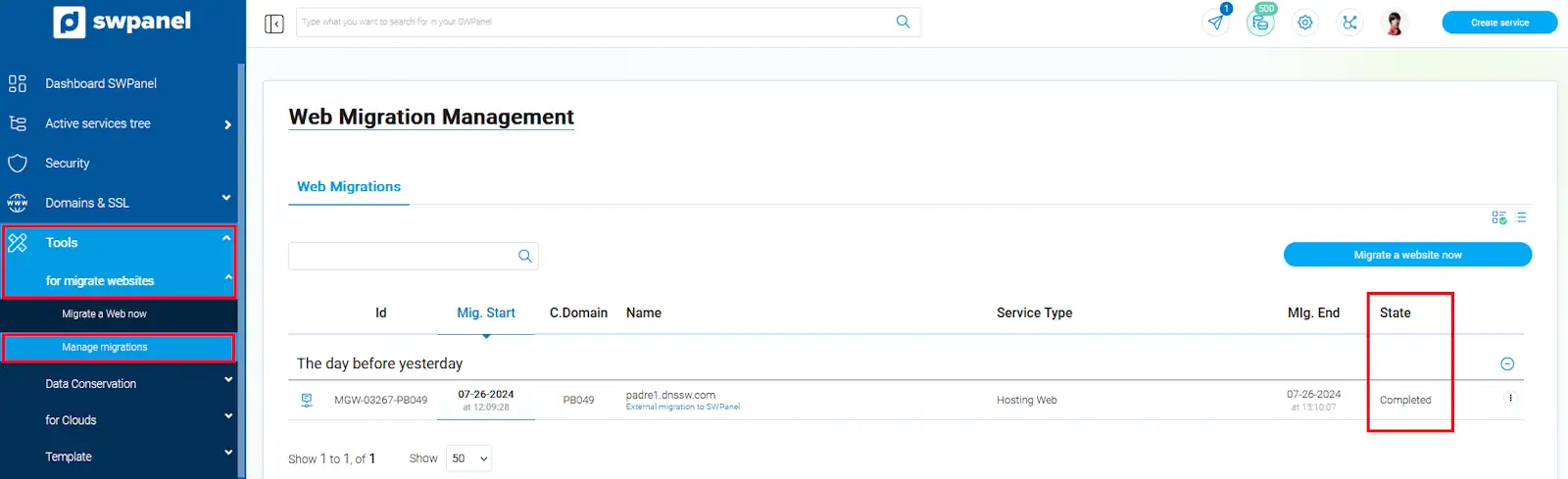
Verify web services
Upon completing the migrations, you may wish to check if the website is displaying correctly.
It is very likely that you will not have access to the website hosted on the new server, either because the domain does not yet point to the new hosting or for any other reason... In these cases, you can make your personal computer access the content hosted on the new server temporarily.
To do this, you will need to modify the 'hosts' file on your computer. We attach the following manual which explains the process in detail:
Once you have checked your website, we recommend removing the line added to the 'hosts' file, so that your computer uses the propagated DNS records.