
Create my Hosting Plan in a specific Data Center
From SWPanel you can launch your Hosting service in the Data Center of your choice, in a matter of minutes. Click on Create Service (top right corner):
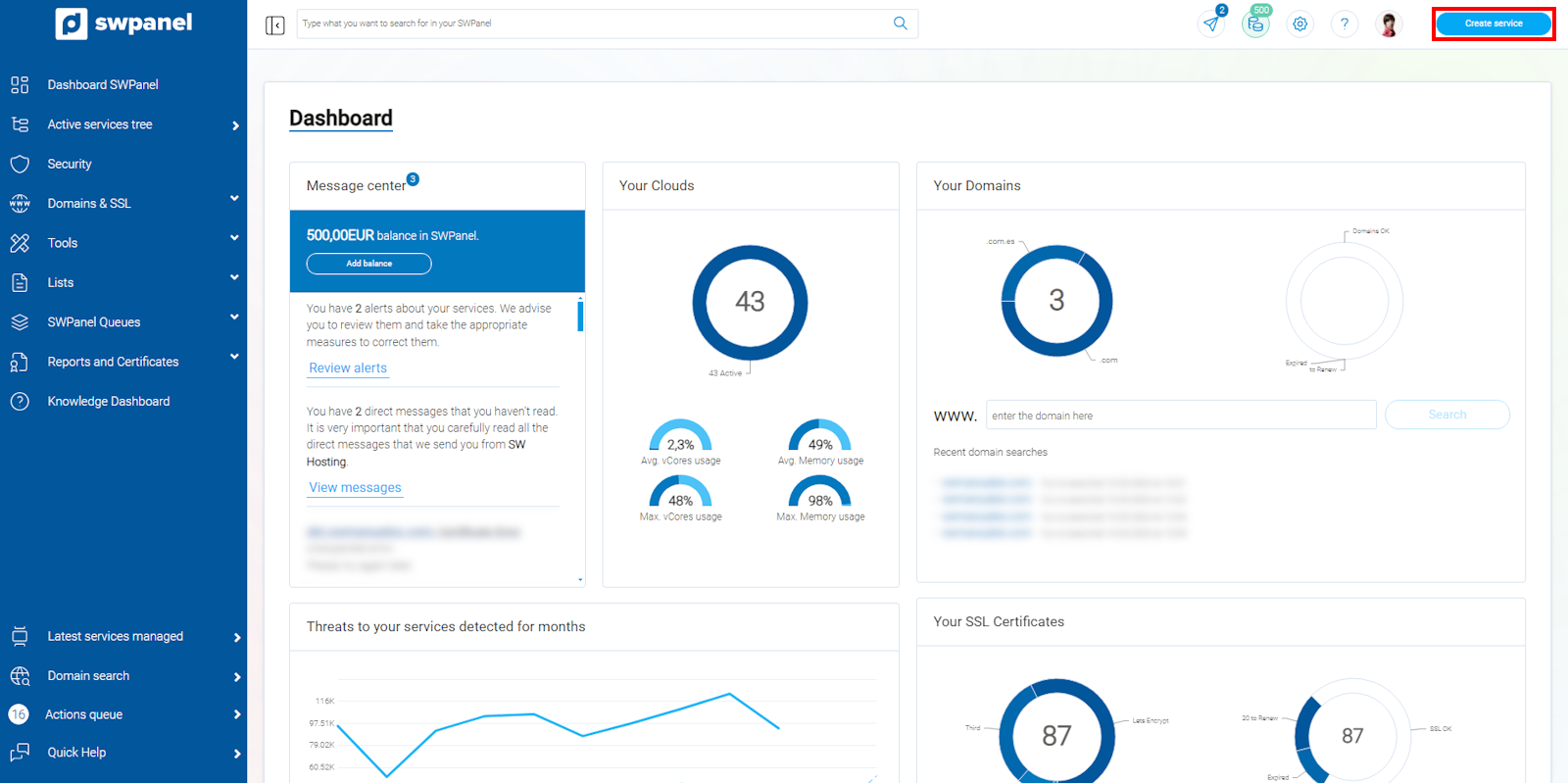
info_capture The screenshot is for guidance purposes. It was taken using version 2024.07.0132 dated 10/20/2024. It may differ from what the current version of SWPanel shows.
Next, select Web Hosting:
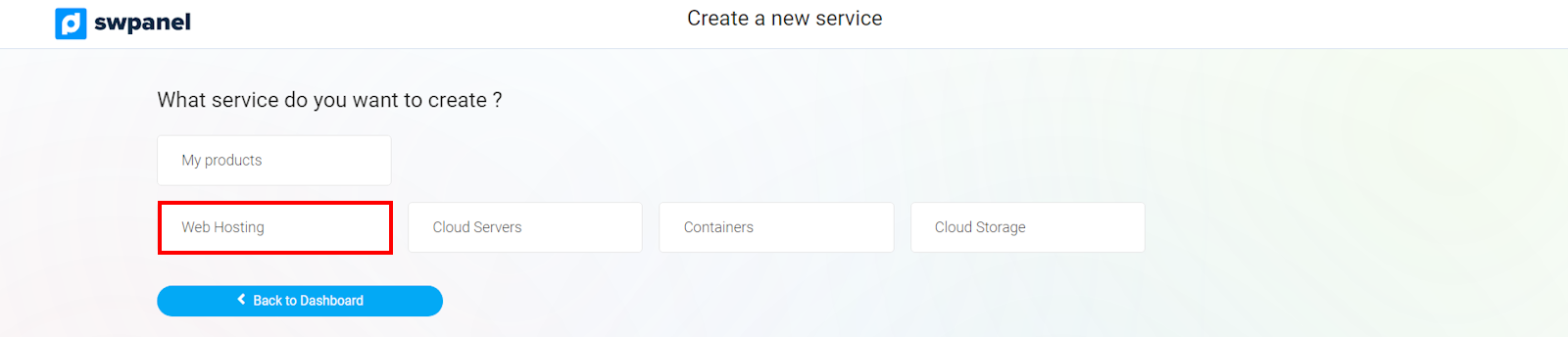
info_capture The screenshot is for guidance purposes. It was taken using version 2024.07.0132 dated 10/20/2024. It may differ from what the current version of SWPanel shows.
Select Hosting Plans:
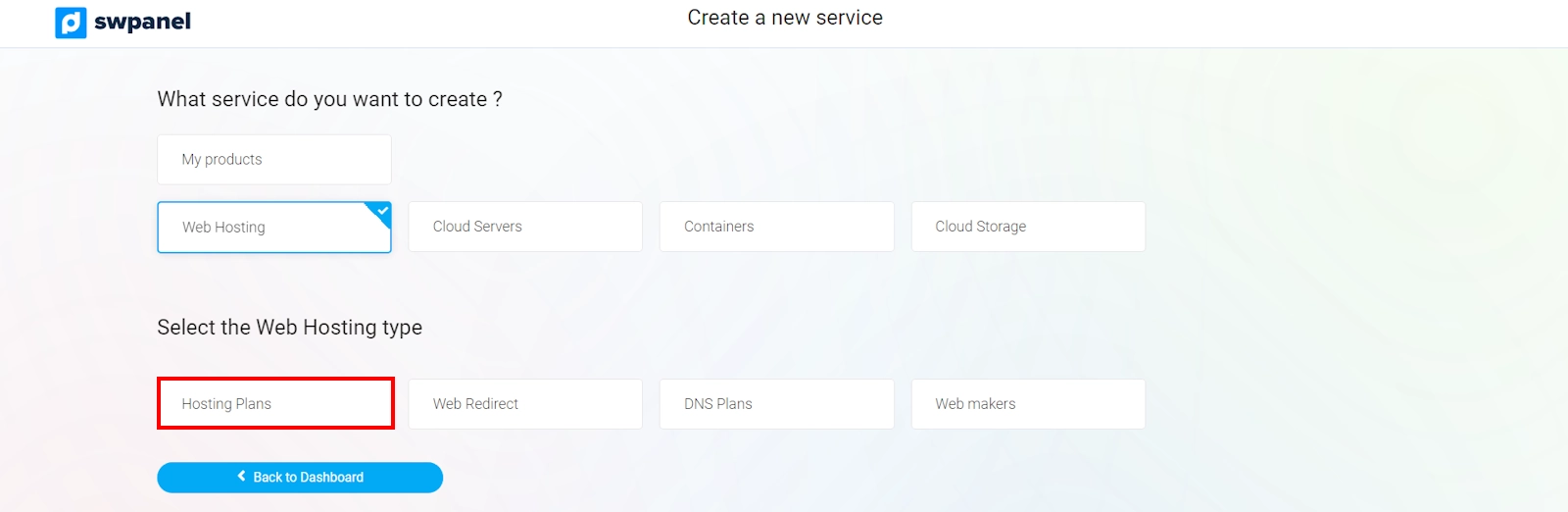
info_capture The screenshot is for guidance purposes. It was taken using version 2024.07.0132 dated 10/20/2024. It may differ from what the current version of SWPanel shows.
To host your hosting plan in another Data Center, it must be Smart Plus, Smart Growth, or Smart Custom.
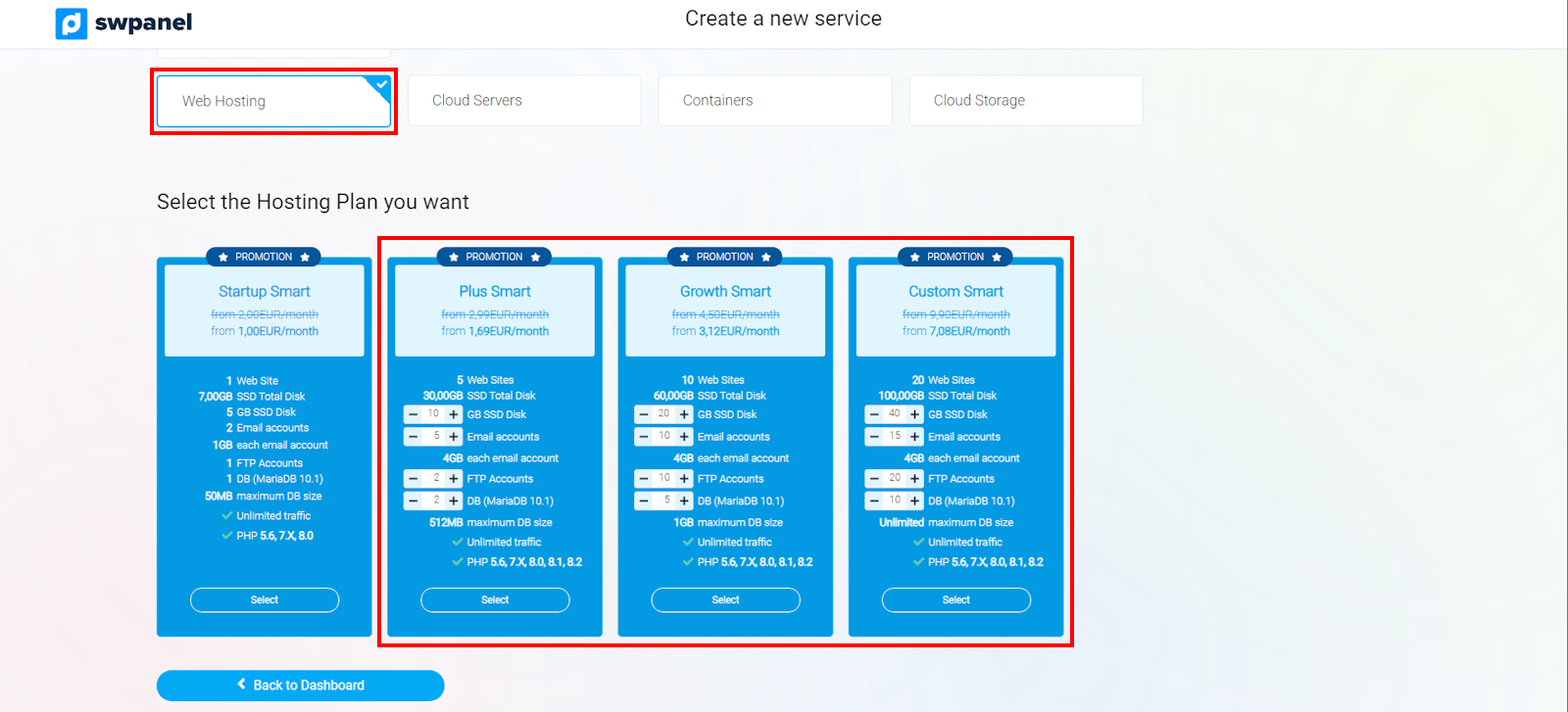
info_capture The screenshot is for guidance purposes. It was taken using version 2024.07.0132 dated 10/20/2024. It may differ from what the current version of SWPanel shows.
Once you have decided which Hosting plan best fits your needs, it will be time to indicate the domain or subdomain that will be created as a service.
Domain examples: swhosting.com, swproit.com.
Subdomain examples: hosting.swhosting.com, correo.swhosting.com.
For more information about domains and their registration process, consult our manual Manual: ##título##.
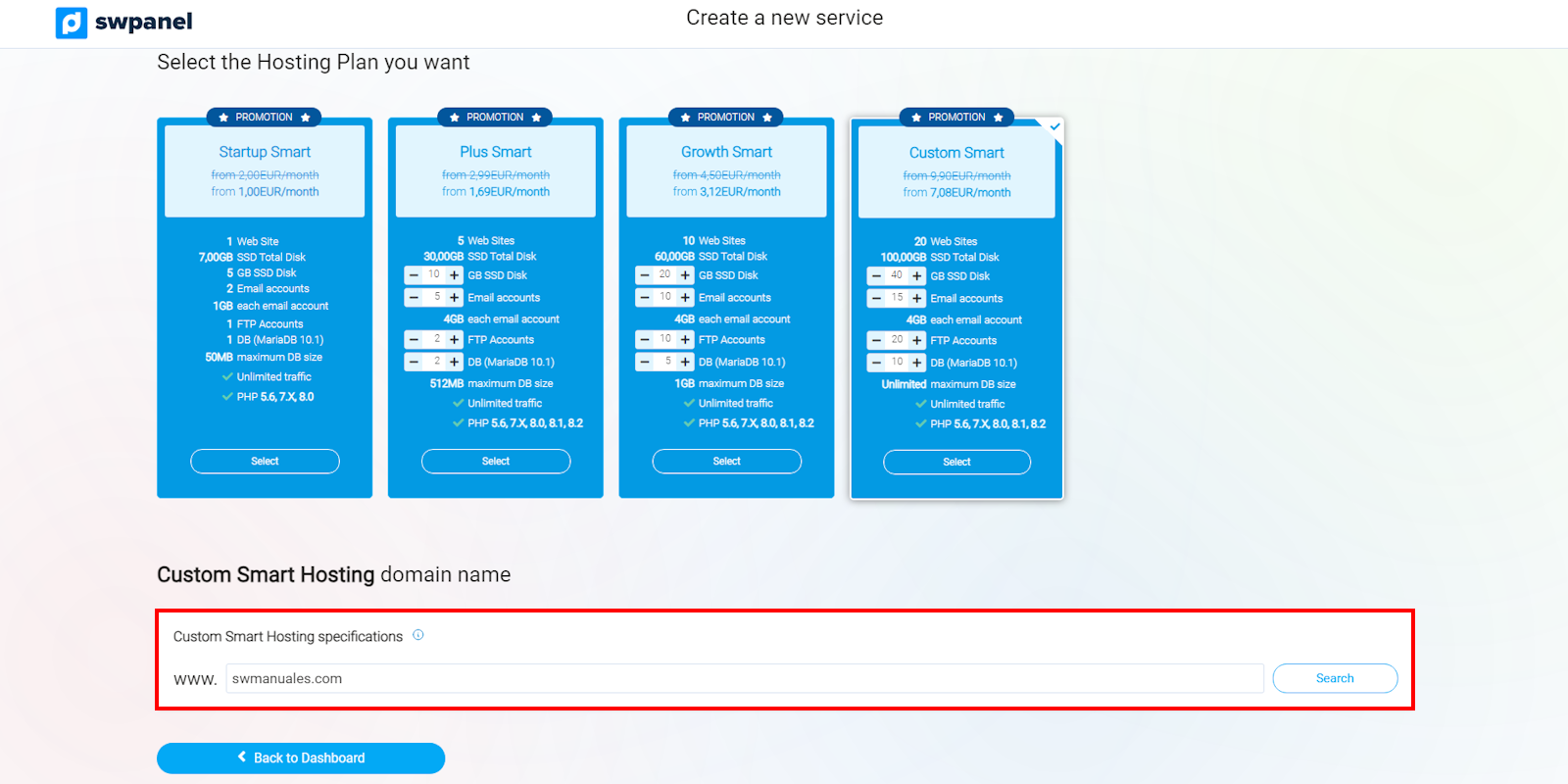
info_capture The screenshot is for guidance purposes. It was taken using version 2024.07.0132 dated 10/20/2024. It may differ from what the current version of SWPanel shows.
By clicking the Search button, the status of the entered domain will be displayed.
You can choose to register the domain if it is available, transfer it if you are the owner, or simply activate the service without registering the domain.
Now you can adjust your new Hosting to your needs: PHP version and creation of an email account for the indicated domain:
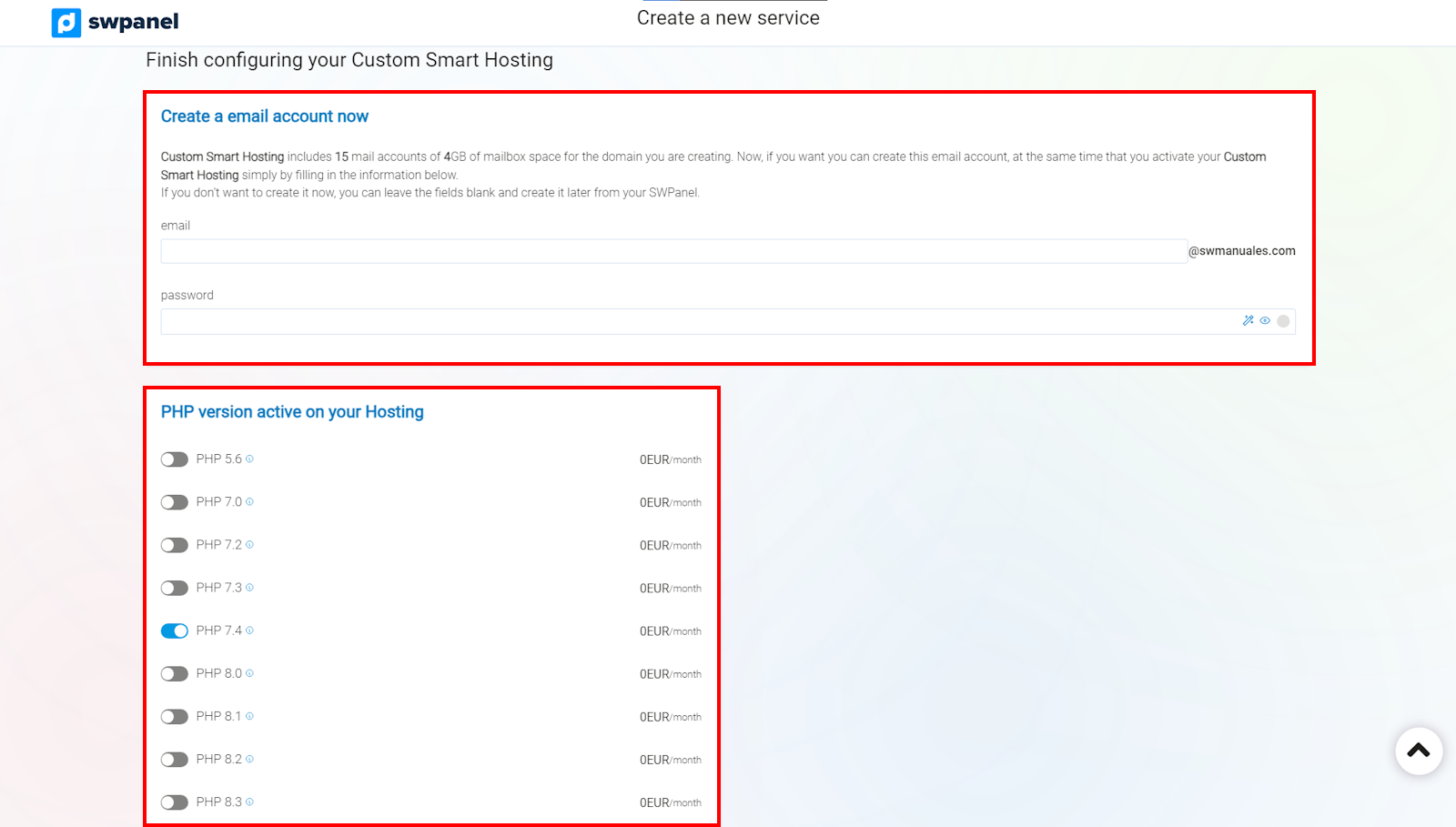
info_capture The screenshot is for guidance purposes. It was taken using version 2024.07.0132 dated 10/20/2024. It may differ from what the current version of SWPanel shows.
Next, you can select the Data Center where your Hosting will be hosted. After reviewing the data on the screen, click on Accept and create to proceed with the purchase:
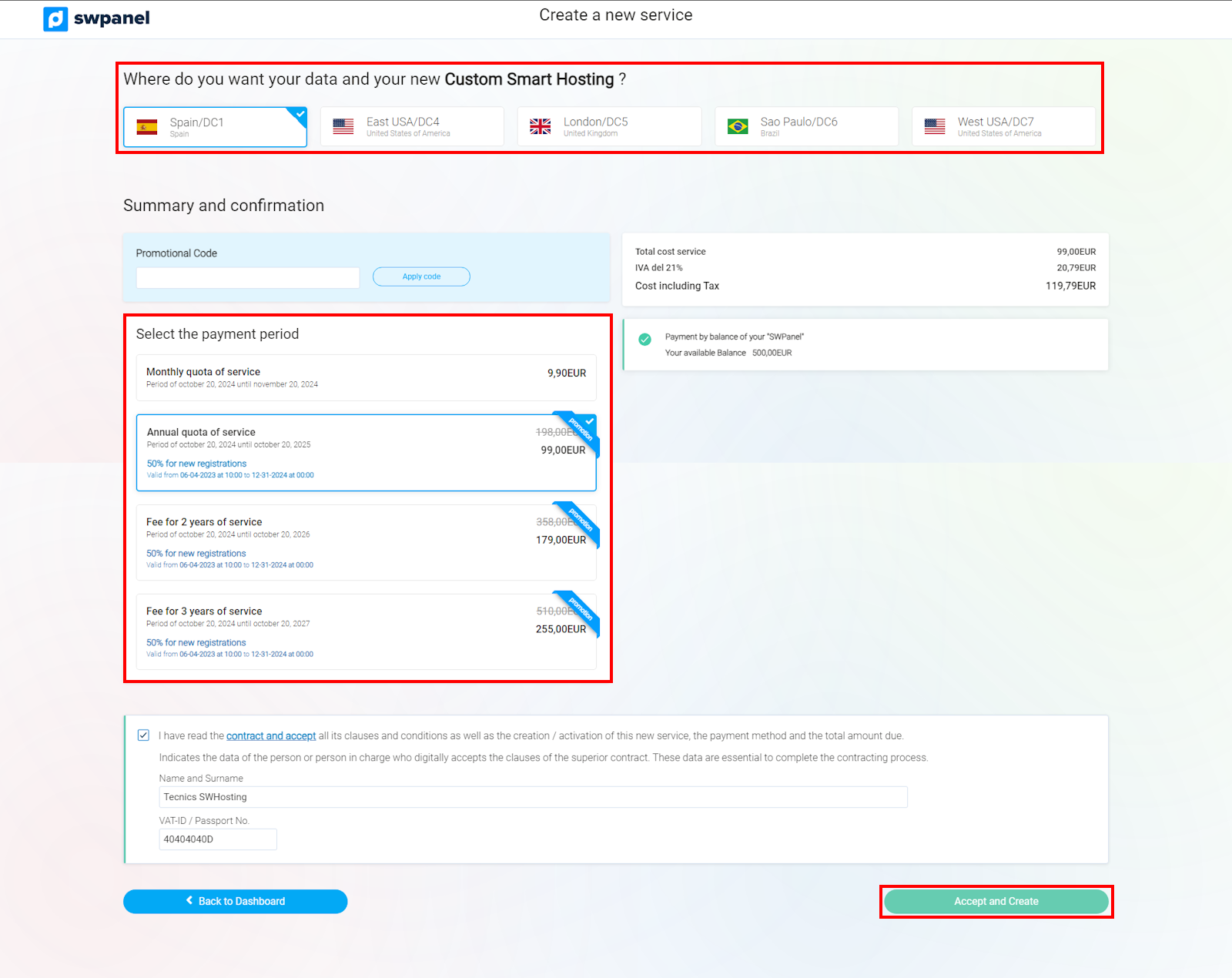
info_capture The screenshot is for guidance purposes. It was taken using version 2024.07.0132 dated 10/20/2024. It may differ from what the current version of SWPanel shows.
Done! Your new Hosting service in your favorite Data Center is now operational.