
Create a Web Hosting in my Cloud
Applicable to: Cloud with SWPanel usage license
Clouds with SWPanel allow you to configure Hosting services in minutes, without the need to access the server directly or have advanced computer science knowledge, managing everything from SWPanel.
A Web Hosting service allows you to have a space for your website, manage email accounts, configure DNS records, and administer databases in a simple and fast manner. Below, the steps to create a Web Hosting are detailed.
1. Within your SWPanel, use the search tool to locate your Cloud. In this example, our Cloud is called manuales, but yours will have a different name. Once located, select it.
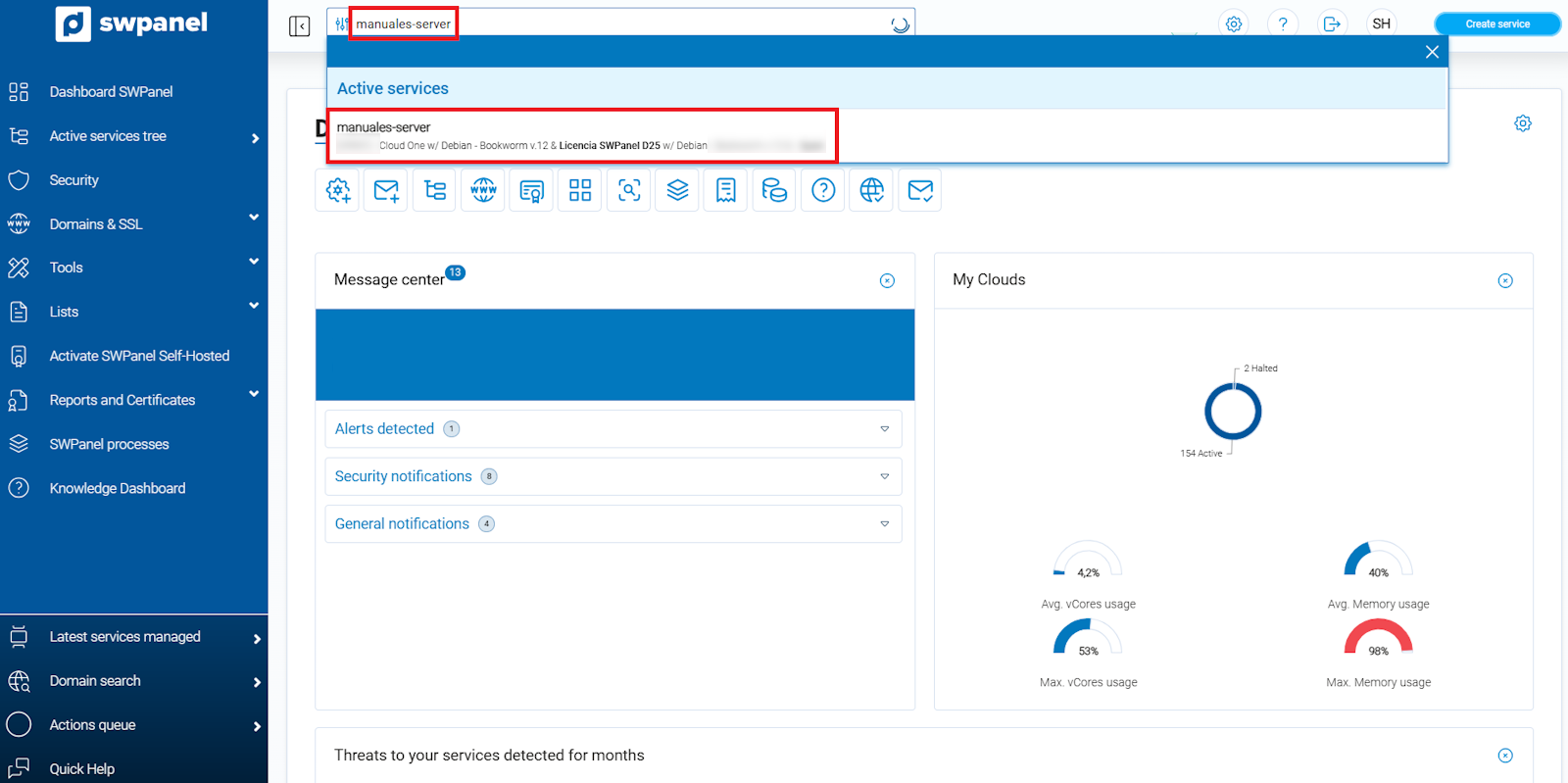
info_capture ℹ️ Note: The screenshot is for guidance purposes, taken from version 2026.000.0023 dated 07/03/2026. It may differ from the current version of SWPanel.
2. Next, locate the icon shown in the image, identified as Create a new service in this accumulator.
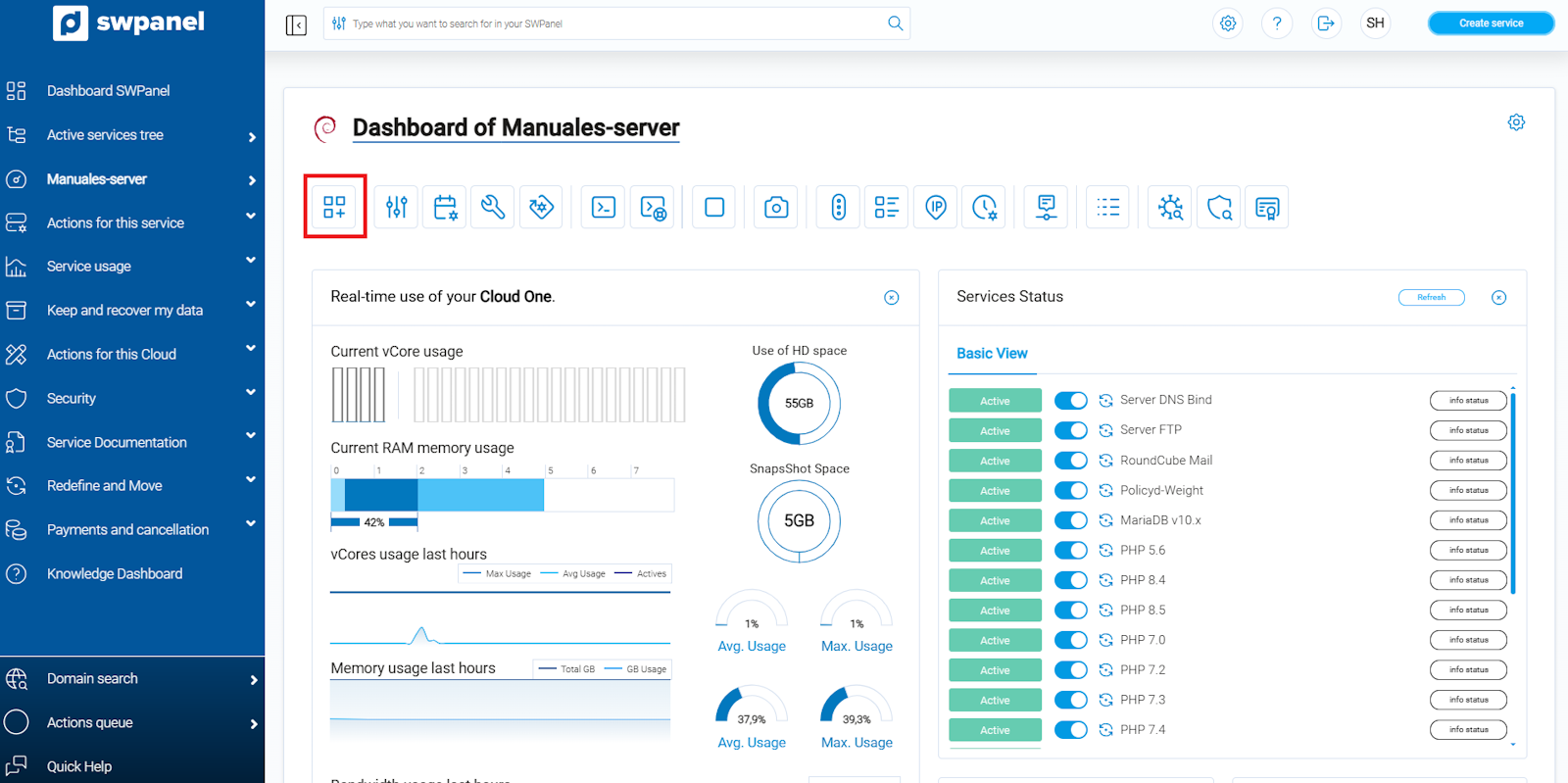
info_capture ℹ️ Note: The screenshot is for guidance purposes, taken from version 2026.000.0023 dated 07/03/2026. It may differ from the current version of SWPanel.
3. Selection of the type of service to be created: choose Web Hosting.
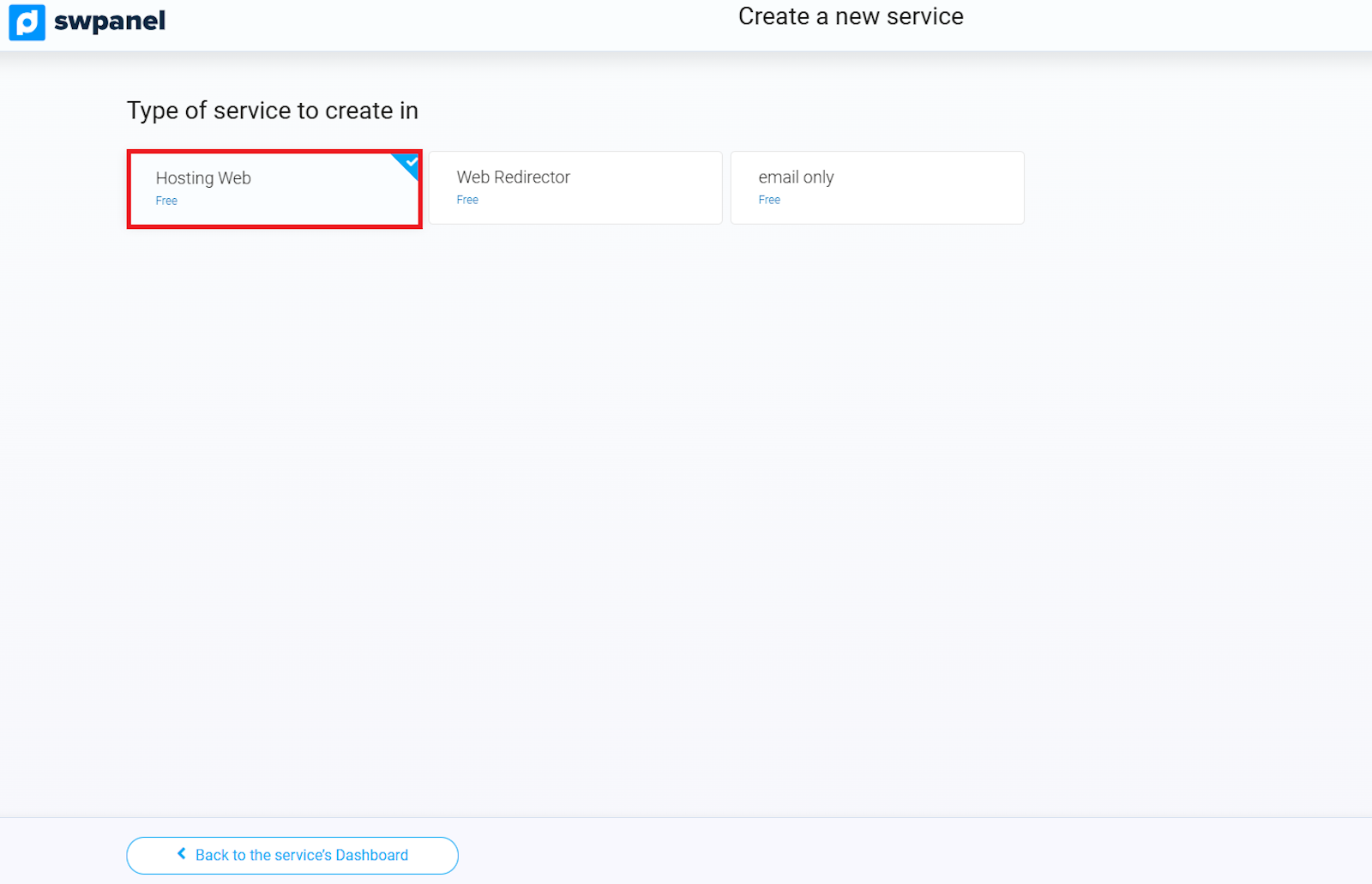
info_capture ℹ️ Note: The screenshot is for guidance purposes, taken from version 2026.000.0023 dated 07/03/2026. It may differ from the current version of SWPanel.
4. Multicloud Distribution of the Web Hosting service
- If you have several servers, you can configure a distributed infrastructure, distributing the services among different servers.
- If you only have one server, or prefer to host all services on the same one, select that same server for each service.
You also have the option to leave a service unassigned by unchecking the checkbox on the right. In this case, the hosting will not include the corresponding email, database, or DNS service.
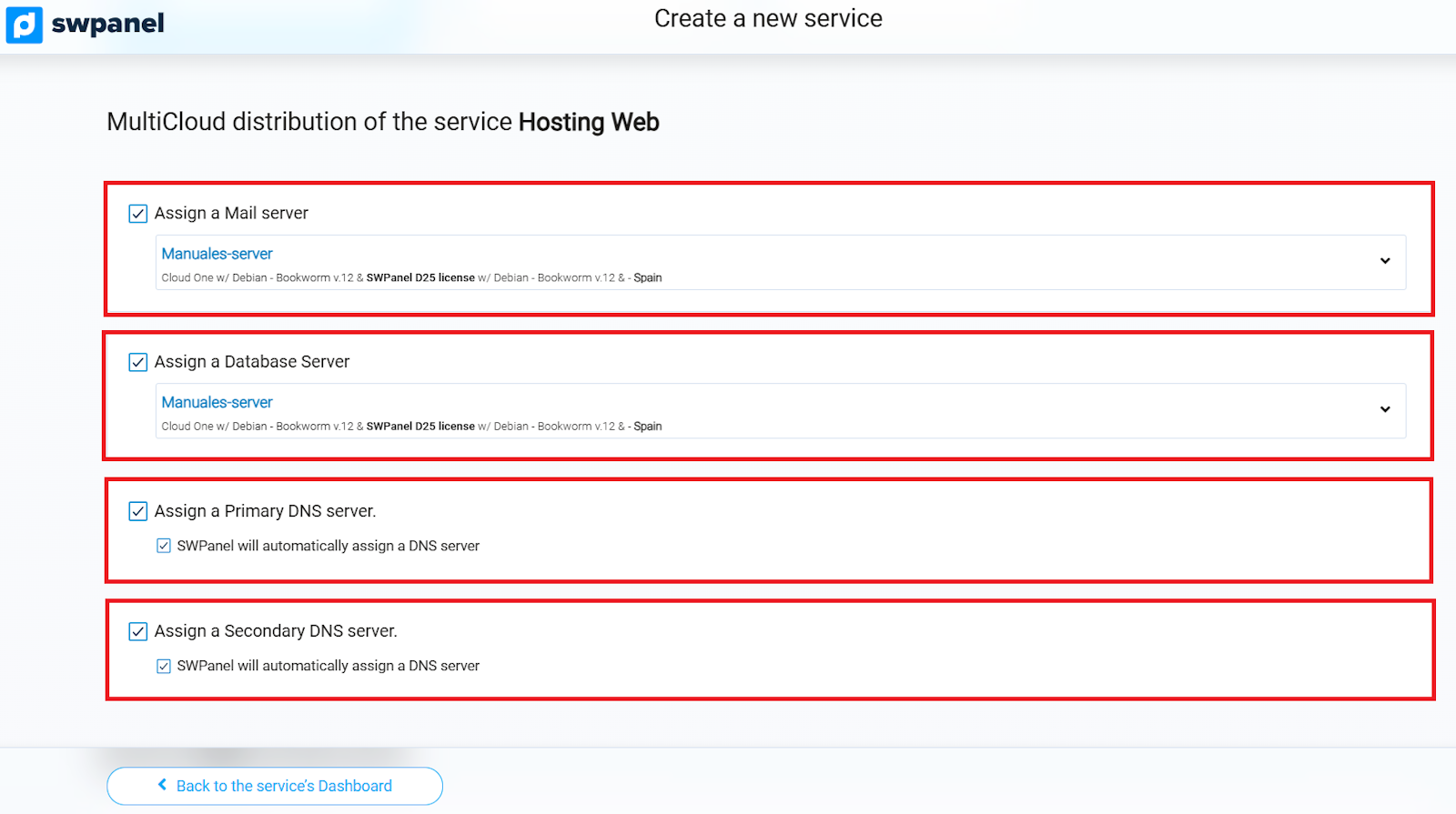
info_capture ℹ️ Note: The screenshot is for guidance purposes, taken from version 2026.000.0023 dated 07/03/2026. It may differ from the current version of SWPanel.
- Mail server to assign: Cloud instance that will host the email service.
- Database (DB) server to assign: Cloud instance that will host the database.
- Primary DNS server to assign: main DNS server. You can use a Cloud instance or the SWHosting DNS servers.
- Secondary DNS server to assign: secondary DNS server. You can use a Cloud instance or the SWHosting DNS servers.
5. Enter the domain name or subdomain for the Web Hosting. In this example, we will use manuales.com.
For more information about domains and their registration, consult our manual Manual: ##título##.
By default, the option Create only 1 Hosting service is selected. If you wish, you can also choose Create multiple Hosting services to generate several Hosting services simultaneously.
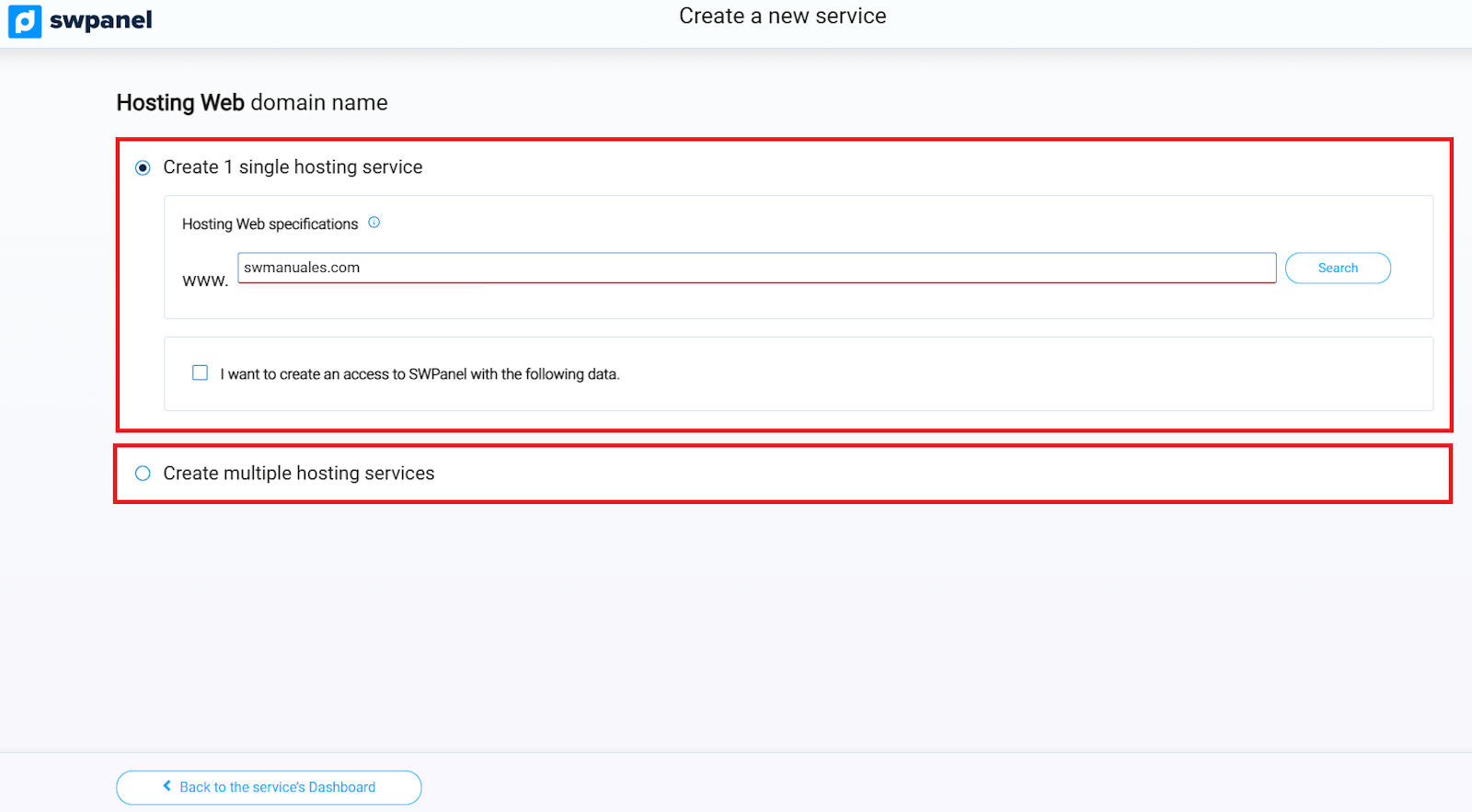
info_capture ℹ️ Note: The screenshot is for guidance purposes, taken from version 2026.000.0023 dated 07/03/2026. It may differ from the current version of SWPanel.
Next, click the Verify button. SWPanel will check the availability of the domain and show you the following options:
- Register the domain, if it is available.
- Transfer the domain, if it is already registered.
- Activate the service without registering or transferring the domain.
Depending on the chosen option, different configurations will be shown. In this example, we will only create the Hosting service, without registering or transferring the domain, as shown in the screenshot.
I wish to create an access to SWPanel with the following data: this option allows you to create a user in SWPanel and assign them a profile so they manage only the recently created Hosting.
6. Additional configurations to optimize your time
In this section, you will be able to adjust the new service according to your needs. The available options will depend on the characteristics of the Cloud in which the service is being created.
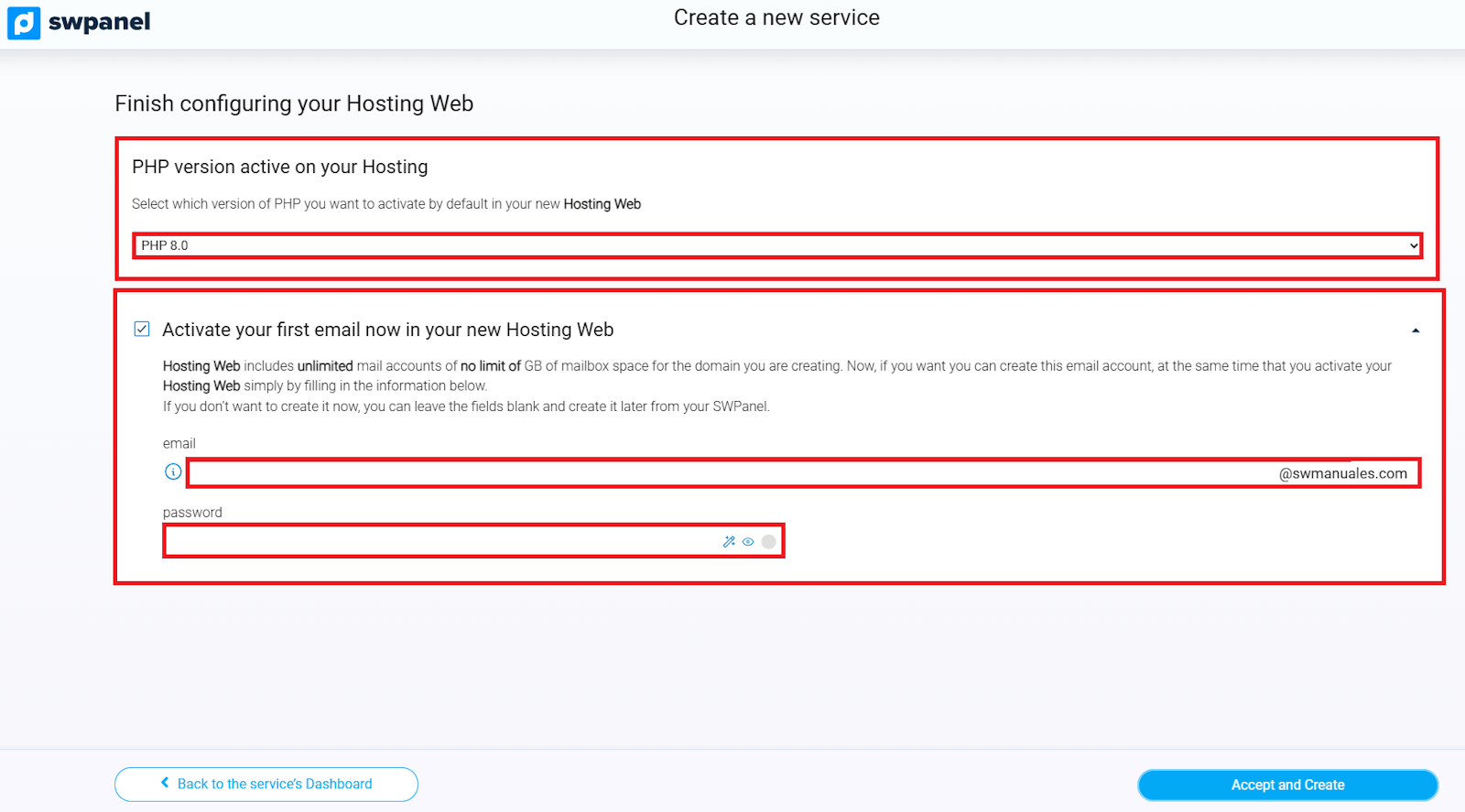
info_capture ℹ️ Note: The screenshot is for guidance purposes, taken from version 2026.000.0023 dated 07/03/2026. It may differ from the current version of SWPanel.
- Create an email account now: allows you to immediately configure the first email account. If you wish, you can leave this field blank and create the account later by following manual Manual: ##título##.
- Hosting PHP version: allows you to select the PHP version that will be used in the Hosting. This version can be modified later depending on the characteristics of your Cloud instance.
7. Finalization and acceptance
Finally, review all the displayed data, including the cost of the action (if applicable) and the information of the user making the request. When everything is correct, click Accept and create to complete the process.
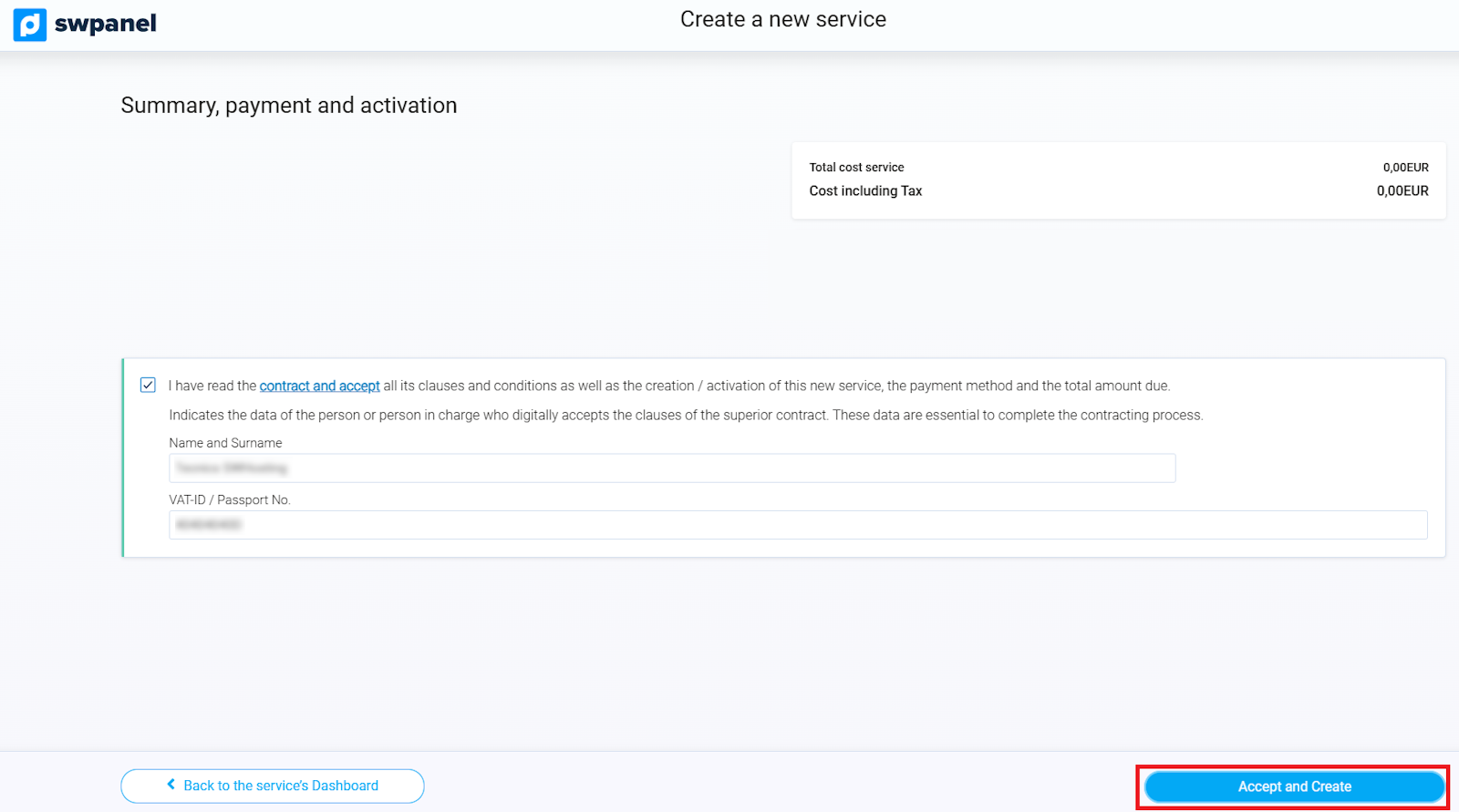
info_capture ℹ️ Note: The screenshot is for guidance purposes, taken from version 2026.000.0023 dated 07/03/2026. It may differ from the current version of SWPanel.
Done! Your new service will be activated and operational in a matter of seconds.