
Billing
To perform this action, you must hover over the first icon with your image -> 'My account', and in the pop-up menu, select the Invoices option.
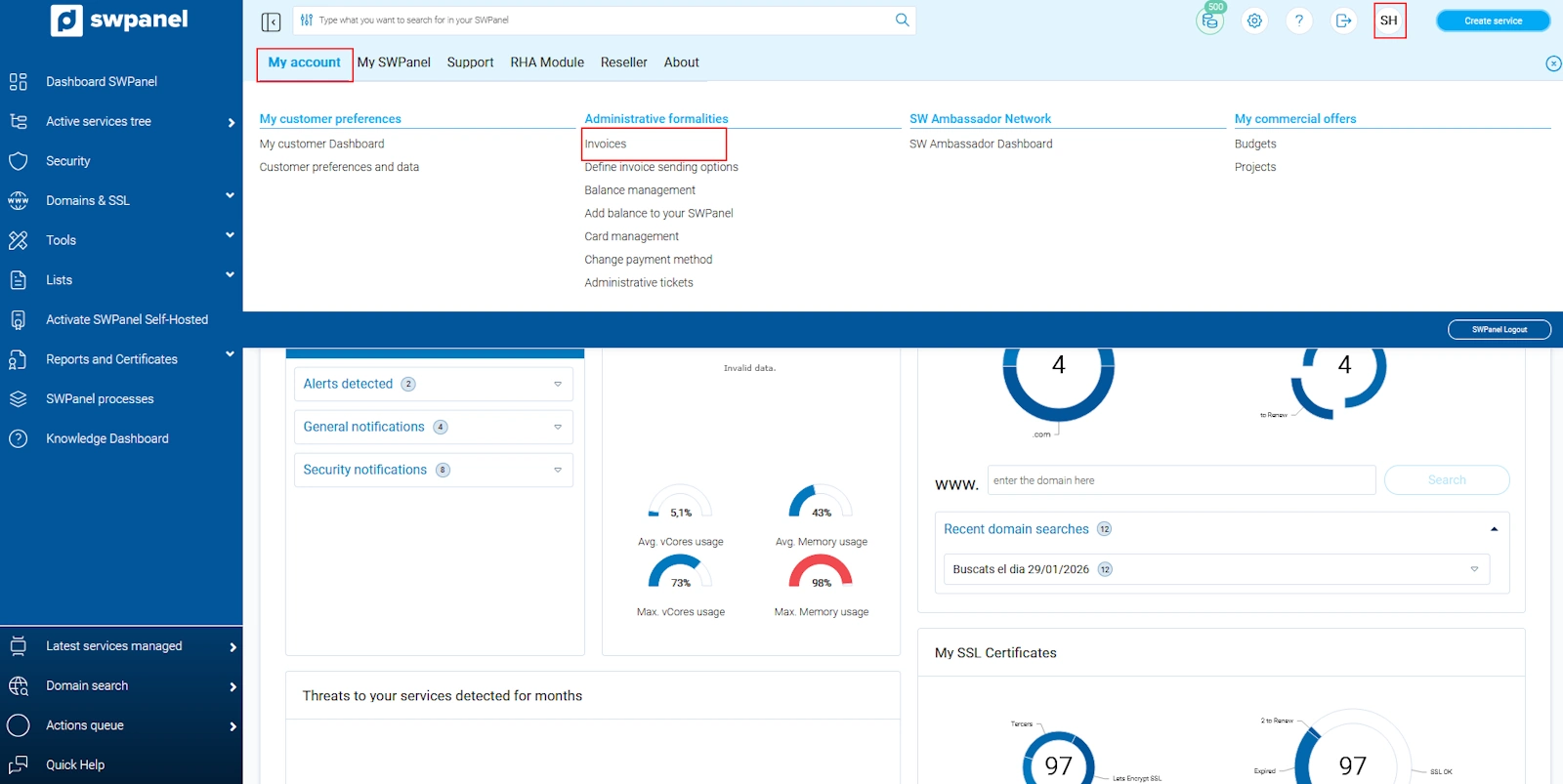
info_capture The screenshot is for guidance purposes. It was taken from version 2025.00.0016 dated 04/12/2024. It may differ from what the current version of SWPanel shows.
In this section, four tabs are presented, which we will break down for you:
Invoices Tab:
All invoices issued by SWHosting will appear here. You will see the invoice no., the date, the description, and the amount. Additionally, from the [ ··· ] menu located on the right side of the invoice, you will have the option to download it in PDF format or send it by email.
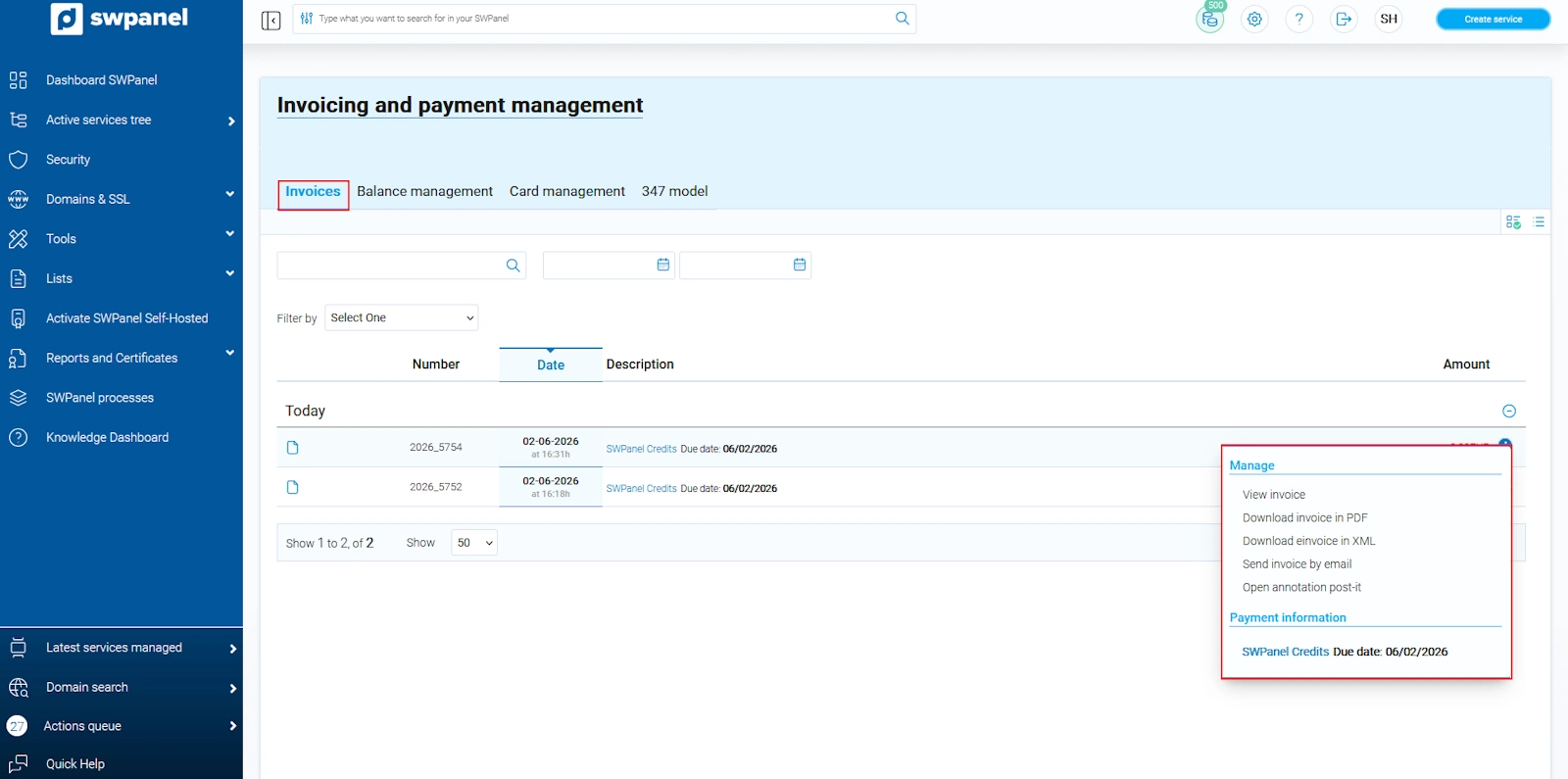
info_capture The screenshot is for guidance purposes. It was taken from version 2025.00.0016 dated 04/12/2024. It may differ from what the current version of SWPanel shows.
Balance Management Tab:
In this section, you can view the balance movements associated with your account.
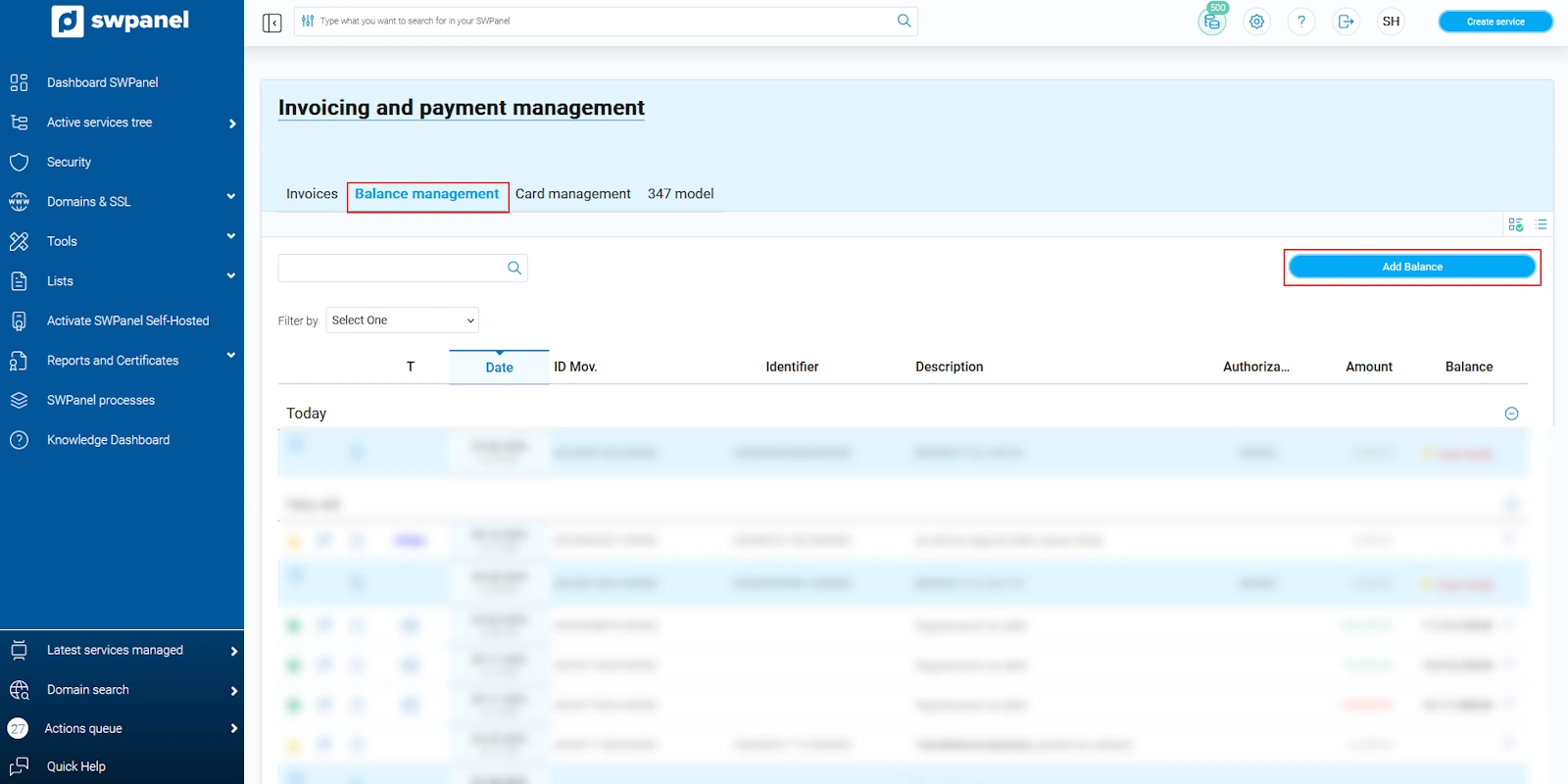
info_capture The screenshot is for guidance purposes. It was taken from version 2025.00.0016 dated 04/12/2024. It may differ from what the current version of SWPanel shows.
From here, you can also add balance to your account via credit card, PayPal, Stripe, or bank transfer, always with a minimum amount of 5 €.
Remember that topping up credits using PayPal or Stripe has a commission applied by the platform. The credit that will be added to your SWPanel will be the result of the requested top-up minus the commission amount charged by PayPal or Stripe.
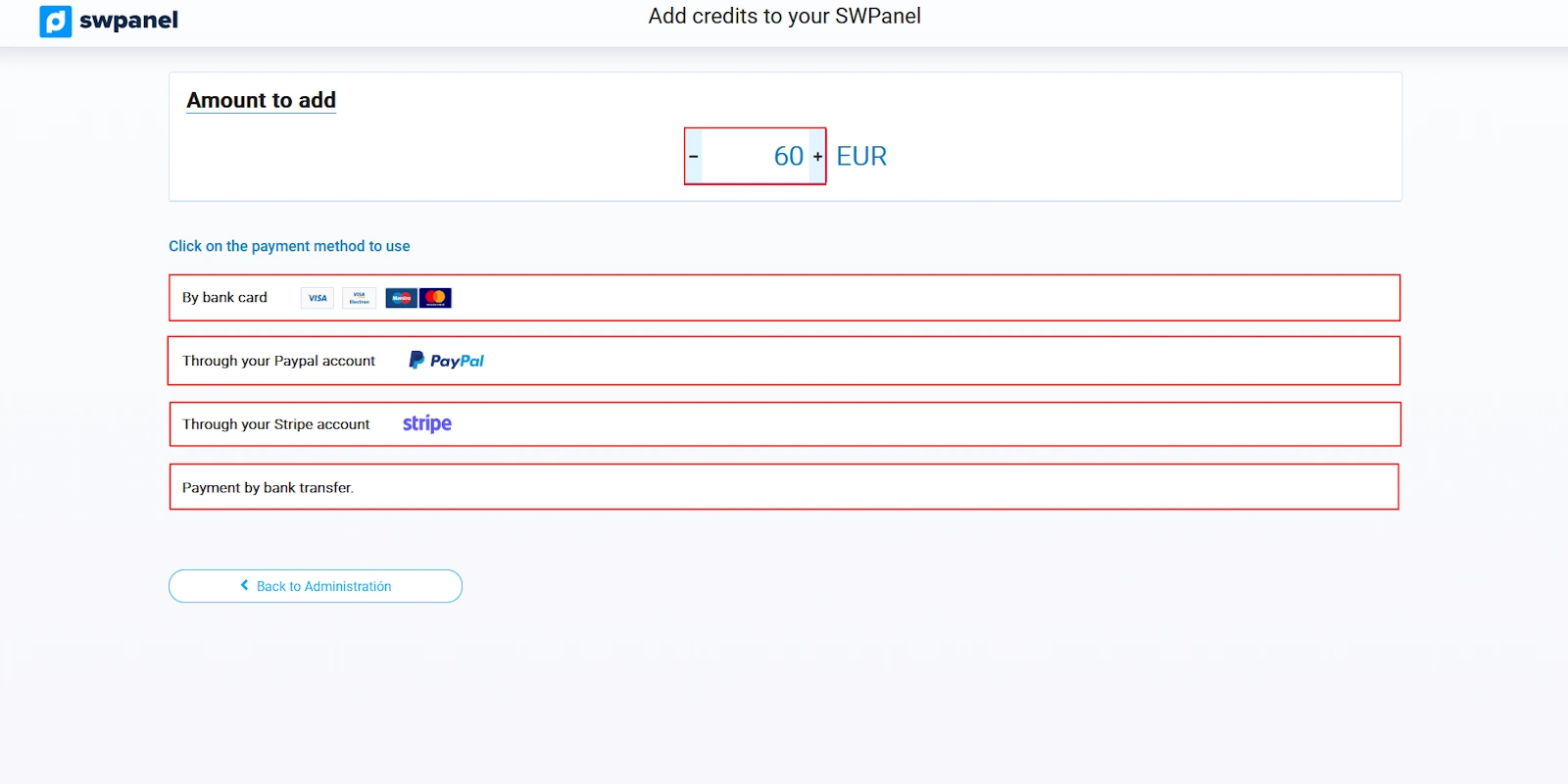
info_capture The screenshot is for guidance purposes. It was taken from version 2025.00.0016 dated 04/12/2024. It may differ from what the current version of SWPanel shows.
Credit Card Management Tab
All credit cards you have entered in your SWPanel will be shown in this section.
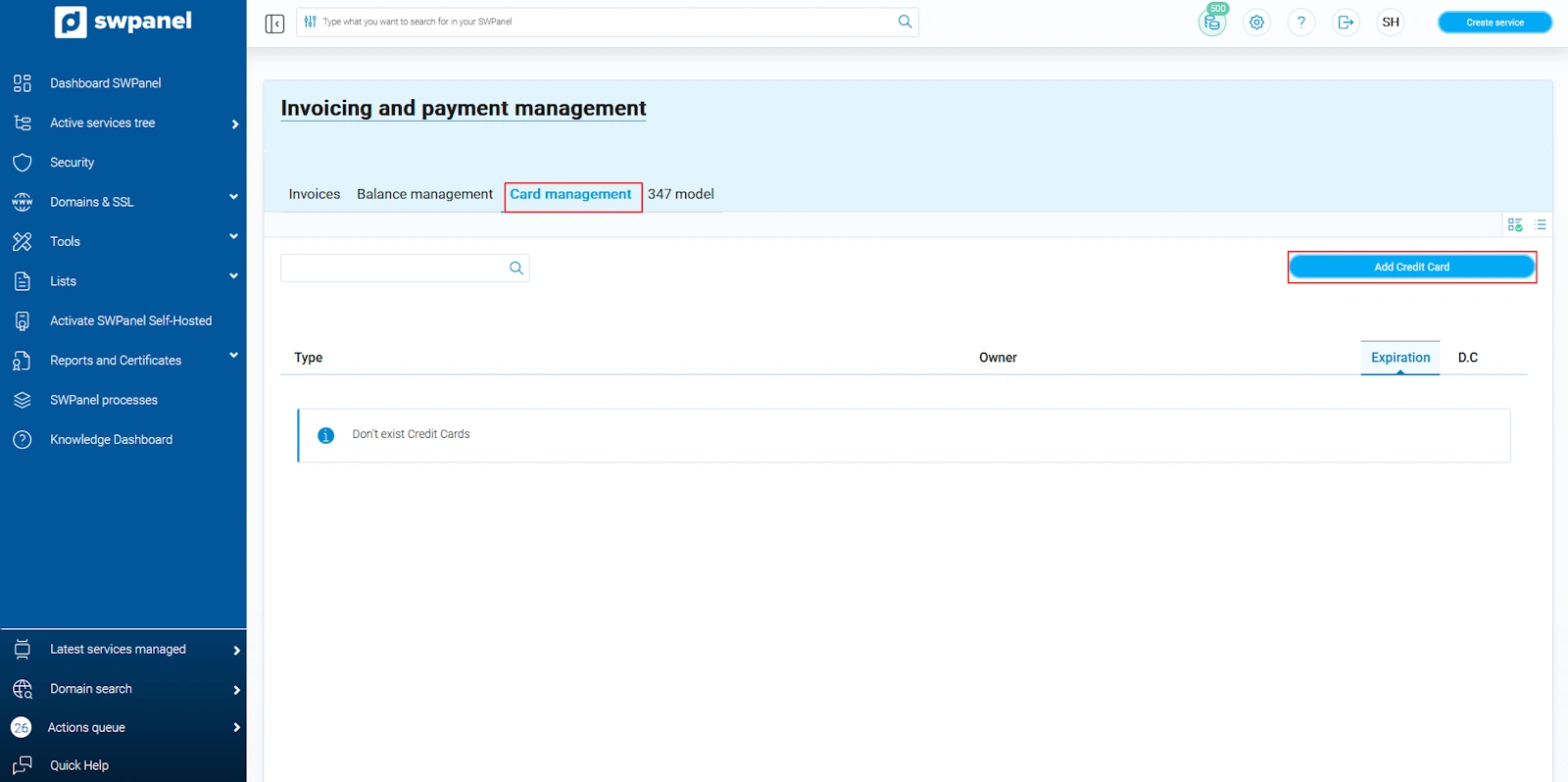
info_capture The screenshot is for guidance purposes. It was taken from version 2025.00.0016 dated 04/12/2024. It may differ from what the current version of SWPanel shows.
Here you can also add new credit cards using the blue button that appears on your right.
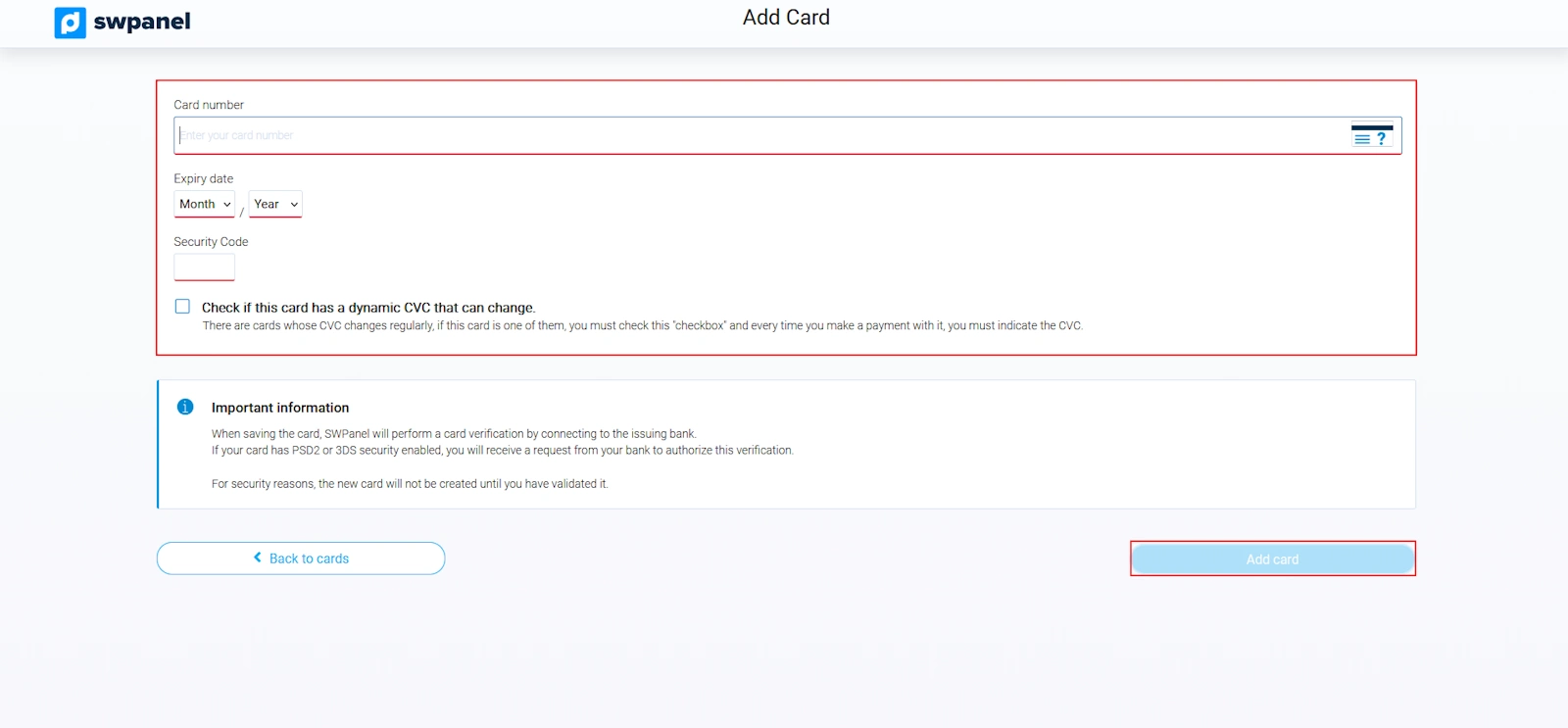
info_capture The screenshot is for guidance purposes. It was taken from version 2025.00.0016 dated 04/12/2024. It may differ from what the current version of SWPanel shows.
As well as deleting a card if you no longer want it to be shown in the panel, by expanding the [ ··· ] menu located on the right side of the card → Delete this credit card → Confirm its deletion
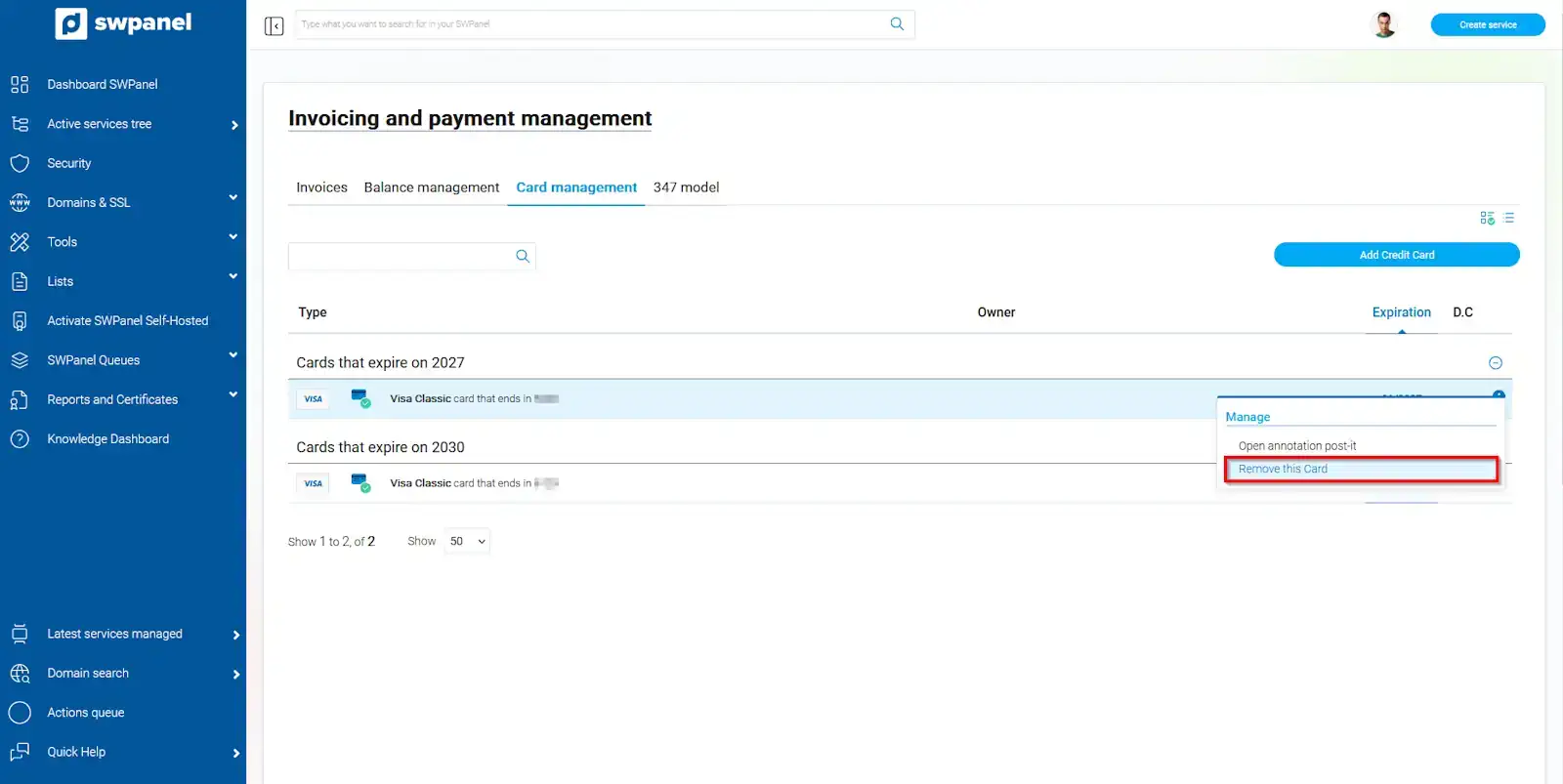
info_capture The screenshot is for guidance purposes. It was taken from version 2025.00.0016 dated 04/12/2024. It may differ from what the current version of SWPanel shows.
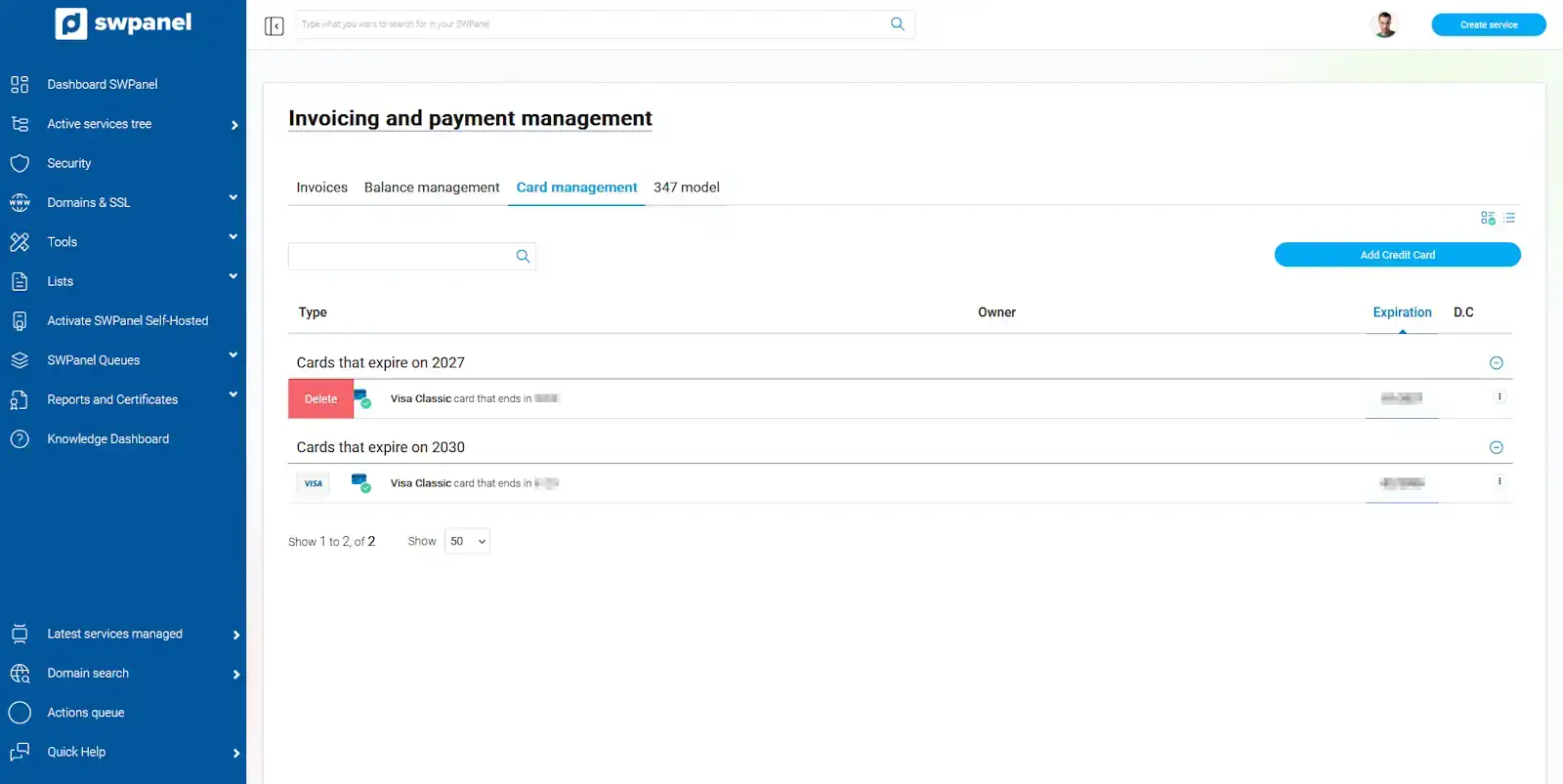
info_capture The screenshot is for guidance purposes. It was taken from version 2025.00.0016 dated 04/12/2024. It may differ from what the current version of SWPanel shows.
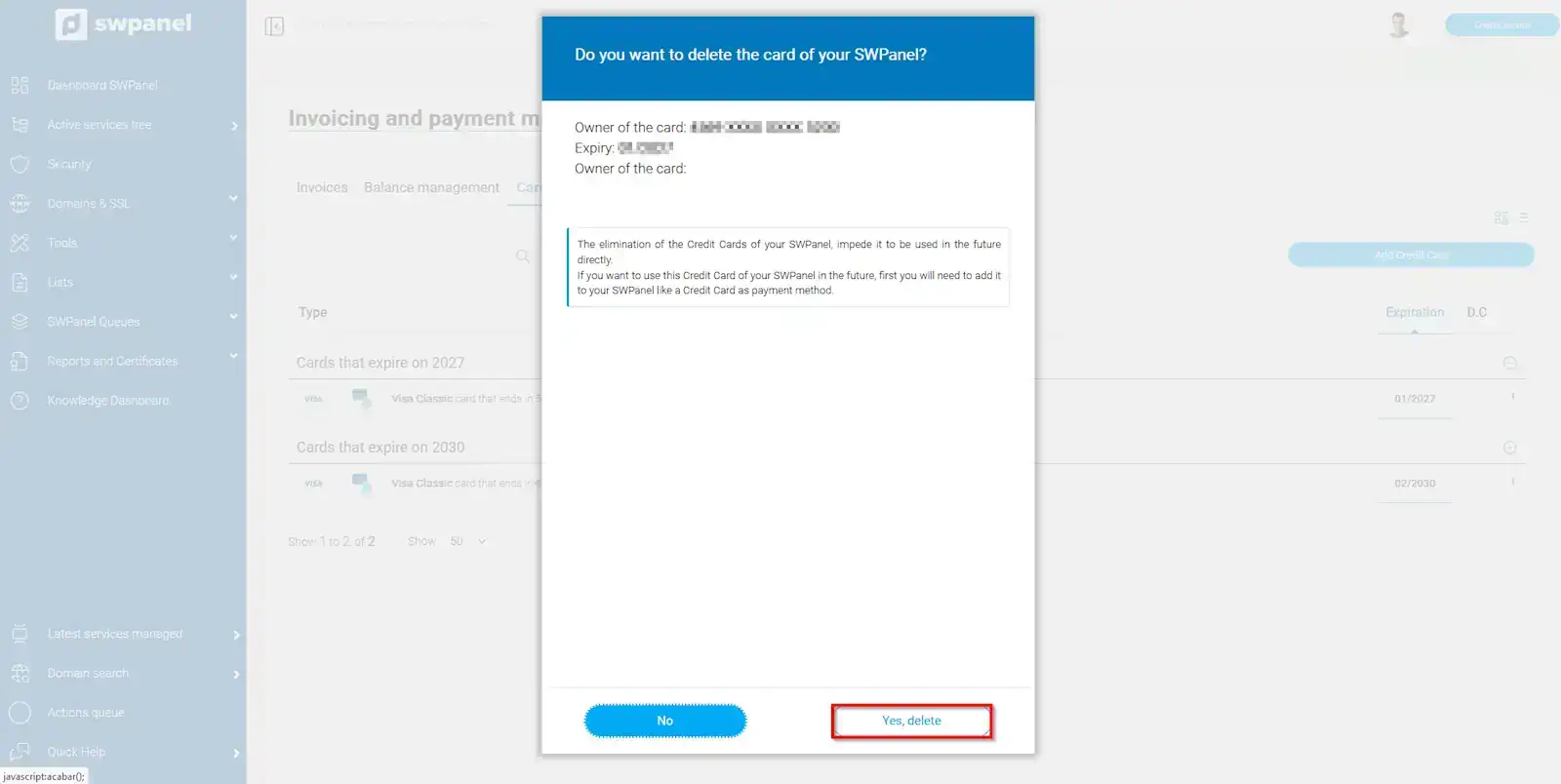
info_capture The screenshot is for guidance purposes. It was taken from version 2025.00.0016 dated 04/12/2024. It may differ from what the current version of SWPanel shows.
Expired cards are automatically deleted with prior notice from our systems via email.
Form 347 Tab
Here you can consult all invoices for the year for Form 347, which is the annual informative declaration of transactions with third parties carried out throughout the fiscal year. You will notice that the invoice no., date, description, and amount are clearly indicated, in addition to a quarterly sum.
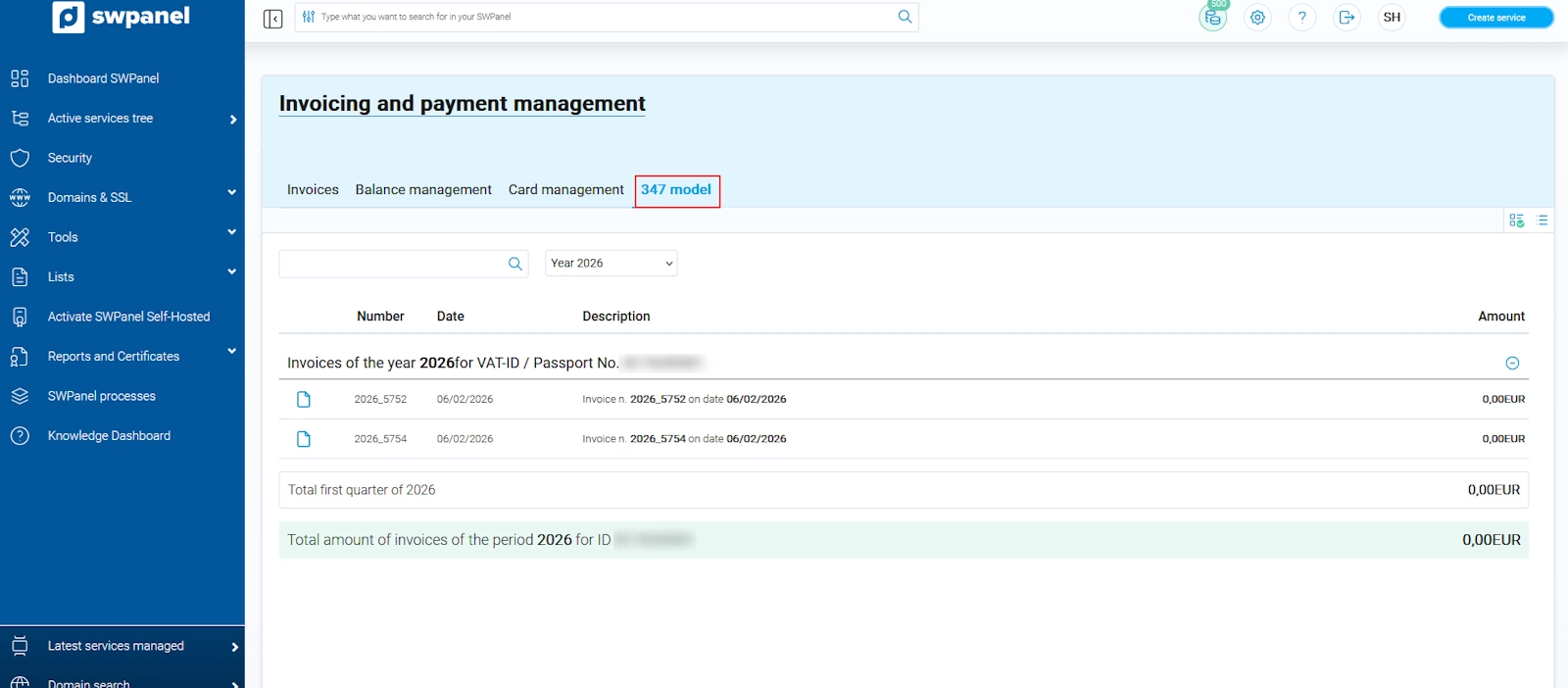
info_capture The screenshot is for guidance purposes. It was taken from version 2025.00.0016 dated 04/12/2024. It may differ from what the current version of SWPanel shows.