
Install third-party SSL certificate via SWPanel
To install a third-party SSL certificate from SWPanel, you need to have three files in Base64 encoded X.509 format. Below, we explain what they are and how to identify them to correctly prepare the installation:
- Certificate (extension .CRT or .CER): this is the main certificate file. You can easily identify it because, when opening it with a text editor, it begins and ends with the following lines:
-----BEGIN CERTIFICATE-----
...
-----END CERTIFICATE-----
- Certification Authority or root certificate (extension .CA, .CRT, or .CER): this file corresponds to the certificate's chain of trust. When opening it with a text editor, you will see one or more blocks similar to that of the main certificate. Normally, the file name or the instructions provided by your SSL provider will help you identify it correctly.
Note: If the certificate you are going to install does not have a .CA file (for example, in self-signed certificates), you can use the same certificate from the first section and copy its content into this field.
- Private key (extension .KEY): this is the file containing the key associated with the certificate. You can identify it because, when opening it with a text editor, it begins and ends with the following lines:
-----BEGIN PRIVATE KEY-----
...
-----END PRIVATE KEY-----
Note: If the certificate you have is not in the indicated format, you can request assistance by opening a support ticket so that we can perform the SSL certificate installation for you, or proceed with the installation on your own after converting it to the required format.
It is important to verify that there are no additional line breaks, white spaces, or empty lines before or after the indicated headers. The file must contain only the certificate, without any other additional content.
Third-party SSL certificate installation
- Access the Domains and SSL section within your panel.
- Click on Install Third-Party SSL Certificate to start the process:
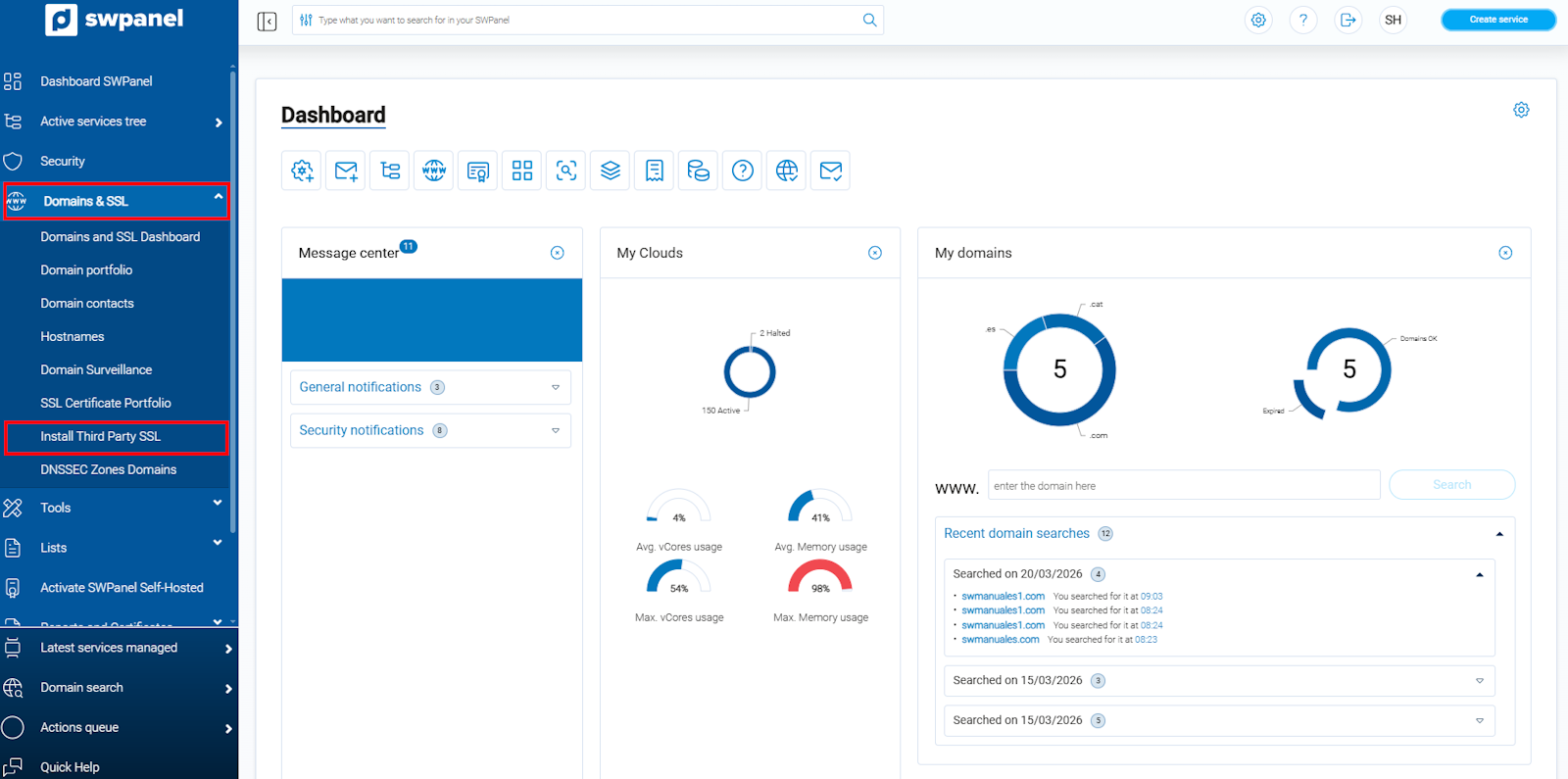
info_capture ℹ️ Note: The screenshot is for guidance purposes, taken from version 2026.000.0049 dated 03/22/2026. It may differ from the current version of SWPanel.
- Enter the requested data in the form:
- Certificate domain: Enter the domain you wish to certify. For example: www.swhosting.com.
- Key: Open your private key file (.KEY) with a text editor and copy all its content into this field.
- CA - Intermediates: Open your certification authority or root certificate file (.CA, .CRT, or .CER) with a text editor and paste its content here.
- Certificate CRT: Open your certificate file (.CRT or .CER) with a text editor and copy all its content into this field.
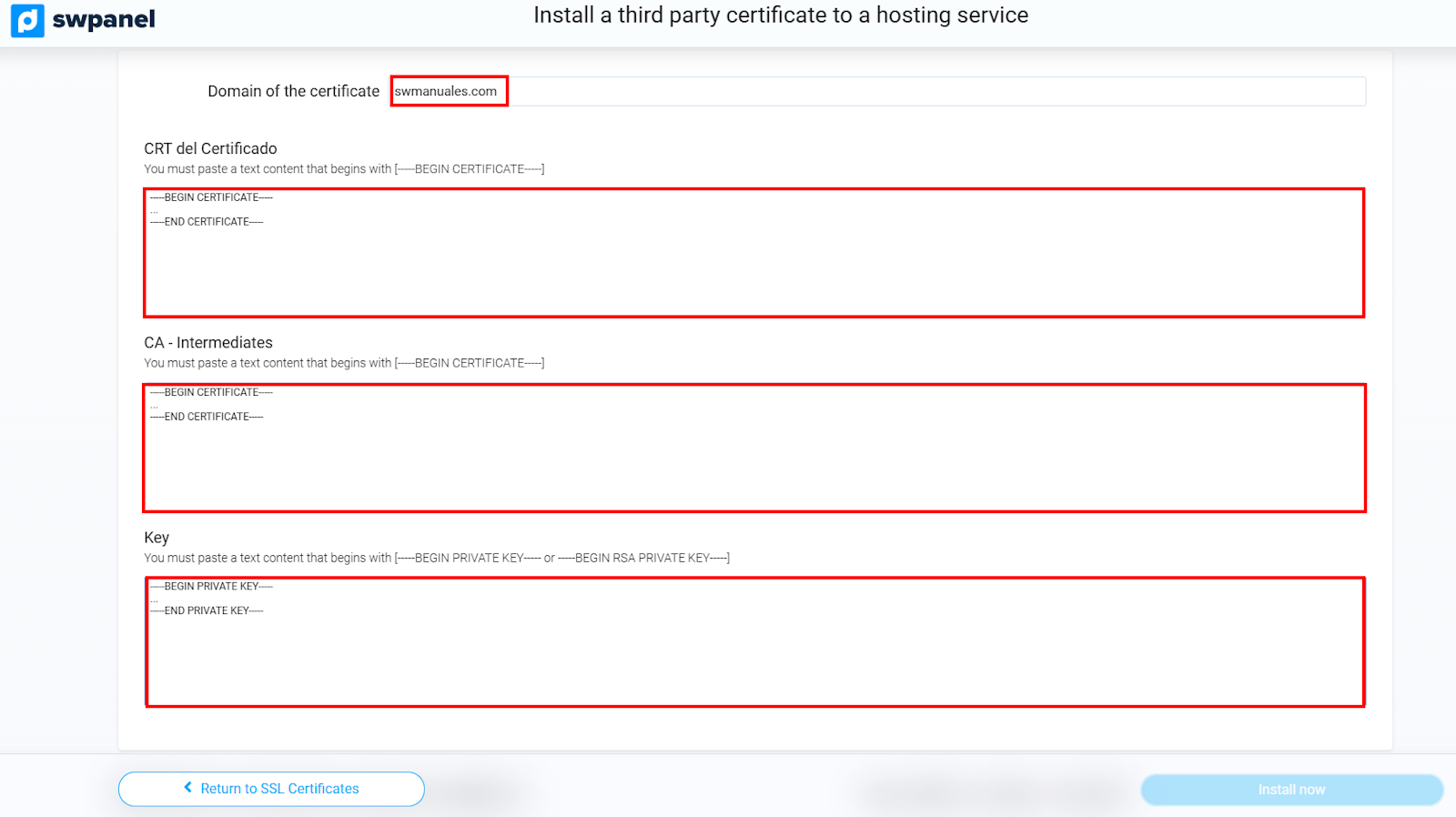
info_capture ℹ️ Note: The screenshot is for guidance purposes, taken from version 2026.000.0049 dated 03/22/2026. It may differ from the current version of SWPanel.
- Select the service on which you wish to install the SSL certificate and, finally, click on Install now to complete the installation.
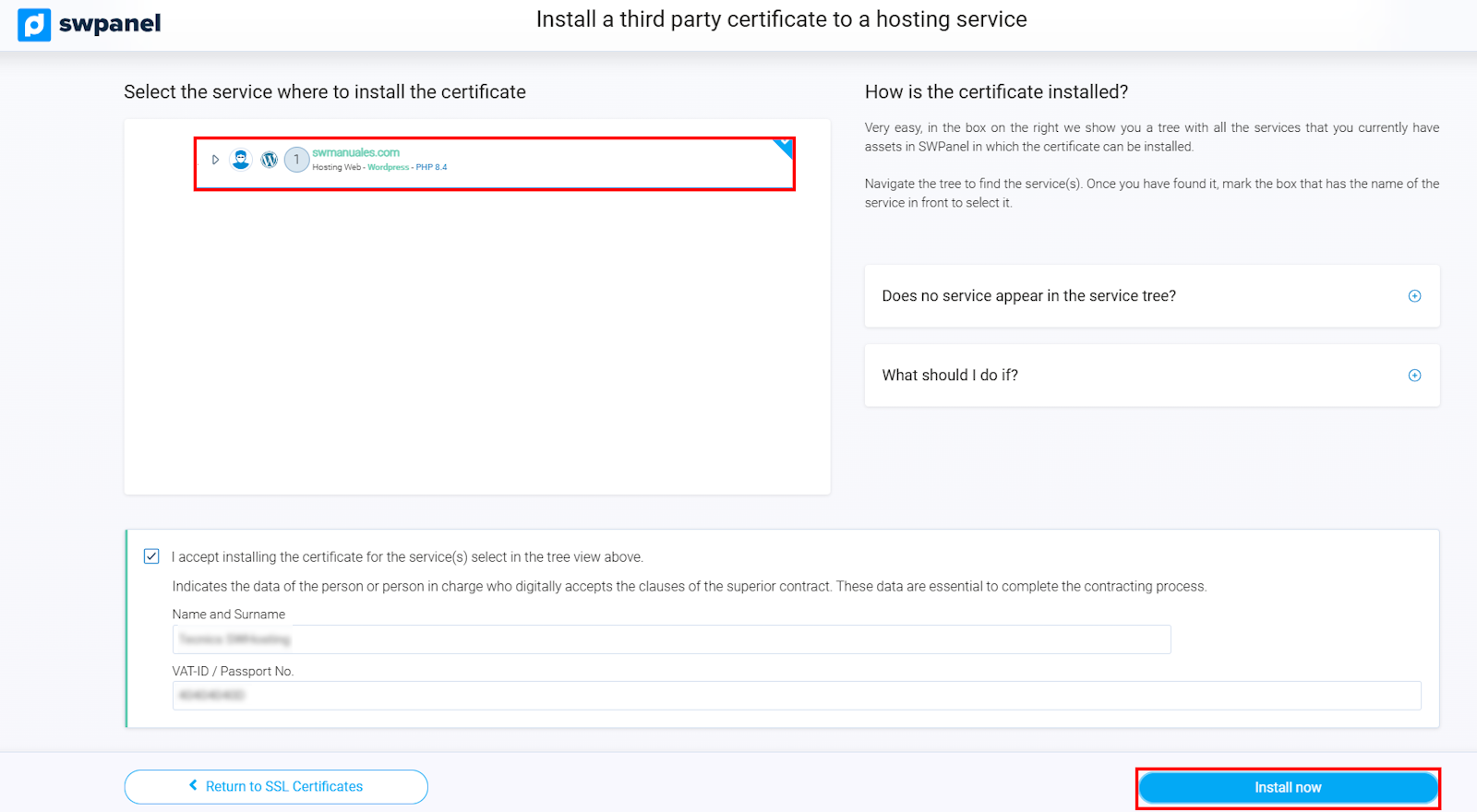
info_capture ℹ️ Note: The screenshot is for guidance purposes, taken from version 2026.000.0049 dated 03/22/2026. It may differ from the current version of SWPanel.
Once the installation is completed, your SSL certificate will become active within minutes.