
What to do if my email account is blocked due to SPAM?
Introduction
When it is detected that an email account has sent SPAM (whether intentionally or because it has been compromised), the SW Hosting team acts immediately to protect the server's reputation and prevent other services from being affected.
This normally involves:
- The blocking of outgoing email ports (SMTP).
- The temporary suspension of the email service associated with an IP, mailbox, or server.
This document will guide you step by step to:
- Locate and secure the compromised account.
- Change the password securely.
- Apply protection measures on your devices.
- Request the reactivation of the service.
- Prevent future incidents.
?? Important: Do not request email activation until you have verified that the incident has been completely resolved.
1. Identify the affected service from SWPanel
If you have received a SPAM notice from our team, the message will clearly indicate which account is involved (for example: [email protected]).
To manage it:
- In the top search bar of SWPanel, type the name of the service and access its Dashboard.
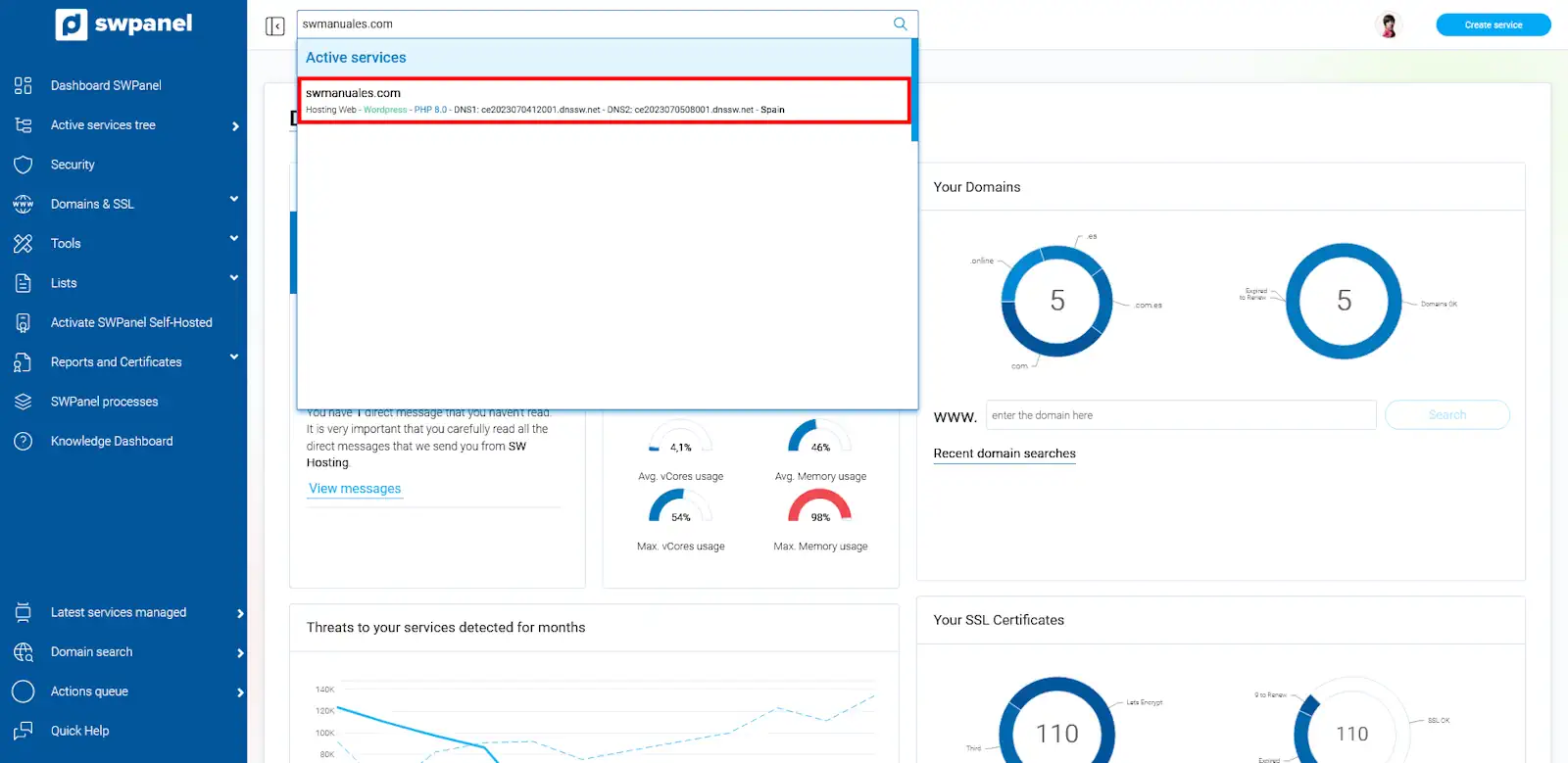
info_capture The screenshot is for guidance purposes. It was taken using version 2025.004.0001 dated 10/05/2025. It may differ from what the current version of SWPanel shows.
- In the left side menu, click on Service Management and Email Management.
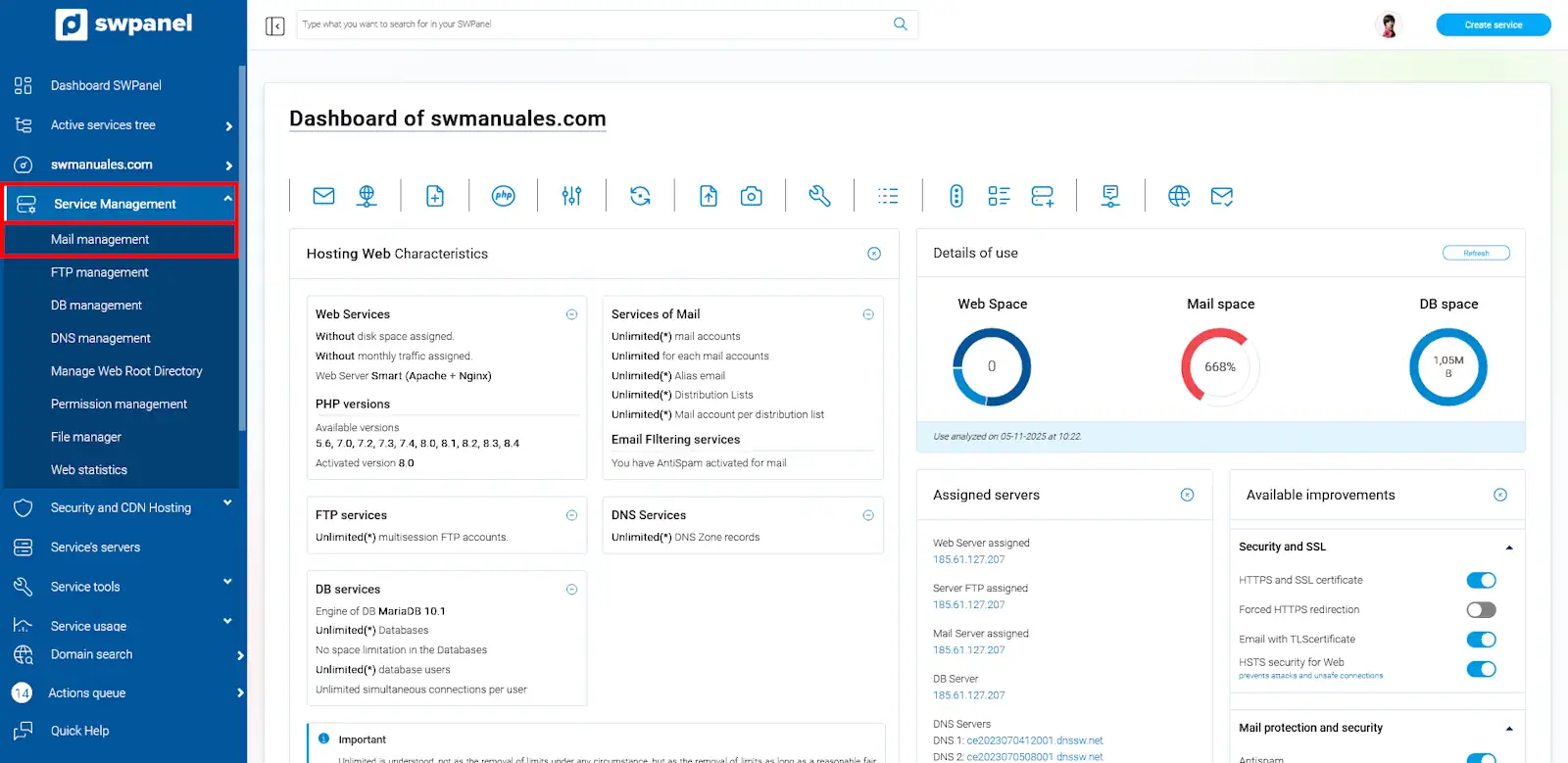
info_capture The screenshot is for guidance purposes. It was taken using version 2025.004.0001 dated 10/05/2025. It may differ from what the current version of SWPanel shows.
- Search for the affected email address in the list.
2. Change the password of the affected account
It is essential to change the password immediately. To do this:
- Locate the account in the list or search for it using the email management search bar.
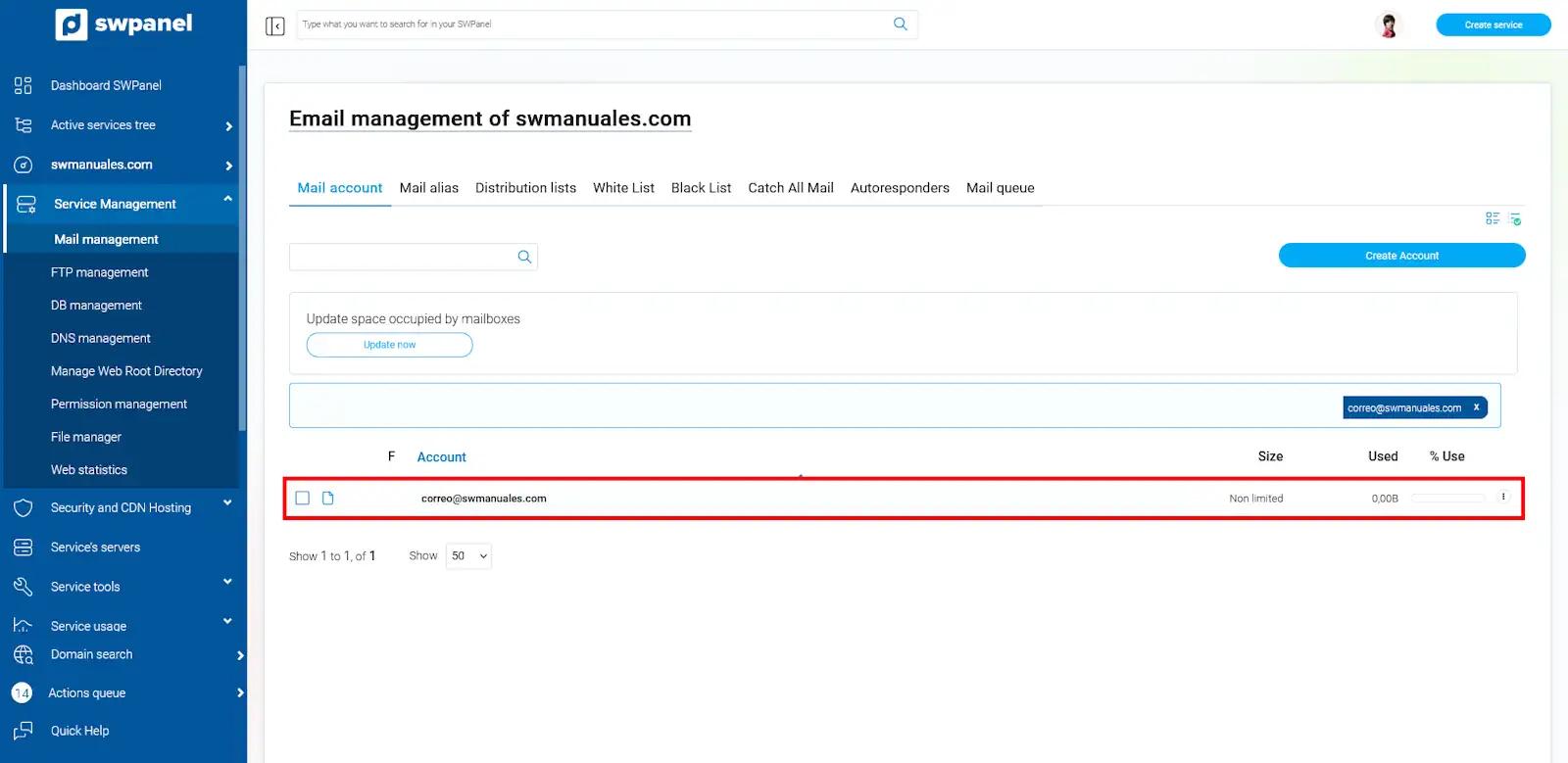
info_capture The screenshot is for guidance purposes. It was taken using version 2025.004.0001 dated 10/05/2025. It may differ from what the current version of SWPanel shows.
- Hover over the three dots to the right of your email account and click Modify this email account.
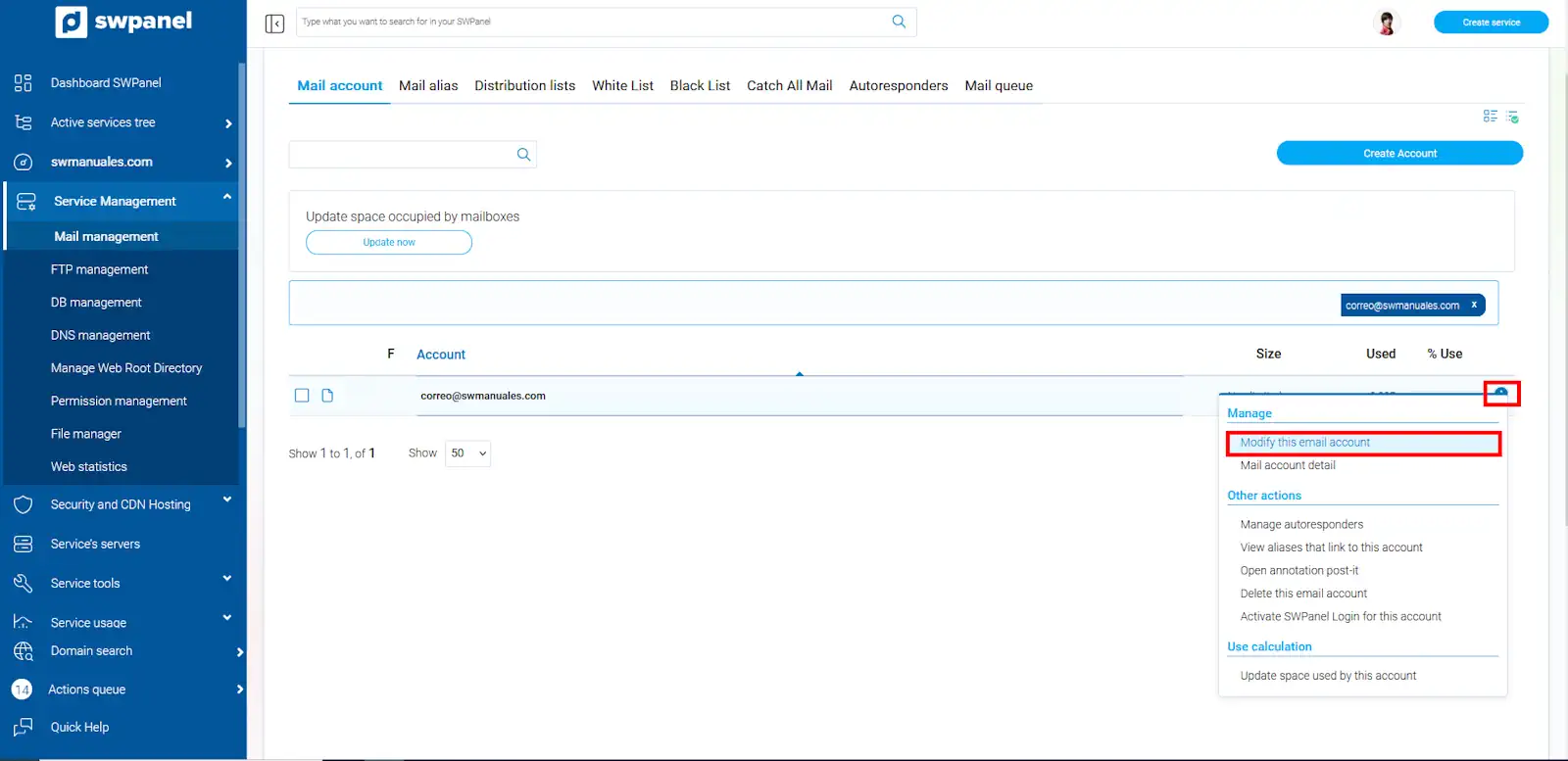
info_capture The screenshot is for guidance purposes. It was taken using version 2025.004.0001 dated 10/05/2025. It may differ from what the current version of SWPanel shows.
- Enter a new secure password or click Generate random password.
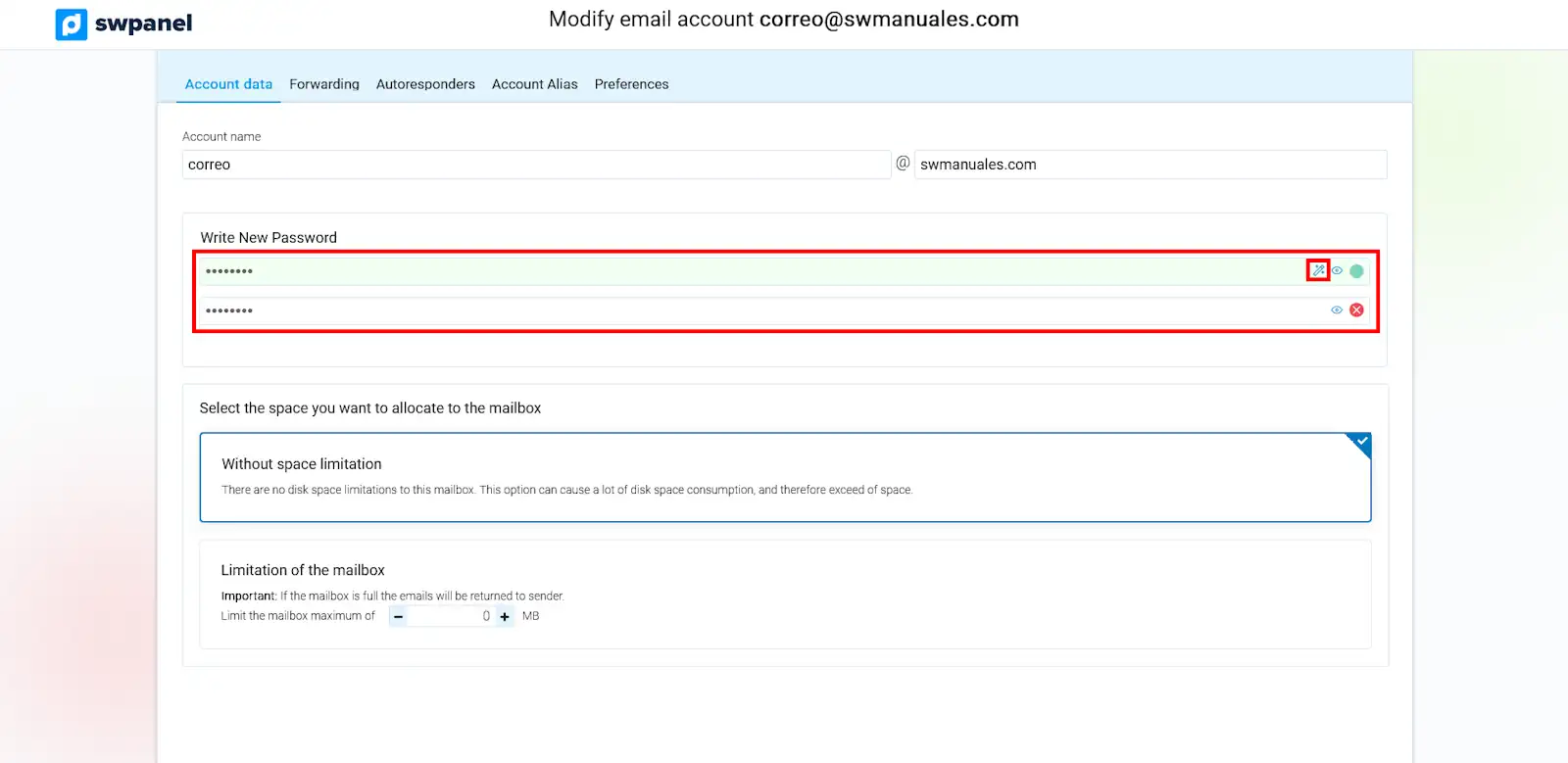
info_capture The screenshot is for guidance purposes. It was taken using version 2025.004.0001 dated 10/05/2025. It may differ from what the current version of SWPanel shows.
- Save the changes.
Recommendations for the new password:
- Use at least 12 characters.
- Combine uppercase letters, lowercase letters, numbers, and symbols.
- Avoid using the same password on other platforms or emails.
3. Protect your devices
The misuse of an email account is usually due to:
- Devices infected with malware.
- Password theft (phishing, malware, etc.).
- Insecure configurations in email clients.
We recommend:
- Scanning all devices from which this account is accessed with an updated antivirus.
- Changing the passwords of all email accounts configured on that equipment if any infection is detected.
- Ensuring that the password has not been shared with third parties.
4. Request the reactivation of the service
Once you are certain that the account is secure and the password has been changed, request the reactivation of the email service by opening a support ticket:
?? Example message:
Hello,
We have detected SPAM being sent from the account[email protected].
We have already changed the password and checked the devices.
We kindly request the reactivation of the email service.
Thank you.
5. What if the problem comes from my website?
In some cases, although the email account appears to be the SPAM sender, the real origin may be a poorly protected form or script within your website.
How to know if your website is involved?
- The affected account is not used on any device, but it appears to be sending emails.
- Sendings are observed from generic accounts such as
[email protected]. - You have received notices of mass mailings without SMTP authentication.
- SPAM is generated after sendings from contact forms or PHP scripts.
What to do if you believe your website has been compromised?
- Download all your website files via FTP and save them locally.
- Analyze the files with a specialized antivirus:
- Wordfence (if you use WordPress).
- VirusTotal for specific files.
- Check if there are suspicious files, for example:
- Modified
mail.php,sendmail.php, or similar. - New files in folders such as
/uploads,/tmp, or/wp-content.
- Modified
- Update your CMS (WordPress, Joomla...) and all plugins.
- Protect the forms:
- Use CAPTCHA or reCAPTCHA.
- Check and clean the data entered by users to avoid malicious code injections.
- Review file and folder permissions. Avoid
777permissions.
?? Tip: If you do not have technical experience, contact your developer or a trusted web maintenance company.
6. Recommendations to avoid future blocks
- Never share the passwords of your email accounts.
- Use different passwords for each service.
- Avoid accessing email from public or insecure networks.
- Keep the operating system, antivirus, and email programs updated.
- Periodically review configured accesses and devices.
- If you use a CMS (such as WordPress, Joomla...), always keep all plugins, themes, and the CMS itself updated.
- Remove any plugin or theme that you do not use.
- Regularly review the source code of your website and look for files you do not recognize.
- Protect contact forms with CAPTCHA and avoid insecure scripts.
- Control the permissions of your files and folders; avoid
777permissions.
For more information on security and how to protect your WordPress:
- Security blog:
How to protect your email account