
Activate backups in my Cloud
The SWPanel backup service allows you to perform backups on SW Hosting's backup servers, so that you can restore the content whenever necessary.
Having a defined backup plan will be useful in various situations, for example: if changes are made to your website that, due to programming errors, make it slower; if your site has been compromised by hackers who modify the code; or if an update to your CMS (Content Management System) fails. In these cases, you will be able to quickly restore your website and protect your reputation.
Activation and Configuration of Backups in Clouds via the Administration Panel (SWPanel)
In the upper box of the SWPanel, enter the server name for which you wish to activate the backup.
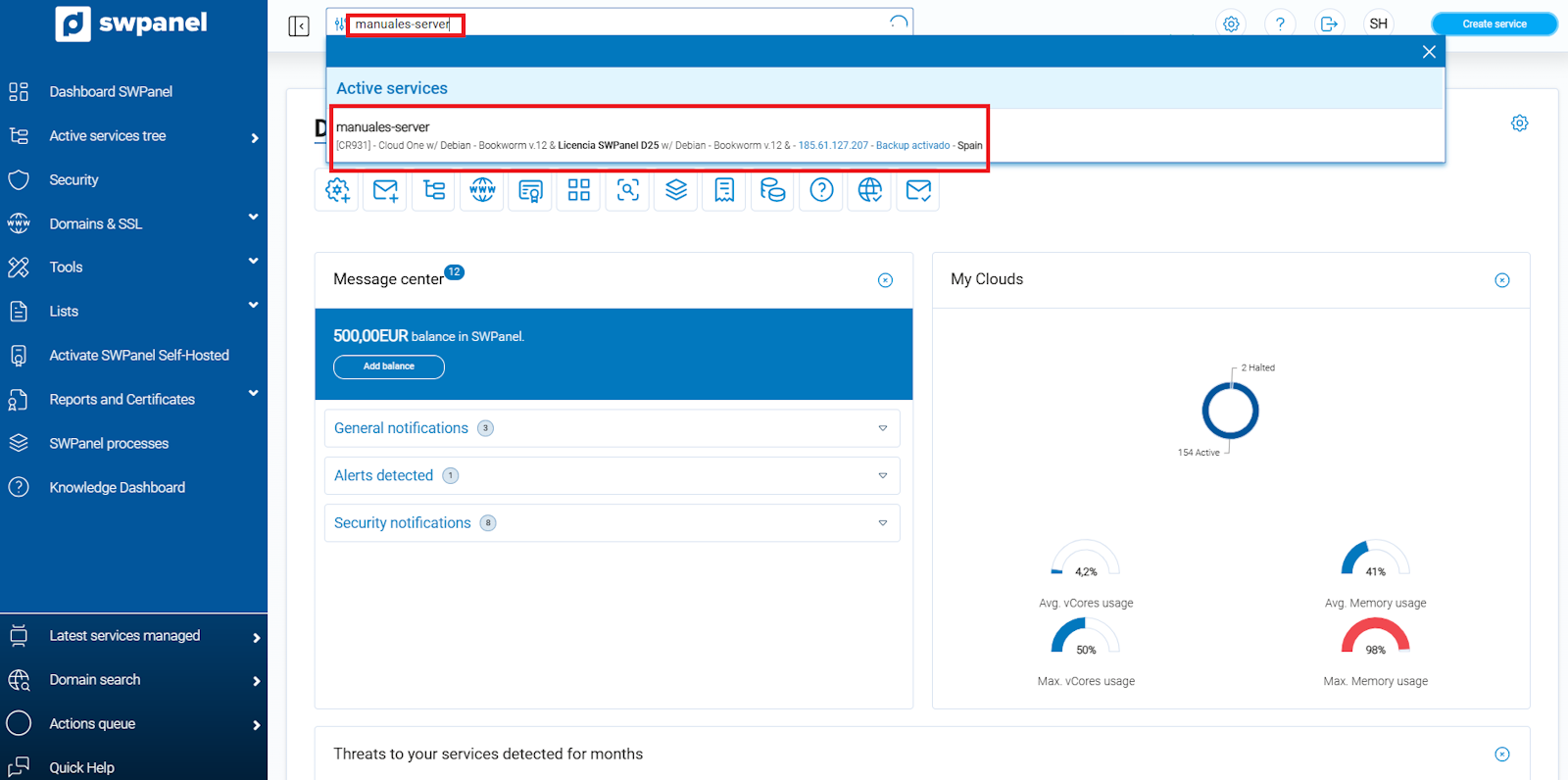
info_capture ℹ️ Note: The screenshot is for guidance purposes, taken from version 2026.000.0023 dated 08/03/2026. It may differ from the current version of SWPanel.
To activate the backup:
- In the SWPanel, scroll down to the bottom right to the Data Retention box.
- Within the box, you will find the Backups option.
- Click the button in the Backups section.
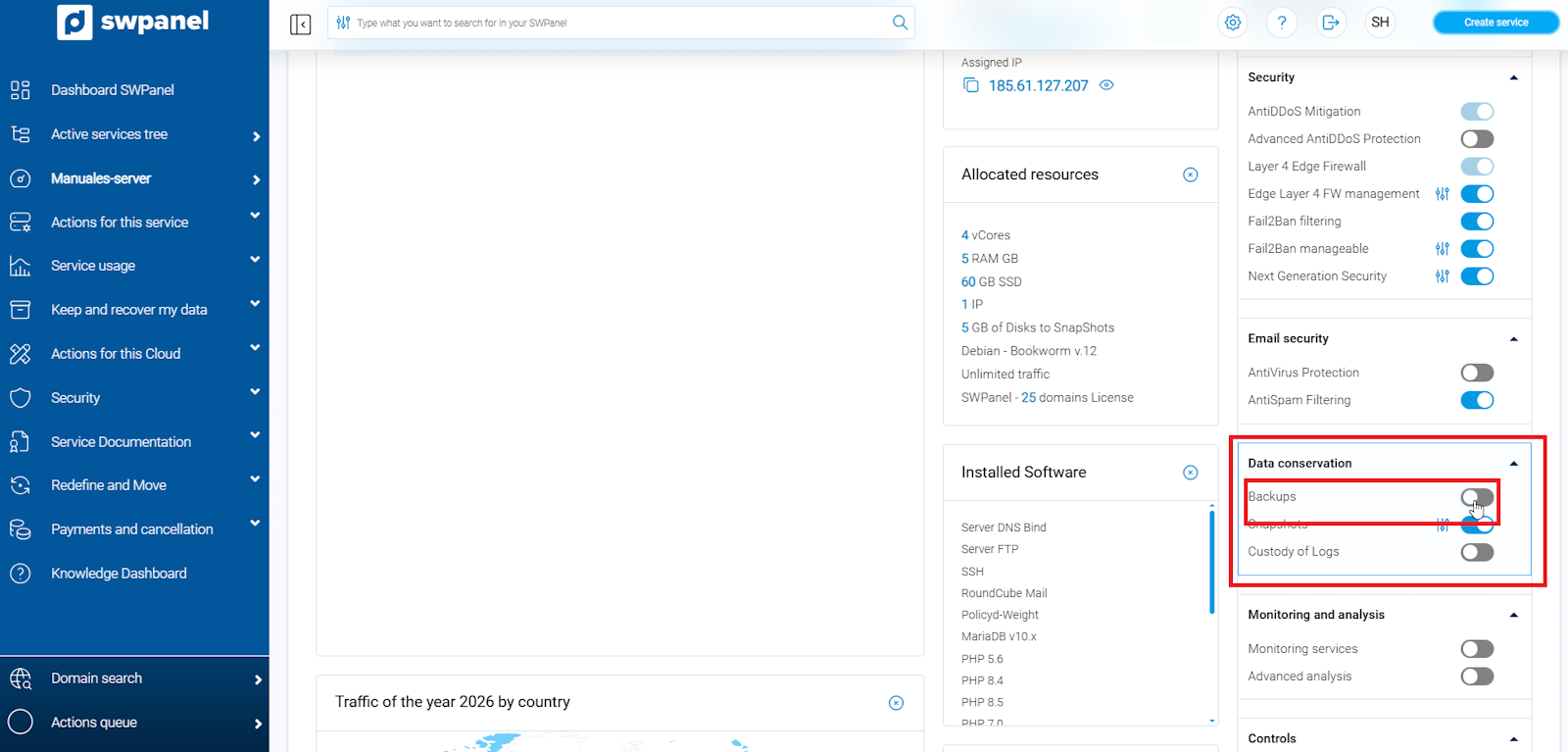
info_capture ℹ️ Note: The screenshot is for guidance purposes, taken from version 2026.000.0023 dated 08/03/2026. It may differ from the current version of SWPanel.
To activate backups on your server, you must define three parameters:
-
Backup location: Select the data center where you want your backup to be stored. Please note that activating backups in some data centers may involve an additional monthly cost.
Available options:
- Spain/DC1 – Spain
- Spain/DC2 – Spain
- Saxony/DC3 – Germany
- East USA/DC4 – United States of America
- London/DC5 – United Kingdom
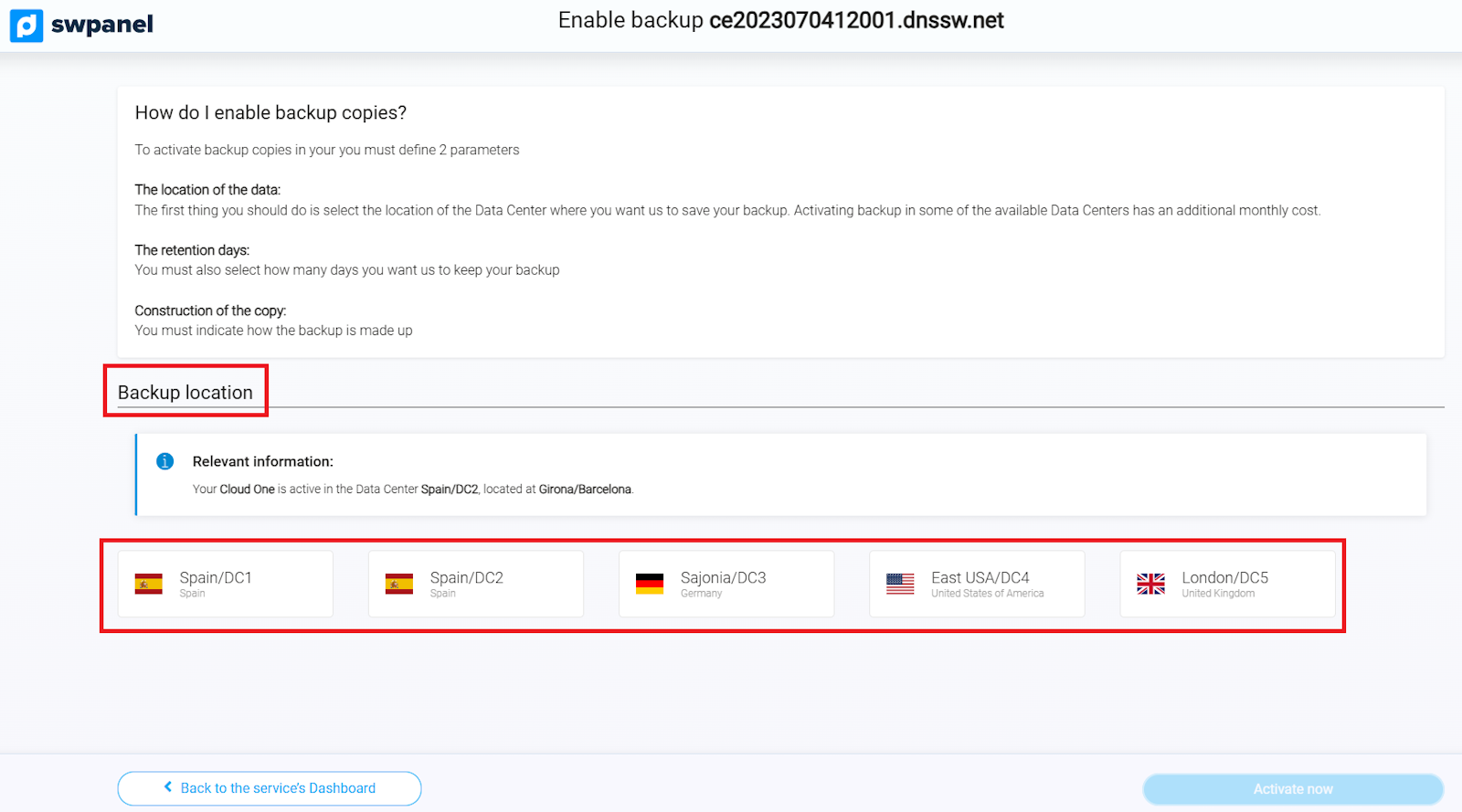
info_capture ℹ️ Note: The screenshot is for guidance purposes, taken from version 2026.000.0023 dated 08/03/2026. It may differ from the current version of SWPanel.
- Retention days
Define how many days you wish the backups to be kept.
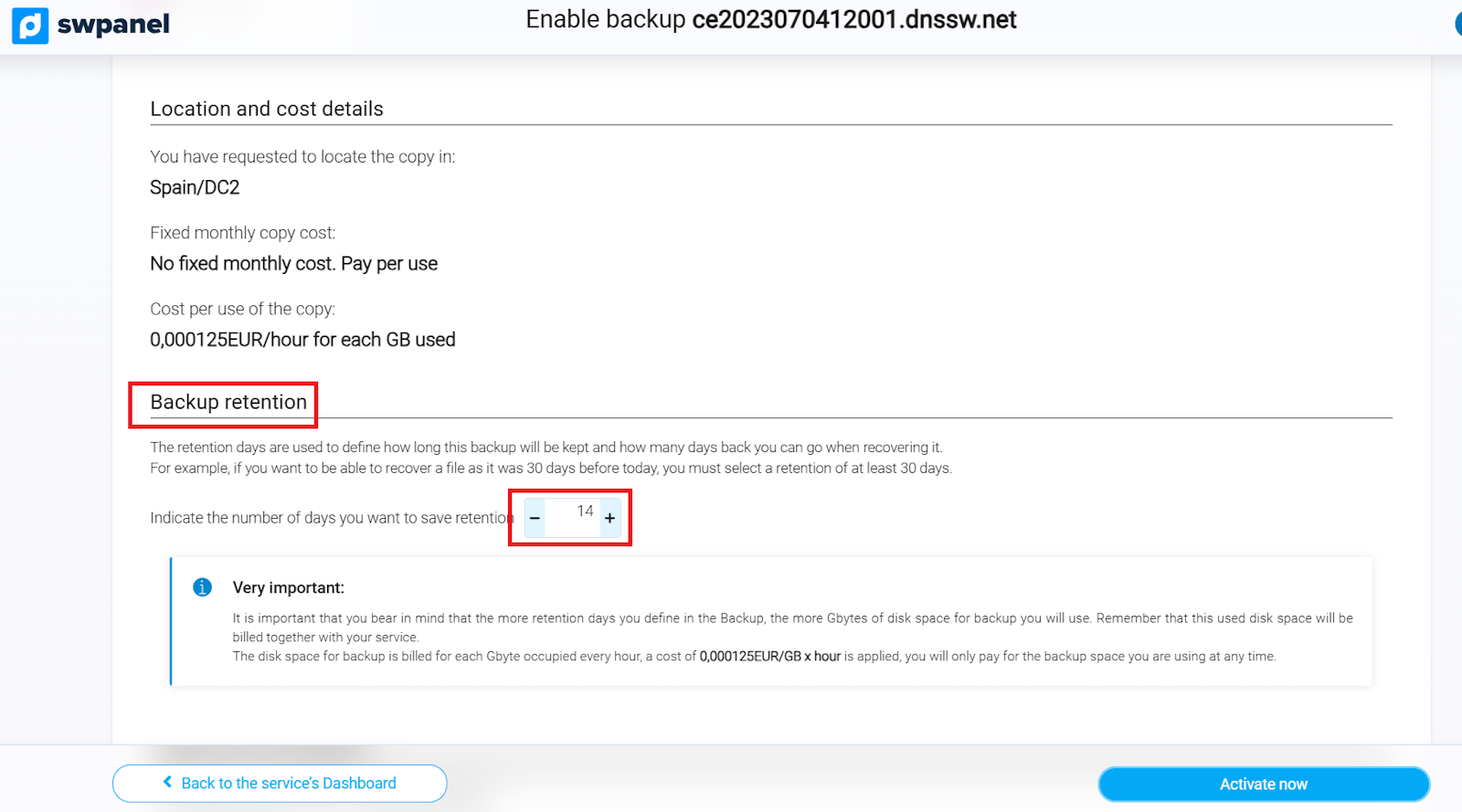
info_capture ℹ️ Note: The screenshot is for guidance purposes, taken from version 2026.000.0023 dated 08/03/2026. It may differ from the current version of SWPanel.
- Backup construction
Indicate how the backup will be composed, according to your needs.
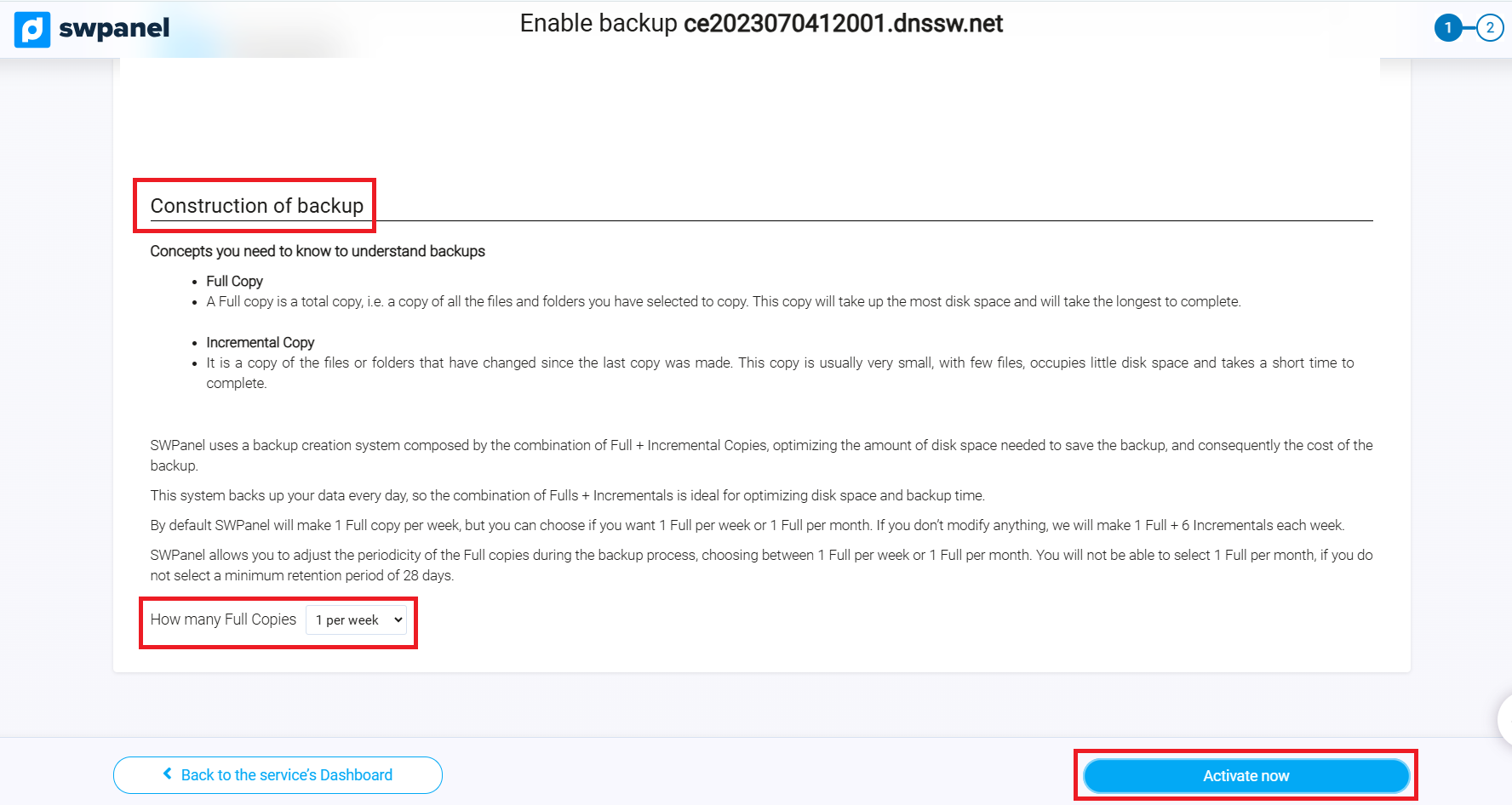
info_capture ℹ️ Note: The screenshot is for guidance purposes, taken from version 2026.000.0023 dated 08/03/2026. It may differ from the current version of SWPanel.
Once these parameters are defined, click “Activate now” to start the backup service.
Hosting Backup Definition
By default, the backup definition per hosting will be displayed, where you can select which elements you wish to include in the backup. You can check checkboxes to back up:
- Web
- Database
This will allow you to perform backups of all your services according to your needs.
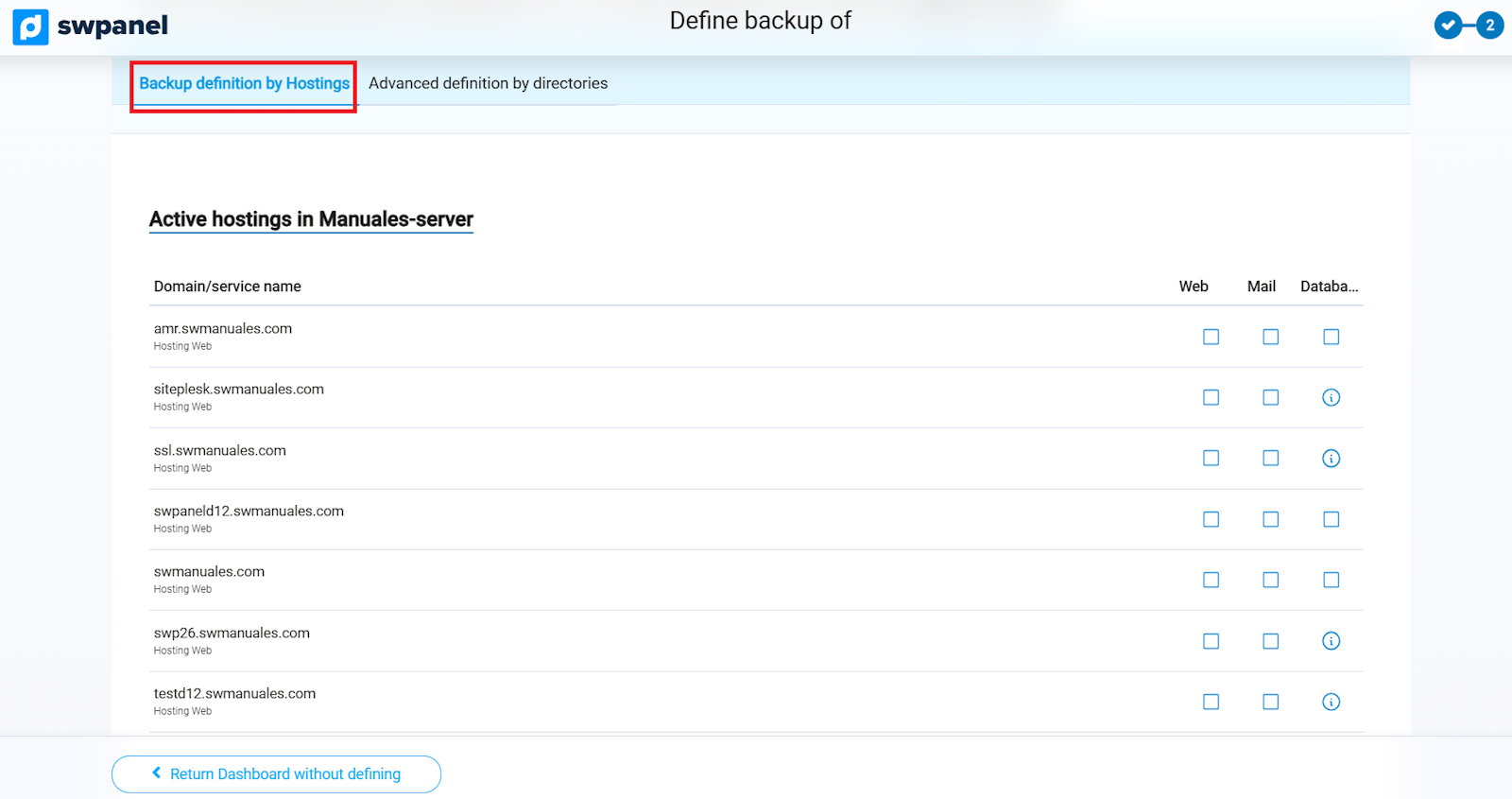
info_capture ℹ️ Note: The screenshot is for guidance purposes, taken from version 2026.000.0023 dated 08/03/2026. It may differ from the current version of SWPanel.
Advanced backup definition by directory
If you wish to manually add directories or copy specific content, you can use the advanced definition by directory.
You can choose to apply the recommended tip, which automatically selects the most important directories to back up all the content of Web, Email, and Databases:
- Web:
/var/www - Email Mailboxes:
/var/spool/postfix/busties - Databases:
/var/backupmysql - Others:
/etc
Click “Apply this tip” to include these directories automatically.
If you prefer, you can also configure the directories manually, choosing what to include or exclude using custom patterns.
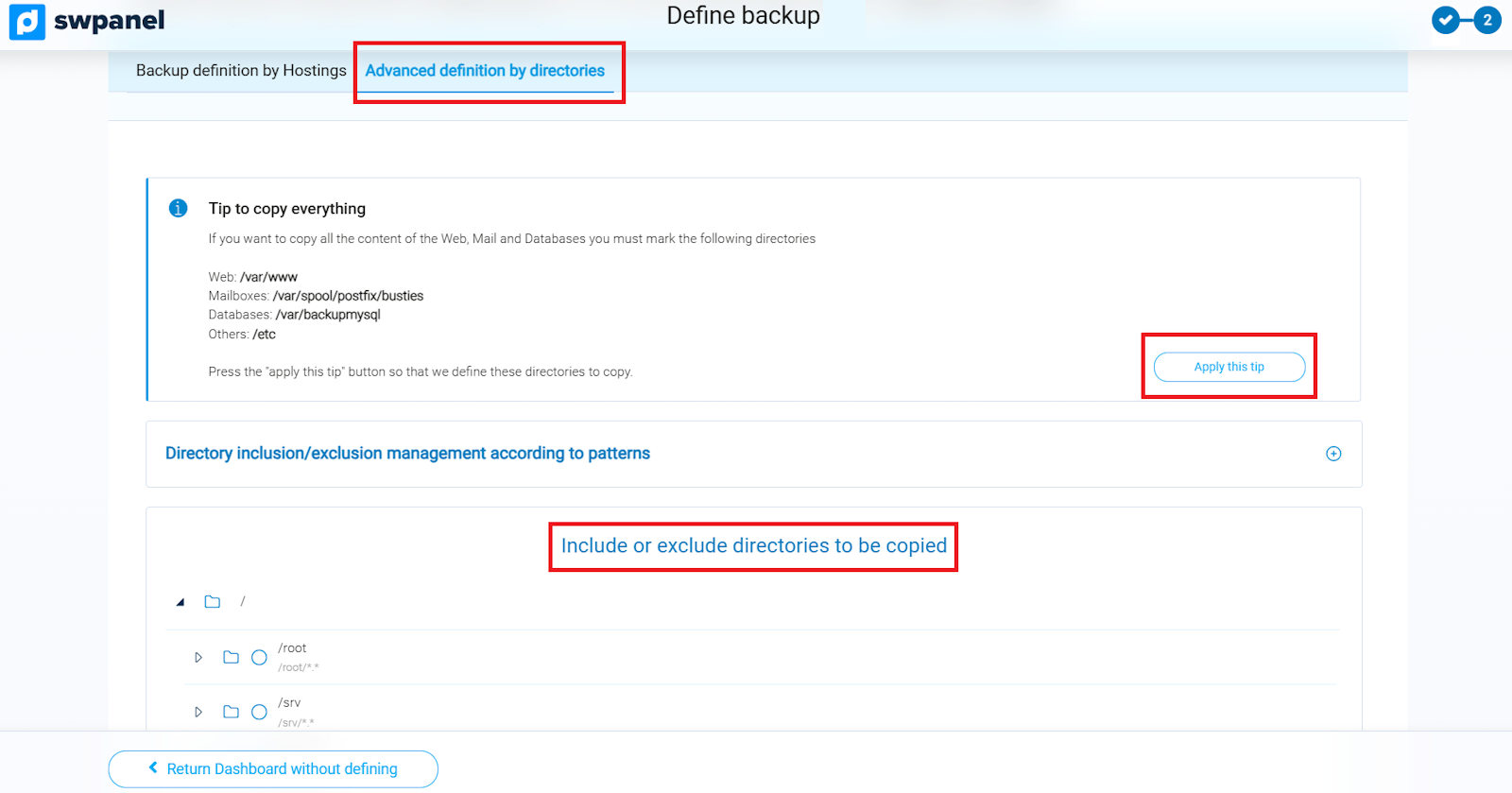
info_capture ℹ️ Note: The screenshot is for guidance purposes, taken from version 2026.000.0023 dated 08/03/2026. It may differ from the current version of SWPanel.
By clicking on the icon next to the directory, you can configure each one as follows:
-
Included in the backup: click once; a plus sign (+) will appear indicating that the directory will be backed up.
-
- Excluded from the backup: click a second time; the plus sign will change to a minus sign (−), indicating that this directory will not be included, even if its main folder is selected. For example, if you selected
/home/swuserbut wish to exclude/home/swuser/documentos.
- Excluded from the backup: click a second time; the plus sign will change to a minus sign (−), indicating that this directory will not be included, even if its main folder is selected. For example, if you selected
-
Removed from the backup: click a third time; the icon will be left empty, indicating that the directory will not be taken into account in the backup.
Once the directories are configured according to your needs, press Apply changes to save the configuration.
Subsequently, if you wish to manage backups again, follow these steps:
- Go to Keep and recover my data > Backups > Backup Management (left menu).
- Click on the Backup Definition tab to review or modify the configuration of your backups.
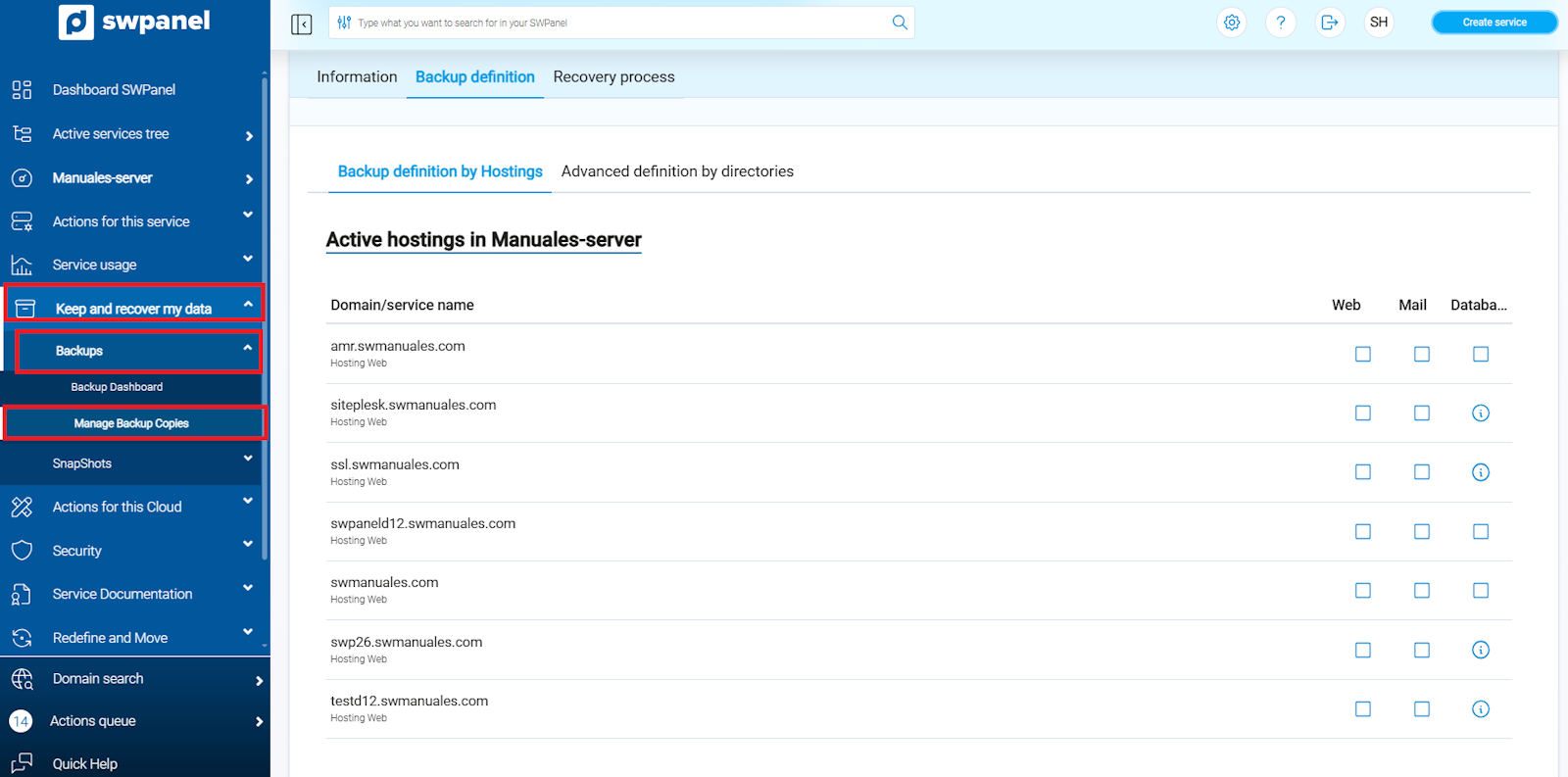
info_capture ℹ️ Note: The screenshot is for guidance purposes, taken from version 2026.000.0023 dated 08/03/2026. It may differ from the current version of SWPanel.
Backups of the specified directories will be performed daily starting from 1:00 h.