
Update Ubuntu 20.04 to 22.04
This manual will guide you in updating “Ubuntu 20.04 LTS (Focal Fossa)” to the latest long-term support (LTS) version of the Ubuntu operating system, Ubuntu 22.04 (Jammy Jellyfish). This was released on April 21, 2022.
Before starting the tutorial, do you not have a Cloud server with Ubuntu 20.04 or do you prefer a Cloud server already updated to Ubuntu 22.04? Don't worry! With just one click, you can easily deploy it with SW Hosting.
At SW Hosting, in order to always provide knowledge and be able to help our customers in the different situations and scenarios they may encounter, we have decided to document the update process to this version. In this way, you can enjoy the latest features and security updates of the software for your operating system.
At the following link, you can find more information regarding the changes offered by this new version: https://discourse.ubuntu.com/t/jammy-jellyfish-release-notes/24668
danger Warning! As with almost any update between 'major' versions of an operating system, this process carries an inherent risk of failure, data loss, or damaged software configuration. Full backups and exhaustive testing are strongly recommended before starting.
The update process takes time due to Internet speed and other factors. Do not cancel the operation once it has started, as it will leave your Ubuntu machine in an inconsistent state. SW Hosting is not responsible for failed update procedures or data loss.
PREVIOUS RECOMMENDATIONS
Backups
At SW Hosting, we strongly recommend that you have a backup of all your data before updating from Ubuntu 20.04 to Ubuntu 22.04. Ensure that all backups are up to date, in order to guarantee the integrity of all your data before continuing. Handbuch: Activate backups in my Cloud
Snapshots
Additionally, you also have the possibility to activate the snapshot service / Snapshots of your cloud service through your SWPanel; we recommend taking a snapshot / Snapshot of your cloud prior to the update process, so you can revert the changes at any time if necessary:
Handbuch: How to create and manage SnapShots of your Cloud Server
Disk Space
Ensure you have enough free disk space before starting this process.
At SW Hosting, we recommend having at least 10 GB of free disk space before updating. Use the df command to verify it:
df -h
Third-party Repositories
All third-party repositories are commented out (disabled) during the update process of your operating system. If you are using any extra repository on your server, you must enable it after the update procedure is complete. You can find third-party repositories or 'mirrors' in the directory:
/etc/apt/sources.list.d/
Ubuntu 20.04 LTS to 22.04 LTS Update Process
First, check the /etc/update-manager/release-upgrades file (necessary for GUI and CLI methods)
Verify the default behavior for the release updater, using the cat / more or less command: less /etc/update-manager/release-upgrades
And ensure that the following line is set to lts: Prompt=lts
Step 1: Find the Ubuntu Linux kernel version
First, it is important to check which Kernel version you currently have, in case it is also updated during the upgrade, and in case it is necessary to restart your server.
Note the current name of the Linux distribution and the kernel version before starting. Use the 'uname' command and the 'lsb_release' command as follows:
uname -mrs lsb_release -a
Step 2: Update your system
Open the terminal application. For the remote server, log in with the ssh command. First, look for all packages that are in 'hold' (retained) mode, type the apt-mark command:
sudo apt-mark showhold
If you see an empty output and there are no retained packages, you can safely continue. Otherwise, you must remove the package hold with the 'apt-mark' command. For example, release the packages as follows (replace package1 package2 with the actual names):
sudo apt-mark unhold package1 package2
Then, update the current system using the apt command:
sudo apt update && sudo apt upgrade
A list of updates will be shown and you will be asked to continue. Press 'y' to confirm and Enter.
This process may take some time. Once finished, use the dist-upgrade command with apt-get, which will perform any additional updates involving changing dependencies, adding or removing new packages as necessary.
This command will install a set of updates that may have been retained by the previous apt update step:
sudo apt dist-upgrade
Again, respond 'y' when prompted to continue and wait for the updates to complete.
If a new Linux kernel is installed, check and compare it with the command provided in the previous step:
uname -mrs
If your Kernel version has changed, restart your system before continuing:
sudo reboot
Now that you have an updated installation of Ubuntu 20.04, you can use 'do-release-upgrade' to update to version 22.04.
Step 3: Open ports
You may need to activate Layer 4 FW Management through your SWPanel and temporarily enable the following access profile, to open the necessary ports used during the update process of your system:
Handbuch: Manageable Layer 4 Perimeter Firewall
SWPanel -> Cloud service Dashboard -> Security (Left side Dashboard) -> Layer 4 FW -> Layer 4 Firewall Management --> Security Profile --> All open
 In case you have the Ubuntu UFW software installed, you must perform the same procedure and also open port 1022 TCP, which is used by the software for updating:
Handbuch: What is the UFW firewall and how to configure it in Linux?
Step 4: Update to 22.04 LTS using the command line:
On the command line, type the 'do-release-upgrade' command as follows to start the update procedure:
sudo do-release-upgrade
The ssh user will see the message immediately:
Reading cache

Checking package manager

Continue running under SSH?

This session appears to be running under ssh. It is not recommended
to perform a upgrade over ssh currently because in case of failure it
is harder to recover.

If you continue, an additional ssh daemon will be started at port
'1022'.
Do you want to continue?

Continue [yN] y
Type 'y', and then you will receive another message:
Starting additional sshd

To make recovery in case of failure easier, an additional sshd will
be started on port '1022'. If anything goes wrong with the running
ssh you can still connect to the additional one.
If you run a firewall, you may need to temporarily open this port. As
this is potentially dangerous it's not done automatically. You can
open the port with e.g.:
'iptables -I INPUT -p tcp --dport 1022 -j ACCEPT'

To continue please press [ENTER]
Since we have already opened port 1022, press the [Enter] key to continue. Then, you must confirm the update entries from 'Ubuntu Focal' to 'Ubuntu Jammy': Again, you will receive a final notice with the details as follows:
Do you want to start the upgrade?

Checking package manager
Reading package lists... Done
Building dependency tree
Reading state information... Done

Calculating the changes

Calculating the changes
  MarkInstall libflashrom1:amd64 < none -> 1.2-5build1 @un uN Ib > FU=1
  Installing libftdi1-2 as Depends of libflashrom1
    MarkInstall libftdi1-2:amd64 < none -> 1.5-5build3 @un uN > FU=0

Do you want to start the upgrade?


4 packages are going to be removed. 90 new packages are going to be
installed. 565 packages are going to be upgraded.

You have to download a total of 553 M. This download will take about
1 minute with your connection.

Installing the upgrade can take several hours. Once the download has
finished, the process cannot be canceled.

Continue [yN]  Details [d]
Finally, press 'y' again to accept and continue.
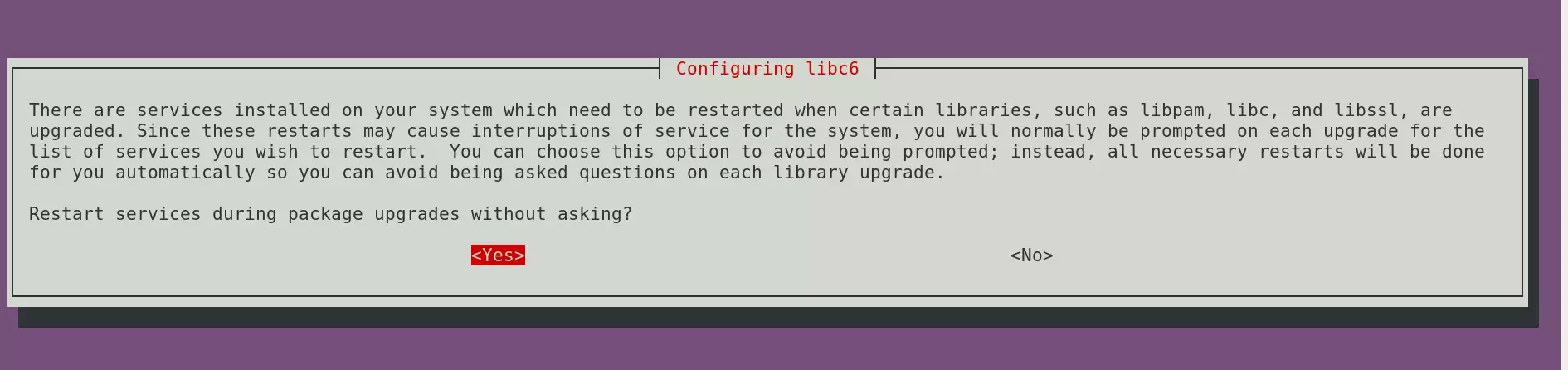
Also make sure to confirm restarting the services when prompted.
 Keep the configuration of your modified files in Ubuntu Linux 20.04 LTS when updating to 22.04 LTS:
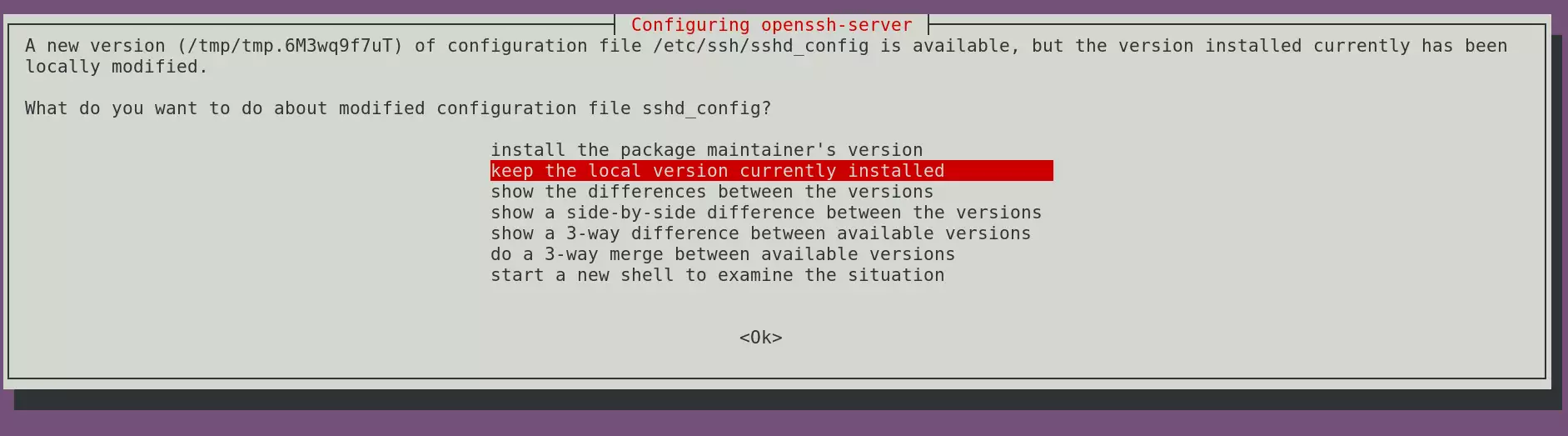 Other examples:
Configuration file '/etc/sysctl.conf'
 ==> Modified (by you or by a script) since installation.
 ==> Package distributor has shipped an updated version.
   What would you like to do about it ?  Your options are:
    Y or I  : install the package maintainer's version
    N or O  : keep your currently-installed version
      D     : show the differences between the versions
      Z     : start a shell to examine the situation
 The default action is to keep your current version.
*** sysctl.conf (Y/I/N/O/D/Z) [default=N] ?
Press ENTER to mark the default option (do not modify)
Dealing with obsolete packages in Ubuntu:
Possibly, it will request that you remove the obsolete package as follows:
Searching for obsolete software
Reading state information... Done

Remove obsolete packages?


81 packages are going to be removed.

 Continue [yN]  Details [d]
Press 'd' to see details about these packages and then confirm by pressing 'y', or deny by pressing 'N'.
The system update is complete
After a while, you will receive a confirmation on the screen.
System upgrade is complete.

Restart required

To finish the upgrade, a restart is required.
If you select 'y' the system will be restarted.

Continue [yN]
A restart is required to finish the update from 20.04 LTS to 22.04.
Make sure to choose 'y', and then Ubuntu will restart.
Subsequently, when starting again, do not forget to remove the rules of your Layer 4 FW through your SWPanel, and/or in UFW that you used to open port tcp/1022.
Step 5 – Verification
Once the system restarts, you can log in using the GUI or the ssh-based session. Then, you can view the Linux kernel version, run: uname -mrs
Output: Linux 5.15.0-58-generic x86_64
Of course, use the lsb_release command as well: lsb_release -a
Output: No LSB modules are available. Distributor ID: Ubuntu Description: Ubuntu 22.04.1 LTS Release: 22.04 Codename: jammy
Step 6 (Optional) – Enable third-party repositories/mirrors:
Now that the update from Ubuntu 20.04 LTS to 22.04 LTS is complete, if you had additional third-party repositories, you must verify that they are enabled again, or enable them. Otherwise, you will not receive updates from those repositories.
You can verify the active additional repositories as follows:
cd /etc/apt/sources.list.d ls -l cat additional-repo.list
To enable it again, you must edit the file with a text editor (nano / vi) and uncomment the line by removing the #:
Then run the apt command to update those packages:
sudo apt update sudo apt upgrade
Finally, clean up unwanted and unused leftover packages:
sudo apt autoremove --purge
Remember that if you do not yet have a Cloud server with Ubuntu 20.04 or Ubuntu 22.04, you can easily deploy it with SW Hosting.