
How to create Hosting Templates
Detailed manual for the creation and configuration of a Hosting Template in SWPanel
1. General introduction and key concepts
This manual aims to explain in a detailed, clear, and step-by-step manner how to create and configure a Hosting Template within the SWPanel control panel. Hosting templates are fundamental tools for users who need to deploy multiple services with similar characteristics, allowing for the standardization of processes, optimization of times, and avoidance of manual configuration errors.
What is a Hosting template?
A Hosting template is a predefined set of technical parameters that can be automatically applied to new services created within your infrastructure. These parameters include resource limits, service activation (FTP, email, databases, etc.), DNS configuration, PHP version, and much more.
This manual will show you:
- How to access the templates section in SWPanel.
- How to create a new template step by step.
- What each of the available parameters means.
- How to customize Hosting resources and improvements.
- How to subsequently use these templates in your services.
Prerequisites
Before starting the creation of a template, you must have Reseller mode enabled in your SWPanel account.
info Before creating a Hosting template, you will need to have Reseller mode enabled in your SWPanel; you can activate it by following the instructions in the following manual: Handbuch: How can I activate the reseller option in my SWPanel account?
2. What is a Hosting Template?
A Hosting Template is an option added to our SWPanel that serves to create different services with the same characteristics.
Thanks to these, we can create many similar services in a more organized and faster way.
3. How to create the Hosting Template
3.1. Accessing template management
1. In SWPanel, go to Main Dashboard > Tools > Hosting Templates.
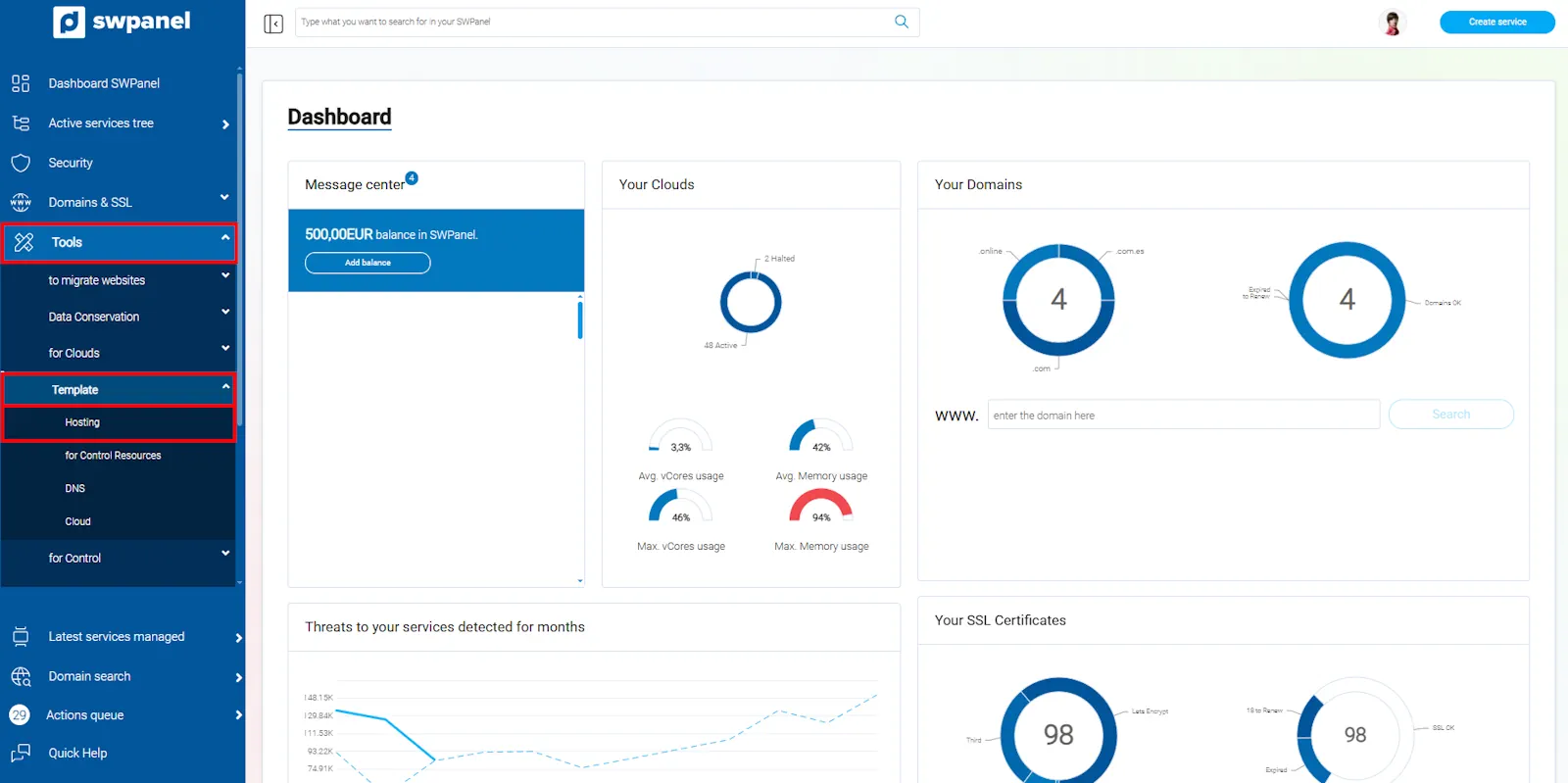
info_capture The screenshot is for guidance purposes. It was taken using version 2025.03.0001 dated 03/22/2025. It may differ from what the current version of SWPanel shows.
2. In the new screen, a list of already created templates will appear. To create a new one, you must click on Create Template:
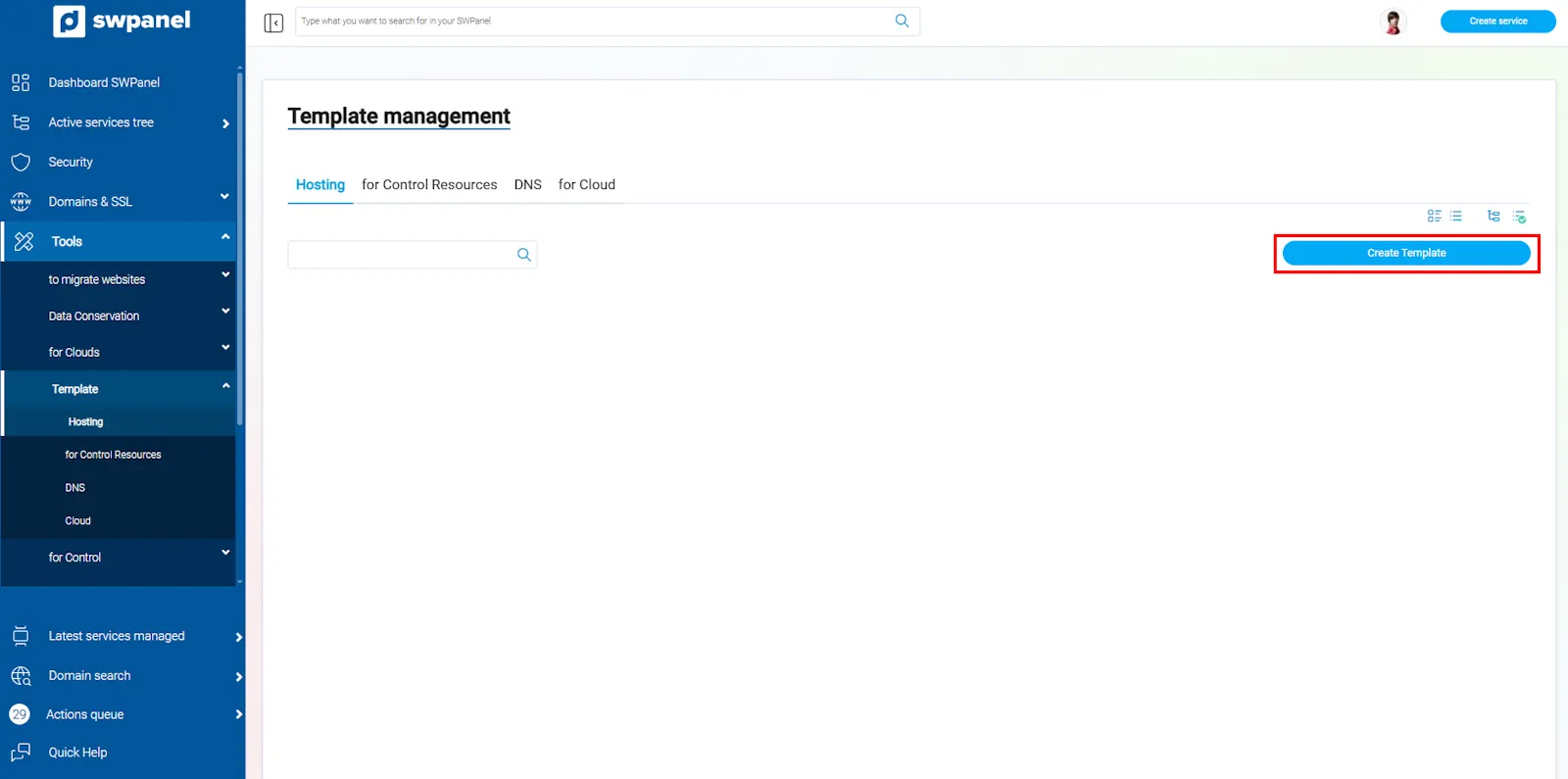
info_capture The screenshot is for guidance purposes. It was taken using version 2025.03.0001 dated 03/22/2025. It may differ from what the current version of SWPanel shows.
3.2. Configuring template parameters
1. The first thing we must do is type the name we want for our template:

info_capture The screenshot is for guidance purposes. It was taken using version 2025.03.0001 dated 03/22/2025. It may differ from what the current version of SWPanel shows.
The new window is divided into 5 tabs: Servers, Service Definition, Available Improvements, PHP, and Resource Limitation.
2. Servers
In the "Assigned main server" section, we will select which server we want the services created with the template to be created on. This will be assigned as the web server:
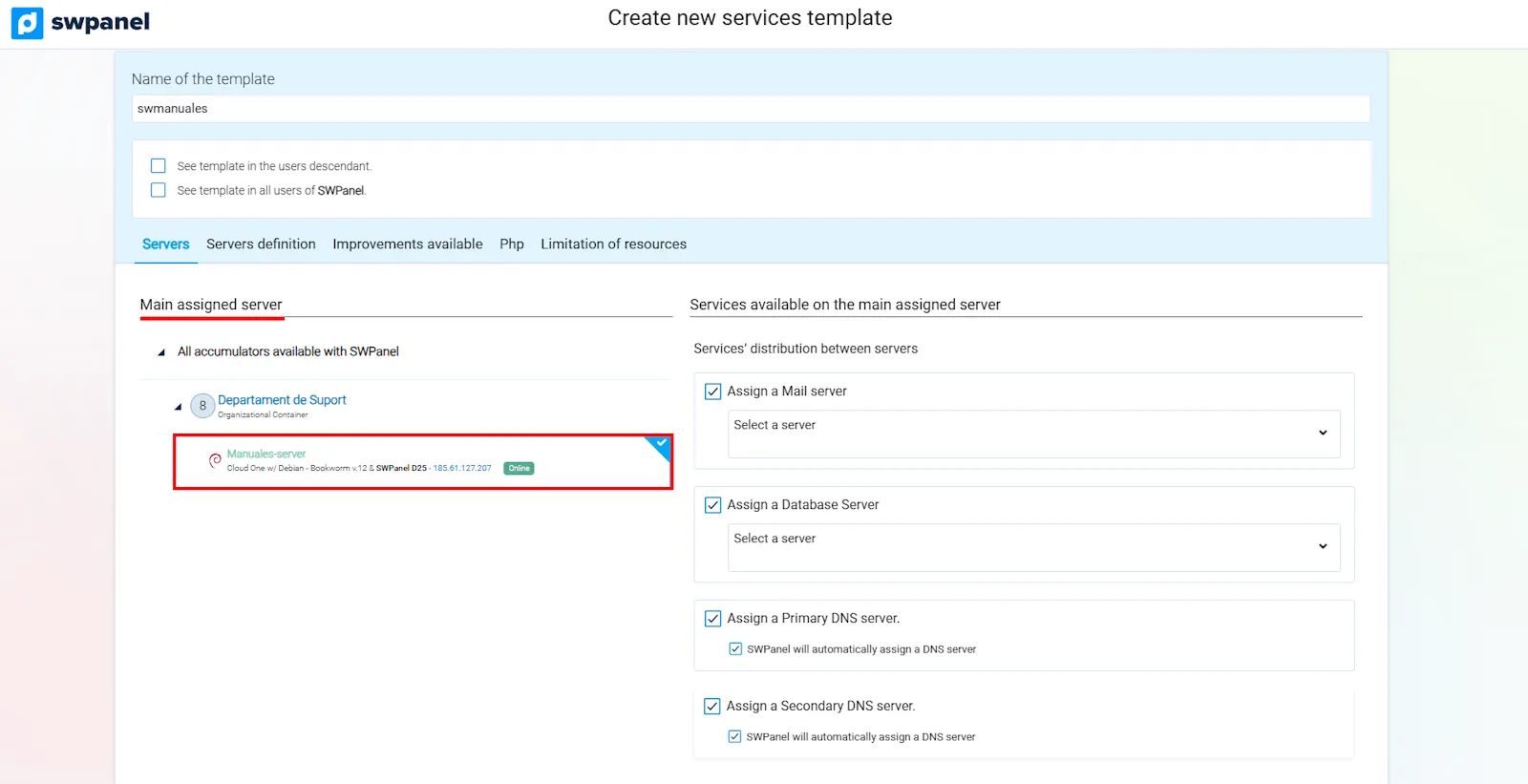
info_capture The screenshot is for guidance purposes. It was taken using version 2025.03.0001 dated 03/22/2025. It may differ from what the current version of SWPanel shows.
Once selected, we must select the Cloud we want for email and databases.
We can also manually select the primary and secondary DNS server, or leave automatic assignment checked so that these are configured by default.
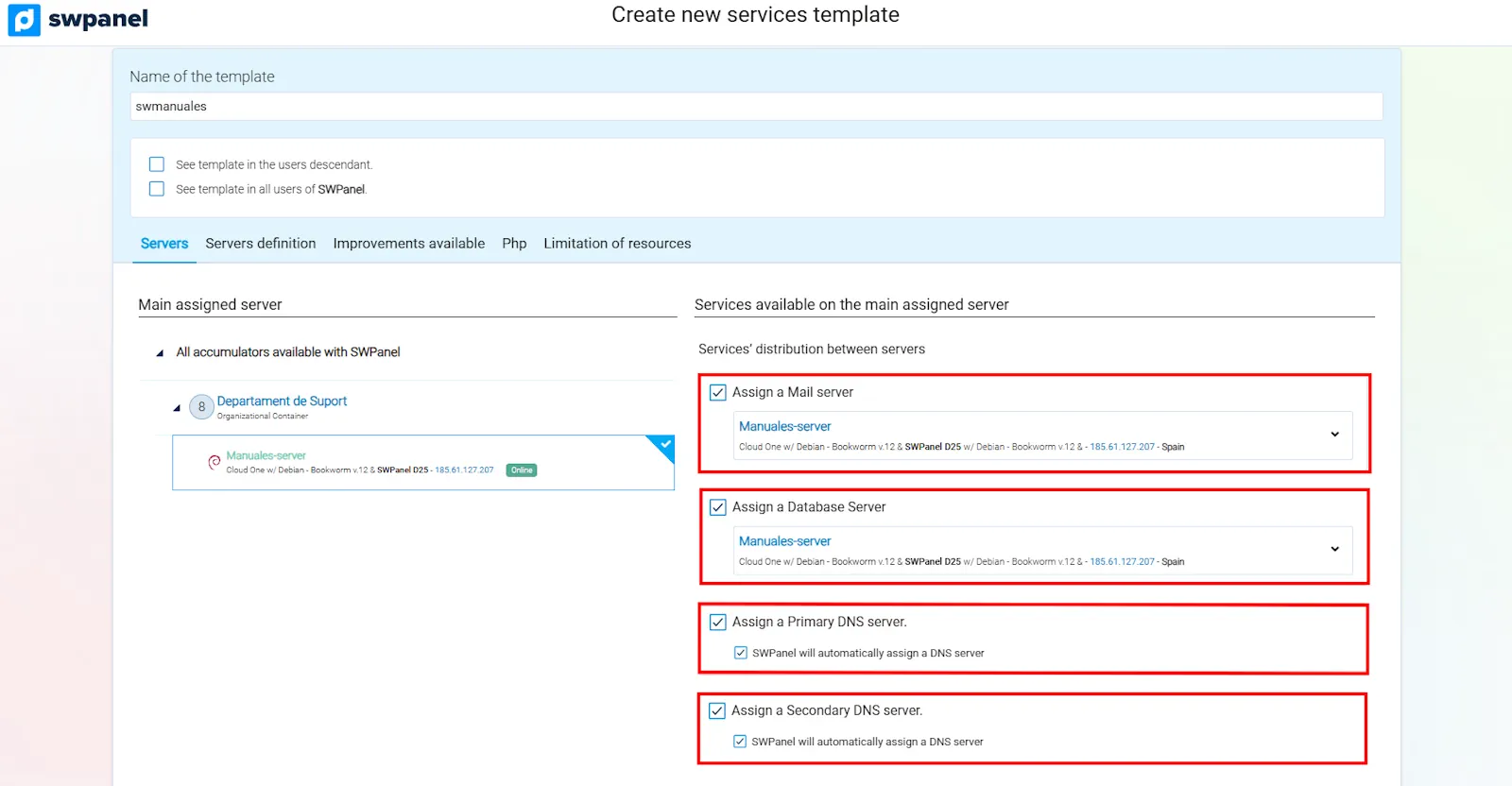
info_capture The screenshot is for guidance purposes. It was taken using version 2025.03.0001 dated 03/22/2025. It may differ from what the current version of SWPanel shows.
3. Service Definition
Generic service data
Define the disk space, monthly traffic, and the activation of web statistics (if AWStats is installed).
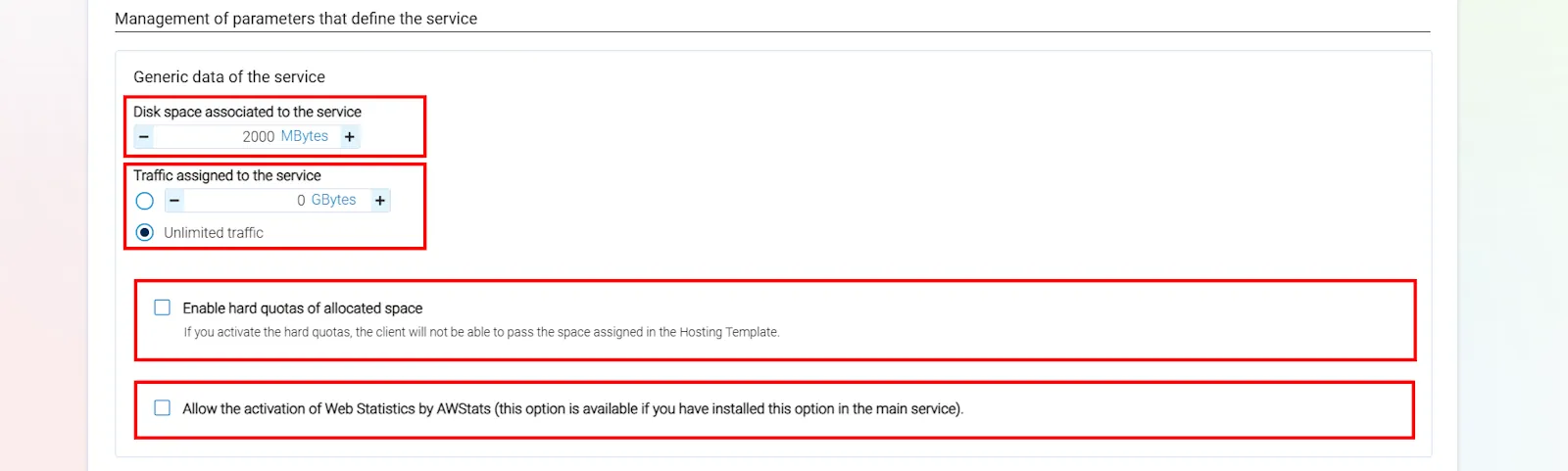
info_capture The screenshot is for guidance purposes. It was taken using version 2025.03.0001 dated 03/22/2025. It may differ from what the current version of SWPanel shows.
Activate email services
Configure accounts, space limits, security, and additional functions such as aliases or lists.
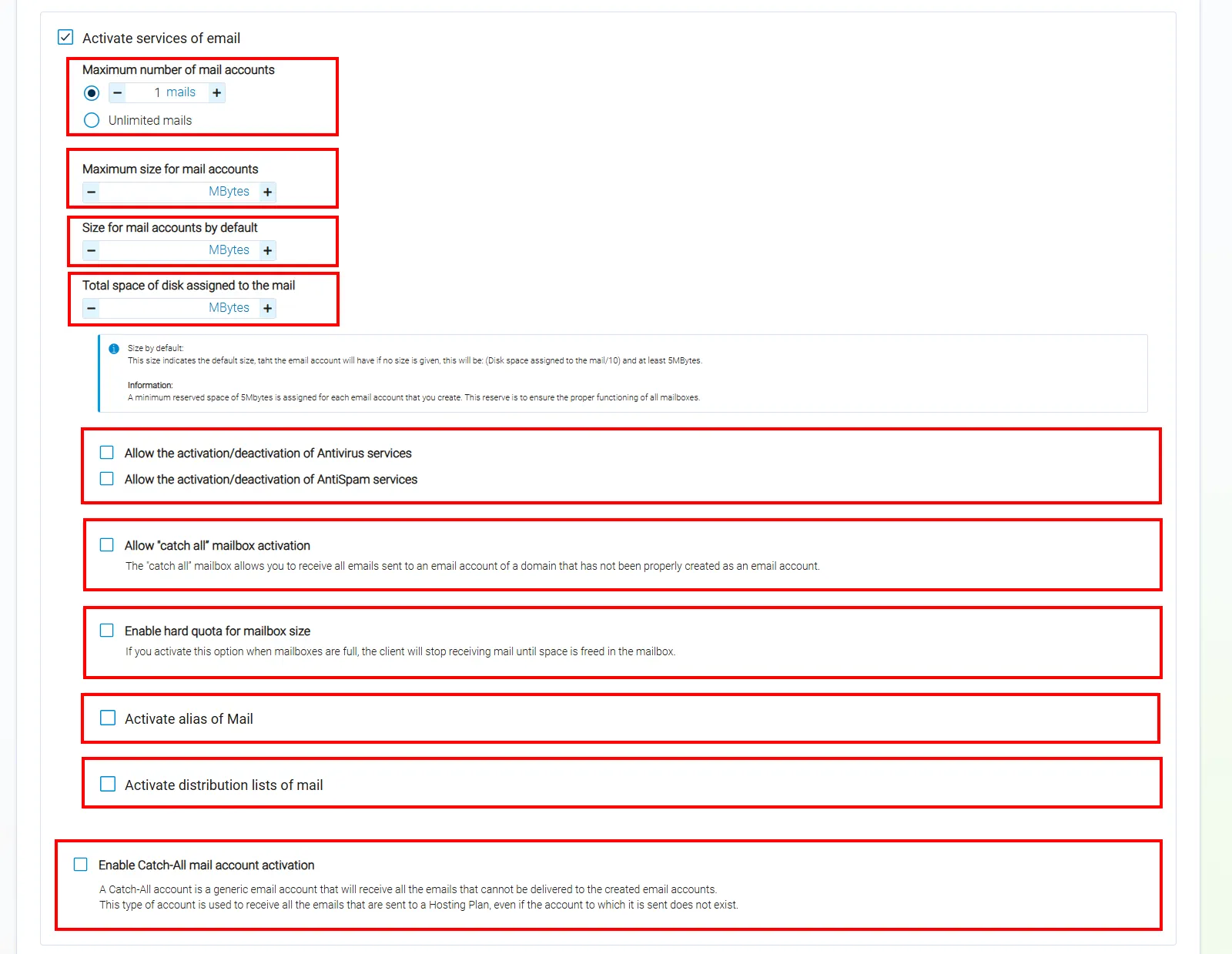
info_capture The screenshot is for guidance purposes. It was taken using version 2025.03.0001 dated 03/22/2025. It may differ from what the current version of SWPanel shows.
Activate FTP services
Define the number of allowed FTP accounts.

info_capture The screenshot is for guidance purposes. It was taken using version 2025.03.0001 dated 03/22/2025. It may differ from what the current version of SWPanel shows.
Activate database services
Set the maximum number of databases, users, and simultaneous connections.
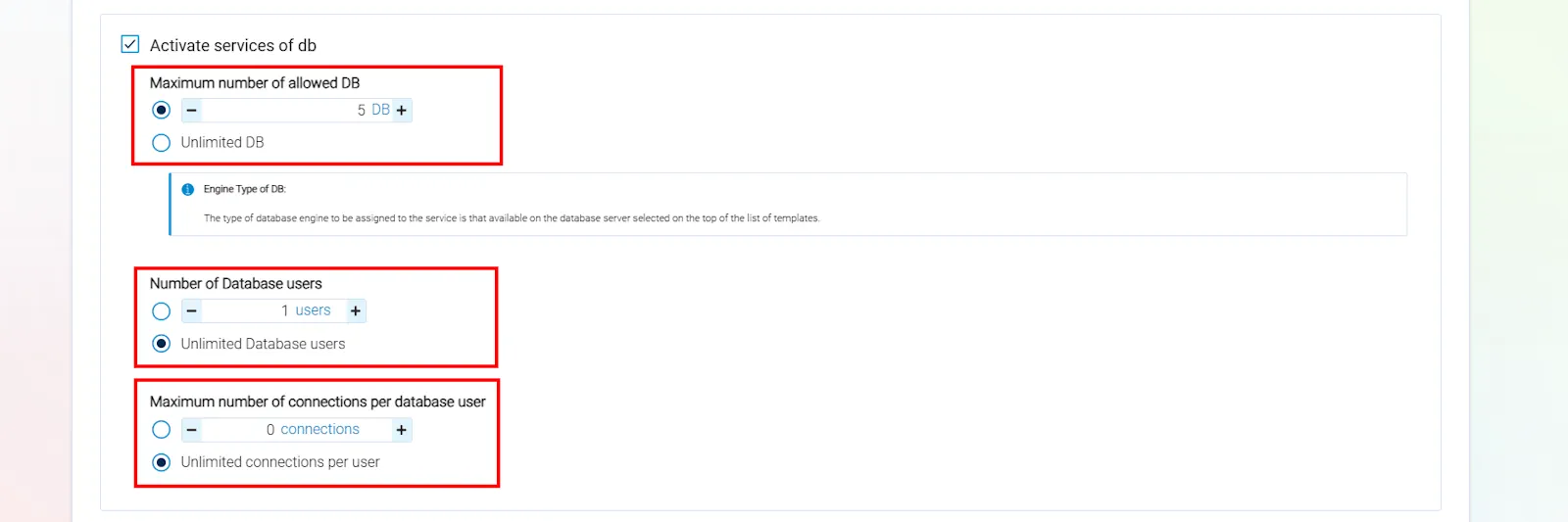
info_capture The screenshot is for guidance purposes. It was taken using version 2025.03.0001 dated 03/22/2025. It may differ from what the current version of SWPanel shows.
DNS services and management
Configure DNS records and select a custom DNS template.
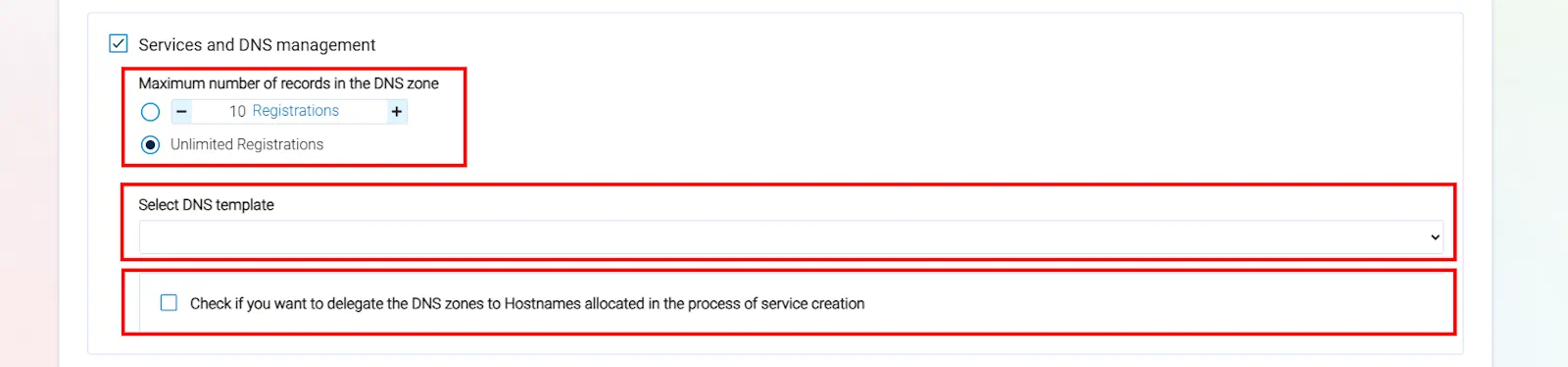
info_capture The screenshot is for guidance purposes. It was taken using version 2025.03.0001 dated 03/22/2025. It may differ from what the current version of SWPanel shows.
info You can create a DNS template by following the instructions in the following manual: Handbuch: DNS Templates
Activate Cron services
Define the maximum number of crons allowed in the Hosting.

info_capture The screenshot is for guidance purposes. It was taken using version 2025.03.0001 dated 03/22/2025. It may differ from what the current version of SWPanel shows.
Activate inodes limitation
Limit the number of files and directories that the Hosting can have. Inodes represent data structures used to manage files and directories in UNIX-type file systems; an insufficient number of inodes can prevent the creation of new files, even if disk space is available.

info_capture The screenshot is for guidance purposes. It was taken using version 2025.03.0001 dated 03/22/2025. It may differ from what the current version of SWPanel shows.
Activate Apache Max Childs limitation
Control the number of processes that Apache can open simultaneously.

info_capture The screenshot is for guidance purposes. It was taken using version 2025.03.0001 dated 03/22/2025. It may differ from what the current version of SWPanel shows.
4. Available Improvements
Allows defining which optional improvements can be activated from the service Dashboard:
-
Allow activating Let’s Encrypt SSL: Allows the activation of the free Let’s Encrypt SSL certificate in the Hosting.
- Allow activating forced HTTPS redirection: Allows the activation of forced HTTPS to automatically redirect all HTTP connections to HTTPS.
- Allow activating Let’s Encrypt TLS: Allows the activation and use of free Let’s Encrypt TLS certificates.
- Allow activating CHRoot: Allows the creation of the CHRoot user.
- Allow activating Smart Hosting +: Allows activating "Smart Hosting +" in the Hosting, which is a tool based on Memcached that substantially improves the speed of a website, allowing it to load faster.
-
Data retention management
- Allow activating Web export: Enables the option to export the full content of the website via email.
- Allow activating scheduled Web export: Enables the option to export the full content of the website via email, at specific times or intervals.
- Allow activating Web Snapshot: Enables the option for the creation of Snapshots (instant backups) of the website to be able to restore it to a previous state if necessary.
- Allow activating scheduled Web Snapshot: Enables the option to schedule the creation of Web Snapshots (instant backups) at specific times.
-
Security and CDN improvements management
- Allow the activation of Cloudflare CDN: Enables the option to activate the Cloudflare CDN, which improves the speed of the website through its content delivery network (CDN).
- Allow the activation of Country Blocking: Enables the option to block access to the website from certain countries.
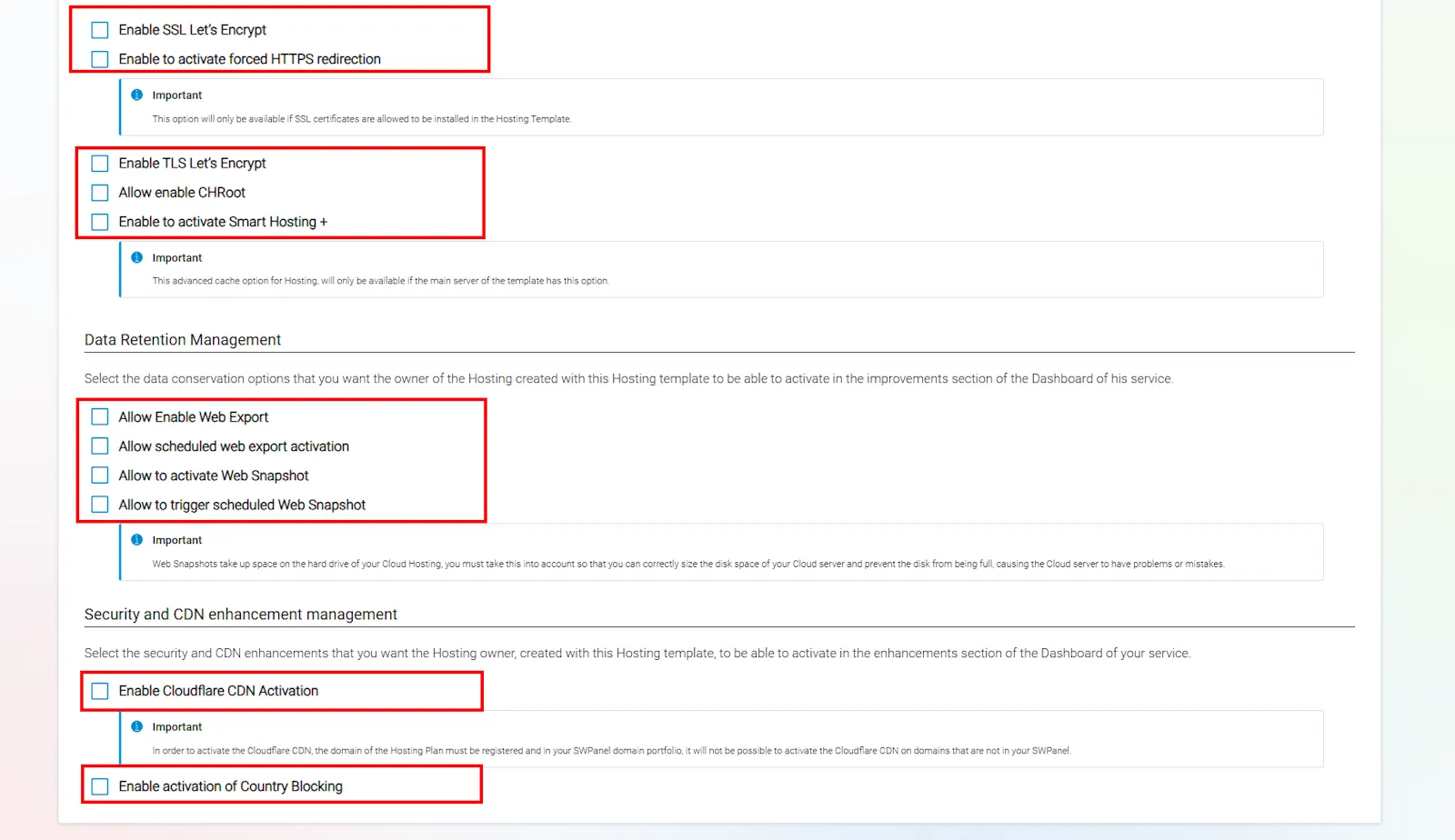
info_capture The screenshot is for guidance purposes. It was taken using version 2025.03.0001 dated 03/22/2025. It may differ from what the current version of SWPanel shows.
5. PHP
Allows setting the default PHP version and whether the user can modify it.

info_capture The screenshot is for guidance purposes. It was taken using version 2025.03.0001 dated 03/22/2025. It may differ from what the current version of SWPanel shows.
6. Resource Limitation
Define limits in CPU, RAM, or IOPS, through predefined templates or manual configuration:
- Do not assign resource use control template: No predefined template for resource control will be assigned; there are no restrictions on resource use.
- Assign a resource control template to this Hosting template: Assigns a preconfigured template to limit resource use in Hosting plans.
info You can create a resource use control template by following the instructions in the following manual: Handbuch: How to create a resource use control template
- Assign a manual resource limitation for this Hosting plan: Allows manually setting limits for resource use such as CPU, memory, and disk use (IOPS).
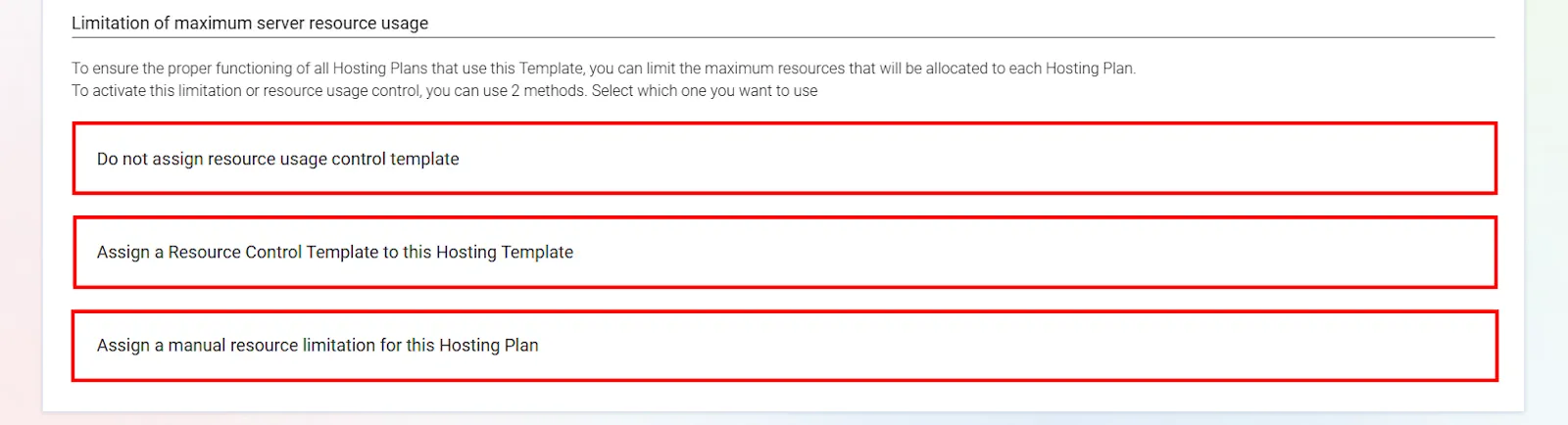
info_capture The screenshot is for guidance purposes. It was taken using version 2025.03.0001 dated 03/22/2025. It may differ from what the current version of SWPanel shows.
3.3. Finalization and template creation
Click on the Create template button to save all configured parameters.

info_capture The screenshot is for guidance purposes. It was taken using version 2025.03.0001 dated 03/22/2025. It may differ from what the current version of SWPanel shows.
success Ready! Now you know how to configure a Hosting template.
info You can apply these new templates to your Hostings by following the instructions in the following manual: Handbuch: Create a Hosting service using a Template
Glossary of terms
| Term / Concept | Definition |
|---|---|
| Hosting Template | Predefined configuration to create Hosting services quickly and consistently. |
| Reseller Mode | Mode that enables advanced management functions for multiple Hosting services. |
| AWStats | Application that generates detailed web traffic statistics. |
| Inodes | Structures that represent files/directories in a file system. |
| Crons | Scheduled tasks that run automatically at defined times. |
| CHRoot | User isolation technique within the system. |
| Apache Max Childs | Limit of simultaneous processes managed by Apache. |
| Smart Hosting + | Improvement based on Memcached that optimizes website performance. |
| Snapshot | Instant backup of the website state. |
| TLS Let's Encrypt | Free certificates that protect data with TLS encryption. |
| PHP | Programming language used in web development. |
| CDN | Network of servers that optimizes content distribution. |