
How to Import an SQL file to my Database in SWPanel with HeidiSQL
With SWPanel you can use the phpMyAdmin tool to access the management of your databases, such as exporting or importing them.
Also, you can use any type of application for the management of MySQL/MariaDB Databases, such as HeidiSQL, which allows for a much more powerful management of DBs than phpMyAdmin.
In this manual we are going to learn how to import a SQL file using HeidiSQL. To do this, you must have the database previously downloaded. If you have never downloaded a database, we recommend following our manual on how to import and export DBs with phpMyAdmin: Handbuch: How to import and export DBs with phpMyAdmin
If you wish to install the HeidiSQL database manager on your private Cloud server with Windows 10 Pro operating system, you can have it at your disposal with a single click at SWHosting.
Download and installation of HeidiSQL
Download
From SW Hosting, we never recommend the download of applications from sites that are not trustworthy. The best option is to download the program directly from the official HeidiSQL website.
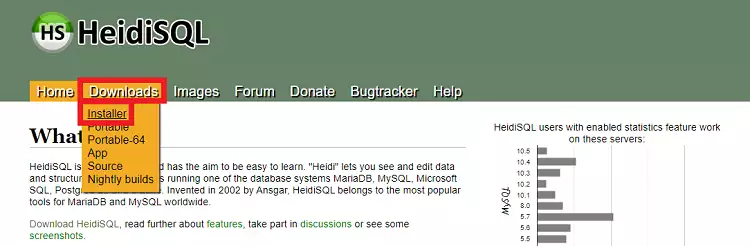
Once you are on the official page, you should go to Downloads > Installer:
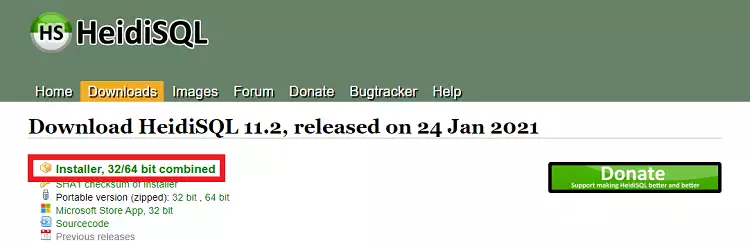
When you click on "Installer", go to the downloads page. It is possible that the program will be downloaded automatically. If it is not downloaded automatically, click on "Installer, 32/64 bit combined":
Open and run the downloaded file to access the configuration and installation wizard of the program.
Installation
-
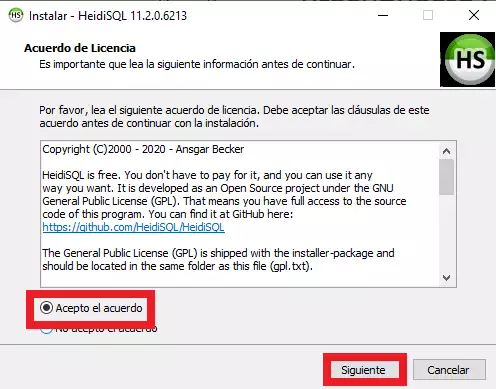
Click on "I accept the agreement" > Next:
-
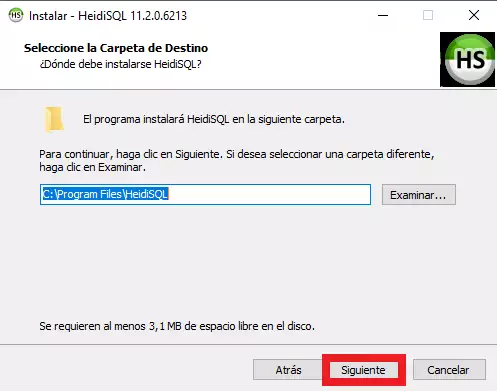
By default, the program will be installed in Windows Program Files, like most. If you want it to be installed elsewhere, select the folder using the "Browse..." button. Click on "Next":
-
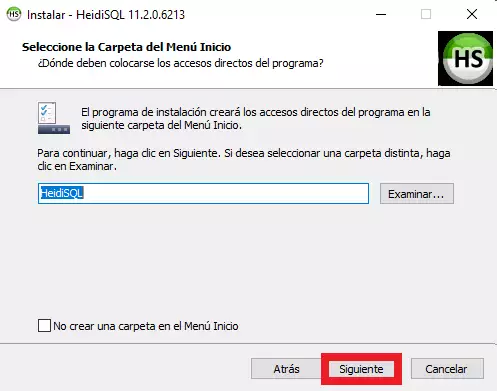
This option creates a folder in the start menu to be able to access the program easily. Click on "Next":
-
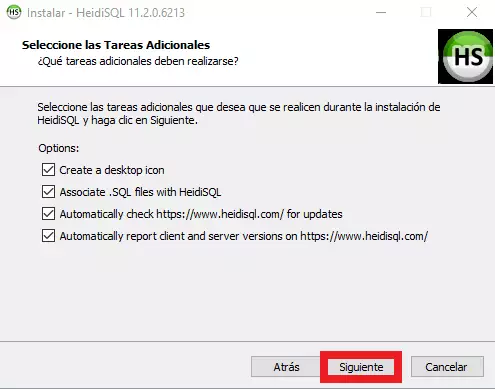
Here you can customize options and check or uncheck them as you wish. In order: create a desktop icon (recommended), associate SQL files with HeidiSQL (recommended, it does not affect the files and allows selecting them more easily), check for updates automatically and report program bugs automatically. Click on "Next":
-
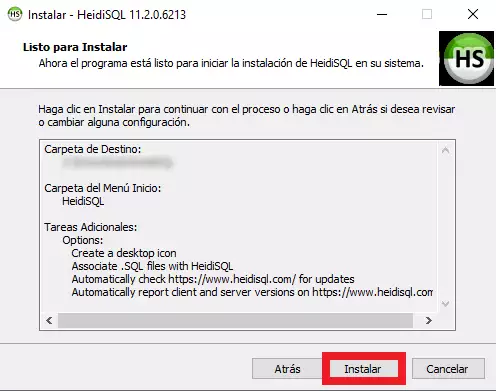
The installation is now ready. Click on "Install" to finalize the process:
-
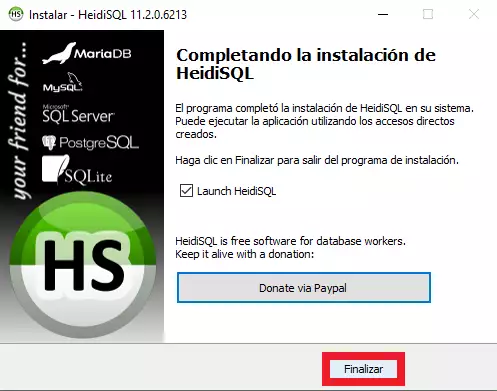
Once the process is finished, click on "Finish". Unless you indicate otherwise, the program will open automatically:
Connection to the existing Database with HeidiSQL
For this step, you need to have the database already created in your SWPanel. From SW Hosting we provide a manual on creating a MySQL or MariaDB database: Handbuch: How to create a MySQL or MariaDB database
?? In case of importing the database from an external provider or from another SWPanel service or account, it is very important that the name, user and access key of the Database you have created to import the SQL file are identical to those corresponding to the old service provider. ??
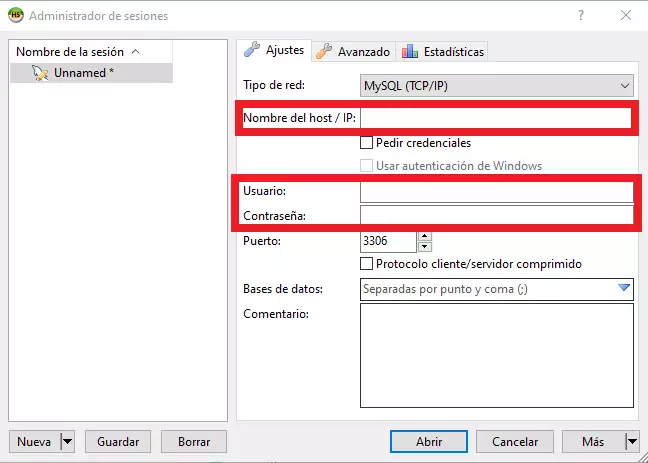
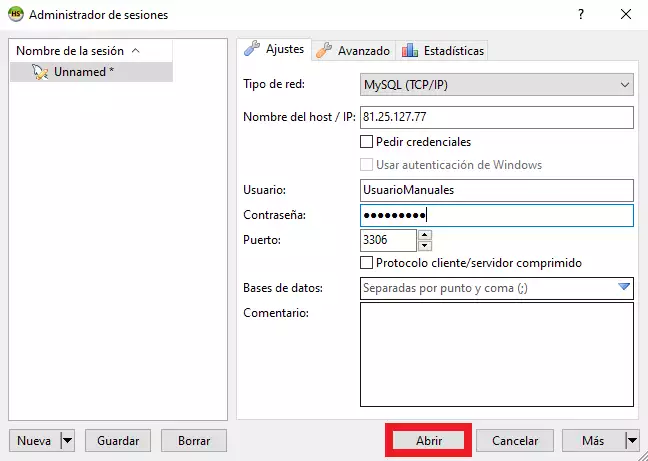
Open Heidi SQL. In the program, you must enter the following information:
- Host/IP Name: IP of the database server
- User: Username of the database you previously created
- Password: Access key to the database you previously created
You should not modify the port, 3306, as it is the one that performs the connection with the database.
To find out what the Host/IP name of your database is, you must:
-
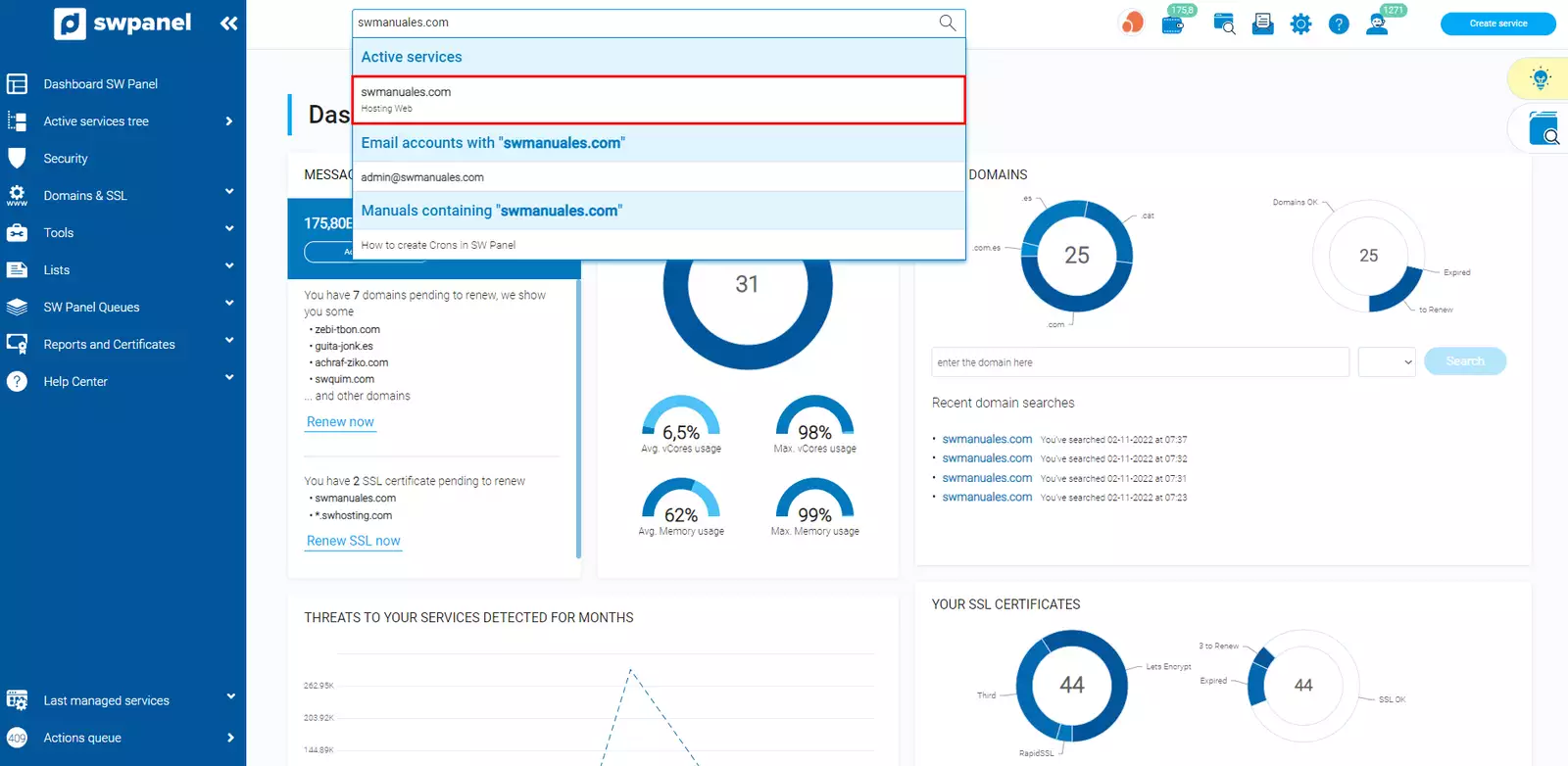
Type the name of the service in which you wish to modify the basic parameters into the SWPanel search bar and click on it:
-
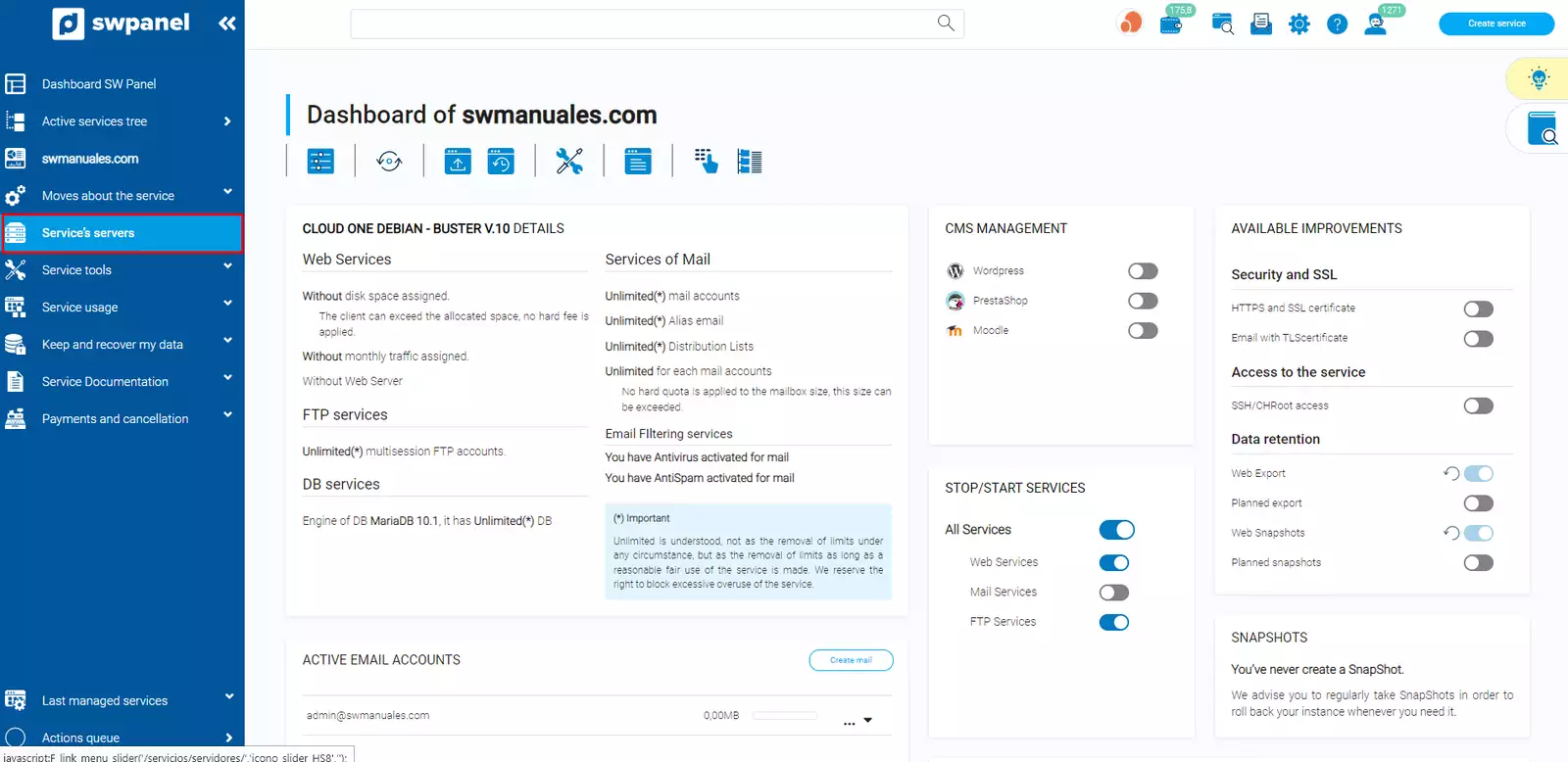
Click on "Service Servers", located in the blue side menu:
-
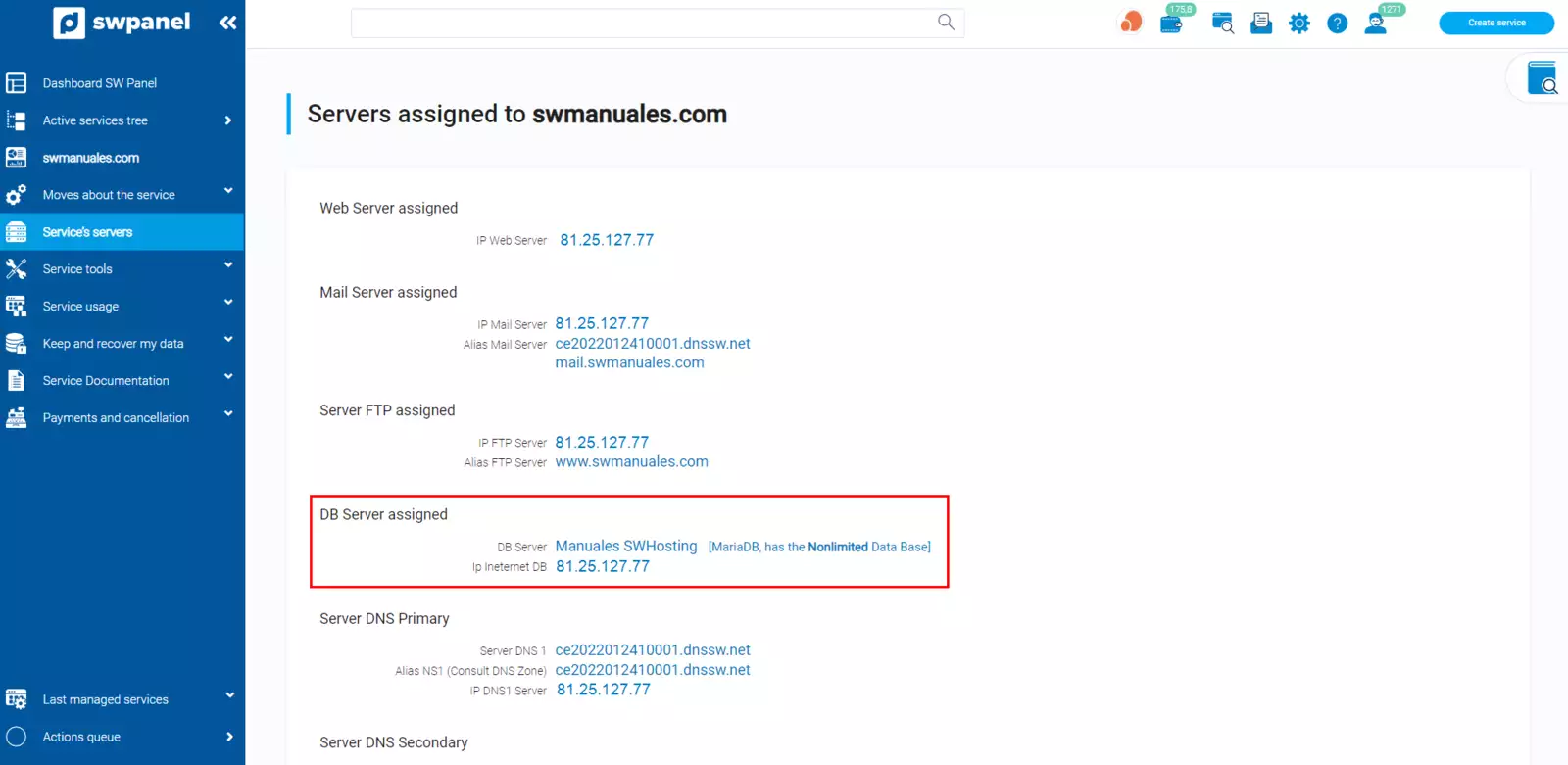
The IP found in "Assigned DB Server" is the one you must use as "Host/IP Name" to access HeidiSQL:
Once the data has been entered into HeidiSQL, click on "Open":
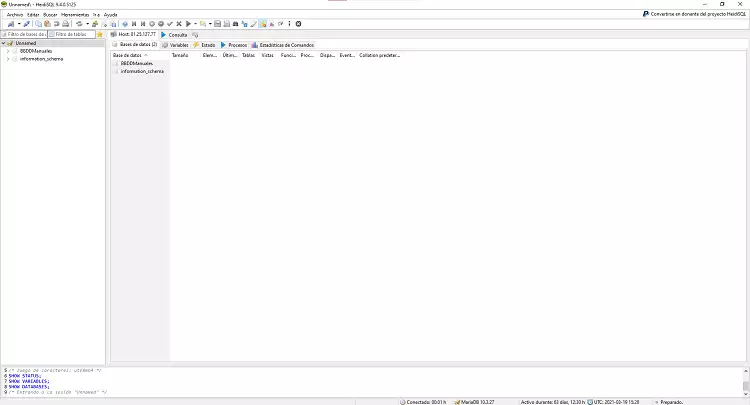
Access the Database management:
Upload SQL file
Finally, upload the previously downloaded file.
-
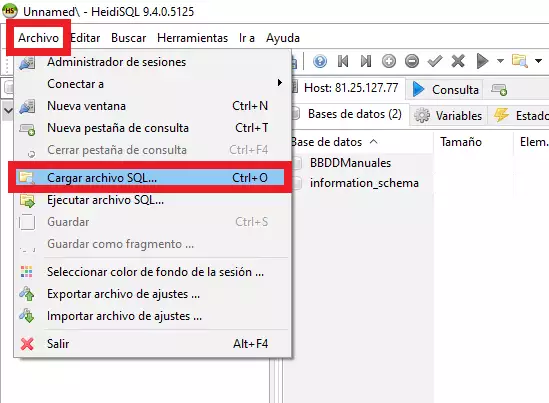
Within HeidiSQL, connected to the Database, access "File" > "Run SQL file":
-
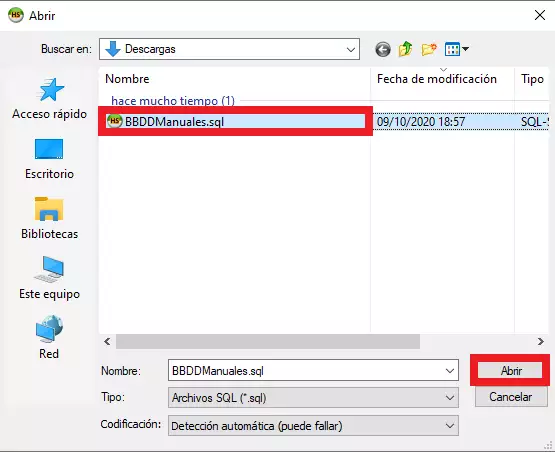
Search for the previously downloaded DB in the wizard, select it and click "Open":
-
It will indicate the file size and give you a choice between Run the files directly or Load them into the editor. Click on "Run file directly":
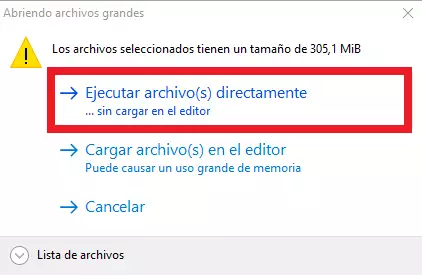
It is possible that the file is so small that the alert message does not appear and that it is loaded directly, or that you want to click the "Load them into the editor" option instead of running directly. If this is the case, once loaded, you must press the "play" button, so that the import of the SQL file to the database is executed:
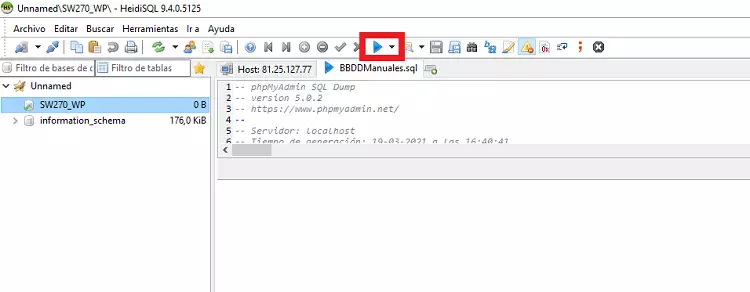
Once the file is loaded, you can check that it has been uploaded correctly, either by disconnecting and connecting to the database in Heidi or by closing Heidi SQL and accessing the Database via phpMyAdmin from SWPanel. Handbuch: How to access phpMyAdmin from the SWPanel
Disconnection from the DB
To do this, press the disconnect button:
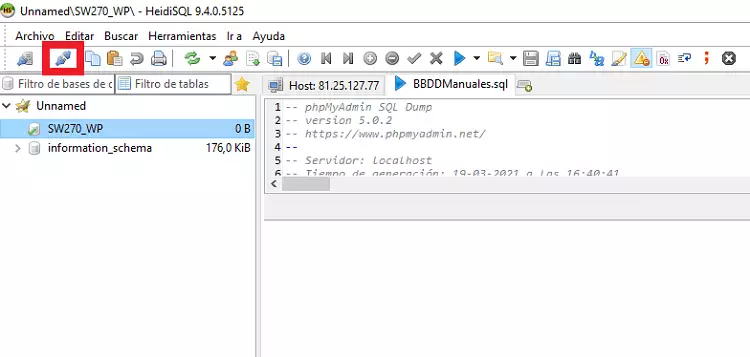
Remember that you can install the HeidiSQL database manager on your own private Cloud server with Windows 10 Pro located in the SWHosting data center.