
How to install Woocommerce on your Hosting with SWPanel
With our Hosting services, you will be able to install WooCommerce in a matter of minutes; however, first we should know what WooCommerce consists of.
What is WooCommerce?
WooCommerce is an open-source plugin for WordPress.
This plugin allows you to create online commerce stores using the content management system (CMS). It is designed for large and small online businesses with WordPress.
WooCommerce is the most popular e-commerce option today; furthermore, it is free.
Now that we know what it consists of, how can we install it on our hosting? At SWHosting, we have automated the installation of WooCommerce for WordPress with a single click,
Install WooCommerce from SWPanel, step by step
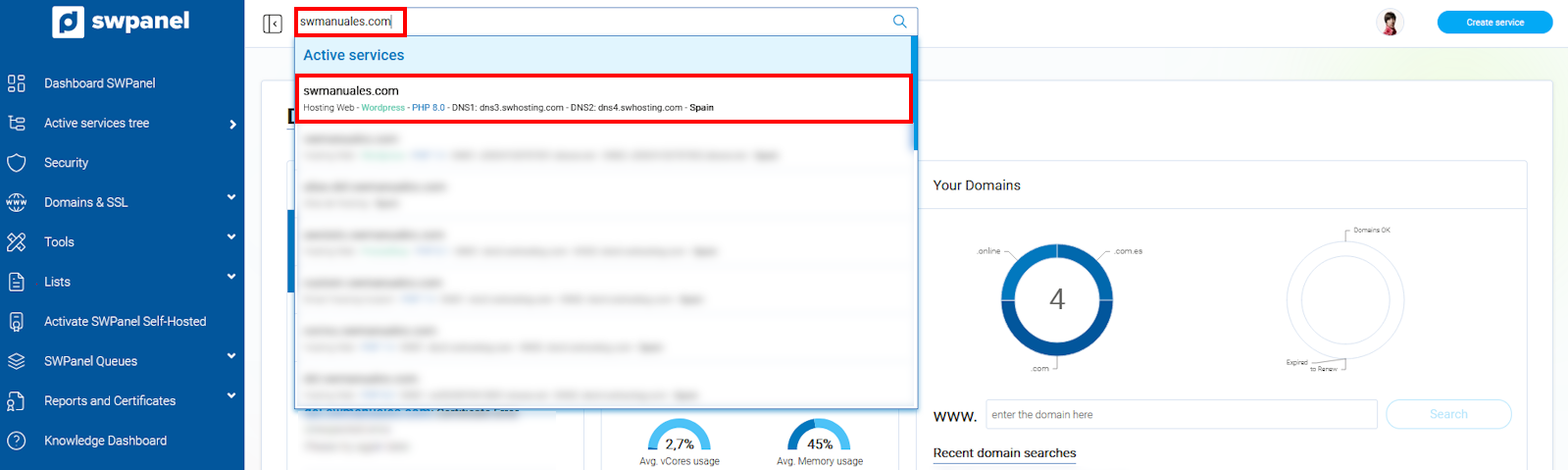
First, access your SWPanel customer account and go to the Dashboard of your Hosting service:
info_capture The screenshot is for guidance purposes. It was taken from version 2025.00.0017 dated 01/16/2025. It may differ from what the current version of SWPanel shows.
💡 Use the search bar at the top to quickly locate your service.
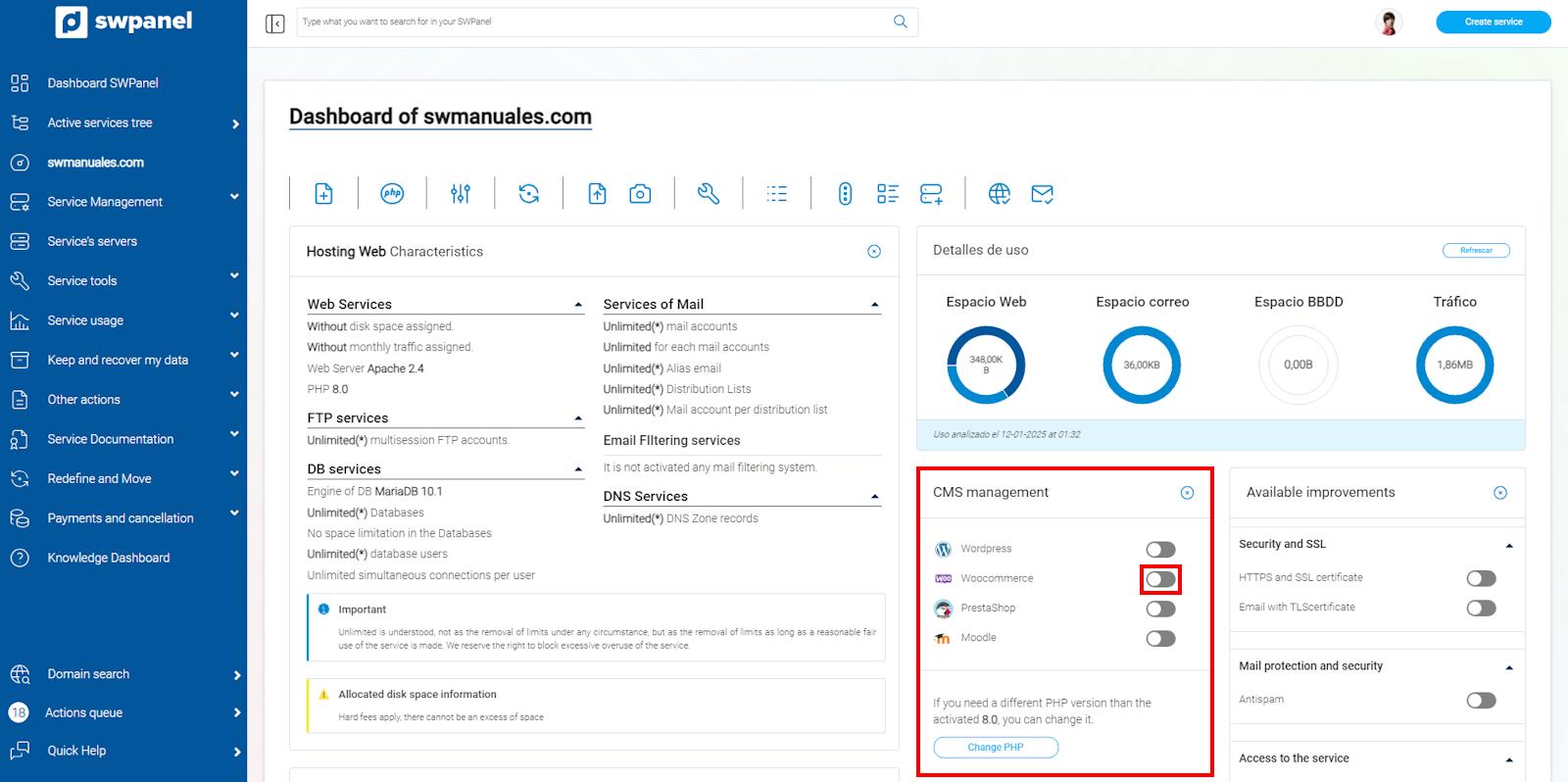
Once in the CMS Application Management section, activate the WooCommerce option:
info_capture The screenshot is for guidance purposes. It was taken from version 2025.00.0017 dated 01/16/2025. It may differ from what the current version of SWPanel shows.
You can only have one CMS application active at a time.
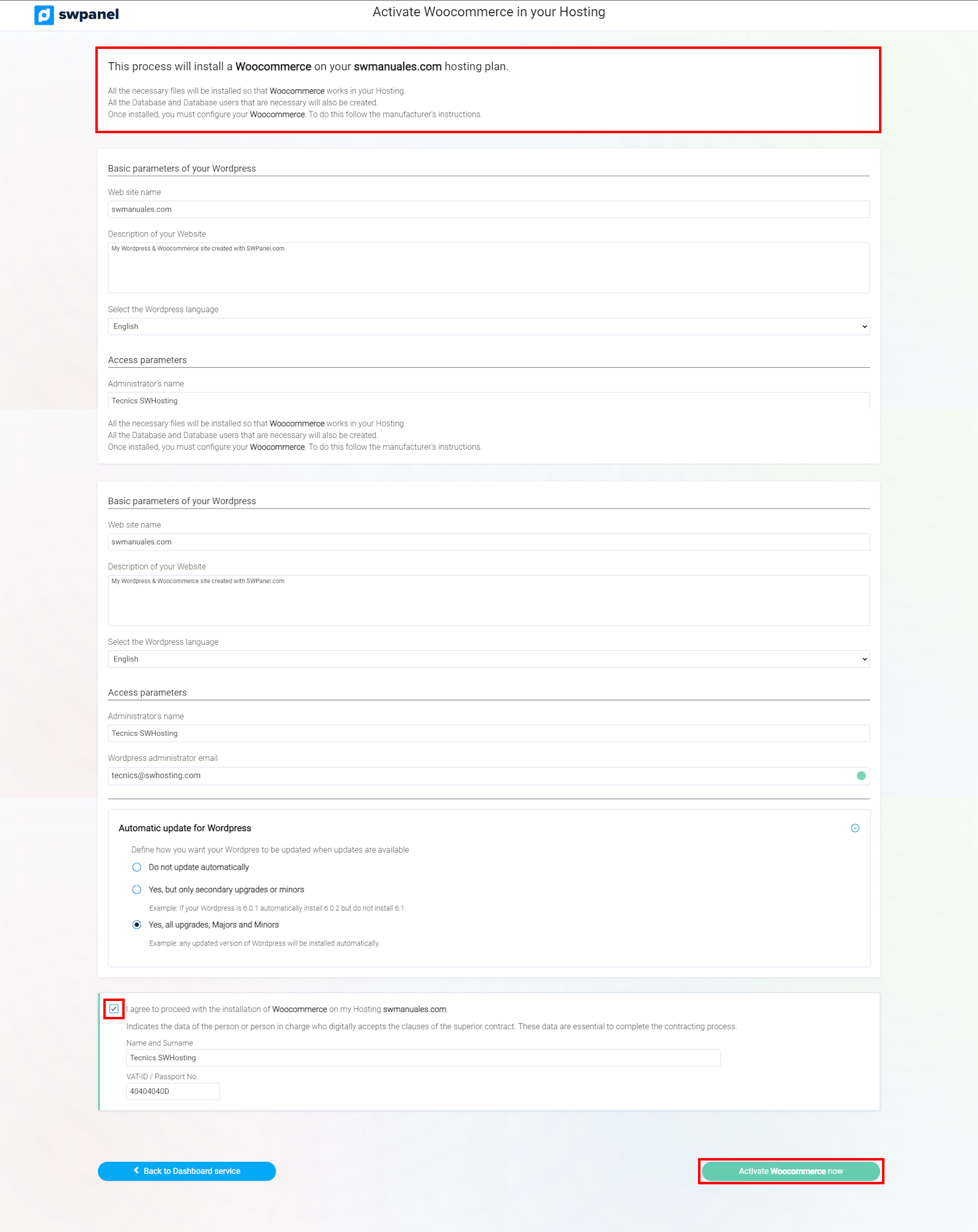
Since WooCommerce is installed on WordPress, you will then have various fields and options to modify to configure your WordPress before installing it. You can configure:
-
Basic parameters of your WordPress:
-
Site Name
-
Description that will appear in the browser tab
-
WordPress language
-
-
Access parameters:
-
Page Administrator Name
-
Page Administrator Email
-
Username/Nickname for access to the WordPress manager
-
Password for access to the WordPress manager
-
-
Configuration of email sending from WordPress:
Email sending via SMTP will be configured automatically. To do this, you must select an email account from which the emails will be sent, or you can create a new one.
-
Automatic update configuration:
You can choose whether you want to update WordPress automatically and the type of updates you want to be installed.
info_capture The screenshot is for guidance purposes. It was taken from version 2025.00.0017 dated 01/16/2025. It may differ from what the current version of SWPanel shows.
Finally, you must click the "Activate WooCommerce now" button to finalize the installation.
Your WooCommerce will be installed automatically in a matter of minutes. An email will be sent to the address of the hosting service administrator, with the URL and access details.
That's it! Now we just have to access the administration panel
WordPress Administration
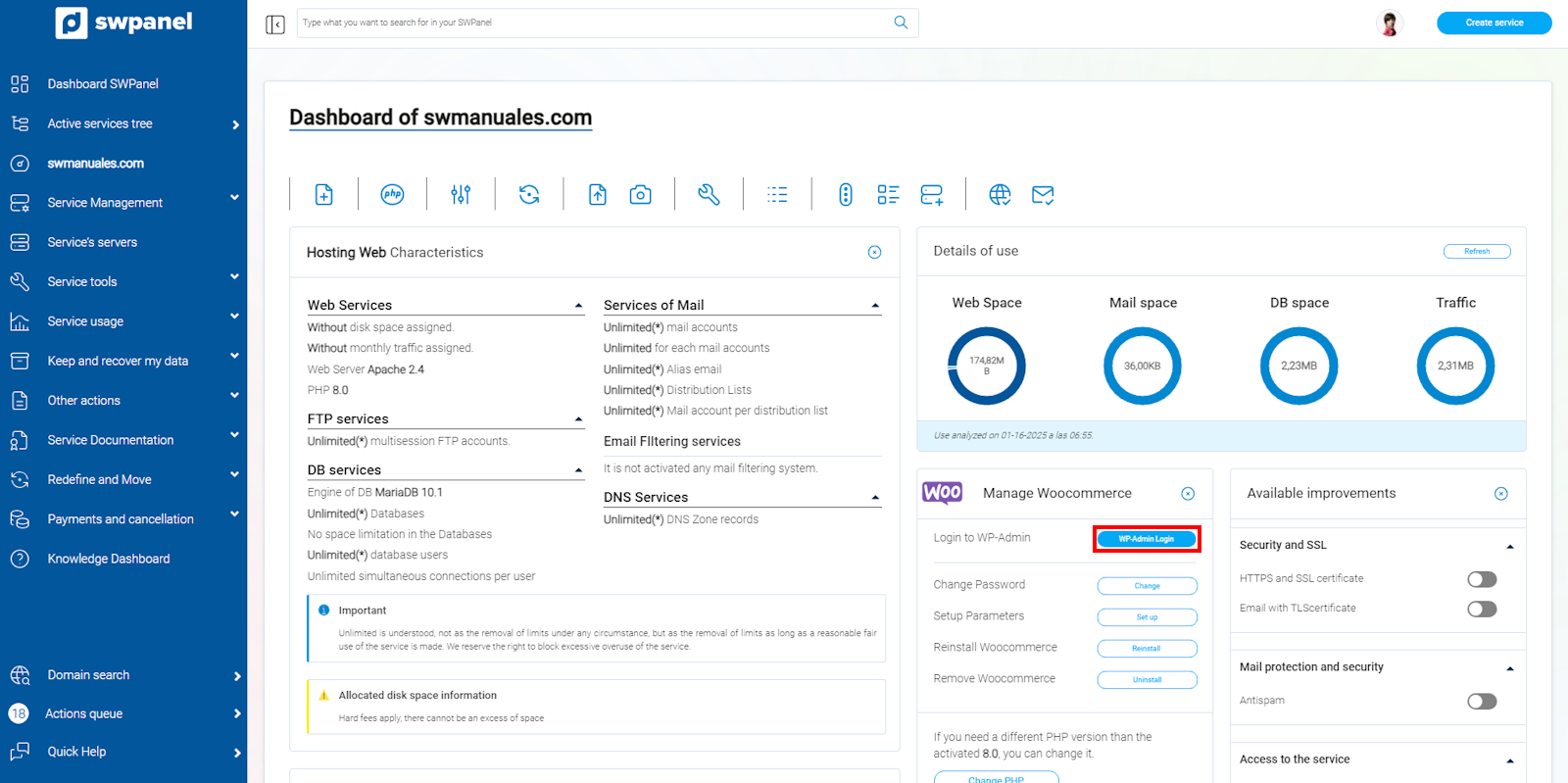
To access the WordPress administration panel, you can do so using the access button in your SWPanel:
info_capture The screenshot is for guidance purposes. It was taken from version 2025.00.0017 dated 01/16/2025. It may differ from what the current version of SWPanel shows.
info To improve the performance and security of your WooCommerce, we recommend reading the following manuals, which describe various functionalities of our hosting services that will provide greater added value to your WooCommerce.