
How to install a Let's Encrypt SSL certificate with SWPanel
Let's Encrypt is a certificate authority launched on April 12, 2016. It provides free X.509 certificates for Transport Layer Security (TLS) encryption, through an automated process designed to eliminate the current complex process of manual creation, validation, signing, installation, and renewal of secure website certificates.
What are the requirements to install a Let's Encrypt certificate in SWPanel?
SWPanel allows you to install a Let's Encrypt certificate on your website, provided that the following condition is met:
- Having a Cloud with the Debian 12 operating system or higher and SWPanel as the management panel.
- Having a Smart Hosting Start (v1 or v2, Basic Smart Hosting, unlimited Smart Hosting).
- The domain must have the SW Hosting DNS or the A record pointing to your website in SW Hosting.
Install Let's Encrypt Certificate from SWPanel.
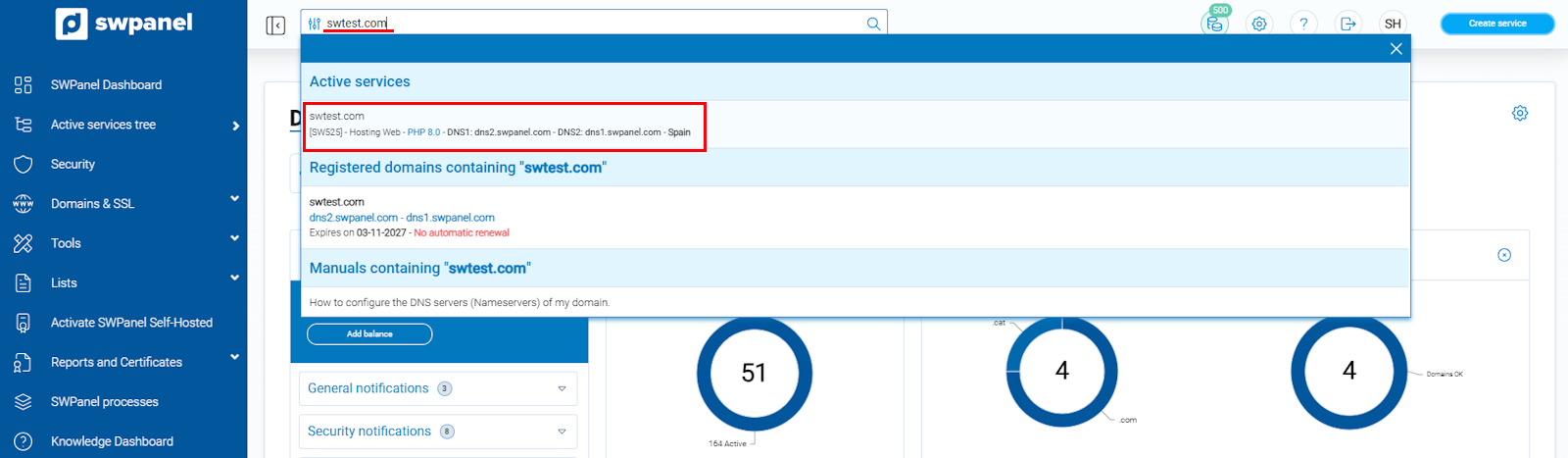
Access SWPanel and go to the Dashboard of your service:
info_capture The screenshot is for guidance purposes. It was taken from version 2026.001.0020 dated 03/05/2026. It may differ from what the current version of SWPanel shows.
💡 Use the search bar at the top to quickly locate your service.
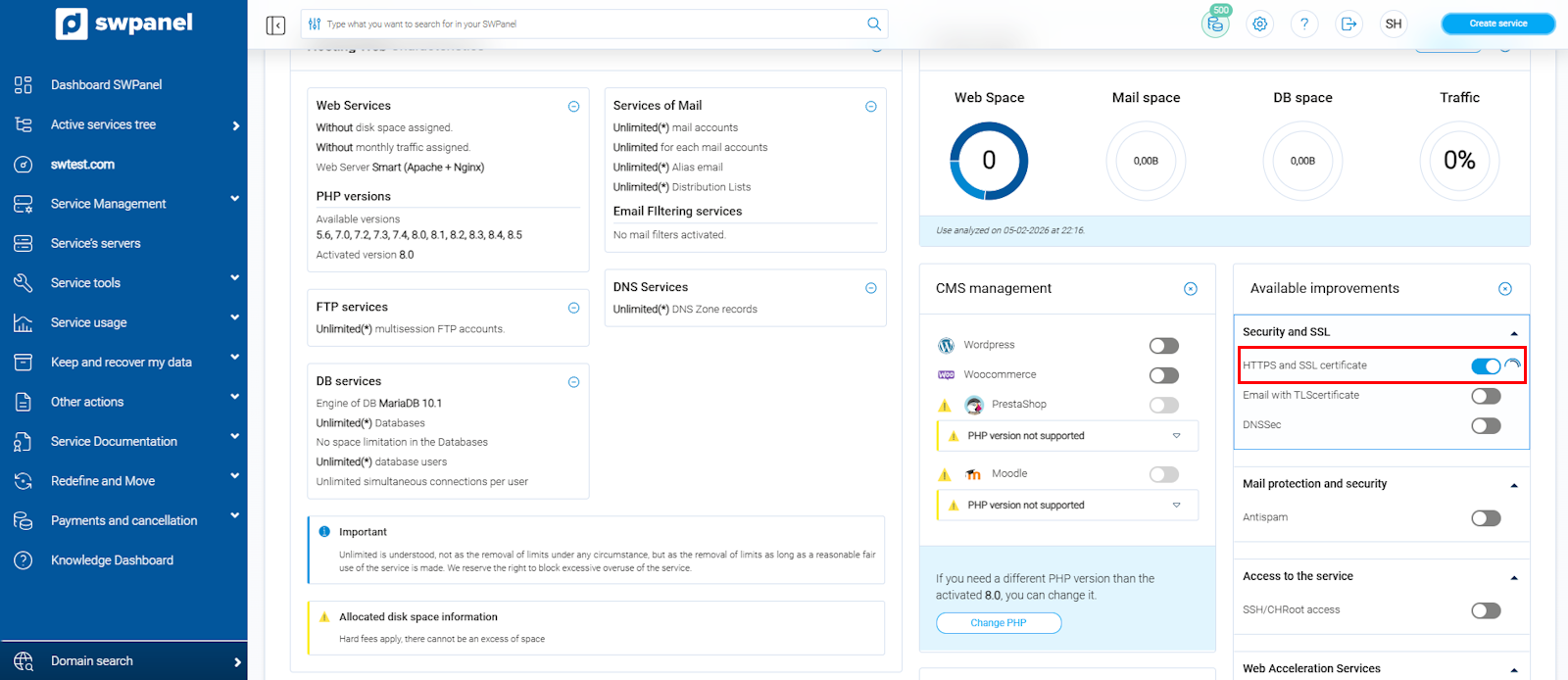
In the Available improvements section (upper right section), activate the HTTPS and SSL certificate option:
info_capture The screenshot is for guidance purposes. It was taken from version 2026.001.0020 dated 03/05/2026. It may differ from what the current version of SWPanel shows.
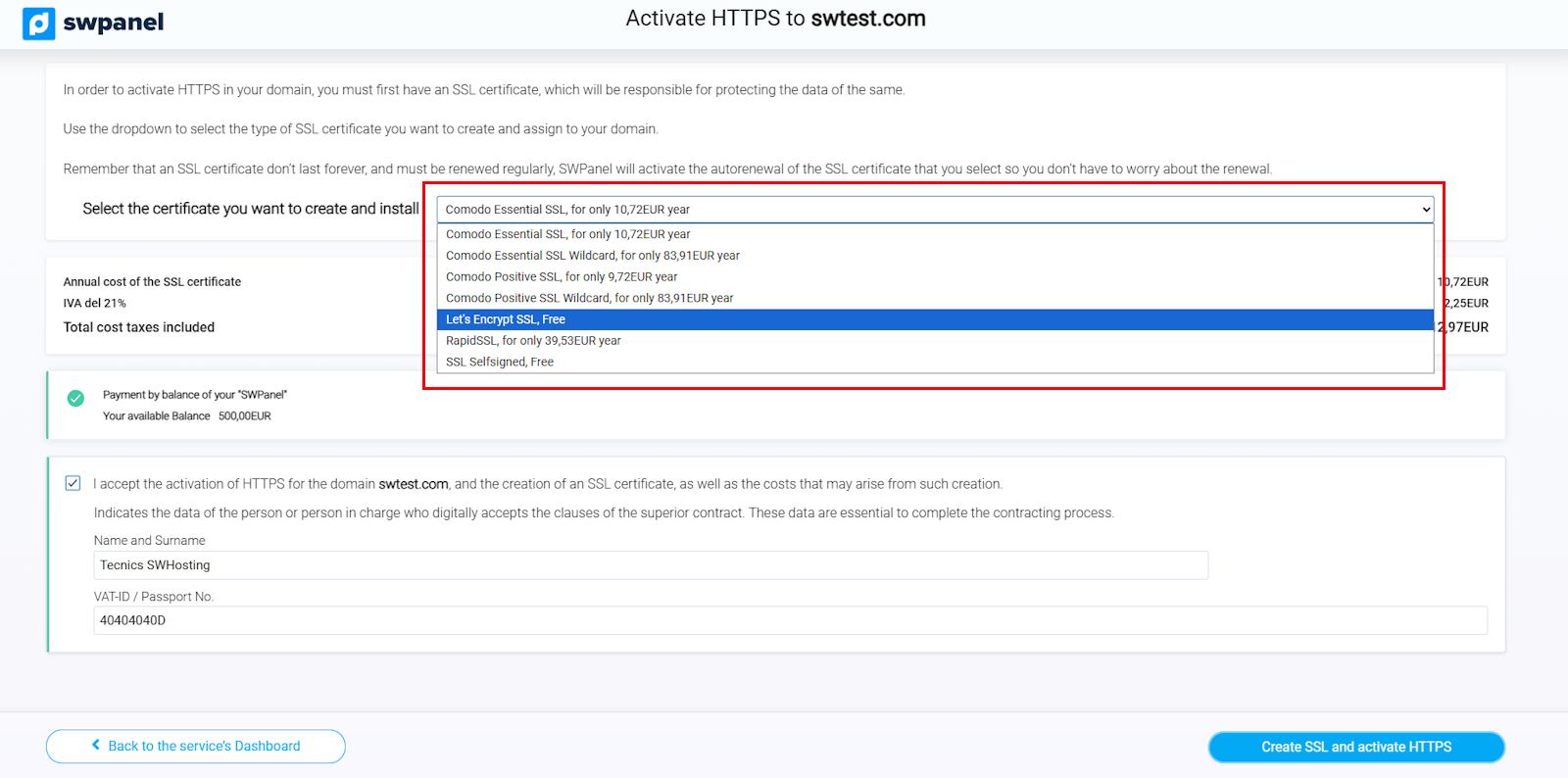
Next, click on Select the certificate you want to create and install and select Let's Encrypt
info_capture The screenshot is for guidance purposes. It was taken from version 2026.001.0020 dated 03/05/2026. It may differ from what the current version of SWPanel shows.
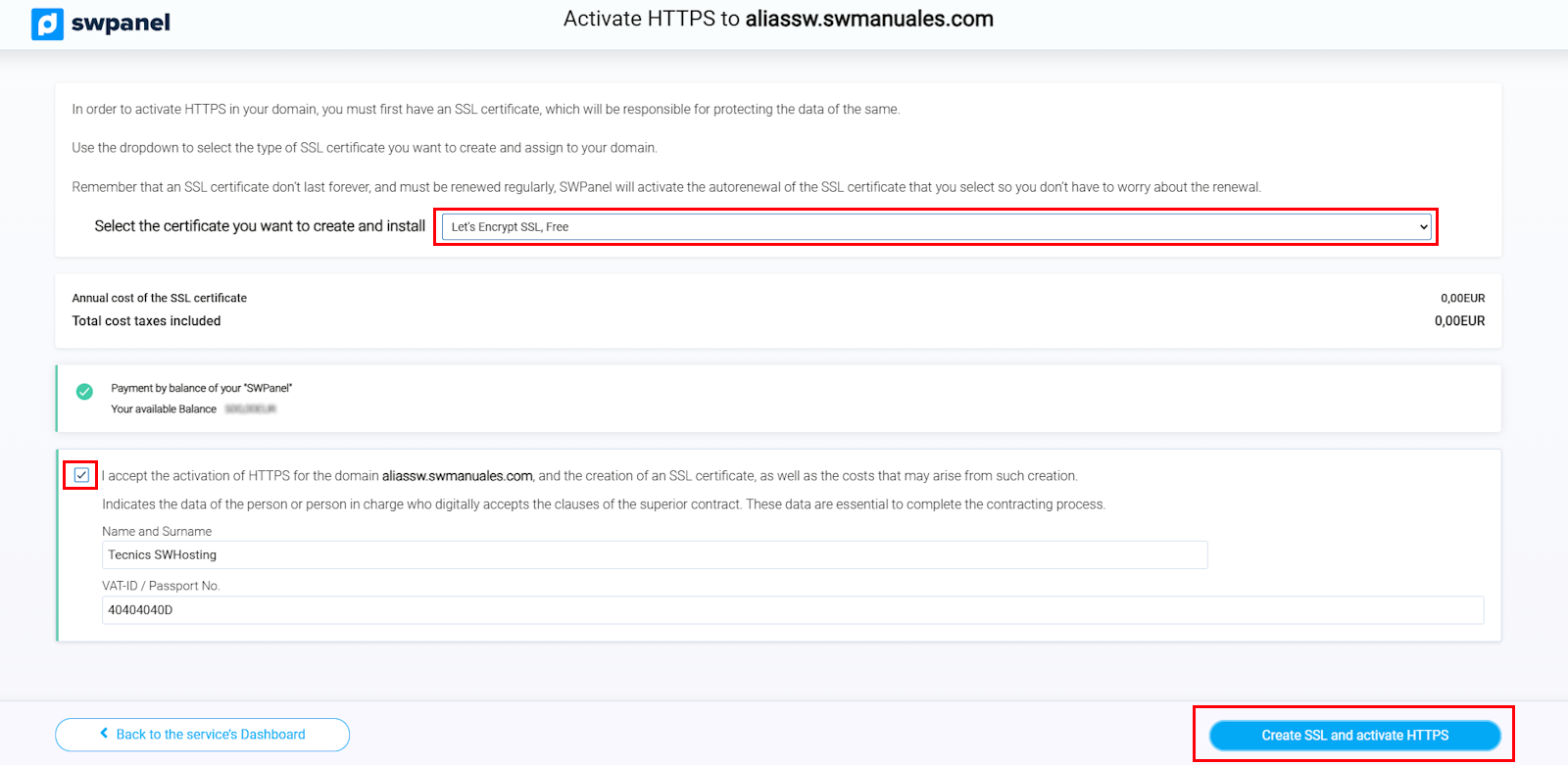
Once the certificate is selected, the next step will be to press the Create SSL and activate HTTPS button
info_capture The screenshot is for guidance purposes. It was taken from version 2026.001.0020 dated 03/05/2026. It may differ from what the current version of SWPanel shows.
With this, our certificate will be operational in our service and we can verify it by accessing https://yourdomain.com.
I have installed the certificate, but the website is not showing as secure
Even if you have installed the SSL certificate correctly, your website may continue to load via the HTTP protocol, which means that if you do not indicate in your browser that you want to access the website by typing HTTPS, the content will not be displayed using the SSL certificate. In case you want your website to always and automatically display the content via SSL certificate and the HTTPS protocol, you can create a redirection in the .htaccess file of your website manually, or do it from SWPanel using the following manual: