
Configuration of a cloned CentOS 8 server
Once you have cloned your Cloud server with CentOS as the operating system [Handbuch: How to clone a Cloud server with or without data], you can use the newly deployed machine to test your website or to have a pre-production environment. To start operating with your clone, you must provision your server with a series of prior modifications.
Environment preparation
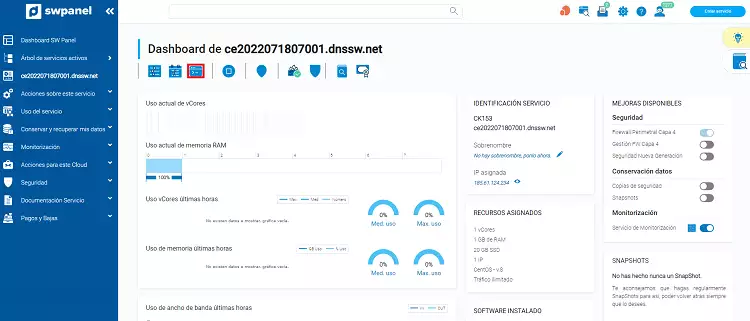
Access the dashboard of the cloned machine and click on the icon corresponding to the SSH console.
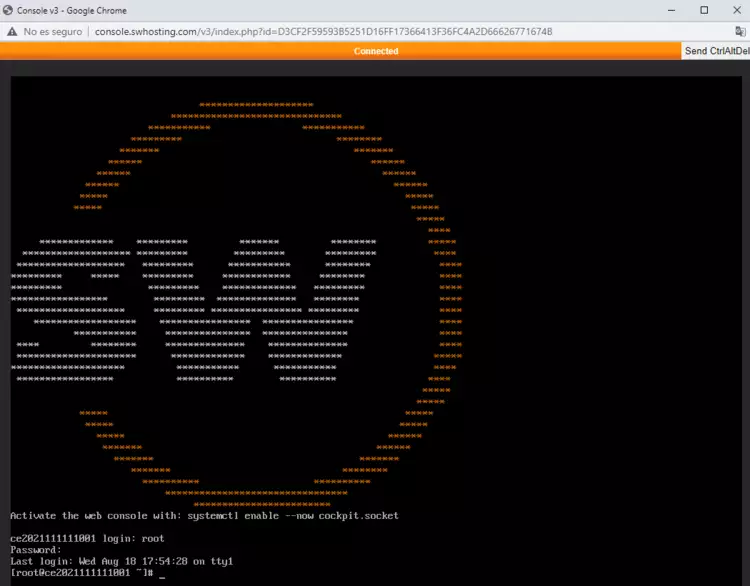
Log in to the cloned machine with the root user and the password of the original machine (keep in mind the special characters in the ASCII code).
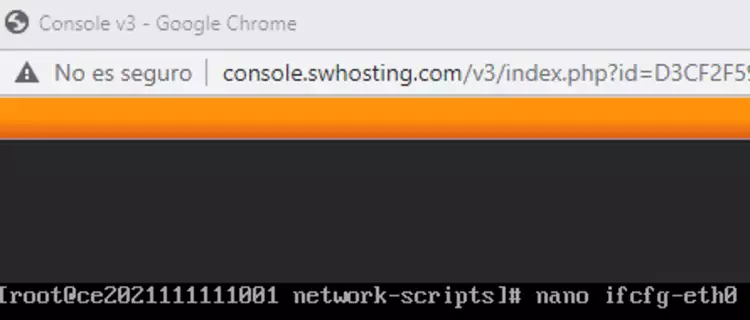
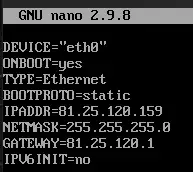
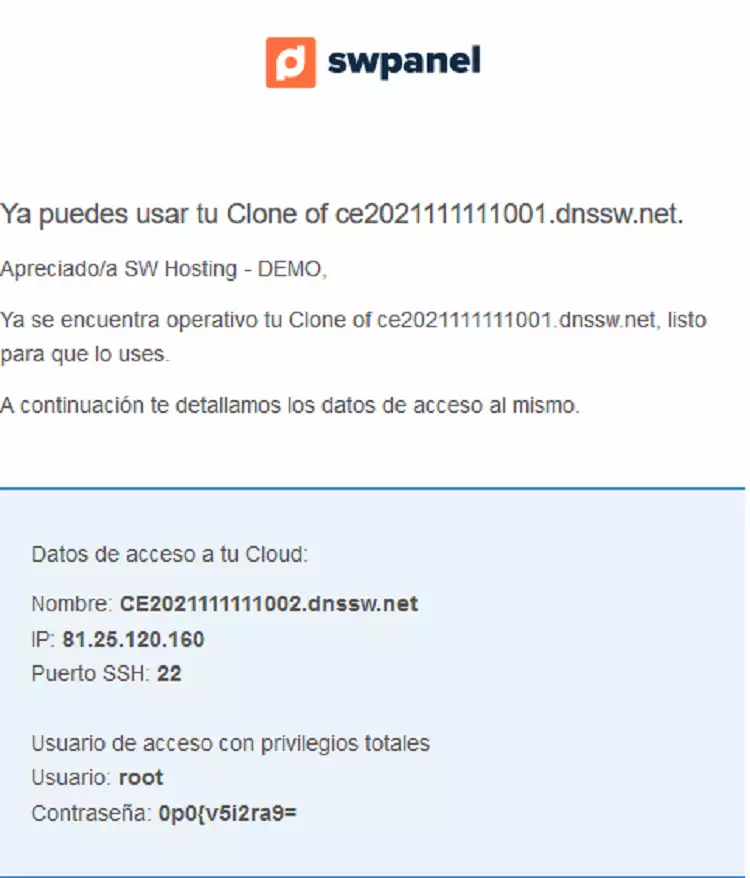
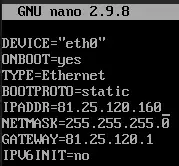
Once you have logged into the cloned server, you must modify the file /etc/sysconfig/network-scripts/ifcfg-eth0, for example with the nano editor, and replace the existing public IP in the file with the new public IP of the cloned machine, which you will have received by email.
nano ifcfg-eth0
ifcfg-eth0 file with the initial configuration
Email with the access credentials
Updated ifcfg-eth0 file
Once edited, you must start the network service by running the following commands:
nmcli networking off
nmcli networking on
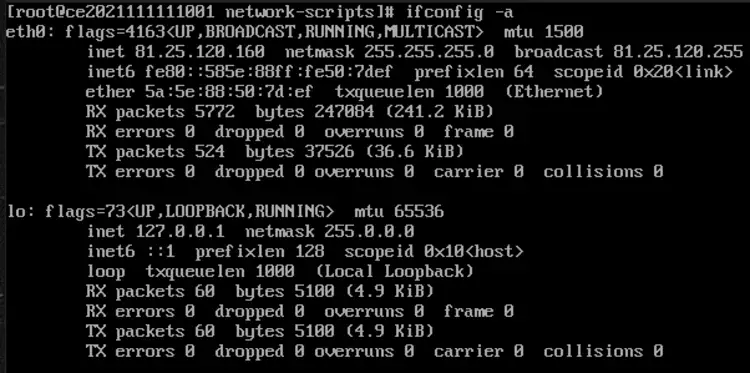
You can verify the modification of the newly configured IP by running the command:
ifconfig -a
Modifying the hosts and hostname files
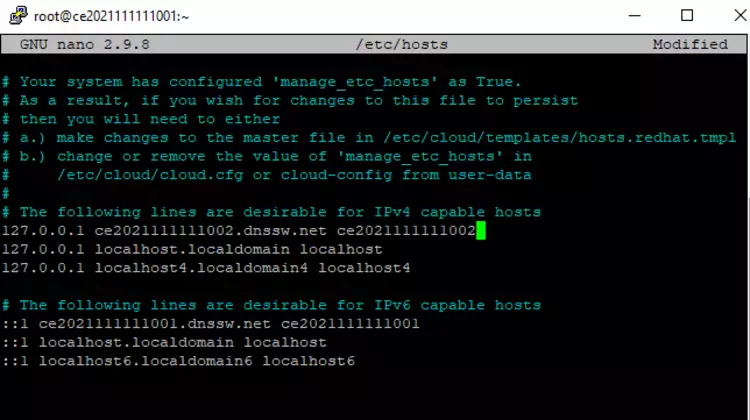
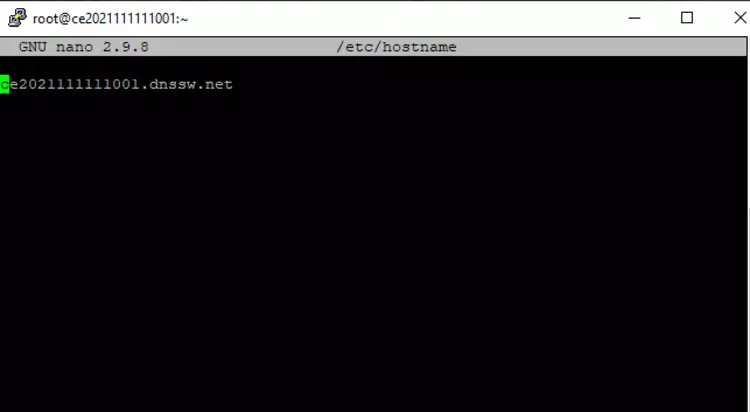
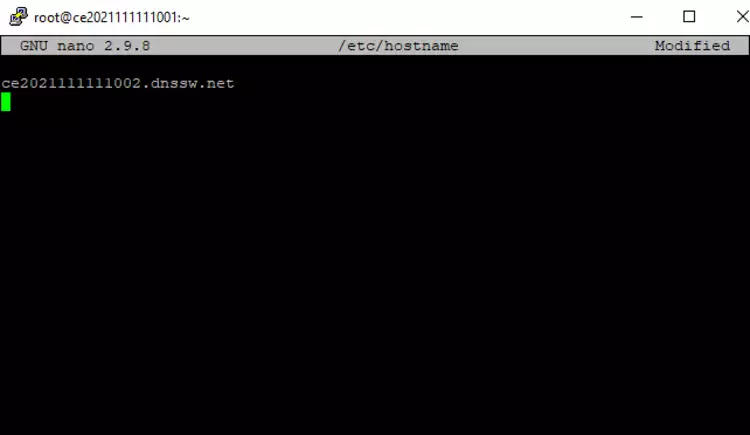
Connect via SSH to the new server and modify the /etc/hosts and /etc/hostname files, replacing the original server name with the server name you received by email.
nano /etc/hosts
hosts file with the initial configuration
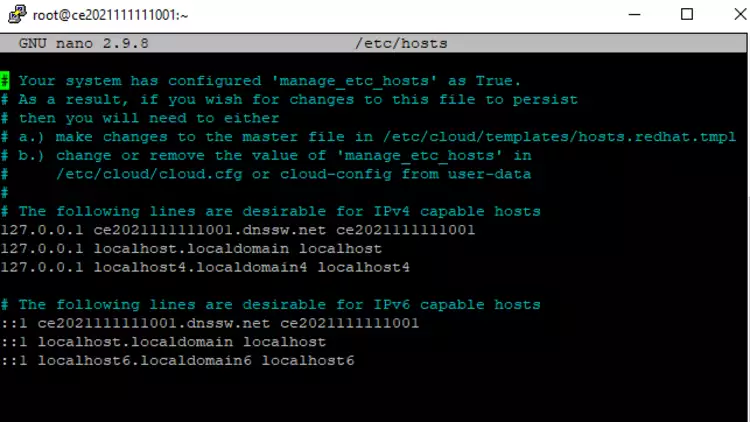
hosts file with the final configuration
nano /etc/hostname
hostname file with the initial configuration
hostname file with the final configuration
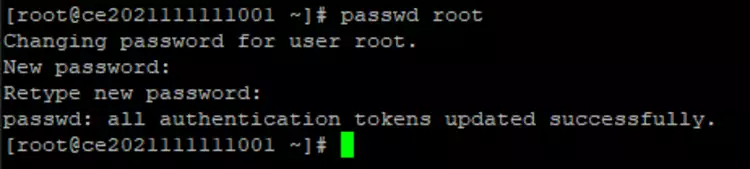
Change the root user password
To change the root password, run the following command indicating the password you received by email.
Where it says # passwd root enter the password that appears in your email.
In this way, the new cloned machine will have the same IP, with its corresponding name and root password, completing the cloning process and the deployment of the cloned server.
danger IMPORTANT: to save changes with the nano editor, remember that you must press the
control + xkeys on the keyboard.