
How to clone a Cloud server with or without data
Cloning a Cloud service can be useful for having a server with the same characteristics / data as one created previously.
❕ In case of having a Cloud with SWPanel, the cloning of it must be without data.
There are two ways to clone a Cloud server. Cloning with data maintains all data, configurations, applications, etc... of the source server. However, a clone without data consists only of a deployed machine with exactly the same operating system and the same characteristics, but without any of its content.
Cloning a Cloud with data
-
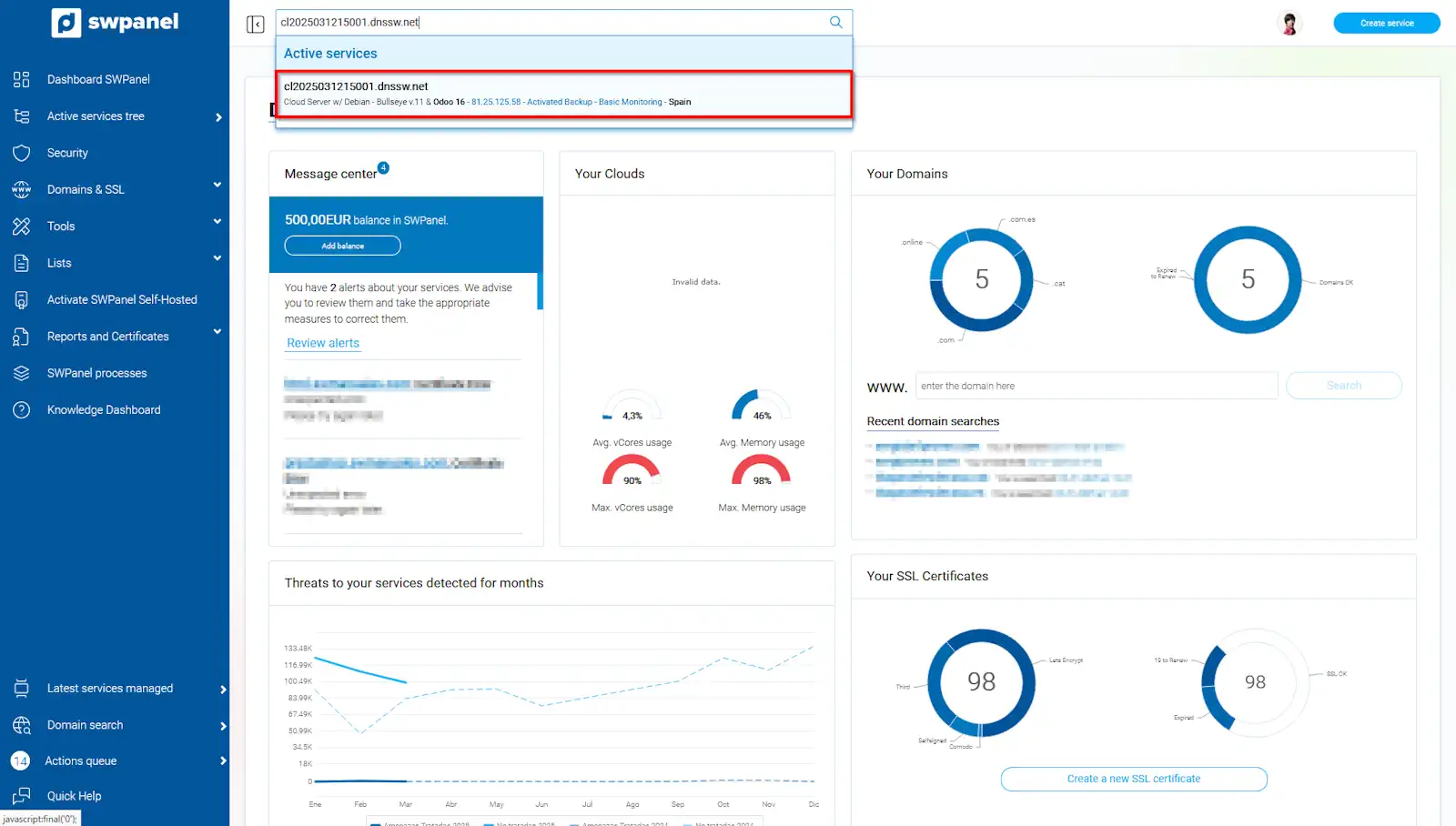
First of all, you must go to the Dashboard of the server you want to clone:
info_capture The screenshot is for guidance. It was taken using version 2025.003.0005 dated 06/04/2025. It may differ from what the current version of SWPanel shows.
💡 Remember that you can use the search tool to find the server more quickly
-
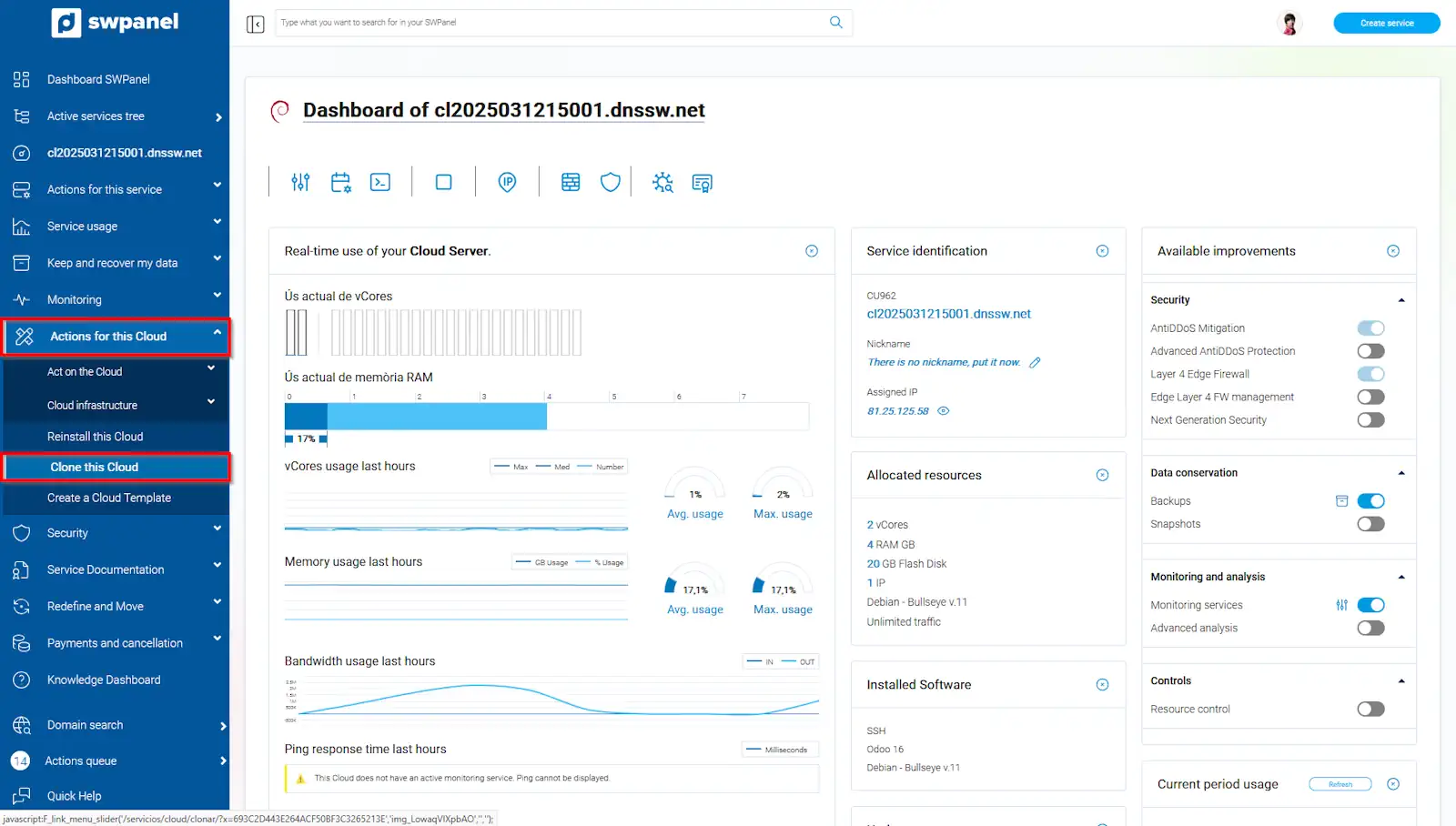
Once in the Server Dashboard, you must go to the Actions for this cloud section -> Clone this Cloud:
info_capture The screenshot is for guidance. It was taken using version 2025.003.0005 dated 06/04/2025. It may differ from what the current version of SWPanel shows.
-
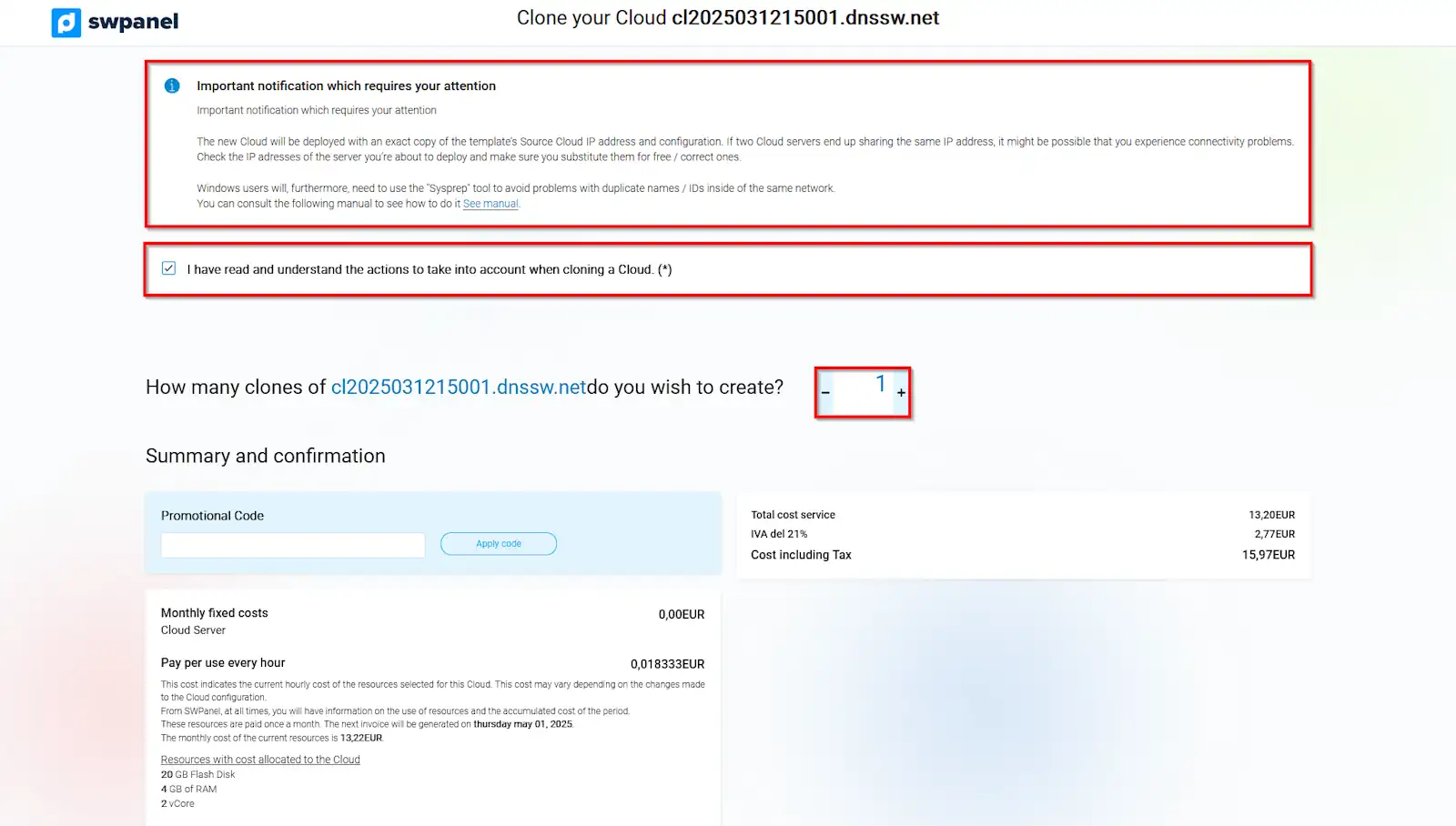
A new window will open, in which we can read the important notification, and select how many clones we want to make.
info_capture The screenshot is for guidance. It was taken using version 2025.003.0005 dated 06/04/2025. It may differ from what the current version of SWPanel shows.
info_capture The screenshot is for guidance. It was taken using version 2025.003.0005 dated 06/04/2025. It may differ from what the current version of SWPanel shows.
-
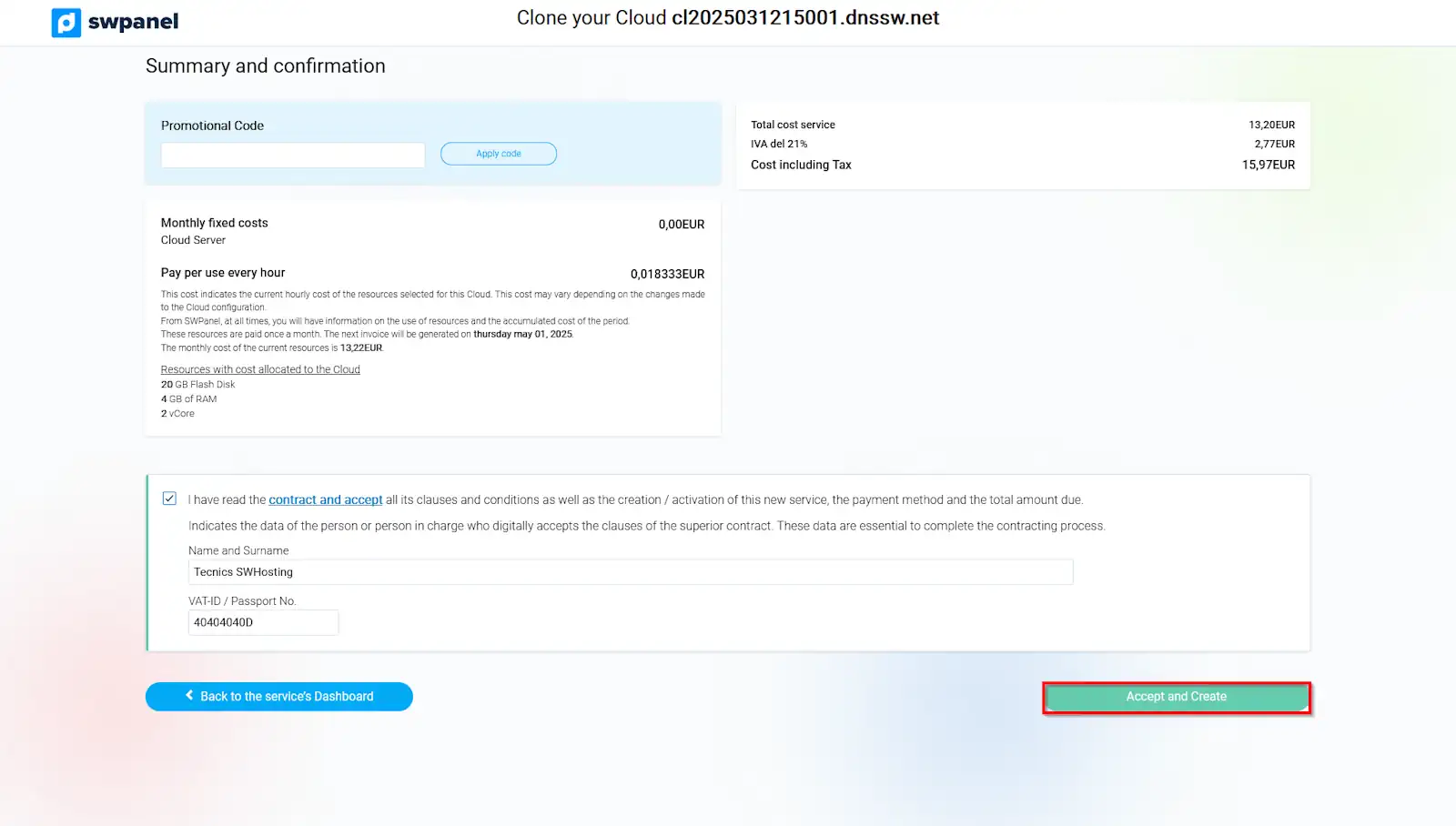
Once the data has been selected, we will click on Accept and clone, so that the cloning process will begin:
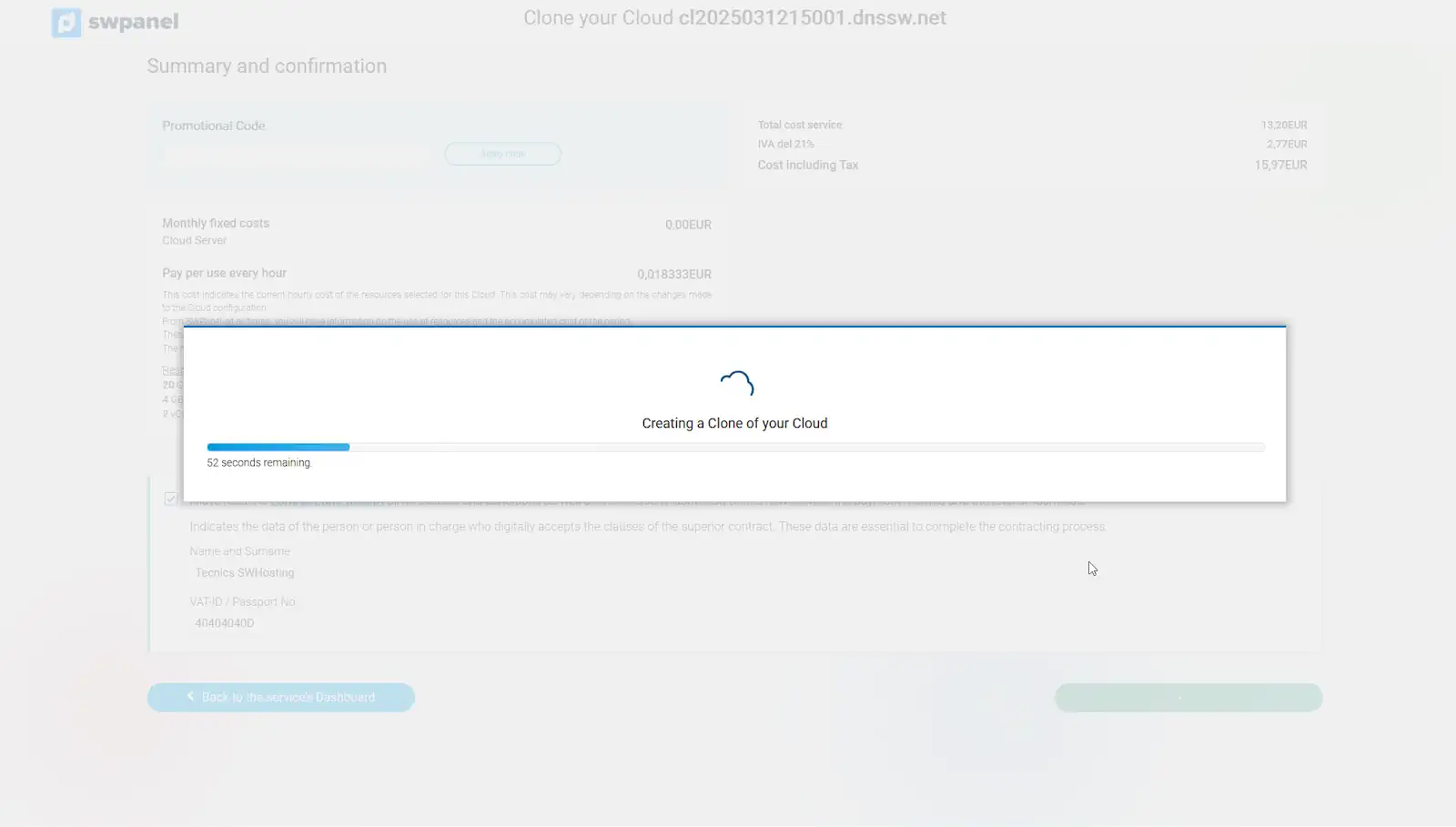
info_capture The screenshot is for guidance. It was taken using version 2025.003.0005 dated 06/04/2025. It may differ from what the current version of SWPanel shows.
Cloning a Cloud without data
-
First of all, you must go to the Dashboard of the server you want to clone:
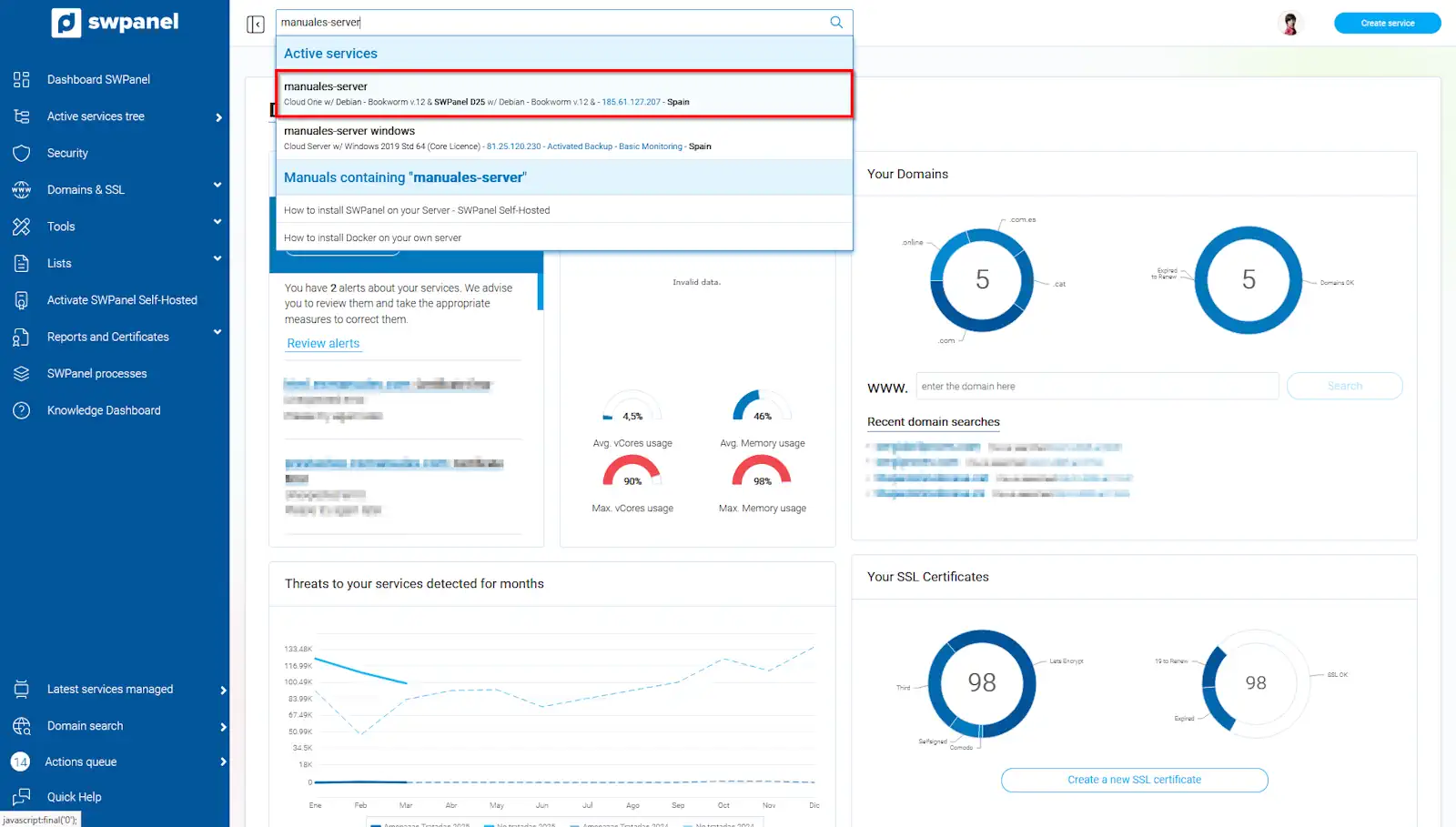
info_capture The screenshot is for guidance. It was taken using version 2025.003.0005 dated 06/04/2025. It may differ from what the current version of SWPanel shows.
💡 Remember that you can use the search tool to find the server more quickly
-
Next, you must go to the Actions for this Cloud section -> Clone equal Cloud without data:
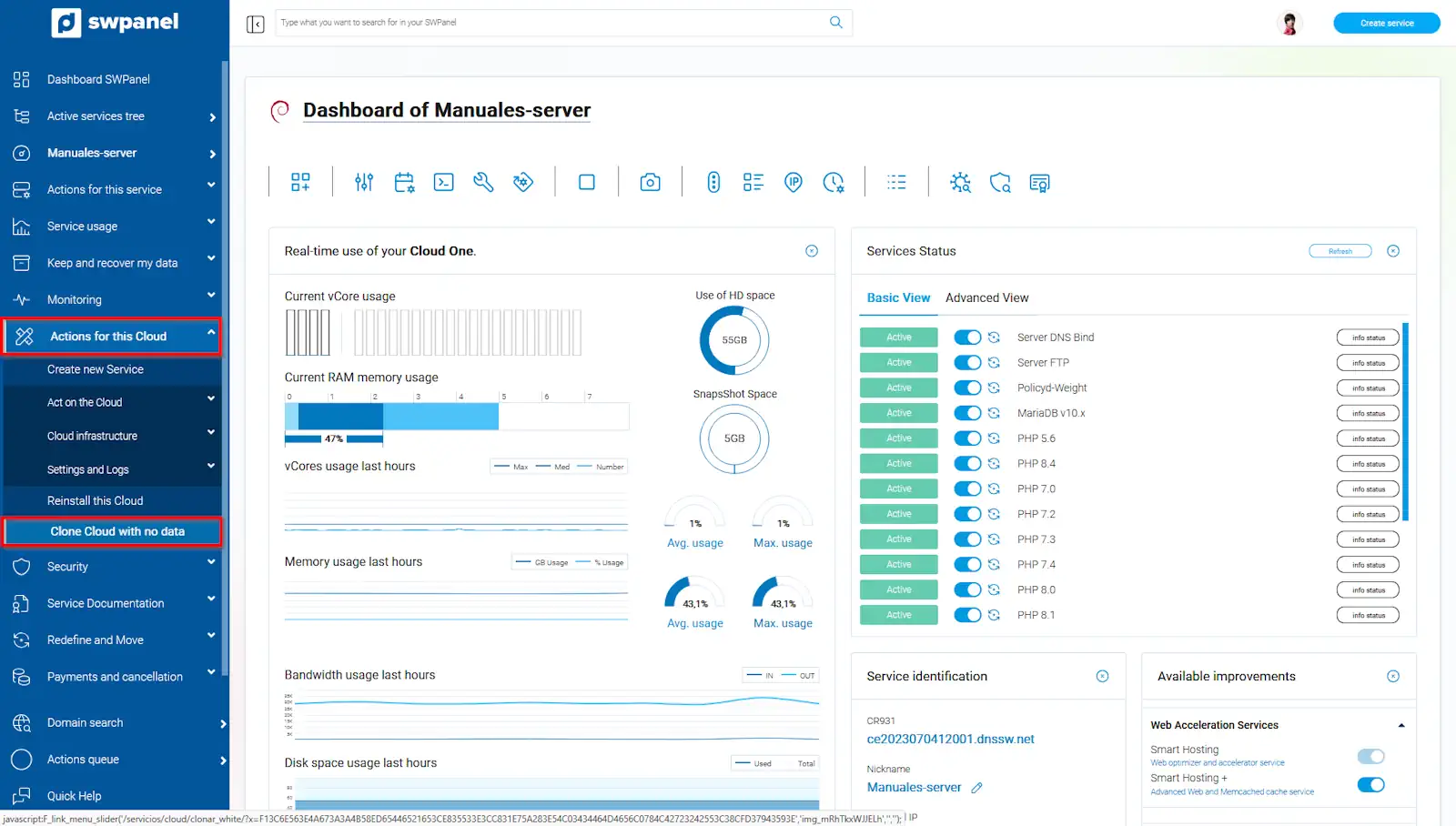
info_capture The screenshot is for guidance. It was taken using version 2025.003.0005 dated 06/04/2025. It may differ from what the current version of SWPanel shows.
-
In the new window, you will be able to identify the Cloud improvements that will not be cloned, and select how many clones are to be performed.
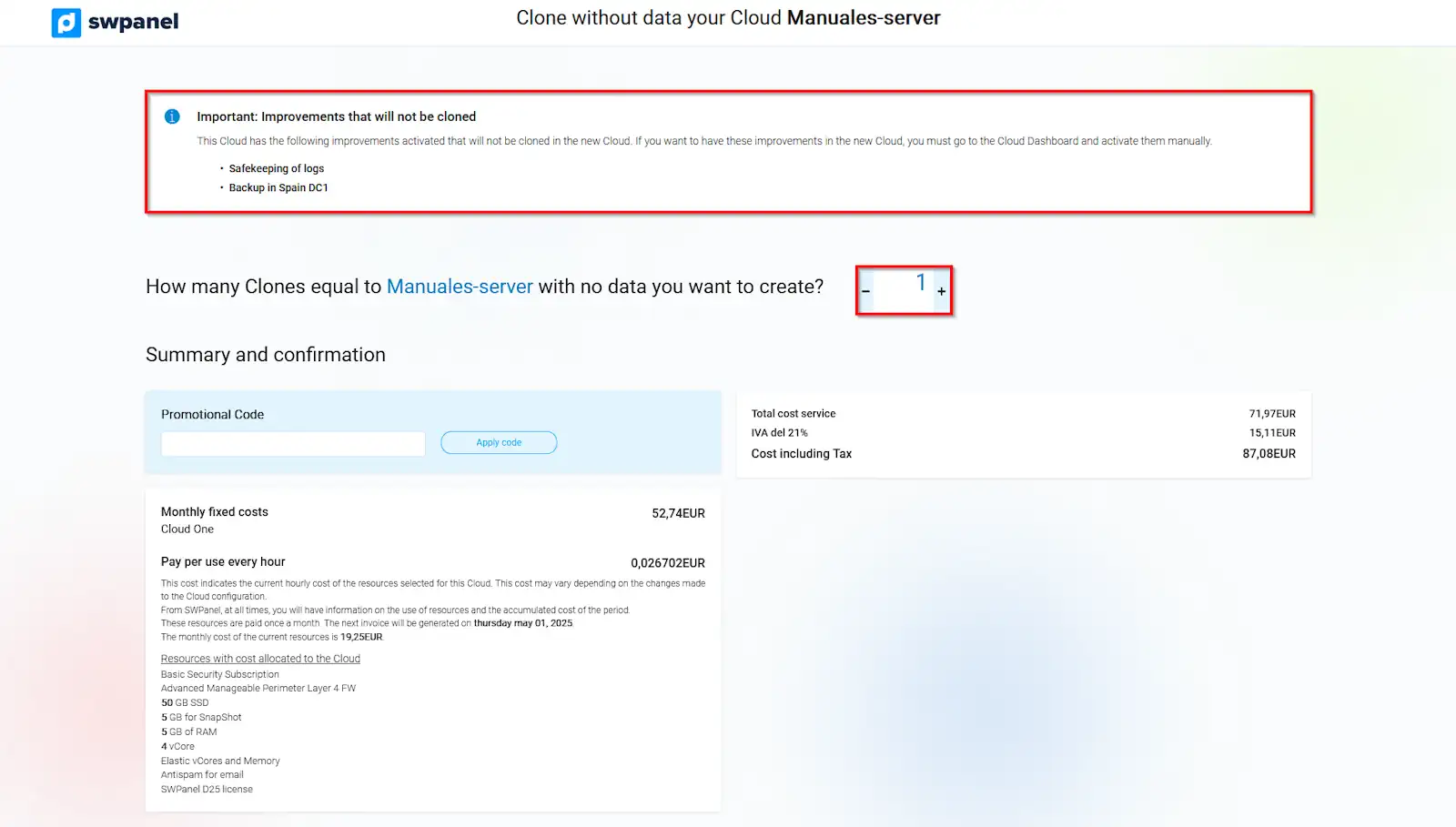
info_capture The screenshot is for guidance. It was taken using version 2025.003.0005 dated 06/04/2025. It may differ from what the current version of SWPanel shows.
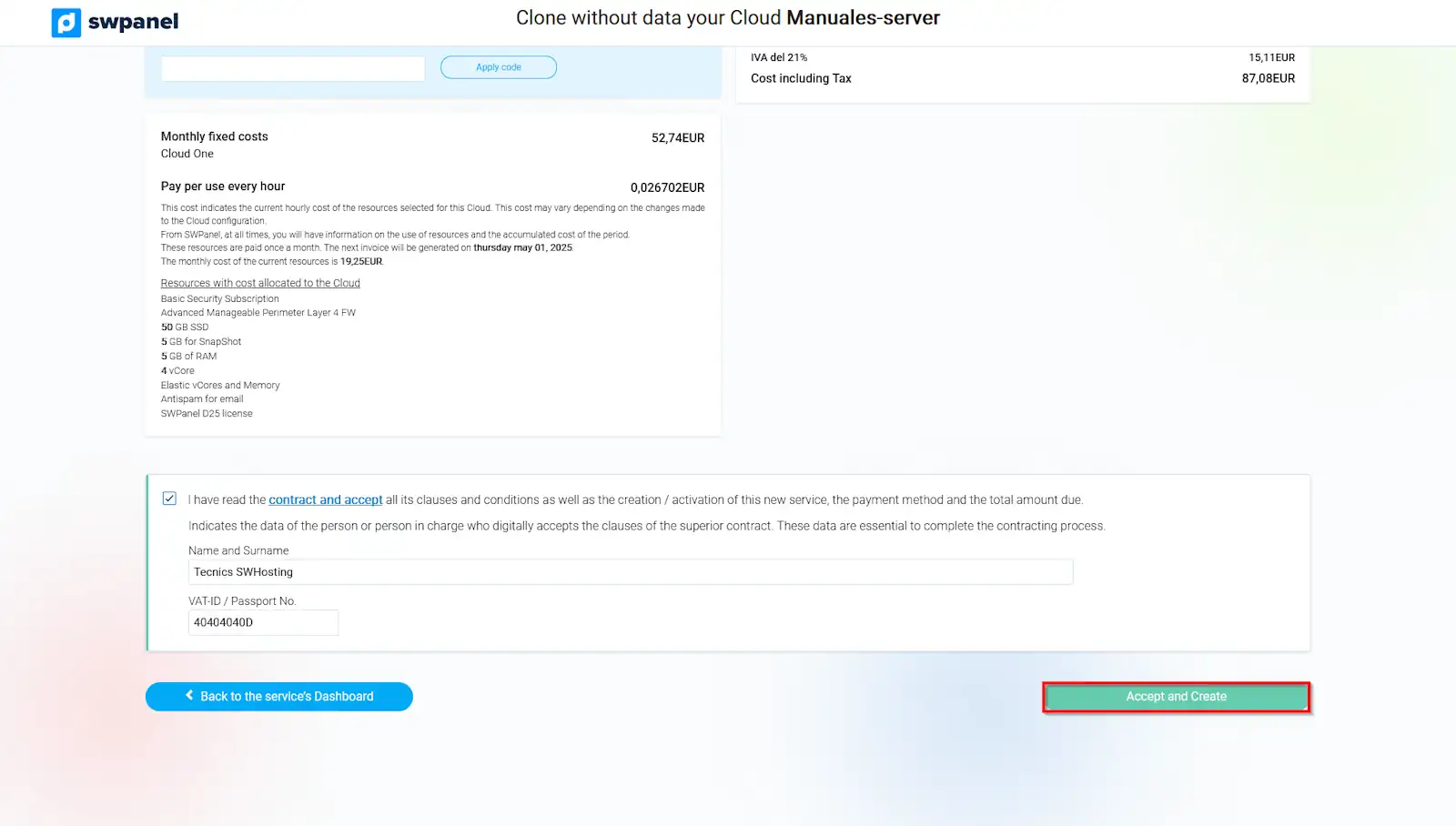
info_capture The screenshot is for guidance. It was taken using version 2025.003.0005 dated 06/04/2025. It may differ from what the current version of SWPanel shows.
-
Once the data has been selected, we will click on Accept and clone, so that the cloning process will begin:
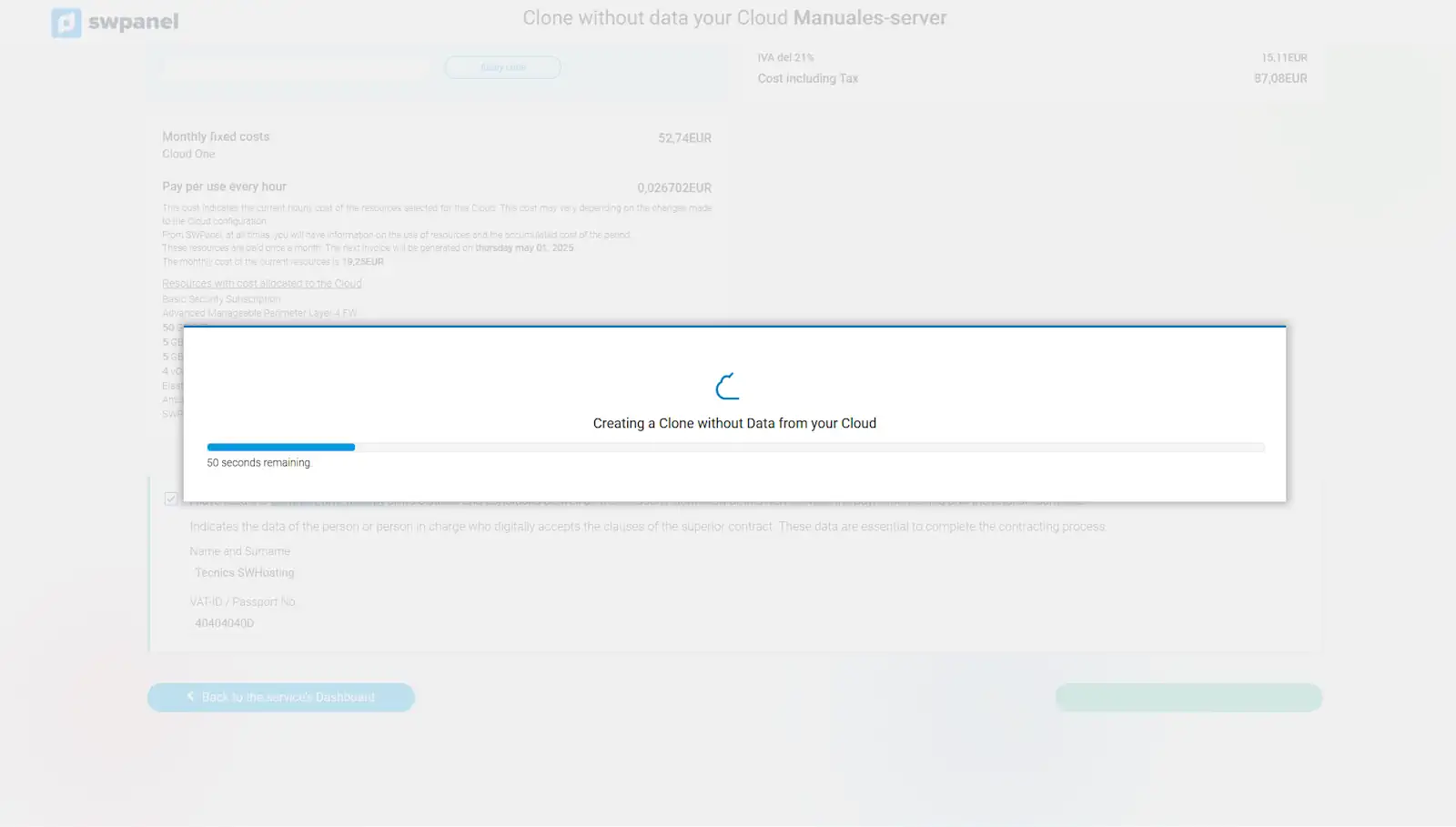
info_capture The screenshot is for guidance. It was taken using version 2025.003.0005 dated 06/04/2025. It may differ from what the current version of SWPanel shows.
In this way, we will have performed a cloning of the Cloud.