
Configuration of a cloned Debian/Ubuntu/Windows server
When creating a Cloud using a deployment template, you will need to provision the server with a series of previous modifications to be able to operate it.
?? Important: When deploying a service via a deployment template, the same IP as the server used to create it will be configured. Therefore, there may be connectivity issues until this is modified.
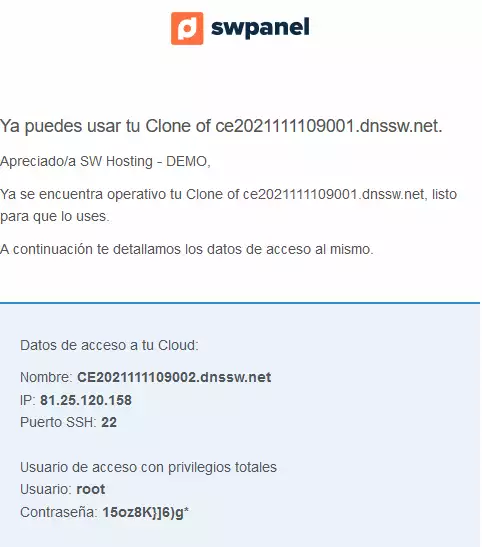
In the case of a Linux server, you must configure the server's IP with the IP that you will find in your SWPanel or have received by email.
In the case of a Windows service, you must also use the sysprep tool to avoid duplicate name / ID problems within the same network.
To create a Deployment Template, you can follow this manual: Handbuch: How to create Cloud deployment templates
To create a Cloud using a Template, you can follow this manual: Handbuch: How to create a Cloud using a Template
Linux Server Configuration
Environment Preparation
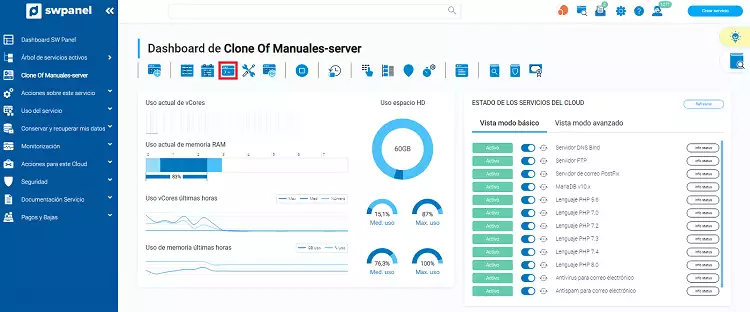
Access the dashboard of the Cloud server deployed from a template and click on the icon corresponding to the SSH console.
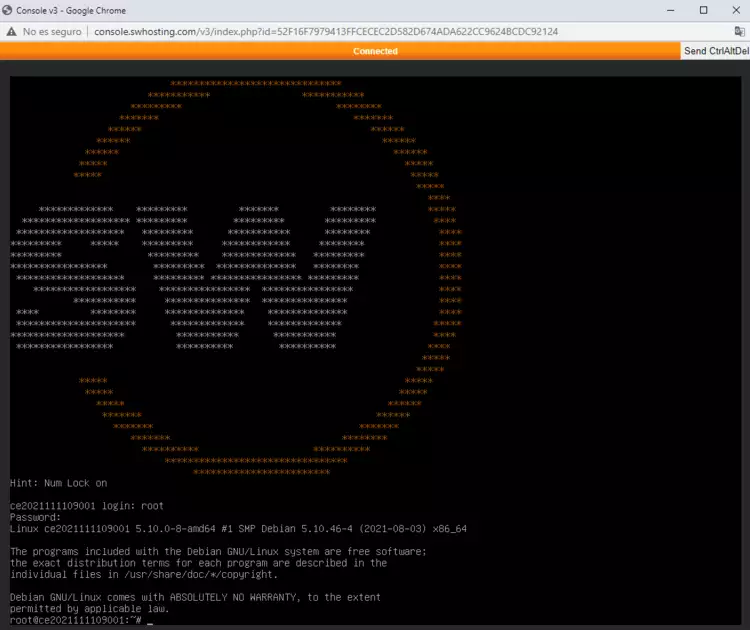
Log in to the cloned machine with the root user and the password of the original machine (keep in mind the special characters in the ASCII code).
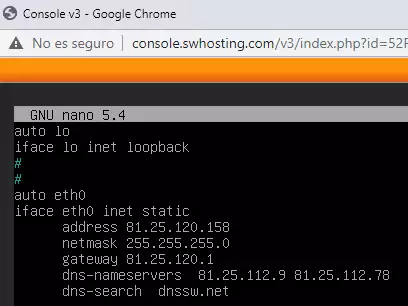
Once you have logged into the cloned server, you must modify the /etc/network/interfaces file, for example with the nano editor, and change the existing public IP in the file to the new public IP of the cloned machine, which you will have received by email.

nano interfaces
Interfaces file with the initial configuration.
Email with the access credentials.
Updated interfaces file.
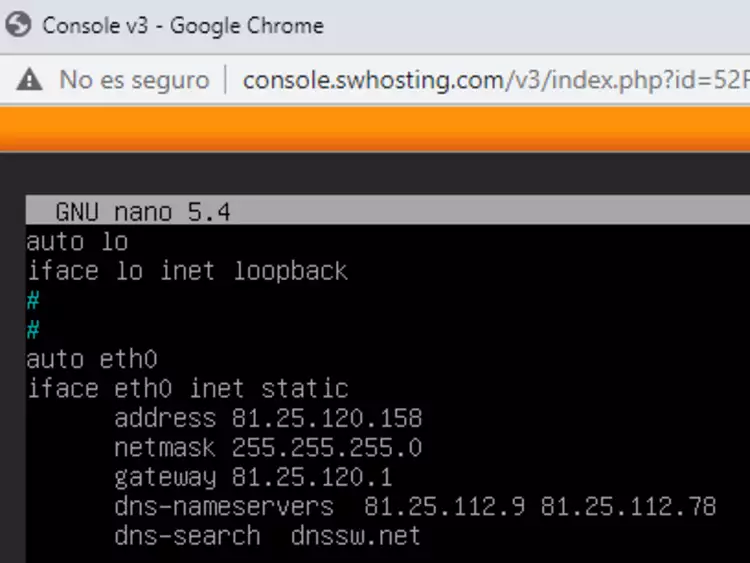
Next, run the command /etc/init.d/networking restart.

You can verify the modification of the new configured IP by running the command ifconfig -a
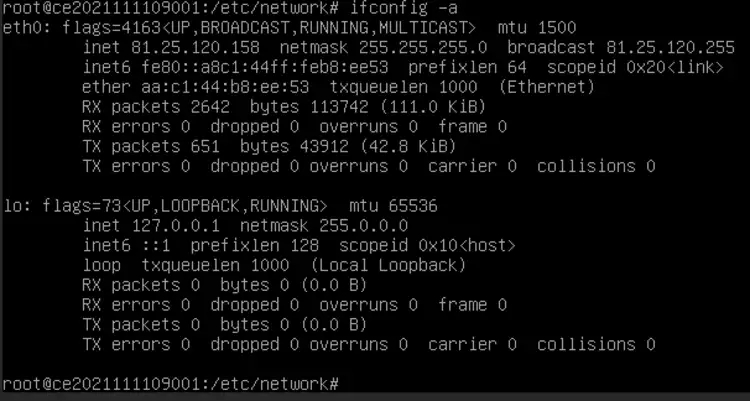
At this point, your cloned machine will already have its own IP and will be able to use any SSH connection instead of the console provided by the SWPanel.
Modification of the hosts and hostname files
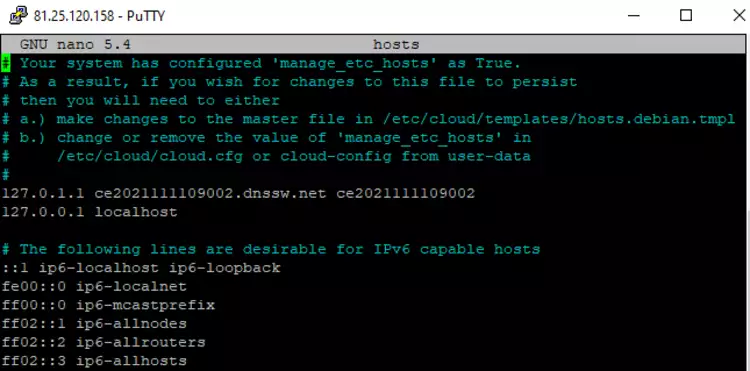
Connect via SSH to the new server and modify the /etc/hosts and /etc/hostname files, changing the original server name to the server name you received by email.
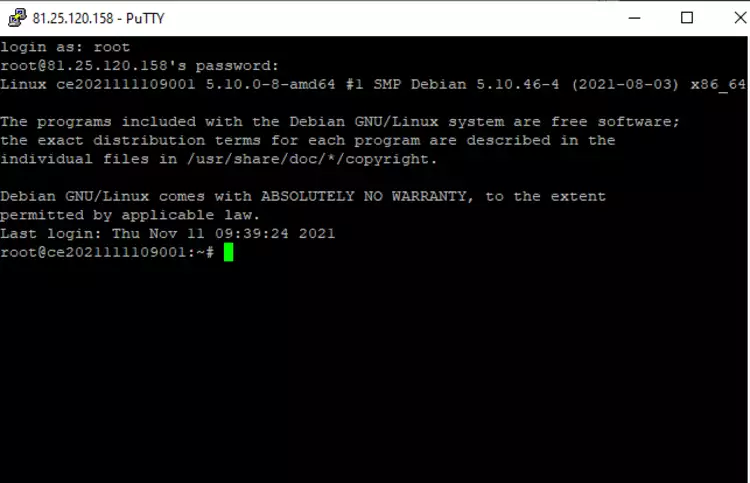
nano /etc/hosts
Hosts file with the initial configuration.
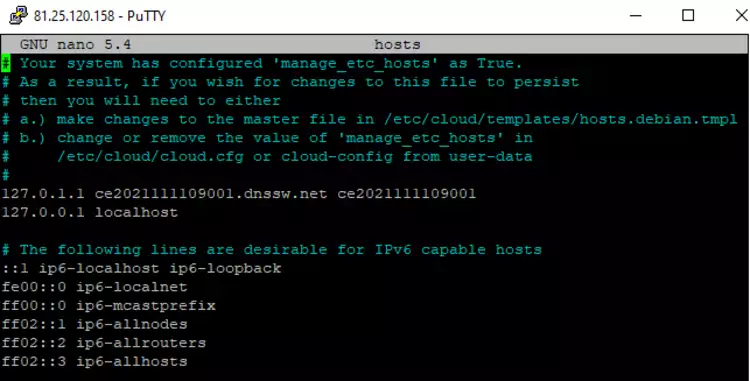
Hosts file with the final configuration.
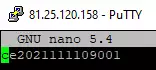
nano /etc/hostname
Hostname file with the initial configuration.
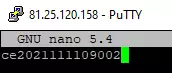
Hostname file with the final configuration.
Change the root user password
Run the passwd root command so that you can change the root user password to the one you received by email.
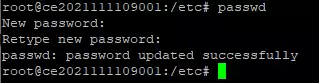
In this way, the new cloned machine will have the same IP, along with its corresponding name and root password, completing the cloning process and the startup of the cloned server.
IMPORTANT: to save changes with the nano editor, remember that you must press the
control + xkeys on the keyboard.
Windows Server Configuration
Environment Preparation
Access the dashboard of the Cloud server deployed from a template and click on the icon corresponding to the console.
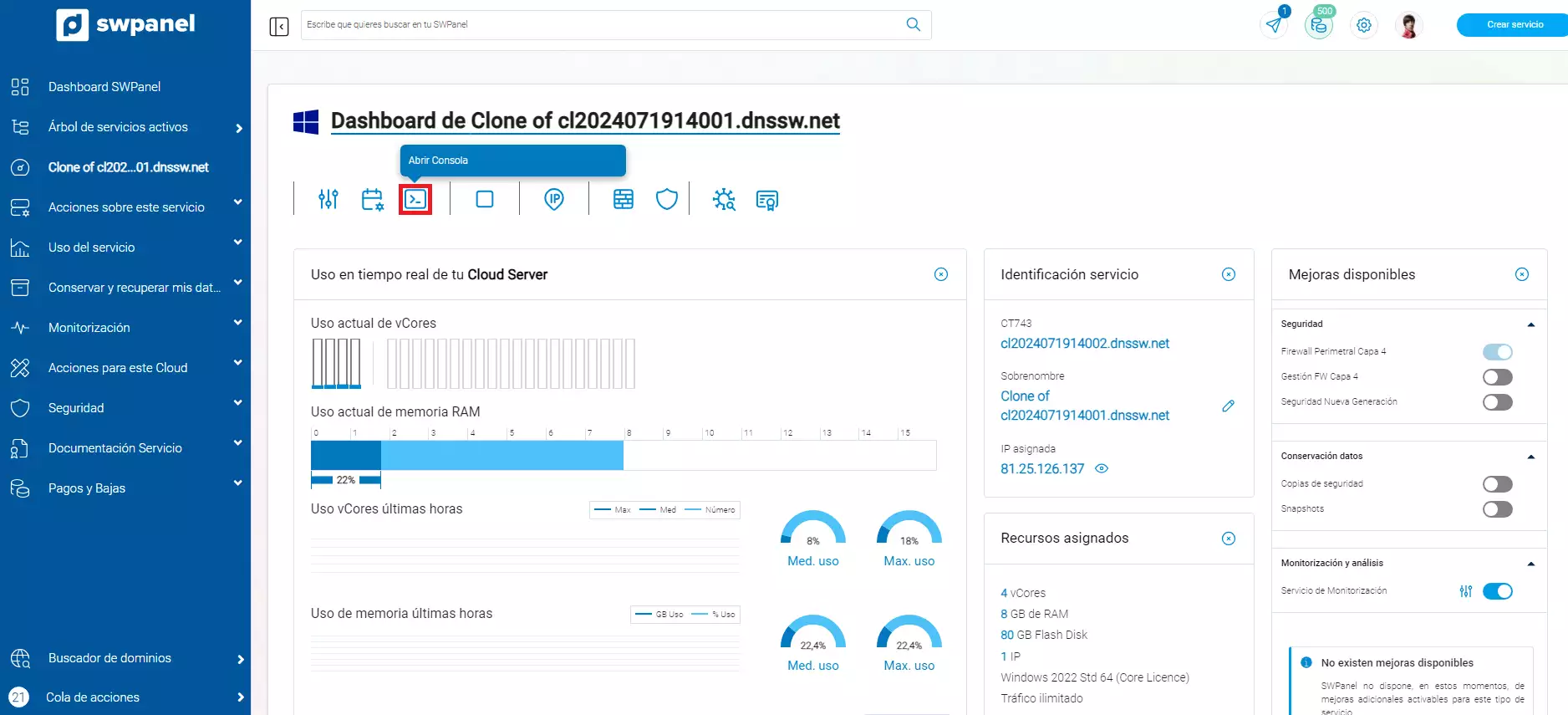
Log in to the cloned machine with the Administrator user and the password of the original machine (keep in mind the special characters in the ASCII code).
You may be asked to press "Ctrl+Alt+Del" to proceed with the login. If so, you can select the button at the top right of the console that allows you to simulate the action of this combination:
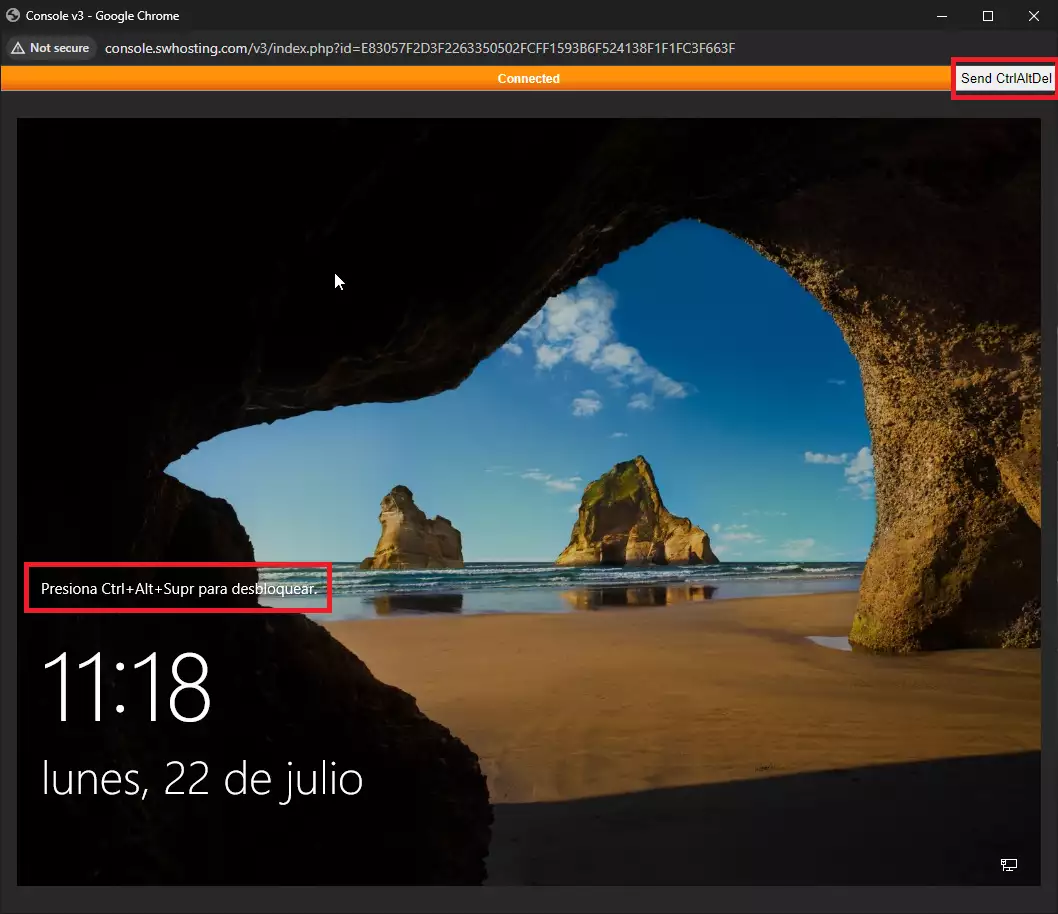
Next, specify the password of the source machine.
Once you have logged in, you should go to the Windows icon and search for "run". Here you should specify:
C:\Windows\System32\Sysprep\sysprep.exe
Just as specified in the attached screenshot:
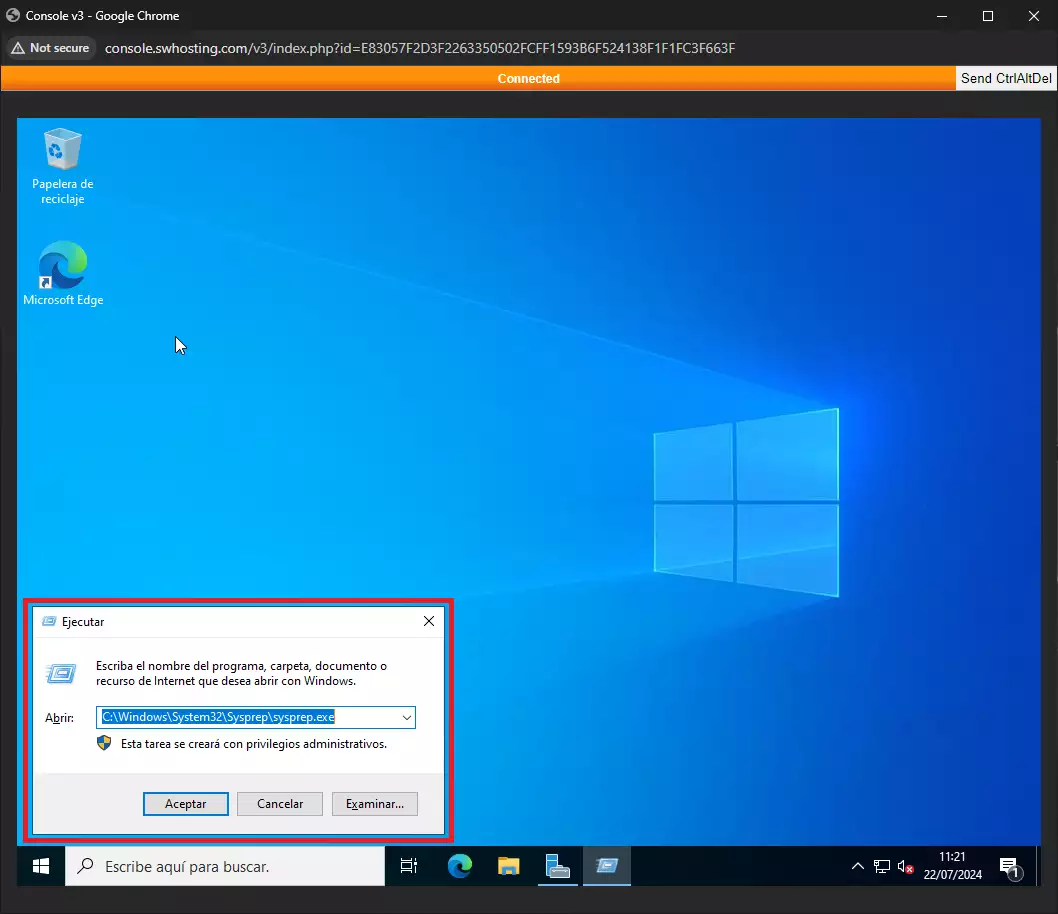
A new tab will then open in which we will have to select:
- Start the system's Out-of-Box Experience (OOBE)
- Generalize
- Reboot
This process allows the Windows server to be prepared with unique identifiers so that it does not conflict with the cloned Windows. This action is necessary to avoid operational problems.
?? Important: The sysprep process deletes the Administrator user's configuration, as well as their files. If it is important not to lose them, we recommend performing a backup before running the process. Below we attach a link with the corresponding information on the Windows sysprep process -> https://learn.microsoft.com/es-es/windows-hardware/manufacture/desktop/sysprep--system-preparation--overview We strongly recommend reading the document before running the process.
To finish and start the process, we select "OK":
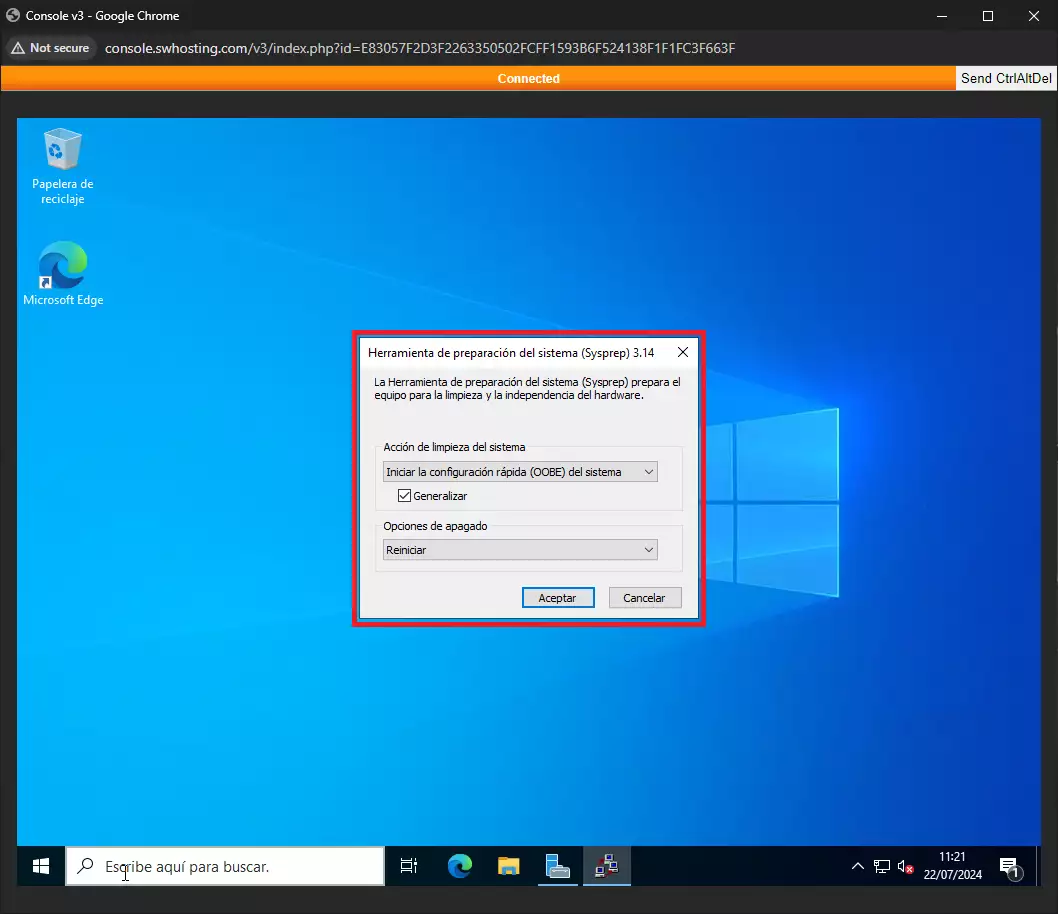
Next, the computer will restart and we will see that we lose access to the console. After a few minutes, we can open the console again and we will see that the following window opens:
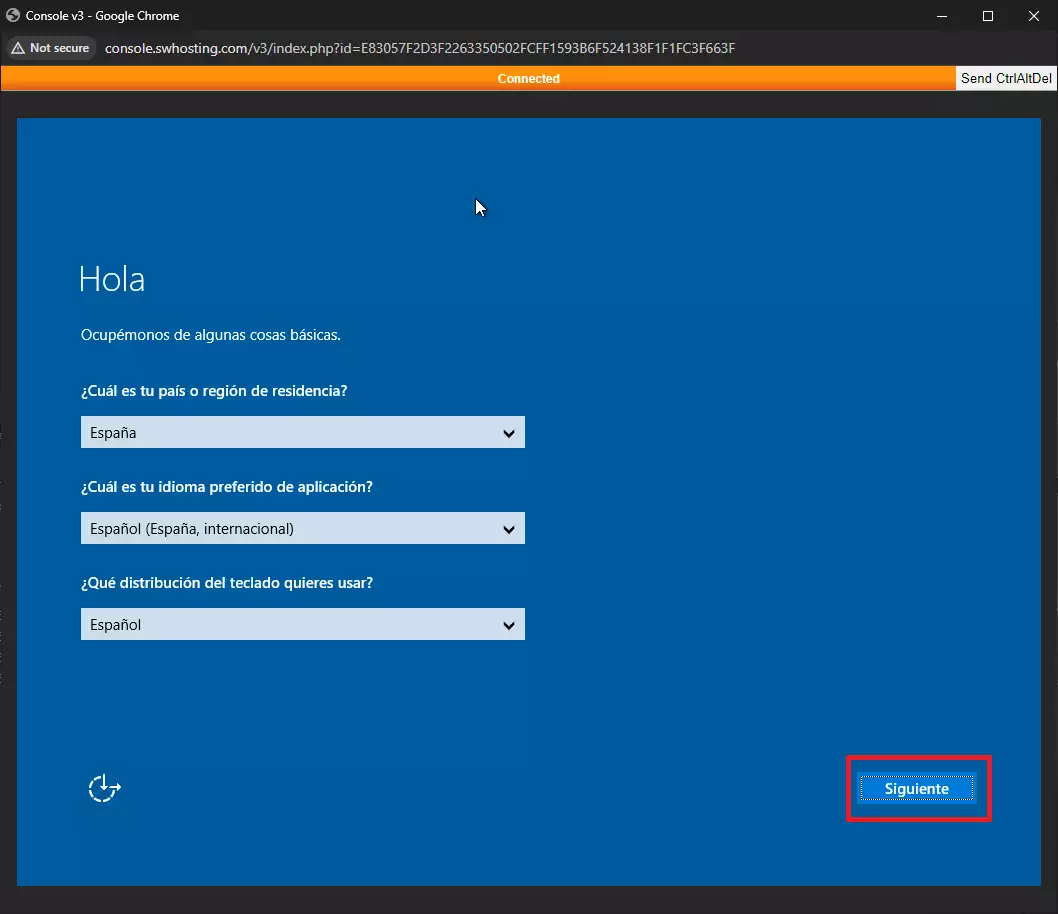
We leave the options as default and select "Next". In the next window, we will have to accept the Windows terms and conditions. We will click on "OK":
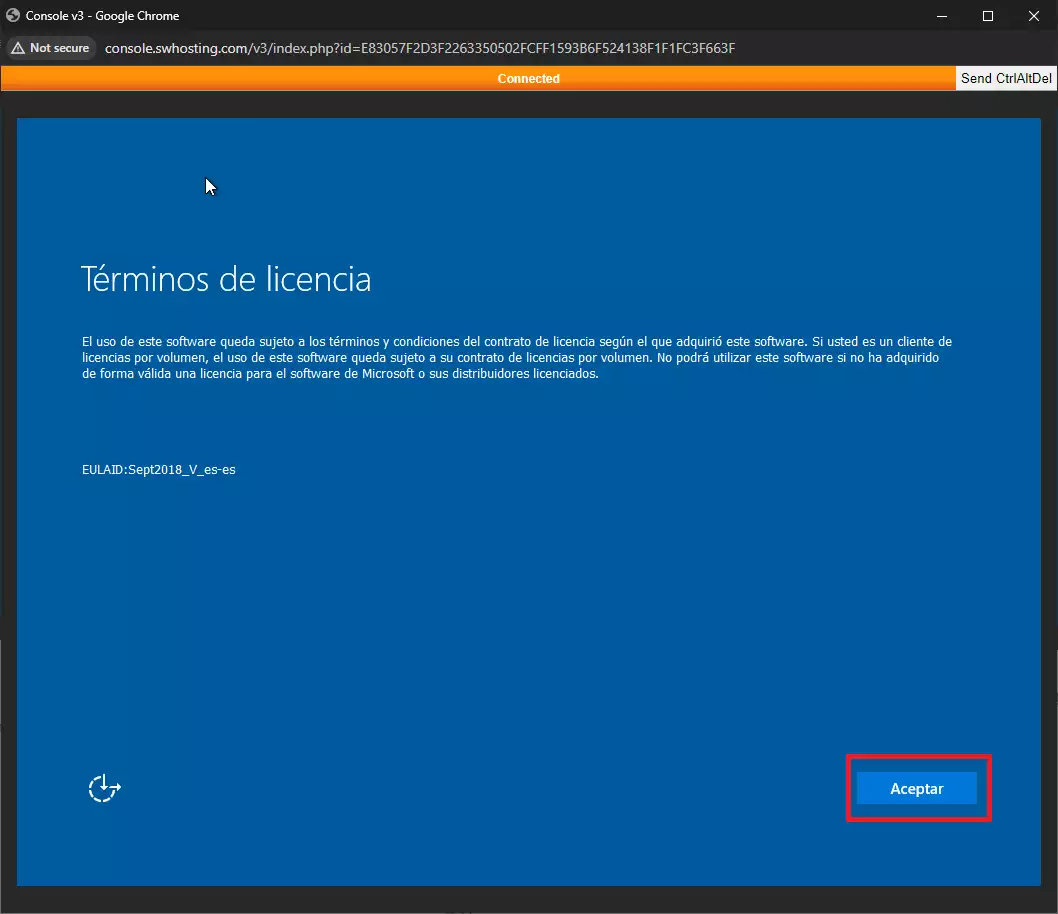
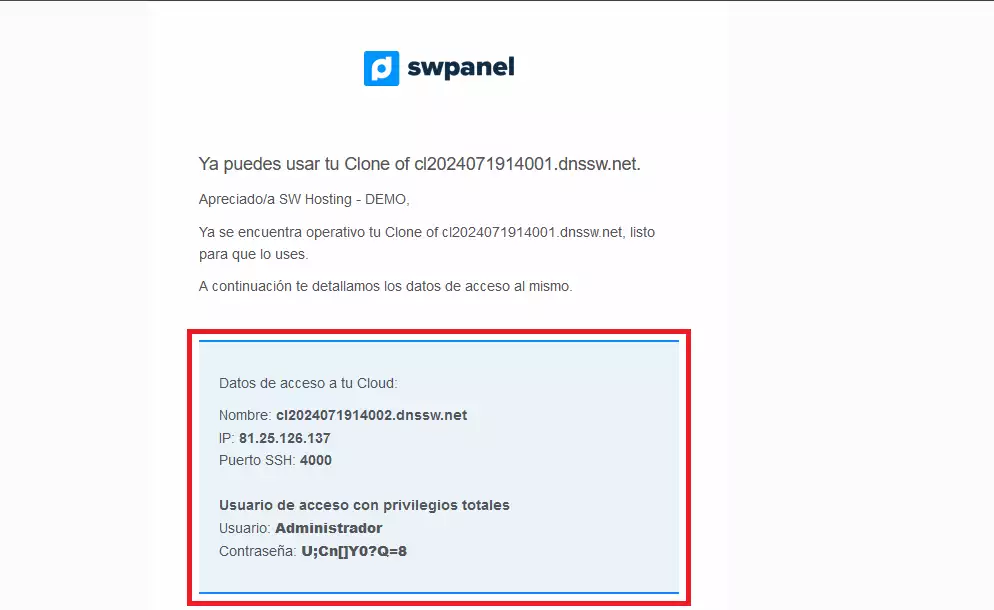
Finally, it will ask us to specify a new password for the "Administrator" user. This password must be the new one you received by email. Basically, these are the credentials of the cloned machine, not the original machine:
We specify the password and click on "Finish":
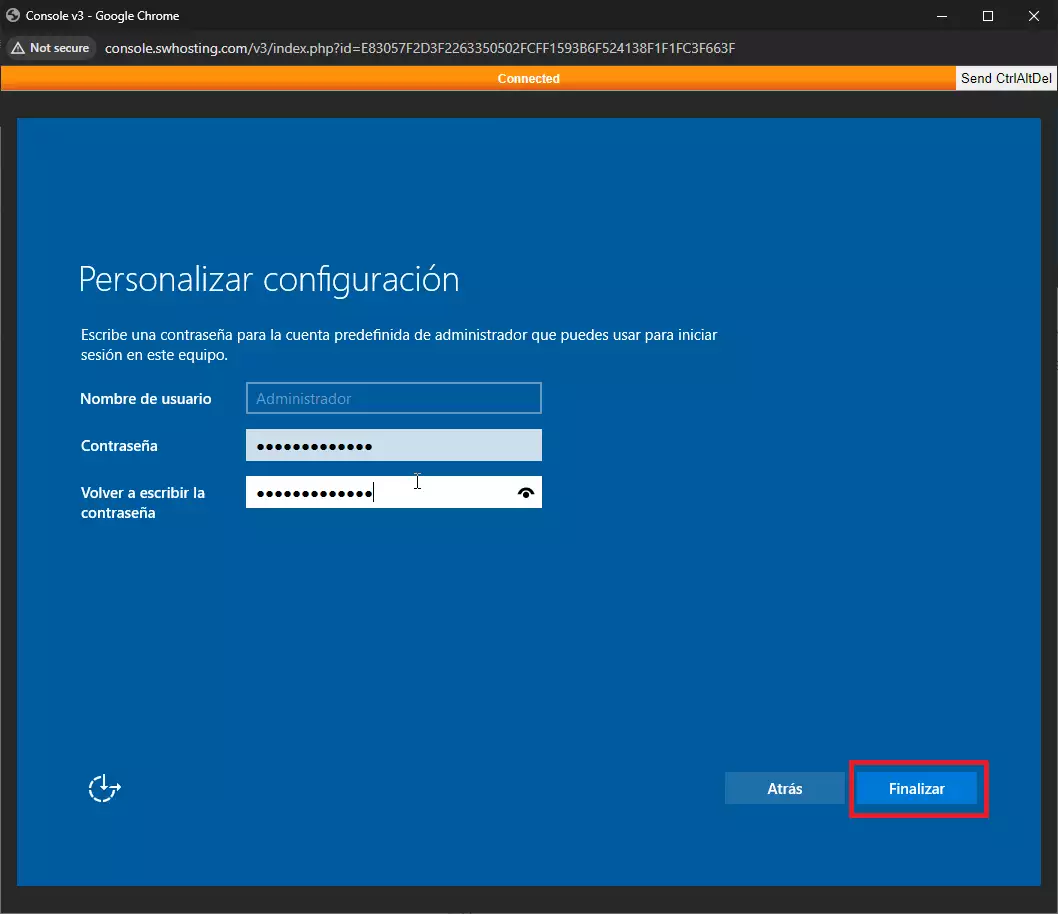
Windows will finish the configuration and we will return to the login screen, where we will have to enter the access credentials again. Remember that the access credentials are the ones you specified in the previous step.
Now we just need to change the specific configuration. Namely:
Change the network
We need to change the network to specify the machine's own IP. To do this, we click on the Windows icon -> Run and specify:
ncpa.cpl
Here we right-click on the network adapter and select "Properties". Then we select "Internet Protocol Version 4 (TCP/IPv4)" and click "Properties".
A new tab will open in which we will see that the network is on the DHCP protocol. We must check the manual option ("Use the following IP address") and specify the IP that we received by email. We leave the subnet mask as "255.255.255.0" and leave the "Default gateway" at the default value. As for the DNS, we specify "81.25.112.78" and "81.25.112.9". If the cloud is in ROOM B (with IP 185.X.X.X), "185.61.124.25" and "185.61.124.26" must be specified as DNS. If desired, other different DNS can be specified.
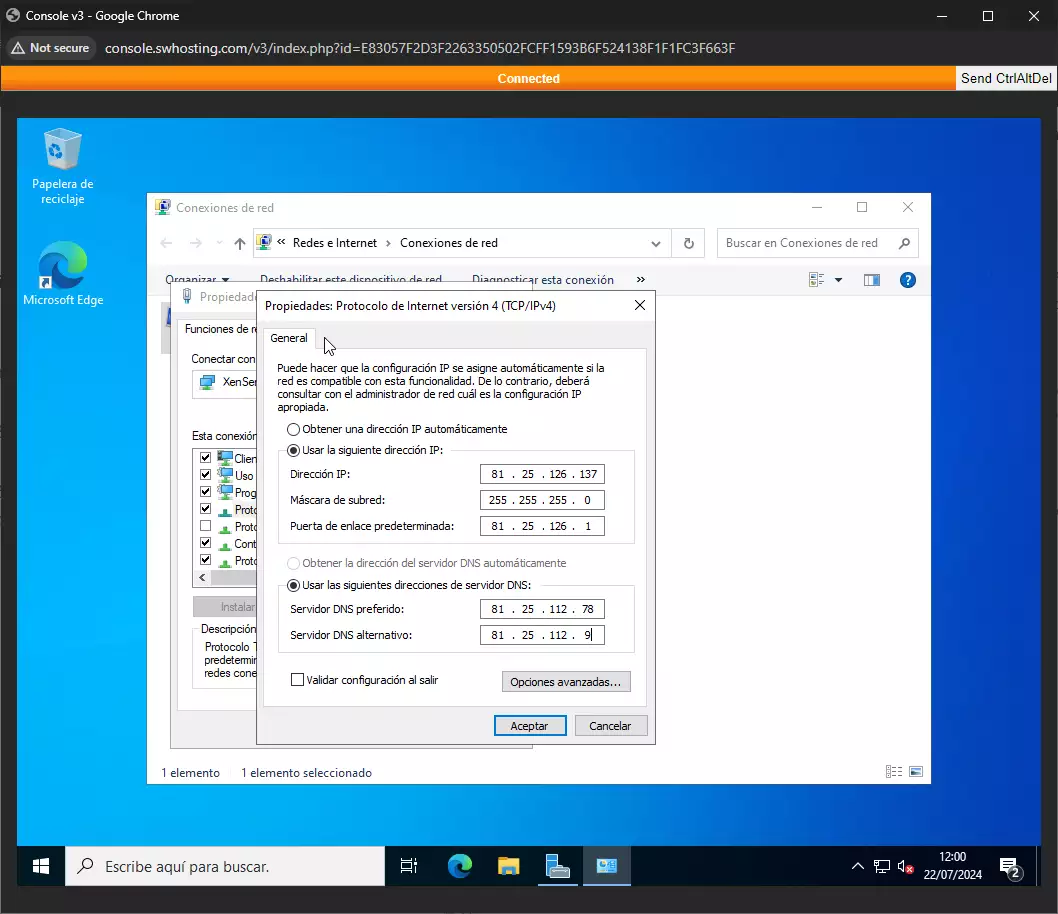
We click "OK" and the network will now be configured.
Change the hostname
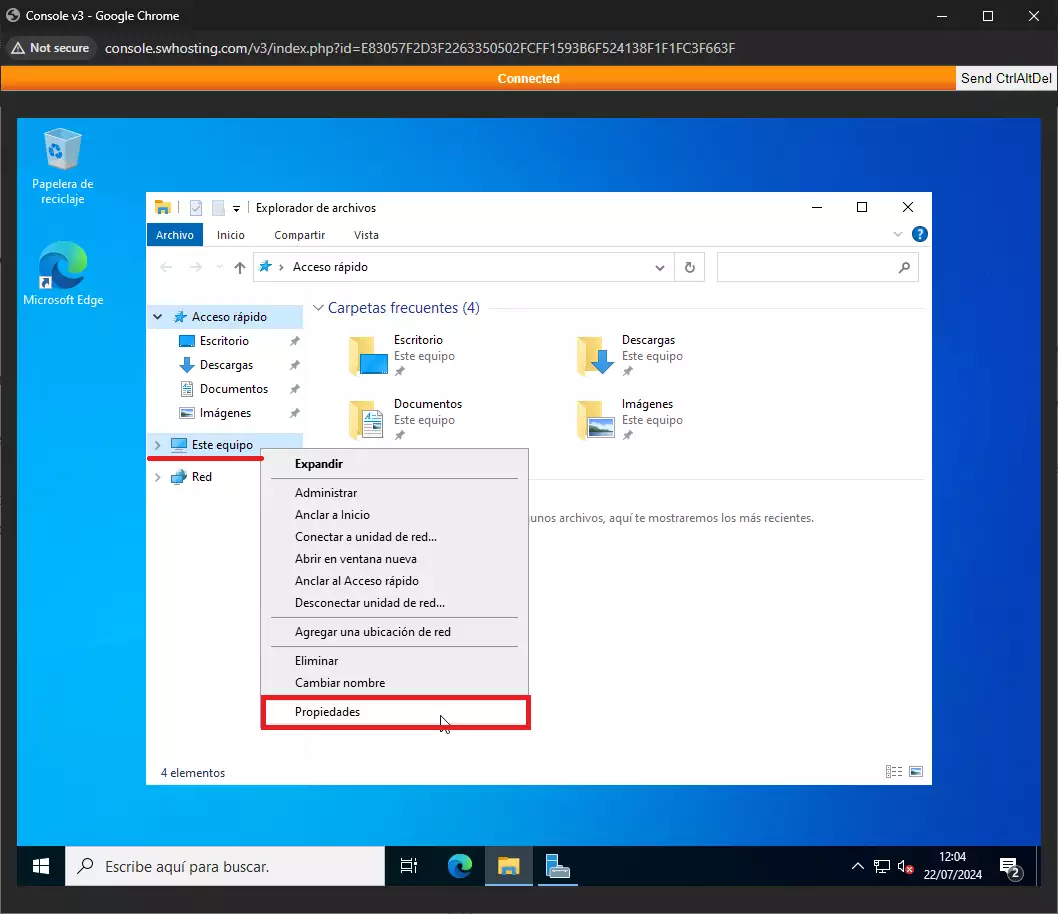
Another step that must be carried out is the change of hostname, since the sysprep process applies a random hostname. Access the server and, in the Windows icon, look for "run". In the new tab, specify "explorer.exe". A new tab will open with the "Windows Explorer". In the left side menu, we select "This PC", right-click and select "Properties":
A new tab will then open. Here we will have to scroll down until we find the "Change this computer's name" option. We click and specify the new name (it must be the same as the one in the email with the access data. The name must be entered without the "dnssw.net"):
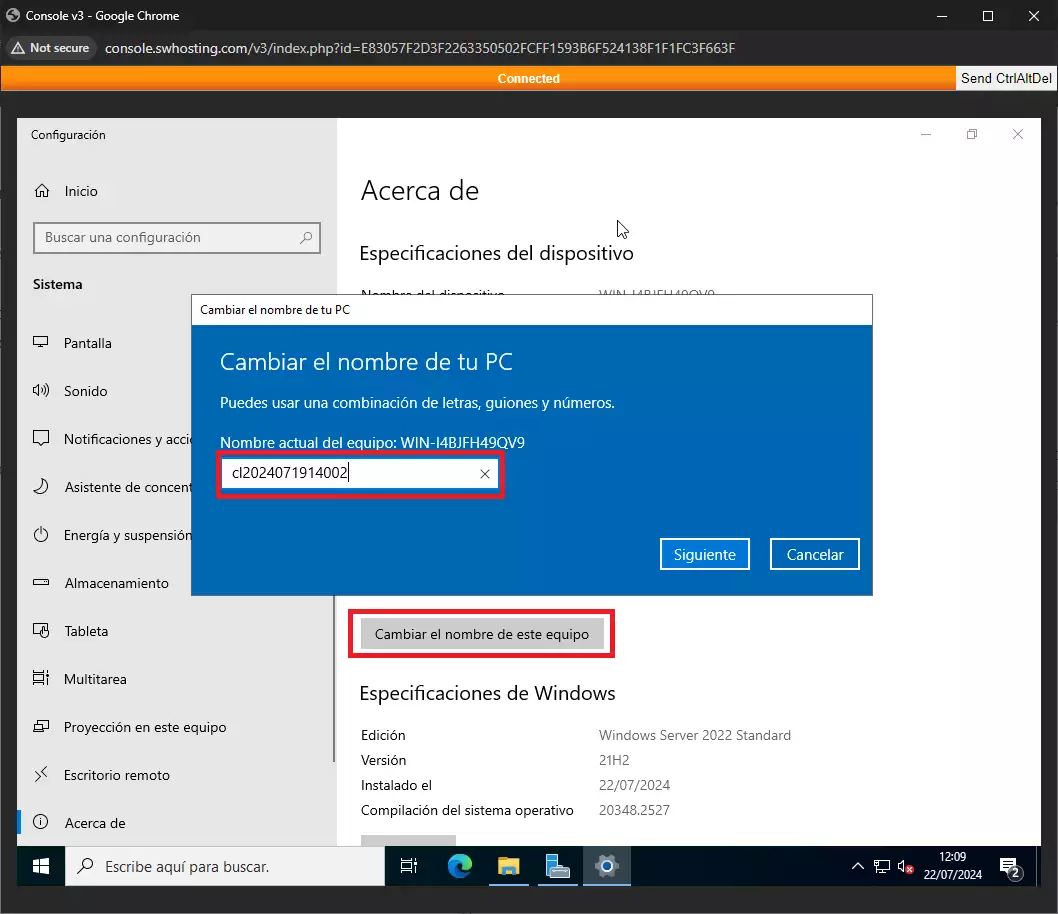
We click "Next". When prompted, we select "Restart now".
Once these steps are completed, the new cloned machine will have the same IP, with its corresponding name and Administrator password, completing the cloning process and the startup of the cloned server.