Configure email accounts from my Hosting in Microsoft Mail
We are going to configure our email account in the integrated email manager in Microsoft.
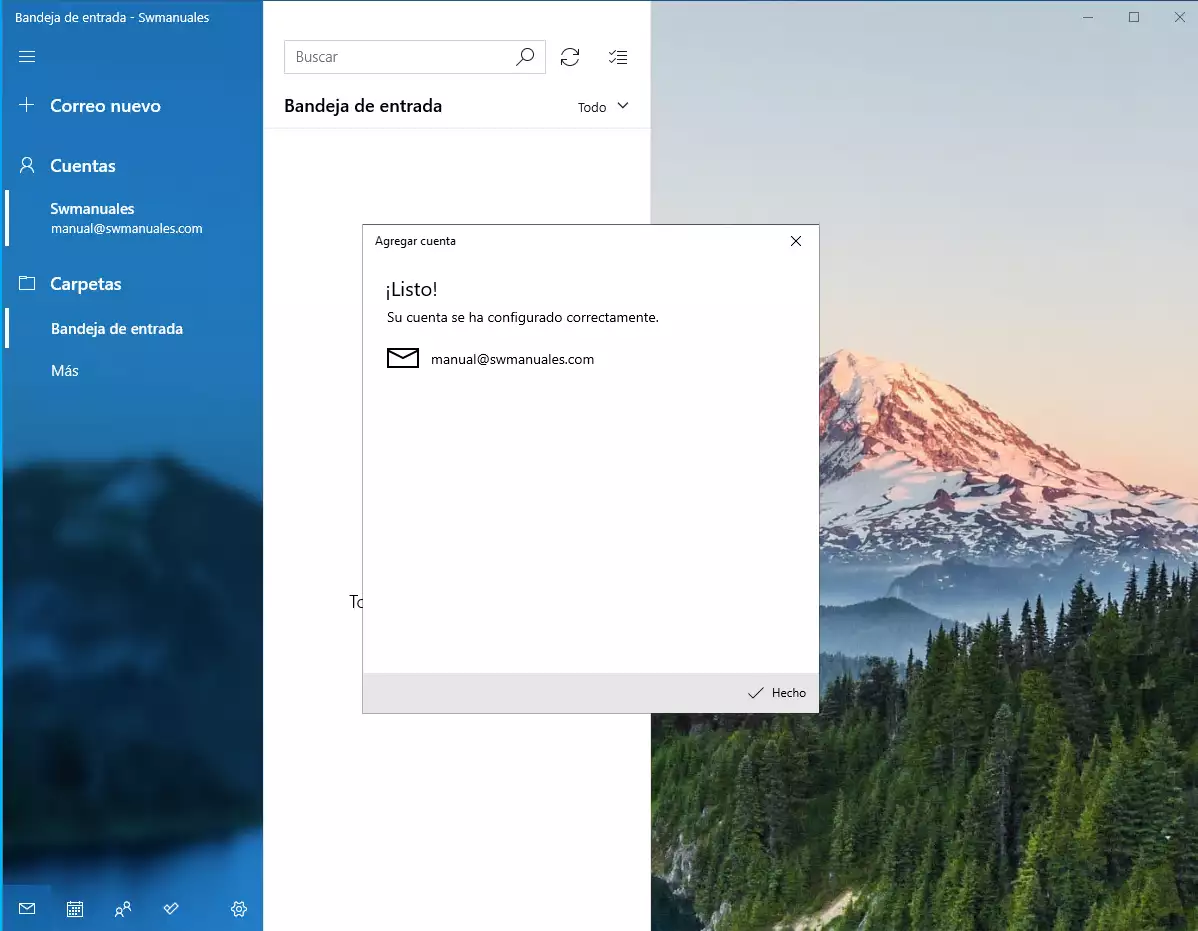
It is displayed with the following icon:

info The configuration shown in this manual requires the installation of a TLS security certificate for your Hosting email.
The data we must take into account for the email account configuration are the following:
- Incoming mail server: mail.domain.com
- IMAP Port: 993
- POP3 Port: 995
- Outgoing mail server: mail.domain.com
- SMTP Port: 465
- Email account
- Access key
- Protocol: SSL/TLS
info To view the connection data for your email account from SWPanel, you can check this ? Handbuch: How to view the connection details of my email account.
Configuring an email account for the first time
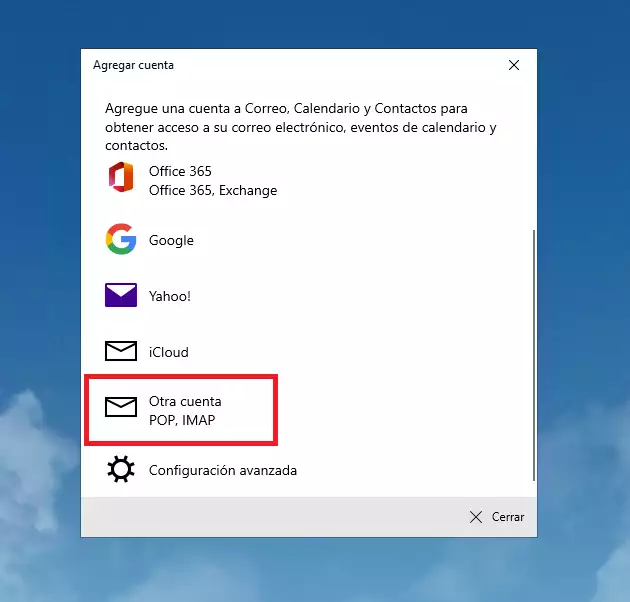
We open the email manager. If it is the first time we are configuring an account in the manager, a screen like the one below will appear. We select 'another account':
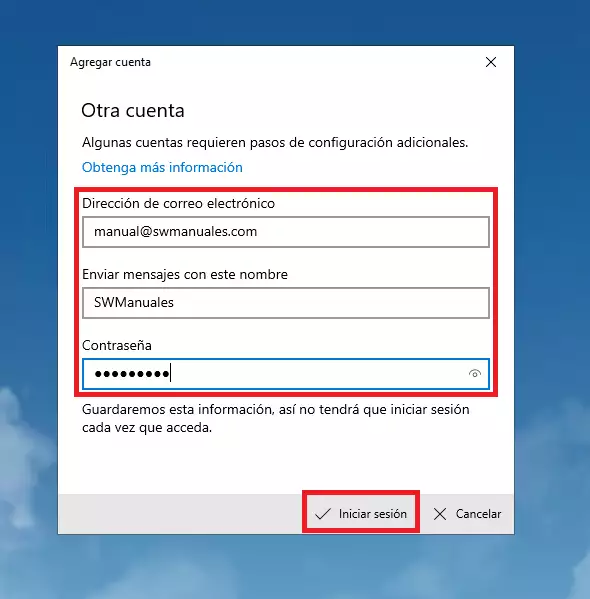
It will ask us to enter the email address, the account name, and the password. We click on 'Sign in':
info We remind you that from SWPanel it will not be possible to see the information about the email account key, because, in compliance with ISO 27001, LOPD and GDPR regulations, we do not store or provide personal keys, nor do we have access to email account keys, let alone provide them.
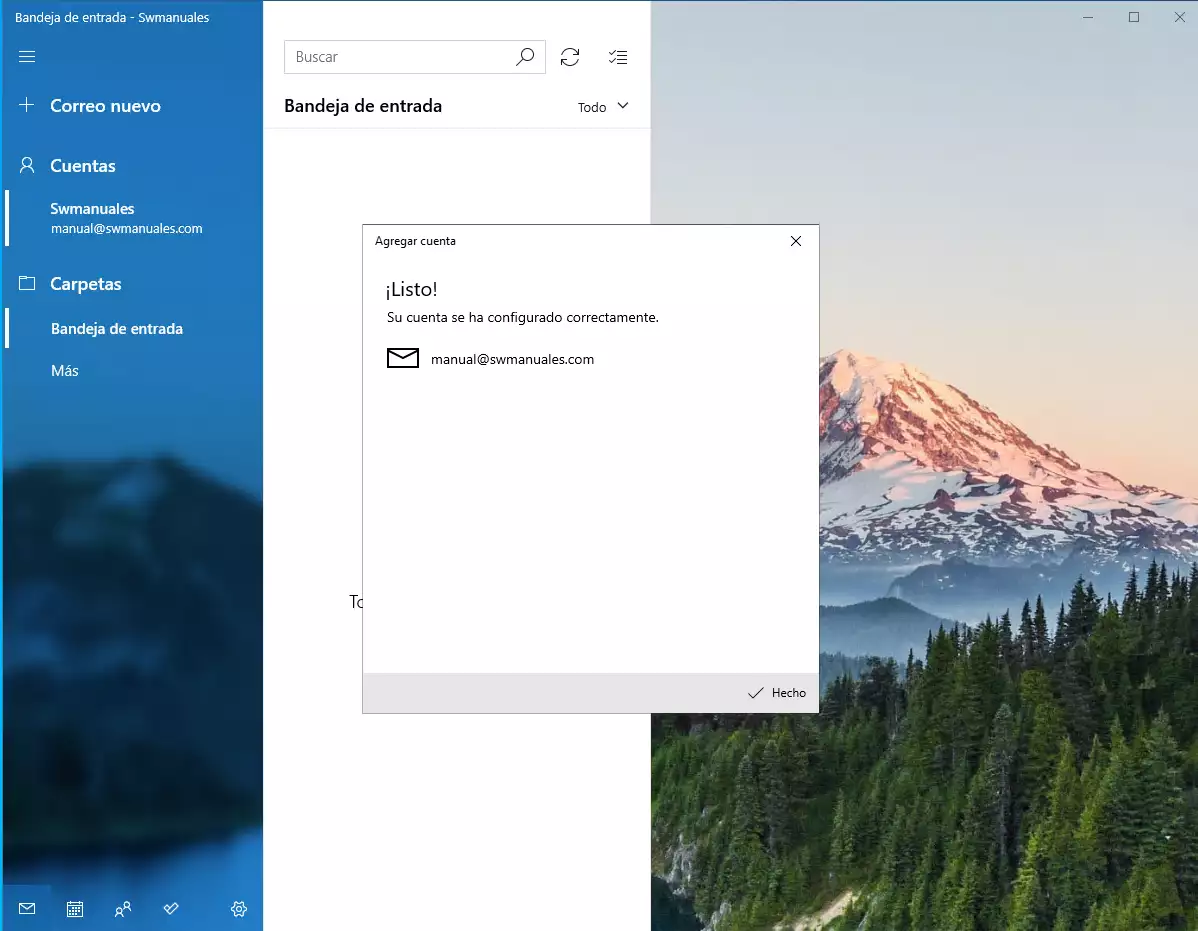
The email manager will search for the automatic configuration. Once completed, it will show the inbox along with the welcome message. We click on 'Done' to access the inbox:
Configuring another email account when an account is already configured
If we have already configured an email account in this manager, we must go to 'settings'. An auxiliary configuration window will open. We will click the 'Manage accounts' button.
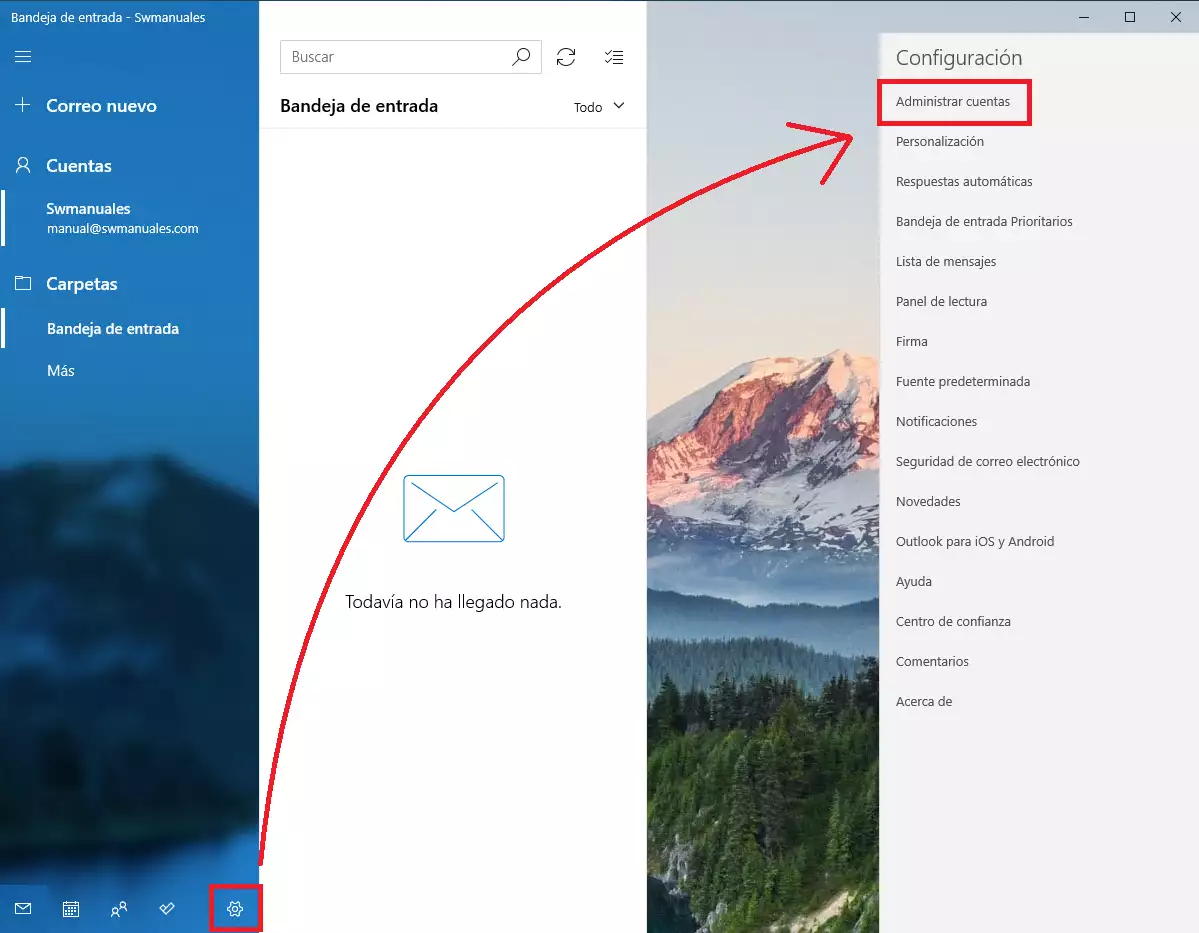
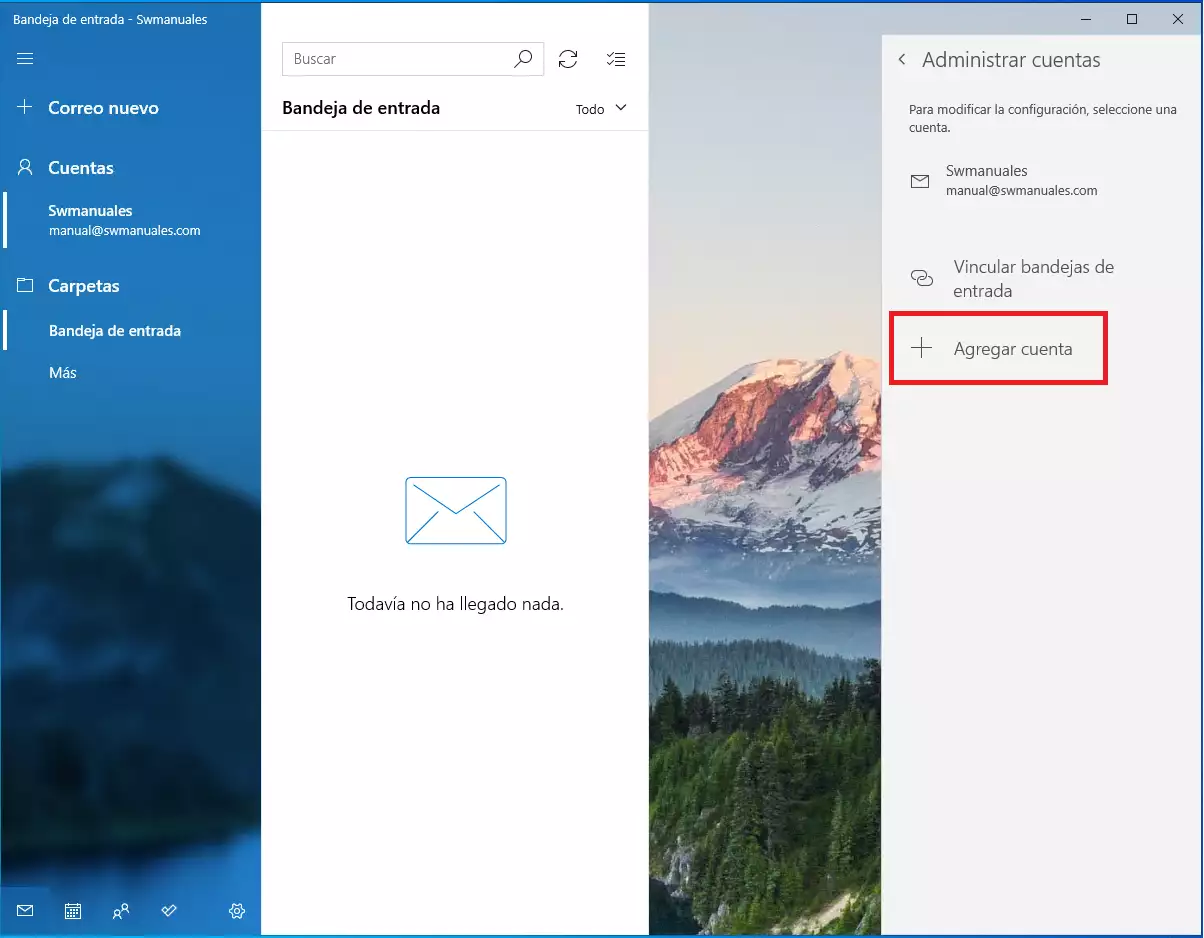
Within the account administration menu, we click the 'Add account' button to start the configuration of our email account:
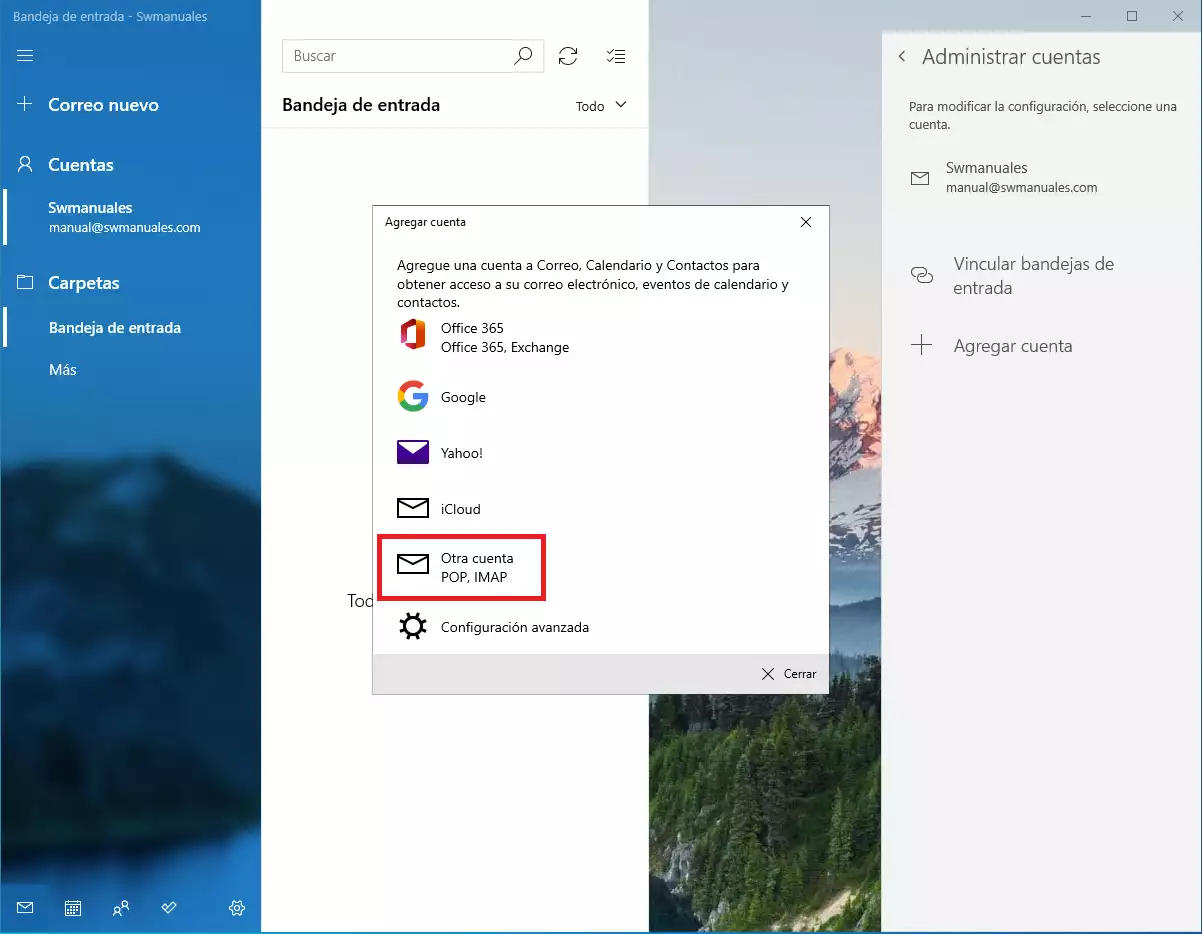
Next, the wizard screen for adding email accounts will appear. We will select 'Another account':
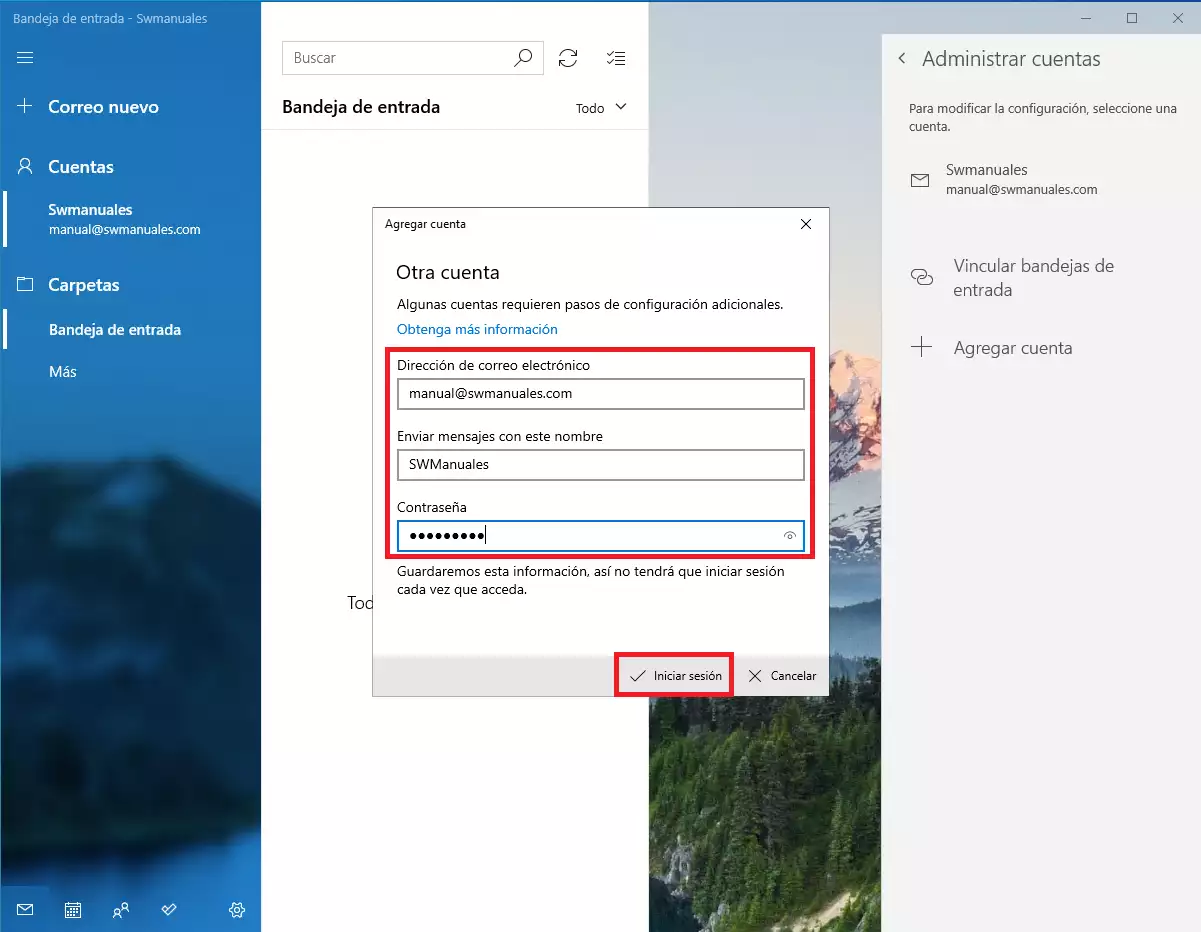
It will ask us to enter the email address, the account name, and the password. We will click on 'Sign in':
info We remind you that from SWPanel it will not be possible to see the information about the email account key, because, in compliance with ISO 27001, LOPD and GDPR regulations, we do not store or provide personal keys, nor do we have access to email account keys, let alone provide them.
The email manager will search for the automatic configuration. Once completed, it will show the inbox along with the welcome message. We click on 'Done' to access the inbox: