
How to view the connection details of my email account
In this manual, we will explain where you can view the connection details for an SWPanel email account so that you can configure it in an email client.
To start, you must access your SWPanel account and go to the hosting service where your email account is located. You can do this from the 'Service Tree' tab or via the SWPanel search bar.
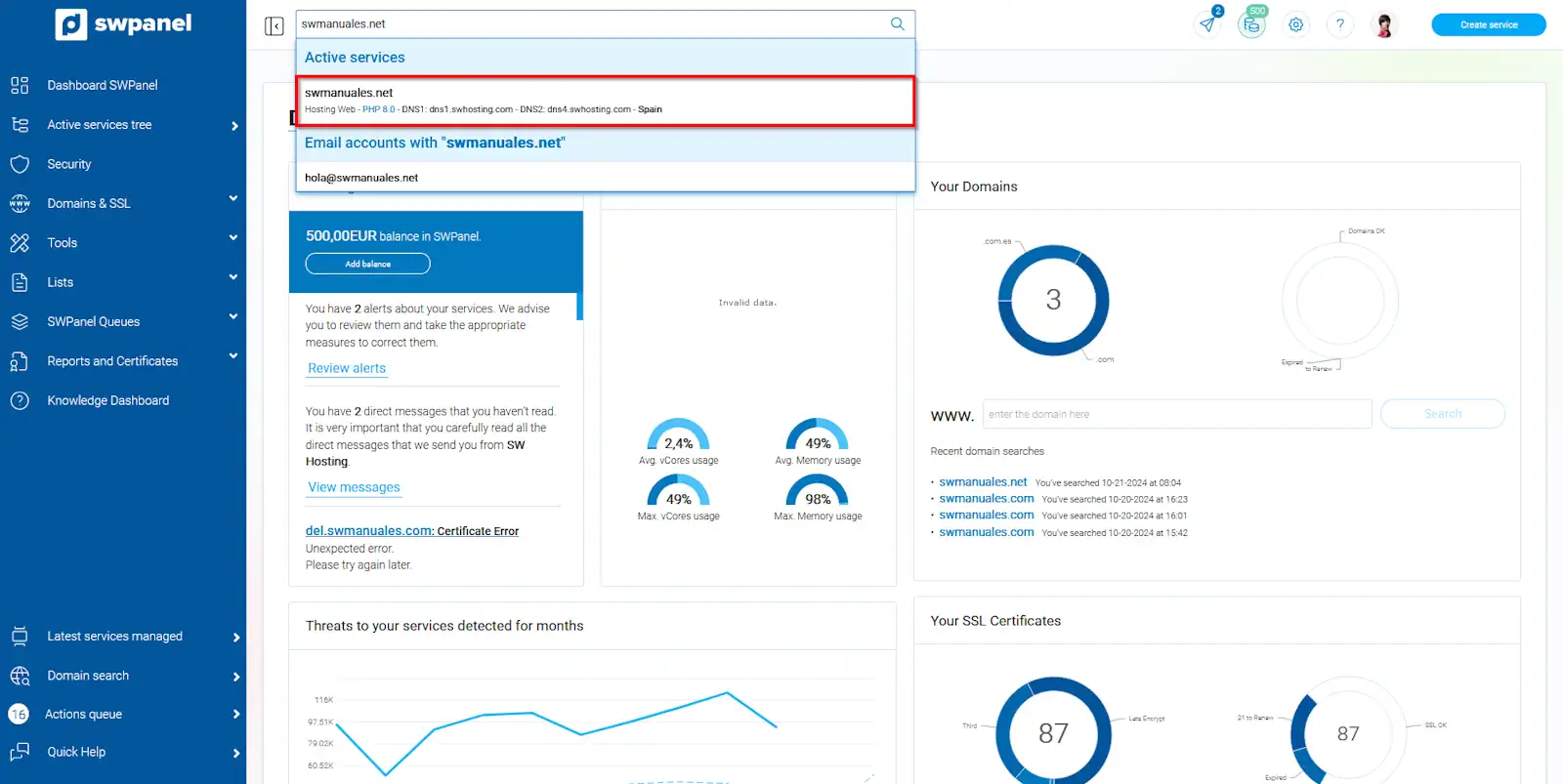
info_capture The screenshot is for guidance only. It was taken using version 2024.07.0123 dated 24/10/2024. It may differ from what the current version of SWPanel shows.
Next, you must enter the email management panel. From the blue side menu, click on 'Service Management' and then on 'Email Management':
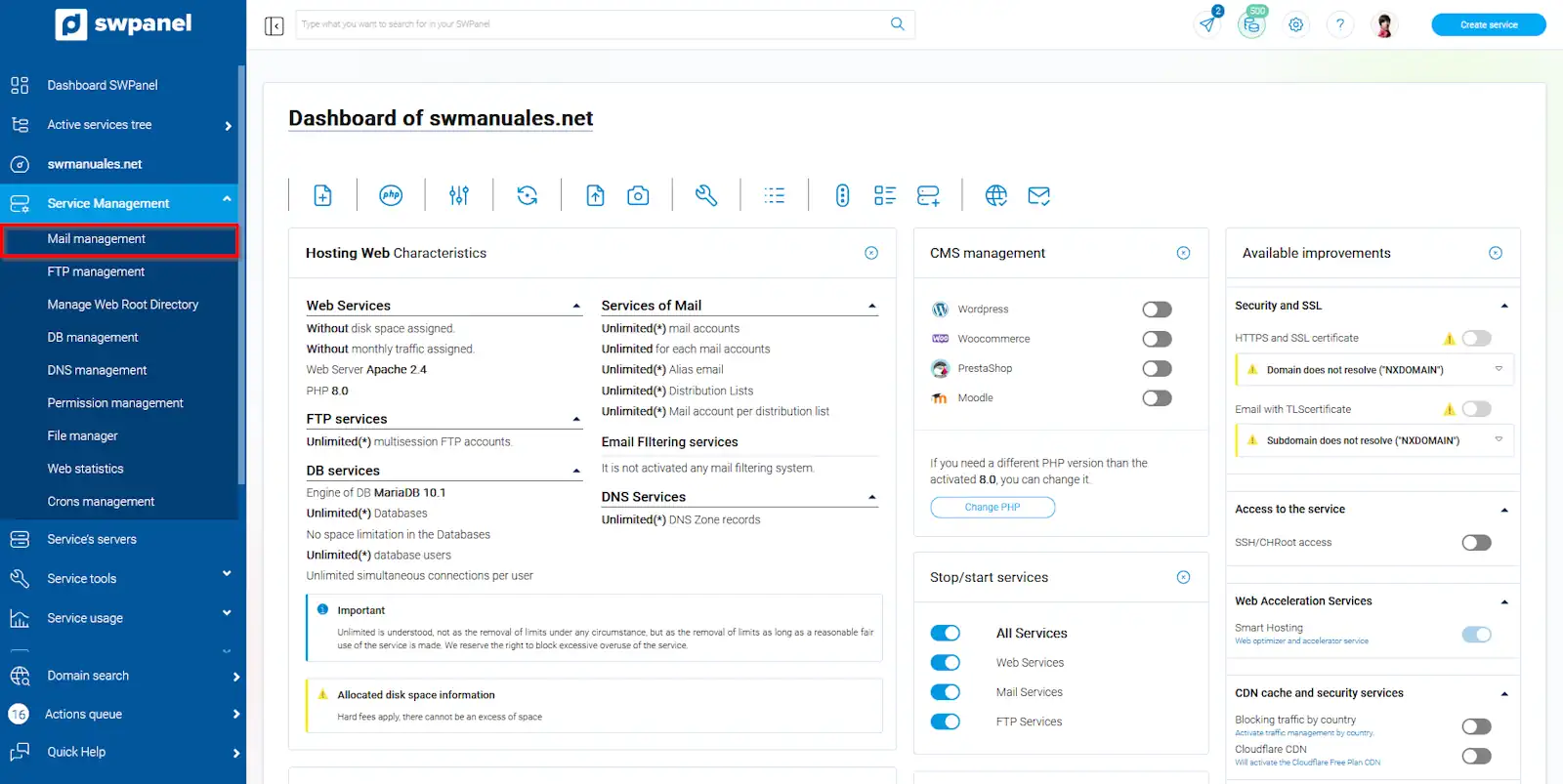
info_capture The screenshot is for guidance only. It was taken using version 2024.07.0123 dated 24/10/2024. It may differ from what the current version of SWPanel shows.
You must locate your email account and click on the [...] menu → 'Email account details':
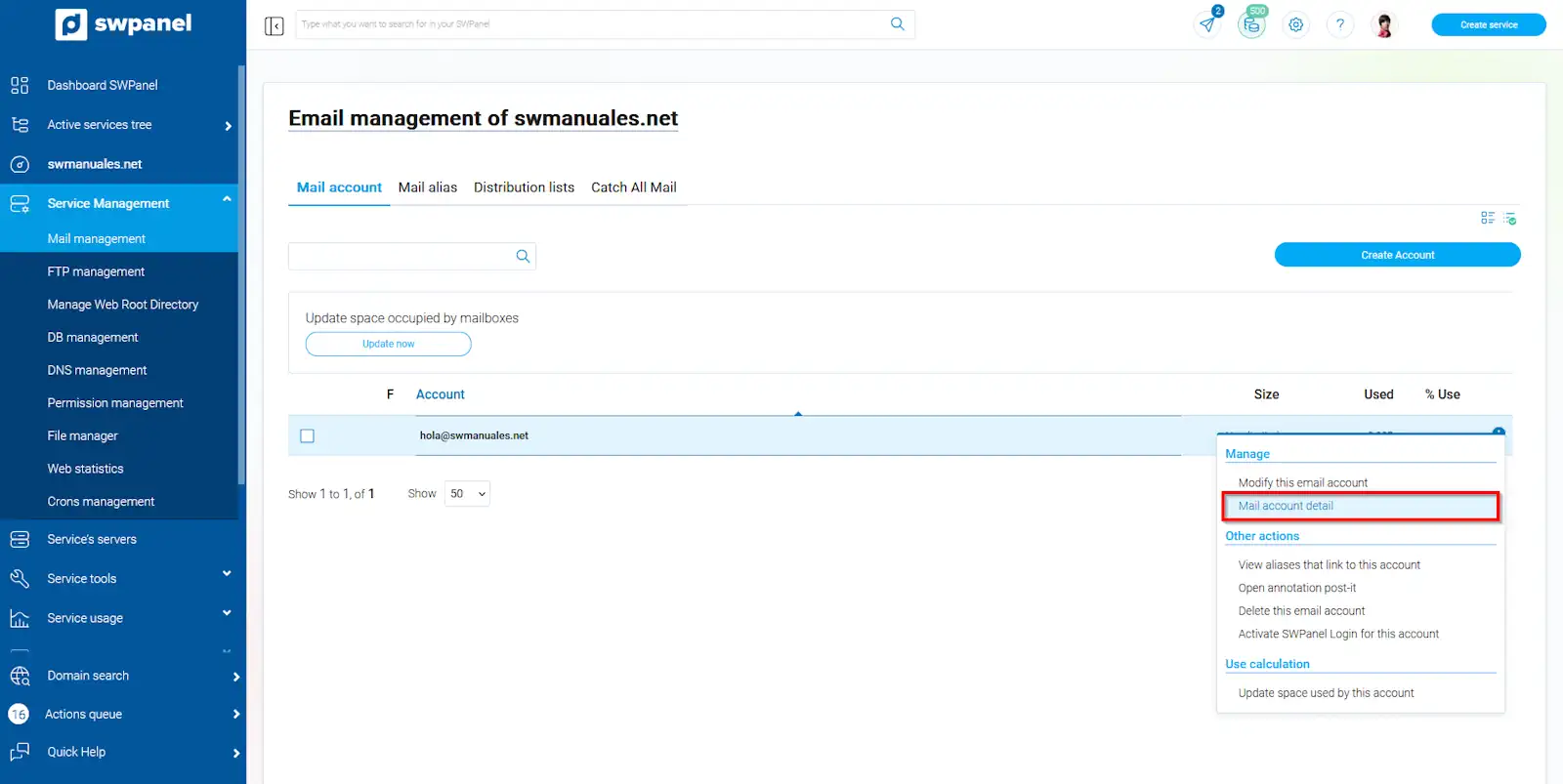
info_capture The screenshot is for guidance only. It was taken using version 2024.07.0123 dated 24/10/2024. It may differ from what the current version of SWPanel shows.
In this window, you will be able to see, among others, the connection details for your email account.
- Incoming and outgoing server
- Connection ports
- SMTP (we recommend port 465 with TLS/SSL certificate)
- IMAP (we recommend port 993 with TLS/SSL certificate)
- POP3 (we recommend port 995 with TLS/SSL certificate)
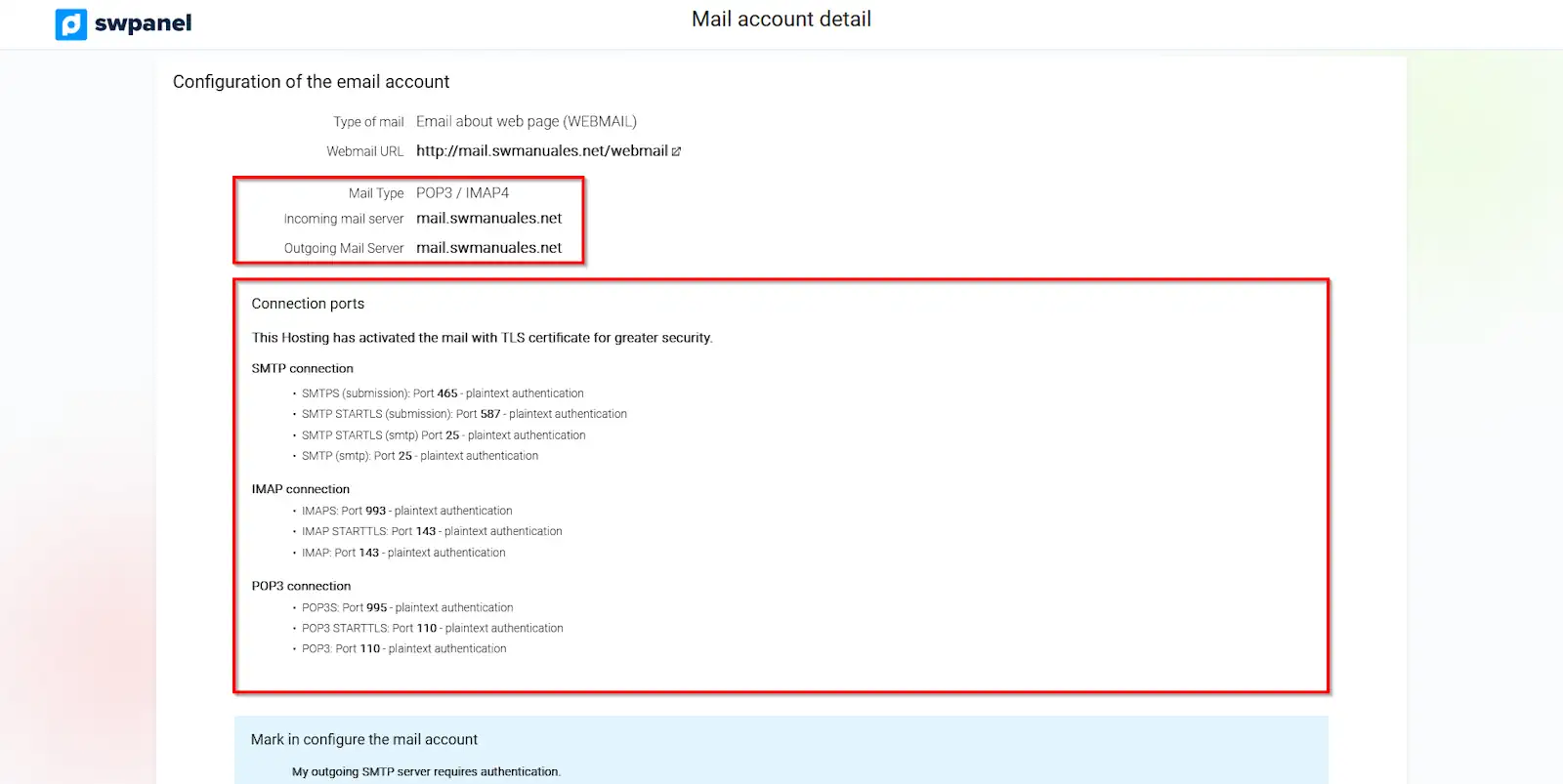
info_capture The screenshot is for guidance only. It was taken using version 2024.07.0123 dated 24/10/2024. It may differ from what the current version of SWPanel shows.
Follow this manual to install a free TLS certificate and thus secure your email accounts.