Configure my Hosting email accounts in Outlook
Microsoft Outlook is one of the most widely used email clients in both professional and personal settings for managing corporate or personal email accounts.
info The configuration shown in this guide requires the installation of a TLS security certificate for your hosting provider's email service. ? Handbuch: How to Enable TLS for my email using SWPanel.
Information Required for Setup
Before setting up the account in Outlook, make sure you have the following information:
-
Incoming mail server:
mail.domain.com -
IMAP port: 993
- POP3 port: 995
-
Outgoing mail server:
mail.domain.com- SMTP port: 465
-
Account credentials:
- Email address
- Password
-
Security protocol: SSL/TLS
info You can view your account’s connection details in SWPanel here: ? Handbuch: How to view the connection data of my email account
info For security reasons (ISO 27001, LOPD, and GDPR), SWPanel does not store or provide email account passwords.
Setting up an account for the first time in Outlook
1. Start setup
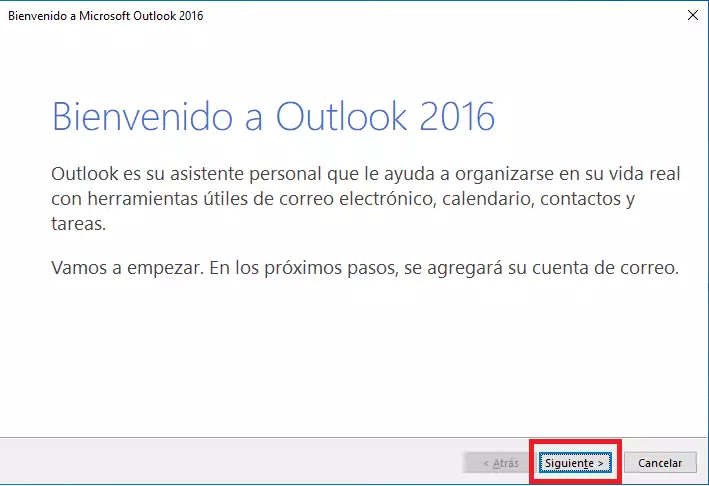
When you open Outlook for the first time, the welcome screen will appear. Click Next.
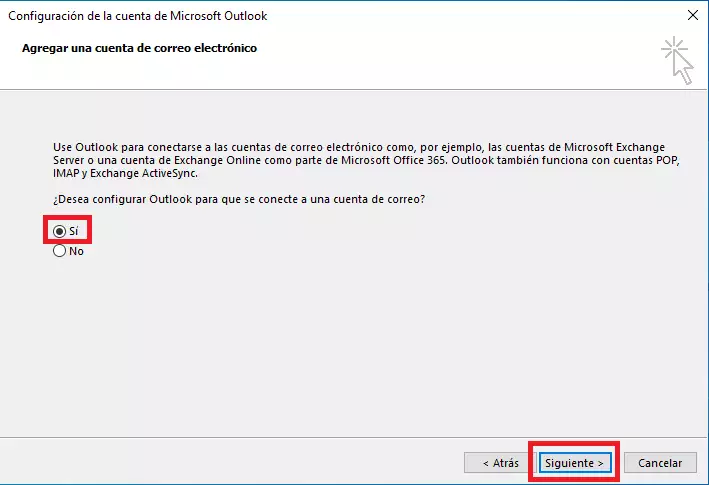
Next, select the option to set up an email account and click Next.
2. Account Setup
Enter the following information:
- Name (can be any identifier)
- Email address
- Password

3. Automatic Setup
Outlook will attempt to set up the account automatically. If the process is successful, a confirmation message will appear.
By default, the account will be set up using IMAP.
Check the “Change account settings” option and click Next if you want to review or modify the settings.

4. Manual server setup
On this screen, you can configure:
- Account type: IMAP or POP3
- Incoming and outgoing servers
- Username and password
Then, go to “More settings…”:

Outgoing server
Enable SMTP server authentication.

Advanced settings
Configure ports and security:
- IMAP: 993
- POP3: 995
- SMTP: 465
- Encryption: SSL/TLS

Click OK.
5. Finish
Click Finish. Outlook will perform a connection test to verify the settings.


If everything is correct, click Close.
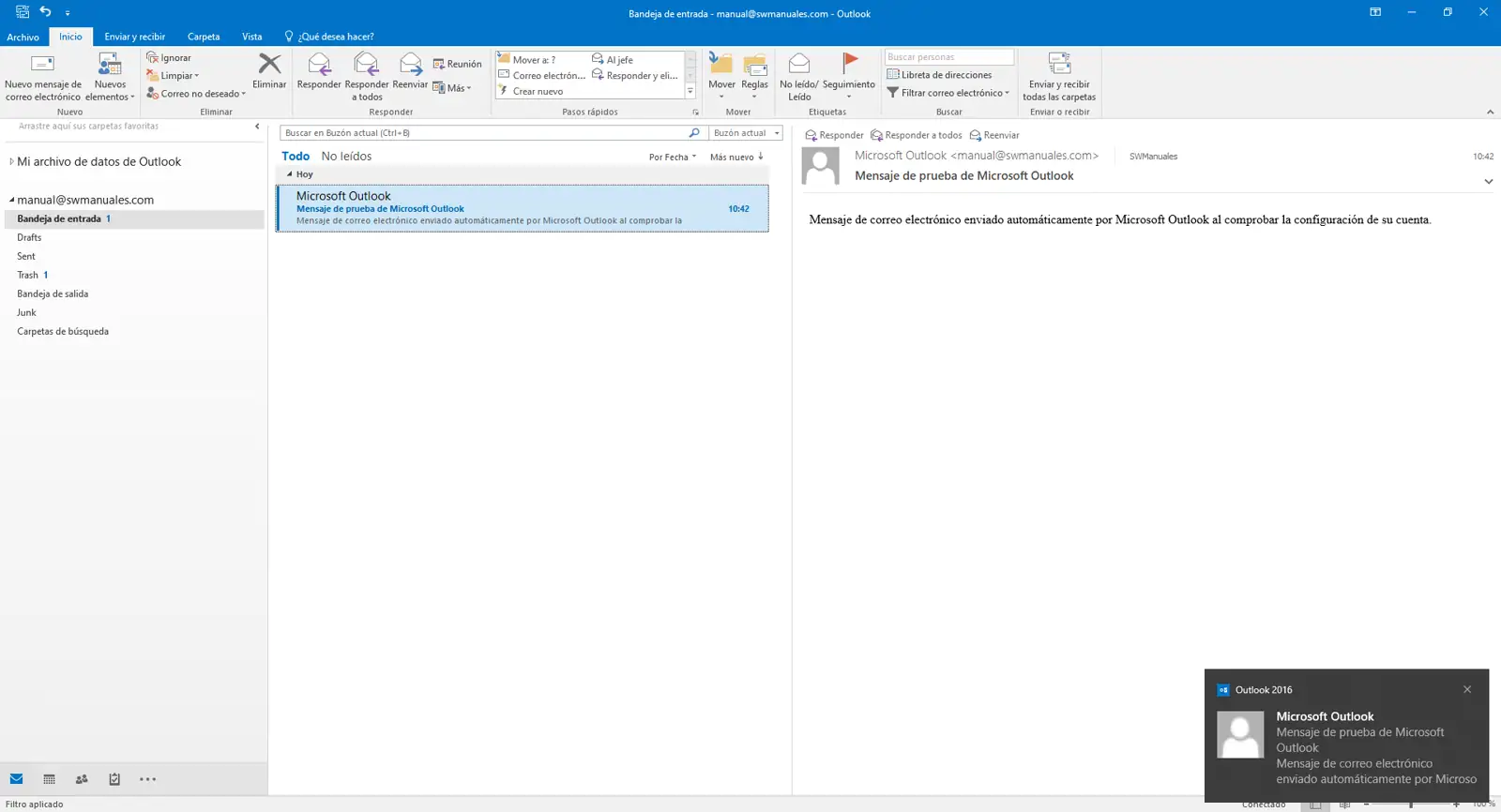
Finally, you will see the account configured in Outlook:
Add an additional account in Outlook
If you already have an account set up and want to add another one:
1. Access settings
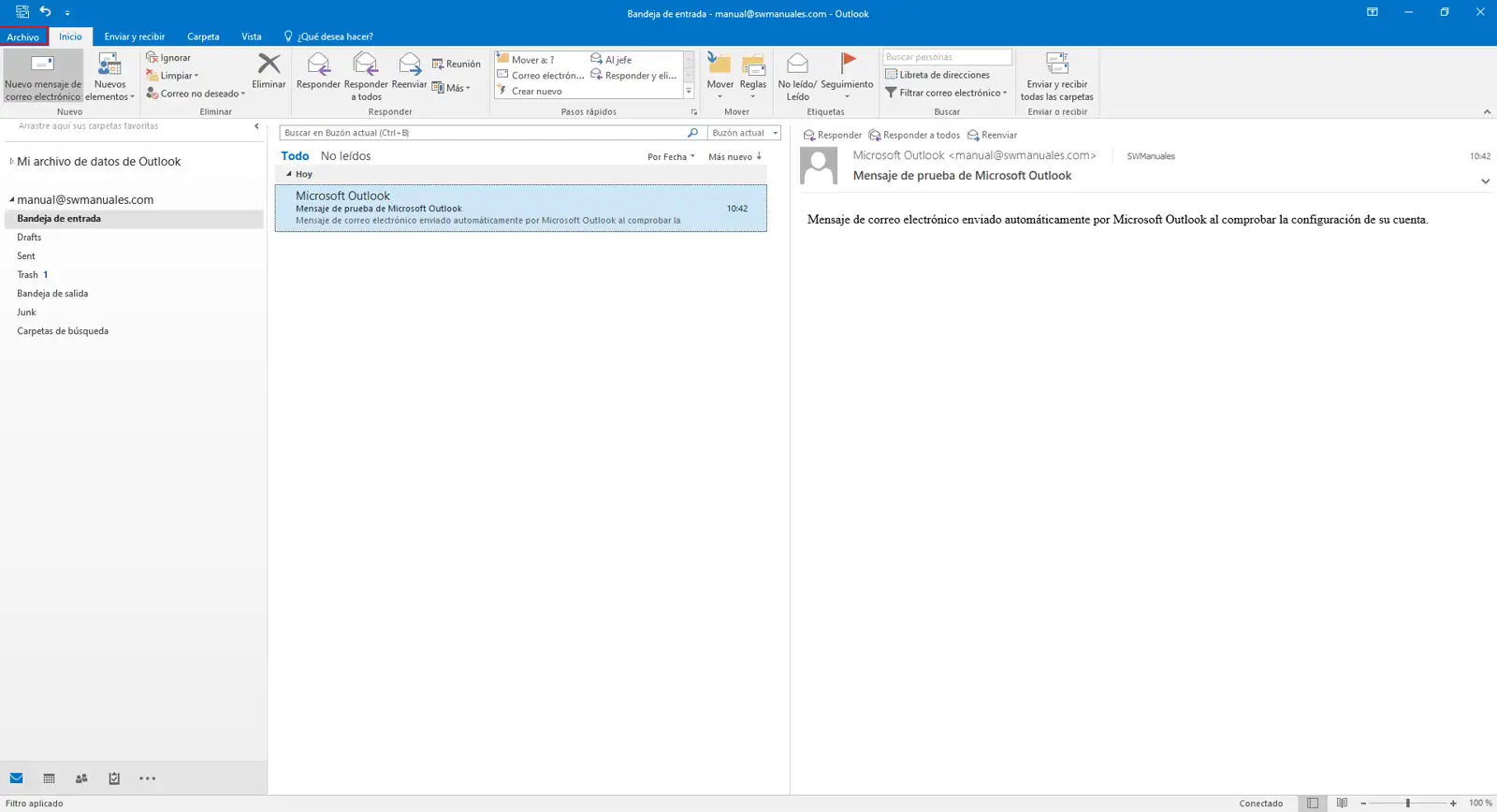
Go to the File tab in the upper left corner.
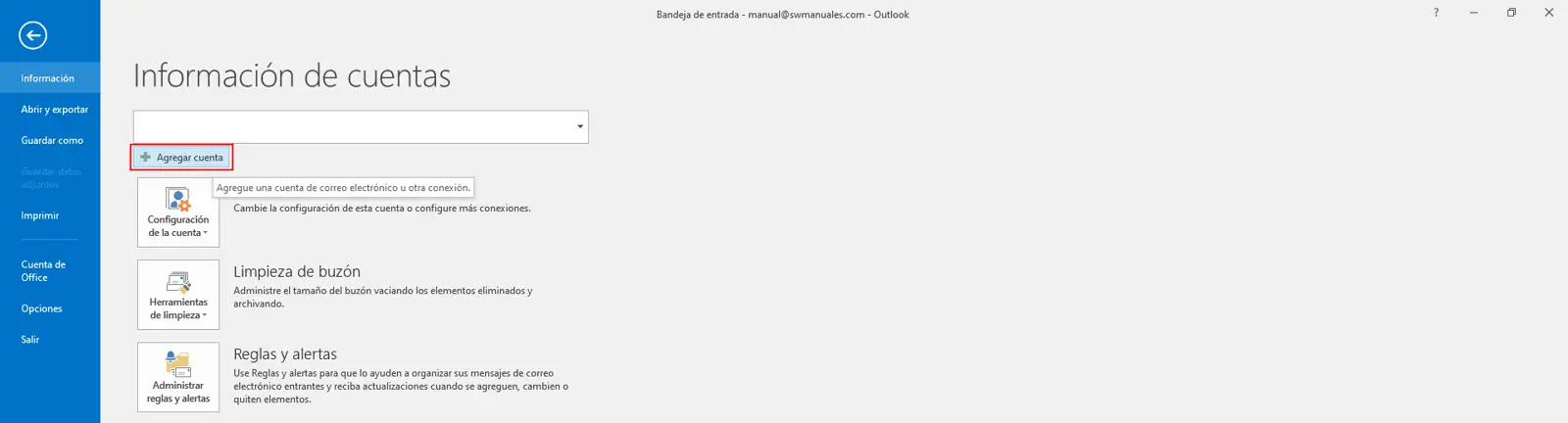
Click Add Account.
2. Enter your information
Fill in the fields:
- Name
- Email address
- Password
Click Next.

3. Manual setup
Repeat the server setup steps:
- Account type (IMAP or POP3)
- Incoming/outgoing servers
- Ports and SSL/TLS security



4. Finish
Click Finish and wait for the connection test.


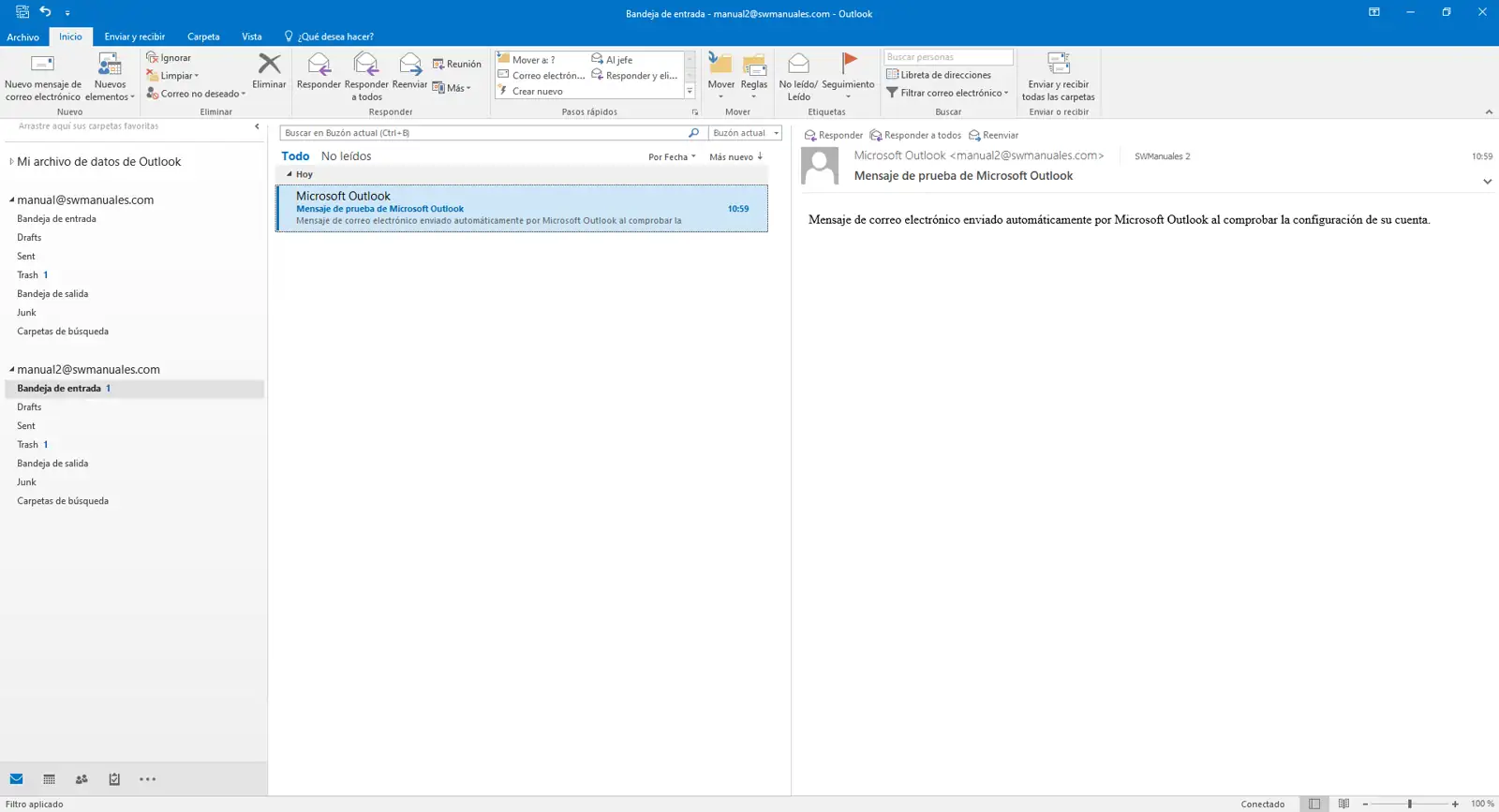
If everything is correct, the new account will appear in Outlook: