
Connect to a server via SSH with Windows
In this manual, you will learn how to connect to your server via SSH from Windows systems, using both the integrated OpenSSH client and the graphical alternative PuTTY.
Prerequisites
Before starting, make sure you have:
- Your server's IP address.
- Access username.
- SSH port (default or custom, for example
2200). - Password or access key.
1. Connection via OpenSSH on Windows
The OpenSSH client is available in modern versions such as:
- Windows 10 (version 1809 or higher)
- Windows Server 2019 or higher
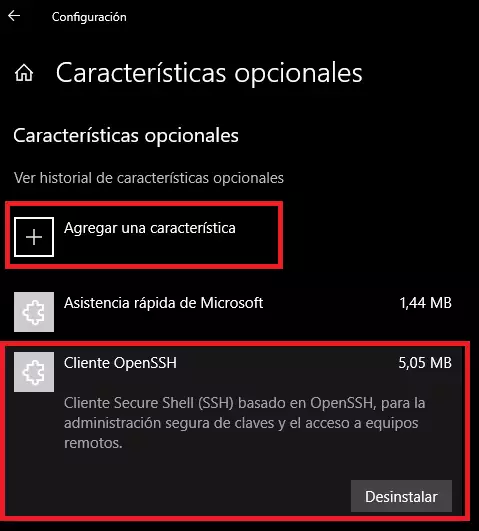
1.1 Installation on Windows with graphical environment
Follow these steps:
- Open Settings.
- Go to Apps → Apps & features.
- Click on Manage optional features.
- Click on Add a feature.
- Search for OpenSSH Client.
- Click Install.
1.2 Installation on Windows without graphical environment (PowerShell)
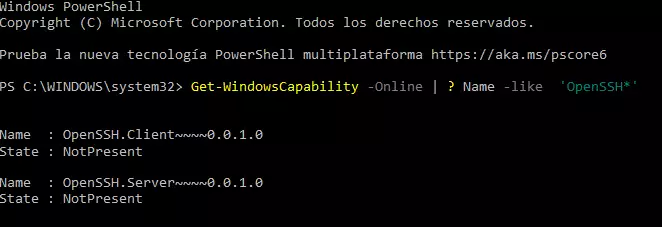
Open PowerShell as administrator and run:
Search for the available package:
Get-WindowsCapability -Online | ? Name -like 'OpenSSH*
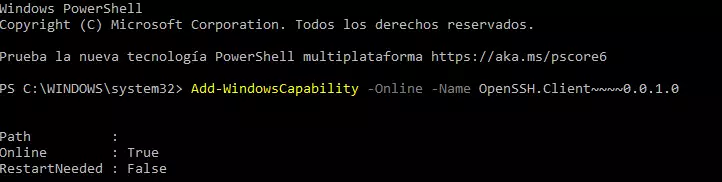
Install the OpenSSH client:
Add-WindowsCapability -Online -Name OpenSSH.Client~~~~0.0.1.0
1.3 Connecting to the server via SSH
Once installed, open a new PowerShell window and run:
ssh -p 2200 user@Cloud_IP
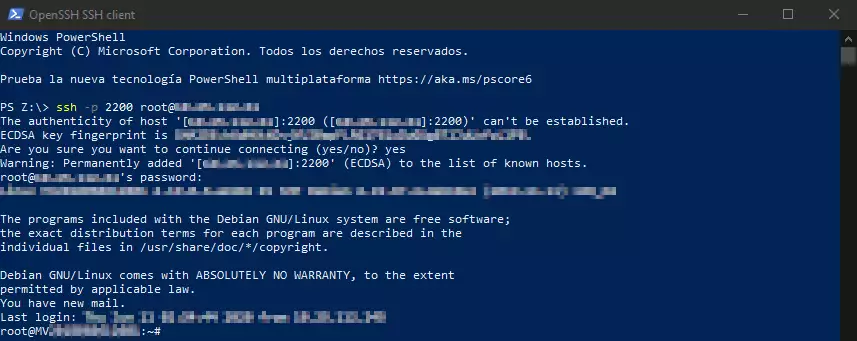
- Enter your password when prompted (it will not be displayed on screen).
- Press Enter to access.
2. Connection via PuTTY (graphical alternative)
If you are using older versions of Windows or prefer a graphical interface, you can use PuTTY.
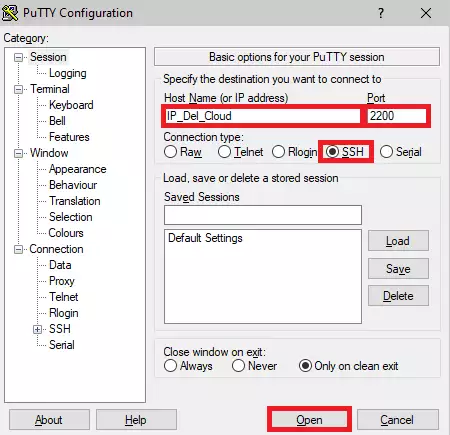
2.1 Connection configuration
To connect, enter the following data:
- Host Name (Address): Server IP
- Port (Port):
2200 - Connection type (Protocol): SSH
Click Open.
2.2 Login
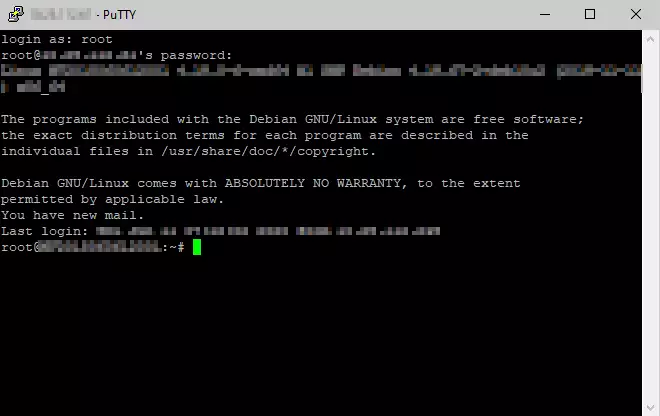
In the terminal that opens:
login as: useruser@server_ip's password:
- Type your password (it will not be displayed).
- Press Enter.
If the data is correct, you will access the server.
3. Closing the connection
To end the SSH session, simply run:
exit
Recommendations
- Always verify the SSH port configured on your server.
- If it is the first connection, a security warning (host key) may appear.
- Consider using SSH keys for greater security.