
How to change the root password of your Server with SWPanel
The following manual refers to a Cloud with SWPanel as a management tool.
To change the root password of your Server you will have to follow the following steps:
-
Type in the SWPanel search engine the name of the Cloud server to manage and, once located, click on the server name.
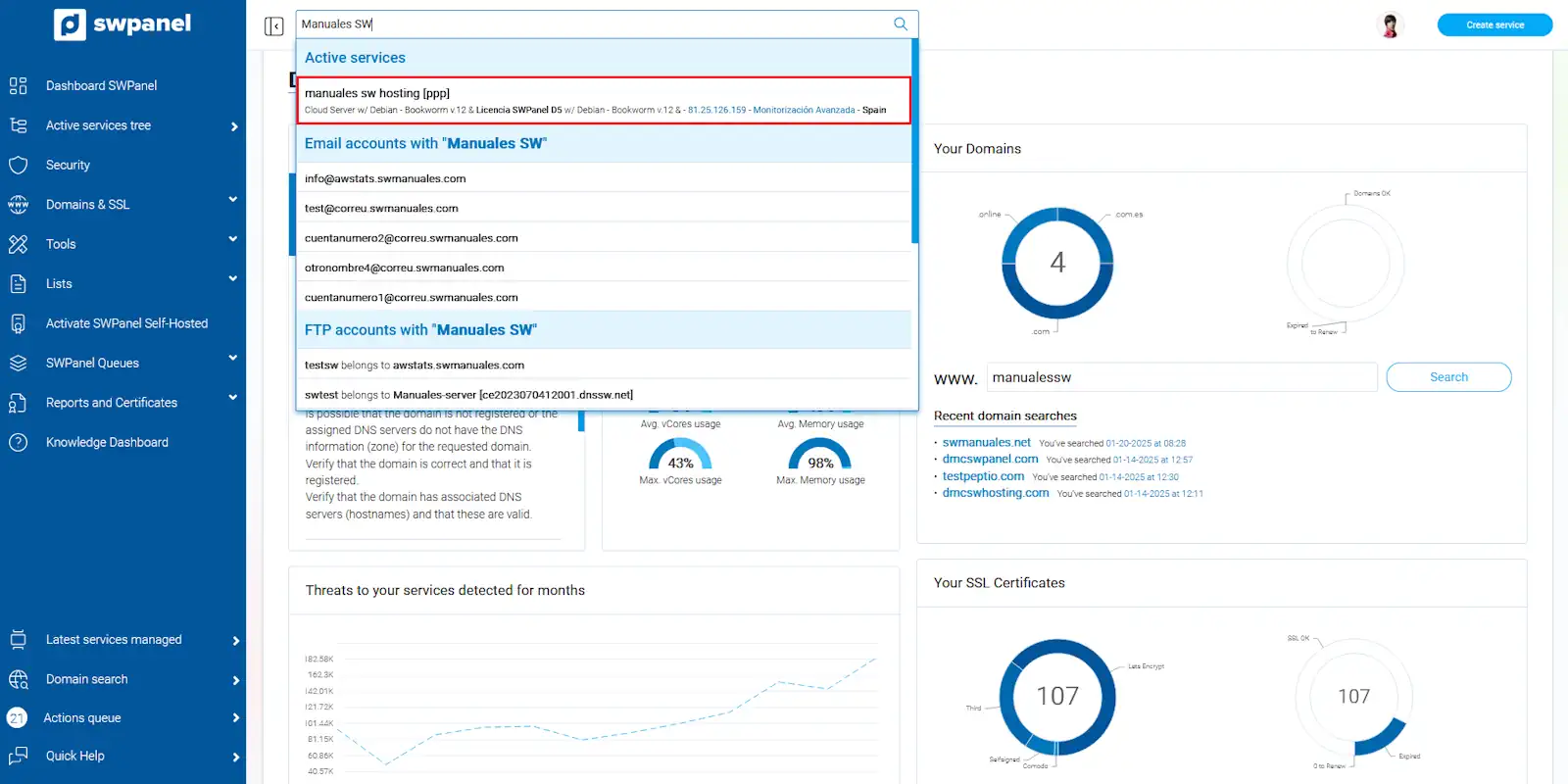
info_capture The screenshot is for guidance only. It was taken on version 2025.00.0017 dated 22/01/2025. It may differ from what the current version of SWPanel displays.
-
Once in the Dashboard of the Cloud server, go to the left side menu of your screen, drop down the submenu "Actions on this service " and then click on "Service access data ". Your Cloud access data will then appear.
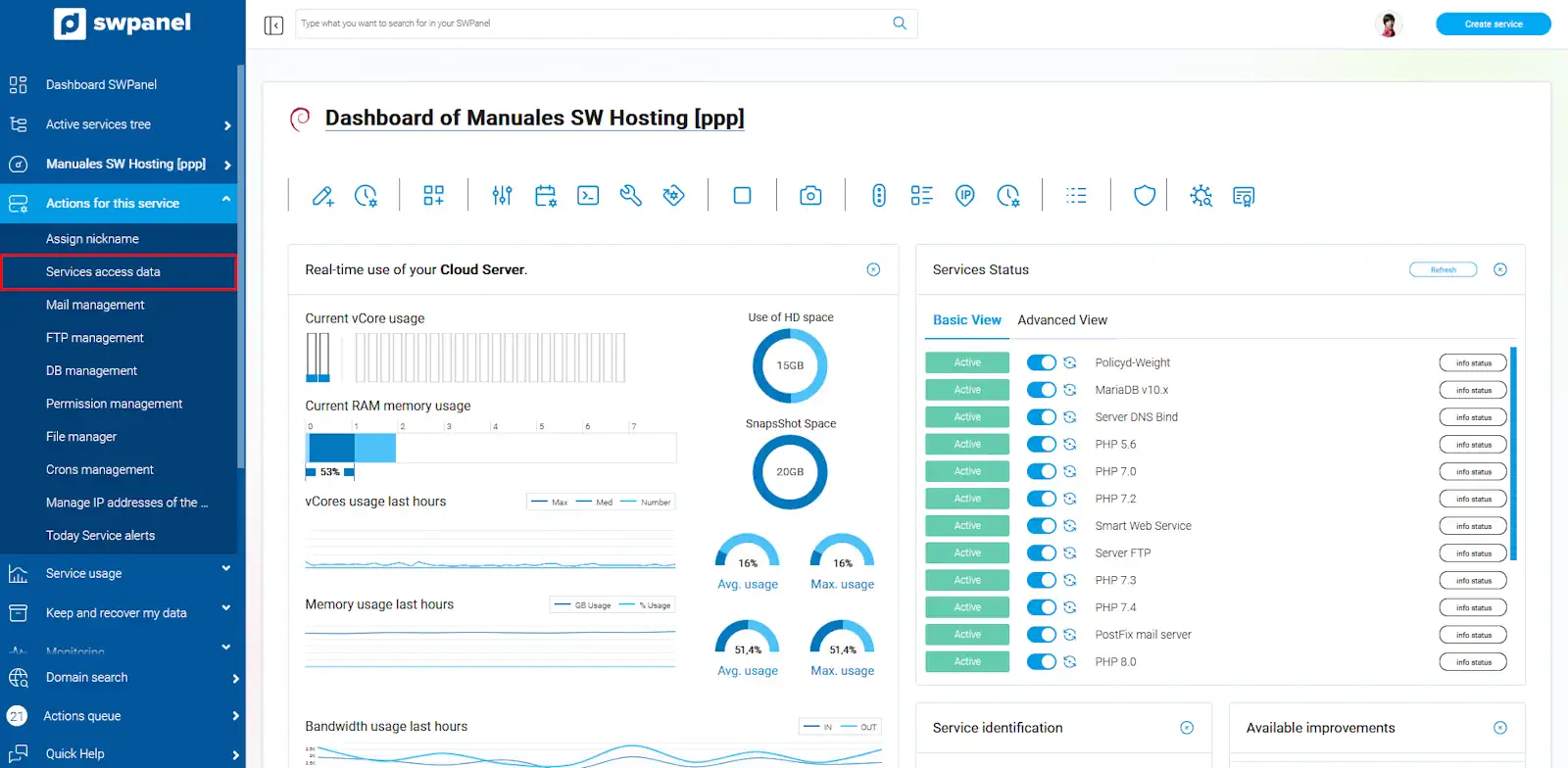
info_capture The screenshot is for guidance only. It was taken on version 2025.00.0017 dated 22/01/2025. It may differ from what the current version of SWPanel displays.
-
You will be able to change the password to access your Cloud by entering a new one or by using the magic wand to generate it randomly. Finally, accept the changes by clicking on the "Save password " button.
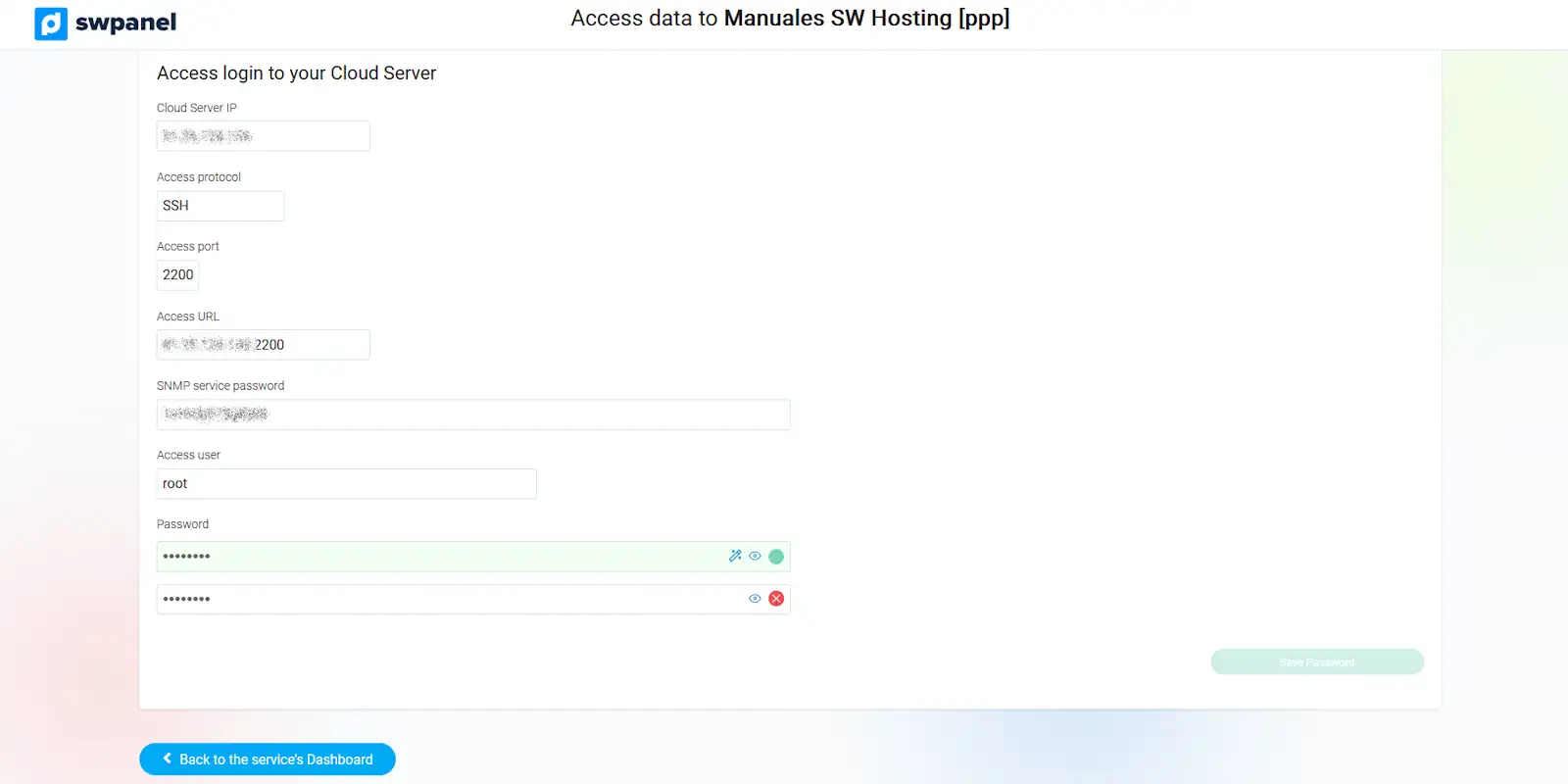
info_capture The screenshot is for guidance only. It was taken on version 2025.00.0017 dated 22/01/2025. It may differ from what the current version of SWPanel displays.