
How to configure Contact Form 7 with WP Mail SMTP in WordPress
Contact Form 7 is a free plugin that allows you to create and manage Contact forms for WordPress.
info For Contact Form 7 to work, it is essential to have the WP Mail SMTP plugin installed and configured. You can follow the guide in the following manual Handbuch: Configure email sending plugin (WP Mail SMTP) in WordPress.
Plugin Installation
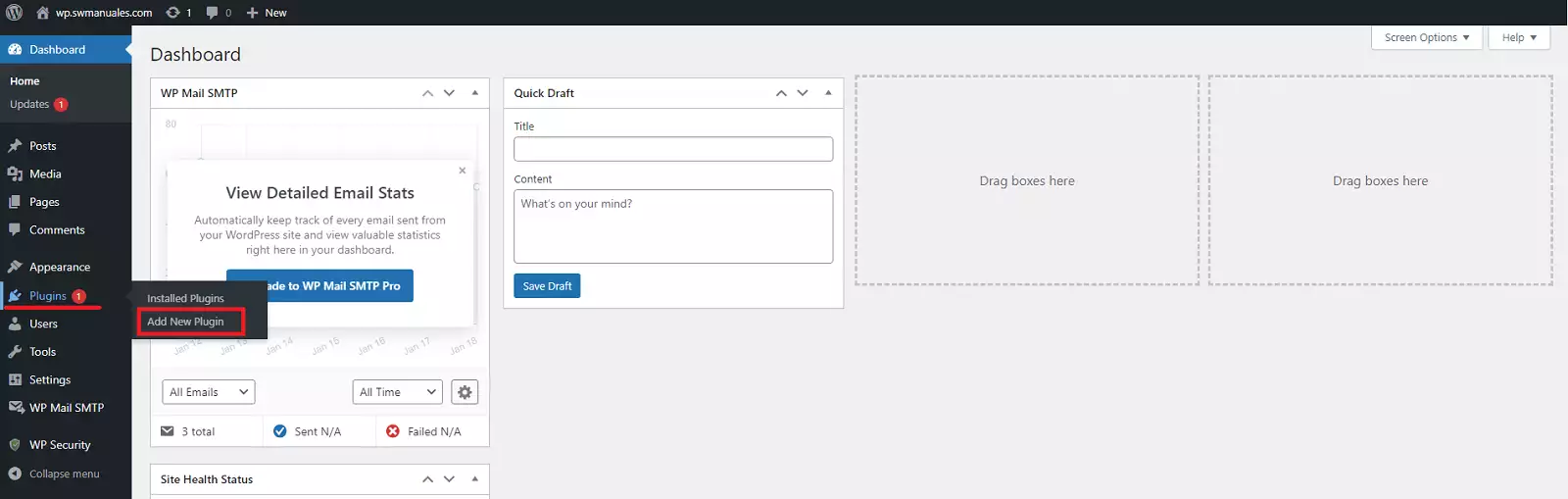
First, we will access WordPress and install the Contact Form 7 plugin. To do this, we will go to 'Plugins' -> 'Add New Plugin':
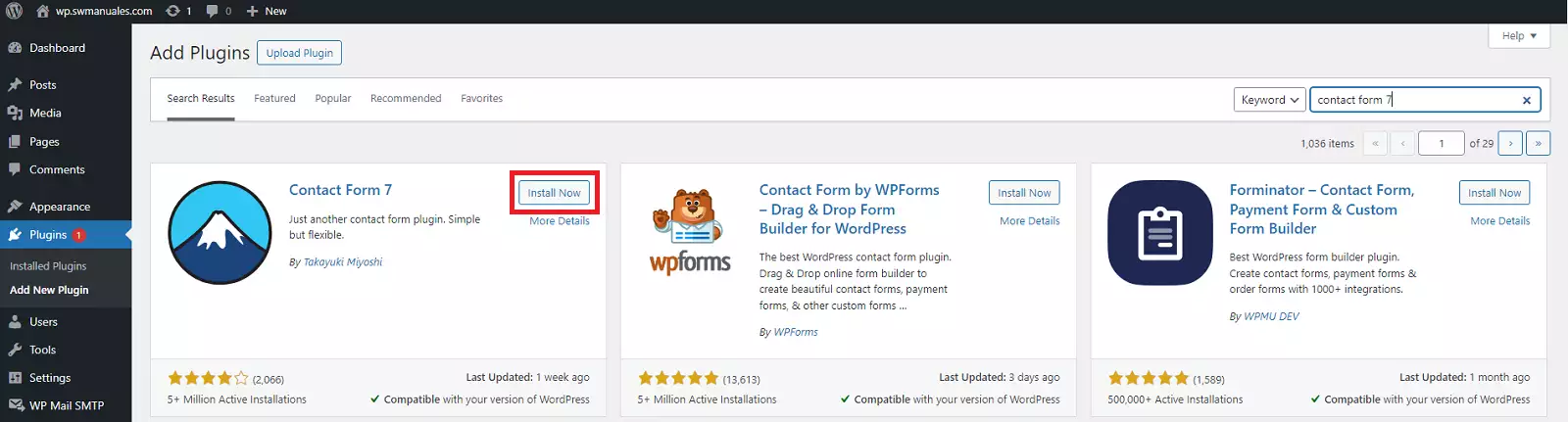
We will search for the plugin in the top search bar:
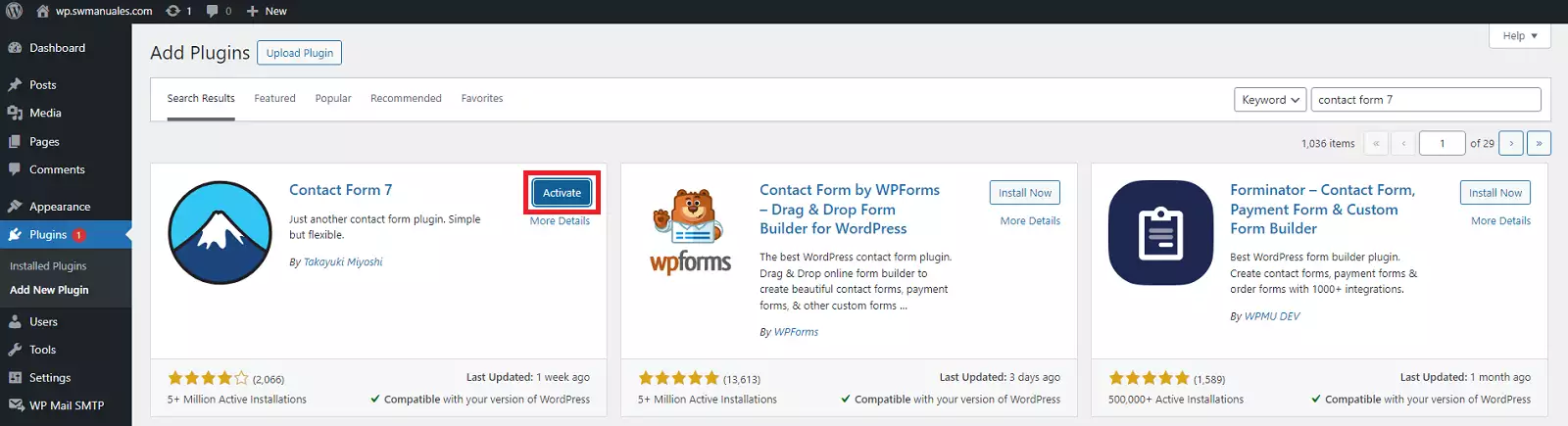
Once installed, we will click activate:
Creating Forms
To add or edit a form, we will click on the 'Contact' icon and the 'Add New' button.
We will give the form a name and save it:
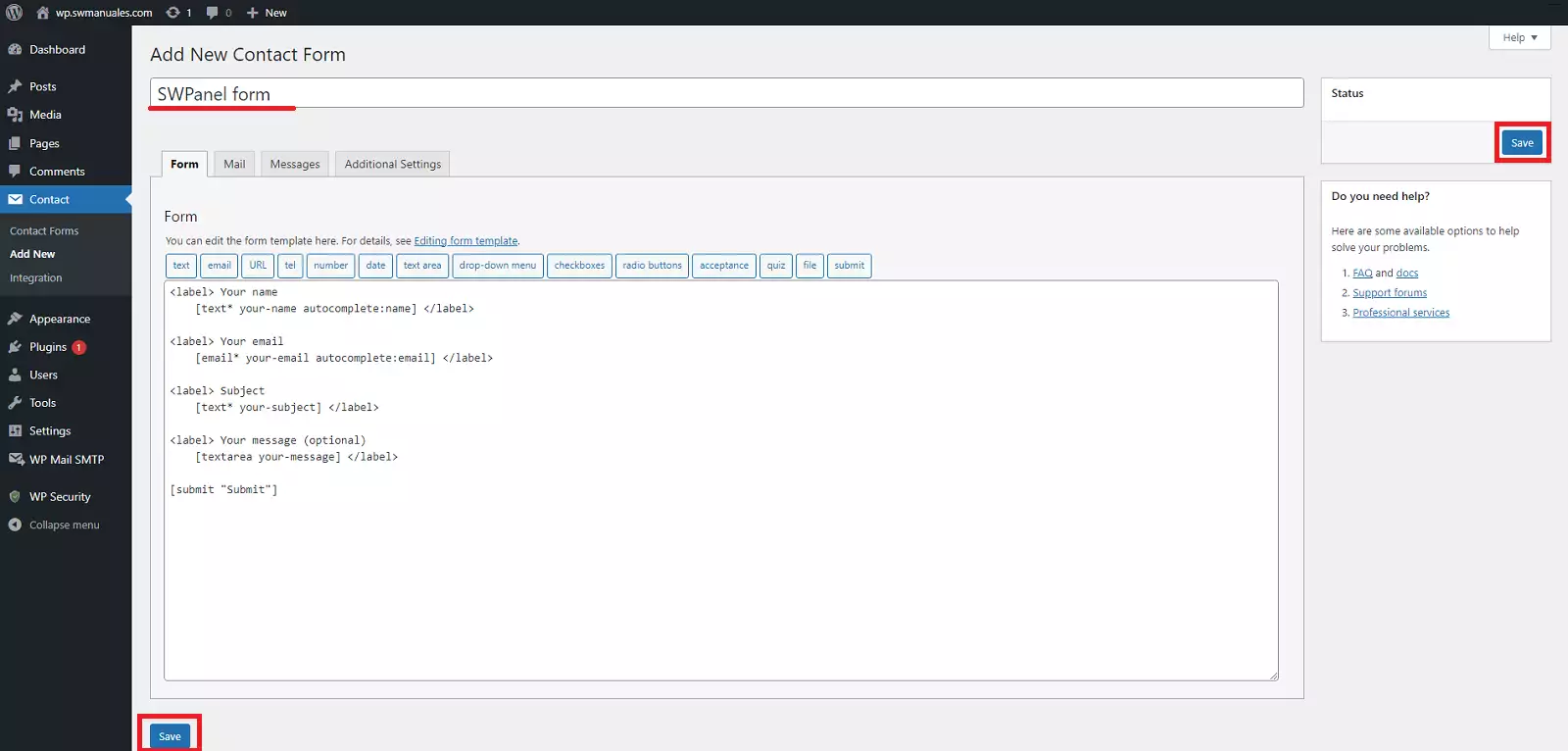
The «Edit Contact Form» page is divided into four sections.
- Form – Customize your HTML contact form template with a variety of field options such as text, email, checkboxes, etc. You can also write custom HTML in the form customization box.
- Email – Customize the email template and the configuration used for notification emails.
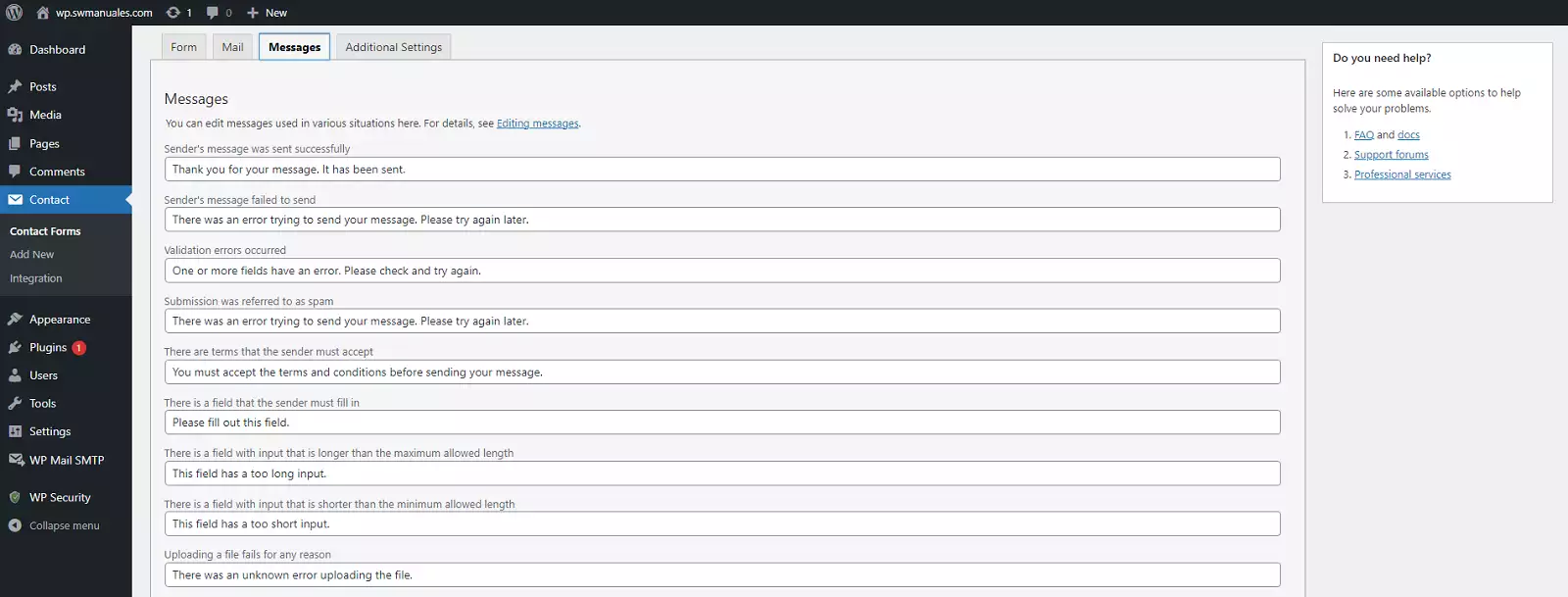
- Messages – Customize the messages displayed after specific actions. For example, you can set a unique message to be displayed after someone submits a contact form.
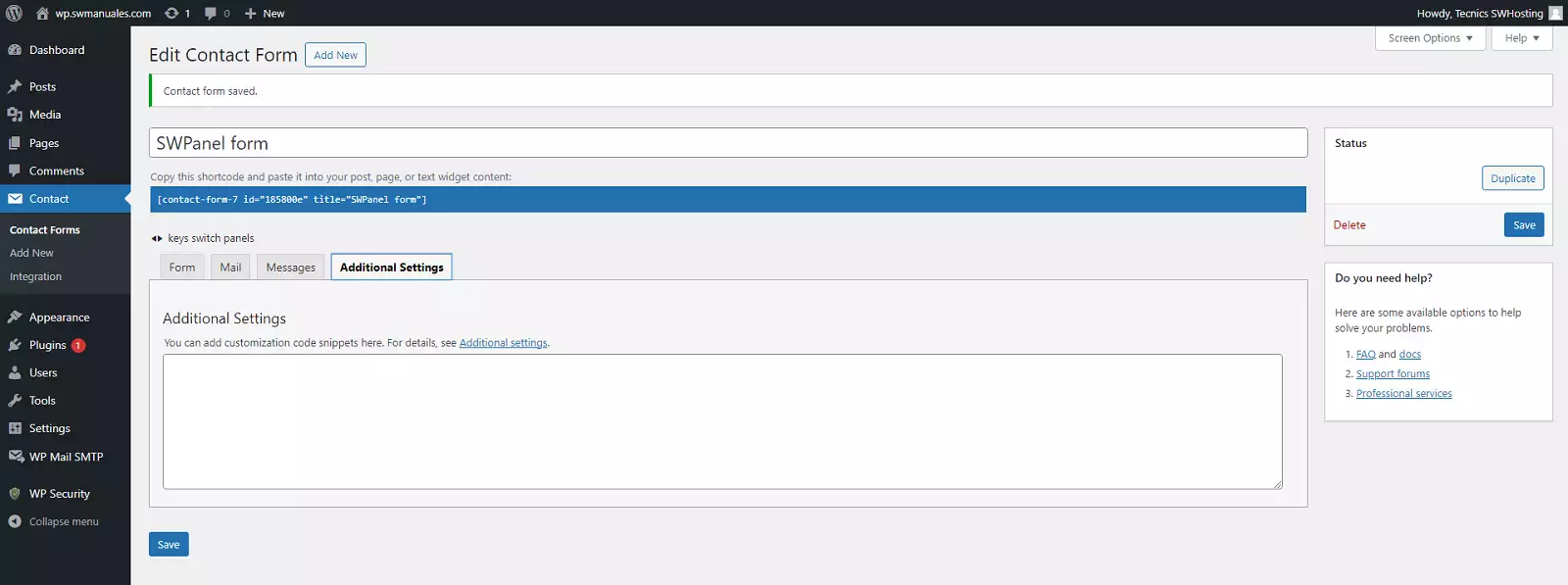
- Additional Settings – Specify snippets to enable additional features such as subscribers-only mode, demo mode, or mail skip. It also allows the creation of code to be executed before or after specific actions.
Form Tab
You can use the various preset buttons to generate the shortcodes for the labels, data input, for a more widely used form.
- Text – Creates a form tag for a single line of text. Text fields are useful for first names, last names, and other text-based snippets that do not require multiple lines.
- Email – Creates a form tag for an email address.
- URL – Creates a form tag for a URL.
- Telephone – Creates a form tag for a phone number.
- Number – Creates a form tag for a number. Unlike «text» or «text area» input fields, «number» fields only allow numerical digits.
- Date – Creates a form tag for a date.
- Text Area – Creates a form tag for a text area. Unlike the normal «text» input field, a «text area» field allows multiple lines of text. They are ideal for entering the message body.
- Dropdown Menu – Creates a form tag for a dropdown menu.
- Checkboxes – Creates a form tag for checkboxes.
- Radio Buttons – Creates a form tag for radio buttons.
- Acceptance – Creates a form tag for a validation checkbox.
- Quiz – Creates a tag to create a question and answer quiz.
- File – Creates a field for file uploads.
- Submit – Creates a form tag for a submit button.
Each of the data input types must be between tags '''<label>''' and '''</label>'''. For example:
<label> Title
     [data_input] </label>
The 'Title' field will be the title/header that the user sees above the data input field.
The field '[data_input]' is the code provided to us by each of the previous tags.
For example, if we want to add a text input field to our form, we will click on 'text':
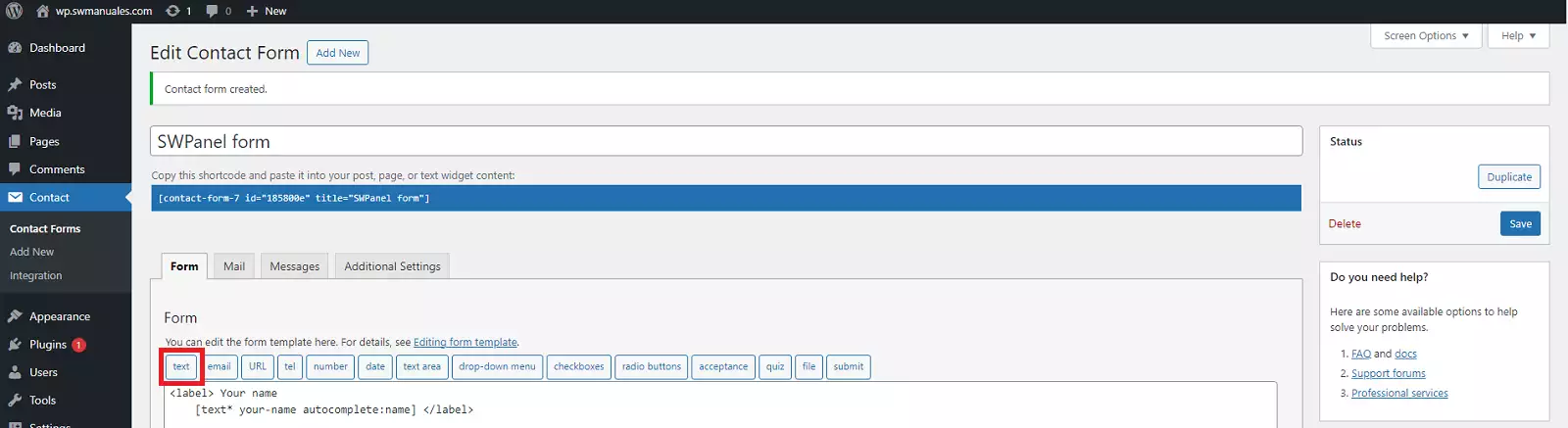
A window will appear with the following configuration options (each tag has different options, you can review the guide for each tag):
- Field type: We can choose if it is mandatory to fill the field.
- Name: This is the internal name we have to identify the field in the form configuration.
- Default value: The value that will be displayed in the field if the user does not change it. It is shown as text and if the user wants to modify it, they will have to delete it manually.
- Use text as field placeholder: The text the user will see in the field if it is not modified. It is shown as text, but will disappear when clicking on the field or when entering a new value.
- This field requires the author's name: This tag identifies a field where the user must enter their name and it will be processed by the Akismet filtering system (if configured) to determine if the form data is Spam or not.
- ID attribute: Assigns an ID to the field. It is used to assign styles via CSS code.
- Class attribute: Assigns a class to the field. It is used to assign styles via CSS code.
Once the fields are configured, we will click insert:
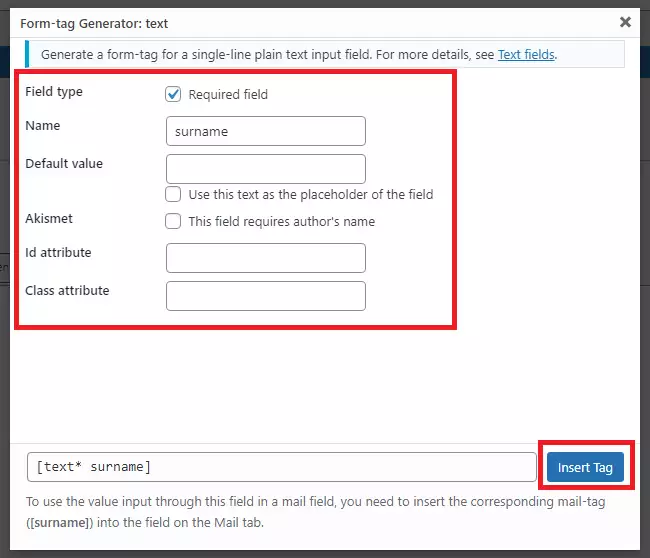
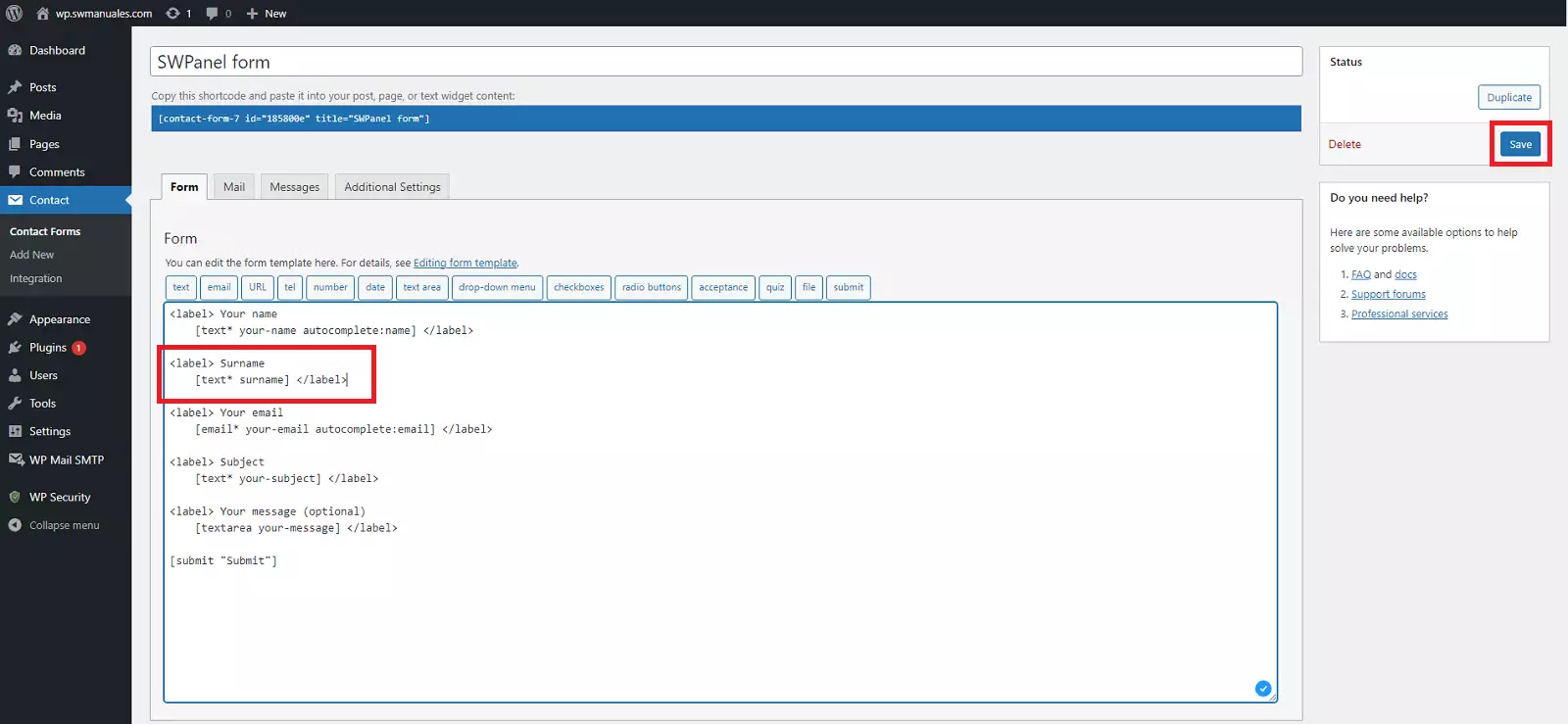
It will create the data input that we will have to place between tags '''<label>''' and '''</label>'''. We can assign a title/header to the tag:
<label> Last Name:
     [text* last_name]</label>
Email Tab
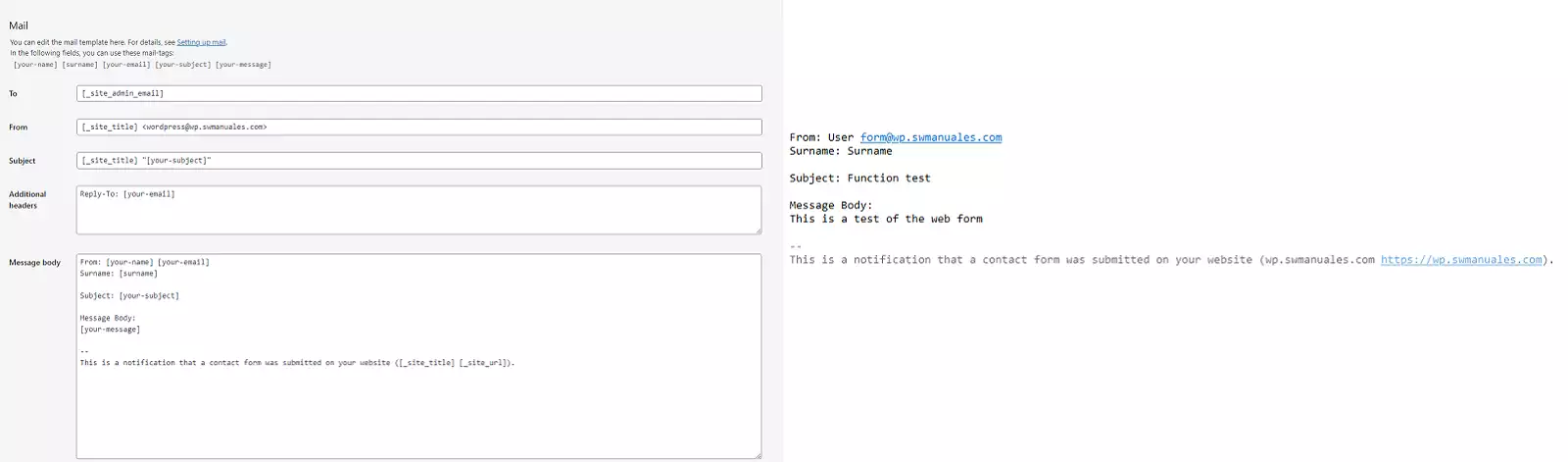
In this tab, we will define the template that will be used when sending the email when the user clicks the submit button.
By default, the email is sent to the website administrator's account, from the account [email protected].
The subject is: 'Site_Name' + the subject entered by the user in the form.
By clicking the reply button, once we receive an email, we will respond to the account entered by the user. And the body of the message will be the data entered in the various fields of the form.
At the top, the names of the form fields will appear so that we can configure the template; these are the variables that will contain the different values/inputs entered by the user.
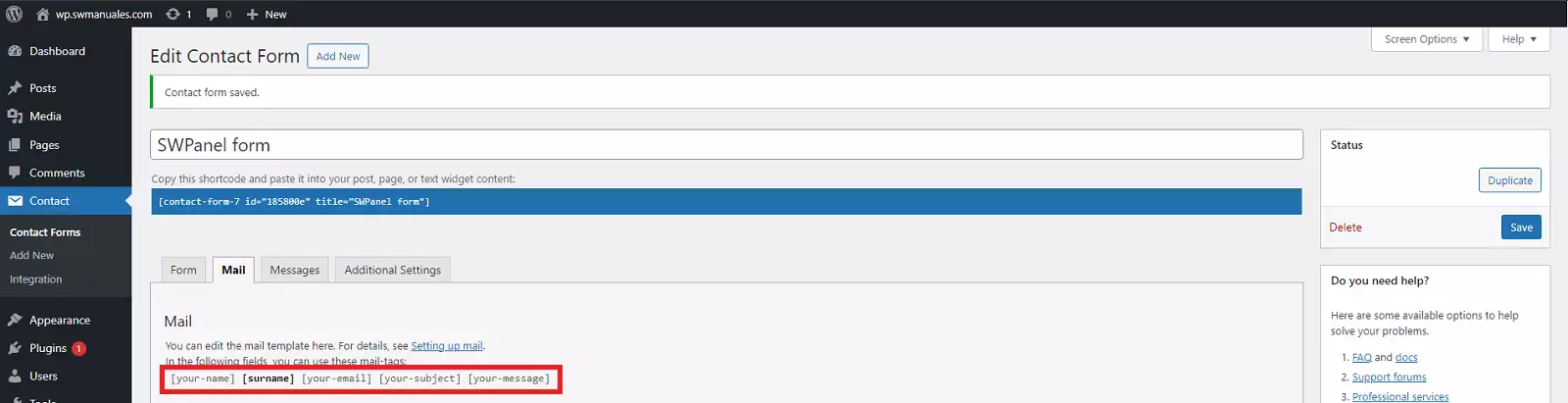
If we had fields to upload files, the tags will appear in the 'File Attachments' section.
info We must save the changes made to the form for the tags to be updated
For example, the following configuration in this tab will be received in the following format:
Messages Tab
This tab allows you to customize the messages the user receives according to the state of the form: if it has been sent, if it could not be sent, if there has been an error..:
Additional Settings Tab
From this tab, we can customize additional functions, such as skipping email sending, subscribers-only mode, or the execution of custom functions at specific moments during the form execution.
Adding the form to a page
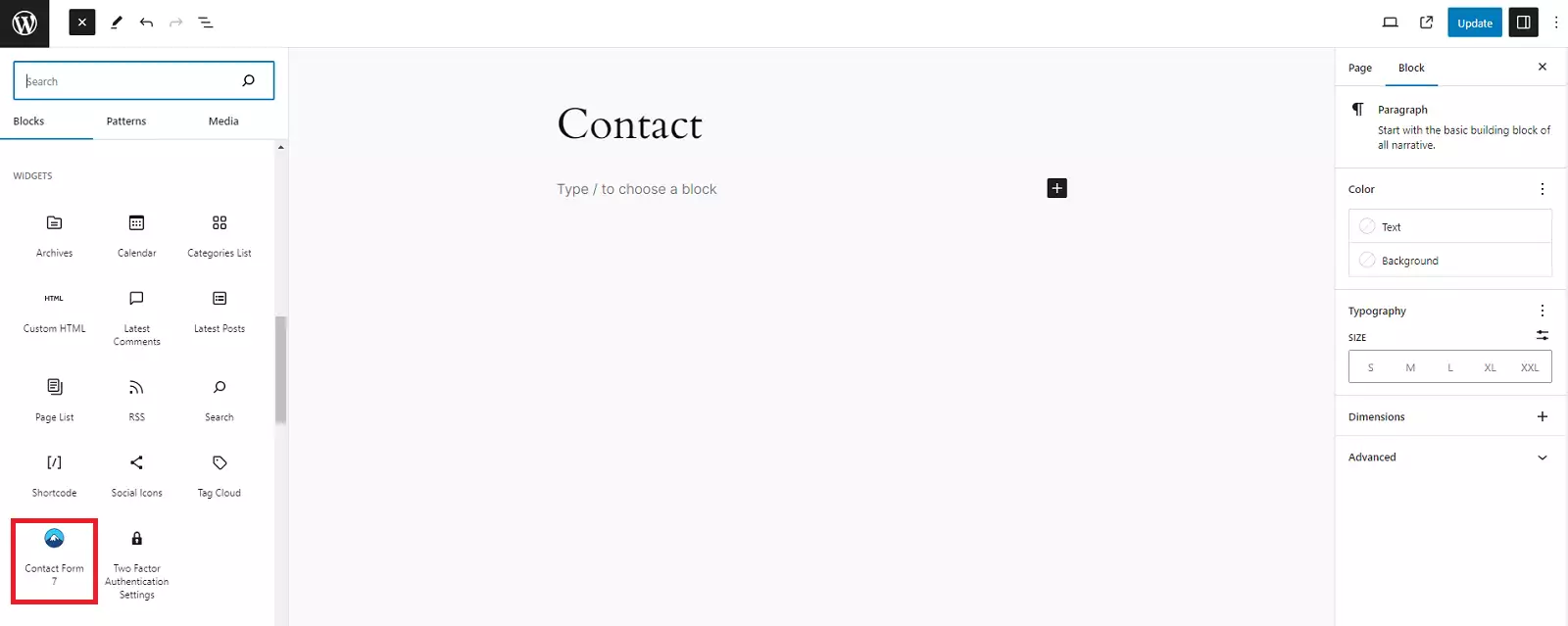
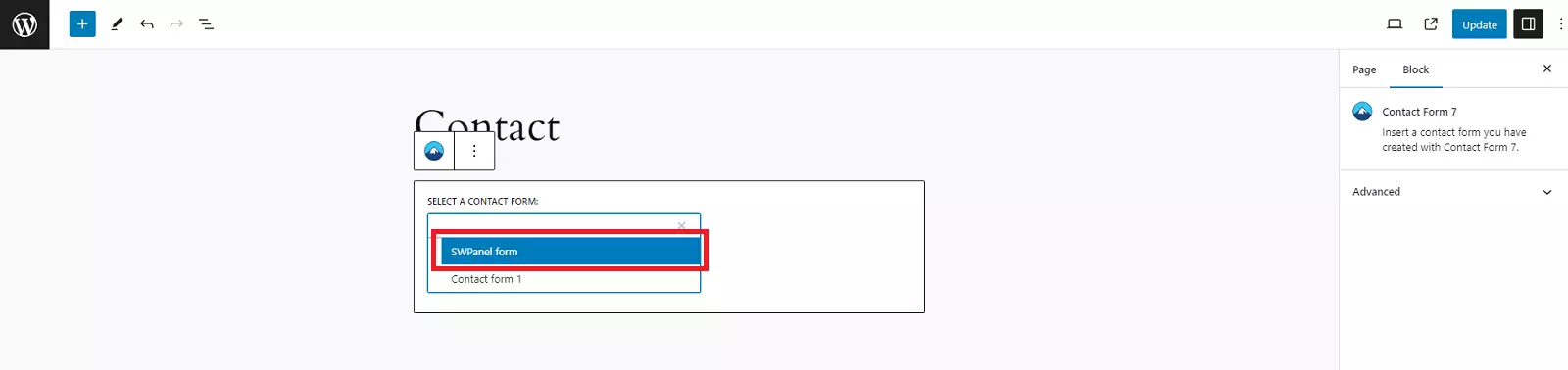
From the page editor, we will add a new block of type Contact Form 7.
info Depending on the builder you use, the block import will change.
From the default builder, we will double-click on the Contact Form 7 block to add it.
We must indicate which form among all those created we want to be displayed:
Functional test
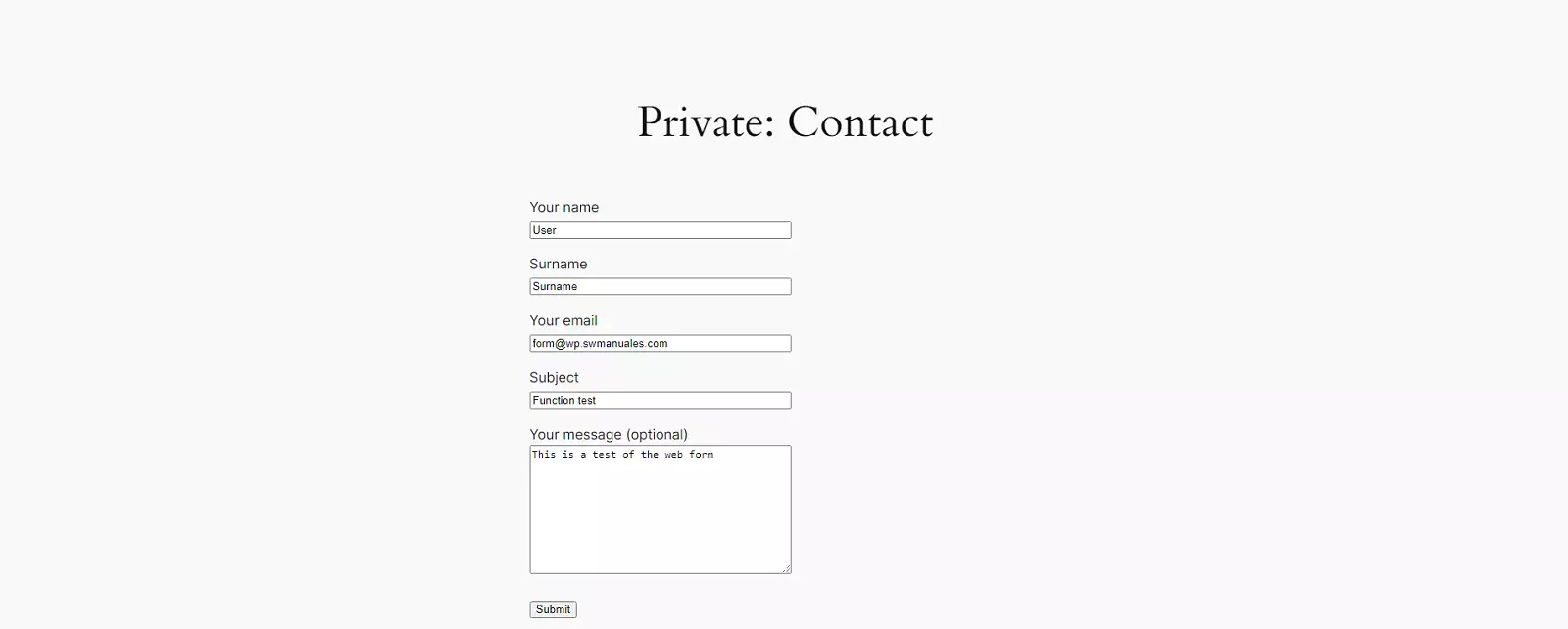
We access the page where we have added the form, fill in the fields and submit the form:
The site owner receives the email with the data:
