
How to establish a connection to an Advanced VPN SSL
1. Introduction and general overview
This manual aims to guide the user through the process of connecting to an Advanced VPN SSL using the OpenVPN GUI tool on Windows operating systems. The VPN (Virtual Private Network) allows for a secure and encrypted connection to be established between the user's computer and the internal services of their cloud infrastructure, managed via SWPanel.
2. Establishing the connection to your VPN SSL
Step 1: Open OpenVPN GUI
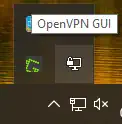
In the bottom right of the Windows desktop (system tray), click on the show hidden icons icon. Look for OpenVPN GUI, identified by an icon representing a computer screen with a closed padlock.
Step 2: Import the configuration file
Right-click on the OpenVPN GUI icon. Select the Import option and then Import file.
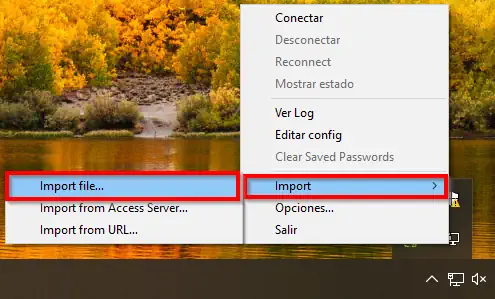
Select the .OVPN file that you have previously downloaded from SWPanel. This file contains all the necessary configuration for the VPN connection.
Step 3: Connecting to the VPN
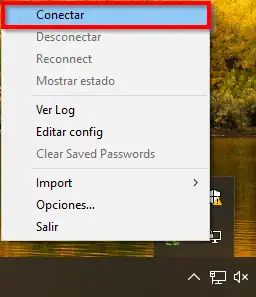
Once the file has been correctly imported, right-click on the OpenVPN GUI icon again and select the Connect option.
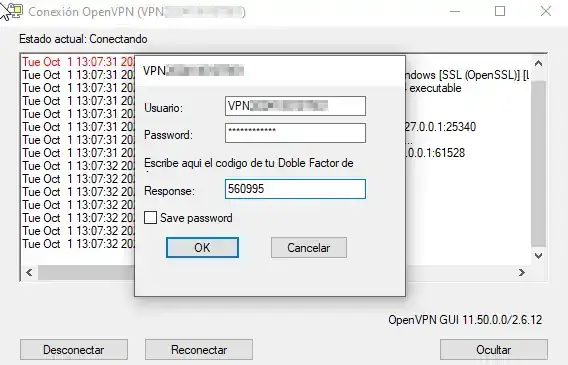
A window will open requesting your credentials: username, password, and the 2FA code generated from your authentication app (such as Google Authenticator or Authy).
Enter the data and click OK.
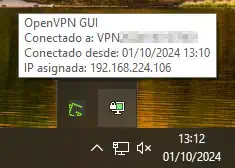
success A connection to our Advanced VPN SSL has now been established.
3. Verifying connectivity via ping to a device in the VLAN
Once the VPN connection is established, it is recommended to verify that there is access to the internal network resources.
How to do it?
- Open the Command Prompt (CMD) in Windows.
- Run the
pingcommand to the internal IP of a server or Cloud within the VLAN.
Example:
ping 192.168.25.2
If you get a response, it means the VPN connection is working correctly and you have access to your private network resources.