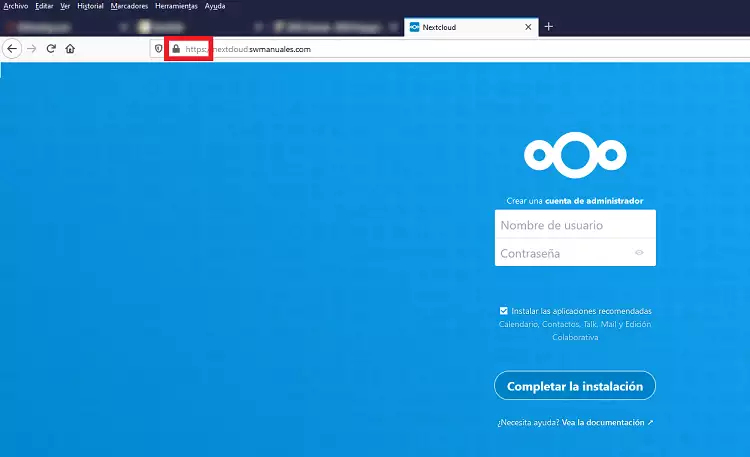
Installation of Let's Encrypt certificate in Cloud One Click App NextCloud
⚠️ This is basic configuration information based on the configurations available in the official NextCloud documentation, but with the paths and access of the installations carried out from SW Hosting. We remind you that SW Hosting does not provide direct support for third-party applications. ⚠️
Installation of Let's Encrypt certificate in Cloud One Click App NextCloud
In this manual, we will guide you so that you can configure a Let's Encrypt SSL certificate in your NextCloud without having to consult any external guide, with all the paths and configurations that do work from our One Click App NextCloud.
However, we remind you that this is only a clarifying guide, since SW Hosting does not include support for third-party applications. Following this guide carries out the mentioned configurations; nevertheless, NextCloud configurations other than this or any other doubt related to the platform should always be consulted through official guides, manuals, forums, and documentation.
Previous precautions
Before starting with the server configuration, there are a few things that must be taken into account:
- Certificate configurations can only be performed for a single domain. That is, you cannot secure access to NextCloud through a domain and at the same time through the Cloud name or by IP.
- Before installing the certificate on your domain, you must have an A record in your domain's DNS zone configuration pointing to the Cloud and the domain name included in the NextCloud configuration file.
If the corresponding configuration is not carried out correctly or if the indications to be taken into account are not followed, NextCloud could lead to an error, causing an access failure and the corresponding need to reinstall the Cloud, thus losing all the data from the Cloud.
From SW Hosting, we will provide all the necessary information to be able to carry out the configuration taking into account the corresponding indications.
Deployment of your Cloud with NextCloud
First things first. We cannot configure our NextCloud without first having it contracted, so we are going to perform the deployment of the service. To do this, follow the steps shown below.
From any part of your SWPanel, access 'Create service':

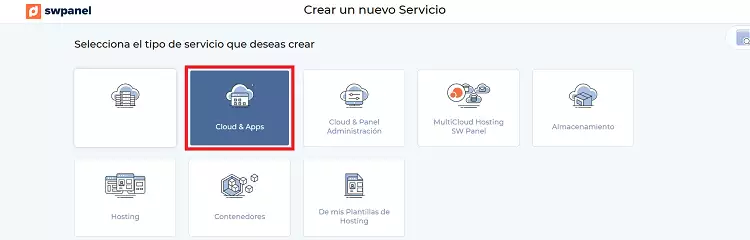
Click on 'Cloud&Apps':
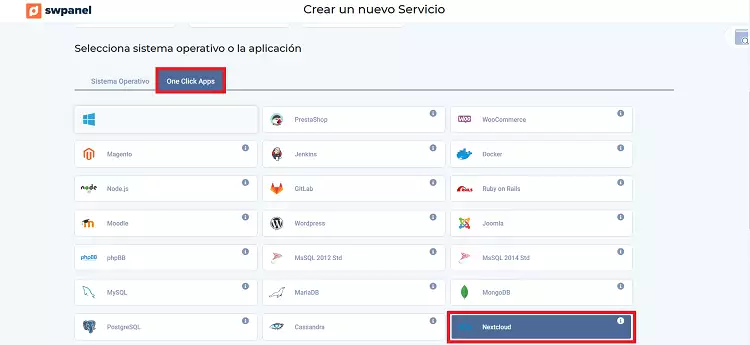
Click on the 'One Click Apps' button and then select the 'NextCloud' option:
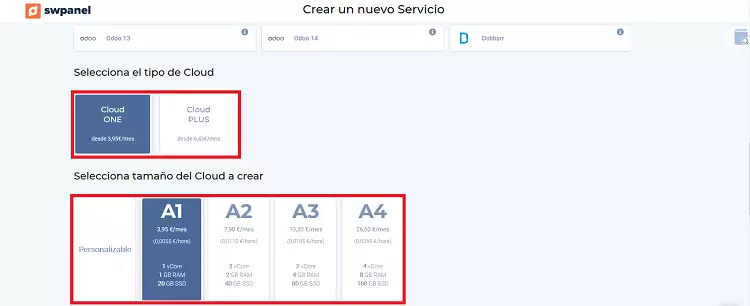
Select the type and size of Cloud you want. We have selected a Cloud ONE A1, the most basic of all:
Finish the customizations (we have not configured any extras), go to the bottom of the page and click on 'Accept and create' to formalize the deployment of the Cloud:
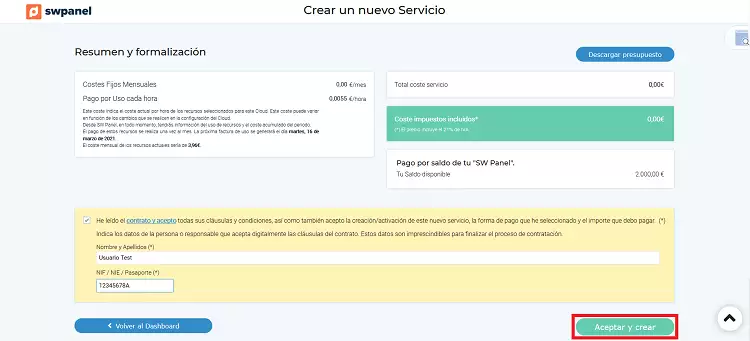
Once the wizard finishes, the Cloud will begin the automatic deployment. Be patient, the process may take several minutes.
Configuration of domain access in your NextCloud: defining the domain
Before checking if NextCloud can be accessed, perform this configuration. In this way, you ensure that you perform all the steps as required and that everything works correctly.
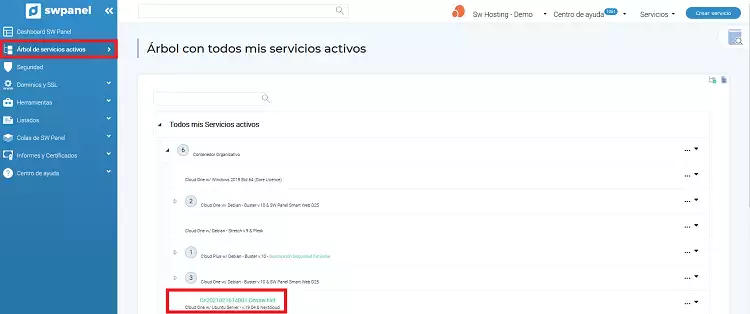
First of all, check what the IP of your new Cloud is. To do this, access the services tree, look for the corresponding server, and click on it:
Once inside the Cloud, in its Dashboard, you will be able to see its assigned IP:
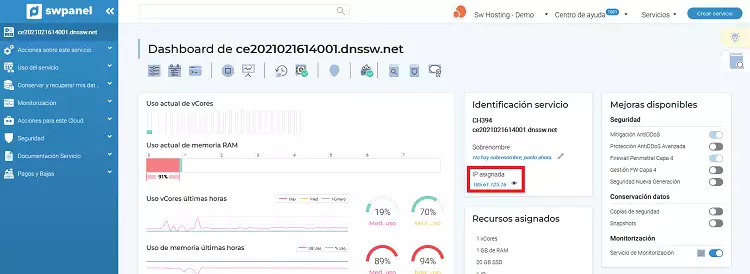
This is the IP you will need to continue with the domain access configuration.
The next step, and the most important one: you must have a contracted domain!
To be able to perform the configurations of this step, you need to own a domain. If you wish, you can contract a domain with us from SWPanel [Handbuch: How to register a domain from SWPanel], or you can also transfer a domain to SW Hosting from SWPanel [Handbuch: How to transfer a domain from SWPanel].
Once you have your domain, you must create a service associated with it (you can create a service within a Cloud with SWPanel [Handbuch: Create a Web Hosting in my Cloud] or create a shared Hosting service [Handbuch: Create Hosting service for my Website]) and access the DNS zone [Handbuch: Manage DNS records] to configure a new record that points to your NextCloud.
Access the DNS management of the service:
First, from any part of the SWPanel, in the search bar at the top, search for the service name:
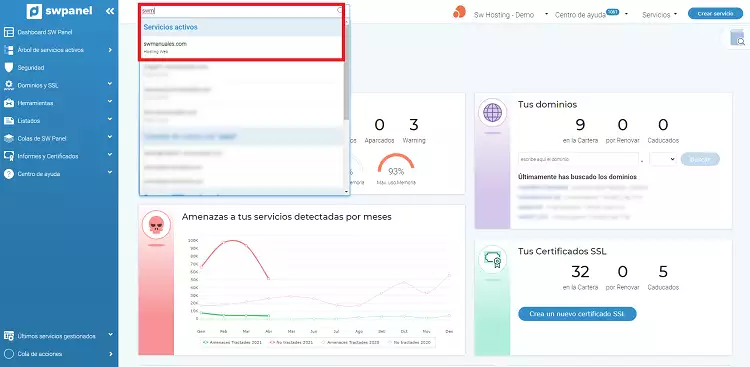
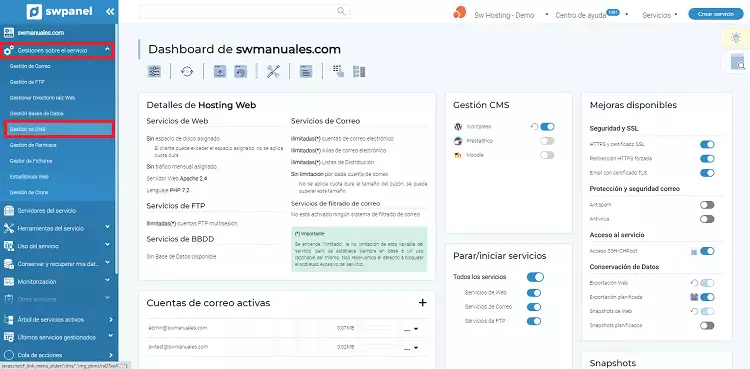
Next, access 'Service Management' > 'DNS Management':
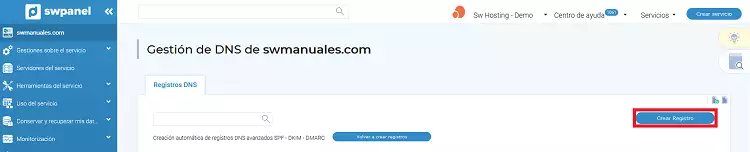
Within the DNS management, click on 'Create record':
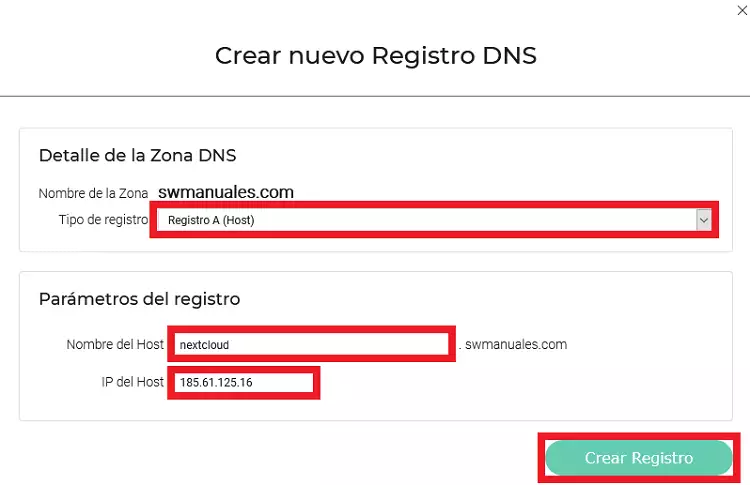
 Select 'A Record (Host)'. In 'Host Name', enter any alias you want. We have entered 'nextcloud', so the access to the Cloud will be 'nextcloud.swmanuales.com'. You must also specify the IP of your Cloud, which you looked up in the previous step. Finish by clicking on 'Create record':
 We always recommend checking DNS propagation before proceeding with the following steps, to ensure that everything is correct.
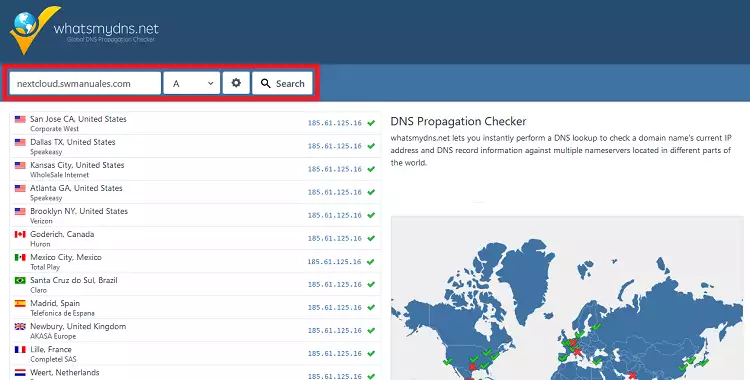 When all items in the list show 'OK', the propagation will have finished successfully. There may be a few with a red cross, but it will still propagate correctly.
Once it has propagated as it should, it is time to access your NextCloud for the first time using the link you have defined, in our case 'nextcloud.swmanuales.com'. Enter the URL and check the access:
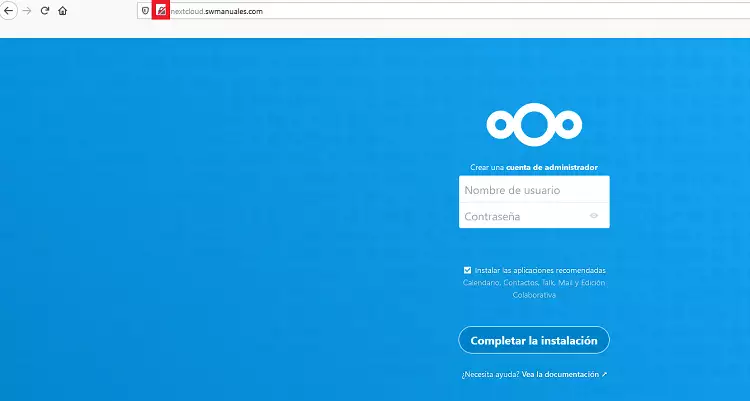 You should be able to access correctly, but you will not see any certificate yet, so the page will be shown as not secure.
In case you already have NextCloud active and have accessed it on some occasion, you will need to make some modifications to its configuration. Likewise, we recommend checking said configuration even if you have followed the steps up to this point.
Now, review the NextCloud configuration file.
Configuration of domain access in your NextCloud: configuration file
To be able to continue with this step, you must access the Cloud via remote SSH connection. For this, you need the access data received by email at the time of deploying the Cloud, similar to the one shown below:
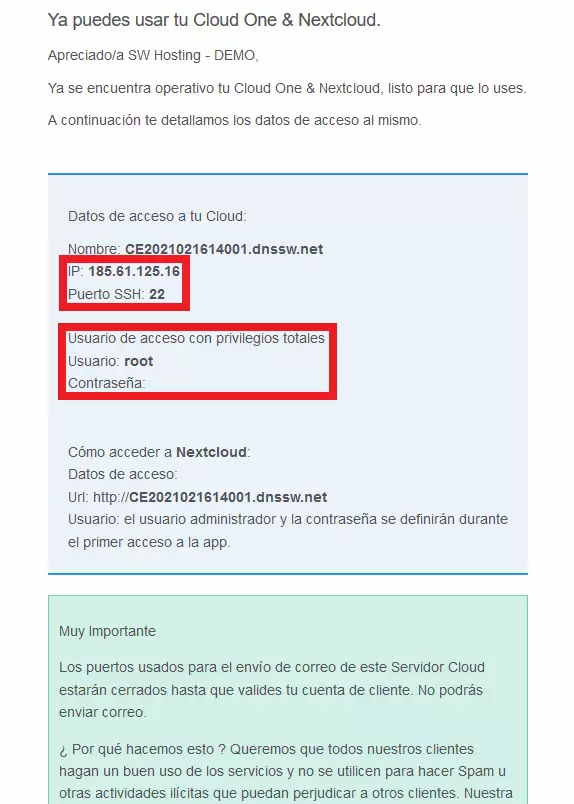
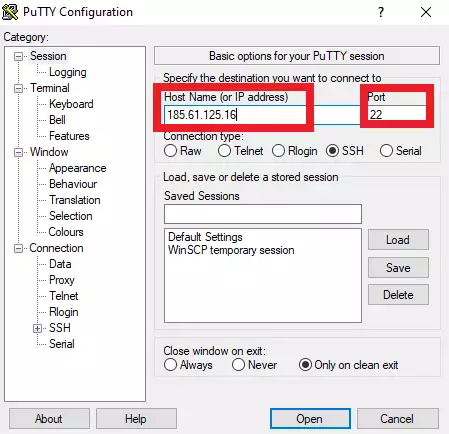
The remote connection is made with a specific application for this purpose, such as PuTTY.
Enter the access data for the service and click on 'Open':
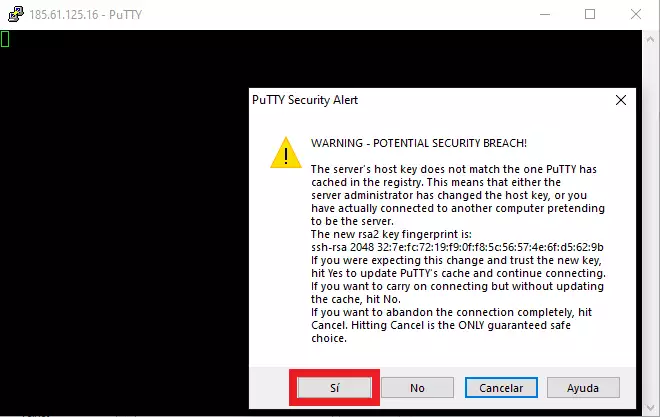
Click on 'Yes' to accept and access:
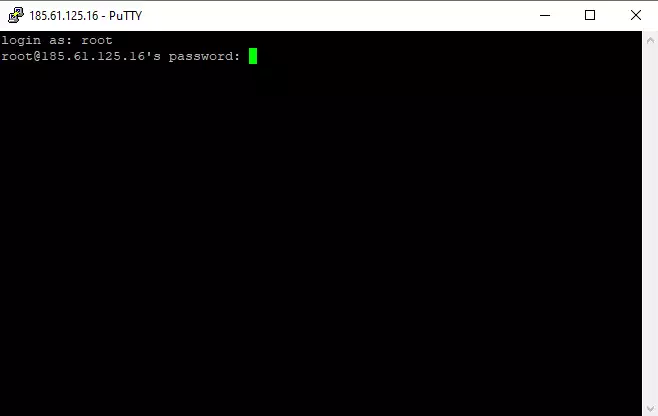
Enter the user, press enter, and enter the access key. You must pay attention because, even if you are typing or copying something, the access key will not be displayed at any time, so we recommend copying and pasting it directly. To paste the key inside the console, you must right-click on the screen. Press enter again to access:
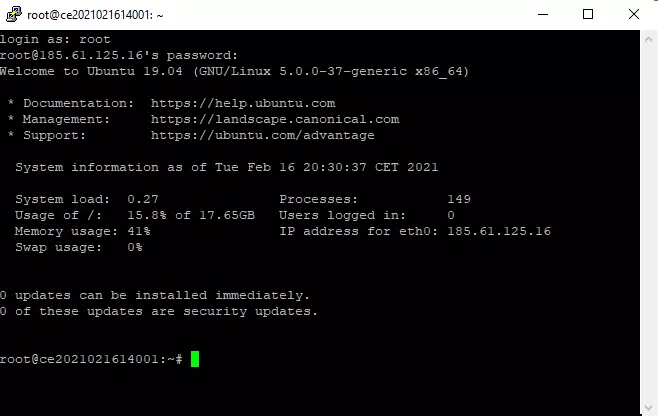
Once inside the console, you should see something similar to the following image:
Next, you must look for the NextCloud configuration file 'config.php', which is located in a path similar to this, but with some numbers instead of the asterisk:
/var/snap/nextcloud/*/nextcloud/config/config.php
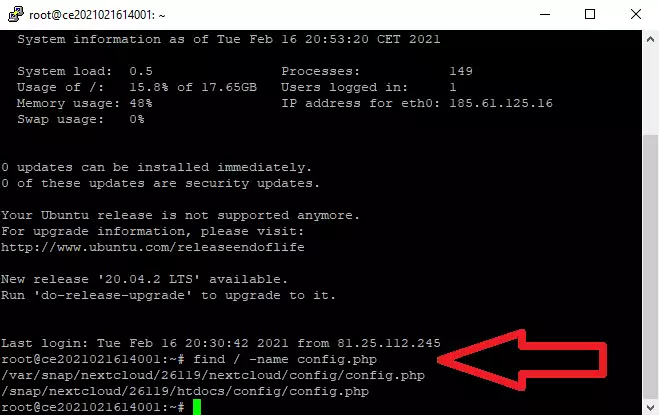
To be able to find it, you must copy the line shown below and paste it into the console (to paste, you must use the same method we used with the key, a right-click with the mouse):
find / -name config.php
Then you will see something similar to this image:
Copy the path that appears, which should be similar to the one described above. To copy, simply select it. Next, type 'nano' in the console followed by the path, so it would be something similar to:
nano /var/snap/nextcloud/*/nextcloud/config/config.php
You should see something similar to this:
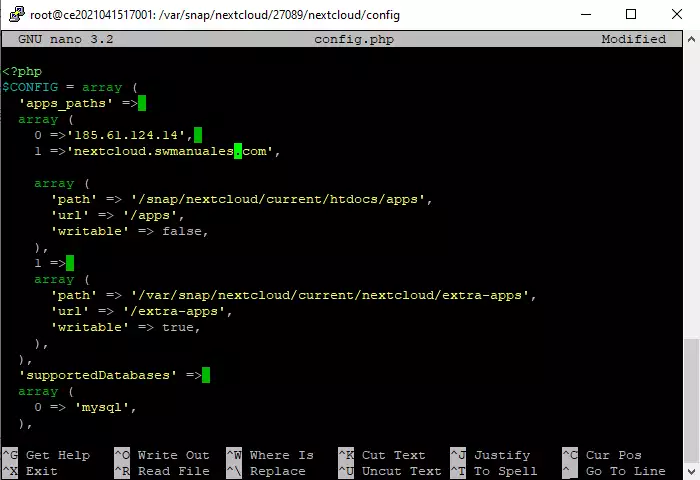
You must ensure that the following lines appear:
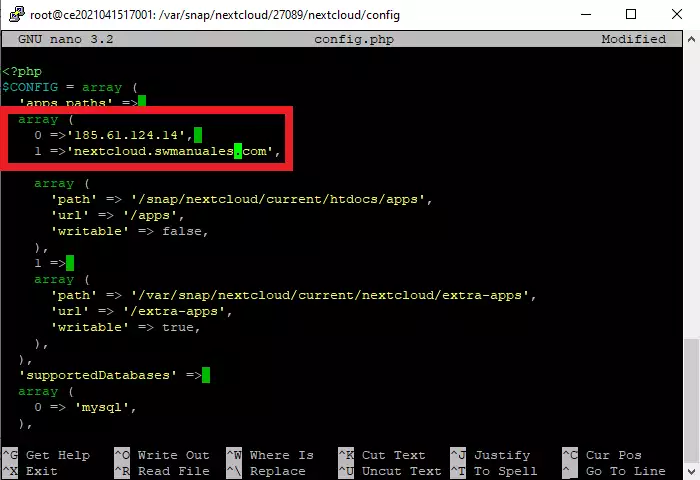
Edit by moving with the keyboard arrows and typing directly. Once it is as it should be, save the changes in the following way:
- Keys Control + X
- Key Y
- Press Enter
You do not have to perform any further action (restart, etc.). Now, simply, you can check the access with your URL again. You now have all the necessary previous steps for the installation of an SSL certificate and subsequent secure access to NextCloud.
Certificate installation
Without disconnecting the SSH access you have open, proceed to the installation of the certificate.
Paste the following line into the console:
nextcloud.enable-https lets-encrypt
This will start the certificate installation process. First, you will see the verification message prior to the Let's Encrypt installation. Accept the message by pressing the 'y' key and then 'Enter':
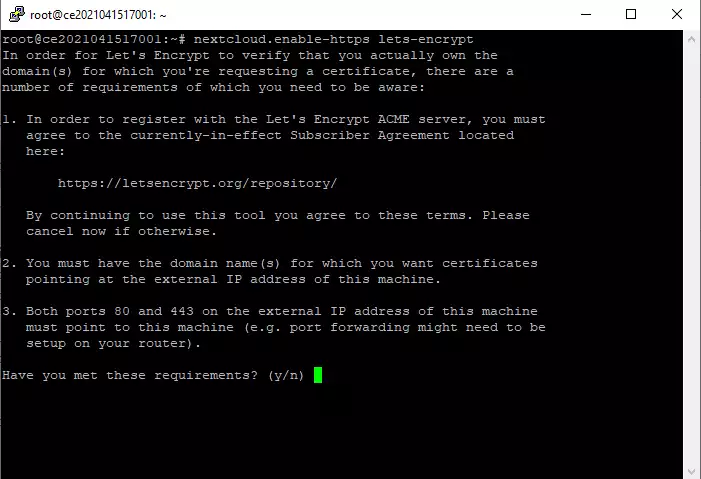
At this moment you will have to start writing the data corresponding to your certificate. You must write the content requested and keep pressing enter until the installation is complete. Below, you will see a translation of what you should write and our example as a reference:
- Please enter an email address (for urgent notices or key recovery). You must enter a valid email address in case you need to perform any recovery. As an example, we have written '[email protected]':
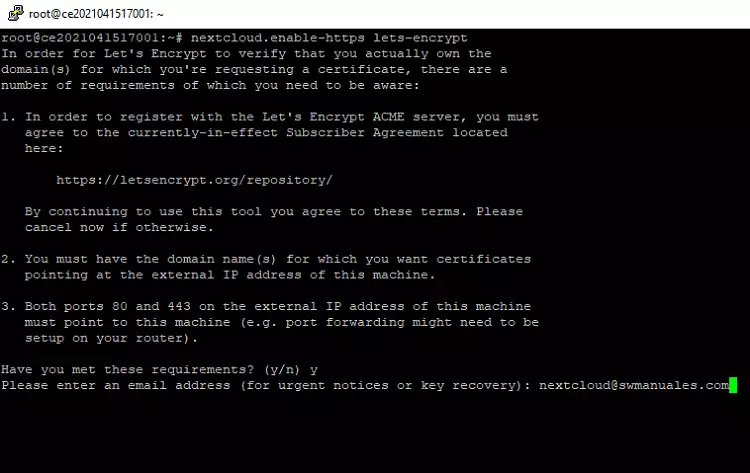
- Please enter your domain name(s) (space-separated). You must specify the access domain for NextCloud. Continuing with our example, nextcloud.swmanuales.com:
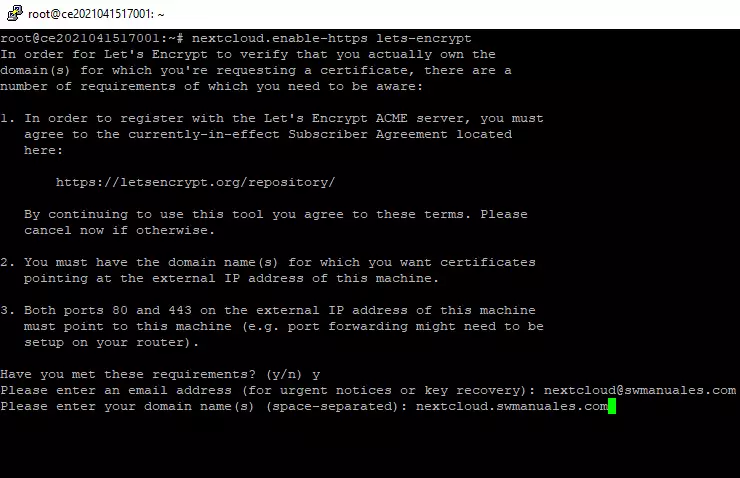
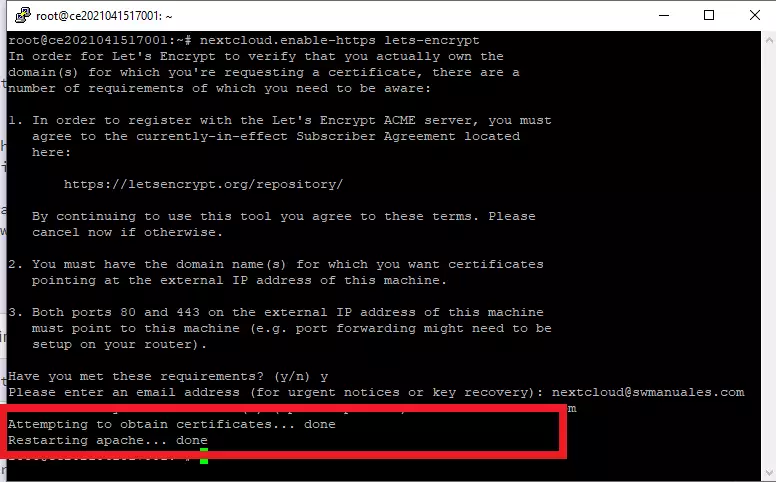
The message 'Attempting to obtain certificates...' will appear, which means that the installation process has started. Once it finishes, it will appear as 'Done' and you will see a new line 'Restarting apache...'. When it finishes, it will appear as 'Done' and you will already have the certificate installed.
You should see it as follows:
Verifying correct installation
The last step is to access NextCloud again through the URL you have indicated, clearing the cache or using an incognito window, to verify the correct installation of the certificate: