
Installation of Laravel on Cloud with Debian 10
Hire Cloud One with Debian Buster 10
First of all, you must have a Cloud server, for example, a Cloud One A1. The Cloud subscription can be done from our web or, if you are already an SW Hosting customer, from your SWPanel account.
SSH Connection
When activating the server, both from the web and from the SWPanel, an email will be sent to your email account with the SSH access credentials (IP and port) to your Cloud server for the administrator user (Root). With these credentials, you can access your server and start the Laravel installation process.
Create a user
At SW Hosting, we recommend creating a user with elevated permissions and not using the Root user for these purposes. To create a user, you can do it using the following commands.
apt install sudo
adduser swtest
usermod -aG sudo swtest
su - swtest
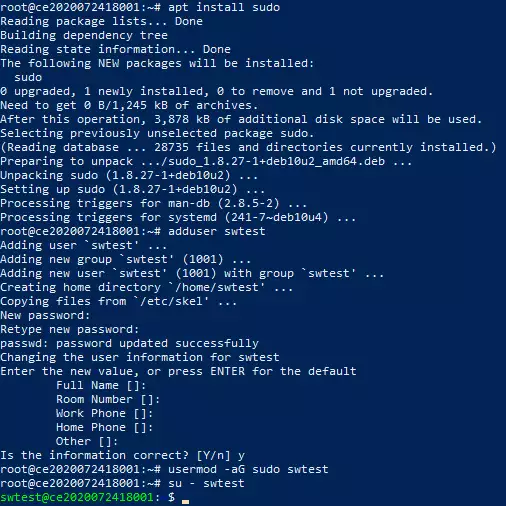
Now we have a system user with sudo privileges and we should no longer use Root directly.
Minimum required packages
We start by adding the PHP 7.4 repositories:
sudo wget -O /etc/apt/trusted.gpg.d/php.gpg https://packages.sury.org/php/apt.gpg

echo "deb https://packages.sury.org/php/ $(lsb_release -sc) main" | sudo tee /etc/apt/sources.list.d/php.list

Once the repository has been added, we will proceed to update the package list and the Cloud.
sudo apt update
sudo apt upgrade
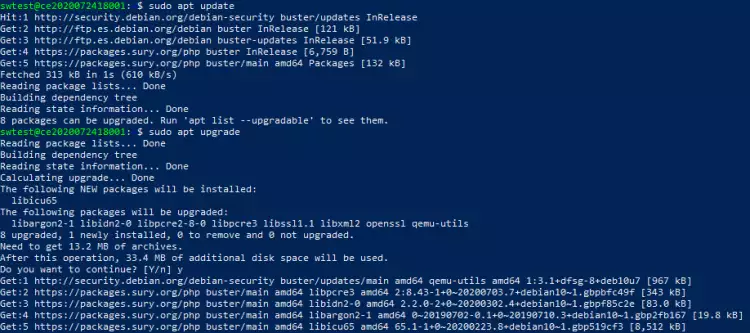
Once updated, we install the following essential packages:
sudo apt install lsb-release apt-transport-https ca-certificates git zip unzip
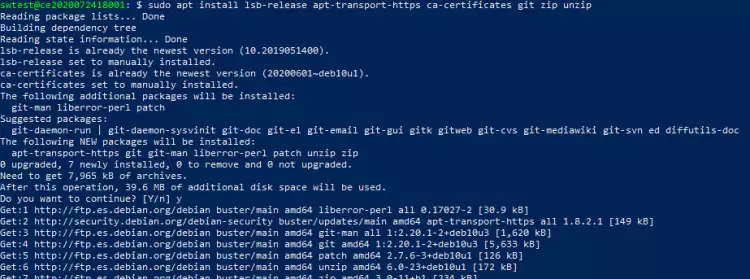
LAMP: Install Apache, MariaDB and PHP 7.4
To start, we install the Apache service:
sudo apt install apache2
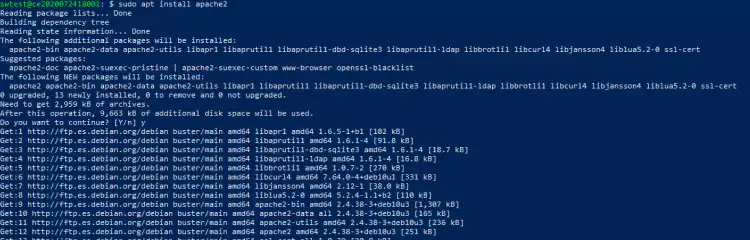
To verify the correct functioning of the service, you can do it with the following command:
sudo service apache2 status
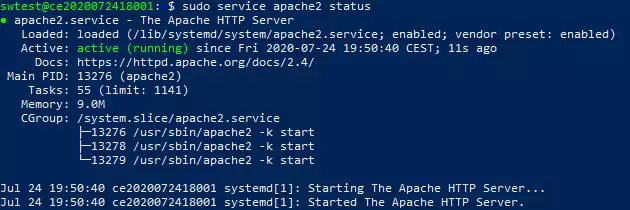
You can also perform the check with the browser, using the IP of your Cloud.
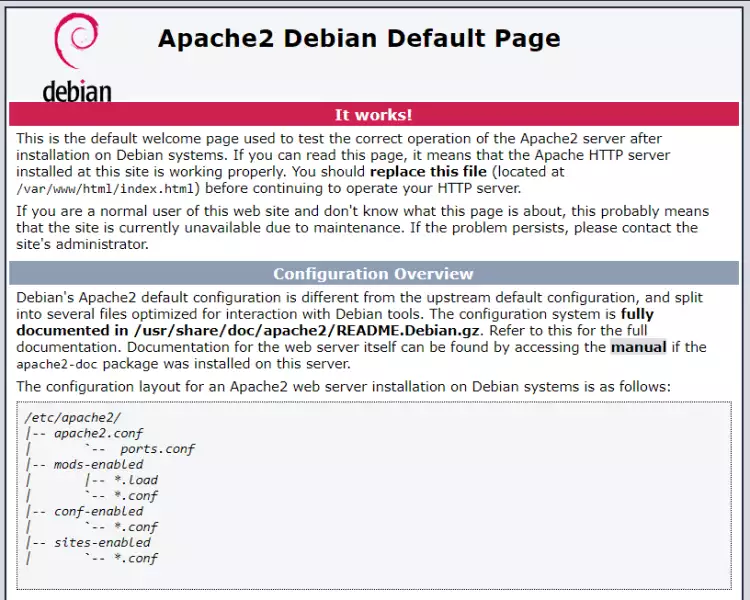
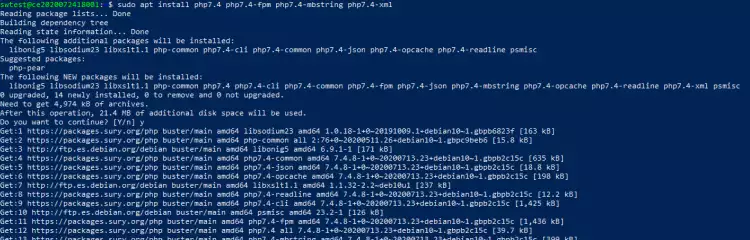
Once the correct functioning has been verified, we install the PHP 7.4 service and the mbstring and xml modules:
sudo apt install php7.4 php7.4-fpm php7.4-mbstring php7.4-xml libapache2-mod-php7.4
We can verify the correct functioning of PHP by creating a small PHP script in /var/www/html; to do this, we will do the following:
cd /var/www/html
sudo nano info.php
The content of the file should be the following:
<?php

// Shows all information, by default INFO_ALL
phpinfo();

// Shows only information about the modules.
// phpinfo(8) does exactly the same.
phpinfo(INFO_MODULES);

?>
Official file: https://www.php.net/manual/es/function.phpinfo.php
Once the file is saved, we run it from the browser with the following URL: http://server-ip/info.php
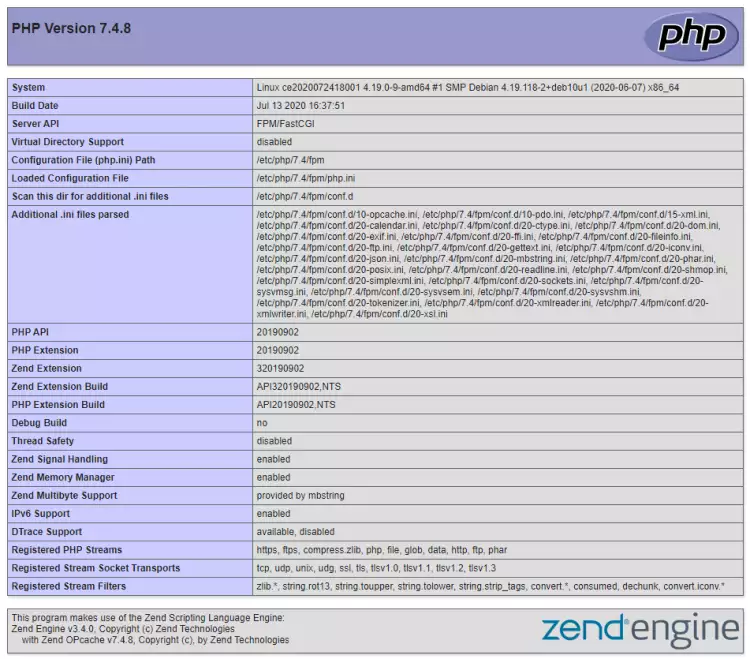
You can also check that it works correctly with the following command:
service php7.4-fpm status
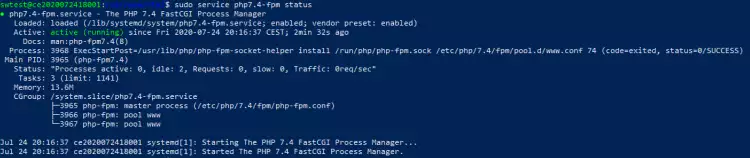
Once PHP 7.4 and its modules are installed, we will proceed to install the MariaDB database as a service (Server) and its PHP module:
sudo apt install mariadb-server php7.4-mysql

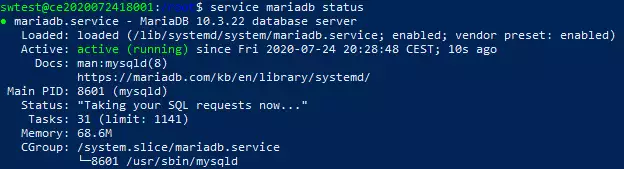
To check the service, you can do it with the following commands:
service mariadb status
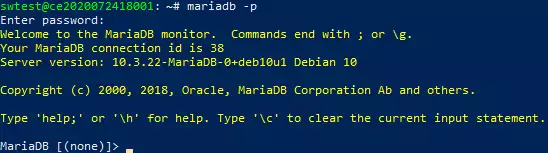
mariadb -p
Create Virtualhost in Apache
We will use manuales.sw as an example. To start, we are going to create the configuration file. To do this, first we must access the path and once you are in the directory, create the configuration file manuales.conf.
cd /etc/apache2/sites-available
sudo nano manuales.conf
In the configuration file, we define the following configuration:
<VirtualHost *:80>
    ServerName manuales.sw
    DocumentRoot "/var/www/manuales/public"
</VirtualHost>
Once the configuration file is created, we activate the site with the following commands:
sudo a2ensite manuales
sudo systemctl reload apache2
The creation of VirtualHost configurations on your Apache server does not magically create DNS entries for those hostnames. You must have the DNS names resolving to your IP address or no one else will be able to see your website.
If your domain in its DNS zone is not pointing to the Cloud, you can edit the hosts file to perform tests.
Remember that this configuration is only available on the computer where the hosts file has been modified, others are not, unless the file is configured.
Modify our hosts file
You can follow the following manual to edit the hosts file:
Handbuch: Modify 'hosts' file in Windows, Mac and Linux
In the hosts file, we will add a line:
Cloud-IP manuales.sw
Composer
Composer is a package management system for programming in PHP, which provides the necessary standard formats to handle its dependencies and libraries.
To start, we will install Composer:
sudo php -r "copy('https://getcomposer.org/installer', 'composer-setup.php');"

sudo php -r "if (hash_file('sha384', 'composer-setup.php') === 'e5325b19b381bfd88ce90a5ddb7823406b2a38cff6bb704b0acc289a09c8128d4a8ce2bbafcd1fcbdc38666422fe2806') { echo 'Installer verified'; } else { echo 'Installer corrupt'; unlink('composer-setup.php'); } echo PHP_EOL;"

sudo php composer-setup.php

sudo php -r "unlink('composer-setup.php');"

sudo mv composer.phar /usr/bin/composer
 You can find more information on the Official Composer website.
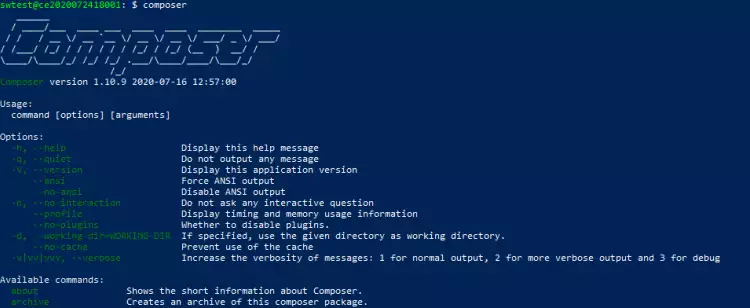
To verify the correct functioning of Composer, we will execute the following command:
composer
Laravel
Once the requirements to run Laravel are installed, we proceed to the deployment of the Framework. To do this, we execute the following commands:
First, we access the following directory:
cd /var/www
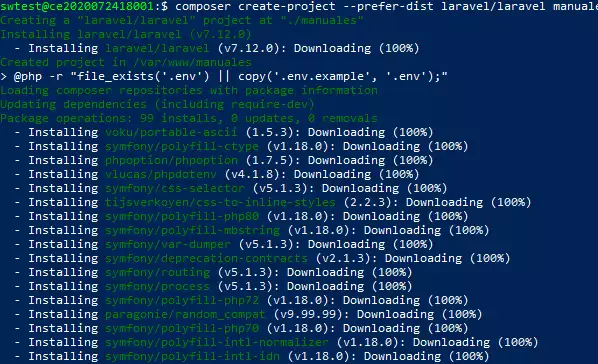
Once inside, we execute the deployment using Composer. With Composer you can deploy different Frameworks that you can find on the official website, in the "Browse Packages" section. We are going to use the laravel/laravel package and we are going to define it with the name manuales. By executing the command, it will download different dependencies and create the manuales folder in the current directory (in our case /var/www), where we will find the entire project.
composer create-project --prefer-dist laravel/laravel manuales
Folder privileges
Once the project is created, we will enter the manuales folder and then grant the necessary permissions for its execution:
cd manuales
sudo chown www-data:www-data storage/ -R
sudo chown www-data:www-data bootstrap/cache/ -R

For more information about the Laravel installation, you can consult the Official Laravel Website

You can continue configuring the Laravel parameters: Database connection, cache, sessions, etc.