
My SWPanel Preferences
To configure your SWPanel preferences:
- Go to the upper right corner of the screen and hover over your profile.
- Click on "My SWPanel".
- Select the "My SWPanel Preferences" option to access the settings.
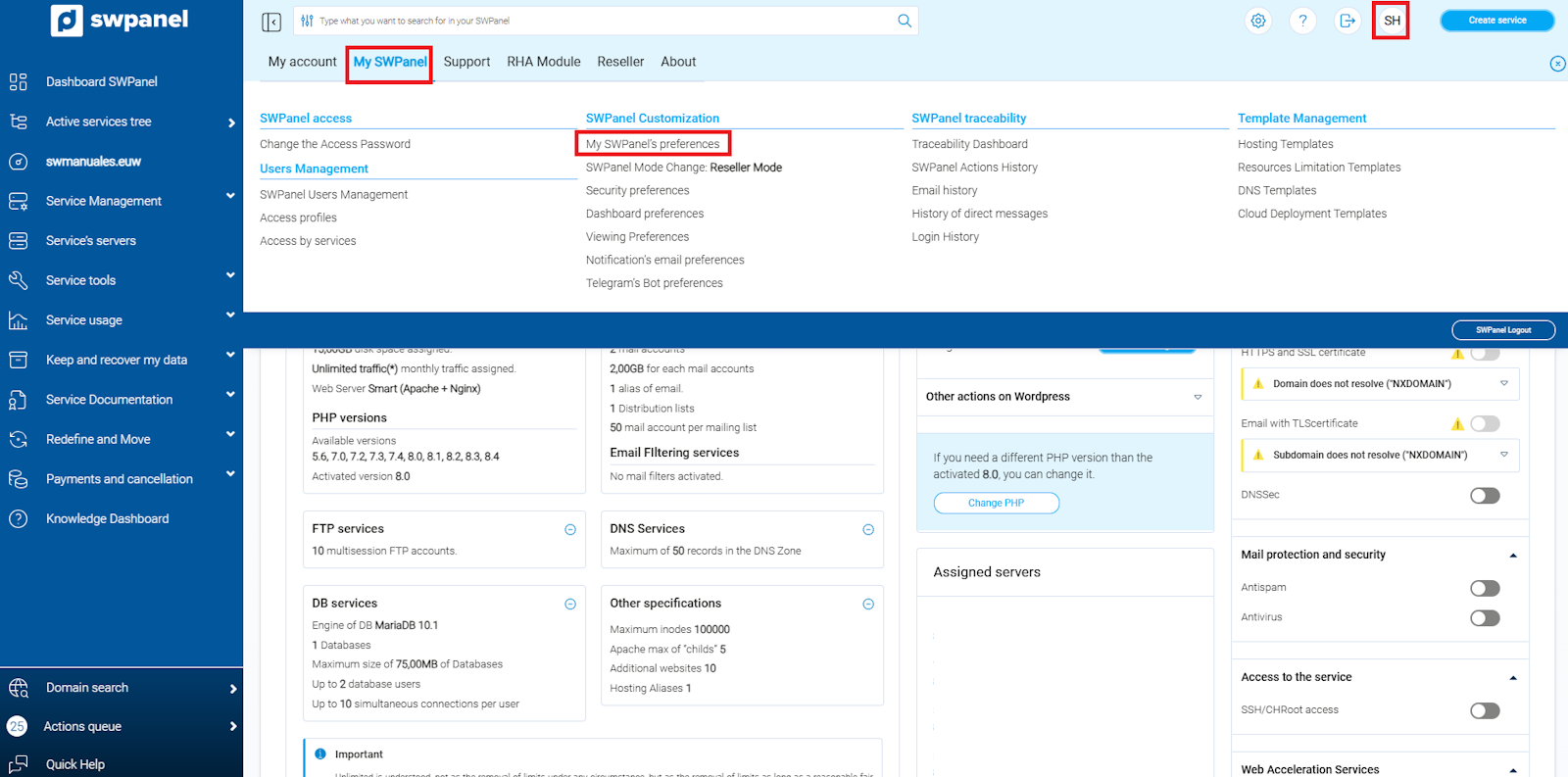
info_capture ℹ️ Note: The screenshot is for guidance purposes, taken from version 2026.000.0001 dated 01/02/2026. It may differ from the current version of SWPanel.
General Tab
In this section, you can configure the display language of your SWPanel and define the logout behavior.
The available options are:
- Notify SWPanel logouts: As a security measure, SWPanel can send you an email every time a logout occurs in your Panel.
- Logout destination URL: Allows you to define a URL to which you will be automatically redirected upon logging out of SWPanel.
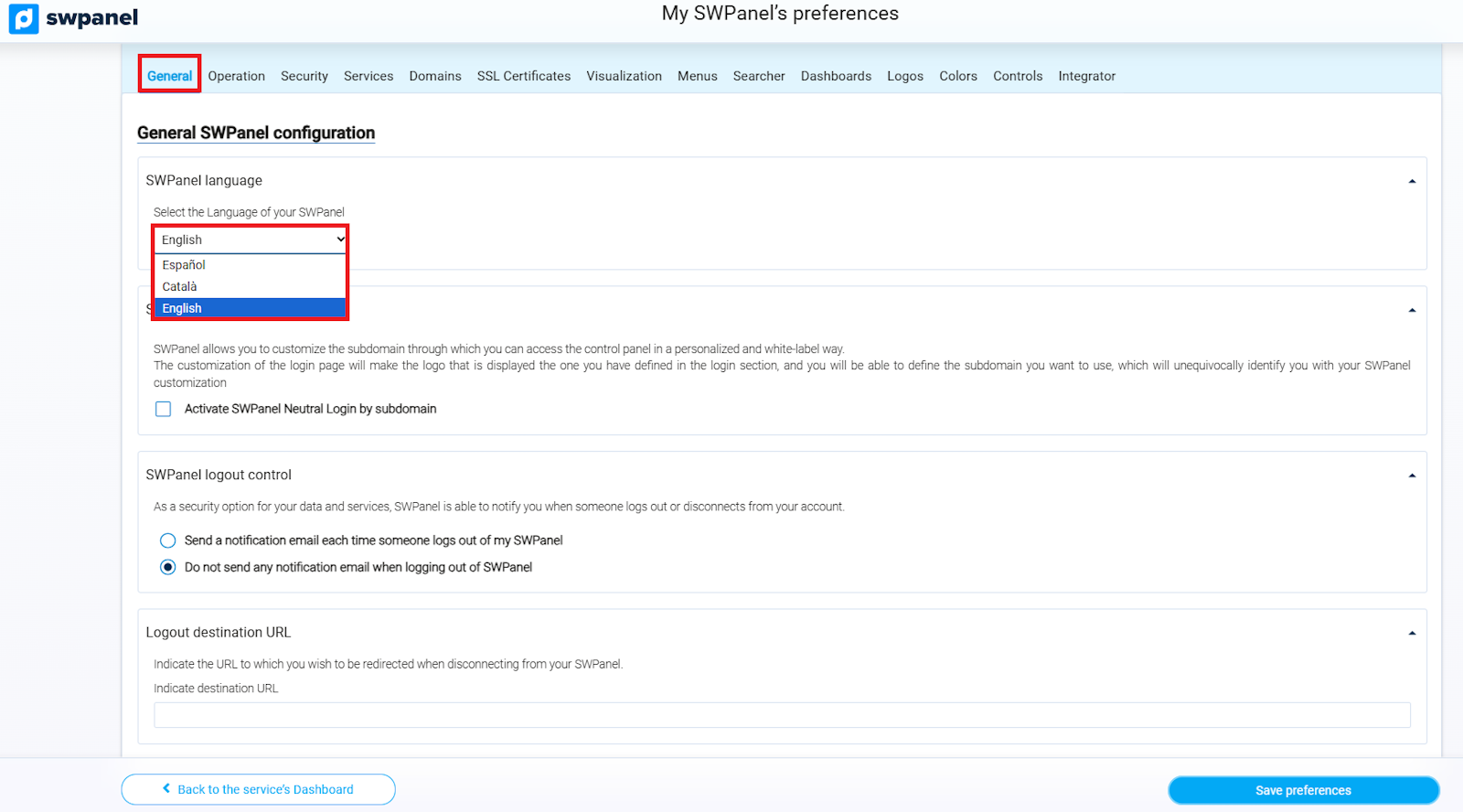
info_capture ℹ️ Note: The screenshot is for guidance purposes, taken from version 2026.000.0001 dated 01/02/2026. It may differ from the current version of SWPanel.
Operation Tab
SWPanel can adapt to your way of working to offer you the most suitable tools and add-ons.
You can now configure the Operation Mode, choosing the option that best fits your needs. For more detailed information on the different modes, consult the complete manual.
This section allows you to:
- Select the mode that enhances your experience with SWPanel based on your type of use.
- Adapt the platform to basic, professional, reseller, or integrator environments.
With this configuration, SWPanel adjusts to your work environment and maximizes the efficiency of your tasks.
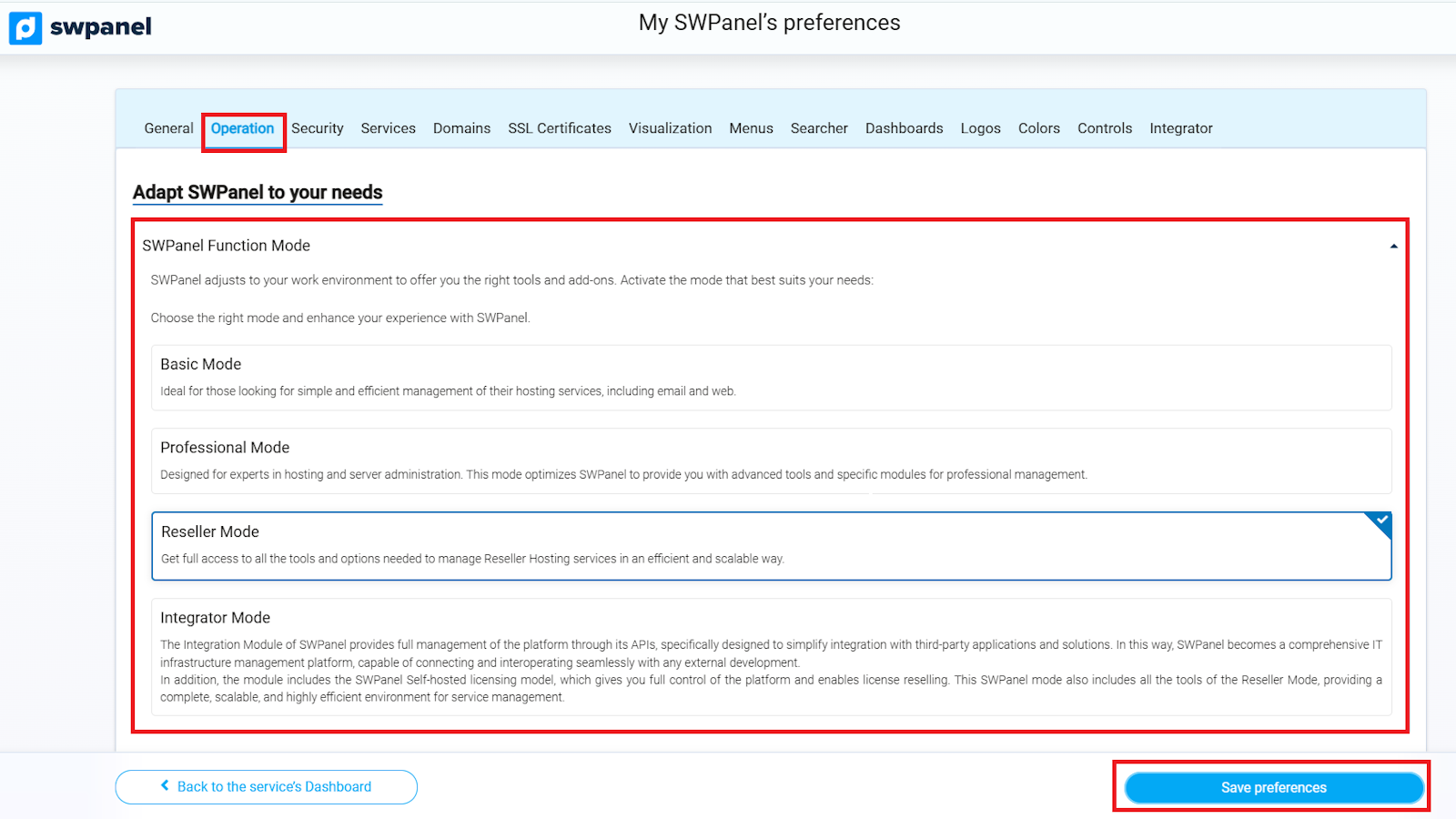
info_capture ℹ️ Note: The screenshot is for guidance purposes, taken from version 2026.000.0001 dated 01/02/2026. It may differ from the current version of SWPanel.
Security Management in SWPanel
This tab allows you to fully manage the security of your SWPanel, offering various options to protect your data and services. The main available functions are detailed below:
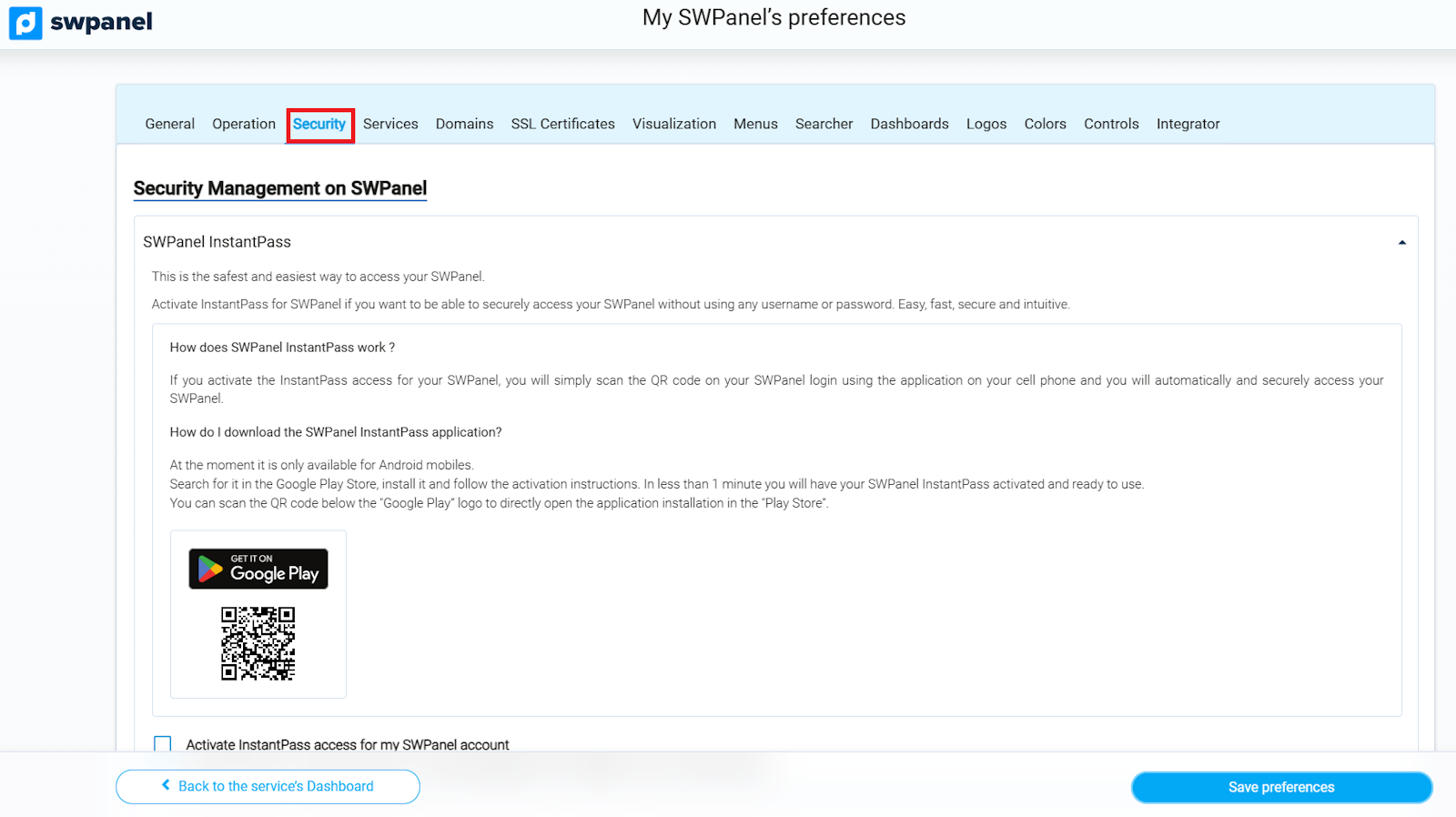
info_capture ℹ️ Note: The screenshot is for guidance purposes, taken from version 2026.000.0001 dated 01/02/2026. It may differ from the current version of SWPanel.
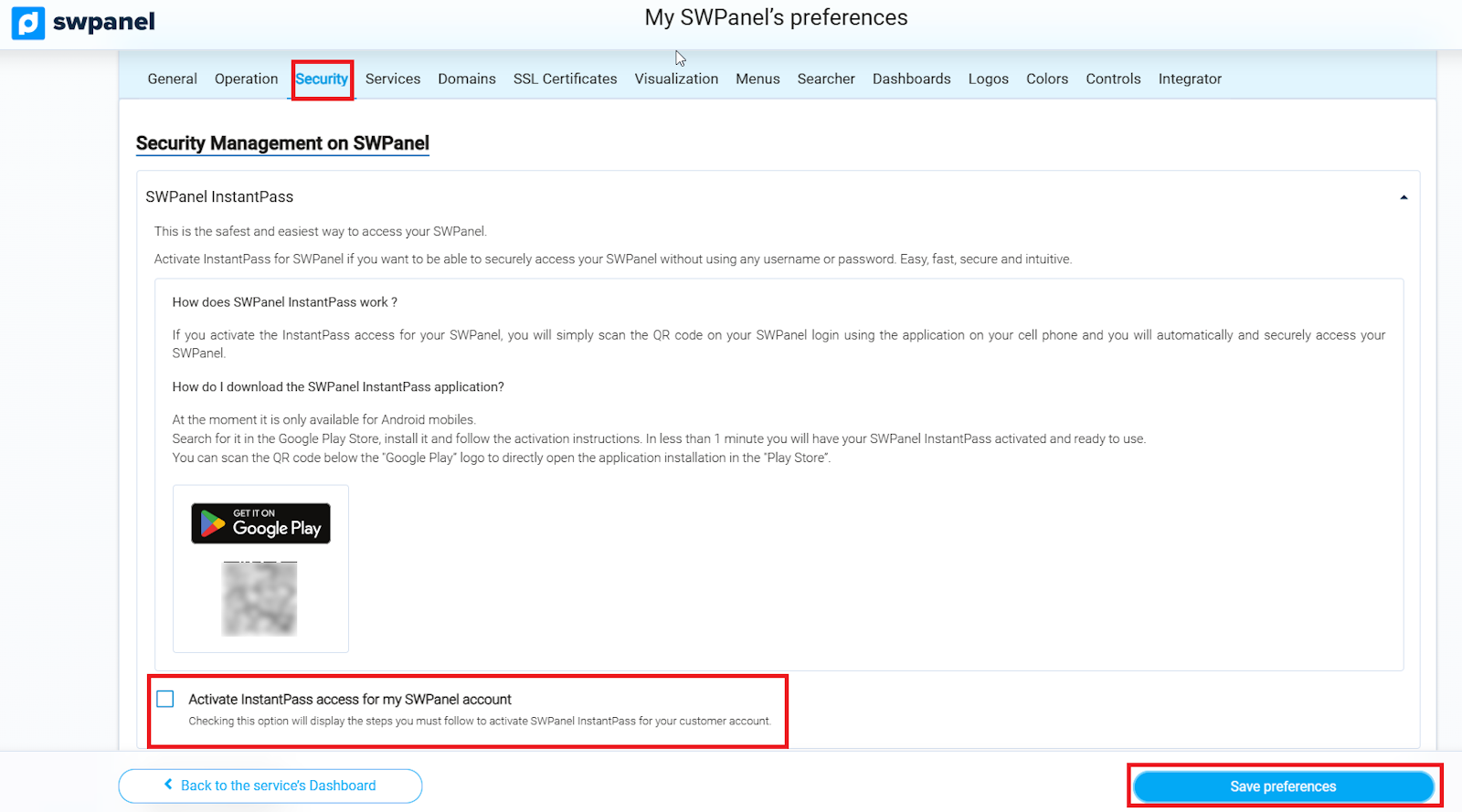
SWPanel InstantPass
SWPanel allows activating access via InstantPass, providing a more secure way to enter your panel.
For more detailed information, consult the full manual entry.
info_capture ℹ️ Note: The screenshot is for guidance purposes, taken from version 2026.000.0001 dated 01/02/2026. It may differ from the current version of SWPanel.
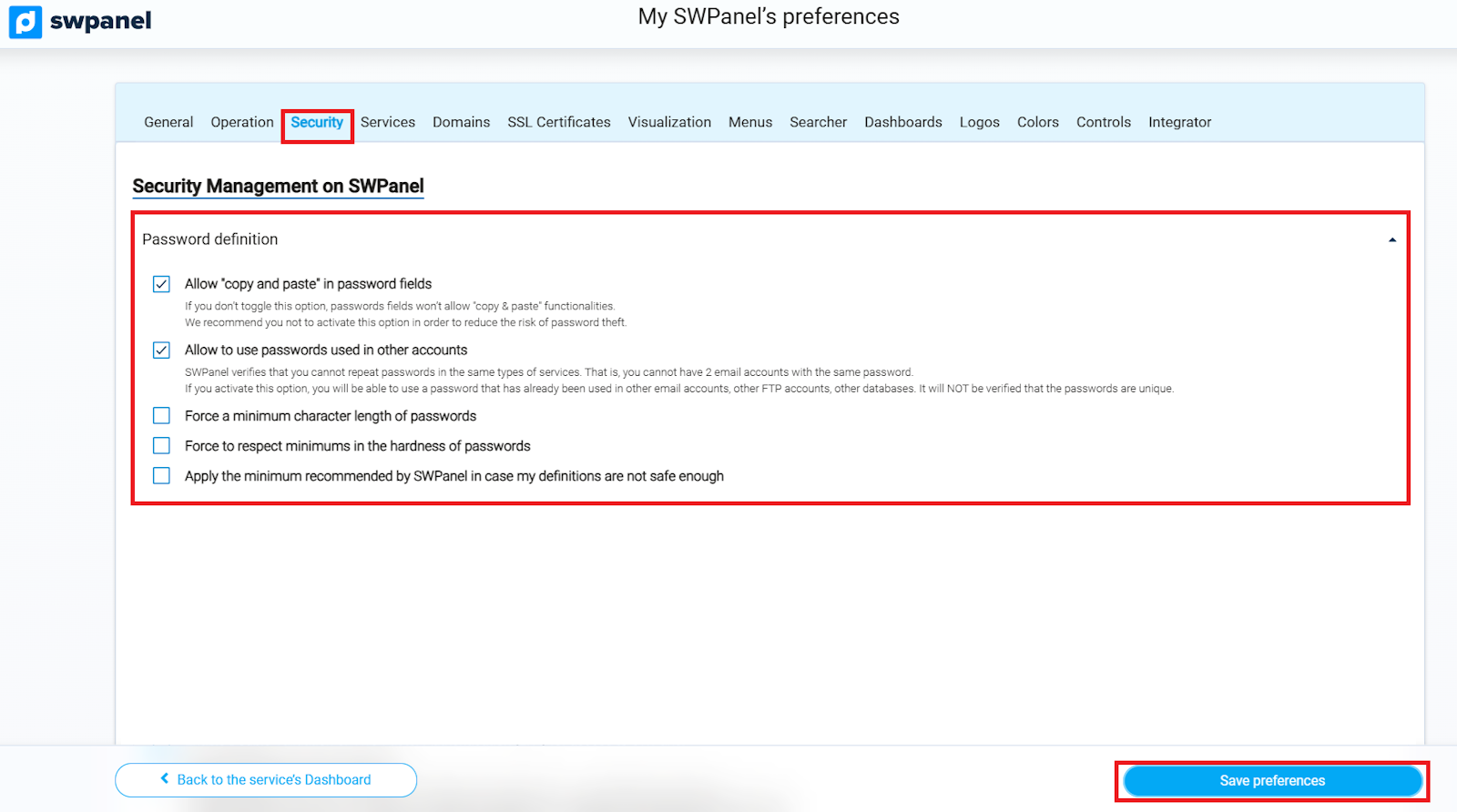
Password Definition
SWPanel offers several options to configure the security of your passwords:
- Allow copy and paste in password fields:
For security reasons, it is recommended not to activate this option. - Allow passwords used in other accounts:
SWPanel prevents using the same password across different accounts to increase security. - Set minimum password length:
You can define a minimum number of characters that each password must have. - Require minimum password complexity:
Allows passwords to include special characters (such as ".", ",", "{", etc.) for greater security.
info_capture ℹ️ Note: The screenshot is for guidance purposes, taken from version 2026.000.0001 dated 01/02/2026. It may differ from the current version of SWPanel.
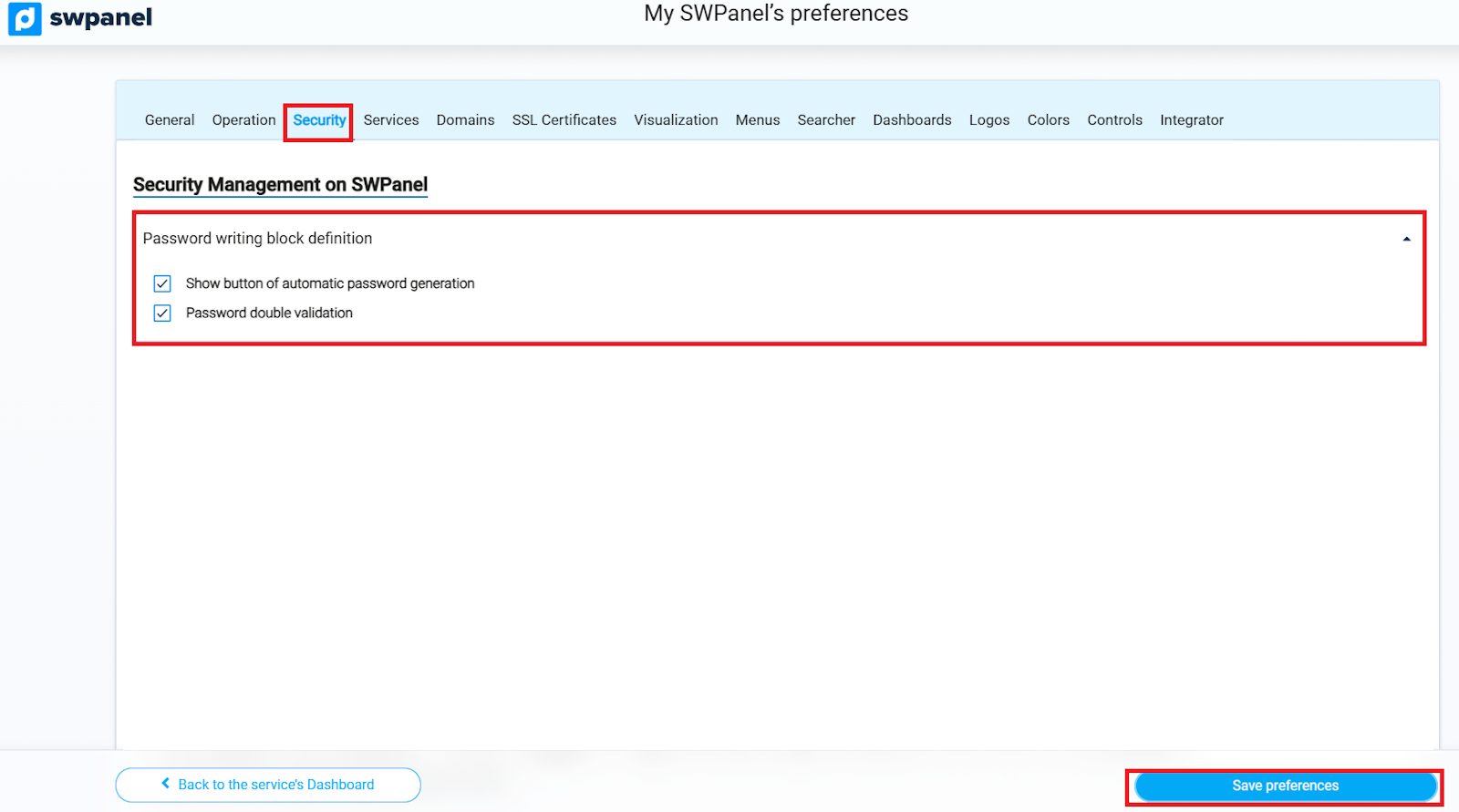
Password Entry Block Definition
In this section, you can configure how passwords are managed when creating them in SWPanel:
- Allow SWPanel to automatically generate passwords.
- Request that the password be repeated when typing to confirm its accuracy.
info_capture ℹ️ Note: The screenshot is for guidance purposes, taken from version 2026.000.0001 dated 01/02/2026. It may differ from the current version of SWPanel.
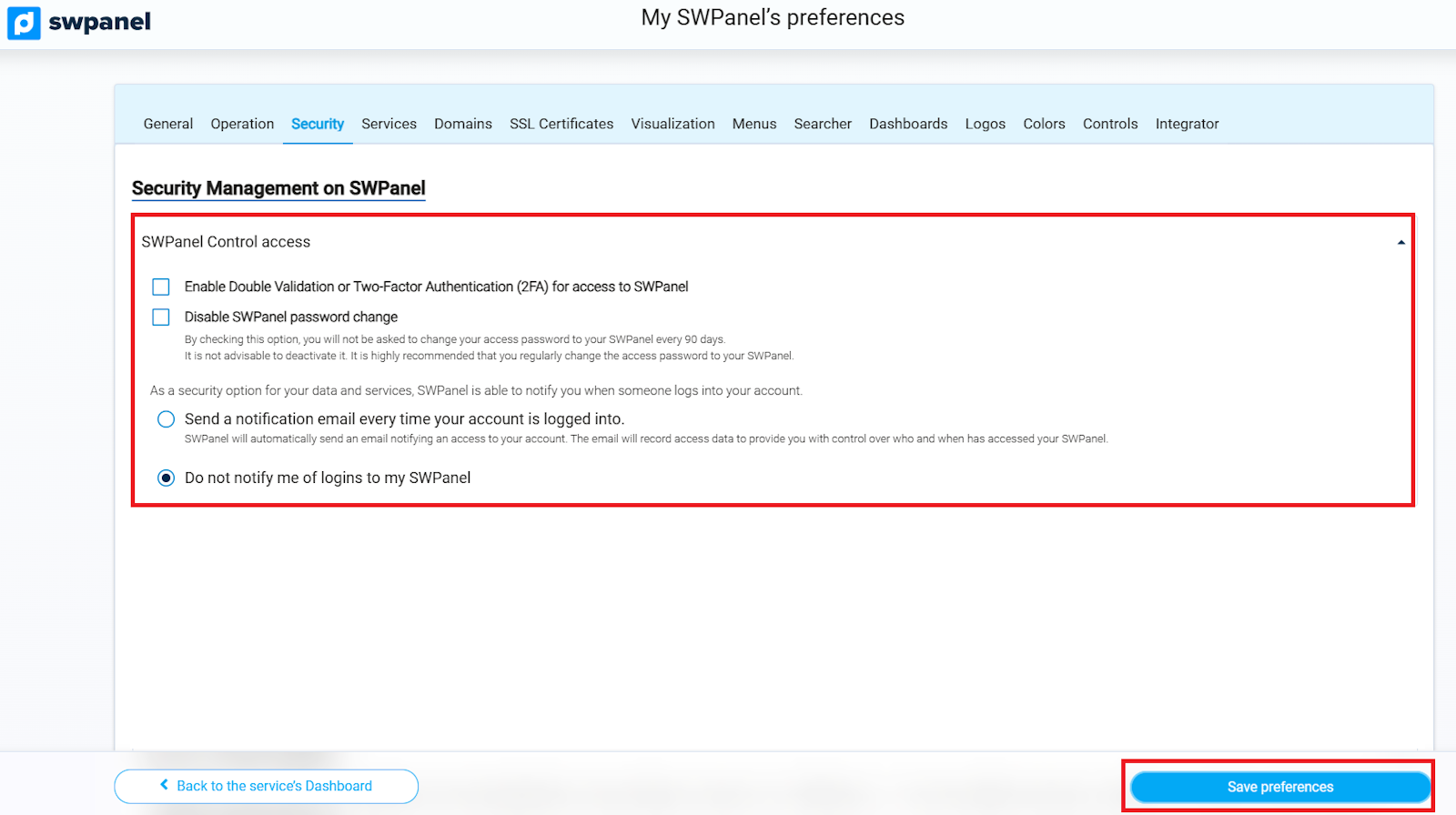
SWPanel Access Control
In this section, you can configure security options when logging into SWPanel.
- Activate two-factor authentication (2FA): By enabling this option, after entering your credentials, you will be asked for an additional code to validate your identity.
Available options to receive or generate the validation code:
- Send code by email: Every time you log in, you will receive a code at the registered email address.
- Select coordinate card position: You will be asked for a code corresponding to the indicated position on your coordinate card, which you can print from the corresponding section in SWPanel.
- Google Authenticator: Install the application on your mobile device, scan the provided QR Code, and activate authentication via Google Authenticator for SWPanel.
info_capture ℹ️ Note: The screenshot is for guidance purposes, taken from version 2026.000.0001 dated 01/02/2026. It may differ from the current version of SWPanel.
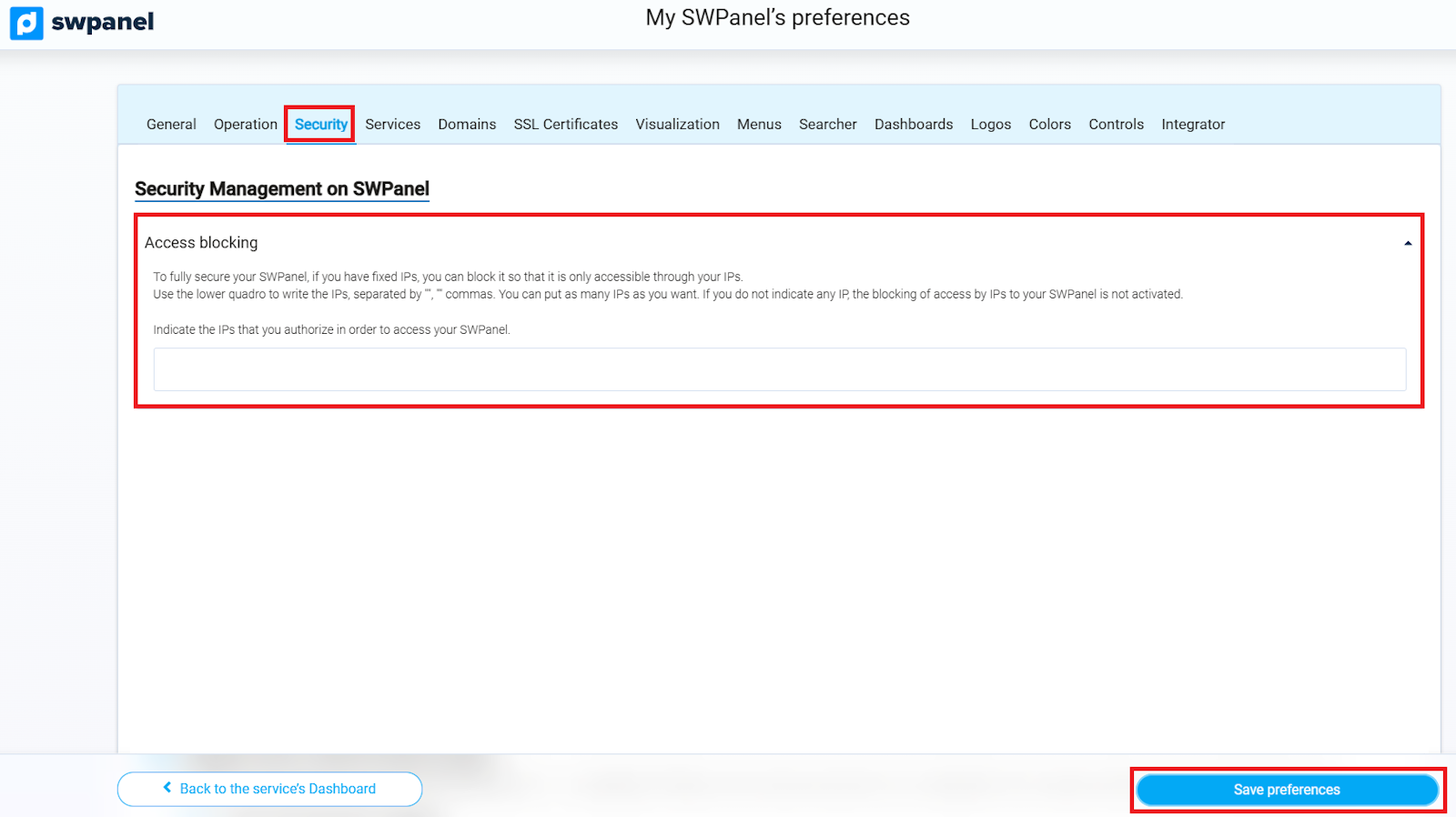
Access Blocking
To increase the security of your SWPanel, you can restrict access only to specific fixed IPs.
- Enter the permitted IPs in the corresponding box, separated by commas (
,). - You can add as many IPs as needed.
- If no IP is specified, IP blocking will not be applied, and access will be free from any location.
info_capture ℹ️ Note: The screenshot is for guidance purposes, taken from version 2026.000.0001 dated 01/02/2026. It may differ from the current version of SWPanel.
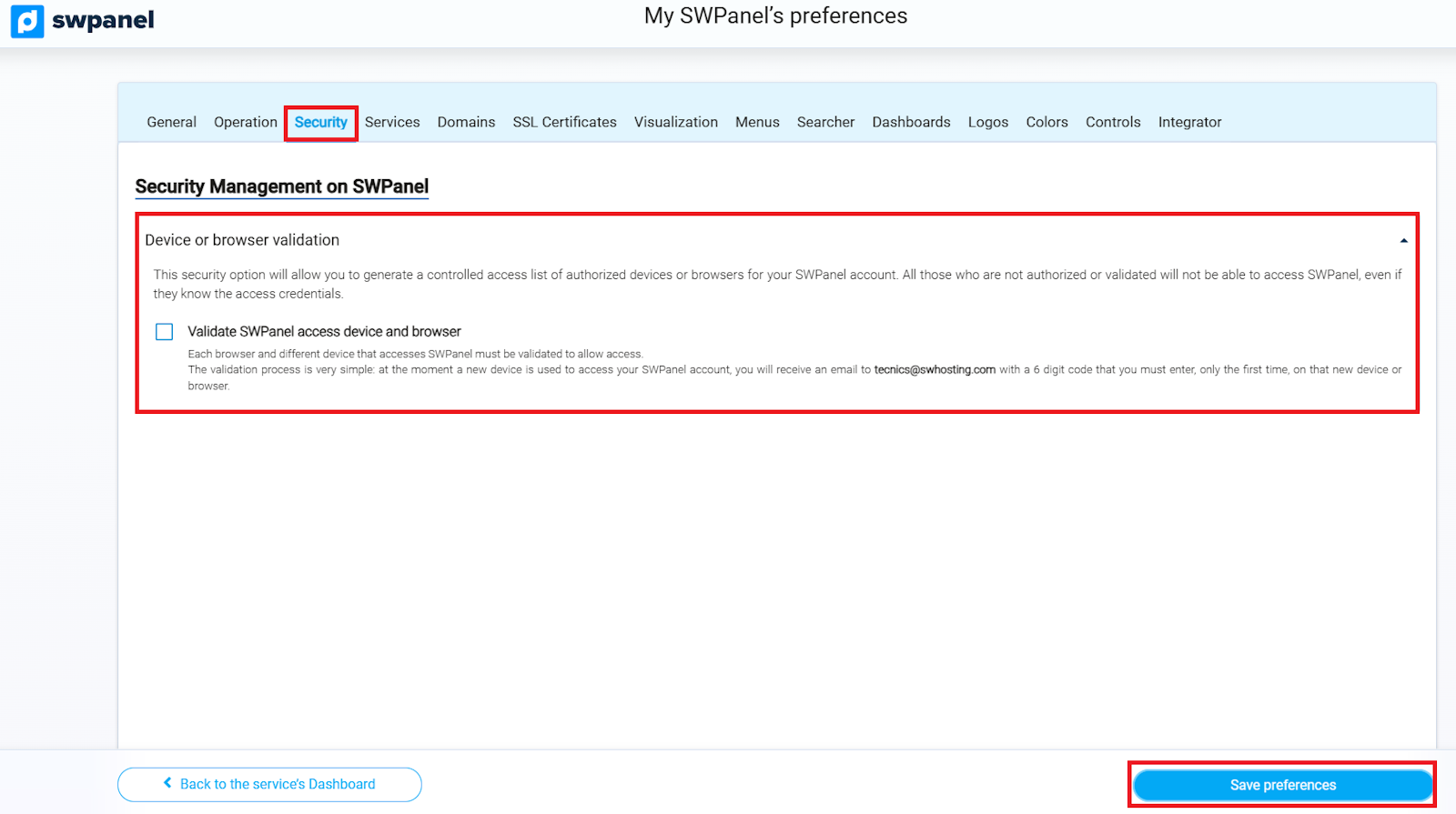
Device or Browser Validation
This option allows you to control which devices or browsers can access your SWPanel account. Only authorized devices will be able to enter, even if the access credentials are known.
The validation process is simple:
- When a new device attempts to access your account, you will receive an email with a 6-digit code.
- You must enter this code only the first time you use that device or browser.
- You can set a maximum number of authorized devices using the corresponding box.
info_capture ℹ️ Note: The screenshot is for guidance purposes, taken from version 2026.000.0001 dated 01/02/2026. It may differ from the current version of SWPanel.
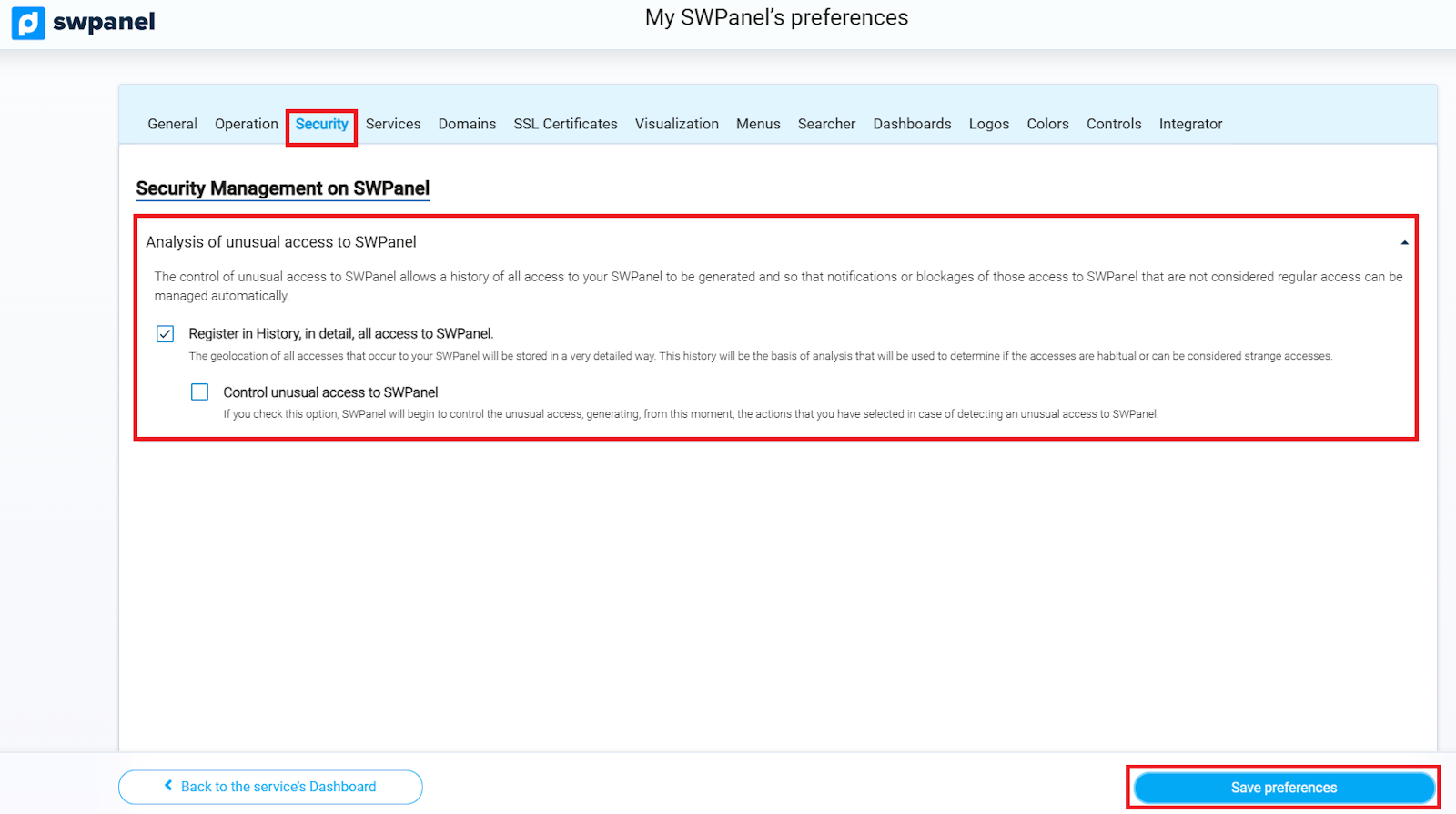
Unusual SWPanel Access Analysis
This option allows you to keep a history of all accesses to your SWPanel and automatically manage:
- Notifications regarding accesses that are not considered usual.
- Blocking of suspicious or unusual accesses to increase the security of your account.
info_capture ℹ️ Note: The screenshot is for guidance purposes, taken from version 2026.000.0001 dated 01/02/2026. It may differ from the current version of SWPanel.
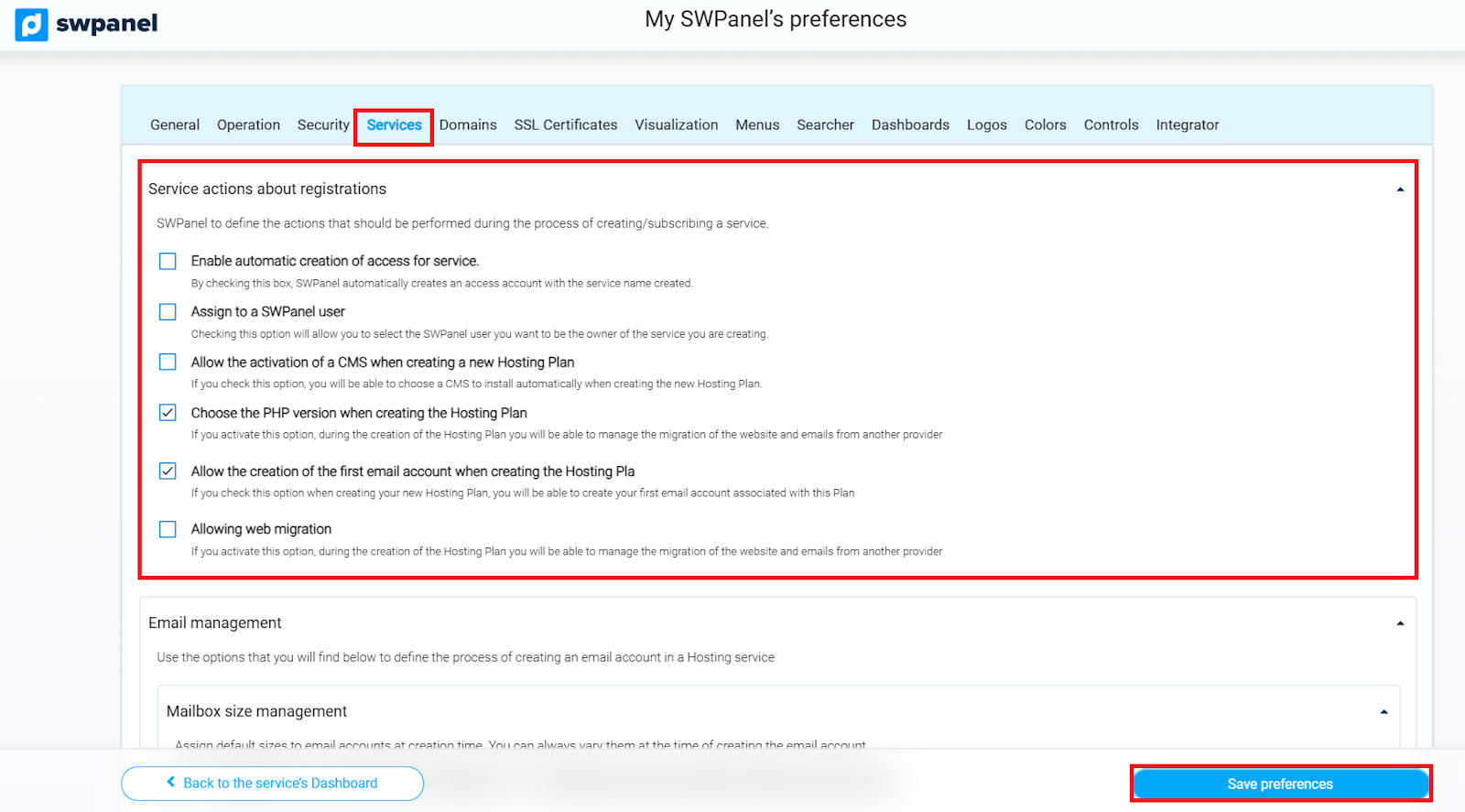
Actions on Service Activation
SWPanel allows you to configure actions that will be performed automatically when creating a new service, including email, panel access, Hosting Plan, among others.
The main options include:
- Automatic access creation per service: SWPanel can automatically generate an access account with the name of the created service.
- Access profile management: Allows selecting a profile when creating the service or assigning a predefined default one.
- Access password: Configure whether SWPanel will generate an automatic password or if you wish to set it manually.
- Assign owner user: Allows designating which SWPanel user will be the owner of the created service.
- CMS activation and PHP version: Possibility to install a CMS automatically and define the PHP version when creating a Hosting Plan.
- Web and email migration: Options to allow the migration of sites and email accounts from other providers.
- Email management: Configure default mailbox sizes and allow activating SWPanel login with the created email account.
info_capture ℹ️ Note: The screenshot is for guidance purposes, taken from version 2026.000.0001 dated 01/02/2026. It may differ from the current version of SWPanel.
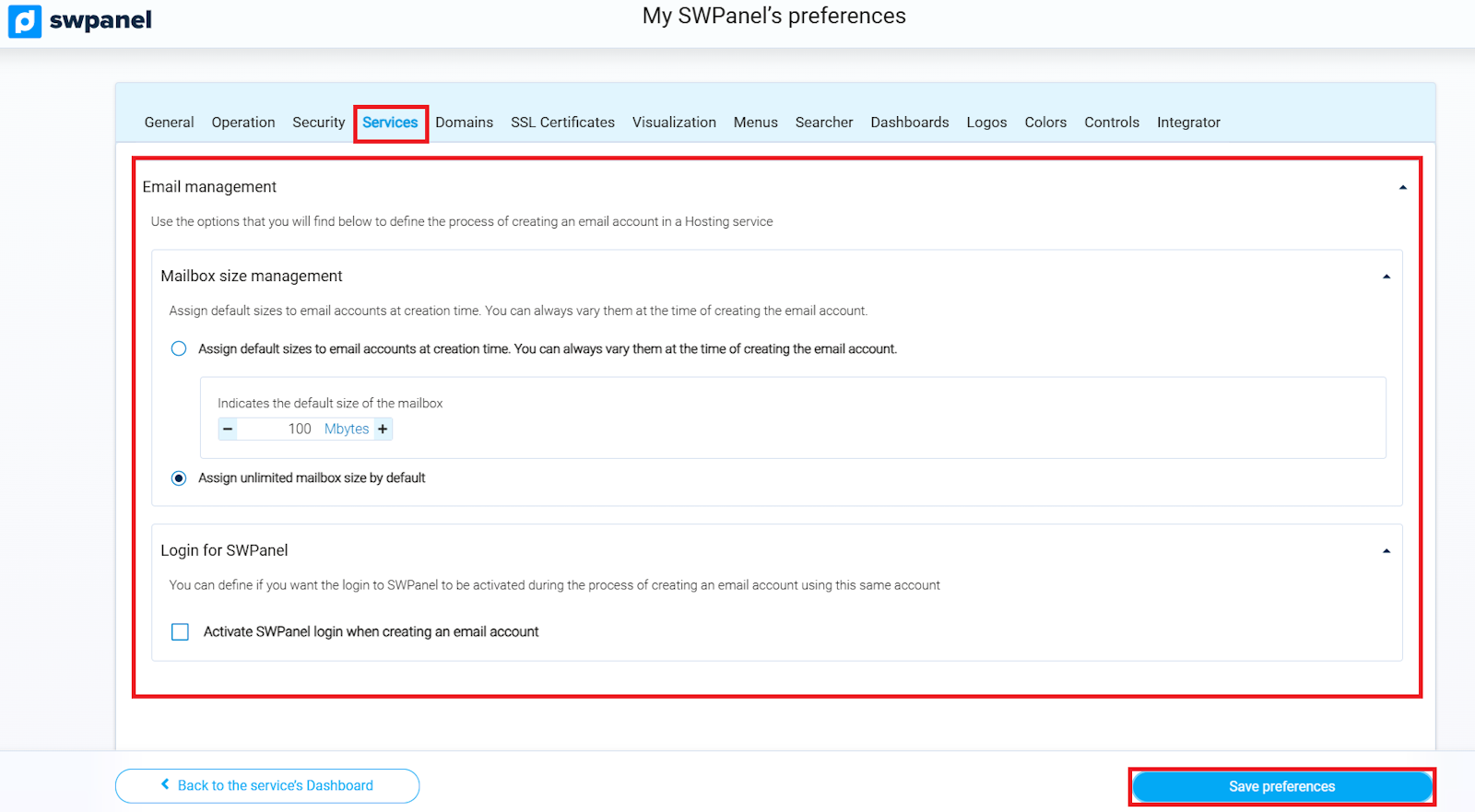
info_capture ℹ️ Note: The screenshot is for guidance purposes, taken from version 2026.000.0001 dated 01/02/2026. It may differ from the current version of SWPanel.
Domain Registration Actions
SWPanel allows you to configure how actions related to domain purchase, renewal, or search are managed:
- Show domain search in the top bar: Activates a search tool to register or transfer domains from the menu bar.
- Show notification of domains in renewal period: Shows an icon with the number of domains close to renewal and allows access to the list to renew them.
- Show notification of domains close to Auto-renewal: Shows an icon indicating domains that will enter auto-reserve, with the option to cancel Auto-renewal before it is activated.
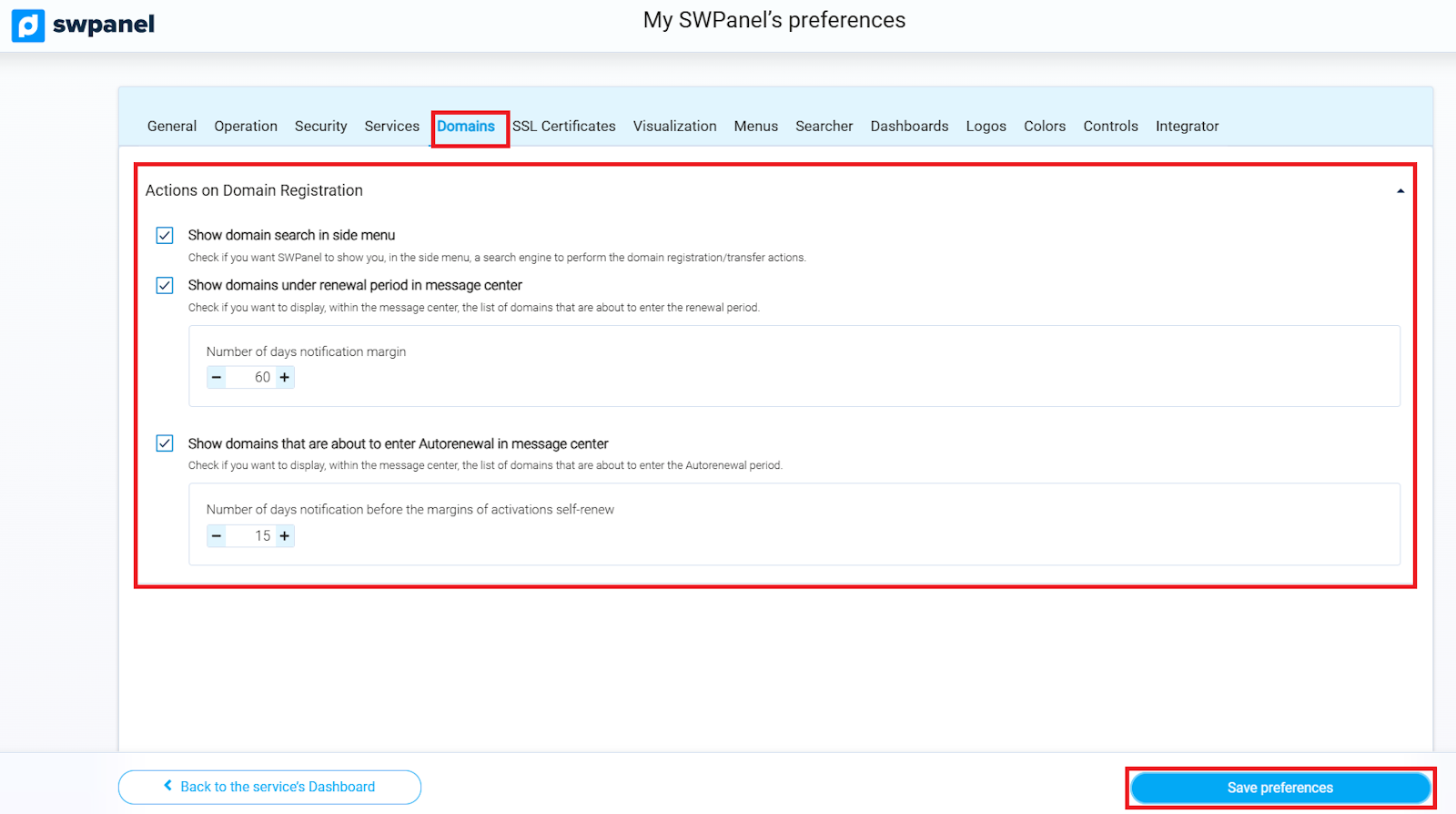
info_capture ℹ️ Note: The screenshot is for guidance purposes, taken from version 2026.000.0001 dated 01/02/2026. It may differ from the current version of SWPanel.
SSL Certificate Management
SWPanel allows you to configure how notifications related to SSL certificates are displayed:
- Certificate renewal period notification: Shows an icon with the number of certificates close to renewal and allows access to the list to renew them immediately.
- Certificate Auto-renewal period notification: Shows an icon indicating certificates that will enter auto-reserve.
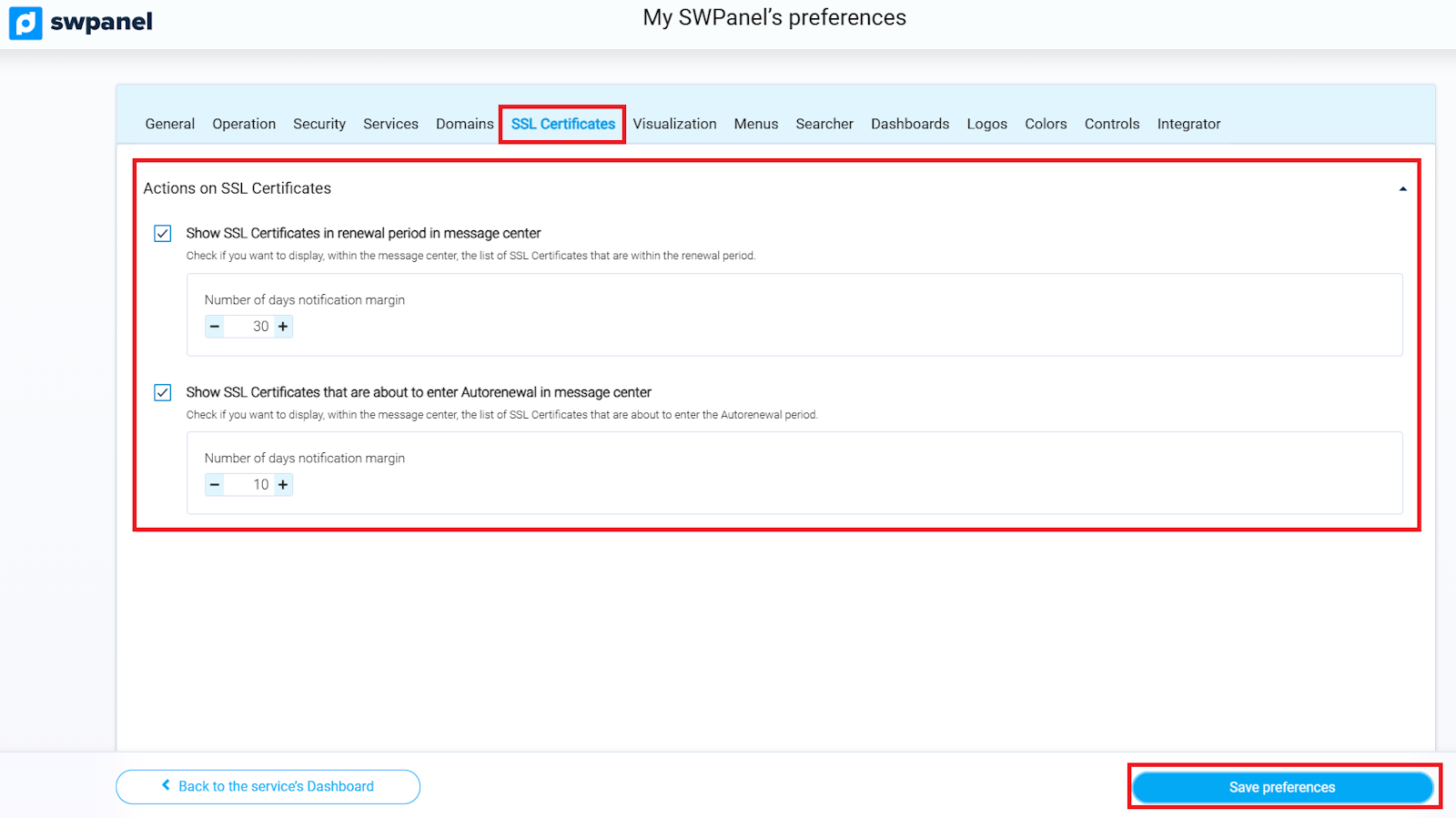
info_capture ℹ️ Note: The screenshot is for guidance purposes, taken from version 2026.000.0001 dated 01/02/2026. It may differ from the current version of SWPanel.
Dashboard Display Options
In this section, you can configure different aspects related to the visualization of SWPanel:
- List display: Defines the number of lines per page that will be shown in the lists, adjusting the quantity of visible elements according to your preferences.
- Services tree: Organizes your services tree by countries and configures the visualization of your geographic map. You can also activate Drag & Drop and maintain the state of the branches when opening or closing elements.
- Action queue window: Allows showing or hiding the action queue in the lower right part of the Dashboard, where all operations that SWPanel performs in the background are visualized.
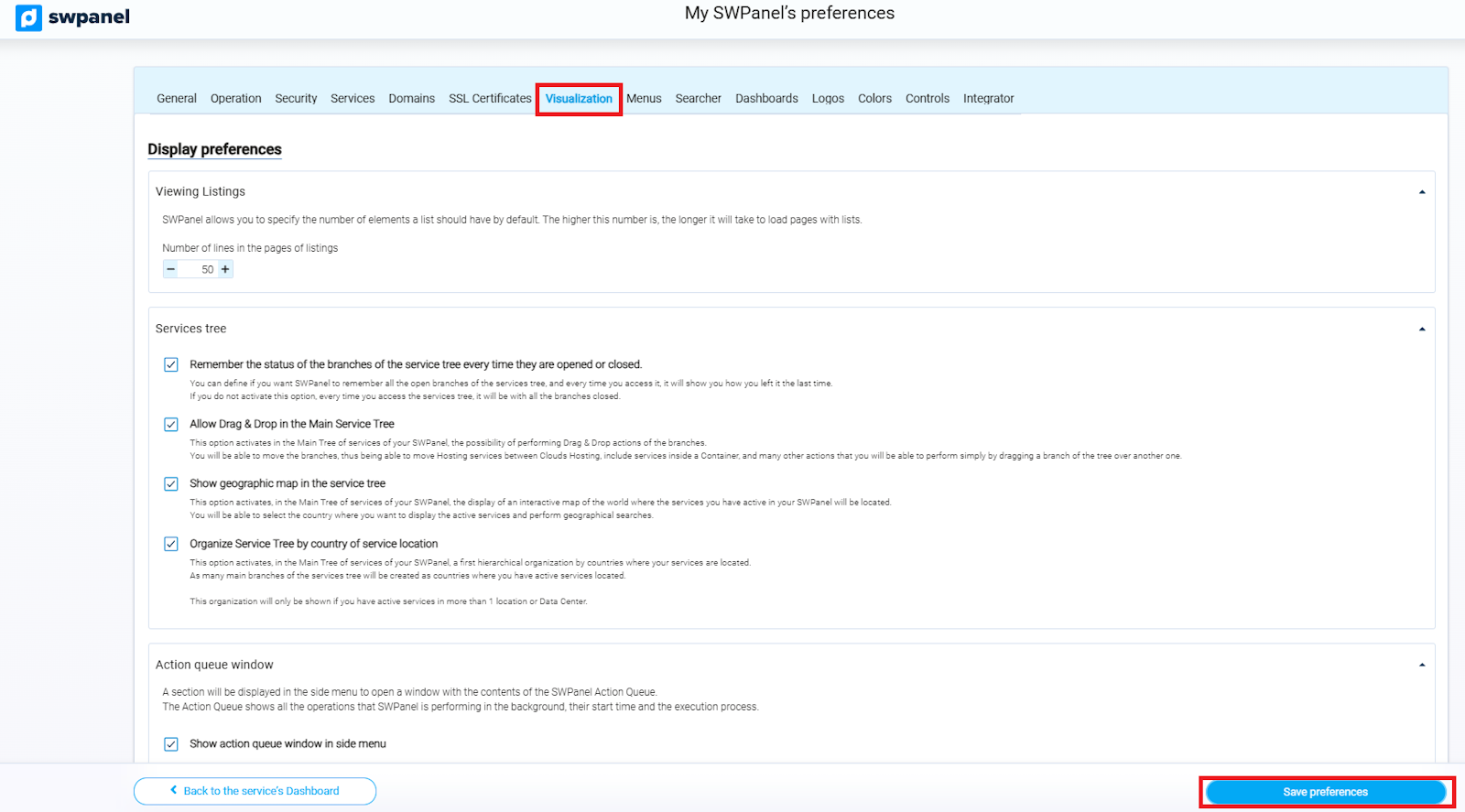
info_capture ℹ️ Note: The screenshot is for guidance purposes, taken from version 2026.000.0001 dated 01/02/2026. It may differ from the current version of SWPanel.
Menu Customization
In this section, you can configure and customize the side and top menus of SWPanel:
- Side menu size adjustment: Defines the total size of the menu, icons, and typography according to your preferences.
- Appearance and display: Configure whether the side menu will always be open, whether icons are shown, and the minimum size at which it automatically expands.
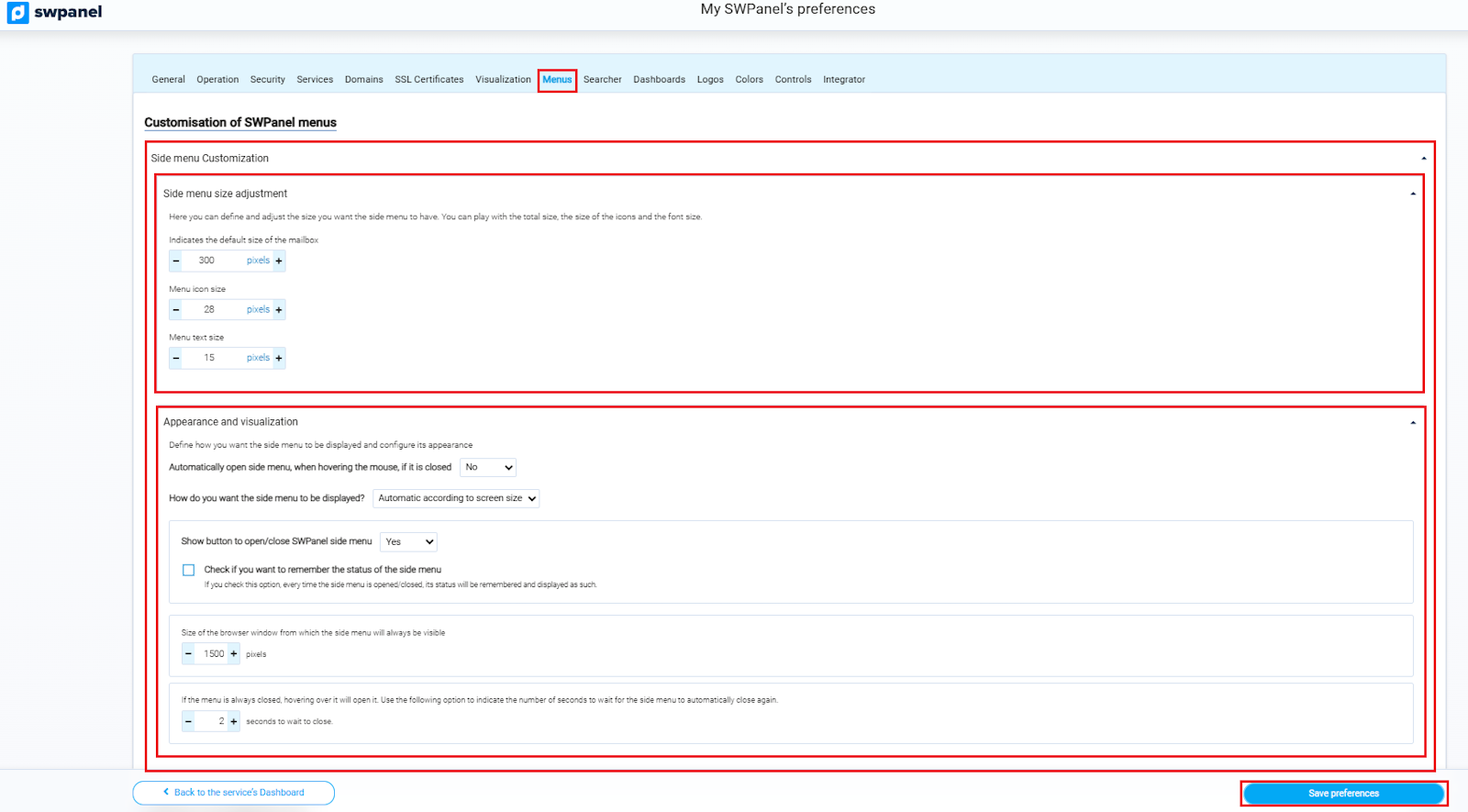
info_capture ℹ️ Note: The screenshot is for guidance purposes, taken from version 2026.000.0001 dated 01/02/2026. It may differ from the current version of SWPanel.
- Top bar customization: Optimizes loading time and search results by editing the content of the SWPanel top bar.
- General menu customization: Select which tabs will be displayed in the general menu of SWPanel.
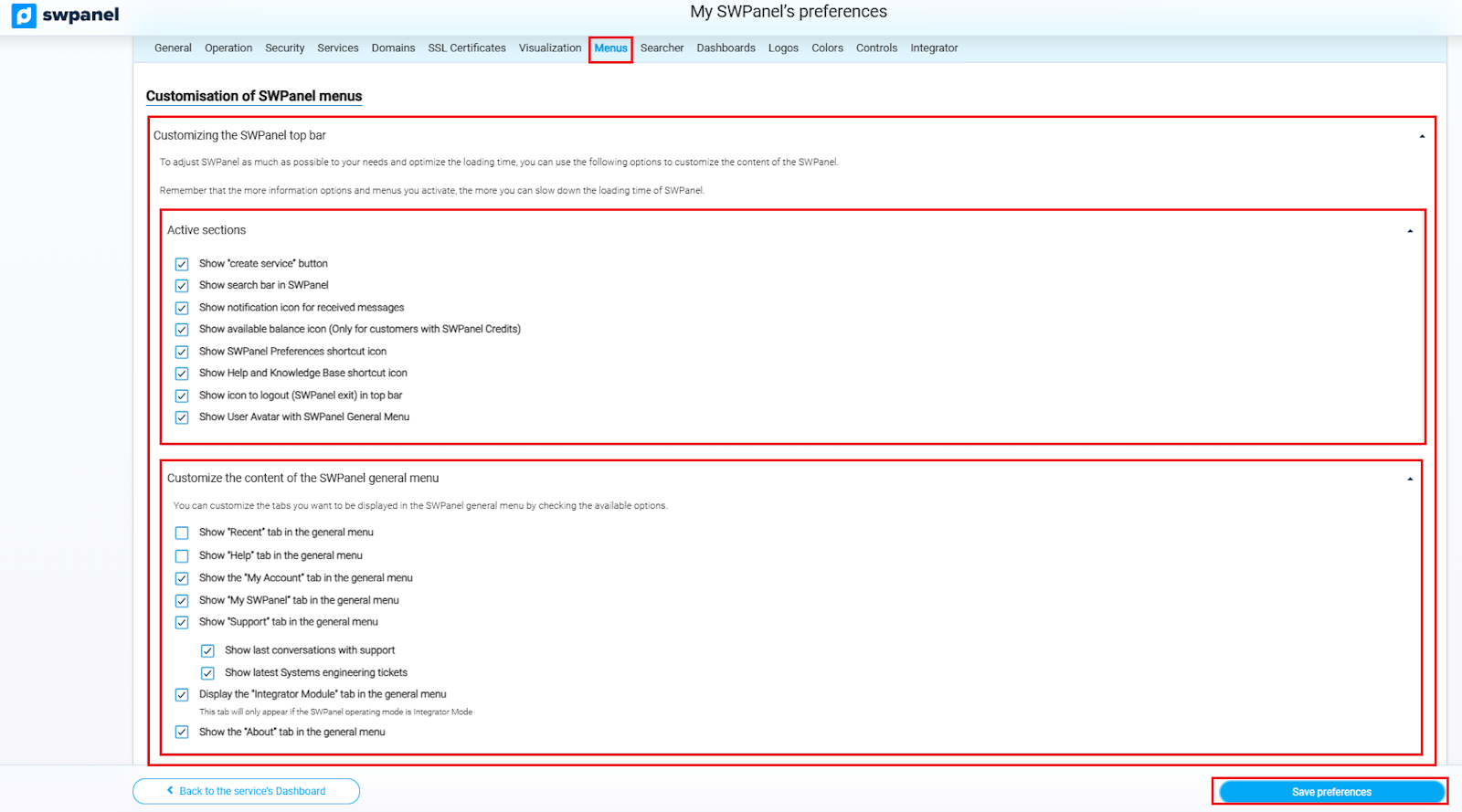
info_capture ℹ️ Note: The screenshot is for guidance purposes, taken from version 2026.000.0001 dated 01/02/2026. It may differ from the current version of SWPanel.
Search Engine Customization
In this section, you can configure the general SWPanel search engine, located in the top bar, to optimize the search for information in the panel.
-
Activate intelligent search: Allows the search engine to perform searches in different sections of SWPanel. You can select which areas you want it to search:
- Services
- Support and help
- Domains and SSL certificates
- Financial topics
Keep in mind that the more sections you activate, the longer the real-time search may take.
-
Activate detailed results page: By pressing "Enter" or the magnifying glass, a page will open with results grouped by sections, performing an exhaustive search in all areas, regardless of the intelligent search configuration.
-
Activate search preferences button: Shows an icon on the right side of the search engine that allows direct access to the search configuration and preferences.
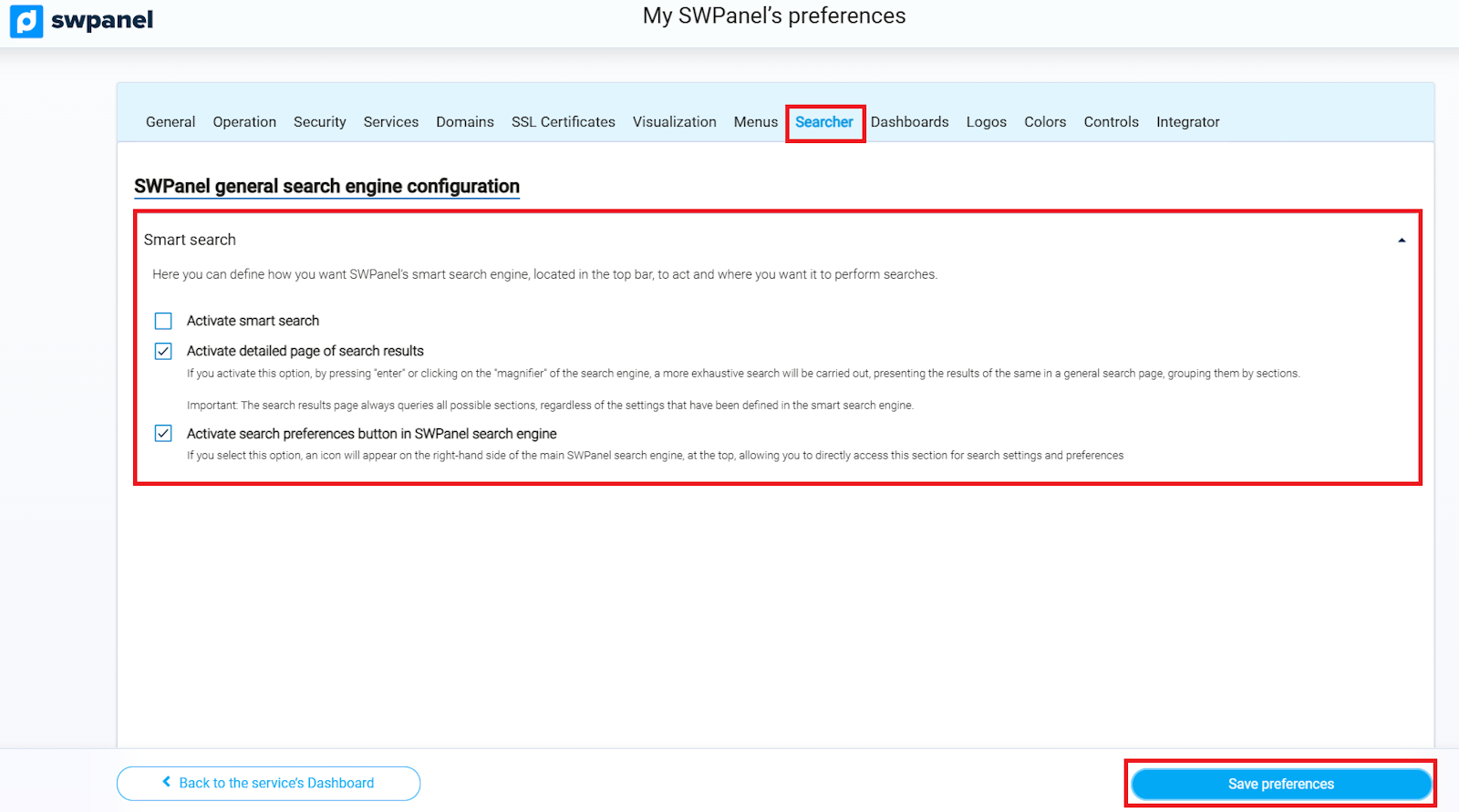
info_capture ℹ️ Note: The screenshot is for guidance purposes, taken from version 2026.000.0001 dated 01/02/2026. It may differ from the current version of SWPanel.
Dashboard Customization
From this section, you can configure and customize the different SWPanel Dashboards, including the general, customer, SW Ambassadors Network, Integrator module, license reseller, traceability, support, services, WordPress, Cloud, and RHA module Dashboards.
Command and Control Bar
The top bar of the Dashboard allows quick and contextual access to the most important actions of each service or resource. You can configure:
- Self-adjusting or fixed buttons with ToolTip.
- Icon size.
- Visualization of the Smart Block in the bar.
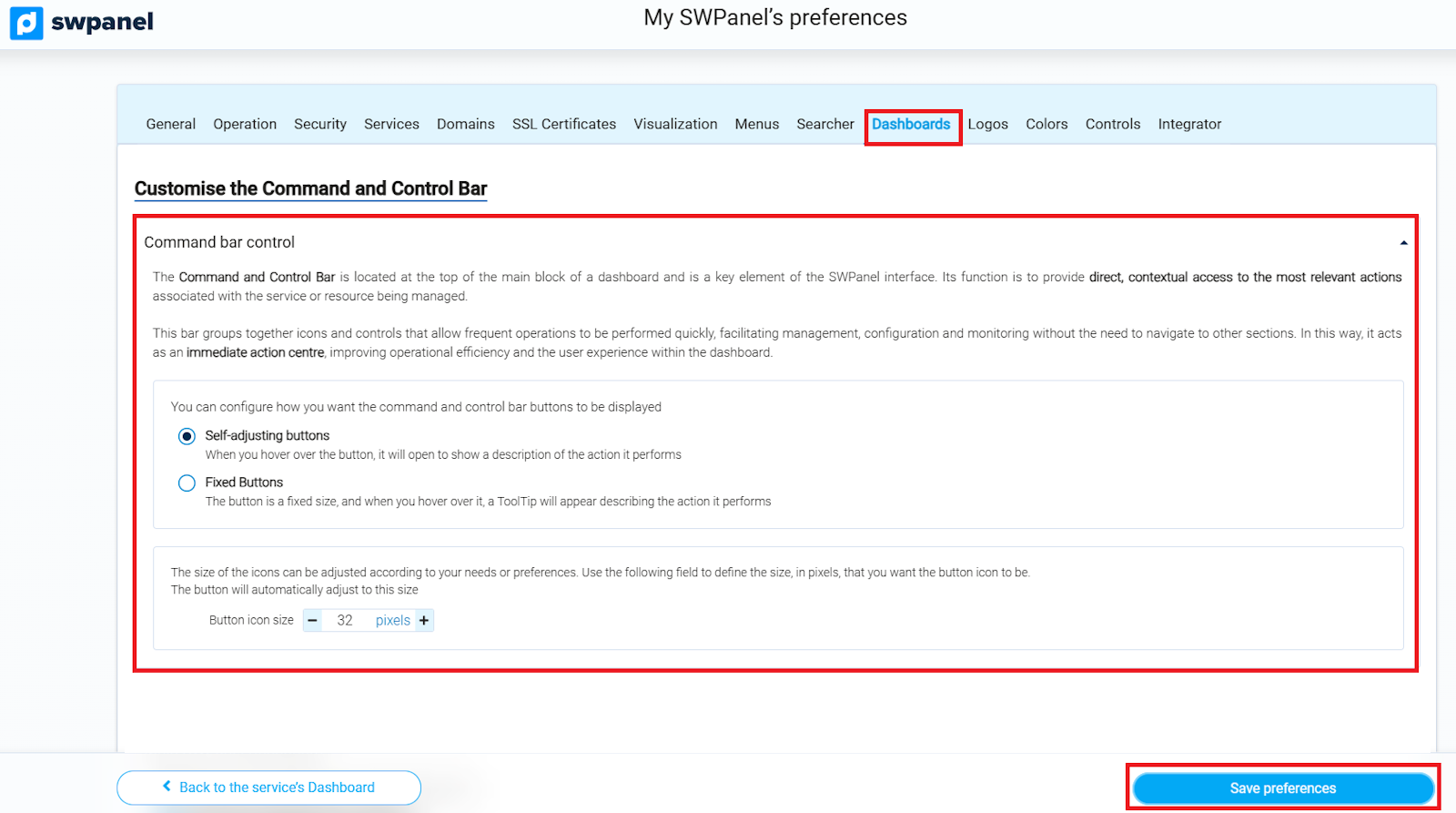
info_capture ℹ️ Note: The screenshot is for guidance purposes, taken from version 2026.000.0001 dated 01/02/2026. It may differ from the current version of SWPanel.
Main Dashboards
- General Dashboard: Customize information blocks, services tree, domain search, and maximum number of visible services.
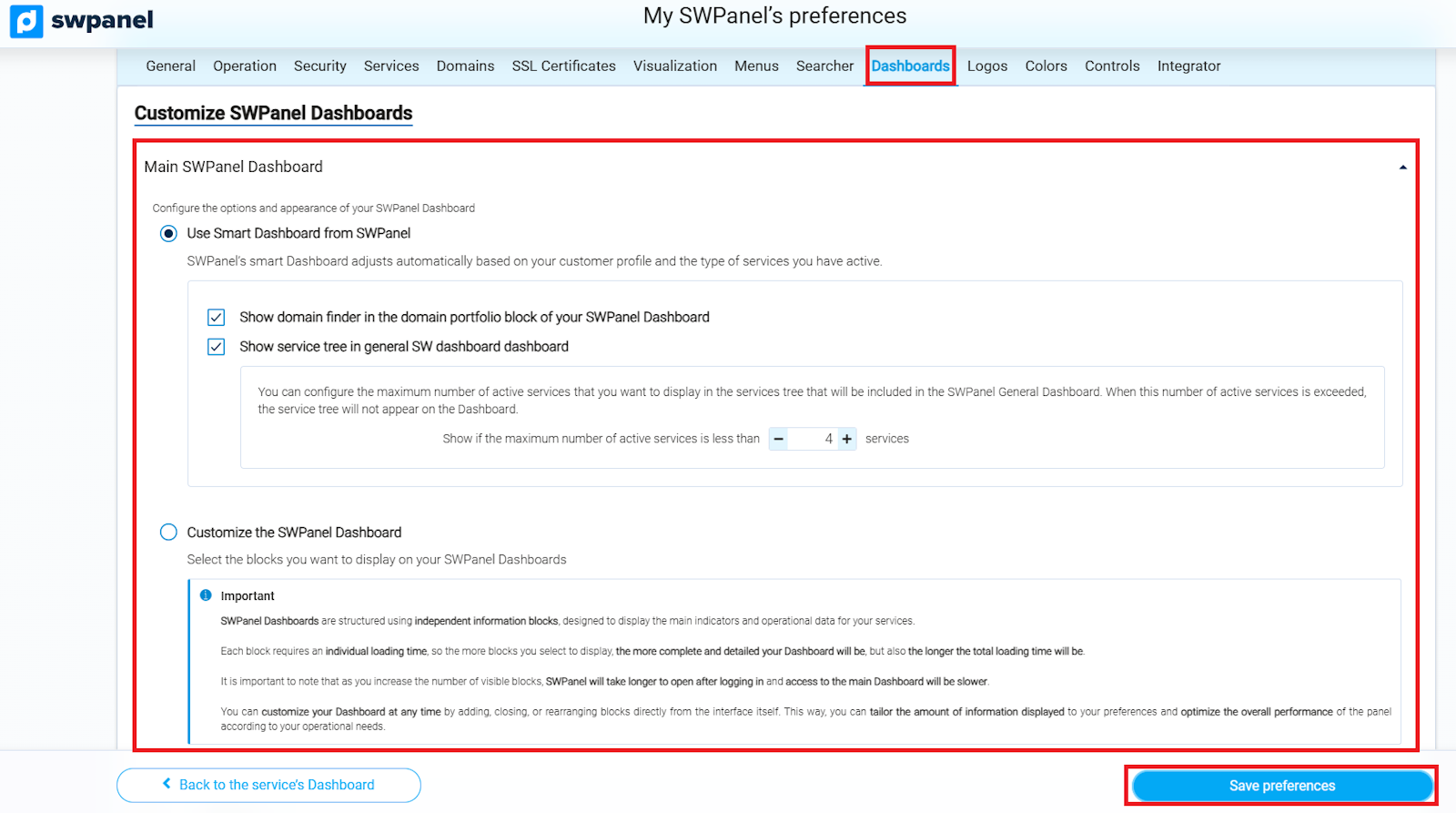
info_capture ℹ️ Note: The screenshot is for guidance purposes, taken from version 2026.000.0001 dated 01/02/2026. It may differ from the current version of SWPanel.
- Customer Dashboard: Select information blocks about your account, billing, balance, affiliations, and promotions.
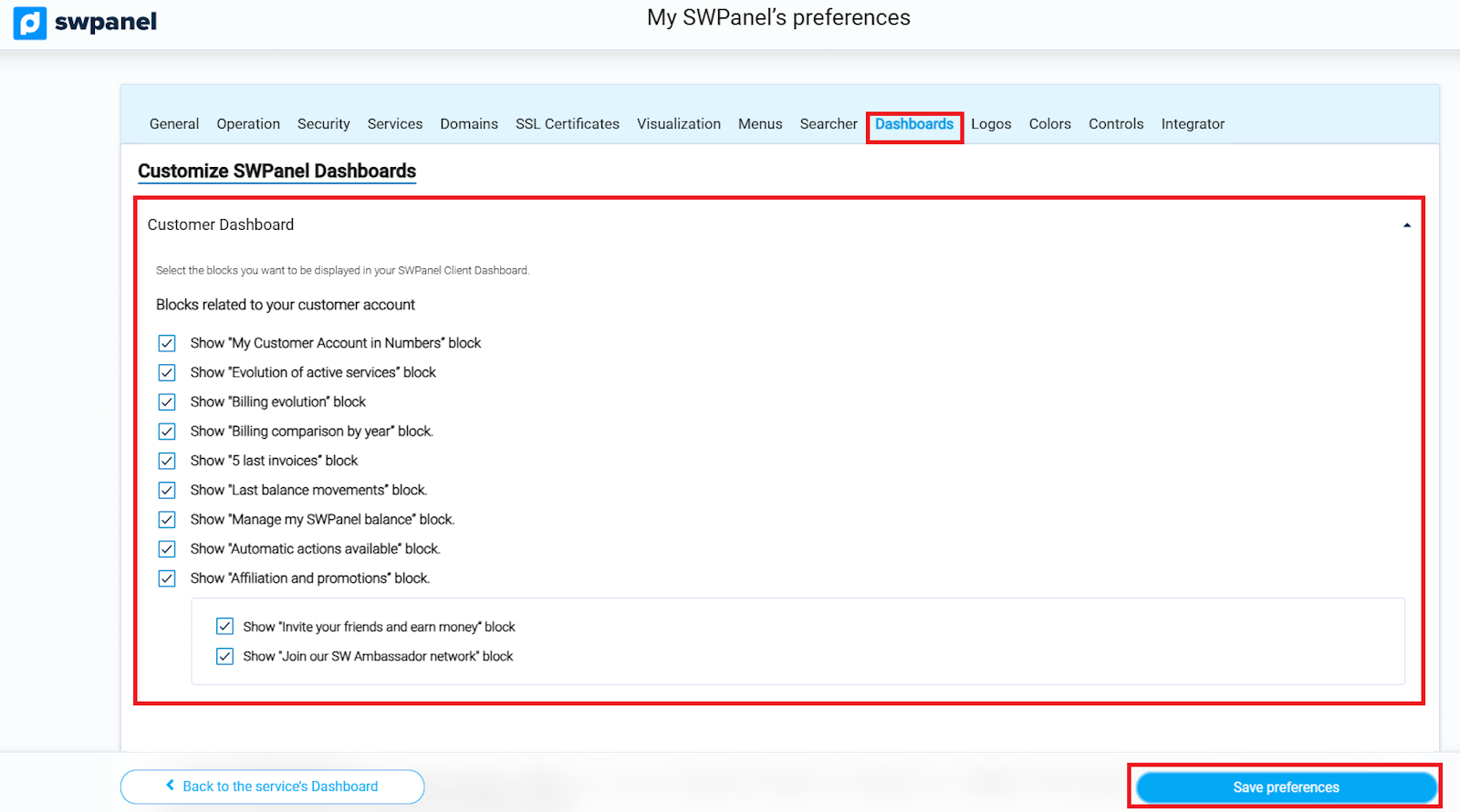
info_capture ℹ️ Note: The screenshot is for guidance purposes, taken from version 2026.000.0001 dated 01/02/2026. It may differ from the current version of SWPanel.
- Domains and Certificates Dashboard: You can visualize and manage the global status of your domain and SSL certificate portfolio.
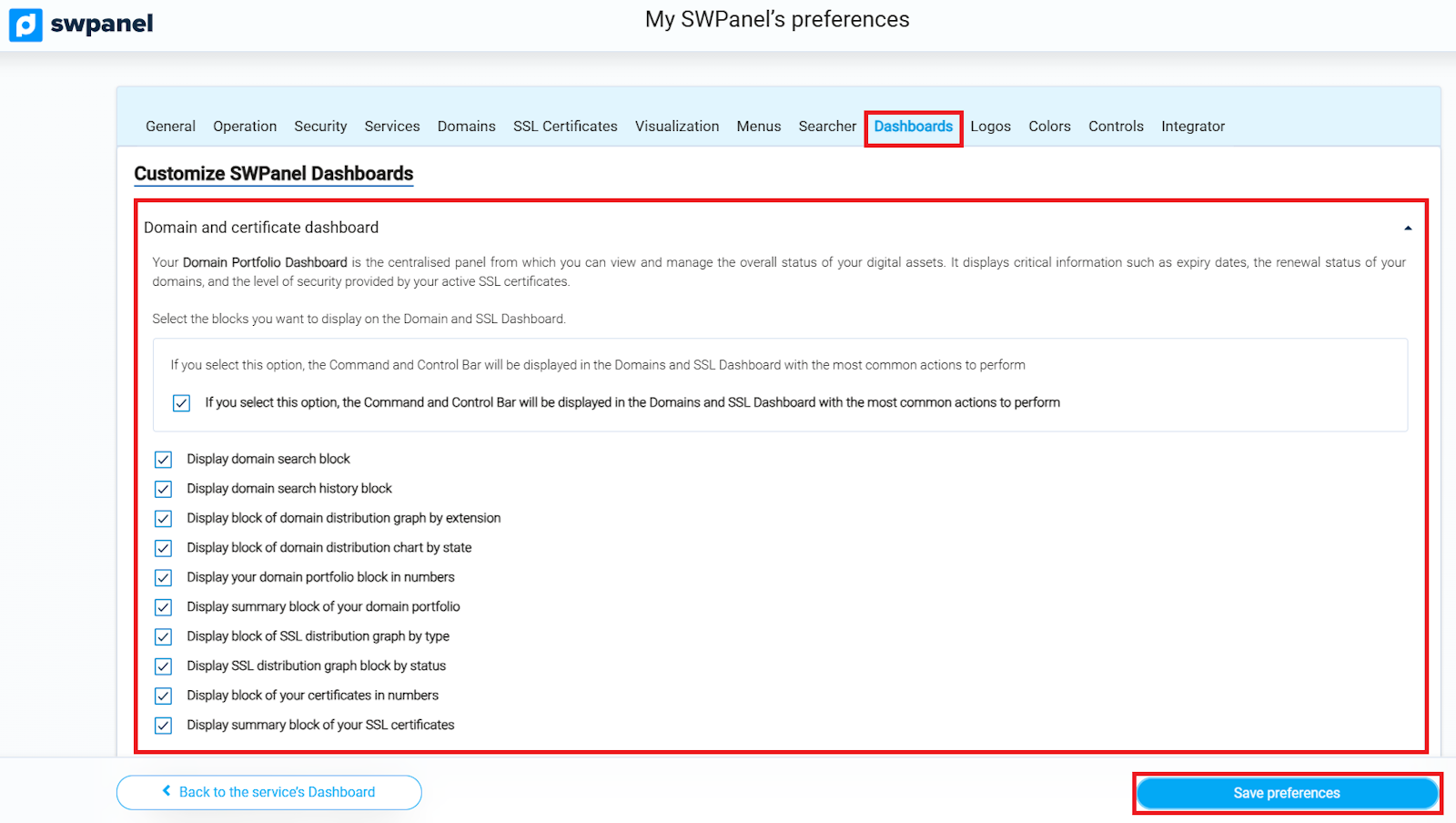
info_capture ℹ️ Note: The screenshot is for guidance purposes, taken from version 2026.000.0001 dated 01/02/2026. It may differ from the current version of SWPanel.
- SW Ambassadors Network Dashboard: Blocks on sales, customers, commissions, and visits by country.
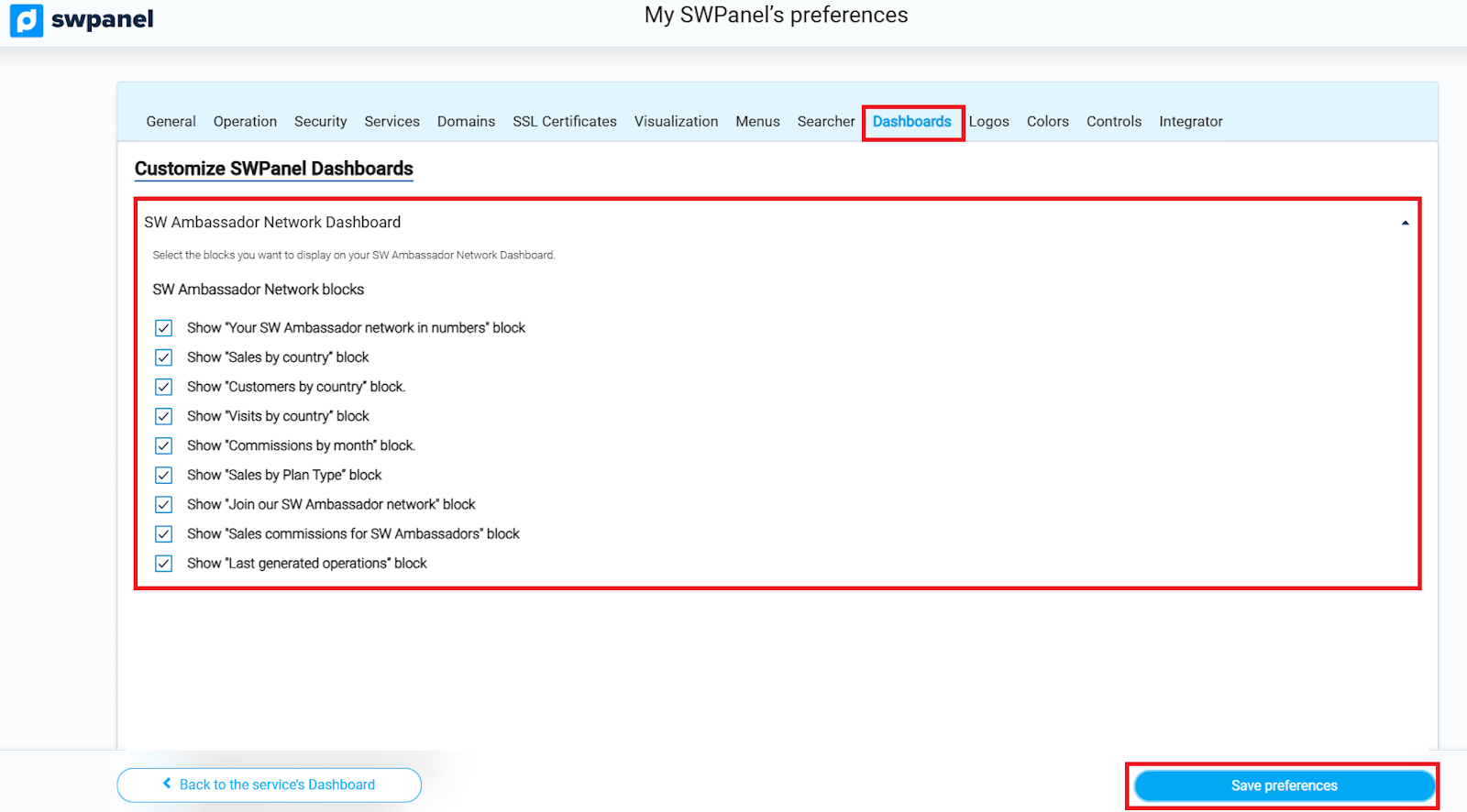
info_capture ℹ️ Note: The screenshot is for guidance purposes, taken from version 2026.000.0001 dated 01/02/2026. It may differ from the current version of SWPanel.
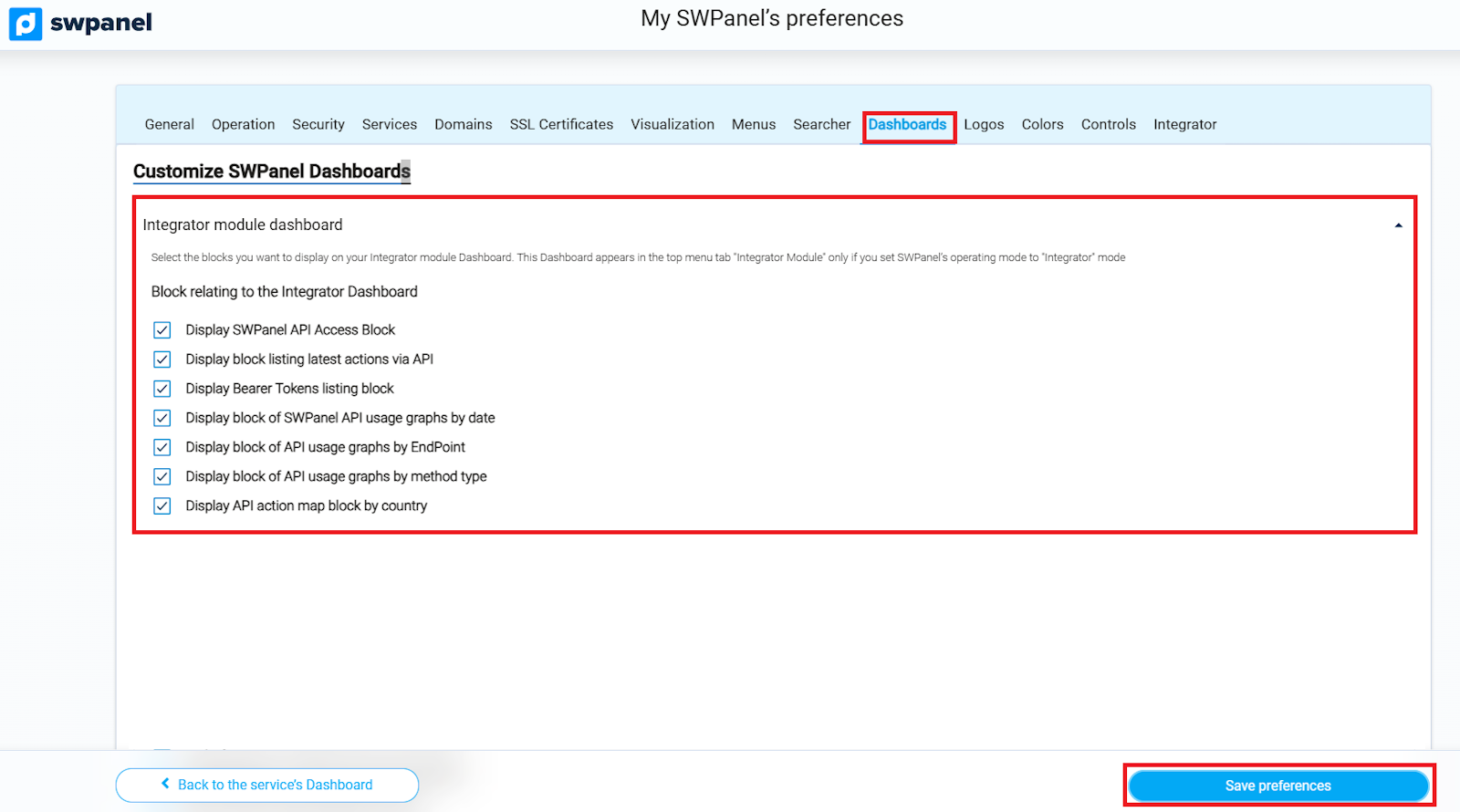
- Integrator Module Dashboard: Access to APIs, Bearer Tokens, and usage graphs.
info_capture ℹ️ Note: The screenshot is for guidance purposes, taken from version 2026.000.0001 dated 01/02/2026. It may differ from the current version of SWPanel.
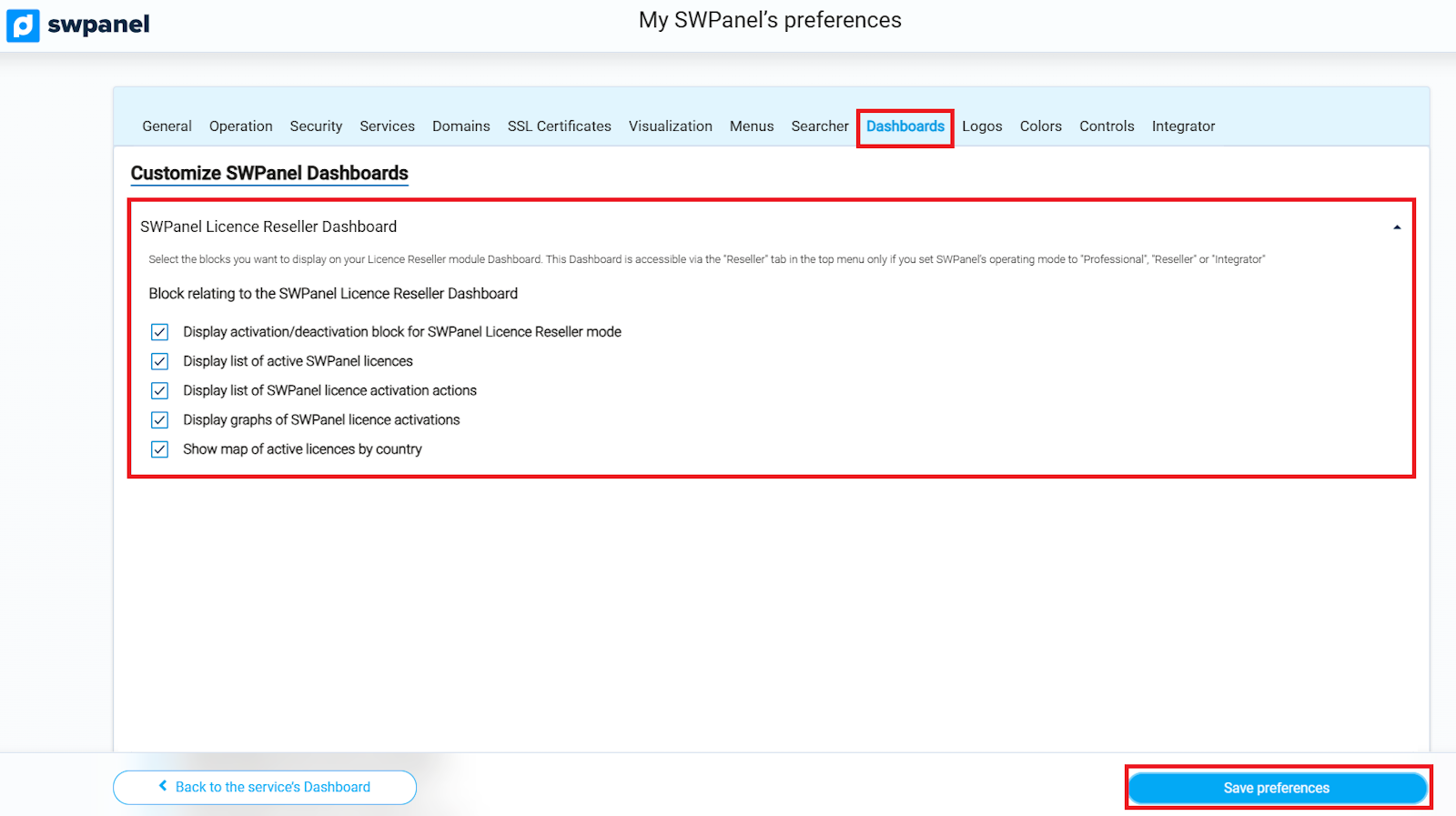
- License Reseller Dashboard: Management of active licenses, actions, and statistics by country.
info_capture ℹ️ Note: The screenshot is for guidance purposes, taken from version 2026.000.0001 dated 01/02/2026. It may differ from the current version of SWPanel.
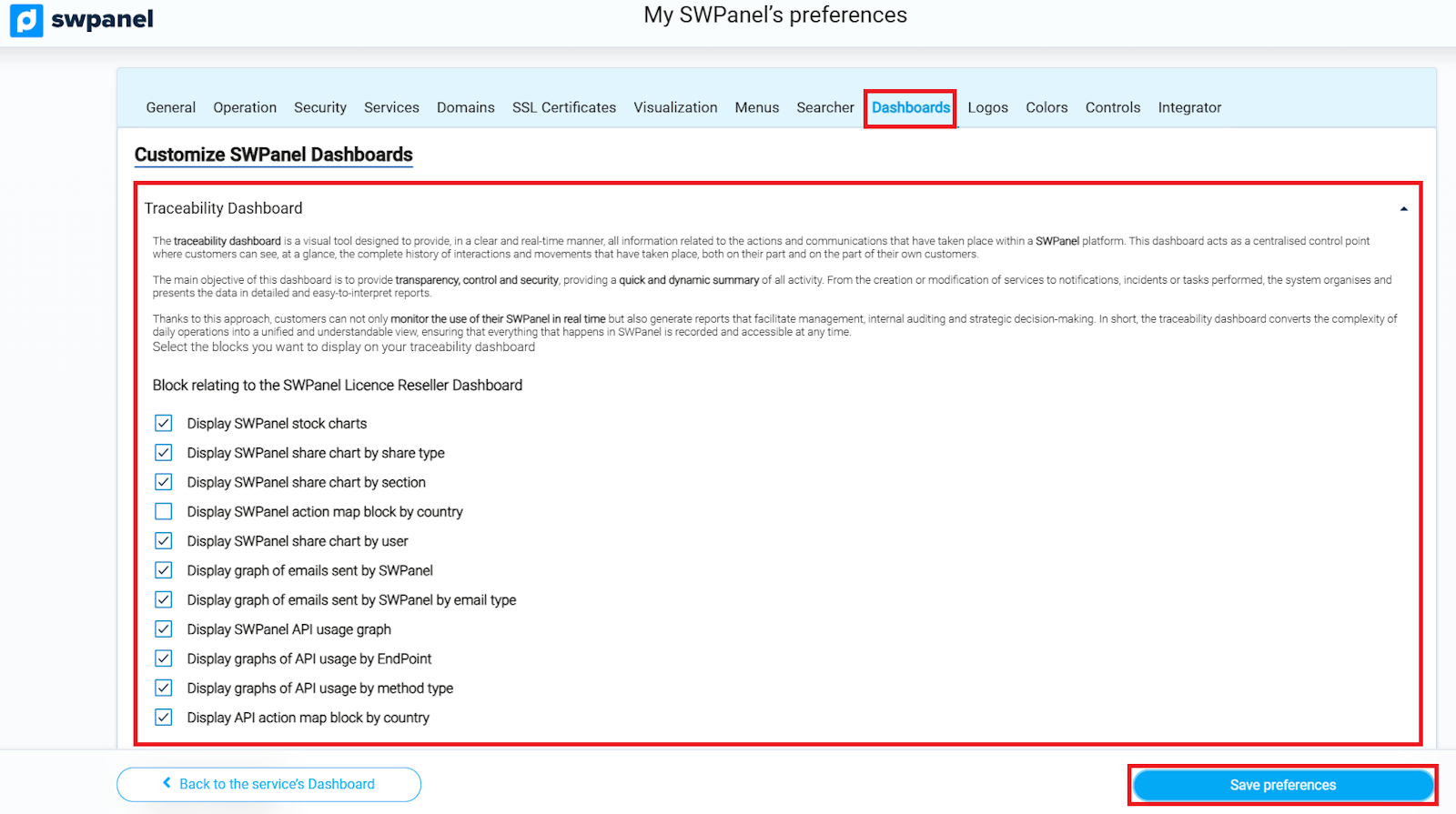
- Traceability Dashboard: History of actions and communications, graphs by user, action type, and API.
info_capture ℹ️ Note: The screenshot is for guidance purposes, taken from version 2026.000.0001 dated 01/02/2026. It may differ from the current version of SWPanel.
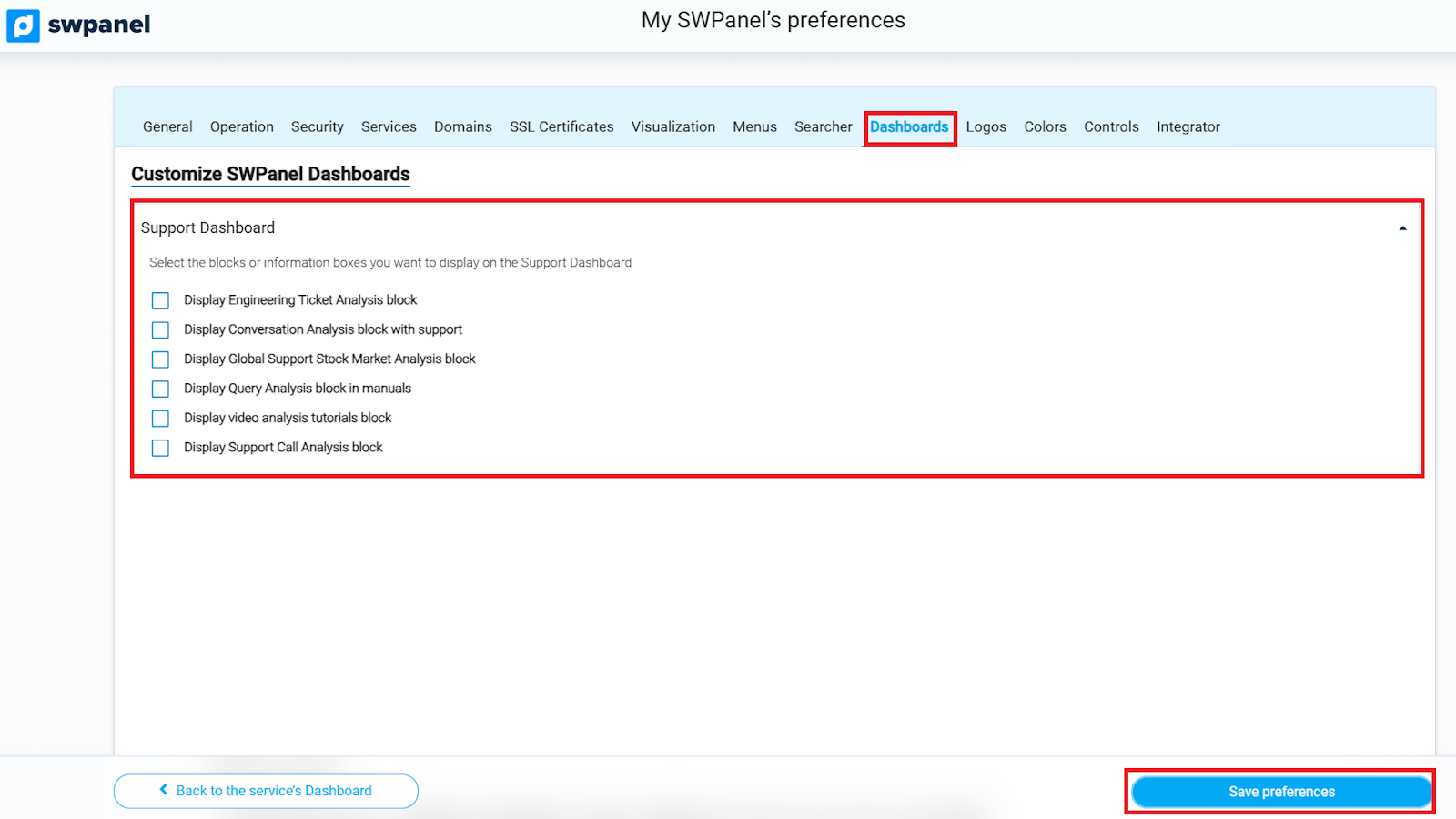
- Support Dashboard: Analysis of tickets, conversations, support minutes, and consultations of manuals and tutorials.
info_capture ℹ️ Note: The screenshot is for guidance purposes, taken from version 2026.000.0001 dated 01/02/2026. It may differ from the current version of SWPanel.
- Service Dashboard: Service-specific Command and Control Bar, smart blocks, and lists of accounts, FTP, and databases.
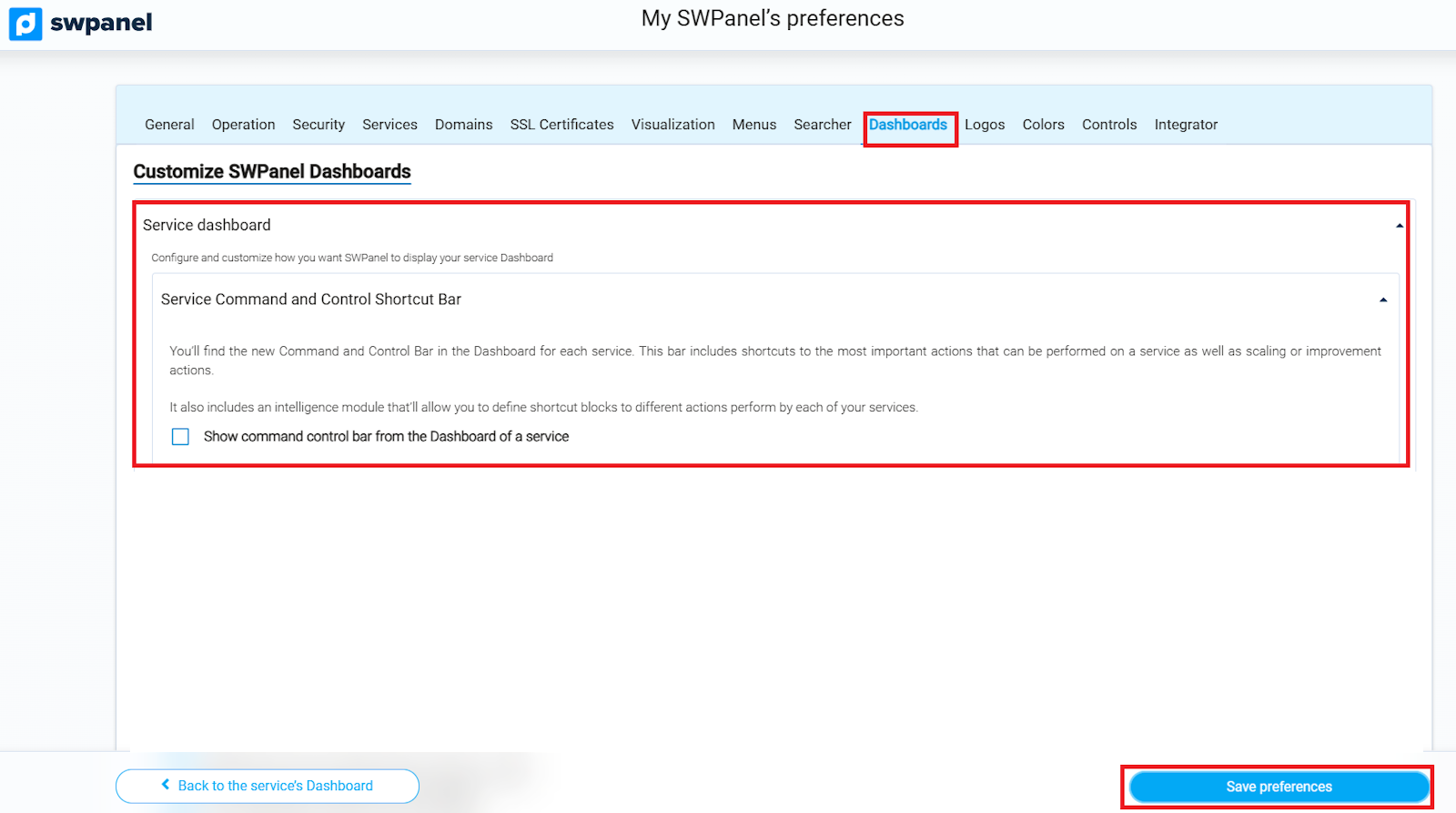
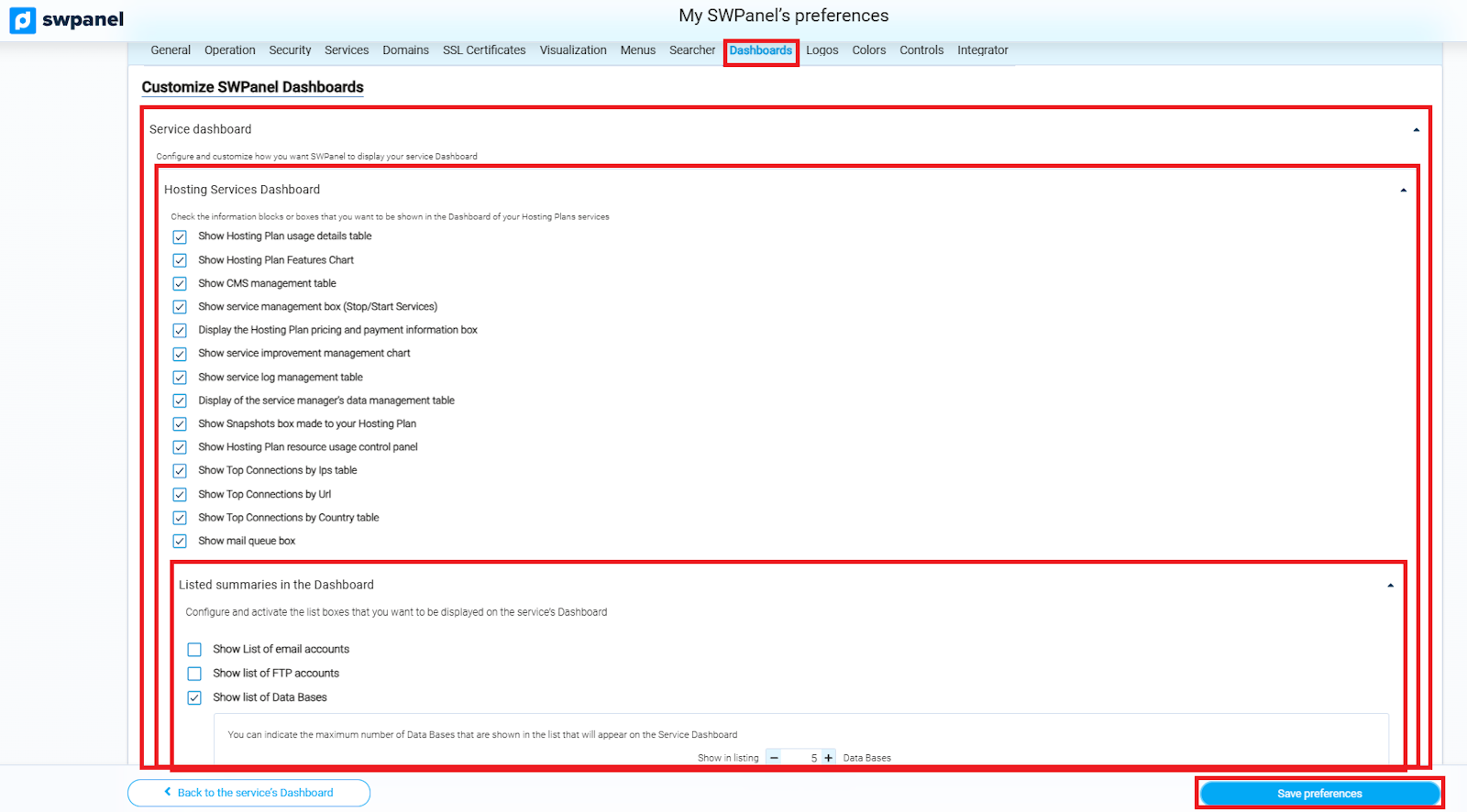
info_capture ℹ️ Note: The screenshots are for guidance purposes, taken from version 2026.000.0001 dated 01/02/2026. They may differ from the current version of SWPanel.
- WordPress Dashboard: Site information, system settings, users, themes, languages, and WP-CLI command line.
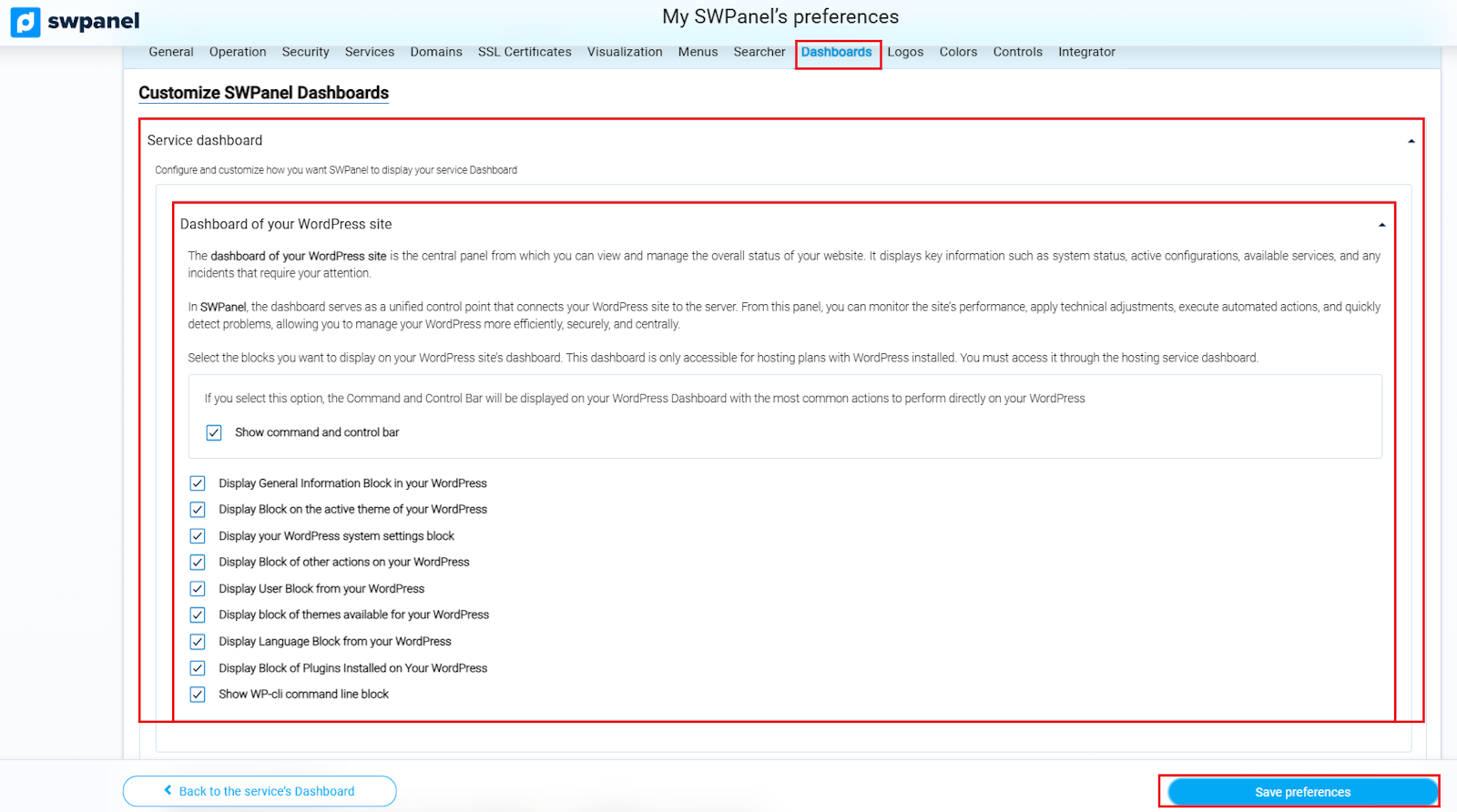
info_capture ℹ️ Note: The screenshot is for guidance purposes, taken from version 2026.000.0001 dated 01/02/2026. It may differ from the current version of SWPanel.
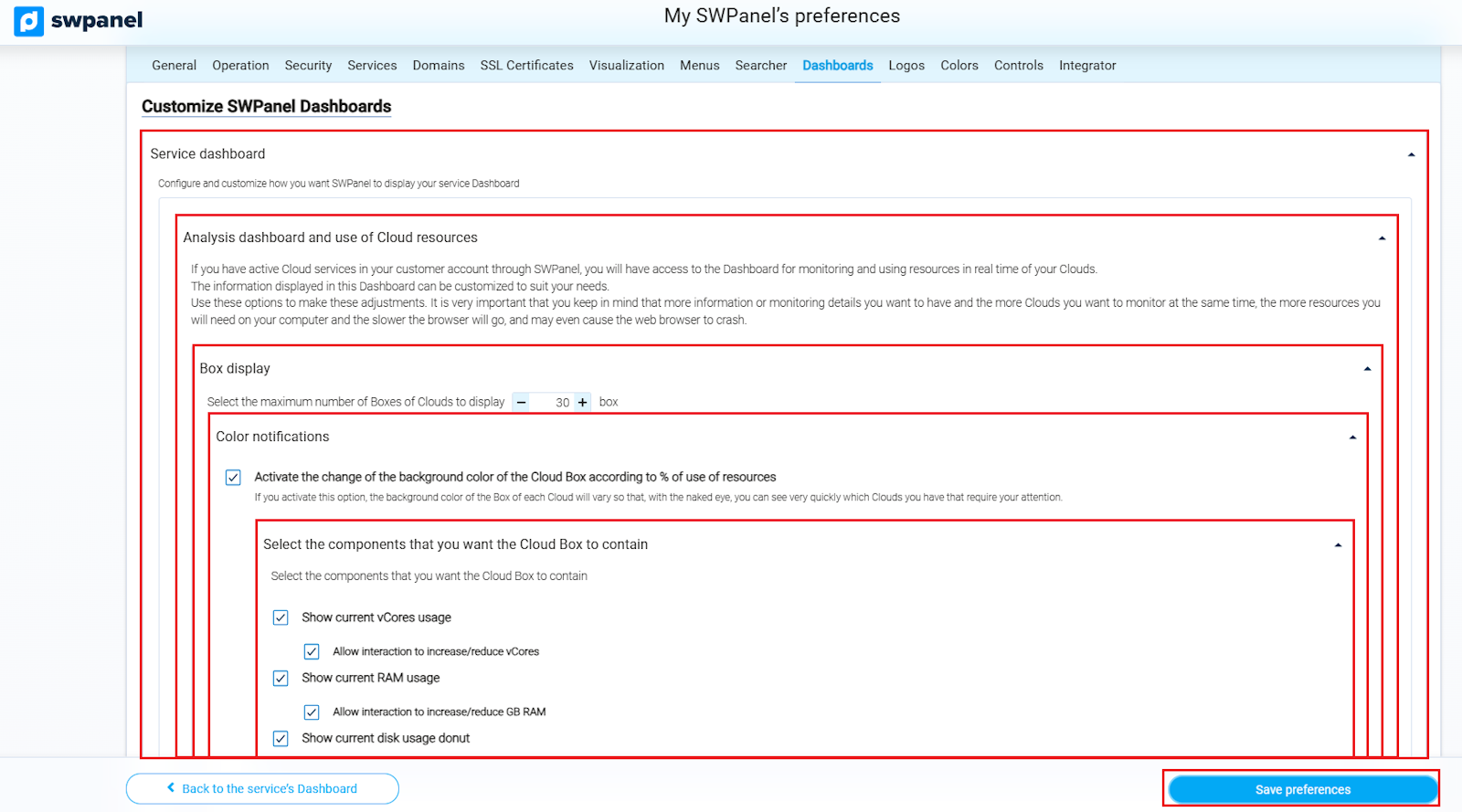
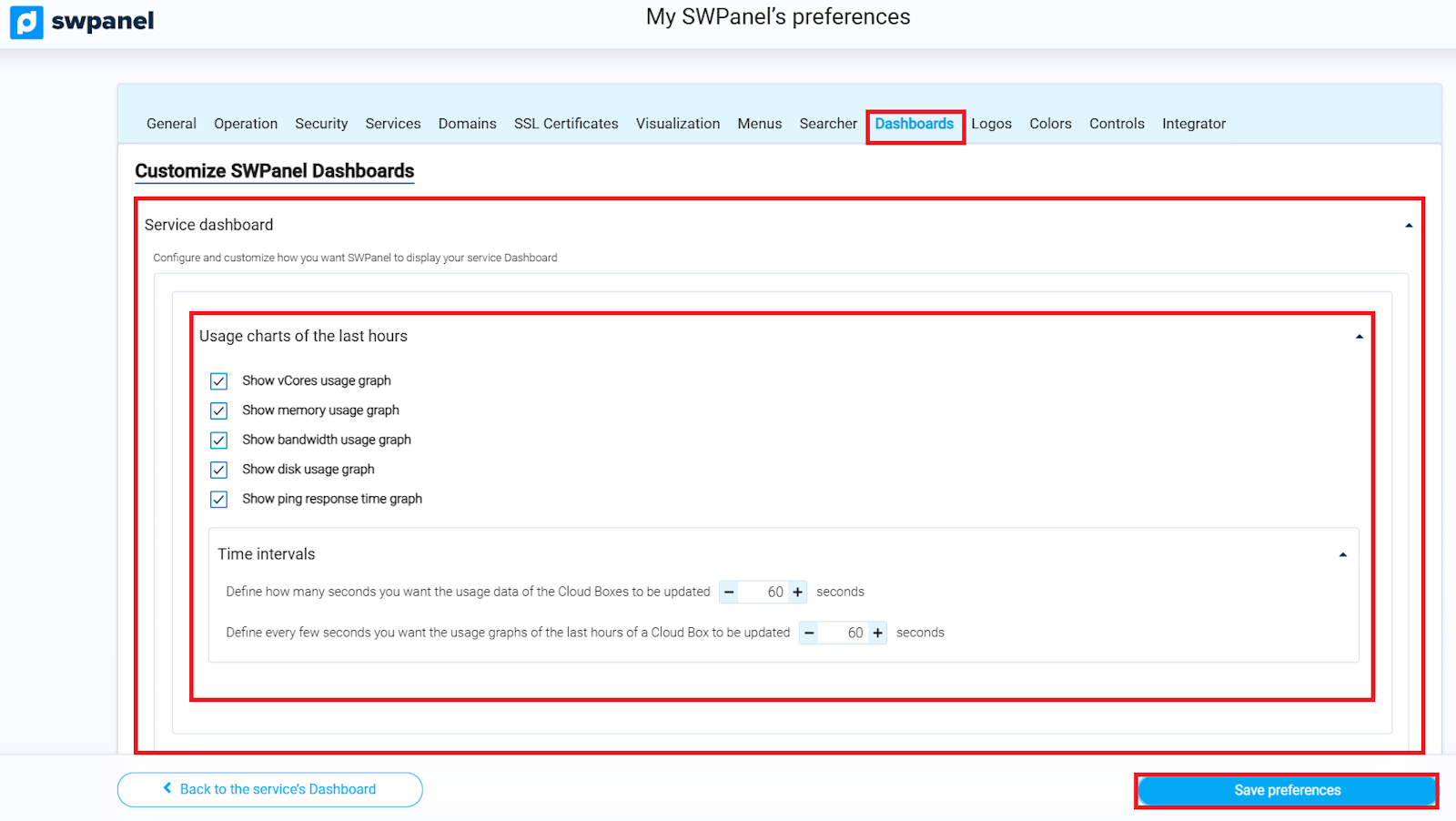
- Cloud Dashboard: Real-time monitoring and resource usage, graphs for vCores, RAM, disk, bandwidth, and response time.
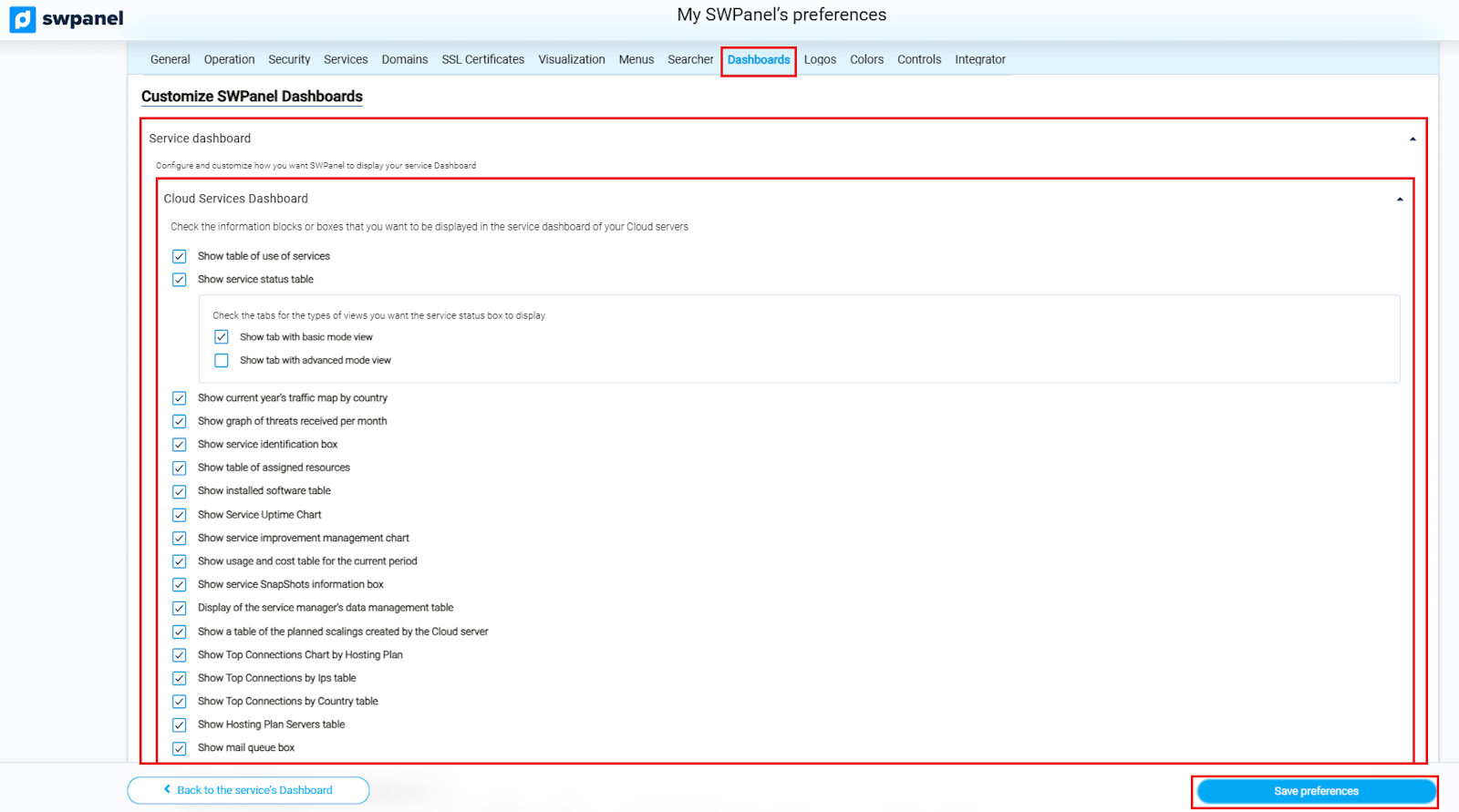
info_capture ℹ️ Note: The screenshots are for guidance purposes, taken from version 2026.000.0001 dated 01/02/2026. They may differ from the current version of SWPanel.
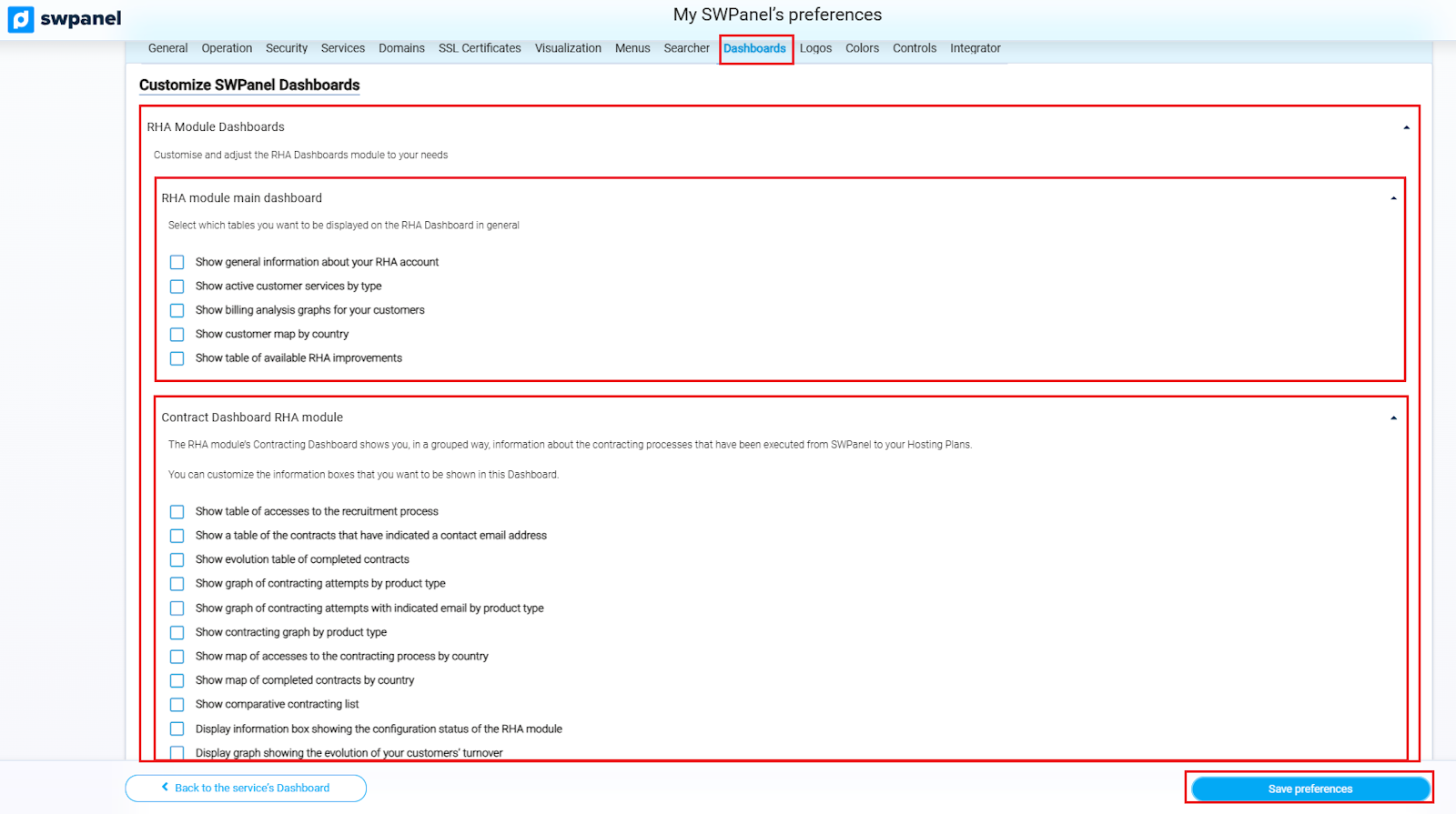
- RHA Module Dashboard: General information, active customer services, contracts, and billing evolution.
info_capture ℹ️ Note: The screenshot is for guidance purposes, taken from version 2026.000.0001 dated 01/02/2026. It may differ from the current version of SWPanel.
Note: Each block requires an individual loading time; the more blocks you activate, the more complete the Dashboard will be, but the loading time will be greater. You can reorganize, add, or close blocks at any time from the interface.
Change your SWPanel logo
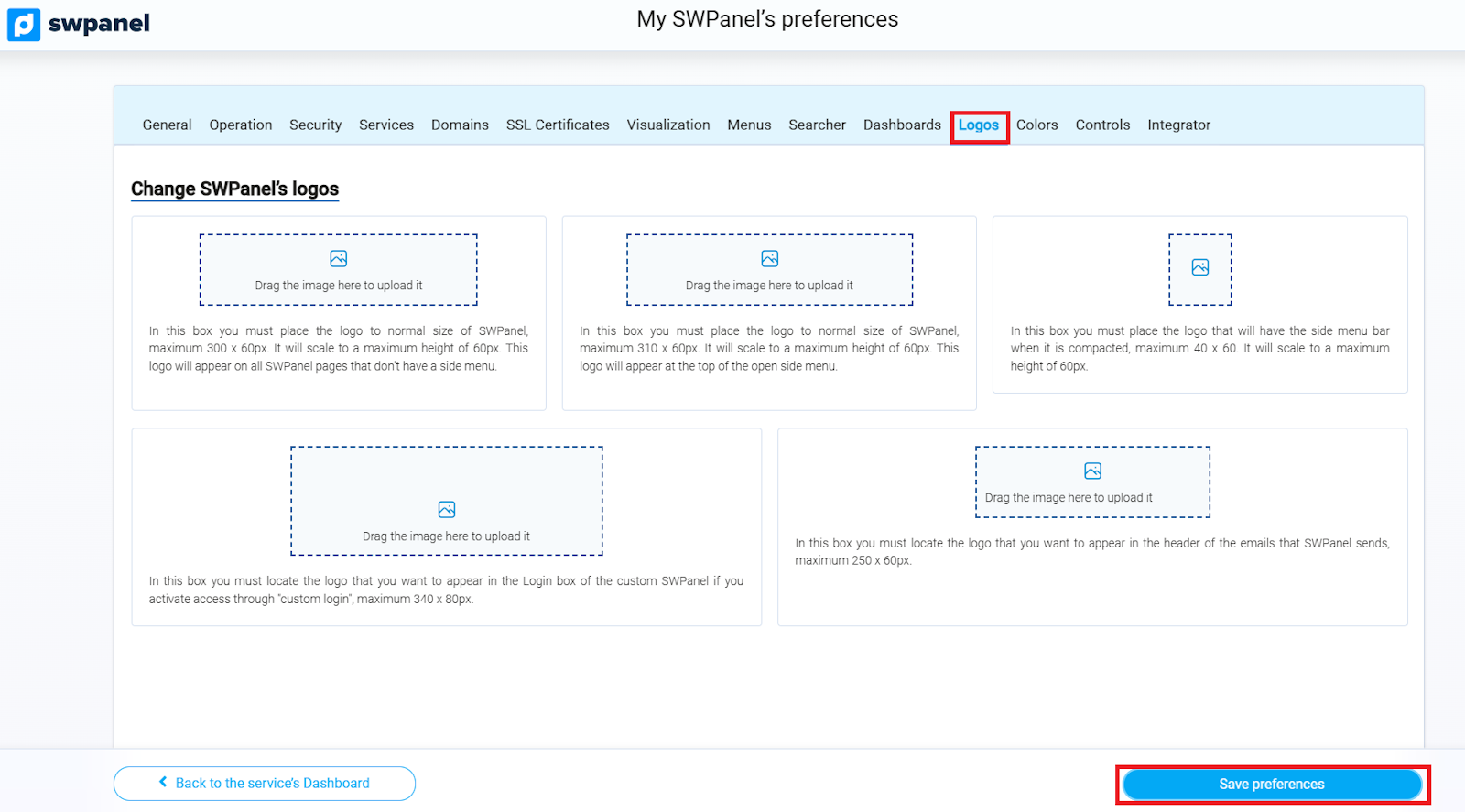
You can customize the logo that appears in the side menu of your SWPanel by dragging the image onto the indicated area.
- Maximum recommended size:
- Expanded side menu: 310 × 60 px
- Collapsed side menu: 40 × 60 px
info_capture ℹ️ Note: The screenshot is for guidance purposes, taken from version 2026.000.0001 dated 01/02/2026. It may differ from the current version of SWPanel.
Manage SWPanel colors
This option allows you to customize the appearance of SWPanel, including:
- Menu and graph colors.
- Activation of dark mode (Dark Mode).
- Customization of icons.
For more detailed information, consult the complete manual.
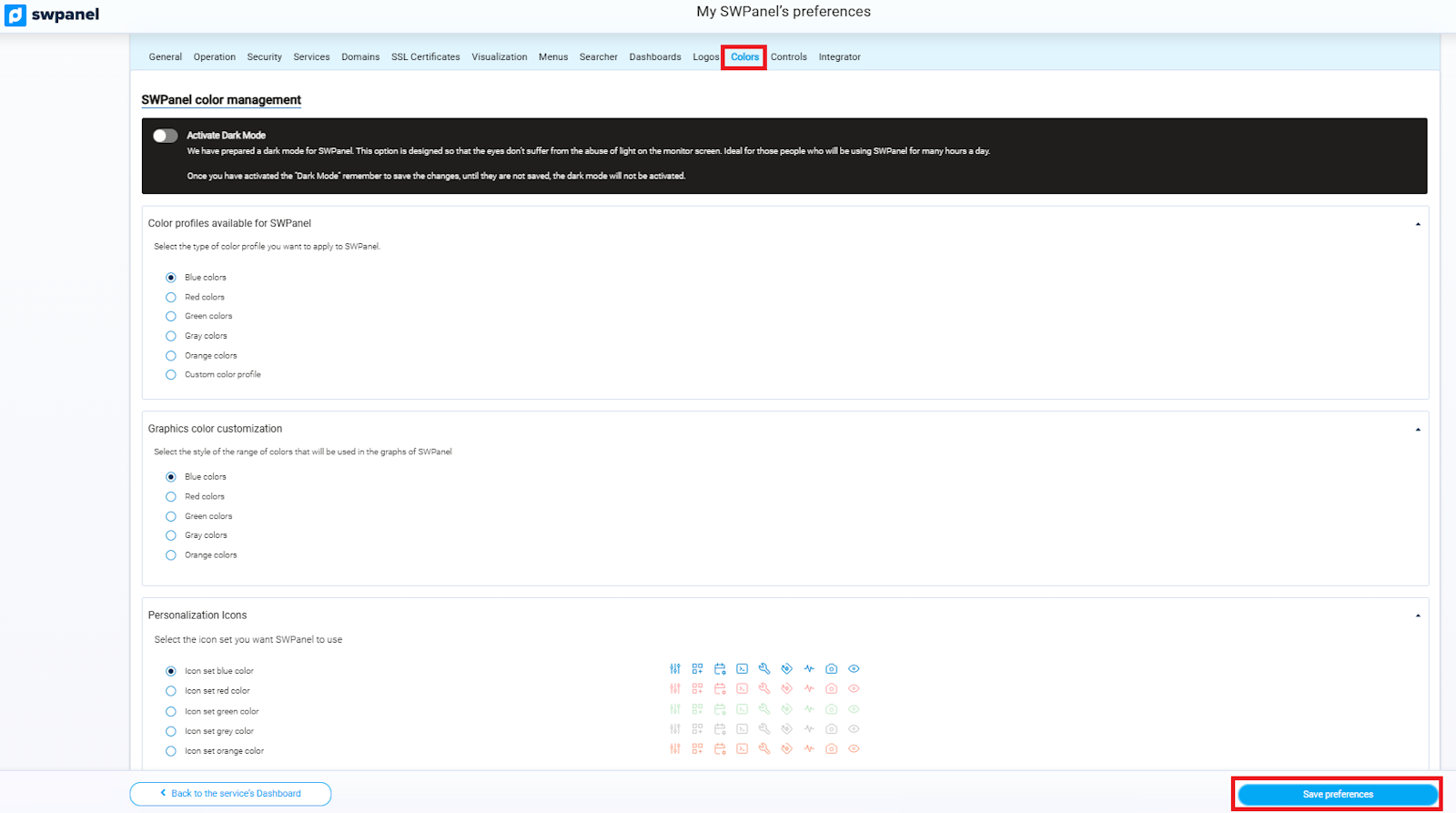
info_capture ℹ️ Note: The screenshot is for guidance purposes, taken from version 2026.000.0001 dated 01/02/2026. It may differ from the current version of SWPanel.
Controls
In this section, you can configure the minimum resources that will be assigned to a Cloud server according to its software or operating system.
Additionally, you will be able to identify the reference or order ID each time a new activation is performed.
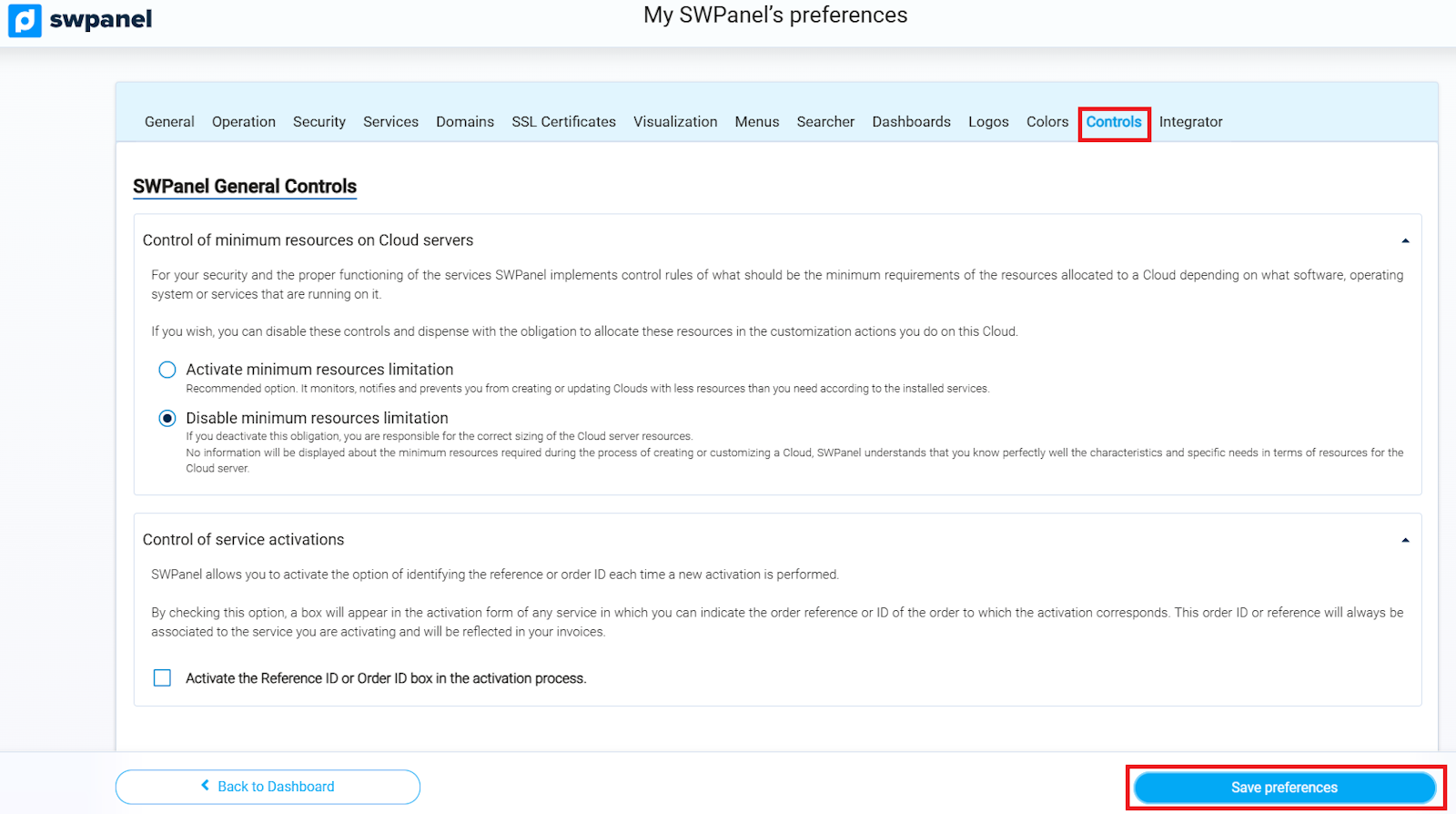
info_capture ℹ️ Note: The screenshot is for guidance purposes, taken from version 2026.000.0001 dated 01/02/2026. It may differ from the current version of SWPanel.
Integrator Mode
In Integrator Mode, you can configure the visualization of JSON responses from SWPanel APIs to make them clearer and easier to read:
-
Color theme selection: Choose a palette that distinctly highlights keys, text strings, numbers, booleans, and null values. The preview will update instantly.
This theme will be applied in all sections where SWPanel shows RestFul API calls.
-
Real-time API JSON construction block: Dynamically shows the structure of the JSON generated by the action you execute in SWPanel, including parameters, values, and the corresponding endpoint.
- Allows replicating the action through direct requests to the API.
- Includes a link to the official API documentation for reference.
- Facilitates automation, integration, and debugging of processes in environments external to the panel.
-
Option to show the API call construction block: When activated, a block is visualized that generates the JSON in real time, showing all the necessary details to replicate the action via the API.
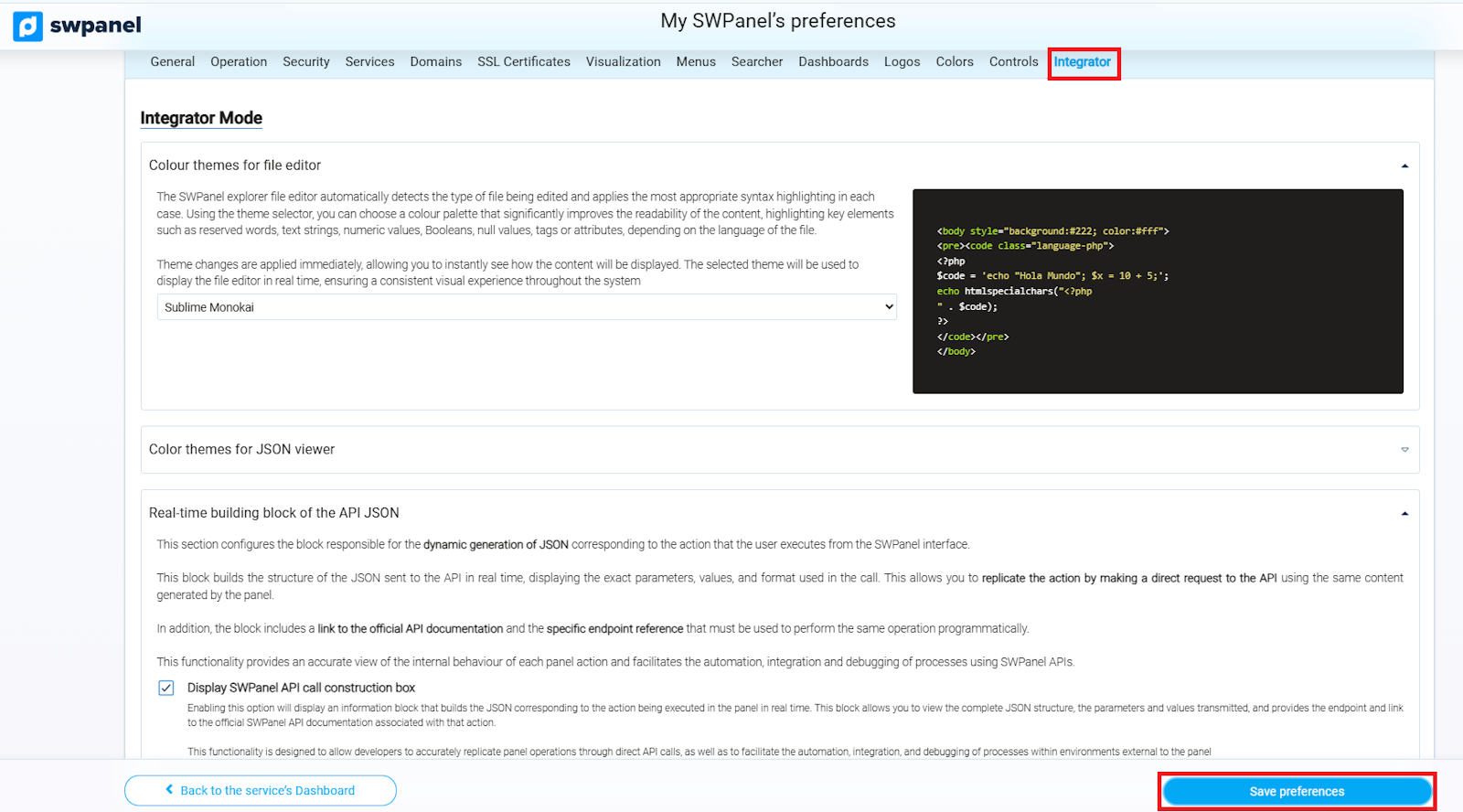
info_capture ℹ️ Note: The screenshot is for guidance purposes, taken from version 2026.000.0001 dated 01/02/2026. It may differ from the current version of SWPanel.