
Use of your Hosting resources in SWPanel
To be able to view the resources used by your Hosting, first go to its Dashboard.
To do this, search for the name using the search bar:
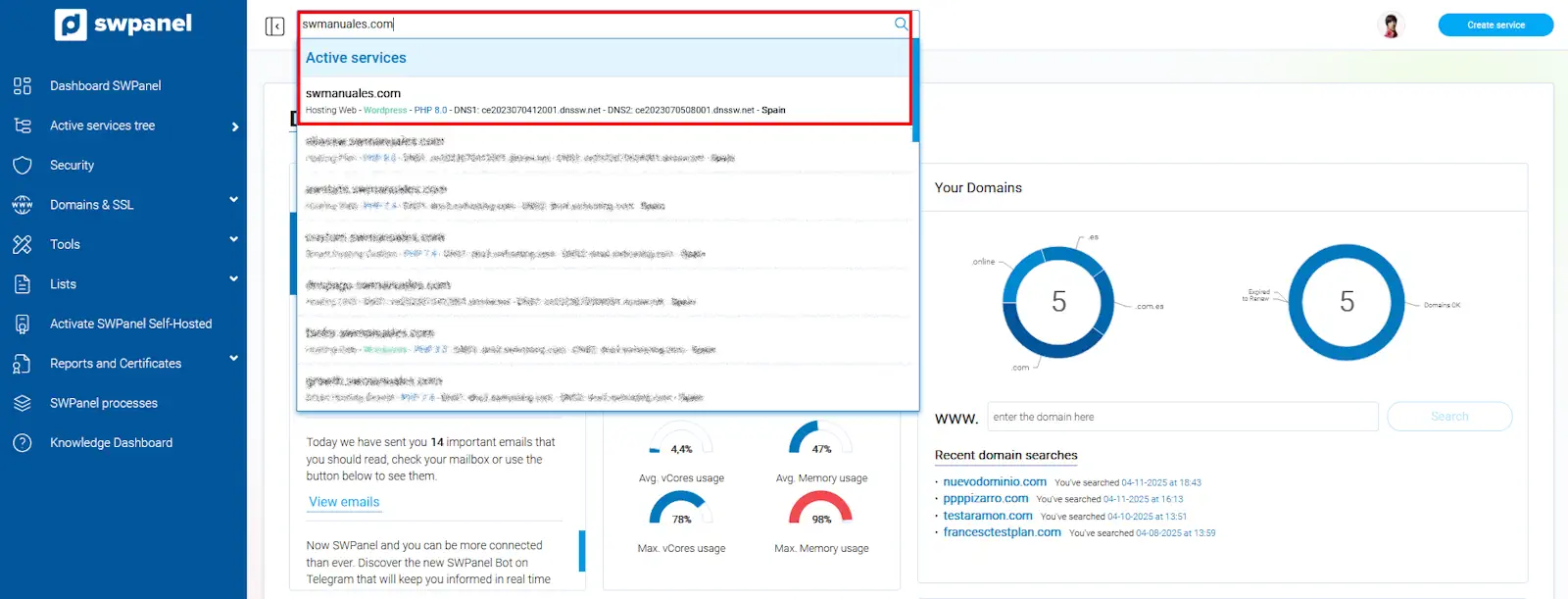
info_capture The screenshot is for guidance purposes. It was taken using version 2025.003.0007 dated 15/04/2025. It may differ from what is shown in the current version of SWPanel.
Once inside the Dashboard, go to the left side menu and click on 'Service Usage' --> 'Resource Usage':
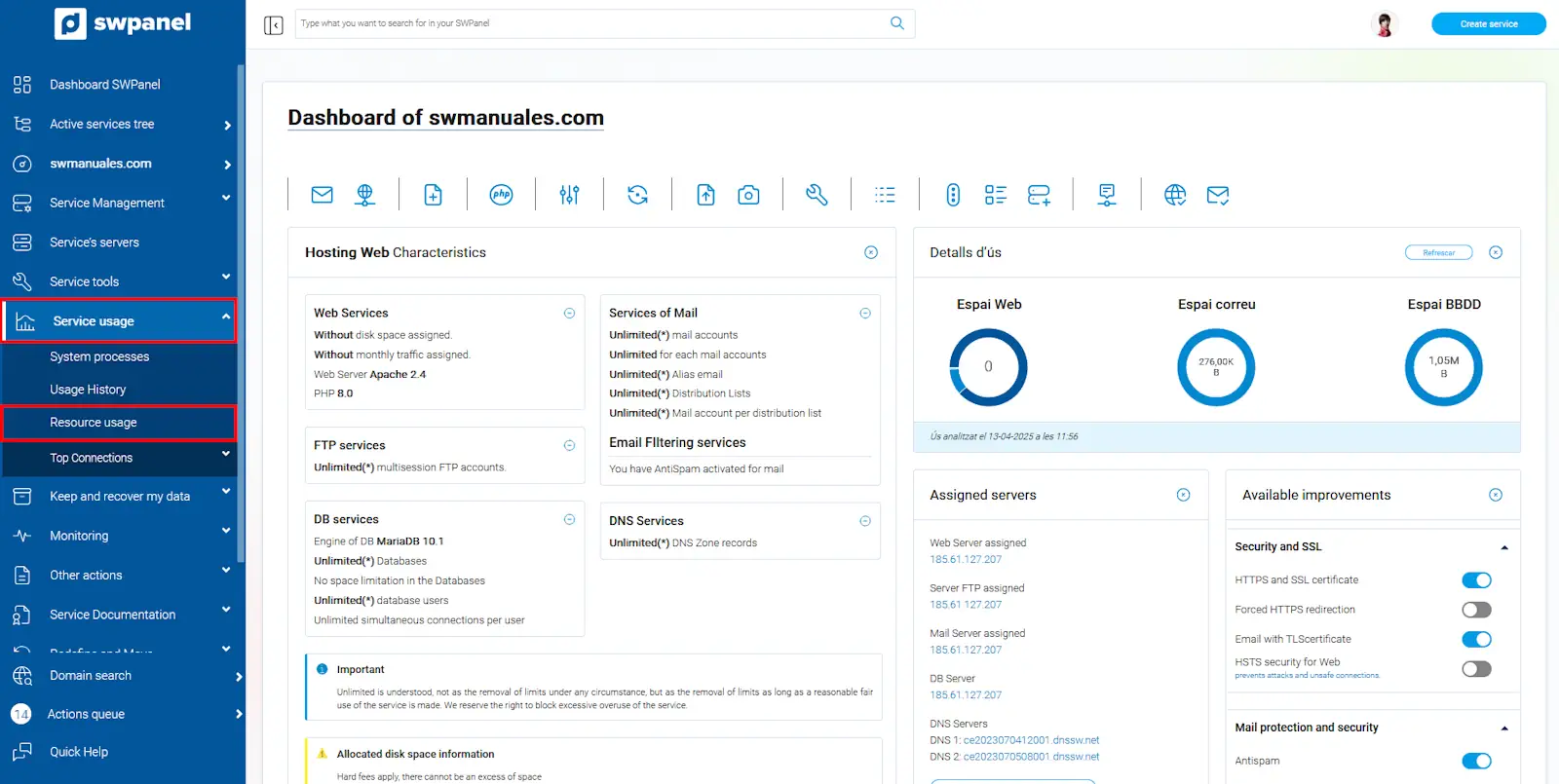
info_capture The screenshot is for guidance purposes. It was taken using version 2025.003.0007 dated 15/04/2025. It may differ from what is shown in the current version of SWPanel.
Resource Usage
Upon opening the Resource Usage option, you will have different sections to view resource consumption:
1.Space Detail: Shows the space occupied by the website, logs, and email accounts. It also shows the total occupied and available space in the Hosting:
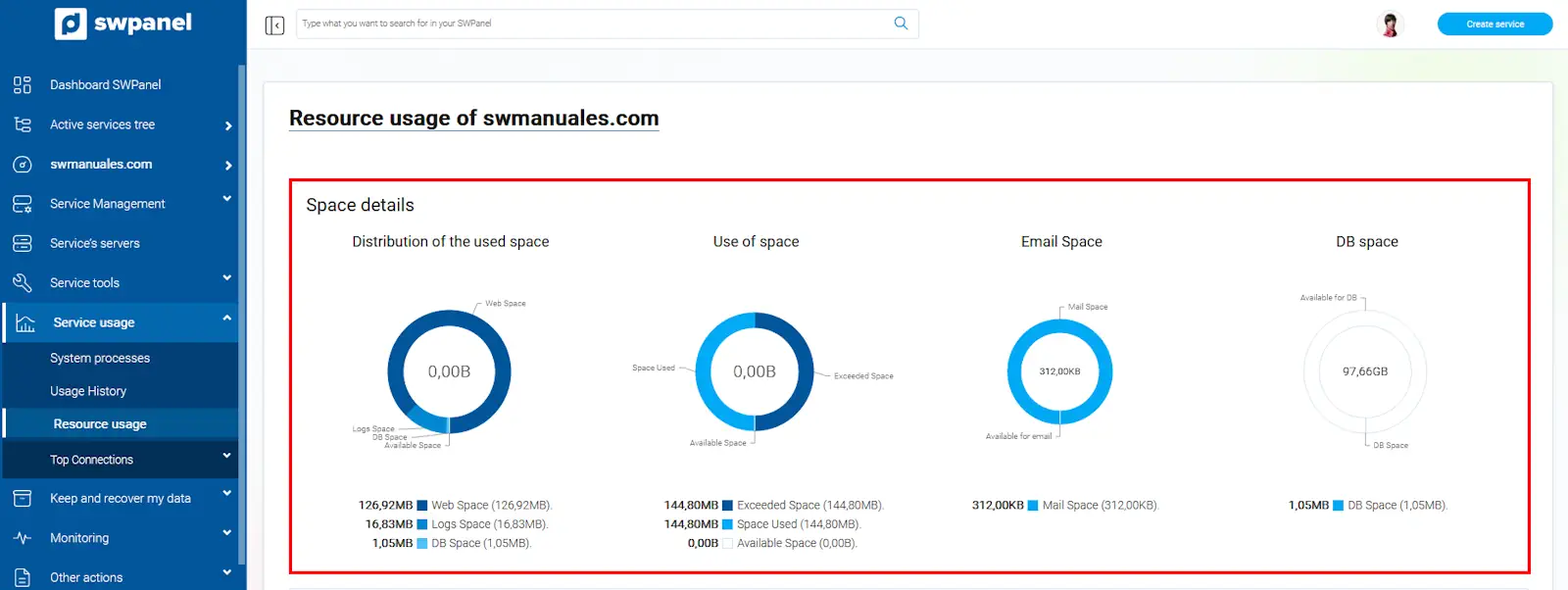
info_capture The screenshot is for guidance purposes. It was taken using version 2025.003.0007 dated 15/04/2025. It may differ from what is shown in the current version of SWPanel.
2.Usage data for email, FTP, and Databases:
Shows the number of active accounts and the limit, email accounts, email aliases, email lists, FTP accounts, and Hosting databases:
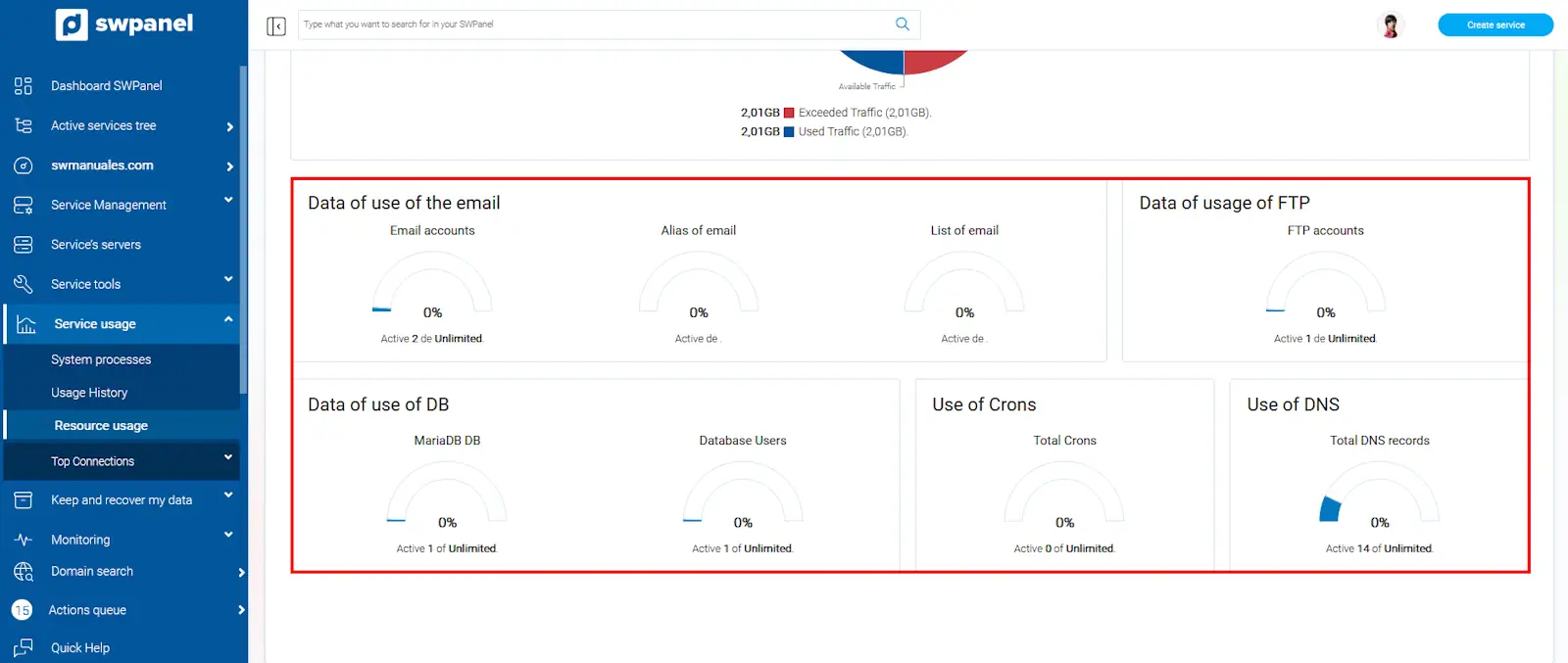
info_capture The screenshot is for guidance purposes. It was taken using version 2025.003.0007 dated 15/04/2025. It may differ from what is shown in the current version of SWPanel.
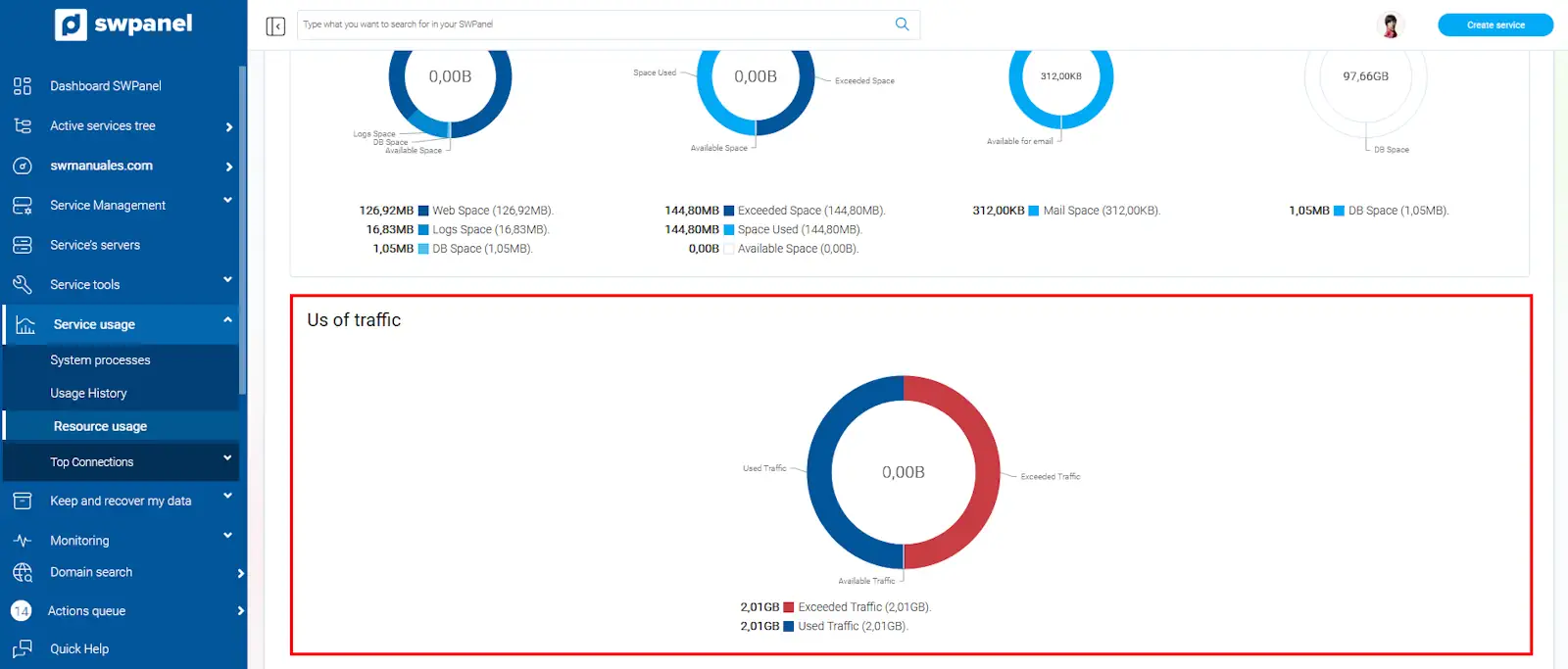
3.Traffic Usage: This section is only available if the hosting is hosted on a private server.
Shows the web traffic generated by the Hosting:
info_capture The screenshot is for guidance purposes. It was taken using version 2025.003.0007 dated 15/04/2025. It may differ from what is shown in the current version of SWPanel.