Change of payment method
When first contracting any of the services offered by SW Hosting, you make a payment via your credit card or through your PayPal account. From that moment on, your payment method is set to use your SWPanel balance when paying monthly invoices. For this reason, you must periodically top up your SWPanel balance using your credit card, via PayPal, or by making a bank transfer. At the start of your SWPanel, in the center and at the top right, you will see an icon that informs you of the amount of available balance.
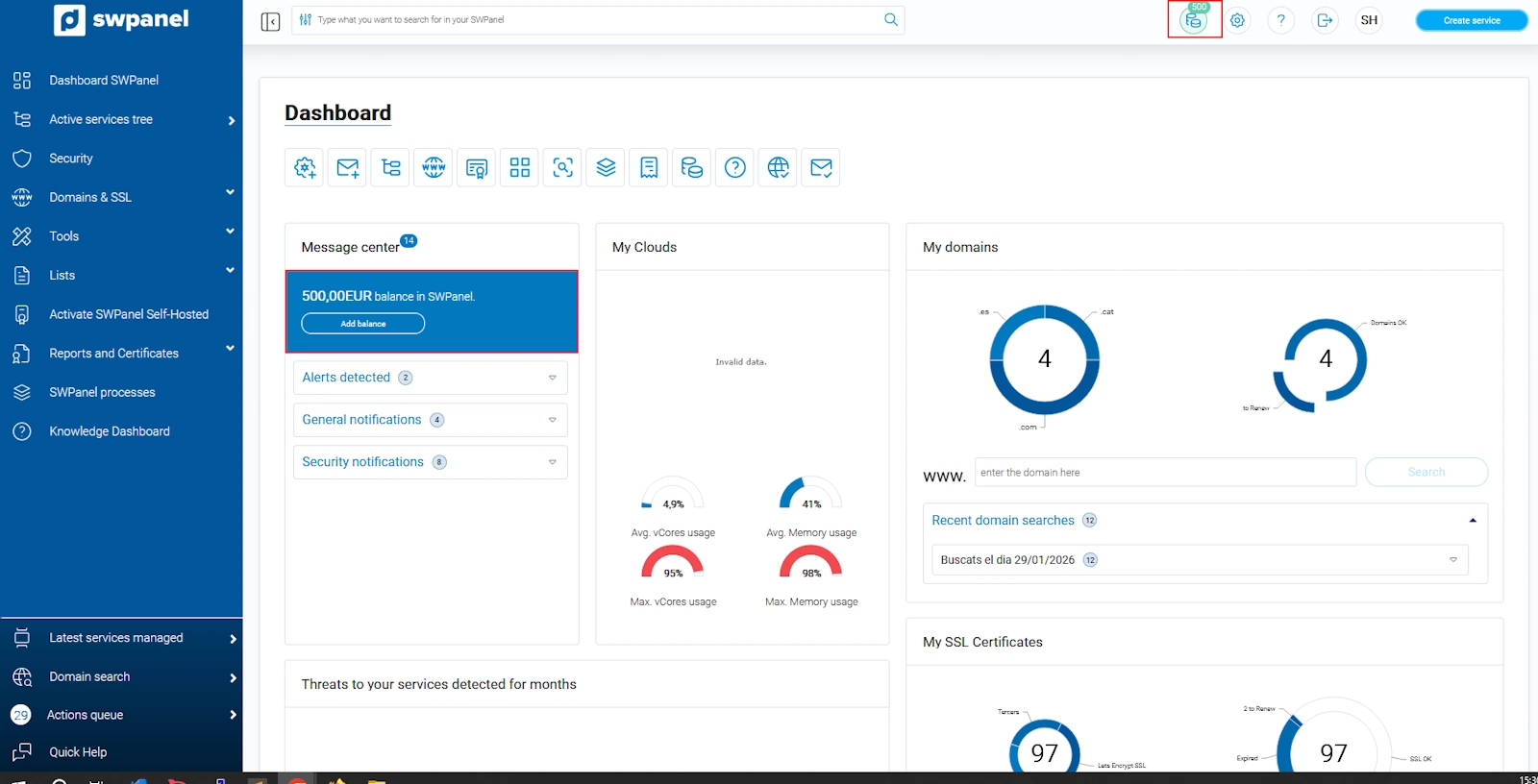
There is also the possibility to change the payment method so that, instead of using your SWPanel balance, the amount of the monthly invoices is charged directly to your credit card.
To perform this procedure, you must hover over the first icon with your image and, in the pop-up menu, select 'My account' -> Change of Payment Method.
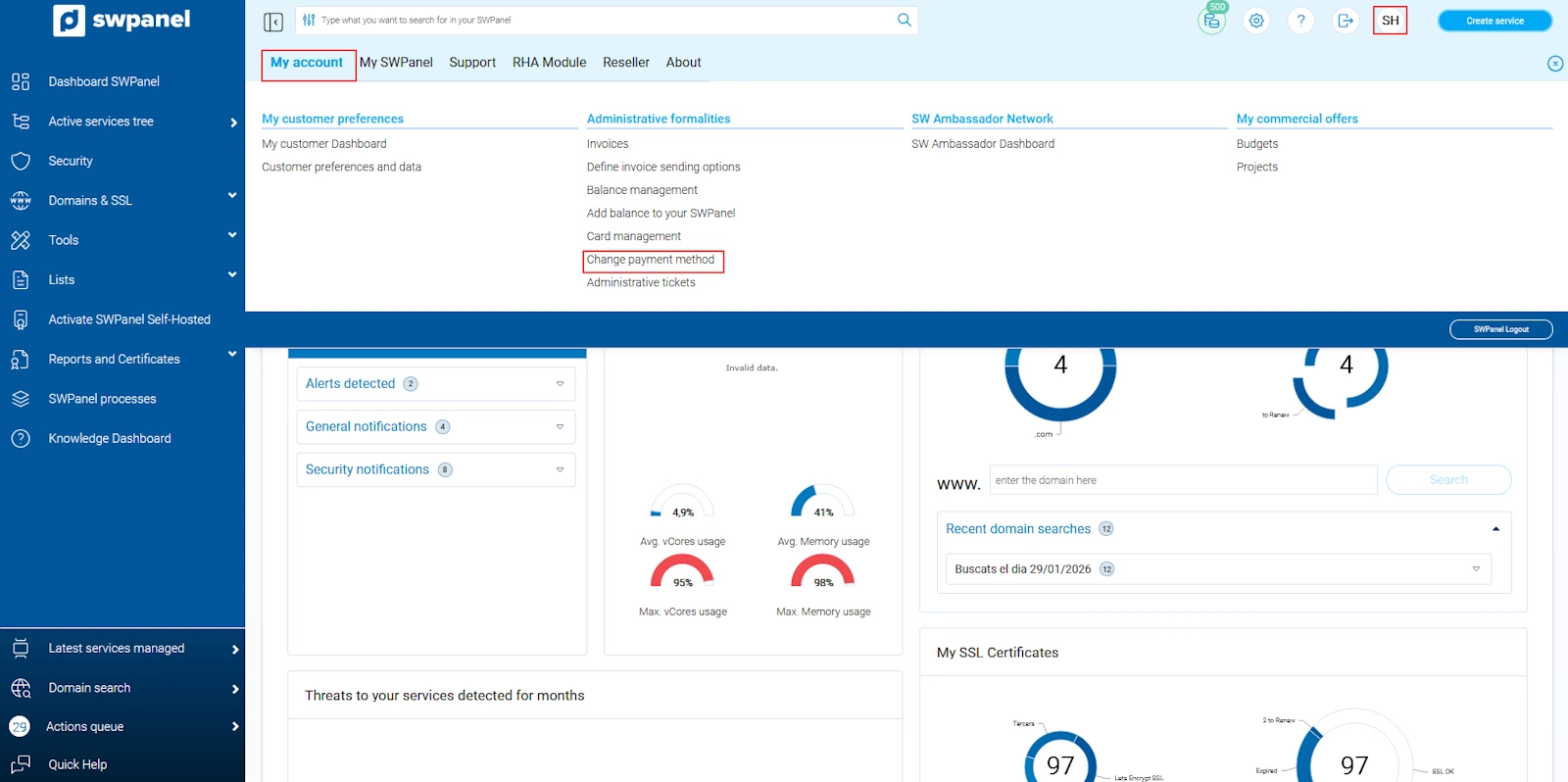
info_capture The screenshot is for guidance purposes. It was taken from version 2025.00.0016 dated 04/12/2024. It may differ from what the current version of SWPanel shows.
In the following window, you must check the box to validate the digital signature of this form and then select the option Direct charge to your credit card.
In the next step, you must Validate and Activate the credit card, which will be automatically selected and will be the same one you used to make the first payment for the initially contracted service.
If, on the other hand, at the time of registration you decided that the card should not be saved or you want to use a different card, you can add it when changing the payment method:
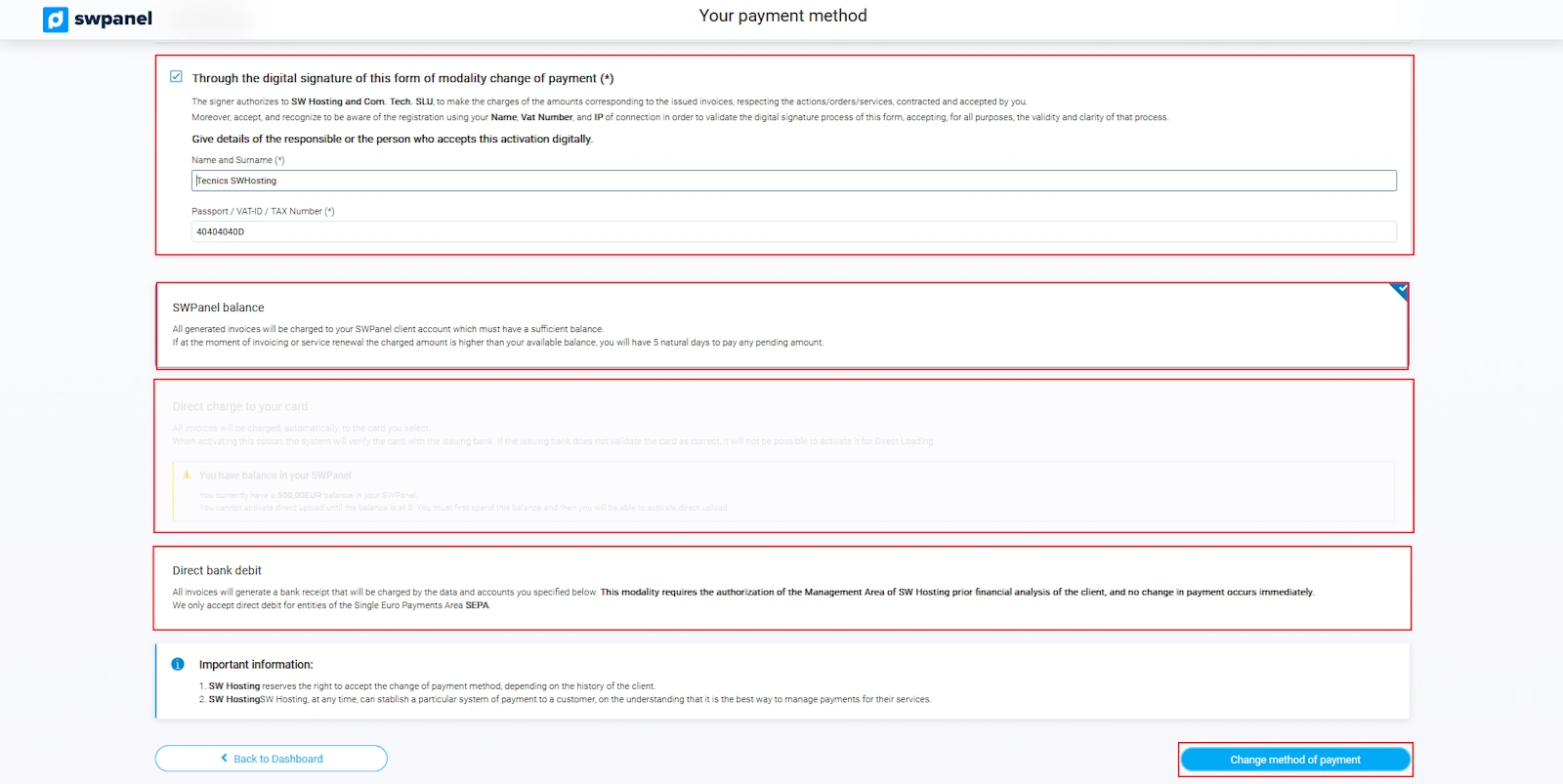
Once the credit card has been validated, you can finalize the payment method change process with the Change payment method button.
At the moment of validating the card, the system charges 0€ to verify its validity.
If you have paid services contracted, you will also have the option to pay via Direct Debit. You must request this through an Administrative Ticket. ? Manuel : How to create an Administrative Ticket
The Administration Department will validate your request after performing the appropriate checks, and it will be then that the button to activate it will appear in your SWPanel:
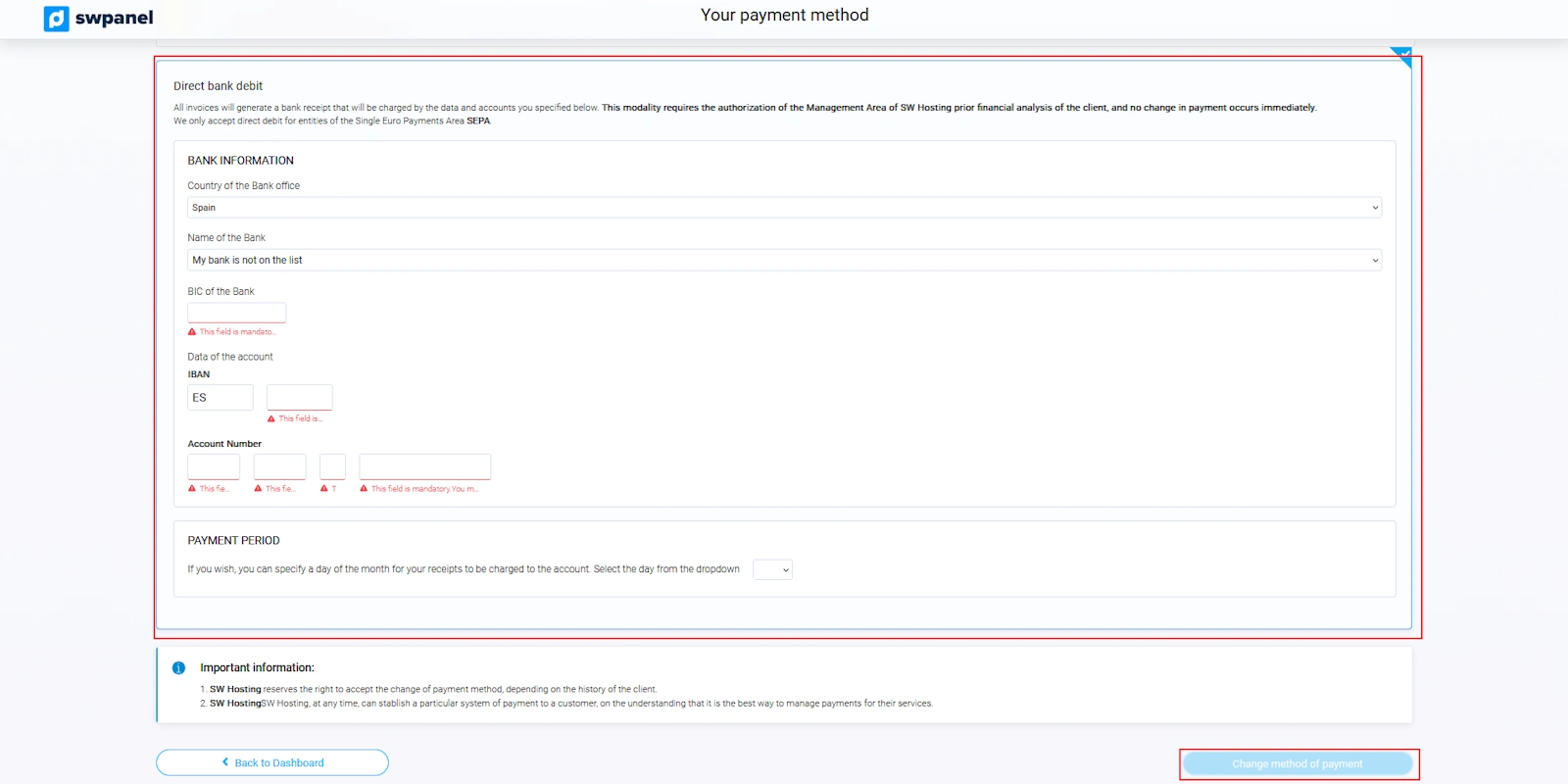
Once the option 'Direct Debit' is selected, you must enter the bank name, using the dropdown menu, and your bank account details (including the IBAN); the bank BIC is added automatically. Finally, you can specify the charge date that best suits you. You must click on 'Save changes'.
If at any time you want to change the charge account, you simply need to go to the same tab 'Change payment method', click on the checkbox that appears in the box, and modify your bank account details.
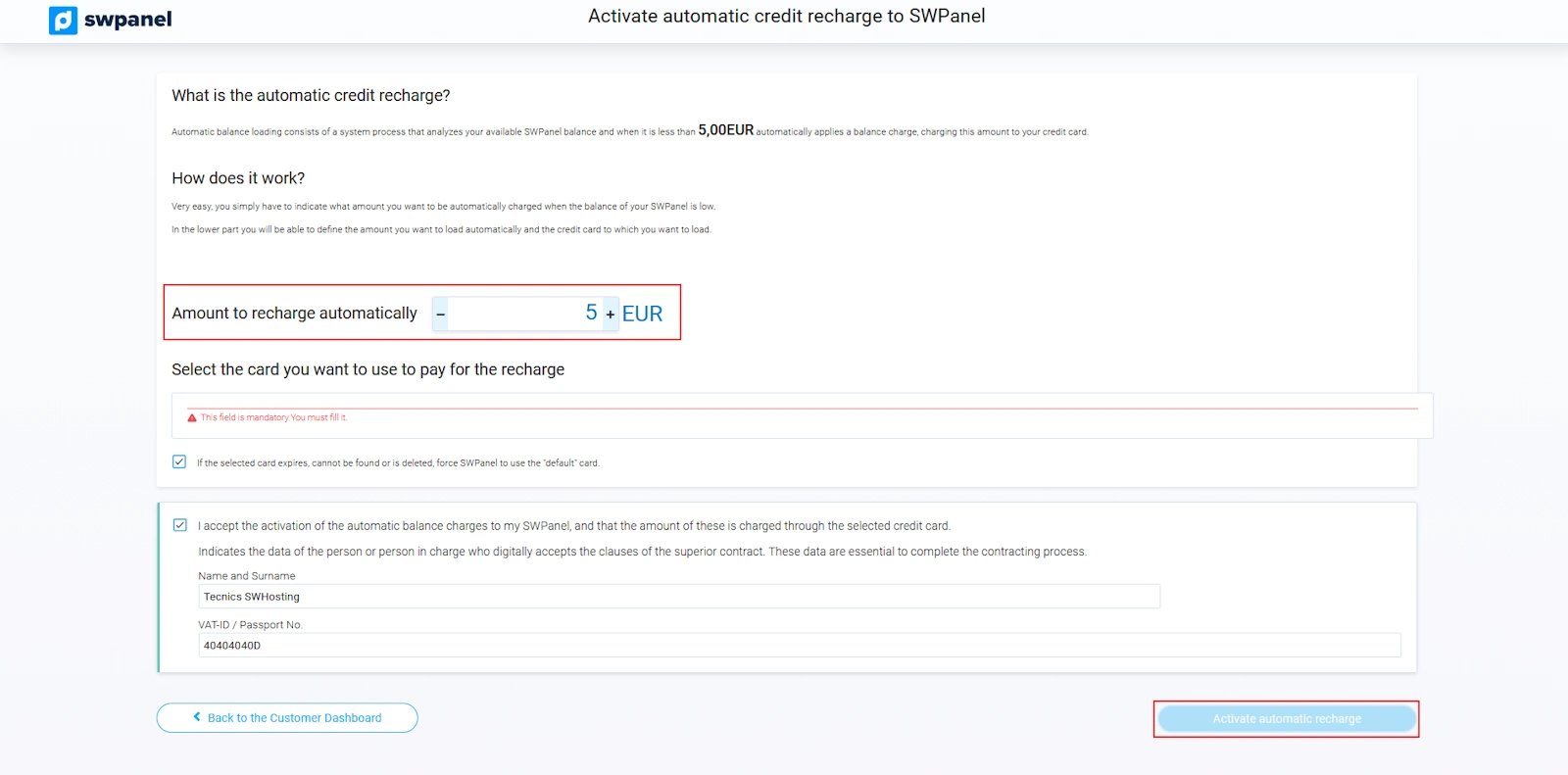
Finally, there is also the possibility for the balance to be charged automatically when the system detects that you are below the minimum balance of 5,00€. To do this, you must access the Customer Dashboard:
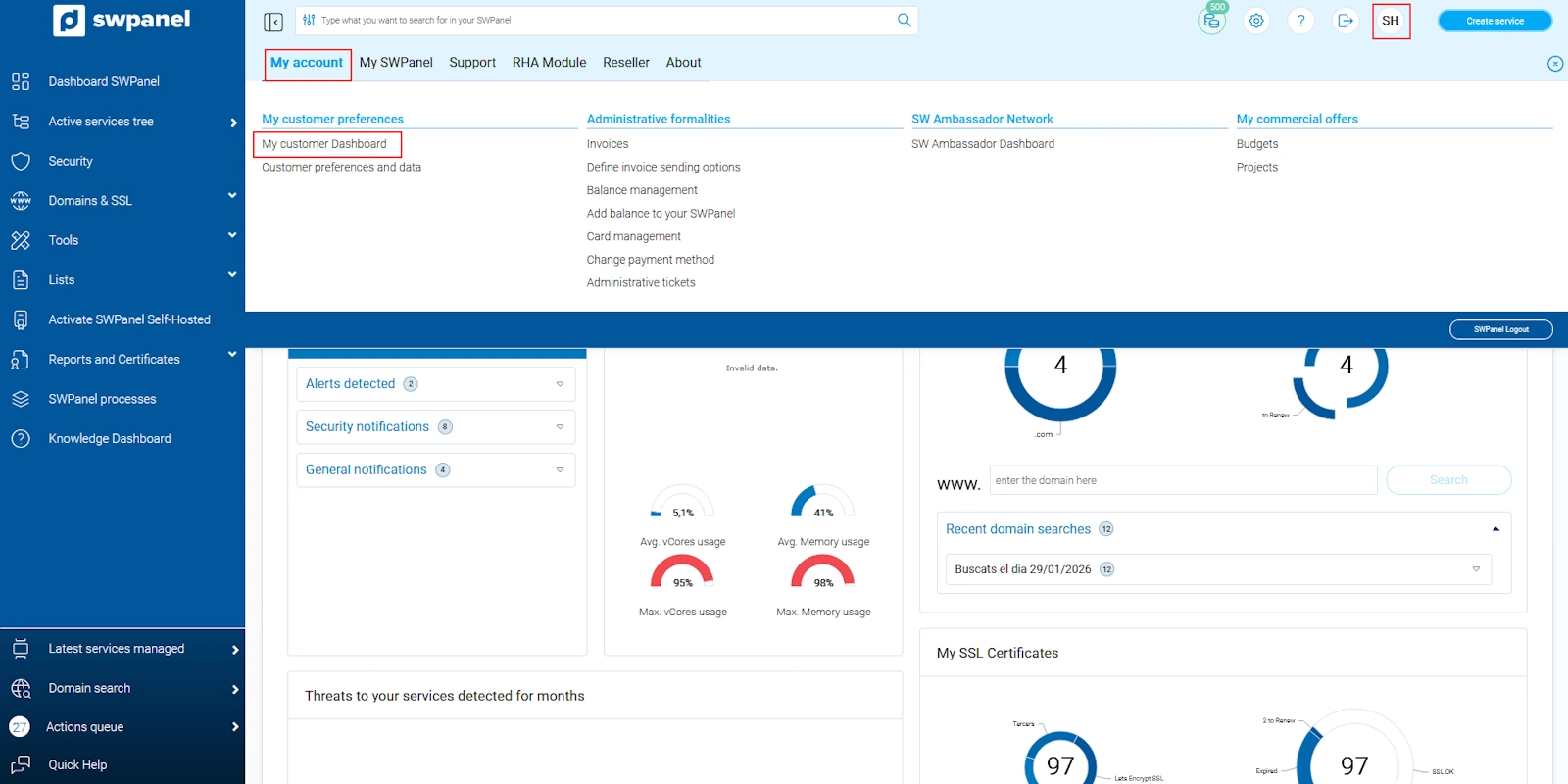
info_capture The screenshot is for guidance purposes. It was taken from version 2025.00.0016 dated 04/12/2024. It may differ from what the current version of SWPanel shows.
Activate Available Automatic Actions.
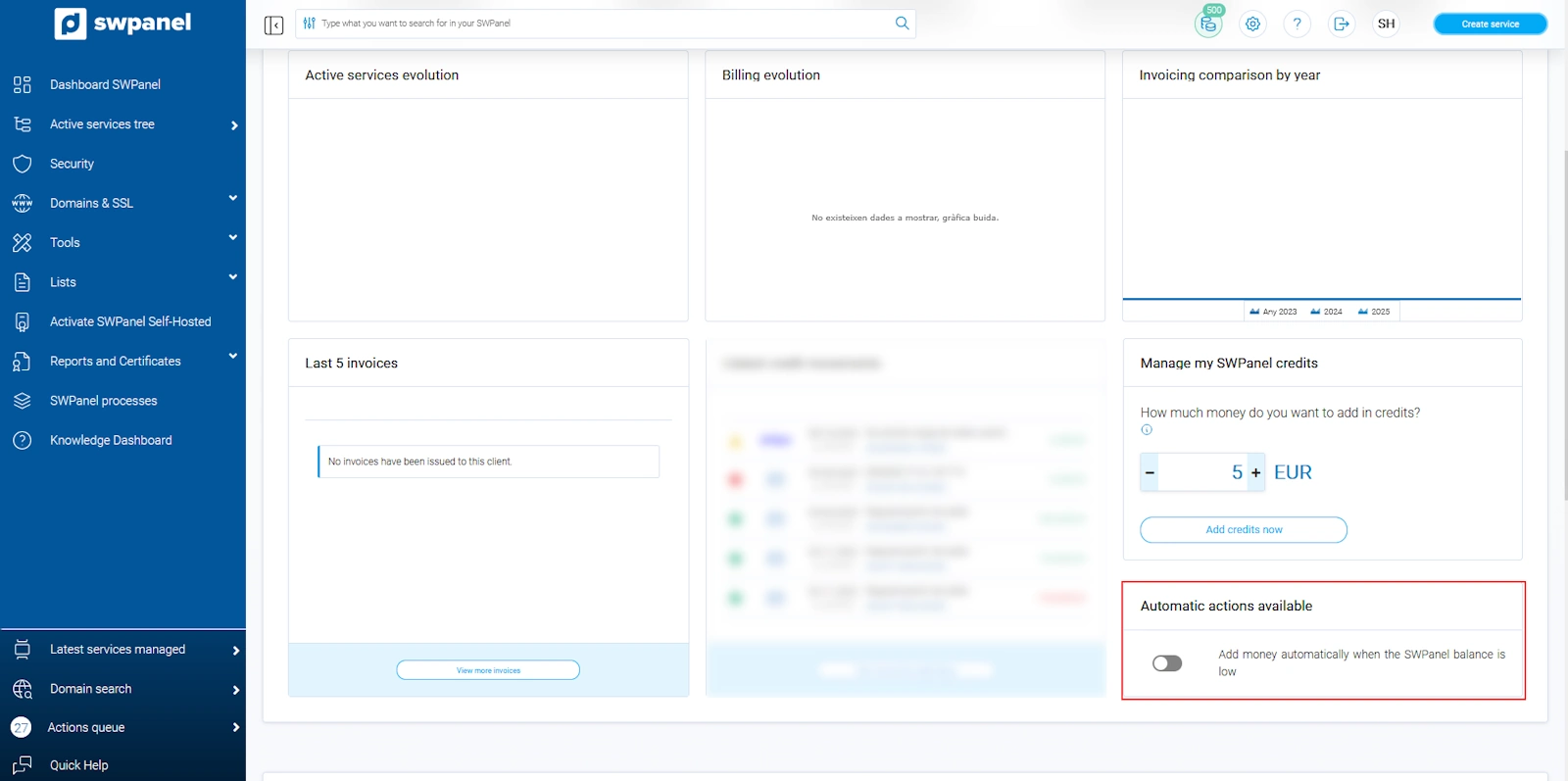
And specify the amount to be added each time your balance is below the minimum balance.