
How to transfer a domain from the web
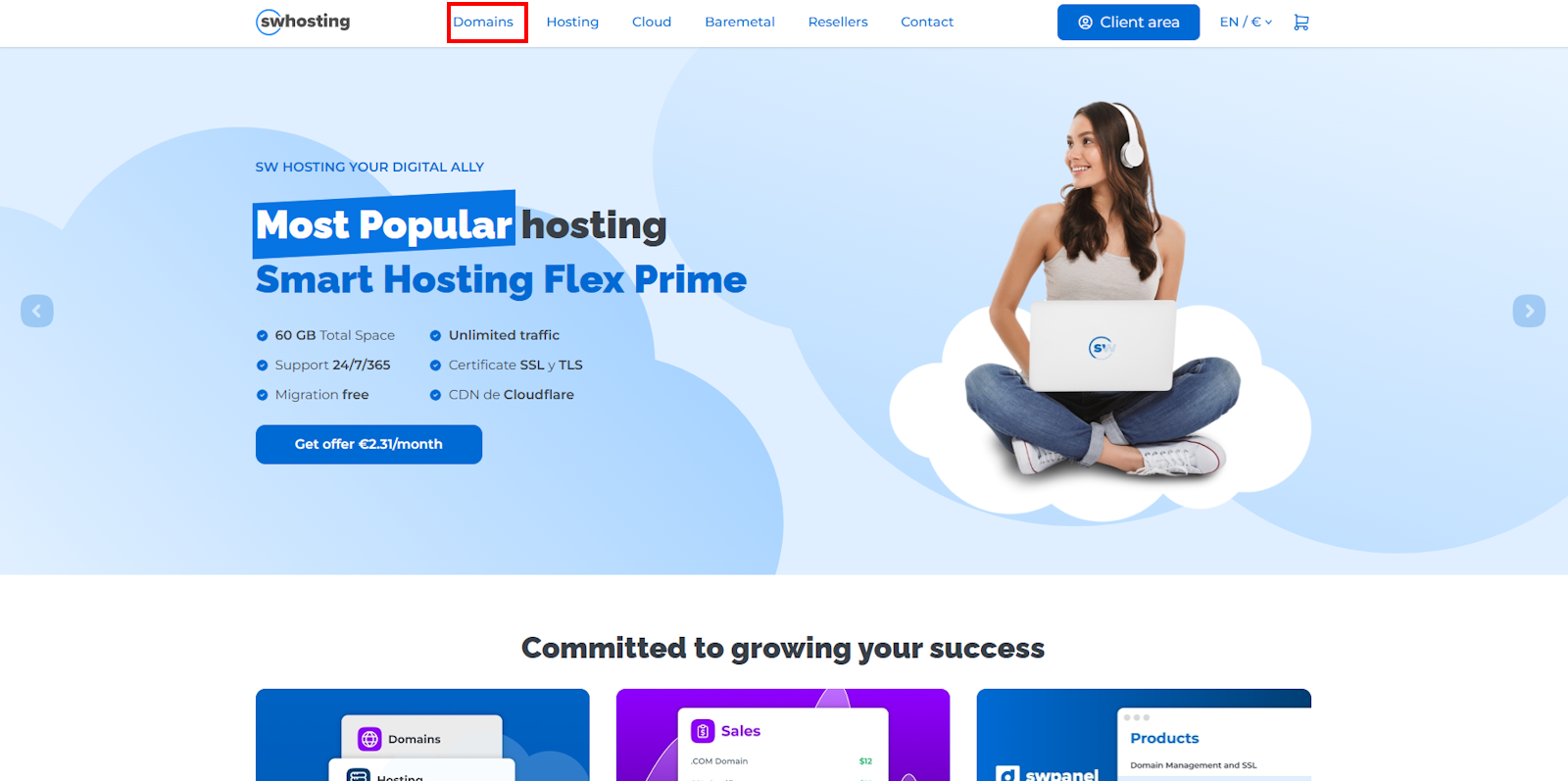
- Access the SW Hosting website: www.swhosting.com.
- Go to the Domains section: SW Hosting - Dominios.
From there, you can start the domain transfer process by following the portal's instructions.
Step 2: Search for your domain
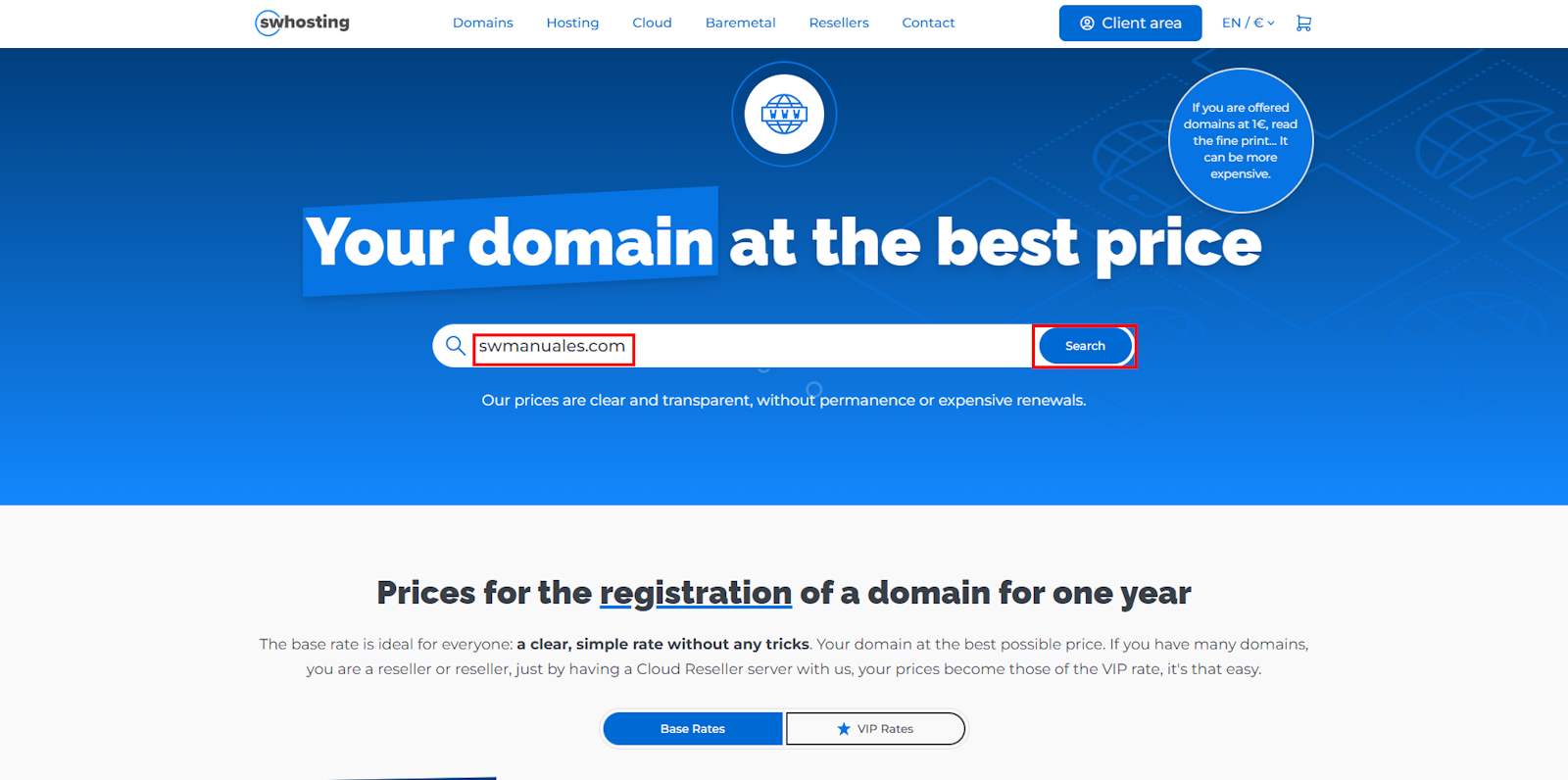
- In the Domains section, enter your domain name in the corresponding field.
- Click Search to proceed with the transfer.
This will allow the system to verify the availability and data of the domain you wish to transfer.
Step 3: Confirm and add to cart
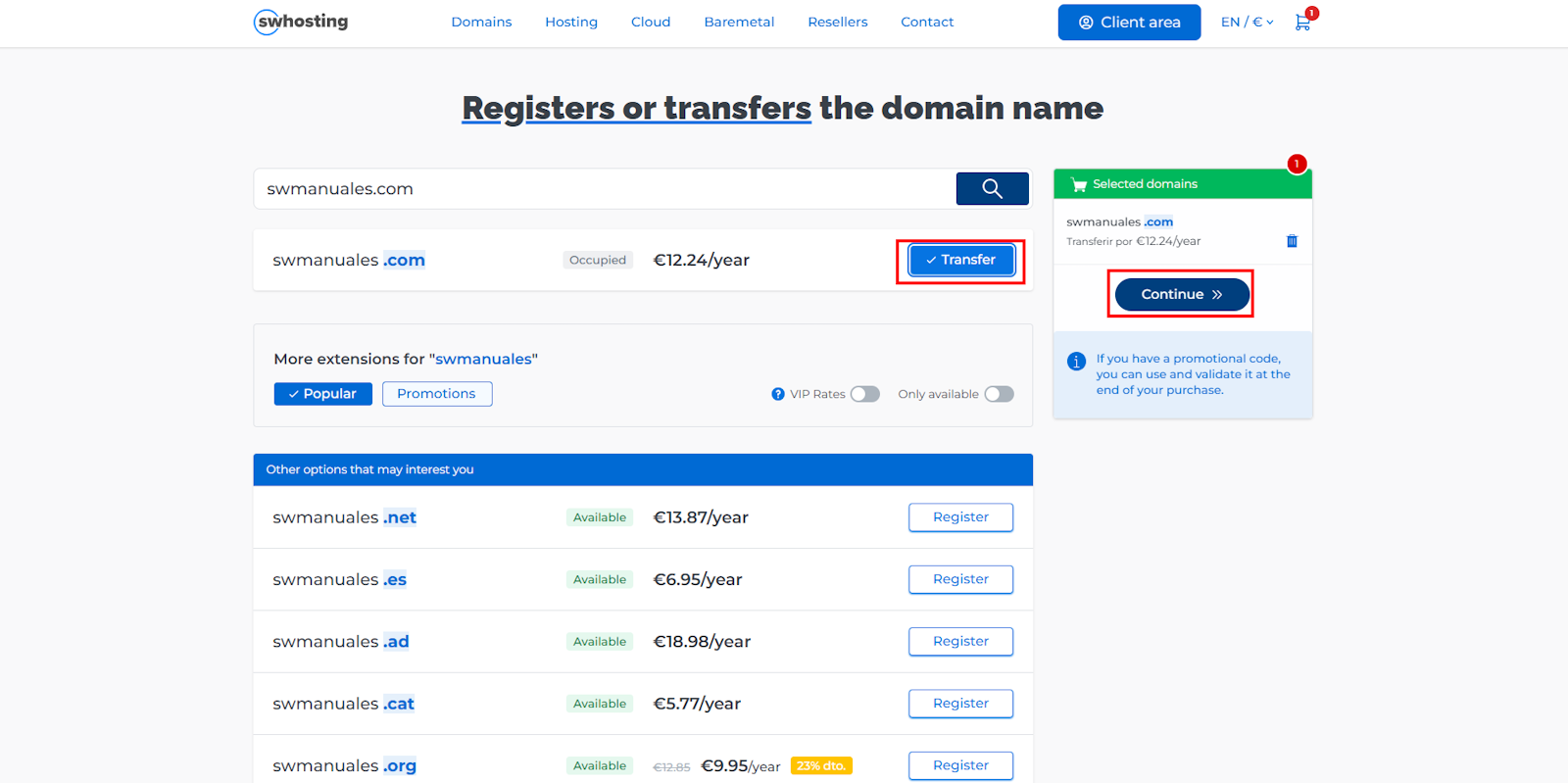
- After clicking Search, you will see the result on the screen showing:
- The domain status (Taken)
- Its price excluding VAT
- Click Transfer to add the domain to the shopping cart.
- Then, press Continue to move to the next step of the process.
This ensures that your selected domain is added correctly before completing the transfer.
Step 4: Enter details and email address
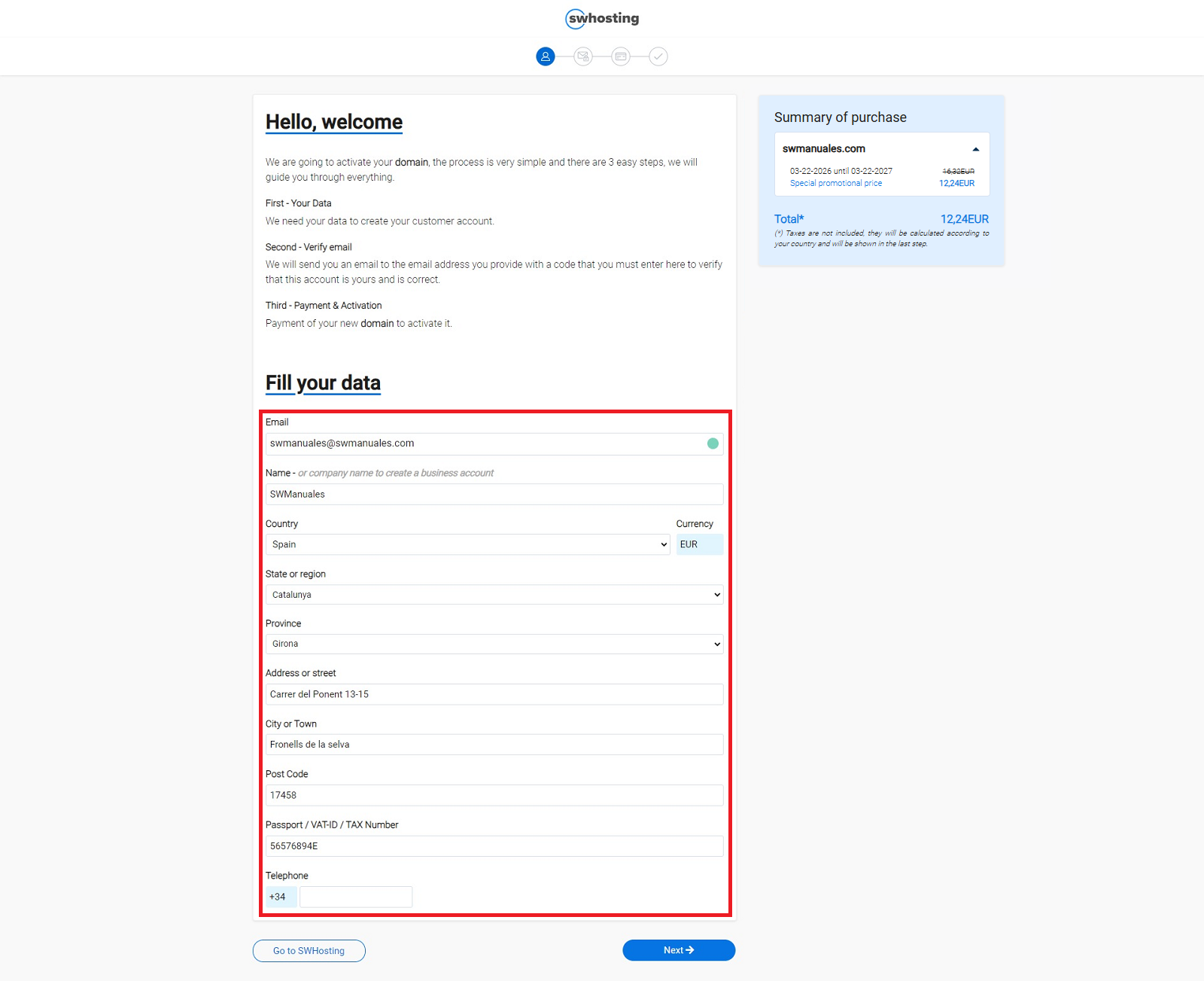
- Complete your personal or company details, including a valid email address.
- This email will be used to create your customer account and receive important notifications regarding your domains and contracted services.
- If you have a promo code, enter and validate it now.
- If you don't have a code, simply click Next to continue.
Ensure that the email is correct, as all notifications and confirmations will be sent to this address.
Step 5: Verification or login
- New users:
- If it is your first time using SW Hosting, you will be asked to verify your account.
- You will receive a verification code at the email address you provided in the previous step.
- Enter the code to confirm your account and continue.
- Users with an existing account:
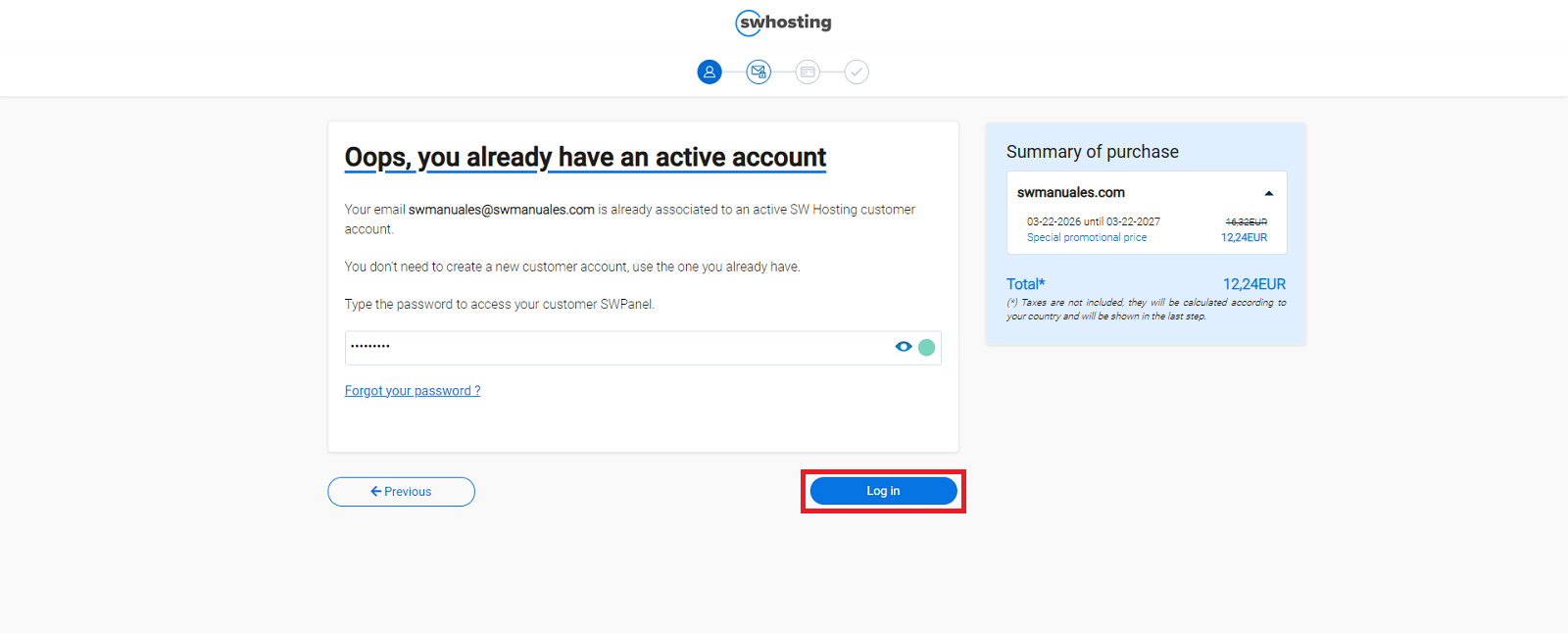
- Enter your access key to log in and proceed with the domain transfer.
This step ensures that only authorized users can manage domains and services.
Step 6: Enter the Authcode and choose payment method
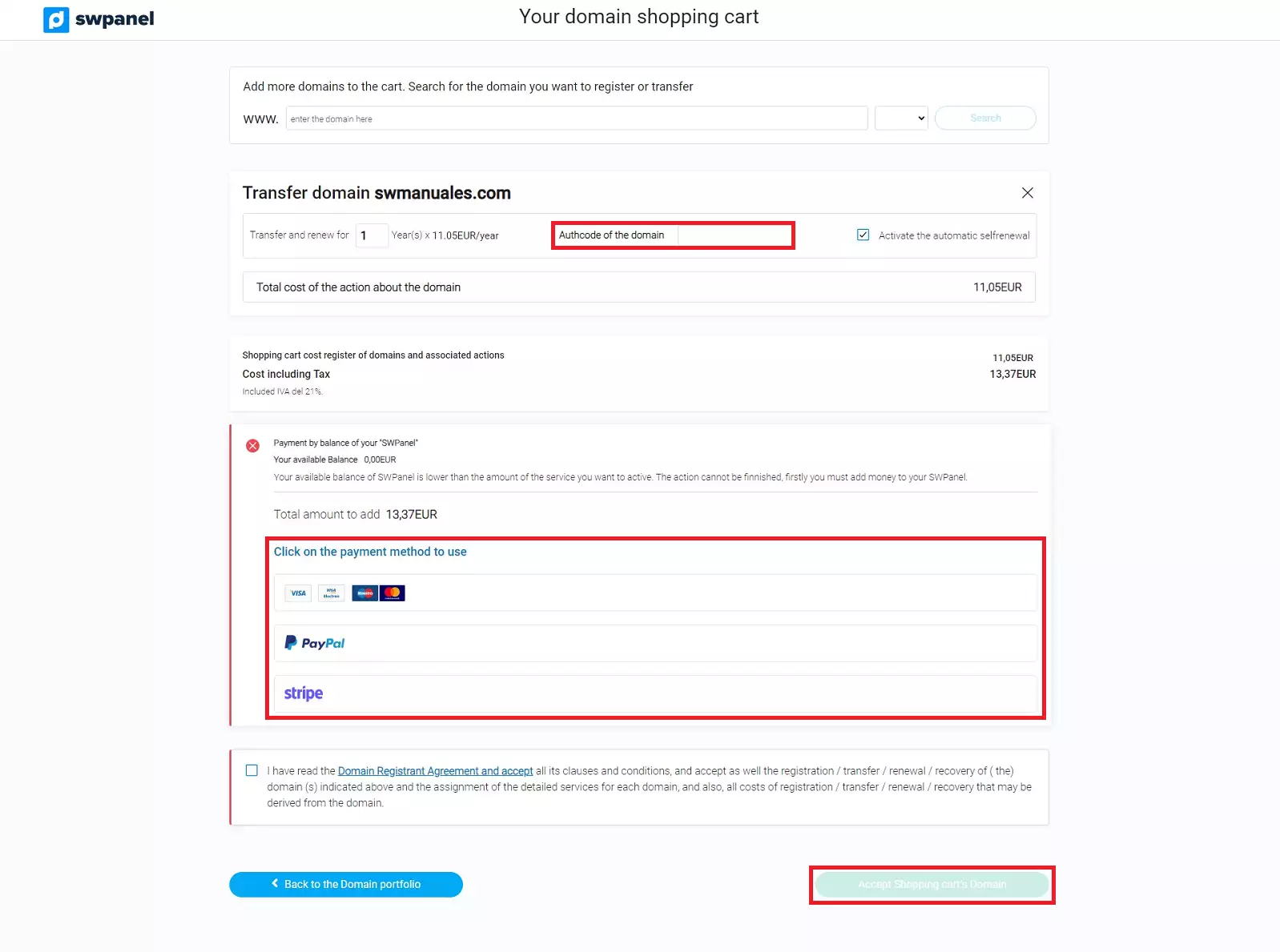
- On the following screen, enter your domain's Authcode:
- The Authcode is the transfer code required to move a domain from one provider to another.
- This code must be provided by your current domain provider.
- From this screen you can also:
- Enable or disable auto-renewal for your domain.
- Register other available extensions with the same domain name.
- Finally, enter your card details to formalize the purchase or select an alternative payment method:
- PayPal
- Stripe
Ensure that all details are correct before continuing to avoid issues with the domain transfer and payment.
Step 7: Completion of the transfer and notifications
- Top-ups and commissions:
- If you top up credits via PayPal or Stripe, a commission will be applied.
- The credit added to your SWPanel will be the requested top-up amount minus the commission fee.
- Required fields:
- You must complete all required fields to place the order.
- If any field is missing, the confirmation button will not appear.
- First purchase:
- This must always be done via credit card, PayPal, or Stripe.
- Once you are already a customer, other payment methods are available.
- Welcome emails:
- Before the transfer is complete, you will receive an email with welcome details to access your SWPanel, your private customer area, and begin managing your domains and services.
- For .es domains, you will also receive an email at the administrative contact's email address, which you must validate to proceed with the transfer.
- If it is not validated within 3 days or is denied, the transfer will be canceled.
- Transfer time:
- The transfer will be completed in a maximum of 5 days, unless the current provider denies the request.
- Our system will notify you of the completion of the transfer via email.
- Re-transfer restriction:
- Once the transfer is complete, you will not be able to transfer the domain to another registrar until 60 days have passed.
- ICANN email verification:
- You will receive one last email, according to ICANN regulations and as explained in manual Manuel : Whois Accuracy, with a link to verify your email address.
- It is very important to respond to this email and validate the address within 15 days.
- If it is not validated, the domain will remain deactivated until verification.
By following these steps, your transfer will be carried out securely and without setbacks.
Related manuals
To expand your knowledge and consult related processes, review the following manuals:
- Manuel : How to register a domain from SWPanel
- Manuel : How to register a domain from the web
- Manuel : How to transfer a domain from SWPanel
- Manuel : How to request a domain ownership certificate
These manuals complement the information on domain management, account settings, and other SW Hosting services.