
How to request a domain ownership certificate
In this manual, you will learn how to request the ownership certificate for your domains.
Important: This procedure applies only to generic domains.
If you need to obtain the certificate for a .ES domain, you must handle the request directly through ESNIC.You can check our specific guide in manual Manuel : How to request a certificate of ownership for a .ES domain.
1. How to request the ownership certificate
1.1 Access the domain portfolio
- Log in to the main Dashboard of your SWPanel.
- Go to Domains and SSL → Domain Portfolio.
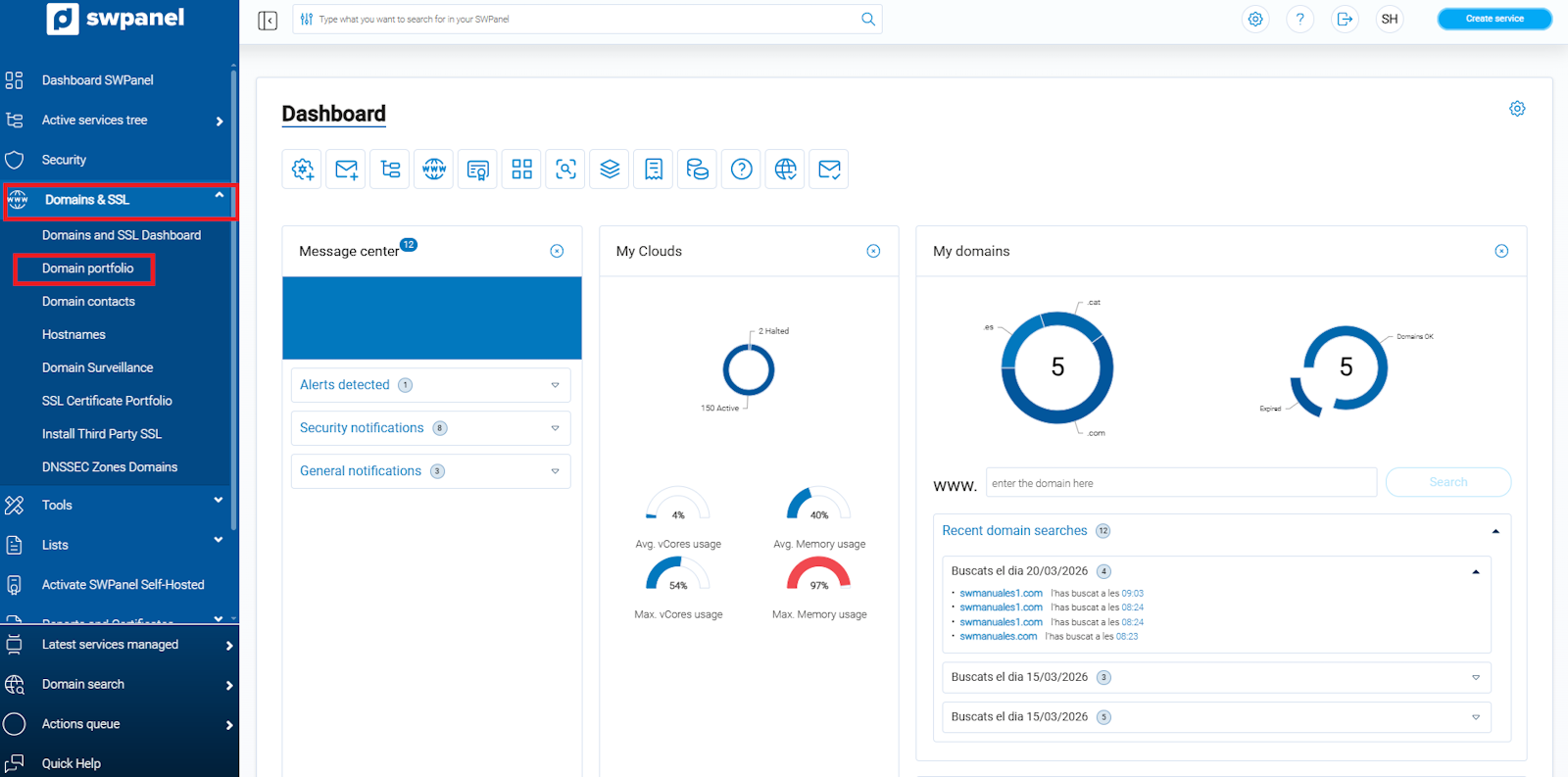
info_capture ℹ️ Note: The screenshot is for guidance purposes, taken from version 2026.000.0049 dated 21/03/2026. It may differ from the current version of SWPanel.
1.2 Access the certificate request
In the […] menu, select the option “Domain Ownership Certificate”.
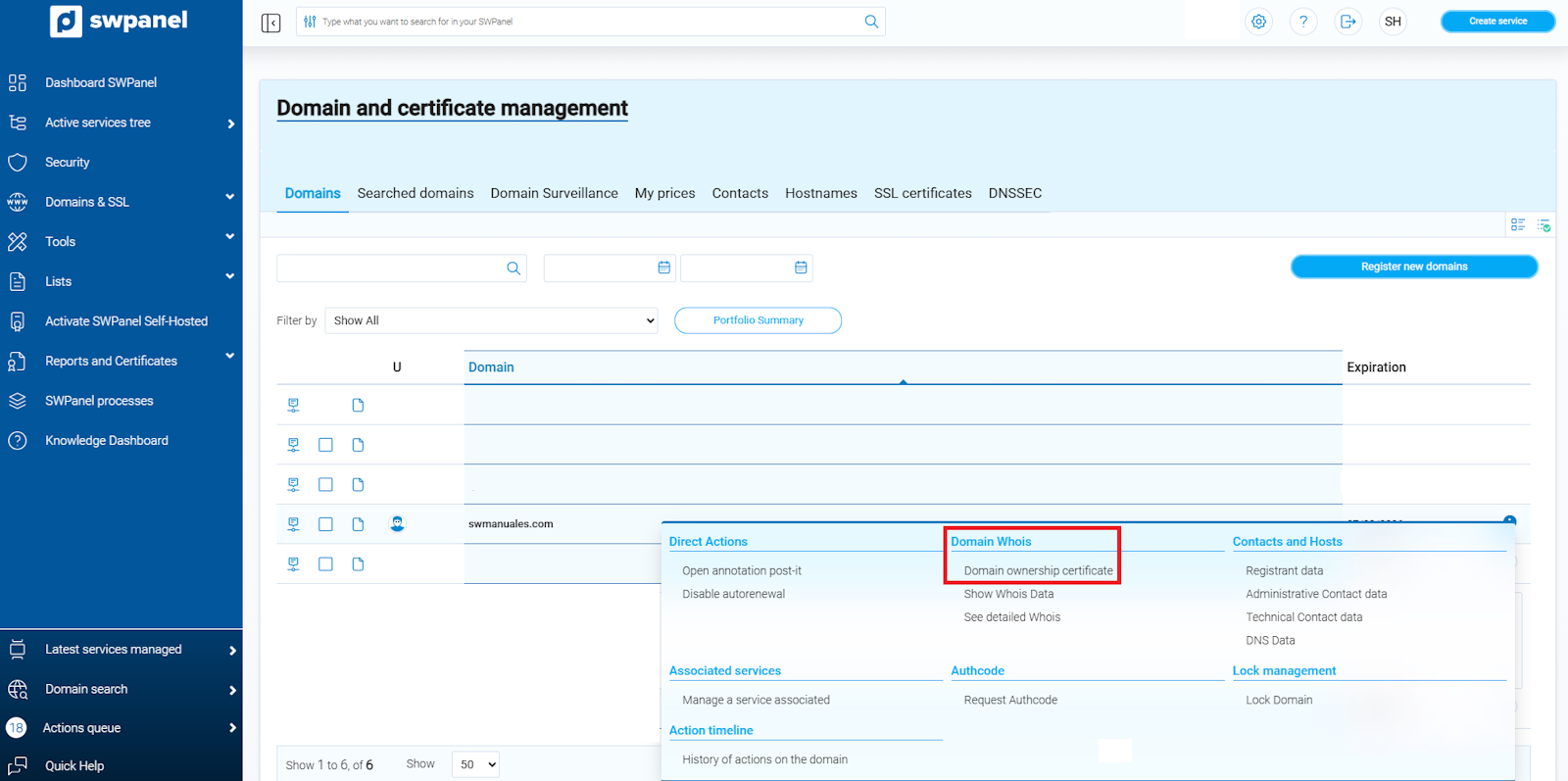
info_capture ℹ️ Note: The screenshot is for guidance purposes, taken from version 2026.000.0049 dated 21/03/2026. It may differ from the current version of SWPanel.
1.3 Request the certificate
- Once inside the “Domain Ownership Certificate” option, submit the certificate request.
- The certificate will be sent automatically to the email address configured for the domain contact.
- Additionally, you can view and download the certificate in the certificate listings section of your SWPanel.
Note: The process of generating and sending the certificate may take approximately 10 minutes.
Tip: Verify that the domain contact email is up to date to receive the certificate without any issues.
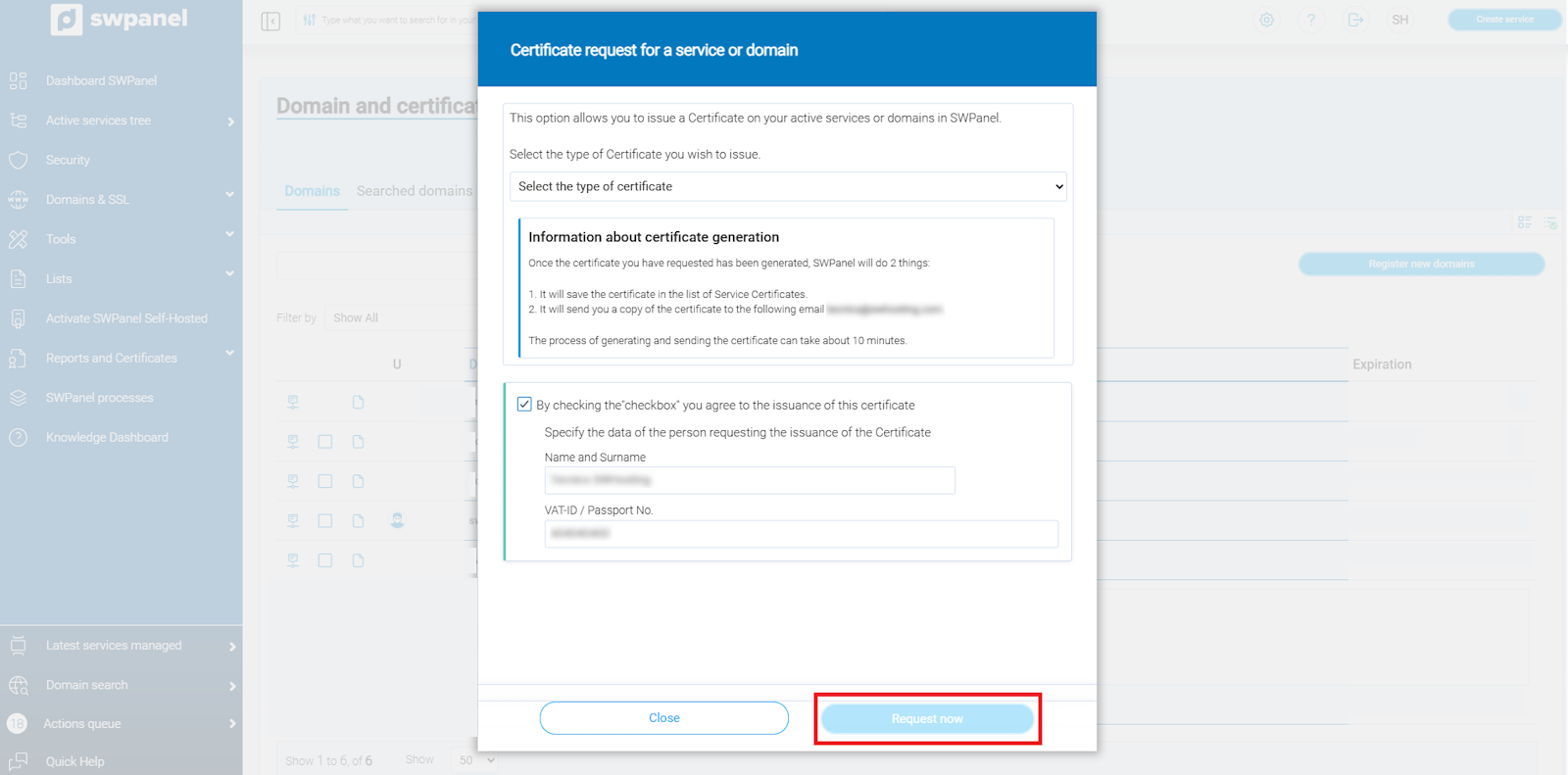
info_capture ℹ️ Note: The screenshot is for guidance purposes, taken from version 2026.000.0049 dated 21/03/2026. It may differ from the current version of SWPanel.
2. How to view your domain certificates from SWPanel
2.1 Access the Certificate lists
In the side menu of your SWPanel, go to “Reports and Certificates” → “of Services or Domains”.
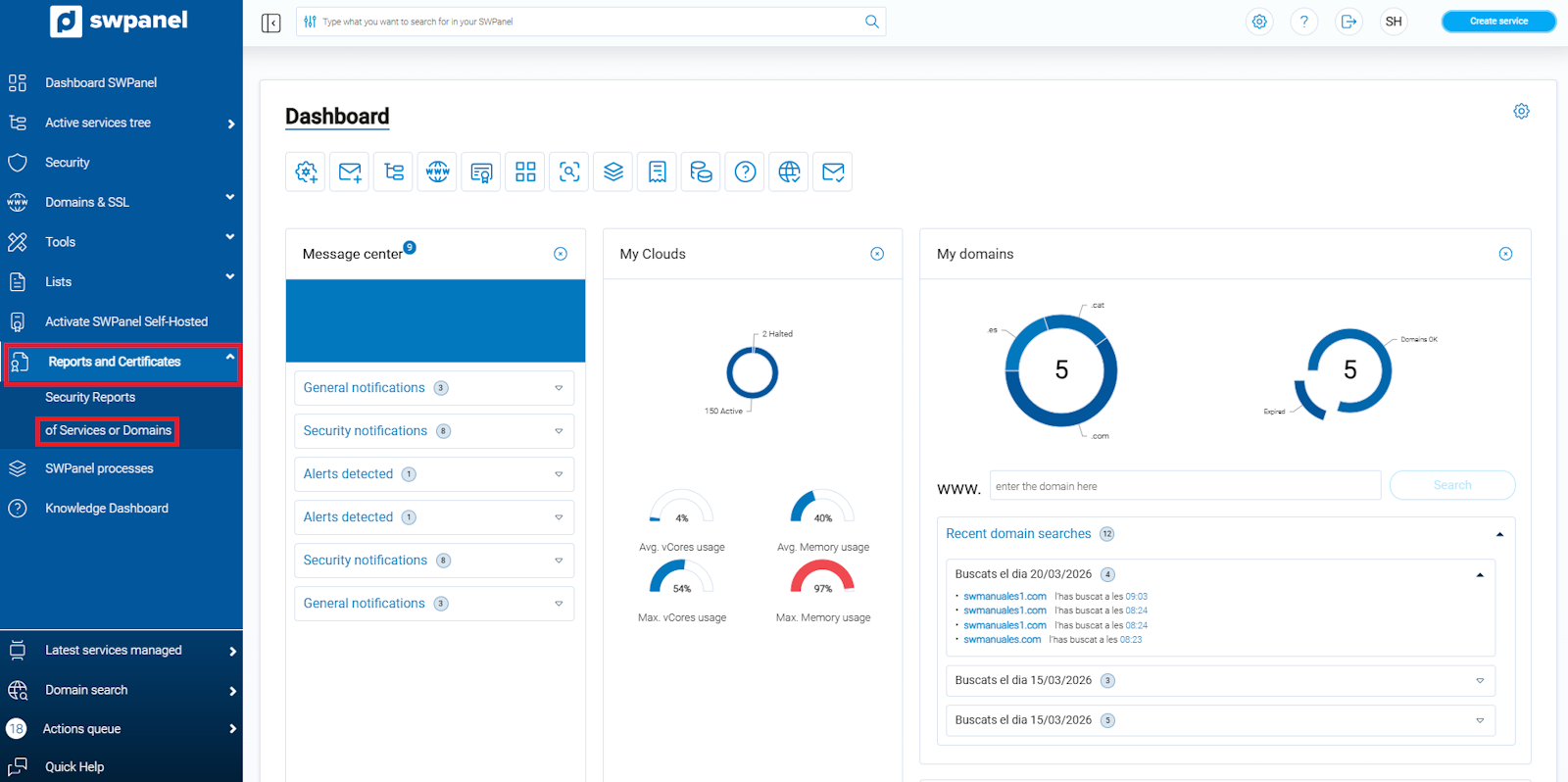
info_capture ℹ️ Note: The screenshot is for guidance purposes, taken from version 2026.000.0049 dated 21/03/2026. It may differ from the current version of SWPanel.
2.2 Download or view your certificate
- Locate your certificate in the certificate list.
- Click on the […] menu corresponding to the certificate.
- Two options will be displayed:
- View certificate – to view it directly on screen.
- Download certificate – to save a copy to your device.
Tip: You can use the list search tool to find your certificate faster.
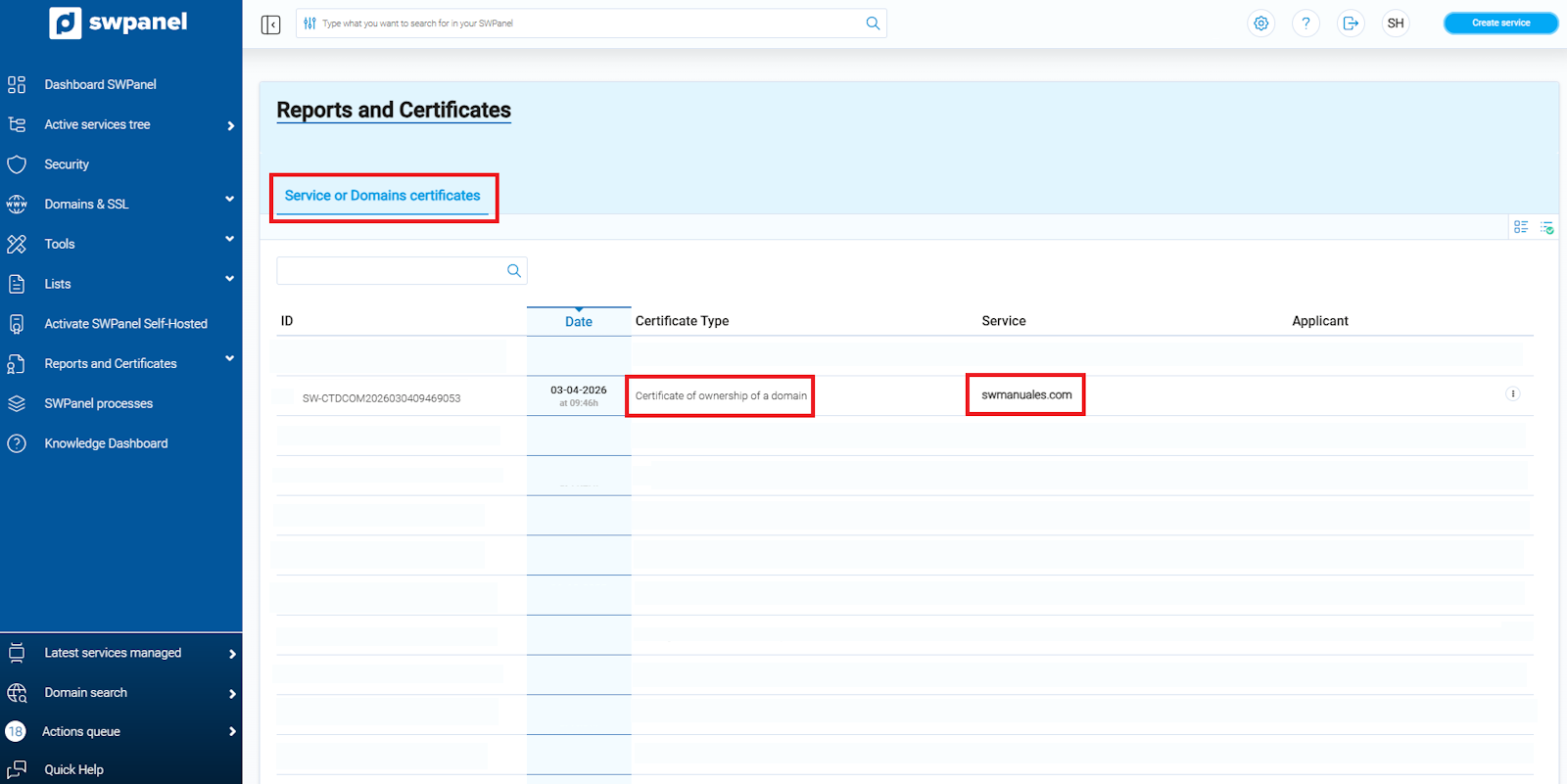
info_capture ℹ️ Note: The screenshot is for guidance purposes, taken from version 2026.000.0049 dated 21/03/2026. It may differ from the current version of SWPanel.