How to install and configure the OpenVPN Community Edition client on Windows
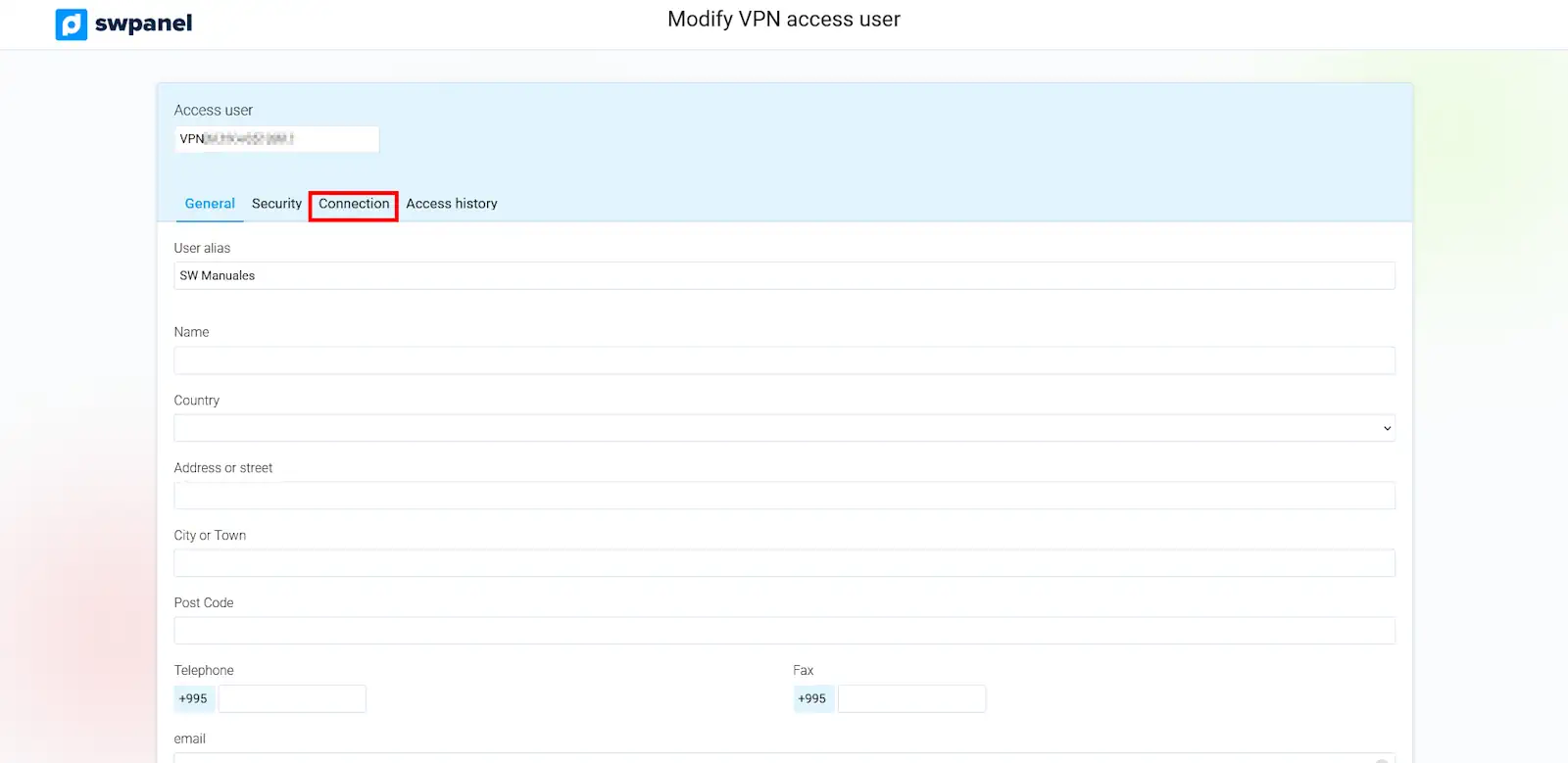
To connect via OpenVPN, first, you must log in to your SWPanel with your VPN username and the established password.
 Once you have logged in, you must go to the "Connection" tab.
 The connection process consists of the following steps:
- Download and installation of software to connect to your SSL VPN
- Download of the file with the connection data for your SSL VPN
- Establish the connection to your SSL VPN
info You only need to perform steps 1 and 2 the first time.
Download and installation of software to connect to your SSL VPN
For the first step, it will be necessary to download the OpenVPN Client software. To do this, click on "Download OPENVPN Client".
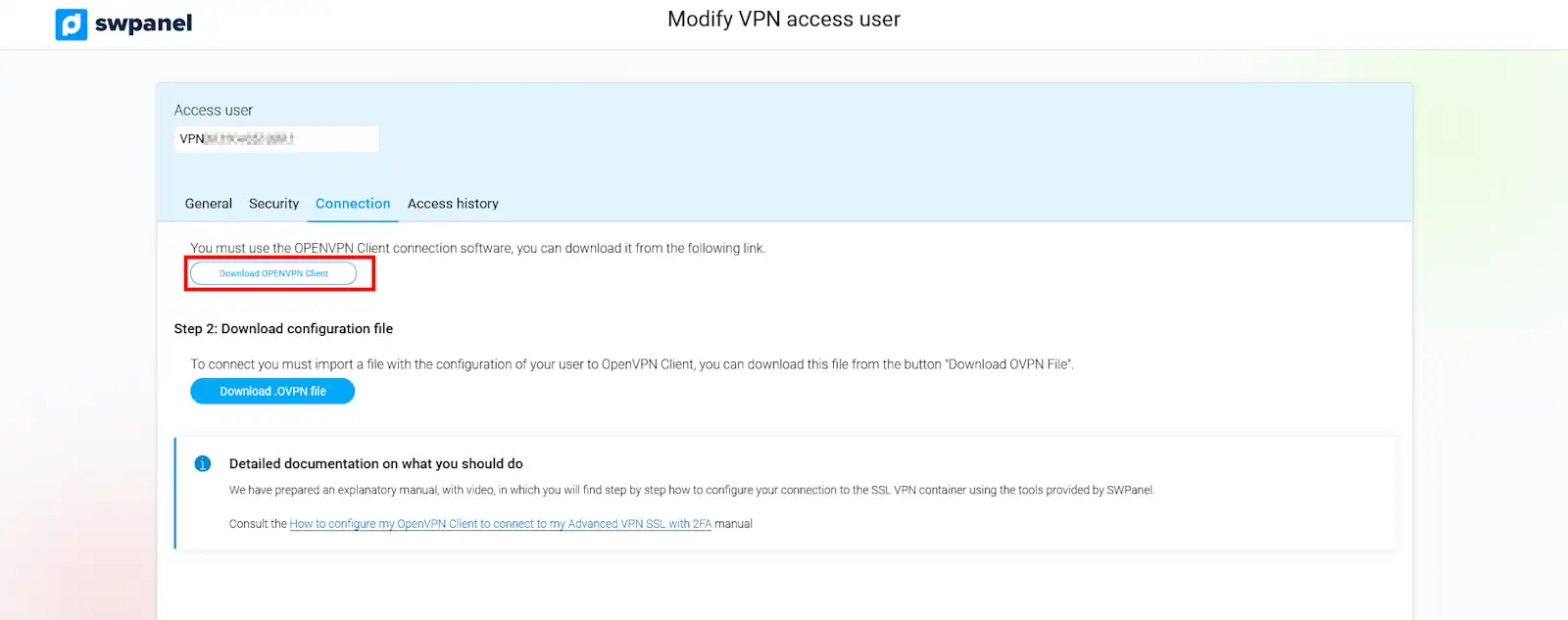
Once you have downloaded the program, install it.
Download of the file with the connection data for your SSL VPN
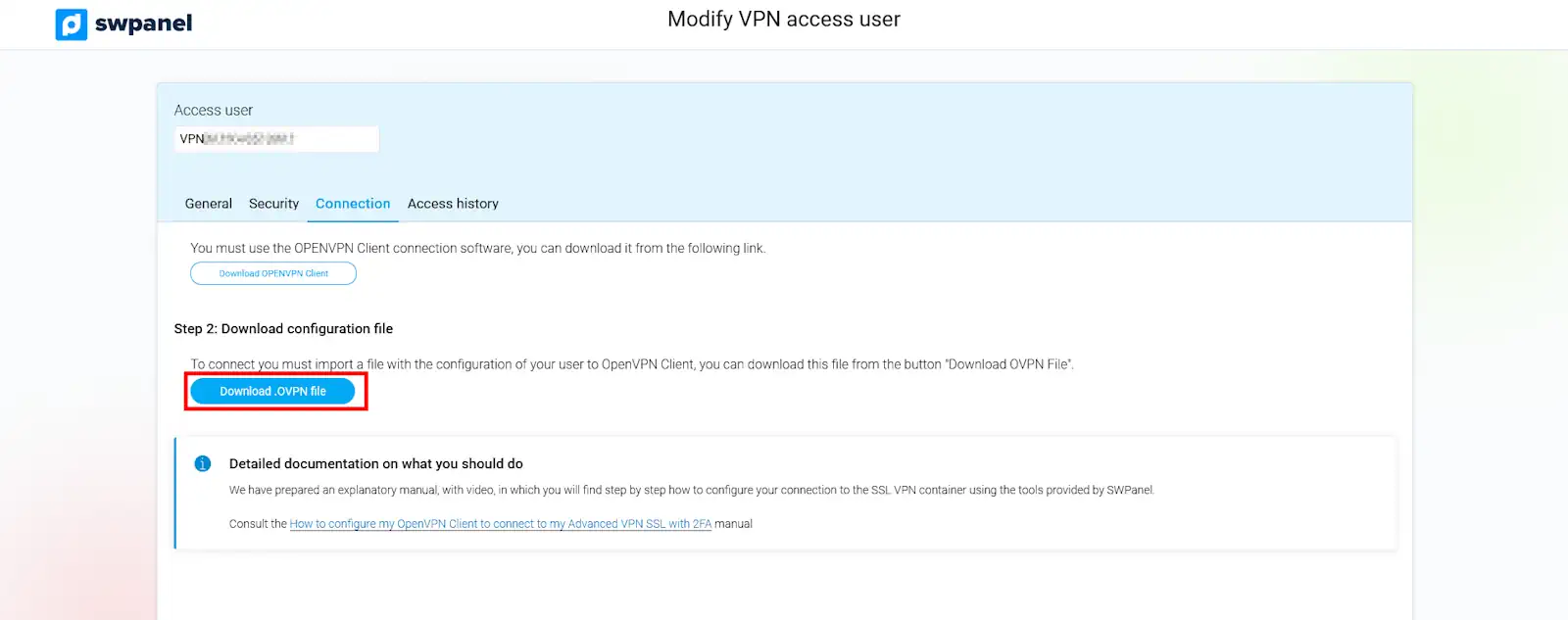
In SWPanel, click on "Download .OVPN file".
Establish the connection to your SSL VPN
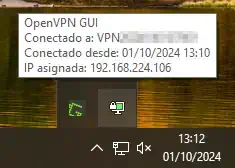
In the lower right part of your Windows desktop, in the hidden icons, look for the OpenVPN GUI (PC screen icon with a padlock).

Right-click on that icon, select Import followed by Import file.
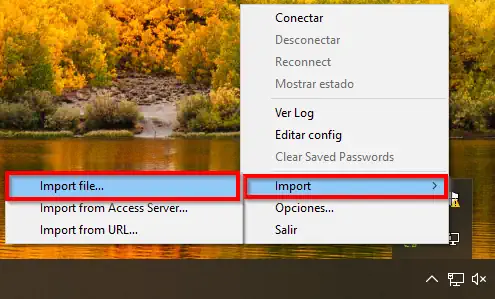
Select the .OVPN file downloaded in the previous step.
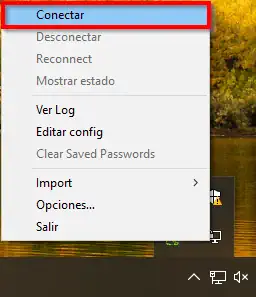
Once the file has been imported, right-click on the OpenVPN GUI icon again, and click on Connect
Enter your username and password.
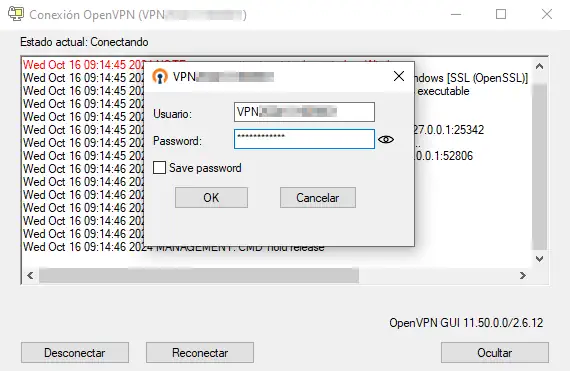
success We have now established a connection to our VPN.