
How to install and configure the Tunnelblick client on macOS
In this manual, we will see how to download, install, and perform a connection test with the Tunnelblick client, an alternative to OpenVPN Connect for macOS systems:
1. Accessing SWPanel
First, we must download the VPN client (Tunnelblick):
-
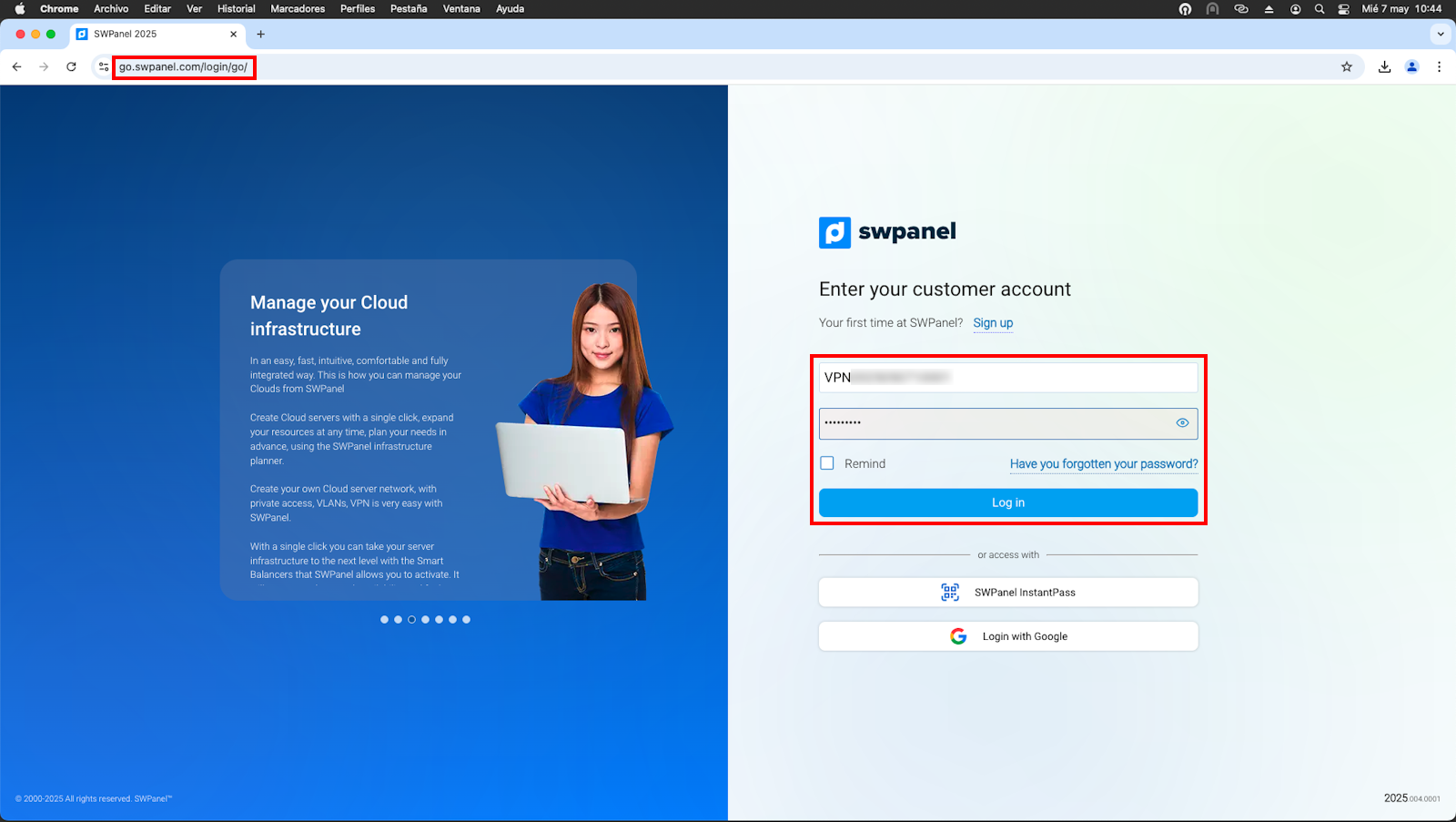
Go to https://go.swpanel.com
-
Log in with the VPN user credentials.
2. Downloading the Tunnelblick client and configuration file
Once inside SWPanel:
-
Go to the "Connection" tab.
-
Download the Tunnelblick client installer for macOS (
.dmg).
info It is necessary to access from a macOS device so that the compatible installer (
.dmg) is downloaded automatically.
-
From the same window, we also download the configuration file (.ovpn) necessary to establish the VPN connection.

3. Installing the Tunnelblick client
-
Open the downloaded
.dmgfile. -
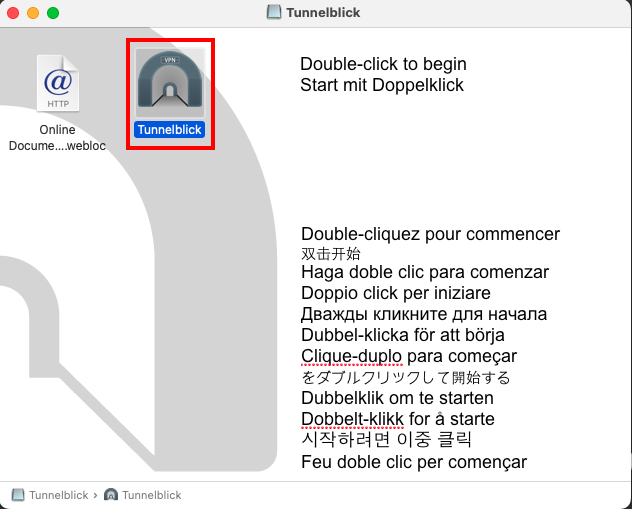
Run the installer and double-click on Tunnelblick:
-
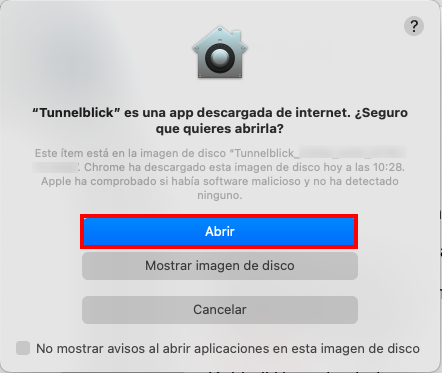
A message will likely appear indicating that we are trying to open an installer downloaded from the internet; click on "Open":
4. Opening the Tunnelblick application
-
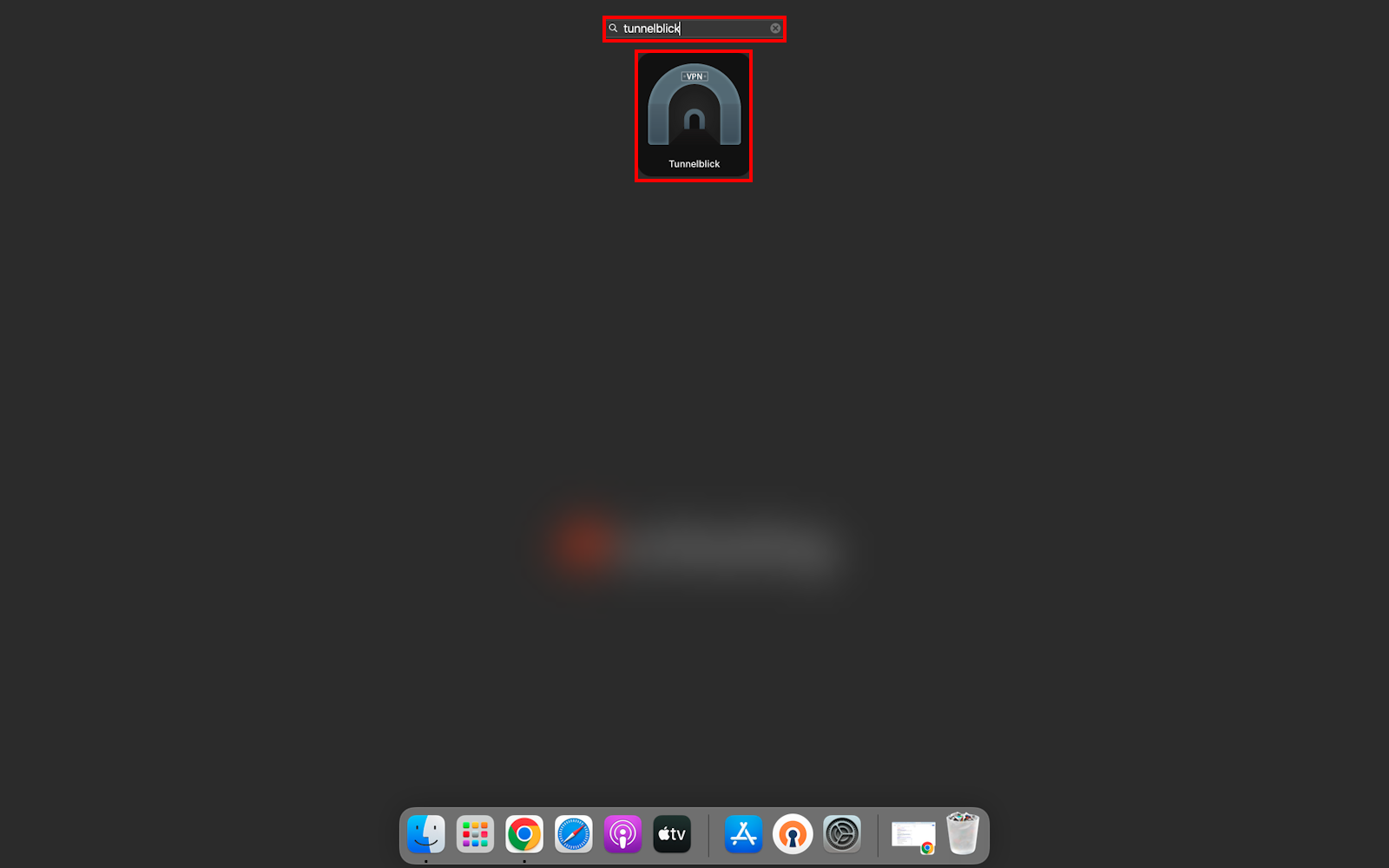
Go to Applications > Tunnelblick.
-
Open the application to start the configuration.
5. Importing the configuration file
-
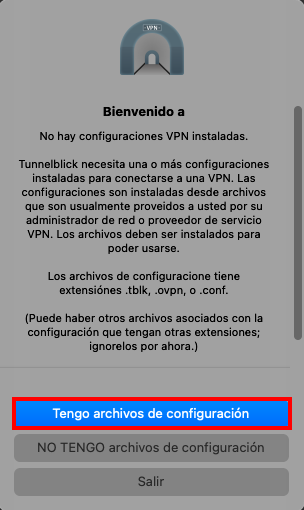
Once the Tunnelblick application is open, the following message will appear where we must indicate "I have configuration files":
-
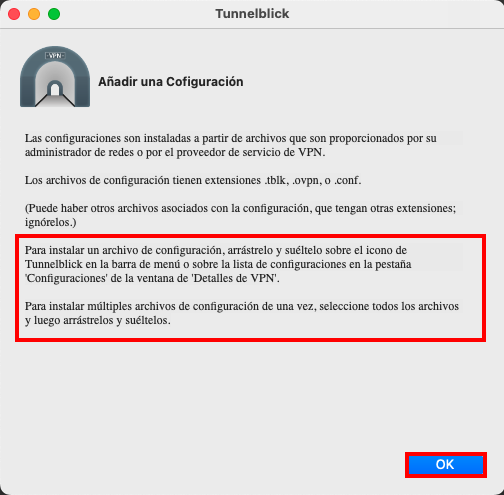
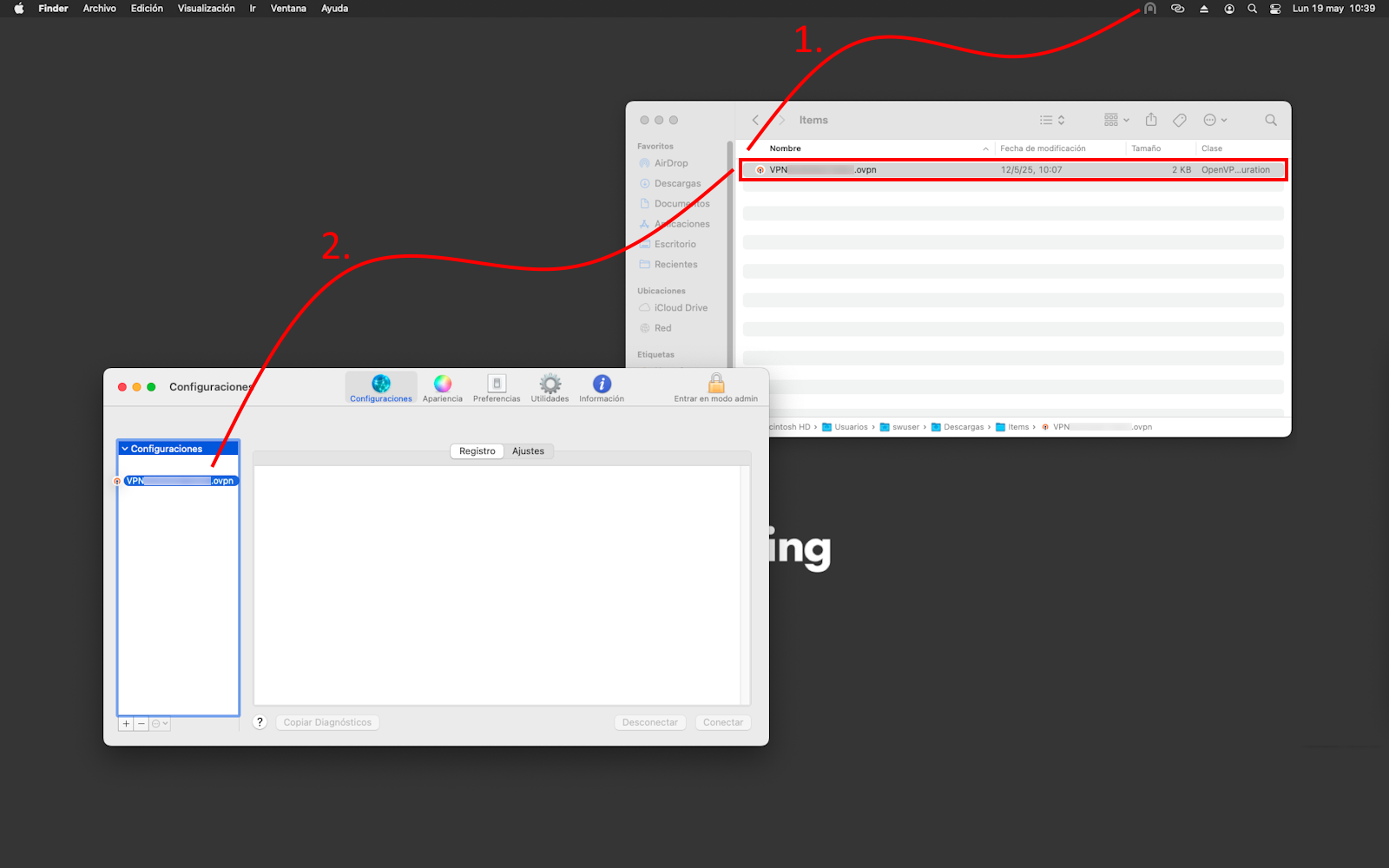
As we can see in the following screenshot, there are two options for importing the configuration file.
-
Drag and drop the .ovpn file onto the Tunnelblick icon in the menu bar.
-
Drag and drop the .ovpn file onto the profile list in the "Configurations" tab:
-
-
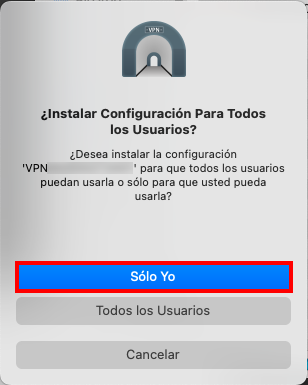
In the following window, select "Only Me" to install the VPN profile only for the user currently logged into the system:
-
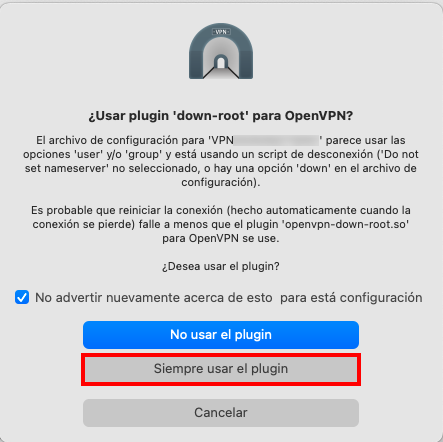
In the next window, select "Always use the plugin".
6. Entering access credentials
-
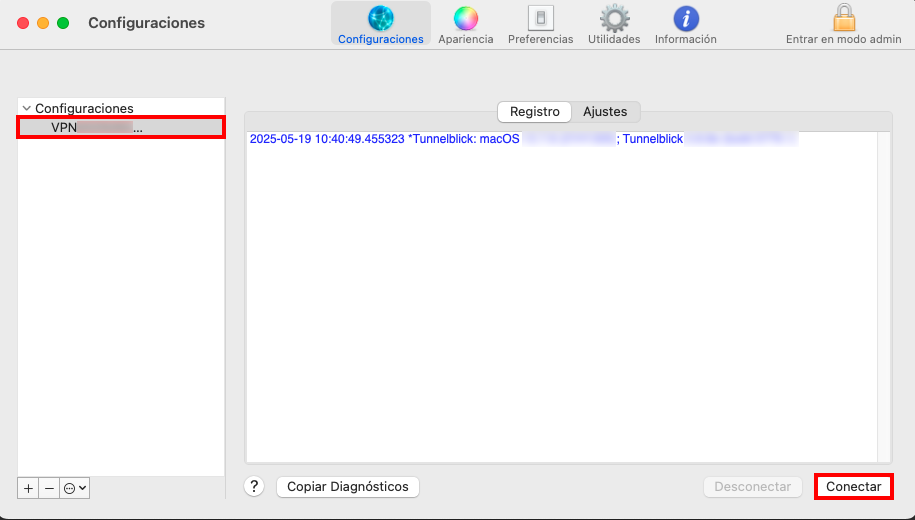
Once the configuration file has been imported, select the VPN profile and click "Connect":
-
Enter the VPN username and password and then click "OK":
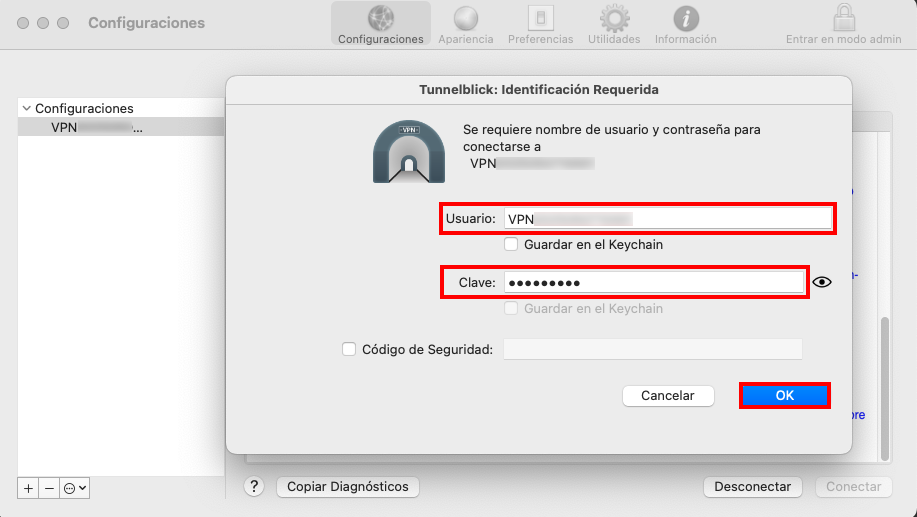
danger The "Security Code" field should remain empty; it is not necessary to enter any data.
7. Two-step authentication (2FA)
-
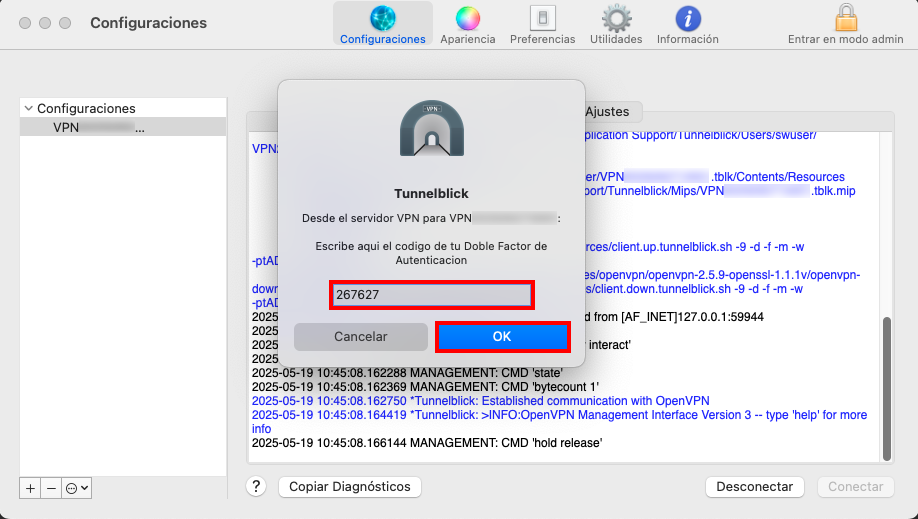
Enter the two-factor authentication (2FA) code generated by the configured application (Authy, Google Authenticator, etc.) and then click "OK".
8. Final configuration
-
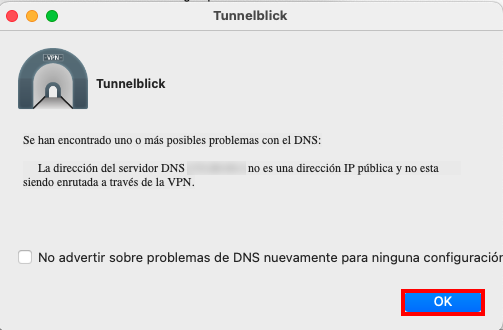
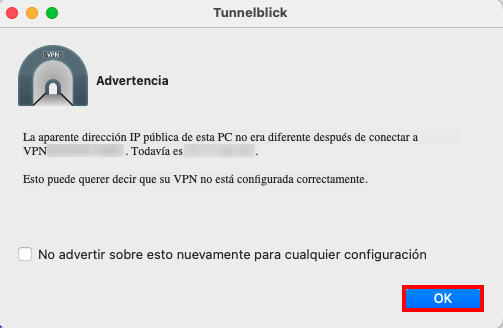
If the following messages appear, we can ignore them, as SSL VPNs with 2FA do not modify the public IP or DNS servers; they simply allow access to the authorized internal VLANs.
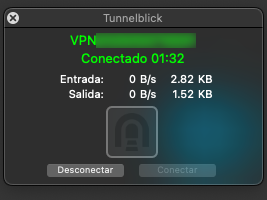
VPN connected
Once these steps are completed, the VPN connection should be correctly established and ready for use.
info In some cases, the first connection might not complete successfully. If this occurs, simply repeating the attempt usually establishes the connection correctly.