
Configure SMTP for email sending in PrestaShop
Once the installation of PrestaShop [Manuel : How to install Prestashop on your Hosting] is complete, with a few simple steps you will have your email account integrated and configured. In this manual, we explain how to achieve it.
Data needed to configure SMTP in PrestaShop
First, you must have an existing email account and, for this account, you must know certain specific details that you will need later.
- SMTP Server: Assuming you are going to use an email account created in your SWPanel, follow these steps to find out what it is. If you use an account external to us, you must find/request these details from your current provider. SMTP is the name of the mail server; you can view it in the following way:
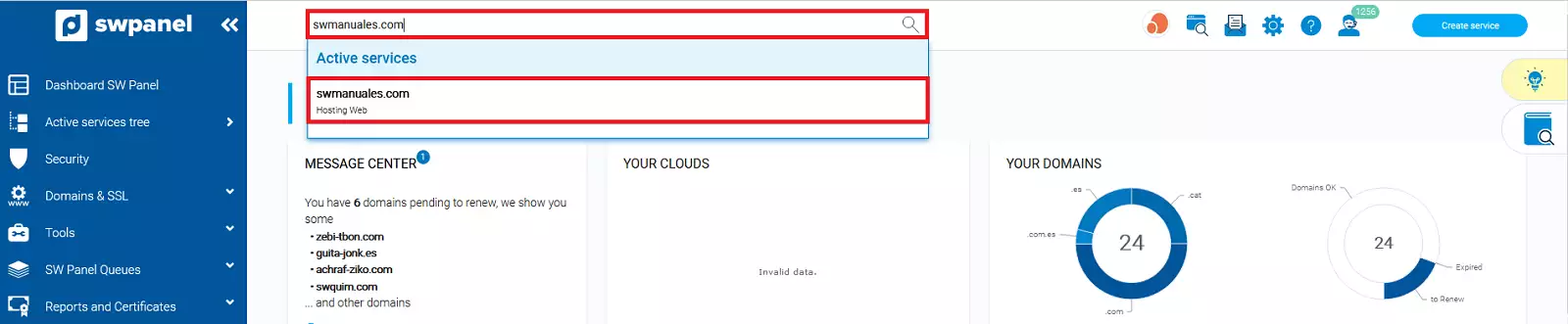
1. Inside your SWPanel, use the search bar to find your service; in our case manuales.com, yours will have a different name. Once you find it, select it.
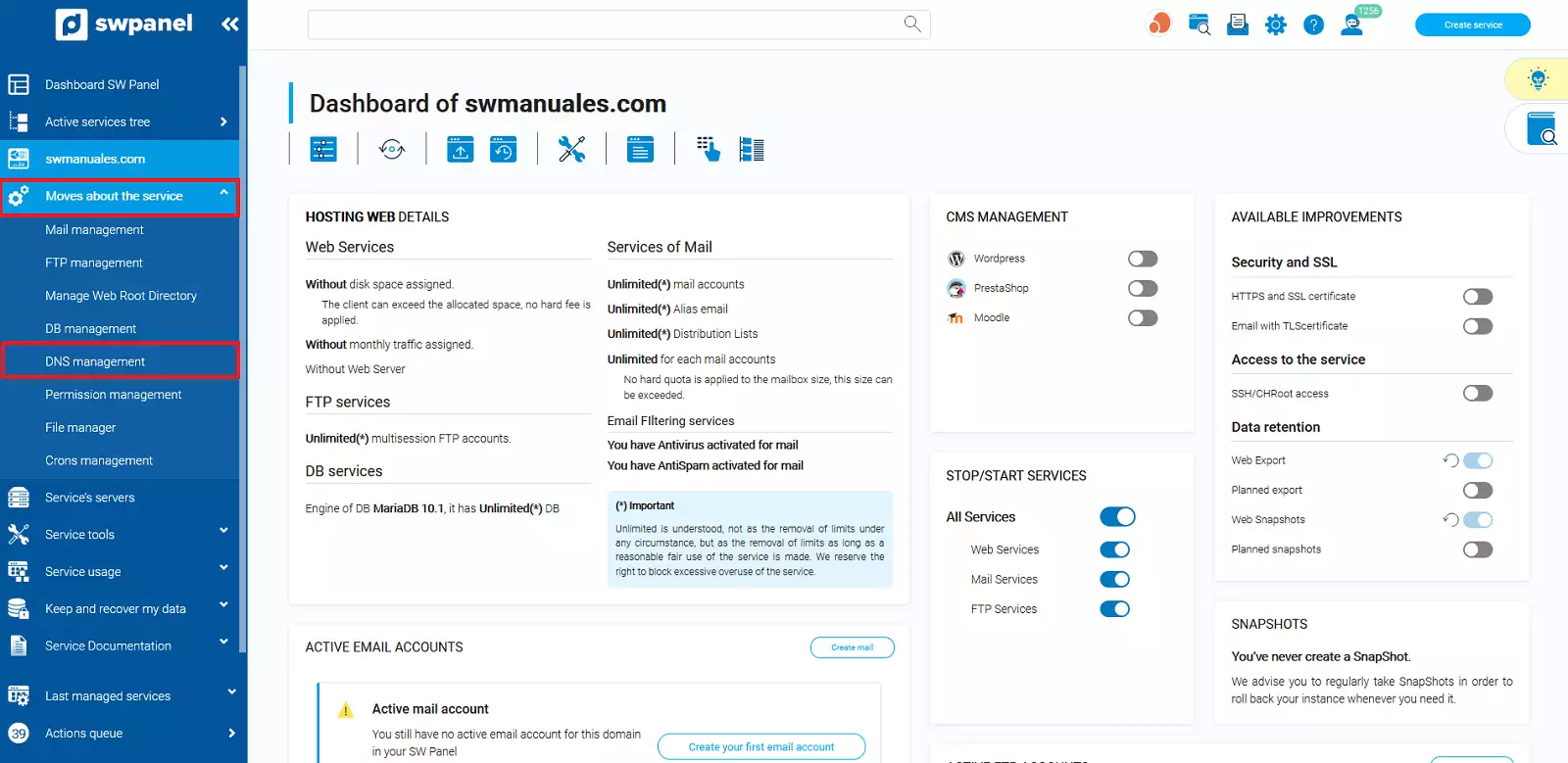
2. First click on Service Management and then on DNS Management.
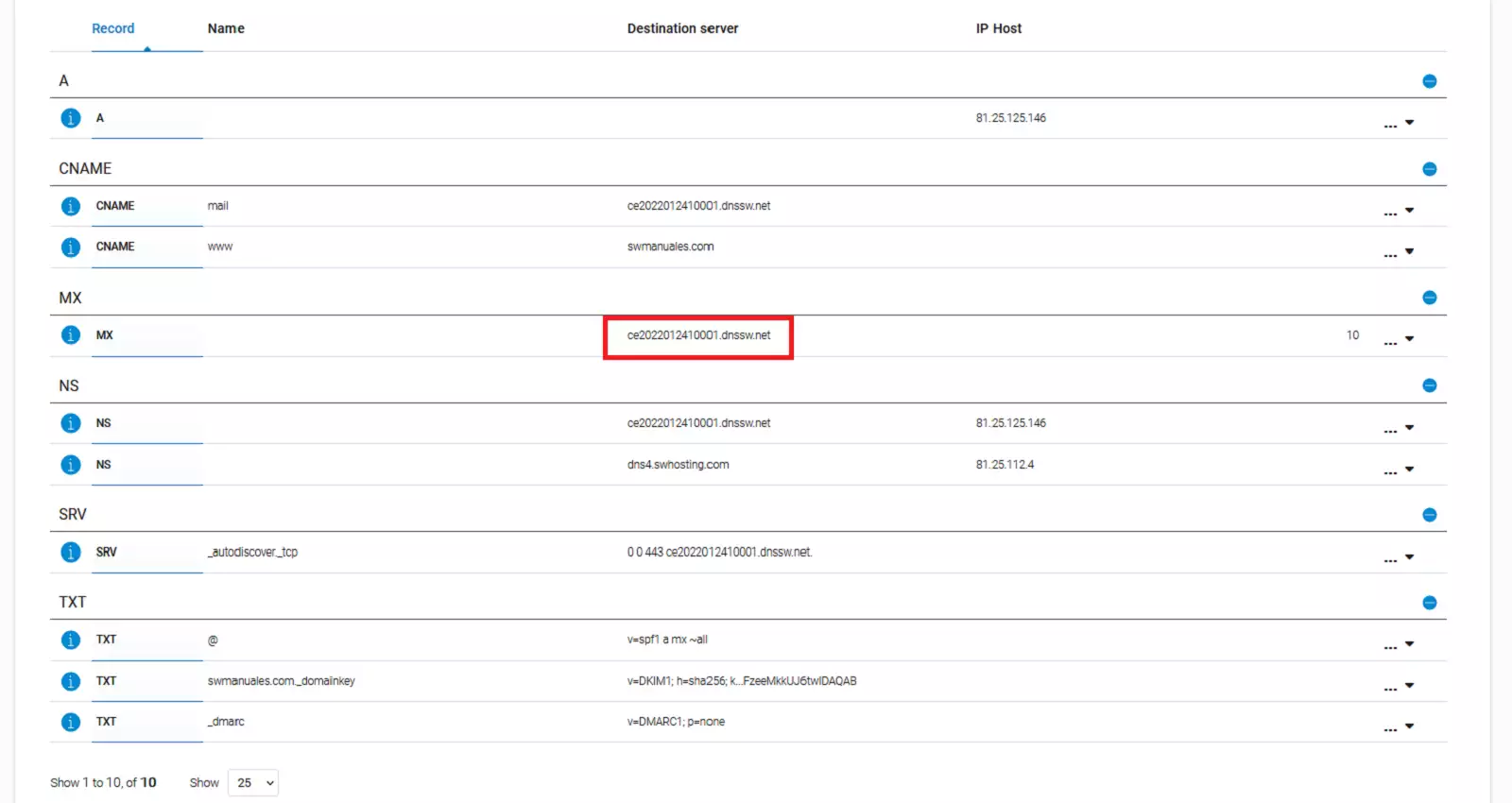
3. Save the name you find in the MX record; you will need it later.
- SMTP Username: This will be the email account that must send the email.
- Password: The one you used to create the email account.
- Encryption: None.
- Port: 25
Steps to configure SMTP in PrestaShop.
Now you must configure the sending via SMTP in PrestaShop:
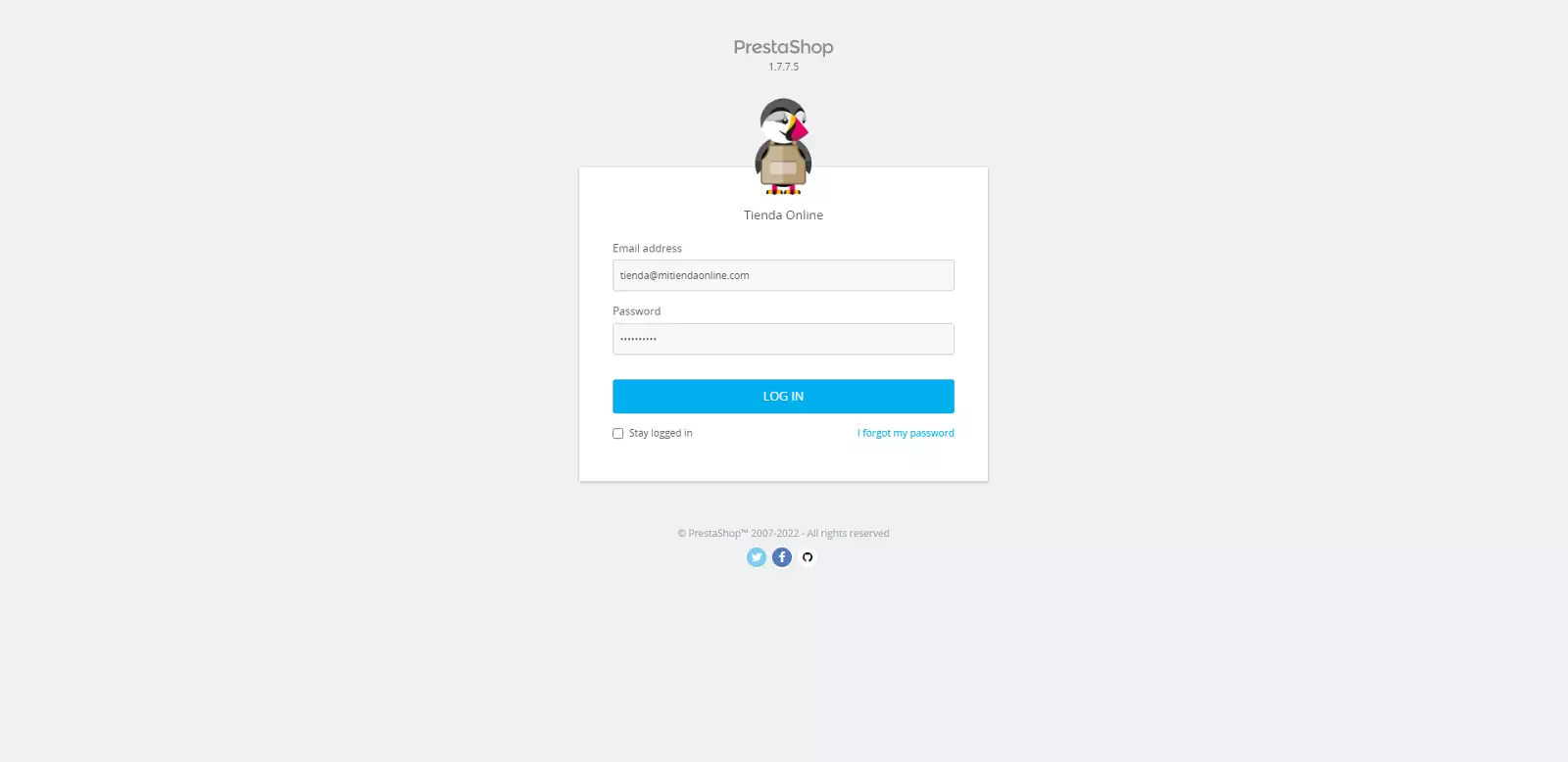
1. Access the BackOffice of your website
2. In the left menu, open the dropdown by hovering over 'Advanced Parameters' and, in the submenu, choose 'Email'.
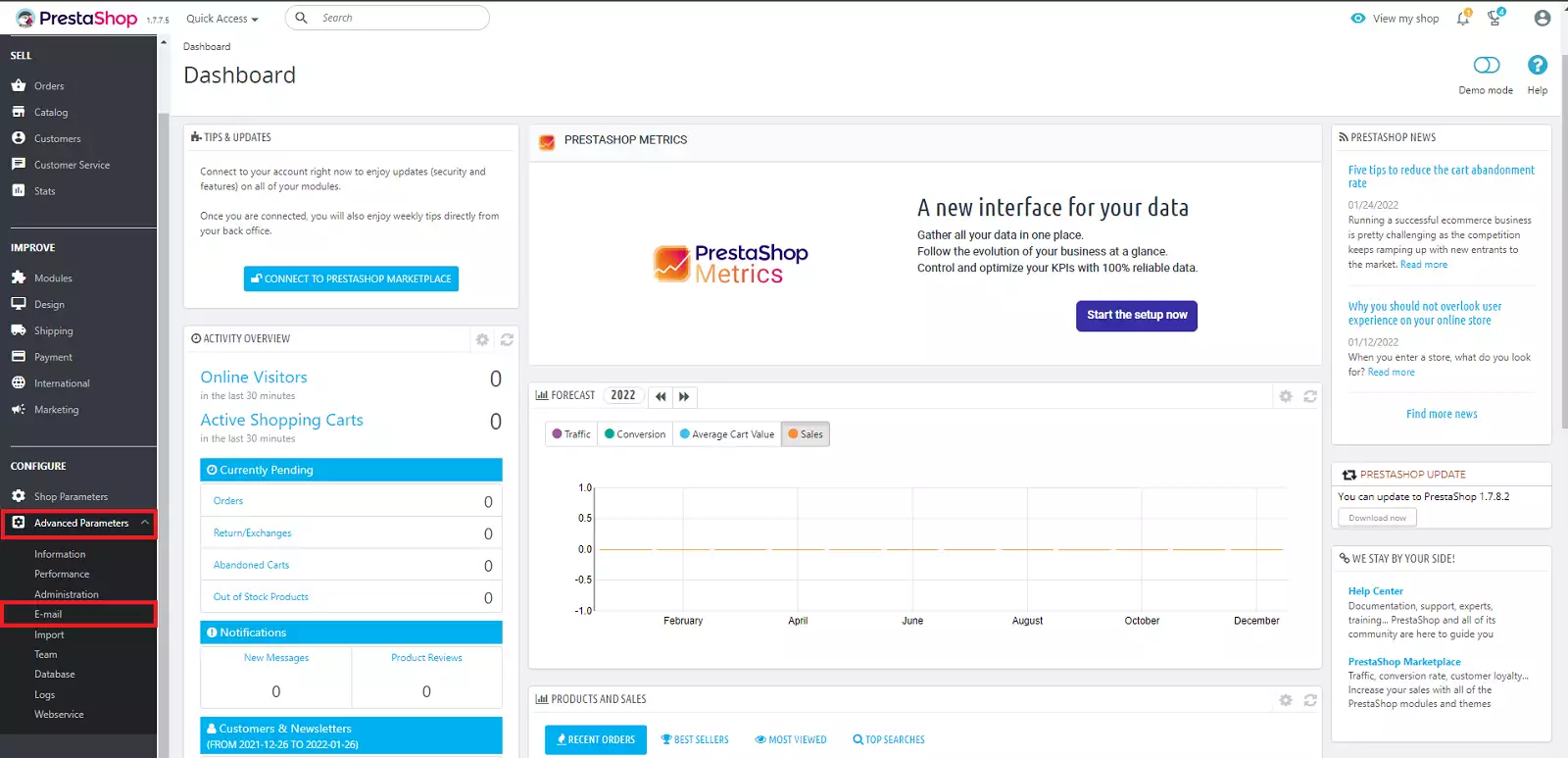
3. You will find something similar or identical to the following image. Depending on the version of Prestashop, the image may vary, but the required data will be the same.
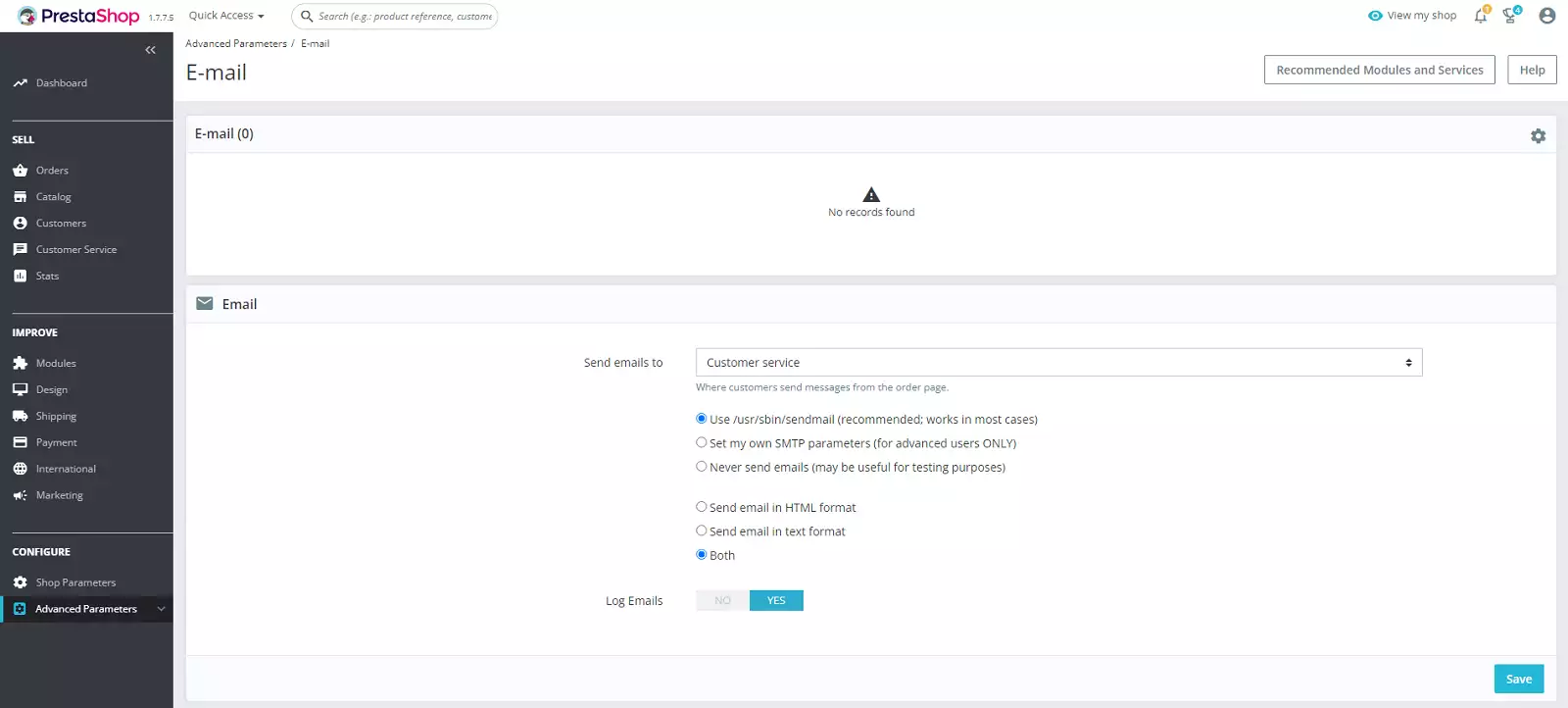
- Use the PHP mail() function. Recommended in most cases Default option, but you will not use it since the PHP mail() function is disabled by default.
- Set my own SMTP parameters. For ADVANCED users only. This is the option you must choose to configure SMTP sending in PrestaShop.
- Never send emails (can be used for testing). Option for performing tests while the page is under development.
4. Choose the second option. In this case, a form will appear where you will have to enter the details of the account you will use for SMTP sending.
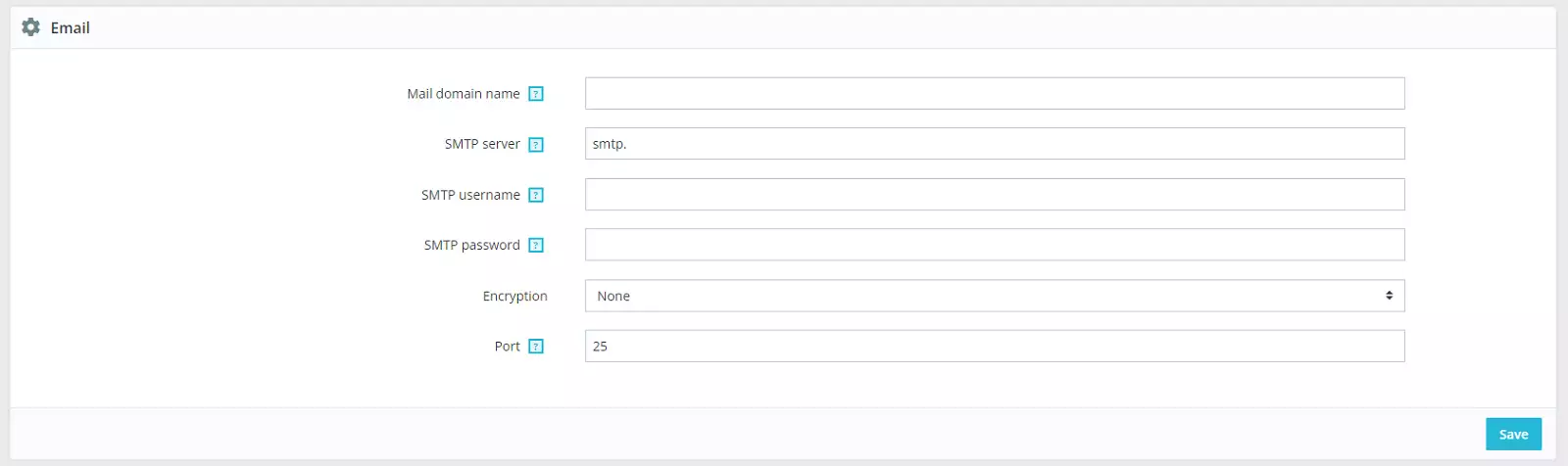
5. Fill in the details obtained at the beginning of the manual. The field that indicates “Domain for emails' or 'Domain name for email' is a field that can be left blank and does not affect the sending of emails. Once the email is configured via SMTP, click Save.
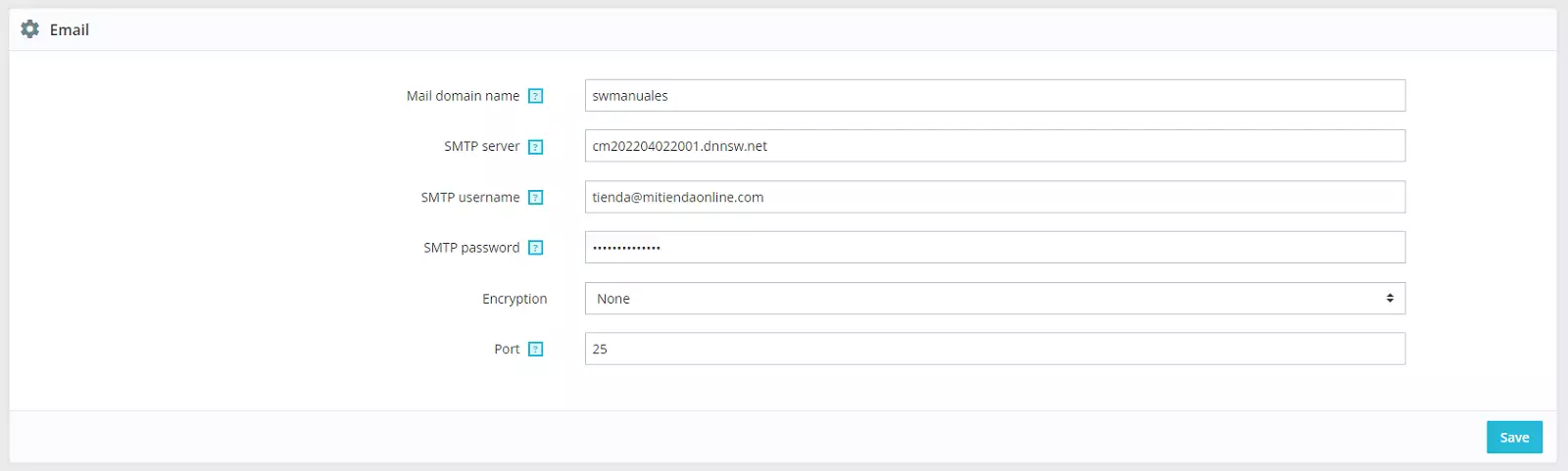
6. You can perform an 'Email configuration test'. Where it says 'Send a test email to' enter the email address to which you want to send the test email to verify if the configuration is correct.

7. If you have received the test email, it means that everything is correctly configured.