
Connect to your Hosting via console using PuTTY
In this manual, we will teach you how to access the console of a hosting service, hosted on your Cloud server with SWPanel as the management tool, using the SSH/CHRoot user and the free PuTTY application.
??To be able to activate the SSH/CHRoot user and password, we must have a hosting service within our own cloud managed with SWPanel. Users of normal hosting services do not have this option.??
What is PuTTY?
PuTTY is a free SSH client that allows us to connect to another machine in remote mode or via Serial. Its most common use is to connect to a server to which we do not have physical access in order to execute commands within it. By being able to execute commands within our hosting service, we can perform operations such as modifying a configuration file or copying, inspecting, analyzing, or moving files and directories. The program is completely free and secure.
How do I get PuTTY?
You can download the PuTTY application through its official page in the downloads section; you only have to choose the version for your operating system. For example, if we have Windows 10 (64-bit), we only have to click on the first download link on the page.
Once we download the installation package, it will be enough to run it and follow the standard installation procedure.
Gathering data to access my hosting console
To be able to access the console of our Hosting, we will need to gather a series of data:
- The IP or server name
- The port through which to connect
- The connection method
- The SSH/CHRoot user and password
Gathering data - IP
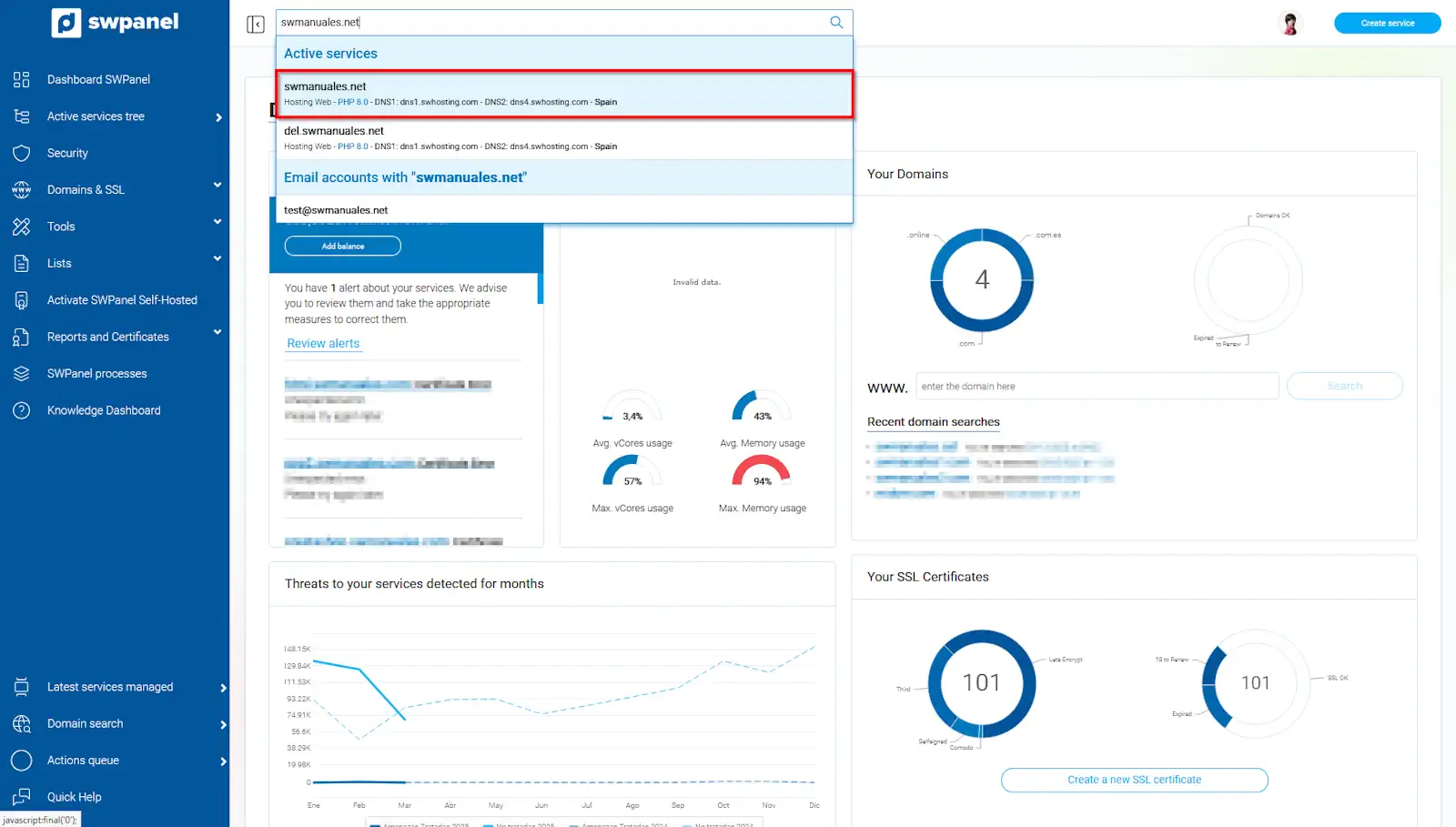
- To find out the IP, we will enter the dashboard of our Hosting service, search for its name in the SWPanel central search bar, and click on the name that will open within the dropdown.
info_capture The screenshot is for guidance purposes. It was taken on version 2025.03.0001 dated 19/03/2025. It may differ from what the current version of SWPanel shows.
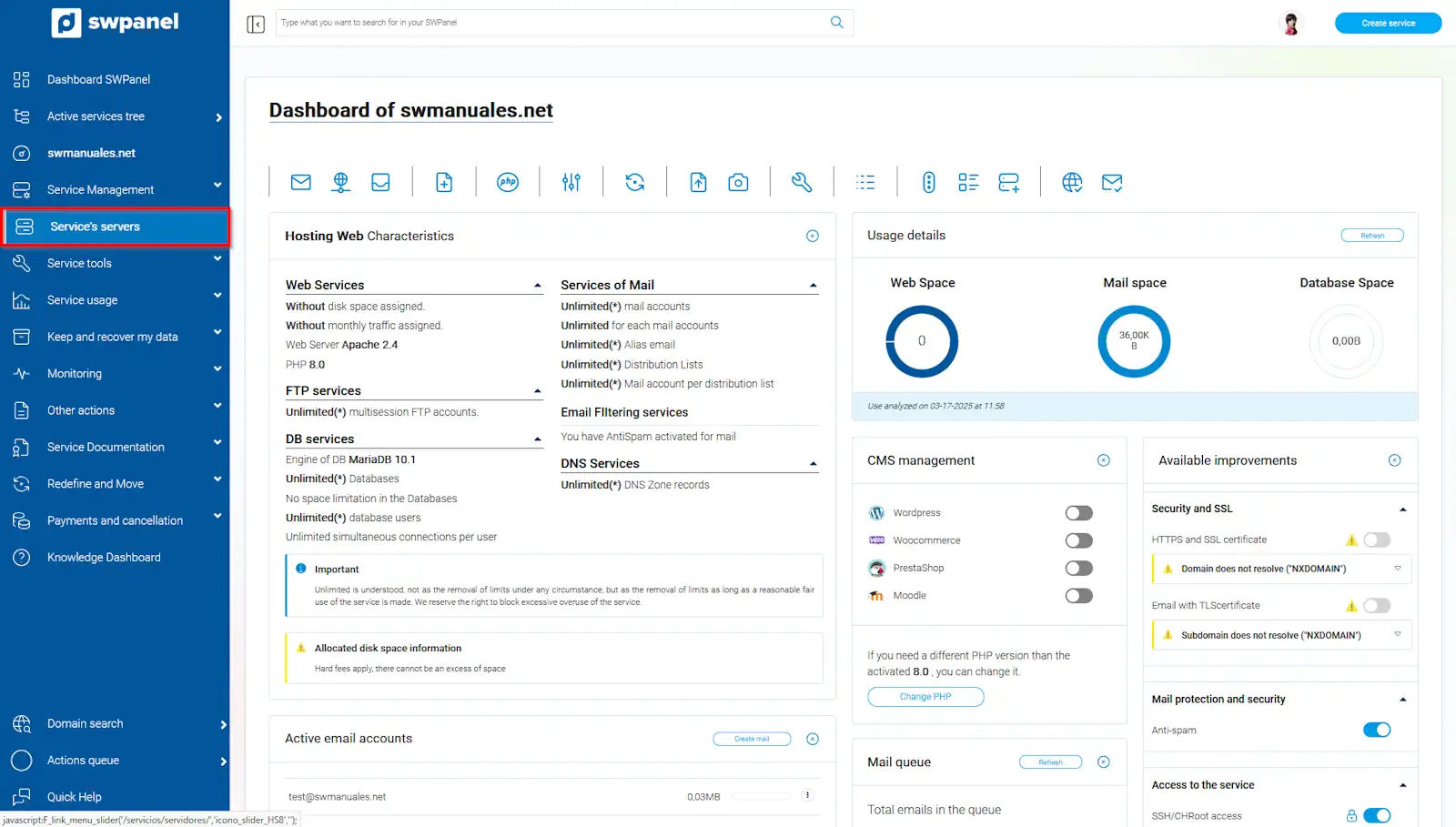
- Once inside our hosting dashboard, we will click on the blue menu on the left on the option 'Service Servers'.
info_capture The screenshot is for guidance purposes. It was taken on version 2025.03.0001 dated 19/03/2025. It may differ from what the current version of SWPanel shows.
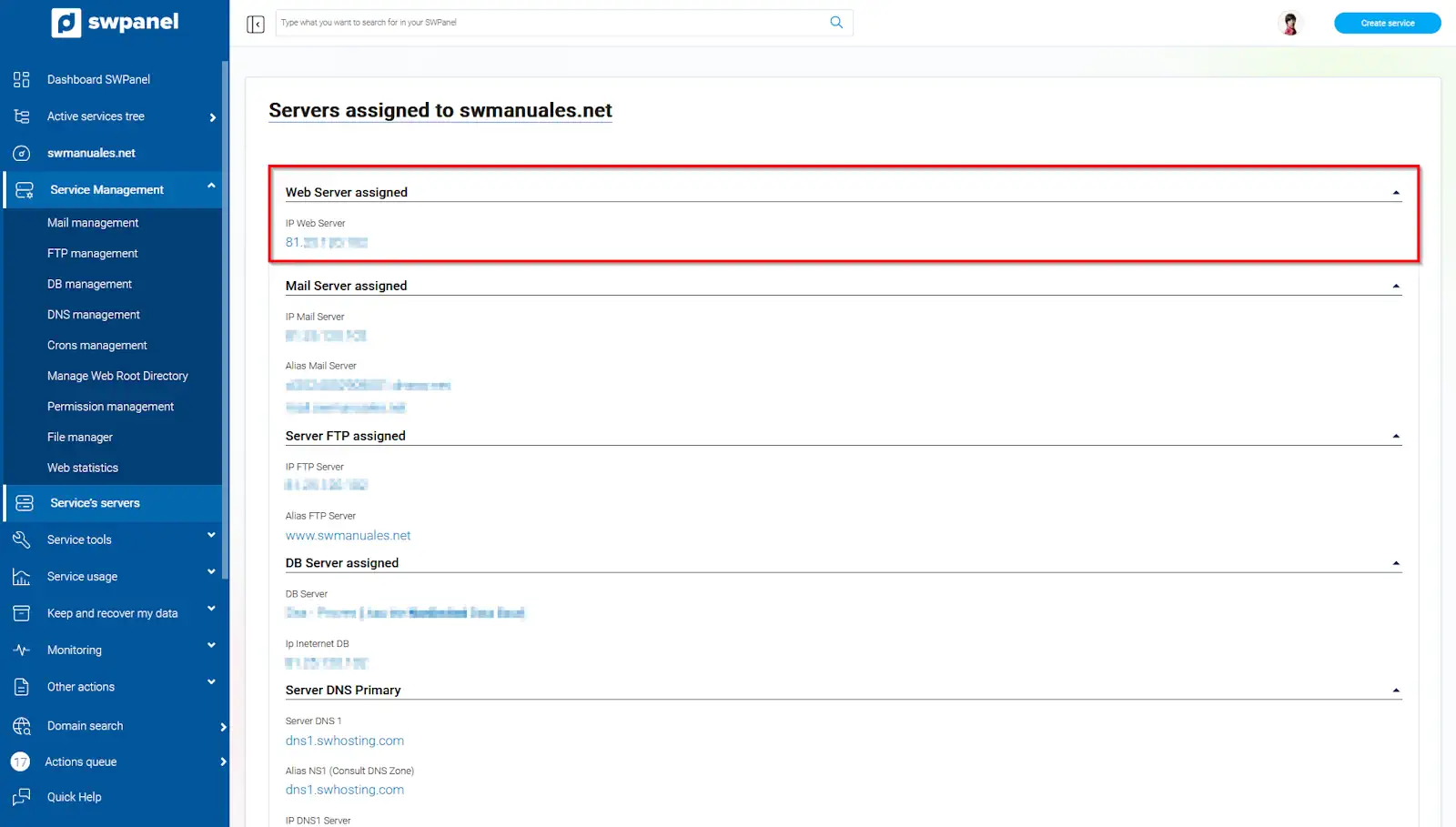
- After clicking, all the servers used by our hosting service will appear. We are interested in the IP of the Assigned Web Server.
info_capture The screenshot is for guidance purposes. It was taken on version 2025.03.0001 dated 19/03/2025. It may differ from what the current version of SWPanel shows.
Gathering data - Port
The connection port for a hosting service within a cloud that uses SWPanel for its management is 2200.
Gathering data - Method
We are trying to connect to the remote console of our hosting service which is hosted within our Cloud server; this connection is called Secure SHell (SSH), so we will verify that the selected option is SSH.
Gathering data - User and Password
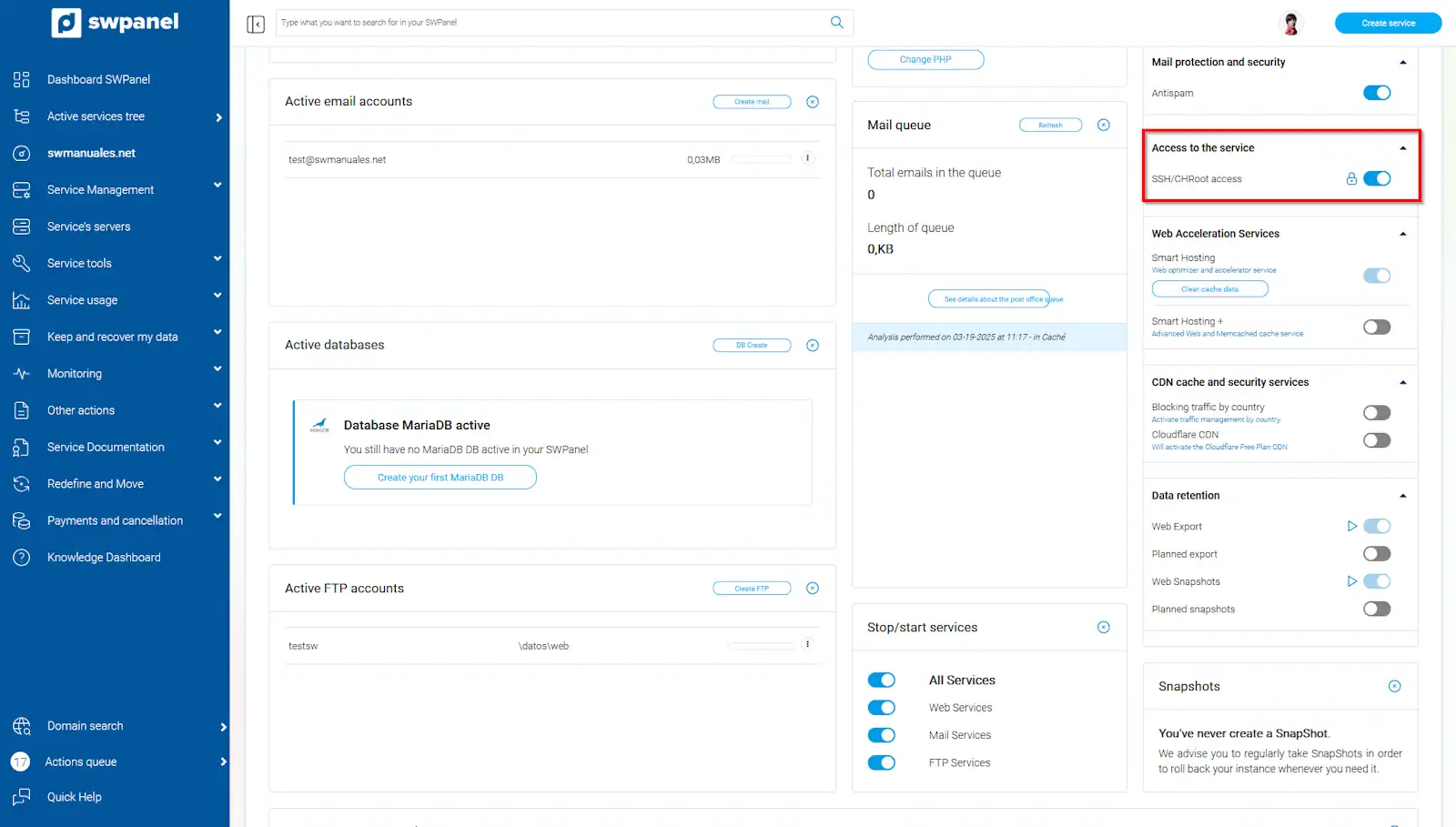
We will obtain the user and password to make the connection by activating SSH/CHRoot Access within the dashboard of our hosting service (within the available improvements).
info_capture The screenshot is for guidance purposes. It was taken on version 2025.03.0001 dated 19/03/2025. It may differ from what the current version of SWPanel shows.
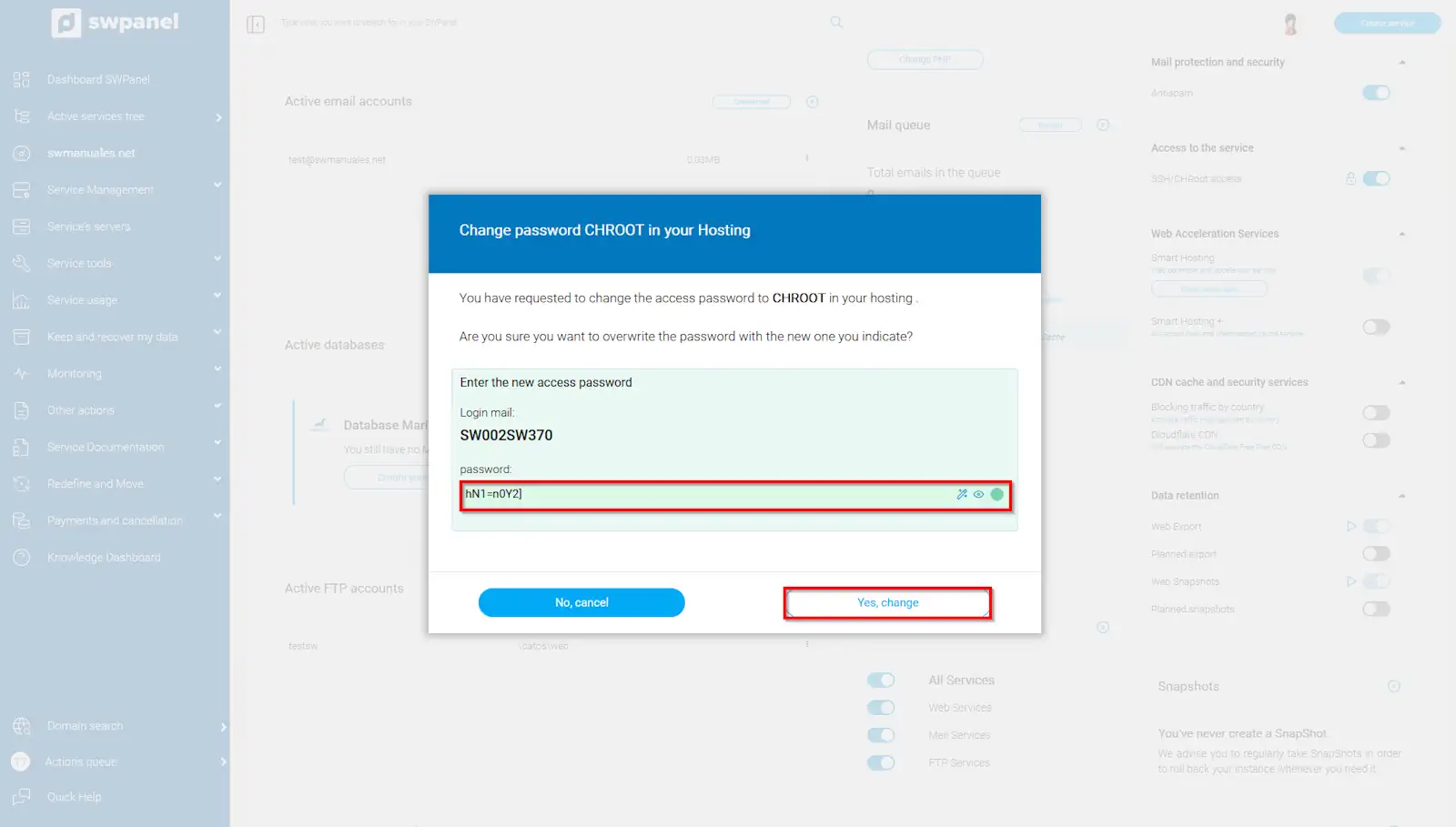
If we do not remember the password, we can click on the lock in SSH/CHRoot Access; it will show us the user and allow us to modify the password (we enter it and click on 'Yes, change').
info_capture The screenshot is for guidance purposes. It was taken on version 2025.03.0001 dated 19/03/2025. It may differ from what the current version of SWPanel shows.
Connect to our hosting service using PuTTY
To connect to our hosting service hosted within our cloud, we will use the PuTTY program.
Open the PuTTY program
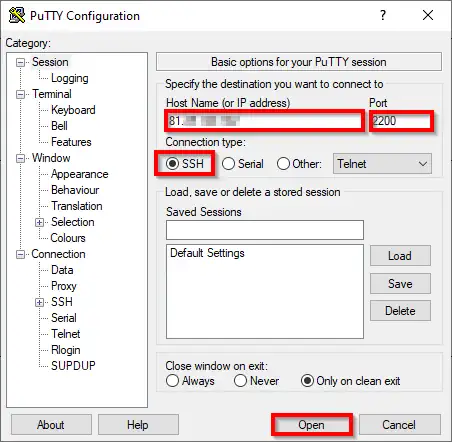
The first step is to open the PuTTY program; we will search for its icon and double-click to open it. If we do not have a shortcut, we will look for it in the computer's program list and click on it. First, we will enter the IP, ensure that the correct port is selected (2200), the correct connection method (SSH), and finally, we will click on 'Open'.
info_capture The screenshot is for guidance purposes. It was taken on version 2025.03.0001 dated 19/03/2025. It may differ from what the current version of SWPanel shows.
Connection with PuTTY
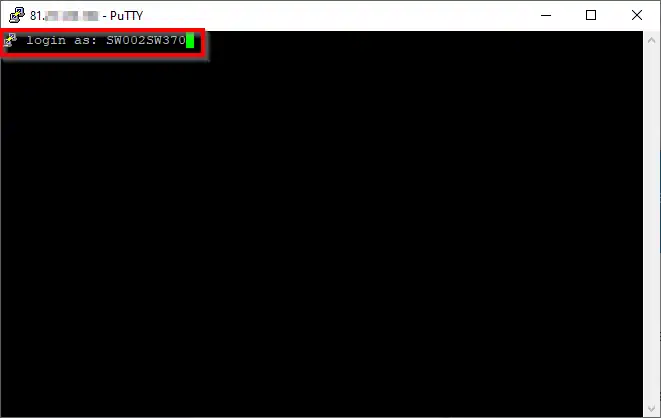
A pop-up window will appear asking us which user we want to connect with; we will enter it and press 'enter'.
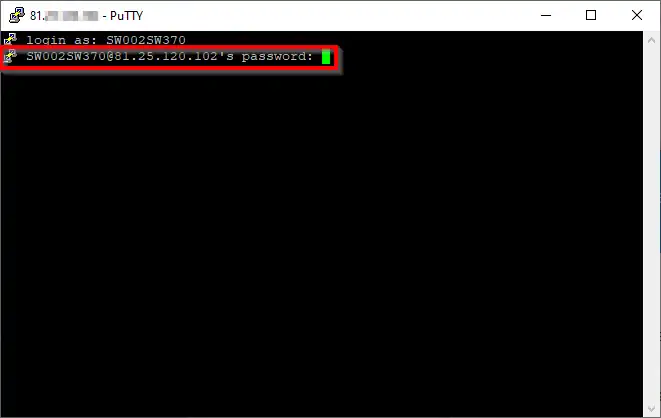
Then it will ask for the password; we will enter it (nothing will appear on the screen while entering it for security reasons) and press 'enter'.
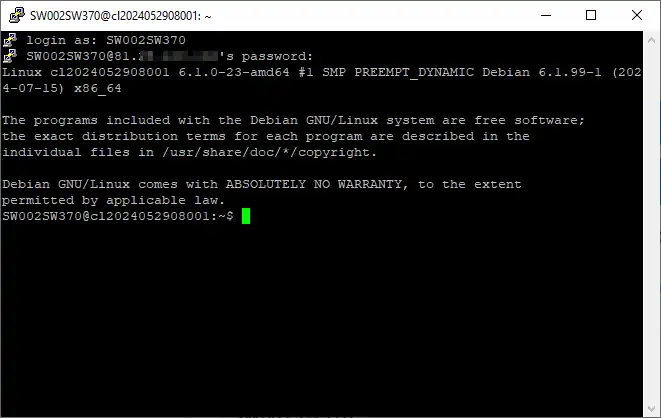 And we will now be connected to our hosting console.
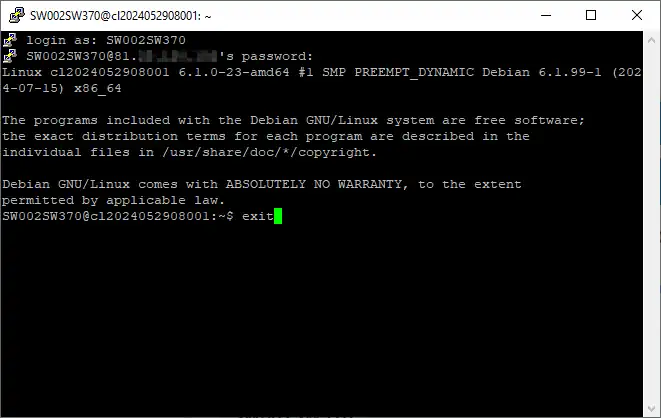
??To close the window and disconnect from the server, we enter the command 'exit' and the program will cut the connection and close automatically.??

Done! We now know how to enter the console of our hosting service with the PuTTY program.