
Dashboard of a service in SWPanel
Detailed Manual of the Service Dashboard in SWPanel
1. Introduction and manual overview
This manual is designed to offer a complete, detailed, and understandable guide on the use of the Dashboard within SWPanel, the cloud services and web hosting management platform. A Dashboard, in the computing field, is a visual tool that allows the user to quickly access key metrics and functions related to their services. In the case of SWPanel, the Dashboard plays a fundamental role in the administration of services such as Cloud servers, Hosting plans, domains, FTP accounts, among others.
What will you find in this manual?
Throughout this document, the following are explained in depth:
- The Dashboard functionalities for a Cloud server.
- The Dashboard functionalities for a Hosting service.
- The options available in each section.
- The use of each tool available from the Dashboard view.
- Important concepts to understand and take advantage of all the system functionalities.
2. Cloud service Dashboard
Access to the Cloud Dashboard
To access the Dashboard of your Cloud server, use the service search bar at the top of SWPanel. Type the server name and click on it:
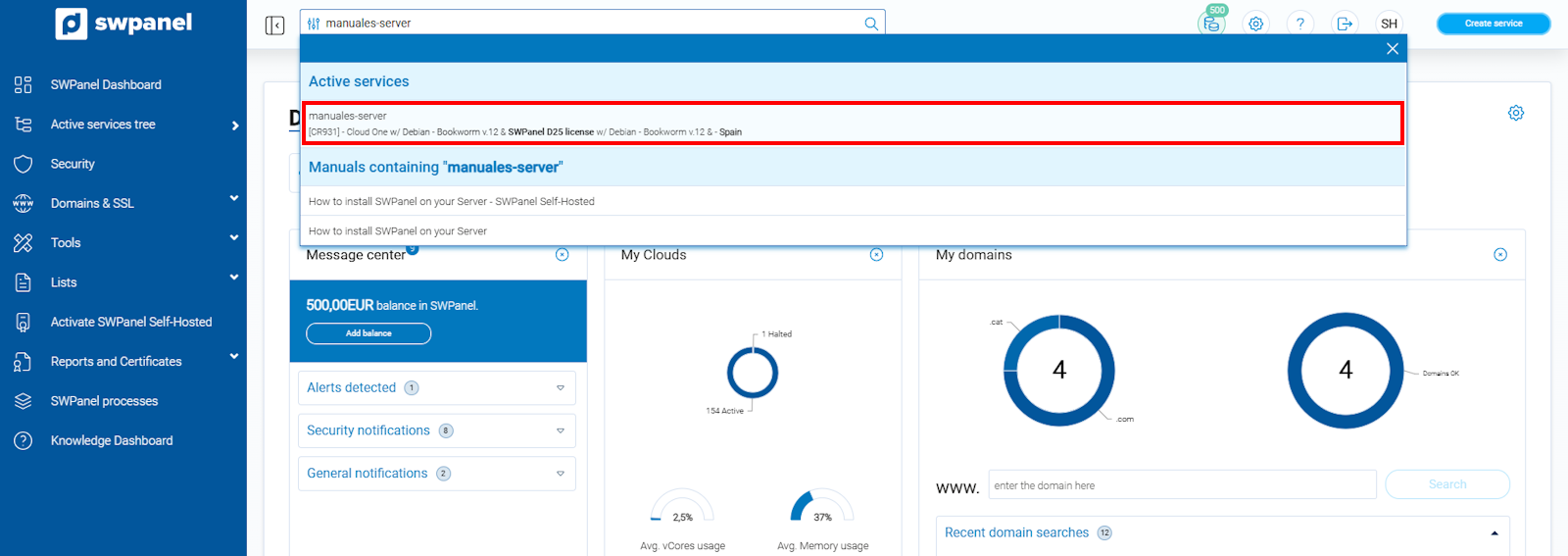
info_capture The screenshot is for guidance purposes. It was taken using version 2026.001.0057 dated 05/17/2026. It may differ from what the current version of SWPanel shows
Once inside, the Cloud server Dashboard is presented, organized into information blocks:
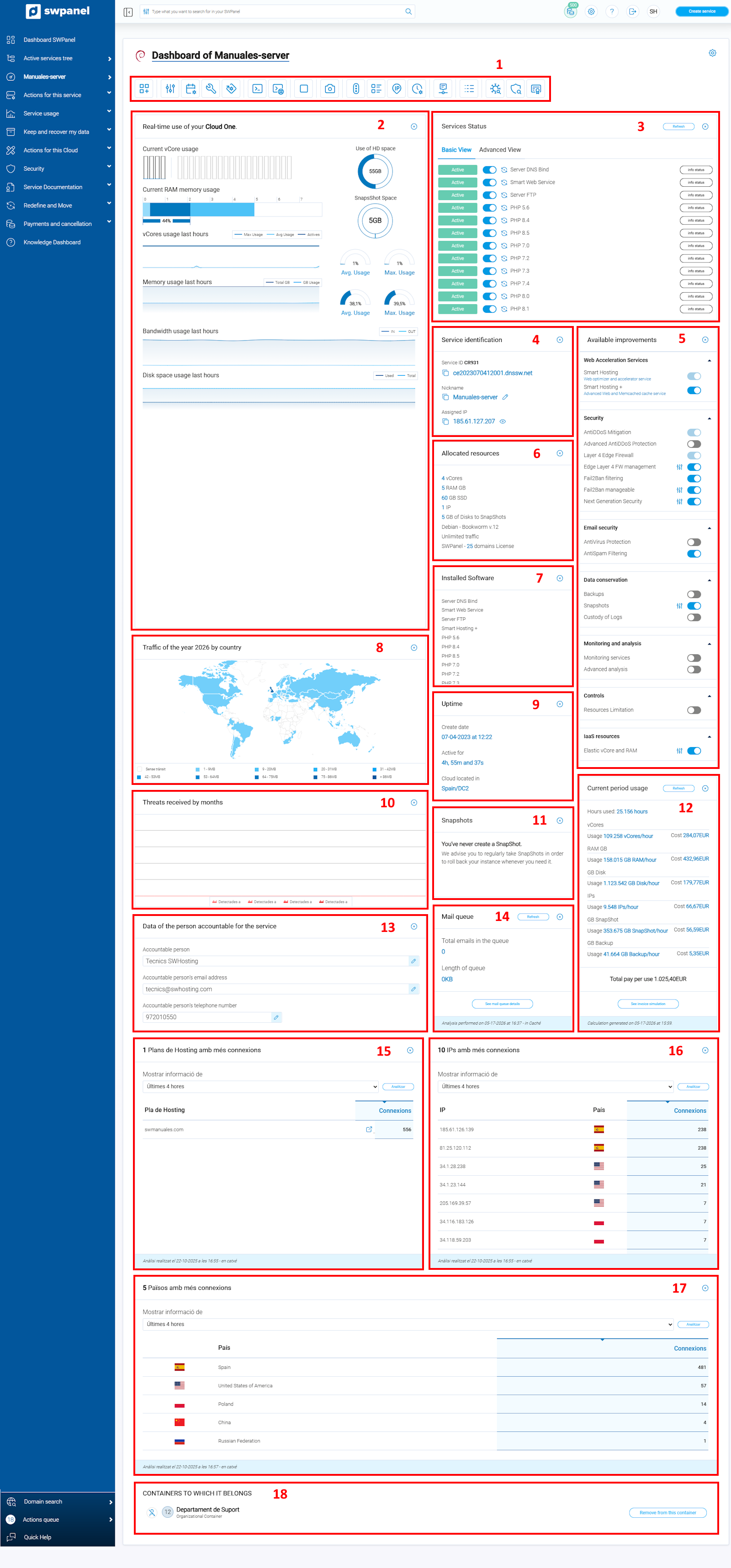
info_capture The screenshot is for guidance purposes. It was taken using version 2026.001.0057 dated 05/17/2026. It may differ from what the current version of SWPanel shows
Cloud Dashboard Blocks
1. Specific function icons and Cloud configuration
In this top block, you will find quick access icons to the main server functions:
-
Create a new service in this accumulator: This is a shortcut to create a new Web Hosting, Redirector, or Email service.
-
Customize and adjust the resources and services of this Cloud: Allows modifying all resources assigned to the Cloud (CPU, RAM, disk, etc.) and activating/deactivating available extras.
-
Create a planned scaling for this Cloud: To schedule automatic resource increases or reductions at a specific date and time.
-
Open Console: Direct access to the server's SSH console to execute commands.
-
Basic service parameter settings: General configuration of the services installed on the Cloud (ports, versions, etc.).
-
Manage Operating System, software, and installed services updates: Configure whether system and software updates will be automatic or manual.
-
Start / Stop the Cloud: Allows starting or stopping the Cloud server (with an option for normal or forced shutdown).
-
Take a Snapshot: Creates an instantaneous image of the current server state to allow subsequent restoration.
-
Backup Dashboard: Manage backups of the Cloud's hostings and directories.
-
Access the permissions manager: Manage read/write permissions for users and groups on the server.
-
Access the file manager: File explorer to manage directories and files directly from the panel.
-
Manage the IPs associated with your Cloud: Consult and manage IPs, subnet mask, DNS records, and PTR record.
-
Cron Management: Create and manage scheduled tasks (cron jobs) on the server.
-
Timeline of actions on this service: Chronological history of all actions performed on the server.
-
Log Management: View system logs (PHP, FTP, Apache/Nginx, Kernel, Syslog, etc.).
-
Activate Layer 4 FW Management: Activate or configure the server's layer 4 firewall.
-
Usage History: Shows the detailed history of Cloud resource usage.
-
On system vulnerabilities: Generates a report of vulnerabilities detected on the server.
-
Next-Generation Security Analysis: Request an advanced cybersecurity analysis of the server.
-
Issue a certificate for this service: Generates data location certificates and ISO27001 data protection certificates.
2. Real-time resource usage summary
Real-time visualization of vCores, RAM, disk space (including snapshots), and bandwidth consumption, with usage graphs from the last few hours.
3. Service status
Shows the current status of all server services (Server DNS Bind, Smart Web Service, FTP, PHP-FPM, etc.) with an option to activate or deactivate them.
4. Service identification
Basic server information:
- Service ID
- Primary domain
- Nickname
- Assigned IP
5. Available improvements
Section to activate or deactivate performance and security improvements (Web Acceleration Services, Security, Data Conservation, etc.).
6. Allocated resources
Detailed list of contracted resources: vCores, RAM, disk space, snapshots, traffic, licenses, etc.
7. Installed software
List of software and services installed on the server (PHP versions, Server DNS Bind, Smart Web Service, etc.).
8. Yearly traffic by country
World map showing the geographical distribution of traffic received by the server during the year.
9. Uptime
Time the server has been active, creation date, and datacenter location.
10. Threats received per month
Monthly graph showing threats received, handled, and unhandled.
11. Snapshots
Status of created Snapshots. The image indicates that none have been created yet.
12. Current period usage
Breakdown of consumption for the current period with estimated costs (vCores, RAM, Disk, Backup, Snapshots, etc.) and estimated total to pay.
13. Service owner details
Contact information of the accountable person: name, email, and phone.
14. Mail queue
Mail queue status: pending emails, queue length, and occupied space.
15. Hosting plans with the most connections
Ranking of the hosting plans that have received the most connections in the last 4 hours.
16. IPs with the most connections
List of origin IP addresses with the highest number of connections to the server.
17. Countries with the most connections
Ranking of countries from which the most connections have been received (Spain, United States, Poland, France, etc.).
18. Containers it belongs to
Hierarchical classification of the server within SWPanel.
3. Hosting service Dashboard
Access to the Hosting Dashboard
As with the Cloud service, search for the name of your Hosting service in the top bar of SWPanel and click on it:

info_capture The screenshot is for guidance purposes. It was taken using version 2026.001.0057 dated 05/17/2026. It may differ from what the current version of SWPanel shows
Once inside, you will access a screen with specific functionalities for the Hosting service:

info_capture The screenshot is for guidance purposes. It was taken using version 2026.001.0057 dated 05/17/2026. It may differ from what the current version of SWPanel shows
Hosting Dashboard Blocks
1. Configuration icons
In this top block, you will find quick access icons to the main Hosting functions:
-
Create Email Account: Direct access to create a new email account.
-
Create FTP Account: Direct access to create a new FTP account.
-
Create new Website: Allows creating a new Hosting plan or an additional alias/domain.
-
Show PHP Info information: Shows all detailed information of the installed PHP version.
-
Adjust the parameters and add-ons of your Hosting plan: Customize software, services, and plan configurations.
-
Restore backup of this domain: Restore backups of the web, database, or email.
-
Change the hosting plan assigned to this service: Allows switching to a higher plan or modifying assigned servers.
-
Export the Website now: Export the website via email or to an external FTP server.
-
Take a Website Snapshot now: Creates an instantaneous copy of the web content and database (does not include email or logs).
-
Basic parameter settings: Configure web server (Nginx) and PHP parameters.
-
Manage service logs: View access and error logs of the Hosting.
-
Permissions manager: Manage read/write permissions for files and folders.
-
File manager: File explorer to manage Hosting directories and files.
-
Recreate Virtual Host files: Regenerate the Virtual Host configuration files of the web server.
-
Timeline of actions on this service: Chronological history of all actions performed.
-
Check Website operation: Performs a complete diagnostic of the web page's operation.
-
Check email operation: Performs a diagnostic of the email accounts.
2. Web Hosting Features
Shows detailed technical information of the service:
- Web Services, Services of Mail, PHP versions, FTP services, DNS Services, DB services, etc.
3. Usage details
Shows current space consumption using pie charts:
- Web Space, Mail space, and DB space.
4. CMS Management
Allows activating/deactivating and managing CMS installations such as WordPress, WooCommerce, PrestaShop, Moodle, etc. It also allows changing the PHP version.
5. Available improvements
Section to activate or deactivate additional improvements:
- Security and SSL, Service access (SSH), Web Acceleration Services, CDN, Data retention, etc.
6. Active email accounts
List of active email accounts in the Hosting with an option to create new ones.
7. Assigned servers
Detailed information on the servers assigned to the service (Service ID, Web Server, FTP Server, Mail Server, DB Server, DNS Servers, etc.).
8. Active databases
List of databases created in the Hosting with their size and management options.
9. Active FTP accounts
List of FTP accounts configured in the Hosting.
10. Stop/Start services
Controls to activate or stop the different Hosting services (All Services, Web Services, Mail Services, FTP Services).
11. Snapshots
Management of Hosting Snapshots. The image indicates that none have been created yet.
12. Mail queue
Mail queue status: total emails in queue, length, and occupied space.
13. Renewal
Information on the creation date, next renewal, and automatic renewal option.
14. IPs with the most connections
Ranking of the IP addresses that have made the most connections to the Hosting in the last few hours.
15. URLs with the most connections
Ranking of the URLs/pages that are receiving the most traffic in the Hosting.
16. Countries with the most connections
Geographical distribution of visitors by country of origin.
17. Log management
Configuration of the space occupied by logs and retention policies (save or delete logs).
18. Service owner details
Contact information of the person responsible (name, email, and phone).